Já aconteceu de você receber uma ligação telefônica com informações importantes, mas se esquecer delas logo em seguida? Ou talvez alguém tenha lhe dado instruções e você não tinha como anotá-las? Nesses casos, aprender Como gravar uma chamada telefônica no Android É de grande ajuda.
Este guia foi criado para te ajudar a aprender como. Seja você usuário de um Samsung, Google Pixel, Xiaomi, OnePlus ou qualquer outro celular Android, os métodos abaixo são para você. Dedique um tempo e siga cada etapa.
- Pré-requisito: Considerações legais antes de começar a gravar.
- Método 1: Use o gravador de chamadas integrado do seu telefone
- Método 2: Como gravar uma chamada telefônica no Android sem um aplicativo
- Método 3: Gravar chamadas automaticamente sem qualquer anúncio
- Onde encontrar gravações de chamadas no Android
- Como desativar a gravação de chamadas no Android
Pré-requisito: Considerações legais antes de começar a gravar.
Antes de gravar uma chamada telefônica no Android, você precisa conhecer as regras legais básicas. Essas regras são importantes, pois ajudam a evitar problemas e a respeitar a privacidade. Em muitos lugares, gravar uma chamada sem permissão é proibido.
Certifique-se sempre de que a outra pessoa saiba que você está gravando. Alguns celulares já emitem um som ou bipe de aviso quando a gravação começa. Mesmo assim, é sempre melhor pedir permissão primeiro. As leis variam de pessoa para pessoa. Portanto, verifique as normas da sua região antes de começar a gravar.
Método 1: Use o gravador de chamadas integrado do seu telefone
Um gravador de chamadas integrado é um recurso comum em celulares Android. É o método mais simples de gravar chamadas. Não é necessário instalar nenhum aplicativo adicional. Basta alguns toques para começar a gravar se o seu celular tiver esse recurso.
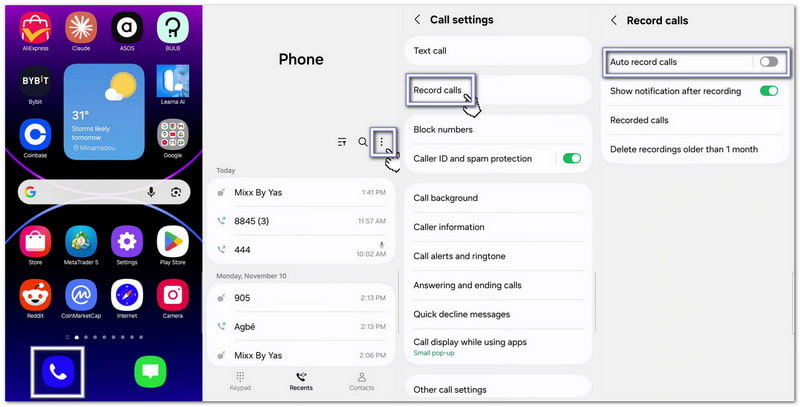
1. Como gravar uma chamada telefônica em um Samsung (One UI)
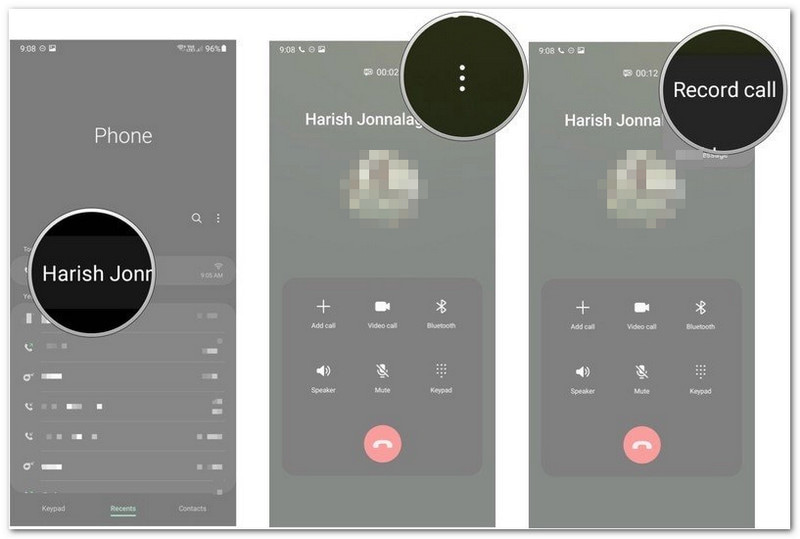
Os celulares Samsung vêm com um gravador de chamadas integrado ao aplicativo Telefone, o que é útil se você estiver aprendendo como gravar uma chamada telefônica em um Samsung.
- Abra o Telefone Aplicativo. Faça ou atenda uma chamada.
- Assim que a chamada for conectada, toque em Gravar chamada.
- Para gravar todas as chamadas automaticamente, toque em menu de três pontos e escolha Configurações.
- Selecionar Gravar chamadas.
- Ligar Gravação automática de chamadas.
Detalhes adicionais:Você também pode gravação de tela no Samsung, que captura tanto as atividades da sua tela quanto o áudio, o que é adequado para videochamadas.
2. Como gravar uma chamada telefônica em um Google Pixel
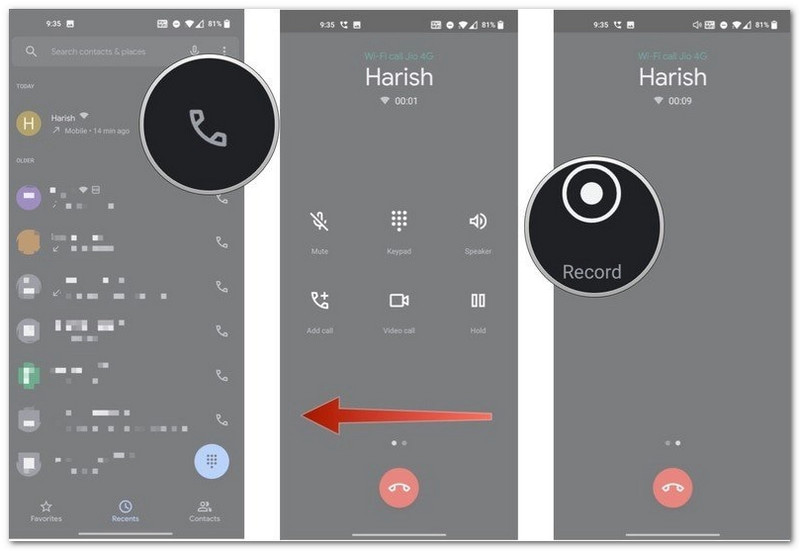
Os telefones Google Pixel usam o aplicativo Telefone do Google. A gravação de chamadas pode não estar disponível em todos os países ou operadoras.
- Abra o Telefone Aplicativo durante uma chamada. Deslize para a esquerda para ver mais opções de chamada.
- Toque Registro.
- Para gravar automaticamente chamadas de números desconhecidos, abra Configurações do telefone > Gravação de chamada.
- Ligar Sempre grave.
- Toque Pare Quando você quiser encerrar a gravação.
- O Google Phone reproduzirá uma mensagem para informar ambas as pessoas que a chamada está sendo gravada.
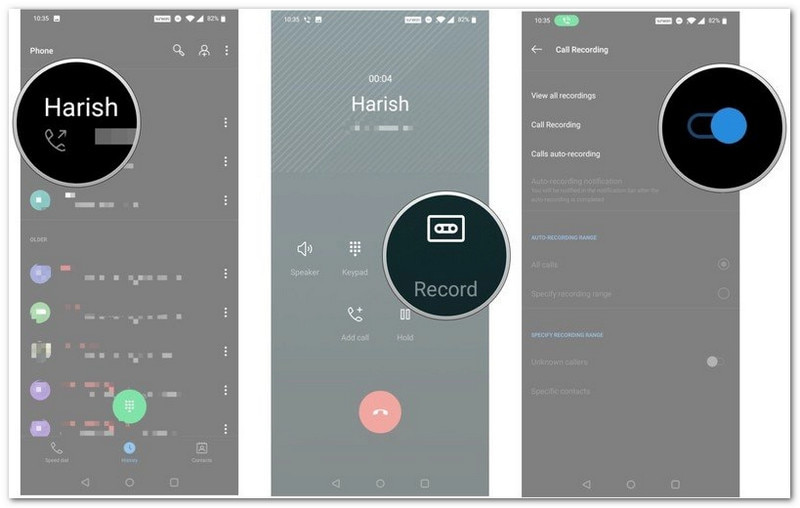
3. Outras marcas de Android (Xiaomi, OnePlus, nenhuma, etc.)
Muitas marcas de Android usam seu próprio aplicativo Telefone. Os passos geralmente são semelhantes.
- Faça ou receba uma chamada. Aguarde até que a chamada seja conectada.
- Deslize ou role a tela para navegar pelas opções de chamada.
- Toque Registro.
- Toque Iniciar gravação se uma mensagem aparecer.
- Toque Pare uma vez terminado.
Método 2: Como gravar uma chamada telefônica no Android sem um aplicativo
Se o seu telefone não tiver um gravador integrado, você ainda pode aprender como gravar uma chamada no Android sem um aplicativo e salvar a conversa. Esses métodos não exigem um aplicativo específico para gravação de chamadas.
1. Use o gravador integrado do aplicativo Telefone do Google (se disponível)
Alguns telefones Android suportam a gravação através do aplicativo Telefone do Google.
- Fazer ou atender uma chamada.
- Toque Registro na tela de chamada.
- Toque Pare quando a chamada terminar.
A gravação será salva no seu histórico de chamadas.
- Ambas as pessoas ouvirão um anúncio gravado antes do início da gravação.
2. Use um segundo dispositivo para gravar chamadas em viva-voz.
É um dos métodos mais simples.
- Ligar Viva-voz durante a chamada.
- Coloque outro telefone, tablet ou computador por perto.
- Utilize o segundo dispositivo para gravar a conversa.
Se você estiver usando um computador Windows ou Mac, Gravador de tela AVAide É uma boa opção. Possui um gravador de áudio integrado que pode gravar chamadas telefônicas no Android com som nítido.

DOWNLOAD GRATUITO Para Windows 7 ou posterior
 Download seguro
DOWNLOAD GRATUITO Para Mac OS X 10.13 ou posterior
Download seguroA gravação da sua chamada telefônica é salva diretamente no seu computador para facilitar o acesso. Não importa se a chamada for longa, o programa consegue lidar com ela. Se houver partes desnecessárias no início ou no fim, você pode usar a função de corte para removê-las e manter apenas a seção que precisa.
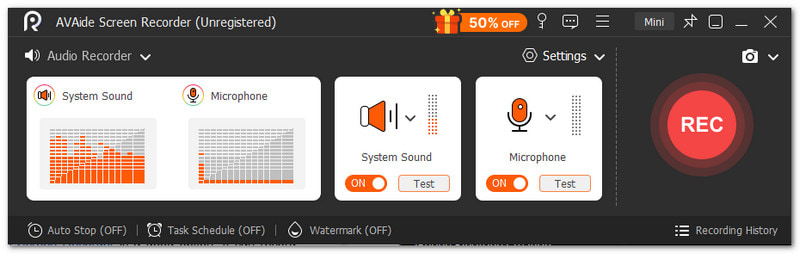
Outras coisas importantes que você pode esperar:
- Gravar vídeoáudio e webcam juntos.
- Captura telas de celulares com áudio de alta definição.
- Permite pré-visualização instantânea após a gravação, com a opção de regravar.
- Suporta diversos formatos de mídia, como MP4, WMV, AVI, GIF, MP3 e muitos outros.
3. Utilize uma ponte de conferência
Esse método funciona bem para chamadas importantes.
- Participe de uma reunião pelo Zoom ou Google Meet no seu celular Android.
- Participe da mesma reunião pelo seu computador.
- Inicie a conversa telefônica.
- Clique Registro no seu computador.
O áudio será salvo diretamente no seu computador para facilitar o acesso posterior.
Método 3: Gravar chamadas automaticamente sem qualquer anúncio
Alguns telefones oferecem opções extras para gravar chamadas de voz em um celular Android. Essas configurações podem reduzir o trabalho manual e facilitar a gravação. Lembre-se de que os recursos disponíveis dependem do modelo, da operadora e da localização do seu telefone.
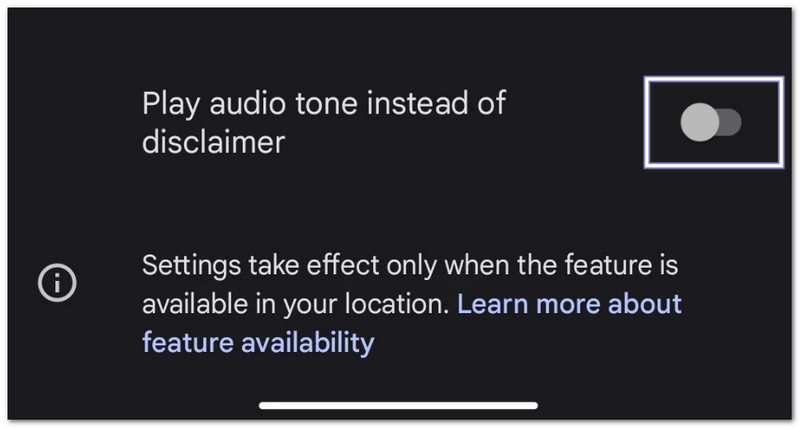
1. Substitua o anúncio por um bipe (configuração nativa em algumas marcas)
Alguns telefones Android permitem usar um bipe curto em vez de um anúncio de voz.
- Abra o Telefone aplicativo.
- Toque em menu de três pontos ou Configurações botão.
- Selecionar Gravação de chamada.
- Ligar Reproduza um tom de áudio em vez do aviso legal..
- Se você não encontrar essa opção, seu telefone ou região pode não ser compatível com ela.
2. Configure a gravação de chamadas totalmente automática (sem intervenção manual)
Seu telefone tem a opção de gravar chamadas automaticamente.
- Acesse as configurações do telefone.
- Toque Gravação de chamadas.
- Ligar Gravar chamadas automaticamente.
- Escolher Todas as chamadas ou números selecionados.
Uma vez ativadas, as gravações começarão automaticamente com base nas suas configurações.
3. Aplicativos de terceiros com recursos ocultos
Se o seu telefone não oferece opções de gravação suficientes, alguns aplicativos de terceiros podem ajudar.
- Cubo ACR - Grava chamadas telefônicas comuns e algumas chamadas pela internet.
- Gravador Automático de Chamadas Pro - Suporta gravação automática e controles de gravação adicionais.
Importante: As restrições do Android podem limitar o funcionamento desses aplicativos. Alguns telefones podem exigir permissões adicionais. A qualidade da gravação também pode variar de acordo com o dispositivo.
Onde encontrar gravações de chamadas no Android
Após gravar uma chamada, você pode se perguntar onde encontrar as gravações no Android. A localização depende da marca do seu telefone e do aplicativo Telefone.
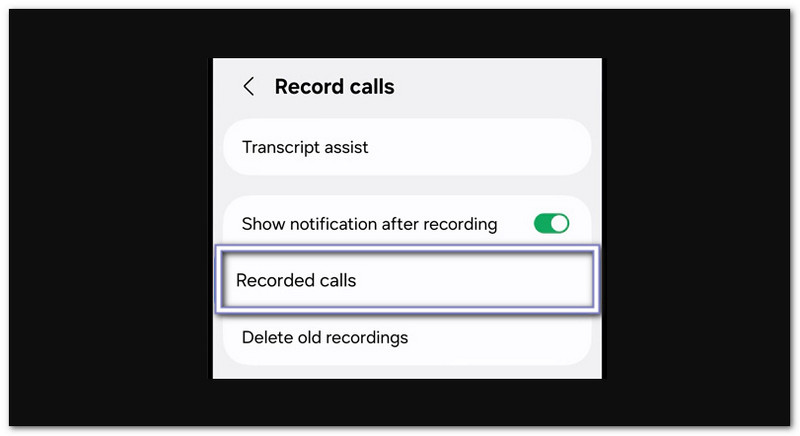
Em dispositivos Samsung (One UI)
A gravação de chamadas da Samsung está integrada ao aplicativo Telefone.
- Abra o Telefone aplicativo.
- Toque em menu de três pontos.
- Selecionar Configurações.
- Toque Gravar chamadas.
- Aberto chamadas gravadas.
No aplicativo Telefone do Google (Pixel e outros telefones com discador do Google)
O Google Phone armazena gravações no seu histórico de chamadas.
- Abra o Telefone aplicativo.
- Toque Recentes.
- Selecione a chamada gravada.
- Toque História ou o Toque botão.
No Xiaomi / MIUI / HyperOS
Você pode encontrar as gravações em dois locais.
Opção 1:
- Abra o Telefone aplicativo.
- Vamos para Recentes.
- Toque em Flecha ou Detalhes botão ao lado da chamada.
Opção 2:
- Aberto Gerenciador de arquivos.
- Vamos para Armazenar > MIUI > gravador_de_som > chamada_rec.
Em outras marcas (localização geral)
A maioria dos telefones Android salva as gravações no Gerenciador de Arquivos.
- Aberto Gerenciador de arquivos.
- Verifique pastas como Áudio, Ligar, ou Gravações de chamadas.
- Você também pode pesquisar por Registro de chamada.
Se não conseguir encontrar os arquivos, verifique Configurações do telefone > Gravação de chamadas para salvar o local.
Como desativar a gravação de chamadas no Android
Se você também deseja aprender como desativar a gravação de chamadas no Android, pode seguir as instruções abaixo.
- Abra o Telefone ou Discador aplicativo.
- Toque em menu de três pontos.
- Selecionar Configurações.
- Toque Gravação de chamada ou Gravação automática de chamadas.
- Ative a função Desligado.
Depois disso, seu telefone deixará de gravar chamadas automaticamente. As gravações existentes permanecerão salvas, a menos que você as exclua manualmente.
Esta postagem responde à pergunta: "É possível gravar chamadas telefônicas em um Android?E a resposta é sim. Não importa qual dispositivo você use, sempre há uma maneira de gravar sua chamada. Mesmo em um computador, você ainda pode salvar sua conversa. Uma ferramenta simples que você pode usar é Gravador de tela AVAideÉ ideal para gravações longas e oferece recursos vantajosos para gravação de áudio.
SOBRE O AUTOR

Capture atividades na tela com áudio, reuniões online, vídeos de jogos, música, webcam, etc.