Stable Diffusion lets you create amazing digital art with AI, but sometimes the images are too small or lack detail. The default size is only 512×512, which is not enough for social media posts, prints, or big-screen presentations.
A Stable Diffusion Upscaler can help. These tools enlarge images, improve clarity, and make details sharper. In this guide, you will learn about top upscalers, their features, strengths, and weaknesses, plus an easier alternative for quick and simple results.
Part 1: Why Should You Use a Stable Diffusion Upscaler
Image size is not everything. Image clarity also matters. A Stable Diffusion Upscaler helps you enlarge an image while keeping it clean and sharp.
So, why is it worth using?
It is because common tools only stretch pixels. It only causes blur and weak details. A Stable Diffusion Upscaler uses AI. It studies the image first. It then rebuilds missing parts. The result looks clearer and more real. It is why many creators use it for AI art and photos.
Comparison: Common Enlargement vs. Stable Diffusion Upscaler
| Feature | Common Image Enlargement | Stable Diffusion Upscaler |
| How it works | Stretches pixels | Rebuilds details |
| Image sharpness | Gets blurry | Stays Clear |
| Detail quality | Lost | Improved |
| Edge lines | Rough | Smooth |
| Best for | Fast resize | High-quality images |
If you only want to make the image bigger, basic tools are fine. If you want better quality, a Stable Diffusion Upscaler is the right choice.
Part 2: How To Use Stable Diffusion Upscaler
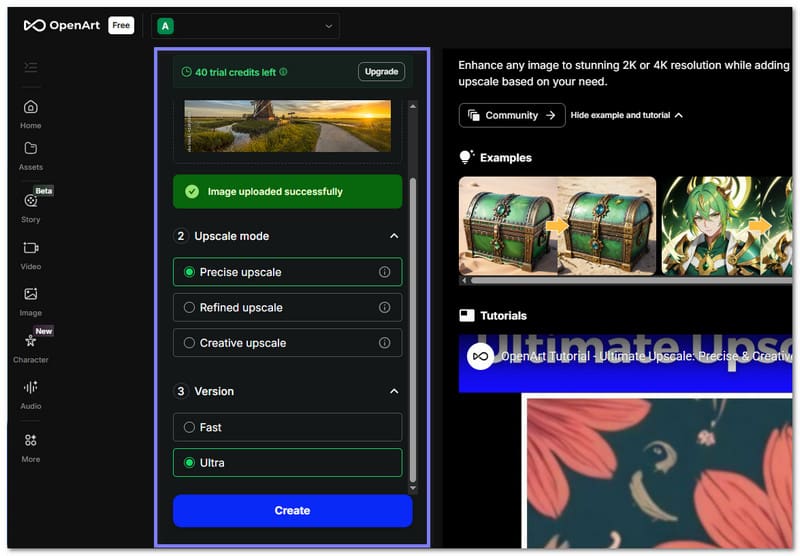
In this part, we will show you how to use a Stable Diffusion Upscaler with the help of OpenArt. It is easy to use and offers a beginner-friendly design, and your files stay private and secure. With just a few clicks, you can transform your images and enjoy better clarity.
Step 1Go to OpenArt - The Best Free Stable Diffusion Upscaler official website.
Step 2Drag and drop your image into the importing box. Please use a clear image for best results.
Step 3Now, select an upscaling mode. Choose Precise upscale for clean and accurate results. Pick Creative upscale if you want the AI to add new details.
Step 4After that, choose the output size. Then, select 2K for quick improvement. Choose 4K for higher detail and sharper output.
Step 5As for the last step, click Create, and please wait a moment. The AI will process your image. Once done, view and download your improved image.
Part 3: Top 3 Stable Diffusion Upscalers for Your Reference
1. ESRGAN
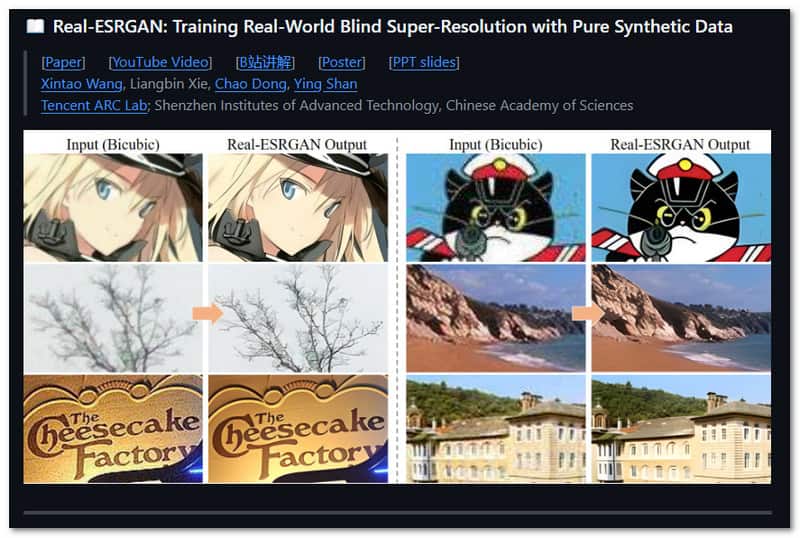
As one of the best Anime Upscaler Stable Diffusion tools, ESRGAN works especially well for anime frames, digital art, and illustrations. It uses deep learning to recover fine textures, edges, and natural details while enlarging the image. It is often used by many artists after initial upscaling to refine the size and details. It ensures enlarged images remain natural, detailed, and visually appealing without losing clarity or texture.
Key Features:
- Keeps edges sharp and clear.
- Reduces blur and smoothing.
- Restores hair, fabric, and surface textures.
- Enhances realism over pixel-perfect accuracy.
Ideal Use Cases: Use ESRGAN for digital art, portraits, anime, and scanned images that need realistic texture recovery and sharp details.
- Strengths
- Sharp and natural edges.
- Good for texture restoration.
- Fast and widely supported.
- Weaknesses
- Can over-sharpen smooth areas.
- May create small artifacts.
- Less effective on very low-quality images.
2. SUPIR
SUPIR is a next-generation Stable Diffusion Upscaler that restores and enlarges images at the same time. As a powerful, Stable Diffusion Upscale model, it understands textures, faces, and shapes, so it works well on old, noisy, or compressed images.
Although it uses a lot of system memory and runs slower than other upscalers, the results are highly detailed and photorealistic. It makes it perfect for restoration or high-end creative projects.
Key Features:
- Supports guided enhancement.
- Maintains shapes and geometry.
- Rebuilds textures, faces, and complex surfaces.
- Fix blurry pictures, as well as noisy and damaged ones.
Ideal Use Cases: Use SUPIR for old photos, portraits, or low-quality images that need both restoration and detailed upscaling.
- Strengths
- Produces photorealistic details.
- Excellent for skin, hair, and fabric.
- Keeps structure and proportions accurate.
- Weaknesses
- Slow processing speed.
- Not suitable for batch work.
- High VRAM or system memory needed.
3. LDSR
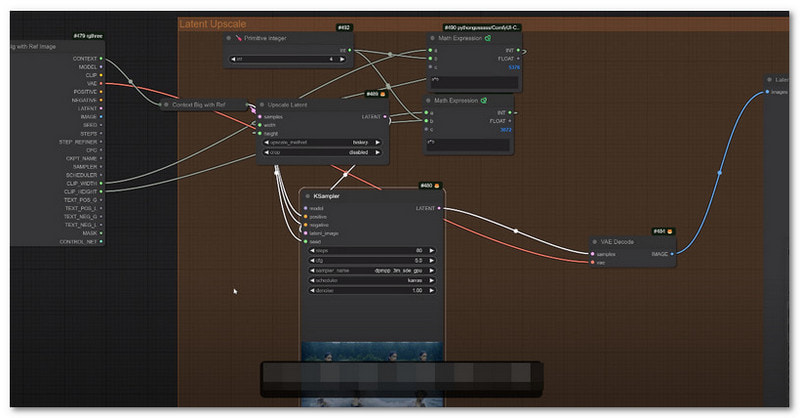
LDSR, or Latent Diffusion Super Resolution, is one of the best AI upscaler Stable Diffusion tools that focuses on precise image enhancement. It learns image features and uses them to fill in missing details, producing sharp and high-quality results.
Advanced users can achieve superior, enlarged and detailed images that most other upscalers cannot match. However, it works only as a script or inside a web UI. Beginners may find it challenging because of the technical steps. Plus, it requires significant computing power.
Key Features:
- Produces high-resolution results.
- Enhances sharpness and clarity.
- Works as a script or web UI tool.
- Learns image features to add missing details.
Ideal Use Cases: Use LDSR for high-quality photo enhancement where precise details and sharpness are important, especially for users comfortable with scripts or advanced tools.
- Strengths
- Maintains original image details.
- Produces clean, high-quality outputs.
- Delivers better results than many upscalers.
- Weaknesses
- Very slow processing.
- Hard for beginners to use.
- Requires high computing power.
Part 4: Easier Alternative to Stable Diffusion Upscaler
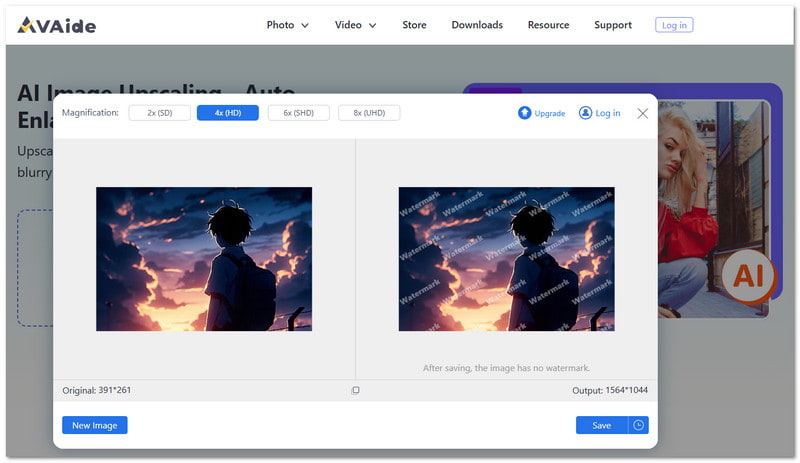
Using Stable Diffusion Upscalers can be complicated, but AVAide Image Upscaler makes it easy. It is simple to use with clear buttons, so you will not get confused while using it. It can help you upscale your images, increase photo resolution, and clear blurry photos speedily.
Impressively, it lets you enlarge small photos by 2×, 4×, 6×, or even 8× for crisp, clear results. Pixelated or damaged images reveal more details. It is free and works online, so you can upscale your photos anytime without installing anything.
Key Features:
- Images can be easily enlarged up to 8× with a single click.
- Upload multiple photos at the same time for faster processing.
- Obtain watermark-free results so you can utilize your improved photos without restriction.
- Automatically remove noise, enhance details, and sharpen blurry images for better clarity.
Ideal Use Cases: This Stable Diffusion upscaling works best with photos of people, products, cars, animals, or other objects. It makes them clearer, sharper, and full of natural details.
- Strengths
- Safe and keeps your photos private.
- Completely free to use an AI image upscaler.
- AI enhances photos automatically with no experience needed.
- Weaknesses
- Enlarging images by 6× or 8× requires a paid plan.
Conclusion Which do you think is the best Stable Diffusion Upscaler for you? We want to know your opinion! If you are still undecided, you can try the easier alternative, AVAide Image Upscaler. You can enlarge images, increase photo resolution, and restore blurry details. On top of that, it is free to use and works online so that you can access it anywhere.

Our AI technology will automatically enhance the quality of your images, remove noise and fix blurry images online.
PROCESS NOW