Key Takeaways
- Snap still in Memories: Edit the Snap right in Snapchat and delete the editable caption layer.
- Saved photo: Use AVAide Watermark Remover for quick removal online, Photoshop for manual refinement on desktop, or Snapseed on a phone.
- Saved video: Try WatermarkRemover.io's video watermark remover.
Imagine you took the perfect Snap, added a lovely caption, and saved it to your Photos. Later you look at it and think, "I don't like the text," but the caption is stuck there. Snapchat bakes the text into the image or video once you save it, so there is no simple delete button.
Good news: you still have solutions. This guide covers the methods that work in 2026 to remove a Snapchat caption, for both photos and videos.
- Part 1. Delete Caption from a Snap Saved in Memories (In-App)
- Part 2. Remove Snapchat Caption from Photo Using an Online AI Tool
- Part 3. Remove Caption from Snapchat Image Using Photoshop
- Part 4. Snapchat Photo Caption Remover – Mobile App
- Part 5. Remove Caption from Snapchat Video Using AI
- Part 6. FAQs about Removing Snapchat Captions
Part 1. Delete Caption from a Snap Saved in Memories (In-App)
Before you save Snaps to your device, the caption likely stays as a movable layer in Snapchat Memories, and Snapchat lets you edit it there. You can remove it right there without leaving Snapchat.
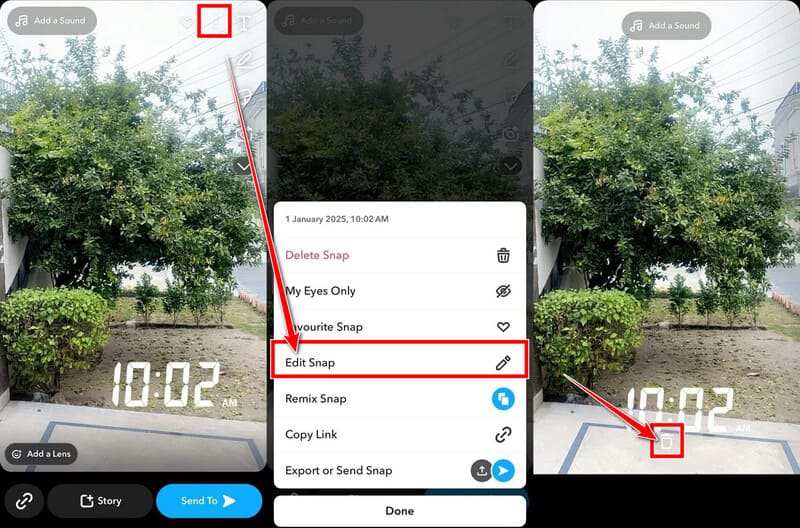
Step 1Open Memories
Launch Snapchat and swipe up from the camera screen. That opens Memories. Find the Snap with the caption you want gone.
Step 2Enter edit mode
Tap the Snap to open it, then look for the three-dot menu in the top right and choose Edit Snap. Some versions show a pencil button. Once in the editor, the original caption may appear as a text box you can tap.
Step 3Remove or change the text
Tap the caption. If a keyboard appears, delete every character. You can also drag the text off the screen or toward a trash button if one shows up.
Step 4Save the result
When finished, save the changes. Choose Save as Copy so the original stays safe.
But if the caption doesn't respond, it means the text is already part of the image file. In this case, export the Snap to your camera roll at the highest quality and use one of the tools below.
Part 2. Remove Snapchat Caption from Photo Using an Online AI Tool
Online AI removers are the fastest way for most cases. You only need to upload the photo, mark the caption, and the AI fills in the background with natural detail. No software installation needed. One of them is AVAide Watermark Remover. It can remove text, logos, timestamps, and pretty much anything from a JPG/PNG/GIF.
Step 1Open the site and upload
Go to the AVAide Watermark Remover page in any browser. Click the Add Your Image button or drag your saved Snapchat photo onto the page.
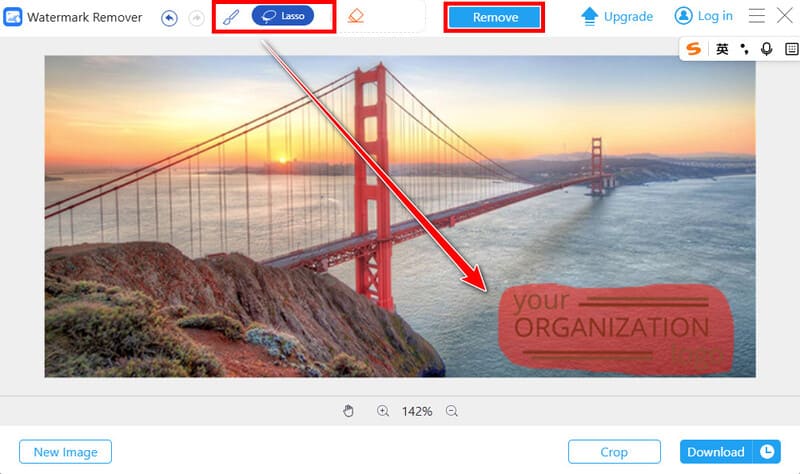
Step 2Mark the caption
Use the brush or lasso tool to select the entire caption. Include the semi-transparent bar behind the words if there is one, because missing that bar often leaves a faint rectangle.
Step 3Run the removal
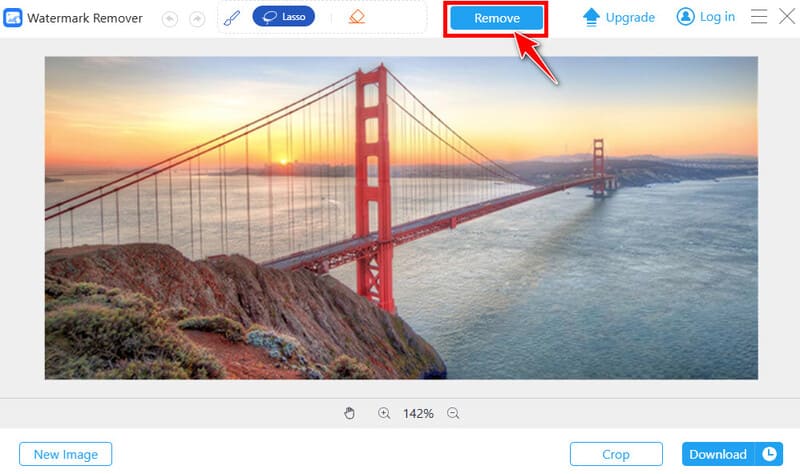
Click the Remove button. Then the AI rebuilds the background from nearby pixels.
Step 4Download the result
Preview the result. If it looks good, save the clean image by clicking the Download button at the bottom right.
Part 3. Remove Caption from Snapchat Image Using Photoshop
If you already use Adobe Photoshop or need the cleanest results with flexibility, Content-Aware Fill is the way to go. It samples the surrounding area and rebuilds the missing part accurately.
Step 1Open the photo and duplicate the layer
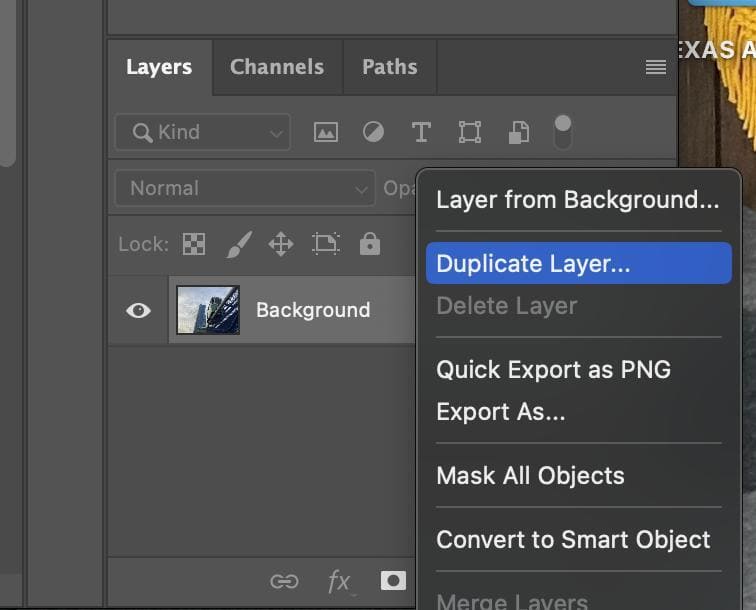
Import the Snapchat image. Right-click the Background layer and choose Duplicate Layer. Work on the copy so you can always go back.
Step 2Select the caption
Grab the Lasso Tool or Object Selection Tool. Draw around the text and the dark bar (if any) under it; you don't need perfect edges.
Step 3Apply Content-Aware Fill
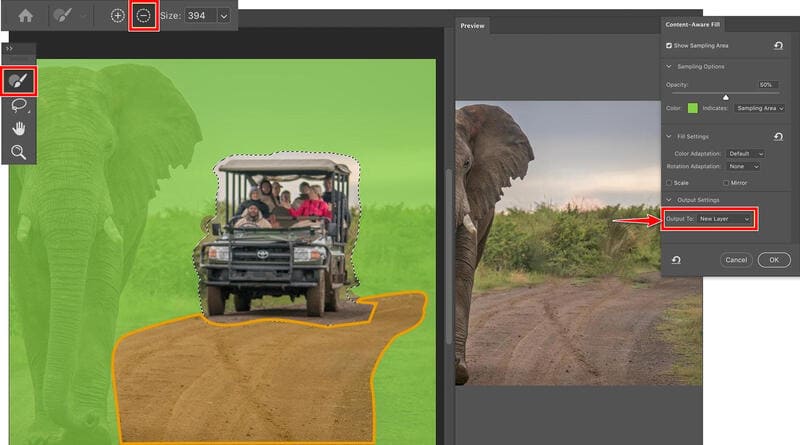
Right-click the selected area and choose Edit > Content-Aware Fill. Check the preview in the workspace, and use the Sampling Brush if you need to exclude or include certain areas. When the fill looks natural, set Output to New Layer and click OK.
Part 4. Snapchat Photo Caption Remover – Mobile App
Prefer to stay on your phone? Snapseed is free on both iOS and Android and includes a Healing tool. It works well for captions on fairly clean backgrounds.
Step 1Open the photo in Snapseed
Install Snapseed if you don't have it. Tap the plus or open button and select the Snapchat photo from your gallery.
Step 2Use the Healing tool
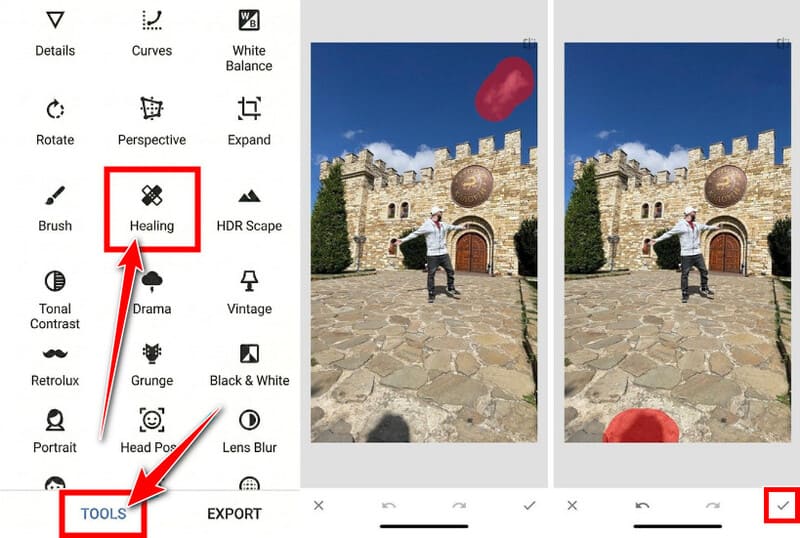
Tap Tools at the bottom, then choose Healing. Pinch to zoom in close on the caption. Use short strokes or taps to cover the letters and the background bar. Work in small pieces rather than one long swipe, so the selection stays subtle. The app fills each section as you go.
Step 3Check and export
Zoom out and look for leftover smudges. When you are happy, tap the checkmark, then Export and save a copy to your gallery.
Part 5. Remove Caption from Snapchat Video Using AI
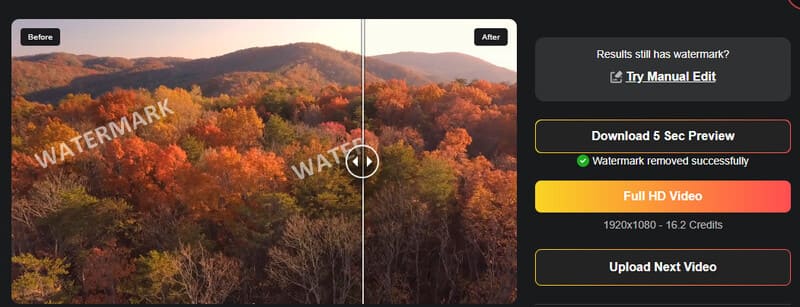
Videos are trickier because the text stays across many frames. While cropping the Snapchat video can cut the caption, it also loses part of the picture. To wipe it clean, use AI video tools like WatermarkRemover.io to track the area and rebuild each frame.
Step 1Upload the video
Go to watermarkremover.io in your browser and choose the Video Watermark Remover tool at the top. Upload a Snapchat video that matches the upload limits (up to 1920px and 2 minutes).
Step 2Process and download
The tool detects the caption automatically, so you don't have to manually select it. Just click Full HD Video to start the removal and get a full result. You can also spend fewer credits to get a 5-second preview before getting the full version. If it looks good, click Download.
Part 6. FAQs about Removing Snapchat Captions
Can I remove Snapchat captions for free?
Yes. Snapseed is completely free. AVAide Watermark Remover and WatermarkRemover.io offer free trials. In-app editing inside Snapchat costs nothing if the text layer is still editable.
Why does a photo look blurry after caption removal?
The AI or healing tool is guessing what should be under the text, and on complex backgrounds it sometimes softens details or creates a slight smear. Working in smaller sections, zooming in, and starting from a high-resolution original usually reduces the blur.
Can Snapchat remove captions from someone else's saved Snap?
No. You can only edit Snaps that belong to your own account and live in your Memories. Screenshots or saved copies of other people's Snaps are treated as regular images. You can still download the Snapchat video or photo and clean their captions with the same external tools, but only do it with content you have the right to edit.
There are 5 solutions to remove captions in Snapchat. Start with the in-app editor if the caption still responds to taps. When that fails, export a high-quality copy and pick the tool that matches your device and needs. Snapseed is great for quick phone fixes. AVAide Watermark Remover handles most photos in under a minute. Photoshop is the best choice when you need the cleanest possible result.
Save a backup of the original every time. Once you delete or overwrite a Memory, that version is gone. With these methods, you can clean up old Snaps without losing the moment behind the caption.
ABOUT THE AUTHOR