Struggling with slow-loading websites or oversized photos? The TinyPNG image compressor has become a go-to solution for quickly reducing file sizes without sacrificing quality. For website owners, designers, and content creators handling multiple images daily, finding a reliable tool is crucial. In this review, we explore its features, ease of use, safety, and pricing, and also highlight top alternatives to help you choose the best solution for faster, optimized images.
Part 1. Detailed Review of TinyPNG
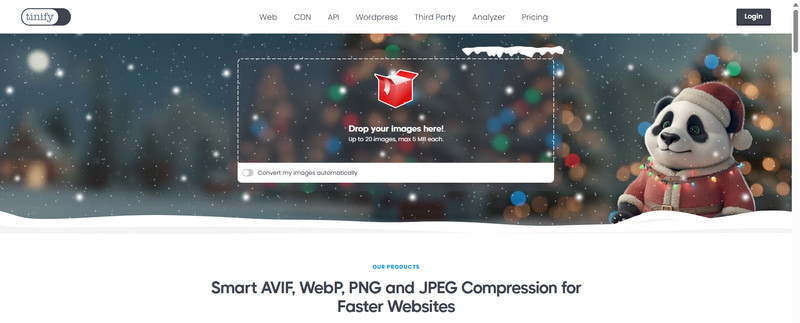
Tinify (TinyPNG) has maintained its prestigious reputation. It caters to smart AVIF, WebP, PNG, and JPEG compression and is known for its fine compression without compromising quality. It continues to enable owners and developers, and designers, to achieve faster loading speeds, improved SEO, and seamless workflows.
Main Features
- 1.TinyPNG has to be one of the oldest and still one of the best online compressors in the game, and it allows users to compress or convert to WebP 20 (5 MB) images directly on the browser.
- 2.The CDN (Content Delivery Network) Tinify gives an additional layer of website speed to users through an unlimited number of delivery networks, and to delivery networks and to build
- 3.The API takes the burden of automating large, image-heavy projects.
- 4.The WordPress Plugin enables users to optimize the images they're uploading for the particular site, and gives users an easy way to improve site speed.
- 5.Official Libraries, and a lot of third-party integrations, are here for users working with Ruby, PHP, Node.js, Python, Java, .NET.
Pros and Cons
- Pros
- Strong compression on images with little difference in quality.
- Has newly supported AVIF and WebP formats.
- Easy to use with a seamless interface.
- Companies like Airbnb, Sony, Samsung, and Microsoft all use it.
- CDN option for global loading speed improvements.
- Cons
- You can only upload and compress 20 images at a time.
- Each photo can only be 5 MB or smaller unless you buy a paid version.
User Experience
The business TinyPNG has a reputation and trademark mascot of a little panda, and their interface is professionally and playfully designed. To use TinyPNG, just drop the images you want to compress in a green box and let the tool optimize the images or photos, and you will be able to download the compressed version.
Performance is exemplary, and its use with the Tinify CDN is certainly recommended for those wishing to optimize website speed performance, including the rapid loading of large images.
Is TinyPNG Safe?
Yes. Tinify ensures image privacy by restricting access only to the uploader, deleting files automatically after 48 hours, and following strict data-protection policies. There is no sharing, no public access, and no long-term storage.
Is TinyPNG Free?
To use the service for free, you will be limited in the following ways:
- You can only compress up to 20 images at a time.
- Each image can be up to 5 MB.
- You cannot use the API unless you decide to upgrade to a paid version.
Part 2. How to Use TinyPNG
The process for using TinyPNG is as follows:
Step 1Go to TinyPNG's website and find the Drag and drop your images here! Section. This is your point of entry for the service, so you should now perform the next step.
Step 2Now click on the box to upload the images. Alternatively, you can also drag and drop the images. You can upload up to 20 images that are 5 MB each.
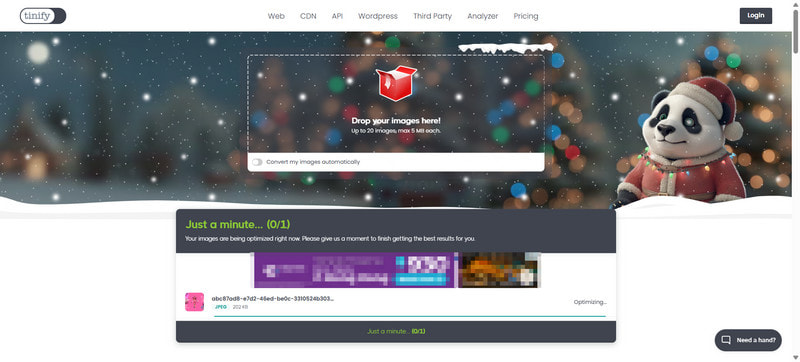
Step 3You can sit back and relax as your images are being smartly optimized during compression.
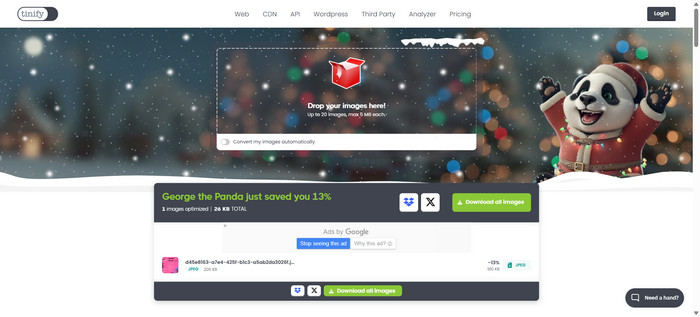
Step 4You have now reached your final step of the process. You can either download each image that has been individually optimized or click the Download all Images button to download all of the optimized images as a compressed folder.
Part 3. Top 5 Alternatives to TinyPNG
1. AVAide Image Compressor (Best TinyPNG Alternative)
AVAide Image Compressor is a free online image compression tool that delivers results comparable to TinyPNG while preserving original image quality. It works entirely in a web browser, eliminating the need to download or install bulky software. The tool supports a wide range of image formats, maintains clarity after compression, allows batch processing of multiple images at once, and even offers one-click conversion between common formats, making image optimization fast and convenient.
Step 1Visit the official website of AVAide Image Compressor
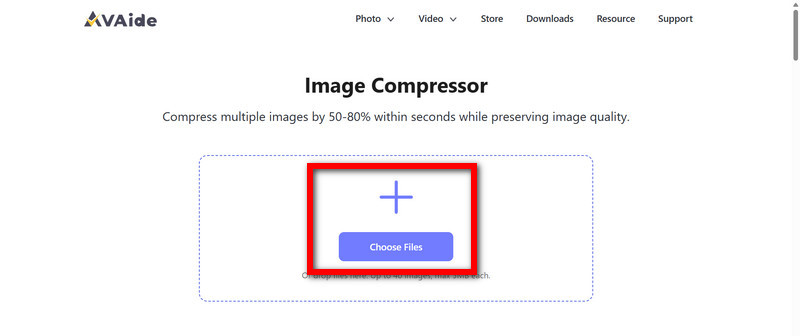
Open your browser and go to the official AVAide Image Compressor website. Click Choose a Photo to select the image you want to compress.
Step 2Upload your images
Next, click on the upload images section to select the images you want to upload and compress. This tool allows you to upload between 1 and 40 images of 5 MB each.
Step 3Automatic compression
Your images will be automatically processed as soon as they are uploaded to the tool to maintain the same quality level in images, while still keeping the file size as low as possible.
Step 4Download the compressed images
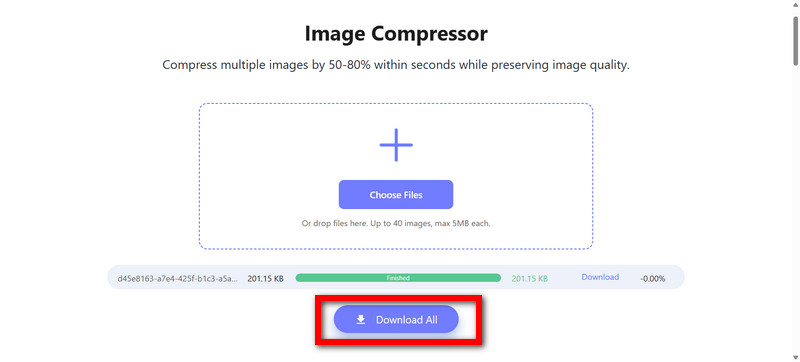
Click Download All to save each image individually or download all images as a ZIP file. Your images are now ready for use on Facebook or other platforms.
2. Gumlet
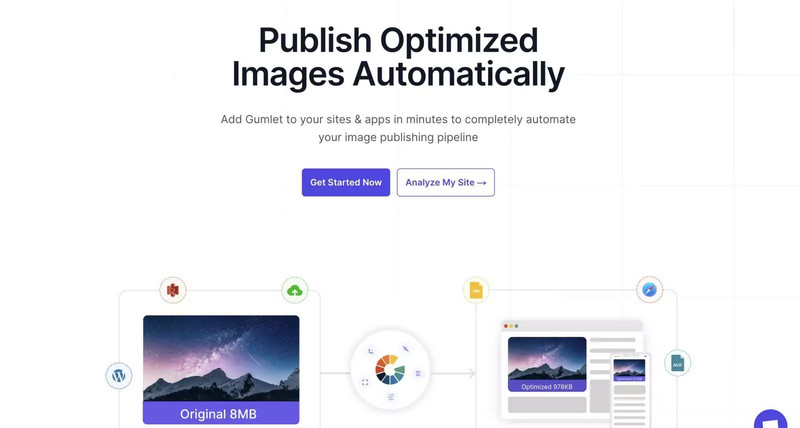
For small to medium enterprises or website developers, Gumlet is cloud-enabled and ideal for fast and sustainable solutions for image delivery.
- Pros
- Good integration capabilities into apps and websites.
- Video and image optimization done simultaneously
- You get 30GB of bandwidth on their free tier
- Cons
- No web version is designed for one-time use.
- Different subscriptions for compressing video and image files.
3. Compressor.io
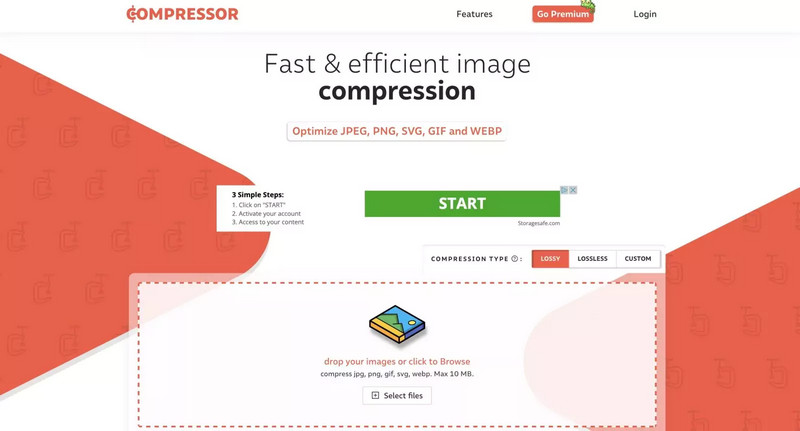
Three versions of image compression, lossy, lossless, and custom, are available through Compressor.io. This means image optimizations can be tailored for experienced users using PNG compressors.
- Pros
- Image formats supported include JPEG, PNG, SVG, GIF, and WebP.
- The maximum file size of 10 MB for every uploaded image.
- Extra features are available in the reasonably priced PRO plan.
- Cons
- Pro plan users are unable to access API integration.
- No drag and drop support for bulk uploads in the free version, and the PRO version is also lacking.
4. TinyIMG
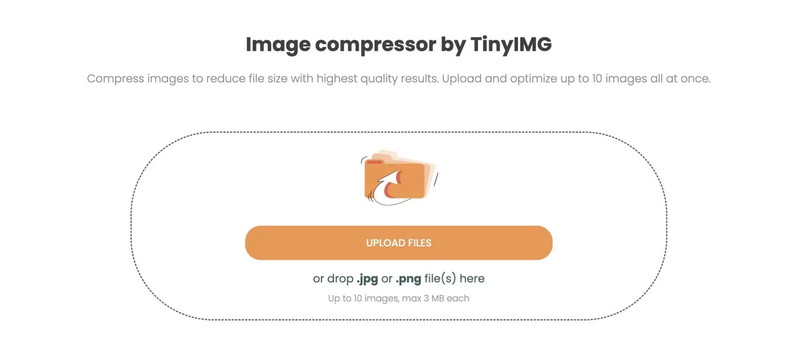
For bulk image uploads, TinyIMG is one of the best free-to-use image compressors and is overall ideal for the more generic users and also for owners of Shopify stores.
- Pros
- You can upload and compress multiple images in one go.
- A straightforward, easy-to-use interface.
- Easily integrates with Shopify and supports compressing Instagram photos for faster, optimized image uploads.
- Cons
- Compression methods for both WebP and GIF files are unavailable.
- More features are available through other, typically paid, compressors.
5. Bulk Resize Photos
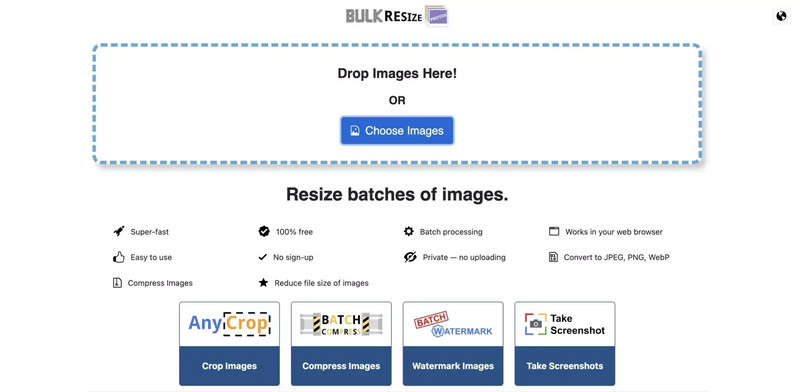
Compression and bulk resizing of images may be done fast and effectively with Bulk Resize Photos. They adjust parameters, including height and width, scaling, and file size, to user specifications.
- Pros
- Free of charge and drag-and-drop bulk uploads.
- JPEG, PNG, and WebP are supported.
- Users may upload images with a watermark.
- A web tool, app, and browser extension all provide functionalities.
- Cons
- Out-of-date interface and ads.
- Limited file format types.
TinyPNG has a long history of delivering efficiency to its users. This also serves as a post to try and give a summary of its features, pros, and cons, as well as its top alternatives, in order to get you to the best offers in the market in image optimization for high-quality and fast results.
ABOUT THE AUTHOR


Reduce the file size of an image online within seconds while preserving the quality. We support JPG, PNG, WEBP, GIF, and more.
PROCESS NOW