How to resize an image on Canva quickly and efficiently? Whether you are using Canva Pro or the free version, adjusting images for social media, websites, or printing is simple. This guide provides step-by-step instructions and highlights the top Canva alternatives for hassle-free image resizing.
Part 1. Full Guide to Resize Image in Canva in Pro Version
If you are using Canva Pro, you can resize images you are working with using the Resize button, which makes the process significantly faster than creating a new design each time to change dimensions. For detailed instructions, follow these steps:
Step 1First, open Canva and select Create a design. You can select any size, for example, Instagram Square Post, and upload the image you are going to resize it to.
Step 2After this action, click the image you uploaded to the design to select it, and place it on the design canvas. Right-click on the image and select Set image as background. This way, your image will automatically resize to the size of the design.
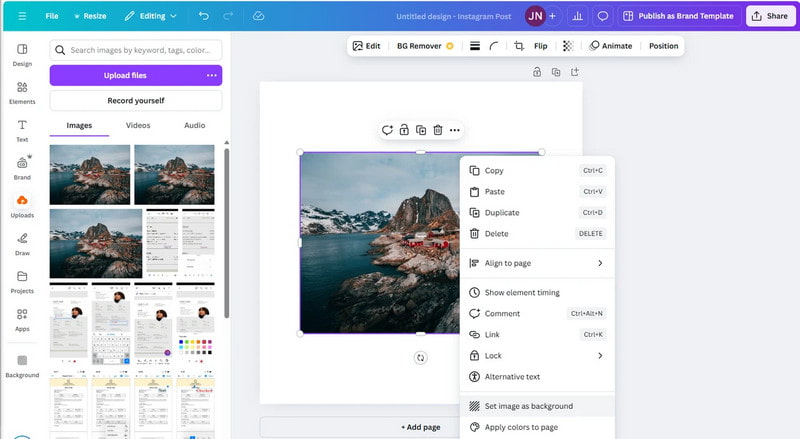
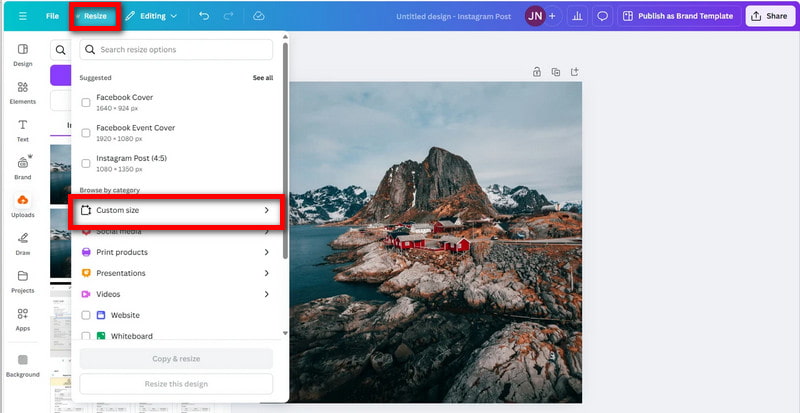
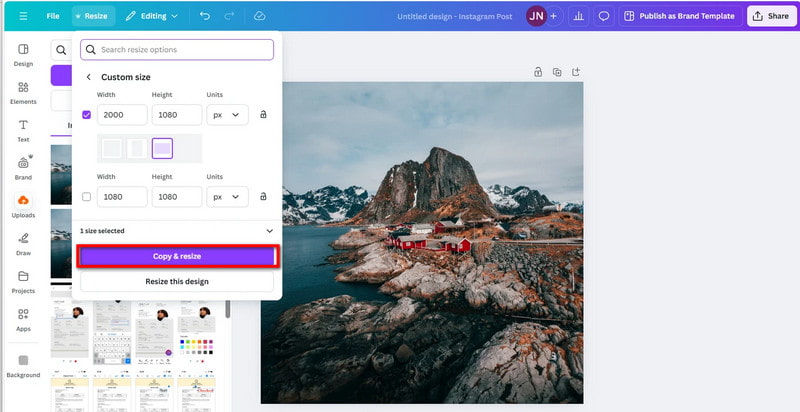
Step 3Select Resize in the top menu. Canva will create a pop-up with several different options for resizing.
Step 4If you need specific dimensions, click on Custom size. Fill in the width and height in pixels. If you want to resize the image in proportion, make sure the aspect ratio lock is ON.
Step 5After choosing a size, click Continue. Canva will show:
- • Resize current design: resizes your existing canvas
- • Copy & Resize: creates a copy and applies the new size to it
If you need multiple versions, choose Copy & Resize.
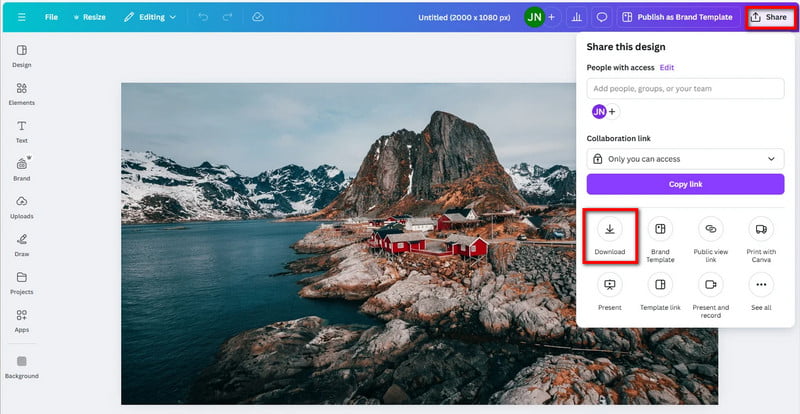
Step 6Finally, click on Share > Download to export the design. Select your preferred format and hit Download.
Part 2. How to Resize an Image in Canva for Free
If you do not have Canva Pro, that is okay. You can still resize images on the free version, too. While you cannot resize images in the same way, the process is still approachable.
Step 1Create a free Canva account if you do not have one already. Sign up or log in, then go to the dashboard.
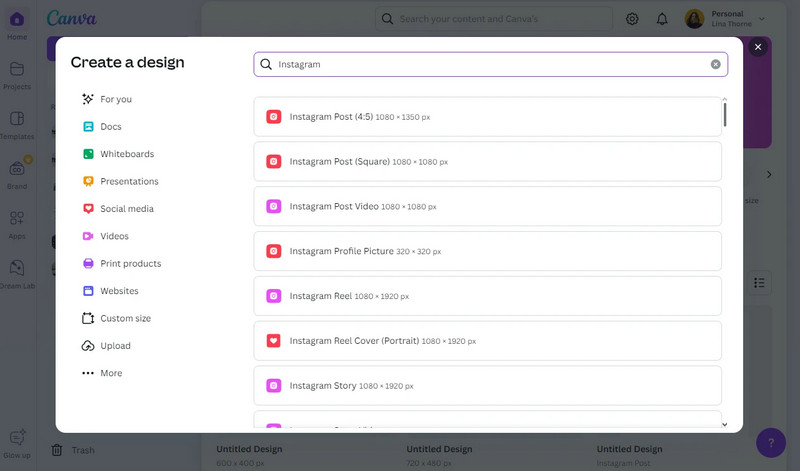
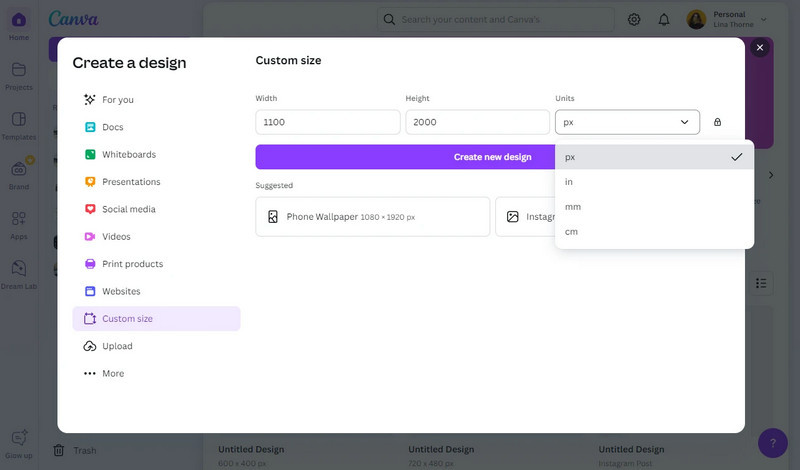
Step 2In the top left corner, click on Create a Design. In the subsequent window that appears, you can either:
• Choose a custom size, change the unit to px if you need to, enter the width and height, then click on Create new design.
• Choose a template preset, then search for the size template you need, such as YouTube Thumbnail or Instagram Post.
You will now have a blank canvas set to your desired dimensions.
Step 3Navigate to Uploads > Upload files, and then upload the image that you want to resize. From there, just click on the image that you uploaded, and it will come up on the canvas.
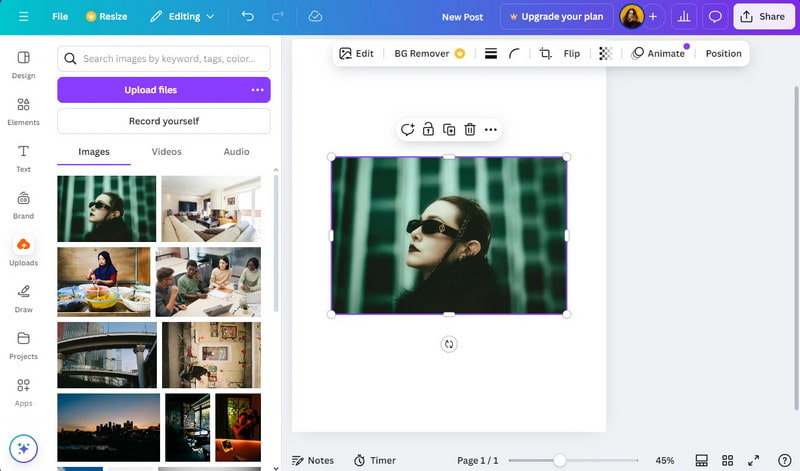
Step 4You can fill the entire template either by:
- • Removing the white space on all sides by manually resizing the image with the corner handles, or
- • Right-click on the image and click Set image as background to have a perfectly sized image.
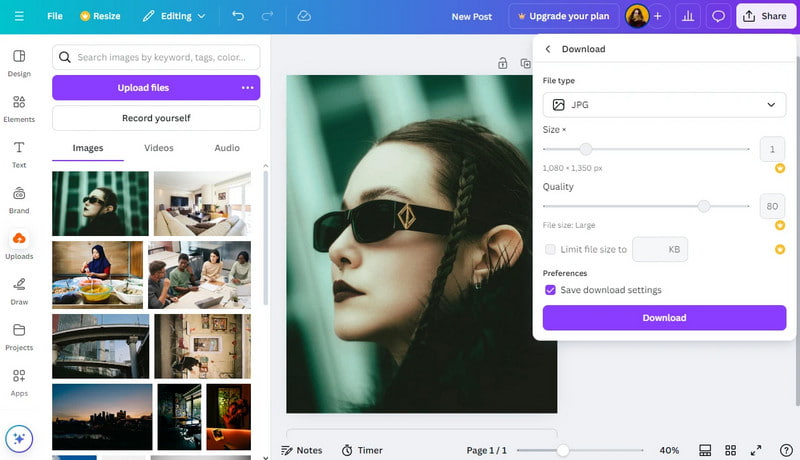
Step 5To save the resized image, select Share, and then Download. Make sure that the file format has been switched to JPG, as this is usually better for online use. After clicking Download, you should find this resized image saved on your device.
Part 3. Top 3 Canva Alternatives to Resize an Image
1. AVAide Image Upscaler (Best Overall)
AVAide Image Upscaler is an AI-powered online tool that enlarges and sharpens images in seconds while improving clarity and resolution. Using a smart algorithm, it removes noise, fixes blur, and enhances low-resolution details for better-quality results than many traditional enlargers. Accessible through any browser without installation or registration, it works smoothly even on lower-spec devices and supports multiple image processing. Suitable for people, animals, products, and graphics, it saves clean, high-quality images ready for personal, printing, or commercial use, making it a strong Canva alternative.
Step 1Go to the Official Website
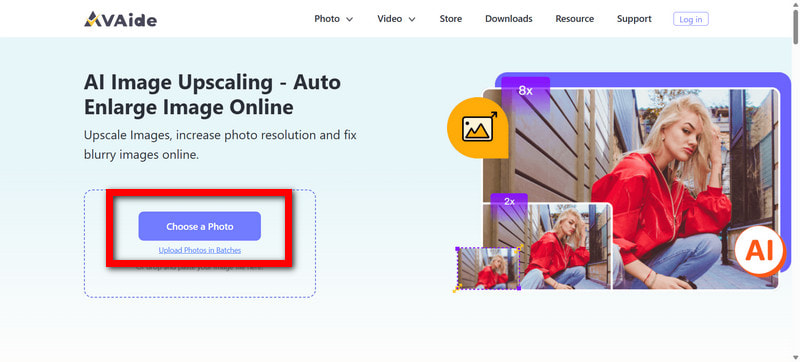
To start, you should go to the official website of AVAide Image Upscaler and select Choose a Photo to get started.
Step 2Upload Your Image
Now, please click the Choose a Photo button to add the image you would like to improve the quality of, and from your computer, upload it to the site.
Step 3Choose an Upscale Level
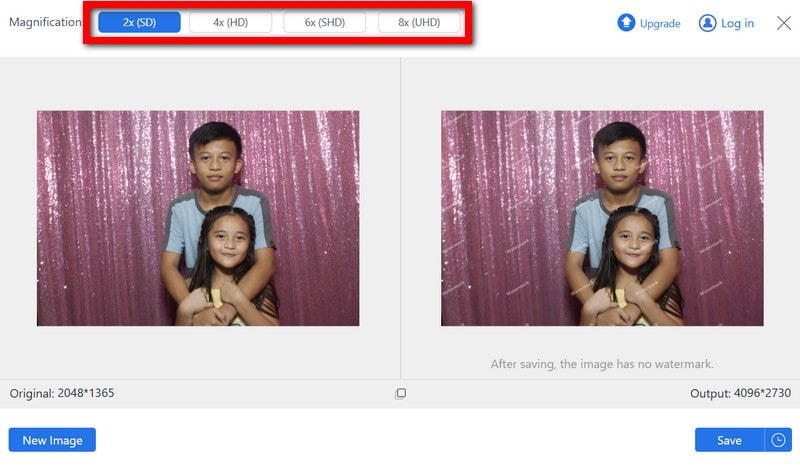
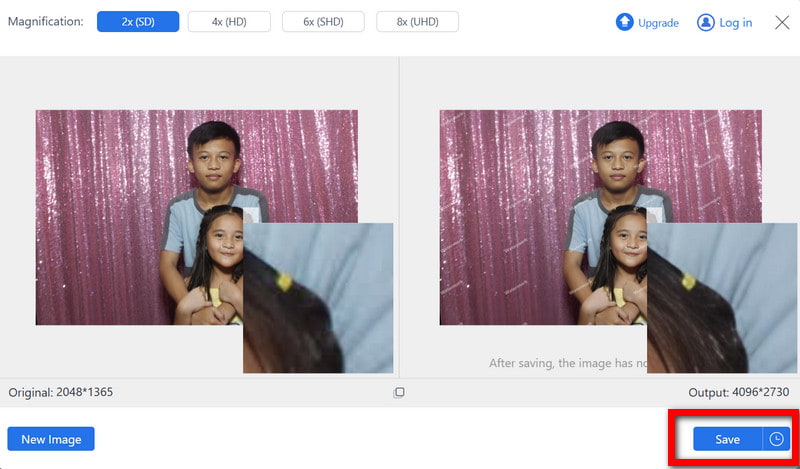
Now, you can select an amount to upscale the image, like 2×, 4×, 6×, or 8×. The tool improves the image clarity and detail while removing noise and blurriness.
Step 4Preview the Result
Now you should look at the improved picture to see if it meets your standards and if all the details are clear.
Step 5Download the Image
Lastly, you can click Save to save the image you improved, and you will be able to use it instantly after it is saved to your computer.
2. Fotor Image Resizer
Fotor offers the easiest feature to edit photos along with other tools; you can resize photos for Instagram easily, with precise pixel adjustments, making it a valuable tool for social media, advertising, and other digital posts.
Step 1Enter Fotor and choose the Resize Image tool to begin adjusting your photo.
Step 2Select and upload the image from your device to resize.
Step 3Type in the new width and height. Or, select Lock Aspect Ratio to keep the image the same shape.
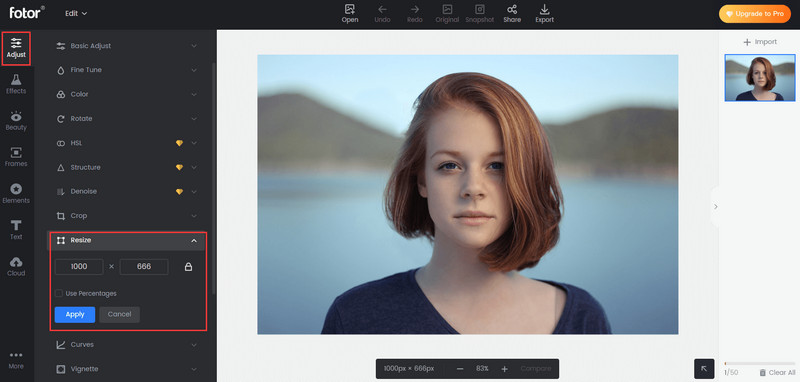
Step 4Hit Apply and make whatever other adjustments to your photo to make it perfect.
Step 5Save the resized photo to your device, then use it however you want for social media, websites, and other digital work.
3. Pixlr X
Pixlr X is a simple, easy, and well-respected photo editor with no resize functions, but you can use it to resize images for Discord profile banners and jump right into editing at a moment's notice.
Step 1Go to the official website and select Pixlr X for the free editor.
Step 2Hit the big Image button to choose a photo from your device.
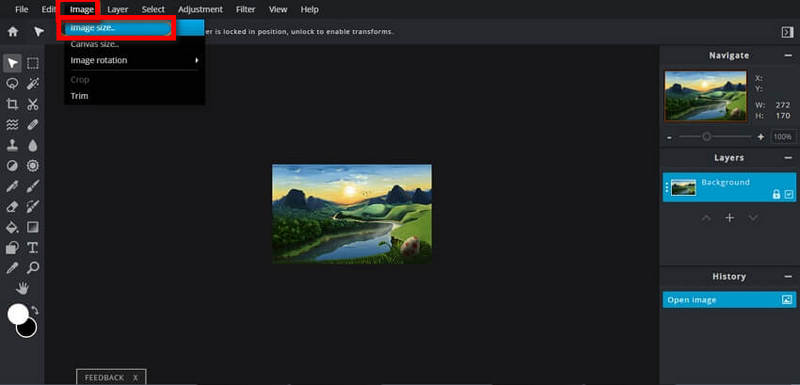
Step 3Navigate to the Image Size panel and look for the Resize option to begin adjusting your image.
Step 4Enter your new dimensions manually or modify the scale percentage until you achieve your preferred size.
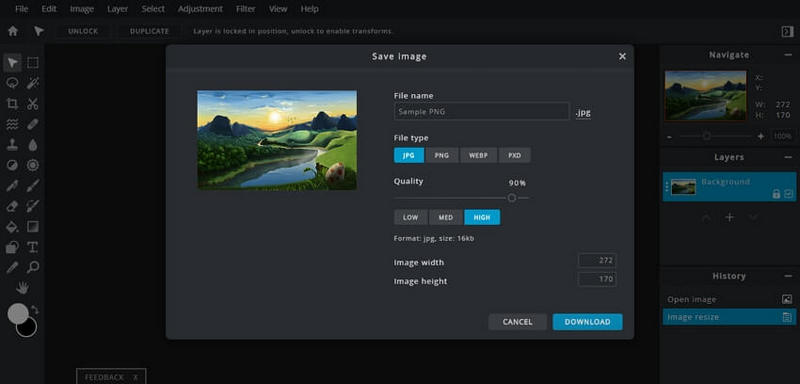
Step 5Save your resized image as JPG or PNG, then download it to your device for use anywhere.
The Canva image resizer makes adjusting image dimensions easy for any project, whether using Pro or the free version. By following this guide and exploring top alternatives like AVAide, Fotor, and Pixlr X, you can achieve crisp, high-quality images effortlessly.

Our AI technology will automatically enhance the quality of your images, remove noise and fix blurry images online.
PROCESS NOW