When you overcompress a high-quality image, it will turn into a blurry or pixelated image, and that is why you are here searching for how to make the image clearer due to these instances. As you search on the web, you can find that there are thousands of tutorials and tools that promise to offer a solution, yet you might question yourself which one to use. That is why we created this article for you. Lean towards this article as we explore, review, and even teach you how to use them to improve the clarity of the image you have.
Part 1: How to Make an Image Clearer Online with AI
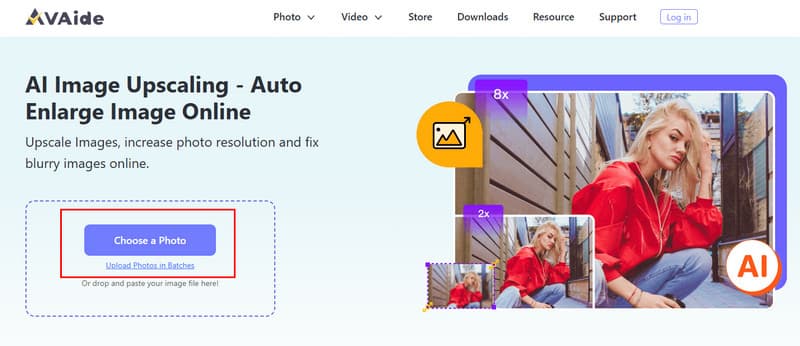
First on our list to make your photo clearer is the best option with the support of AI, and that is AVAide Image Upscaler. It is a cloud-based app, which means you do not need to download anything to use it. Once you visit its official page, you can get straight into upscaling the image you have up to 8×. Increasing the photo resolution and solving the blurriness that appears in the image you have while sharpening it simultaneously. Plus, it offers batch processing as well. If you want to make the picture clearer right now, then copy the tutorial we have in here.
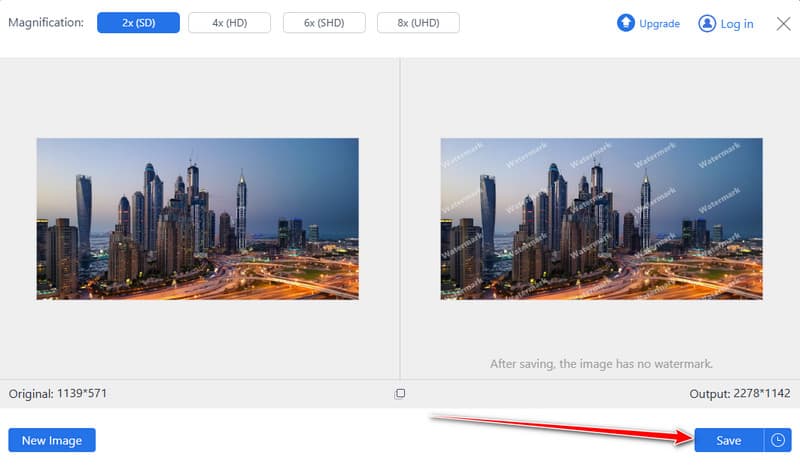
Step 1pen your browser and type in the search box the official name of this upscaler to get the result. On the result page, click the AVAide tool and click Choose a Photo. A file folder will occur on your screen and select the photo you want to make clearer, and import it here.
Step 2After uploading, you will see on the preview that the image has been upscaled, and if you want to upscale it further, then click the Magnification Level you want that this app offers.
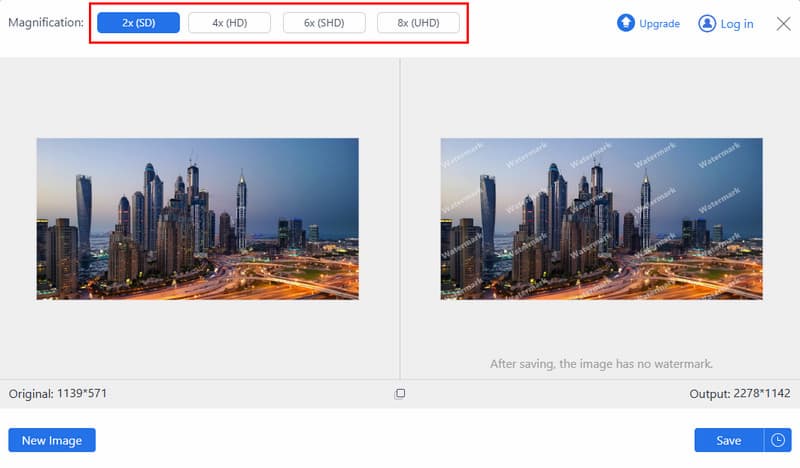
Step 3Now that you have checked the upscaled version of the image, you can export it by clicking the Save button. Wait for several seconds, and you can now see that the upscaled image is better than before.
Why Choose the AVAide Image Upscaler?
This free web tool does the job when your image is overly compressed by accident. Not only does it fix the clarity and sharpen your image, but it also enhances your photo further with the assistance of AI. Moreover, this is also beginner-friendly for everyone who wants to learn how to make a picture clearer and does not leave any watermarks, giving you a professional edited image.
Part 2: How to Make an Image Clearer on iOS and Android
If you are searching for how to make a photo clearer using only your smartphone, mobile enhancement apps offer a fast and convenient solution. One of the most used options available is the YouCam Enhance, due to its AI assistance and its built to improve the clarity of an image directly on your iOS or Android. With a few taps, even a newbie can achieve noticeable cleared photos once done editing here.
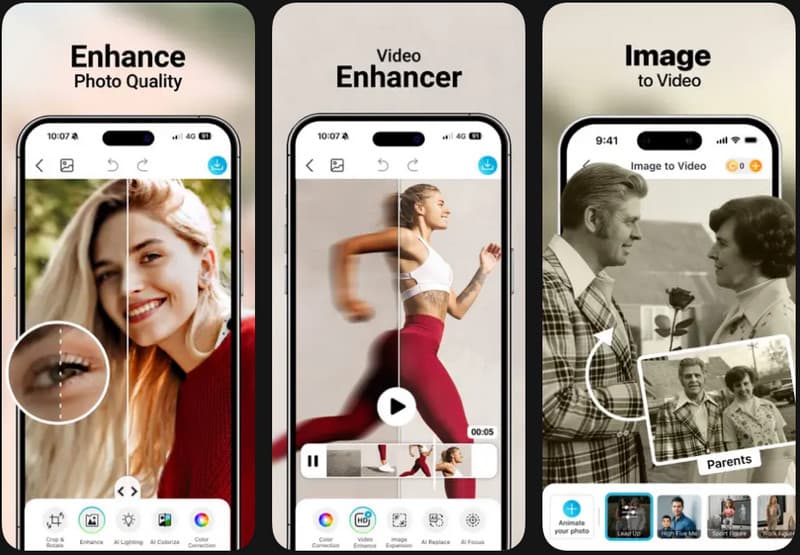
Step 1Open the App Store or Google Play Store, search for YouCam Enhance, and download the app to your device.
Step 2Open the app and allow access to your photo library. Choose the picture you want to enhance and upload it to the interface. There are a bunch of editing features that you can apply, making the clarity adjustment customizable.
Step 3Preview the enhanced image and apply the changes once you are satisfied. Finally, save the improved photo directly to your iPhone or Android device.
Why Choose YouCam Enhance?
YouCam Enhance is the better option if you are a user searching for how to make images clearer using only a mobile device. Its AI-powered technology automatically analyzes what is needed to improve your image without overly applying it. Not only that, but it is also easy to use, delivers the result fast, and eliminates the need for advance editing. Despite all that, the paywall might be a hurdle, but overall, it is great.
Part 3: How to Make an Image Clearer on a Desktop
If you are asking how do you make a picture clearer using a desktop computer, professional photo-editing software provides the most control over image quality. Adobe Photoshop is one of the most practical tools that can be used in this regard and make noise, sharpening of details, and refined clarity to be reduced and refined with precision. Photoshop takes more effort than mobile or web-based tools, but it has results that are highly customizable, particularly with pictures that have been severely compressed or reduced in quality.
Step 1Open Adobe Photoshop and load the image you want to improve by selecting File > Open.
Step 2Navigate to Filter > Noise > Reduce Noise. The sliders can be adjusted to reduce grain and visual distortion and keep significant details. This process assists in the smoothing of rough spots that influence clarity.
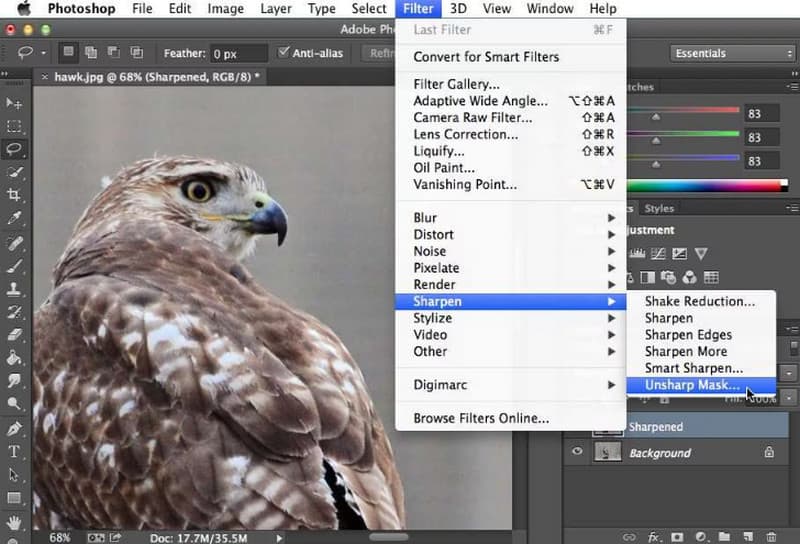
Step 3Once noise is reduced, go to Filter > Sharpen and choose a sharpening option such as Unsharp Mask or Smart Sharpen. Gradually sharpen to restore the lost details gently without cutting edges.
Step 4Preview and make changes until you achieve the desired clarity of the picture. When one is satisfied, save the edited image to maintain the results of the improvement.
Why Choose Photoshop?
Photoshop is ideal for users who want to master how to make an image clearer with complete control over the editing process. Its advanced tools allow precise adjustments that go beyond automatic enhancements and even add pixels to the photo, making it suitable for professionals or users working with severely degraded images. It has a learning curve, but it has a level of detail and customization that is unrivaled on desktop platforms.
Part 4: Tips to Make Your Images Look Clearer and Professional
Even with powerful tools, applying the right techniques can significantly improve your results. Below are practical tips to help enhance image quality and achieve a more professional look.
1. Start With the Highest Quality Image Possible
If you are learning how to make photos clearer, always begin with the highest-resolution image available. Clear source images preserve more detail, making enhancements more effective and natural-looking.
2. Avoid Excessive Compression
One of the easiest ways to make photos clearer is to reduce how often an image is compressed or resaved. Repeated compression removes important details and causes visible quality loss.
3. Use Proper Sharpening Techniques
If you are wondering how I can make a picture clearer, apply sharpening gradually. Small adjustments help restore details without introducing unwanted artifacts or harsh edges.
4. Take Advantage of Free Enhancement Tools
You can make a picture clearer for free by using trusted online or mobile tools. Most free solutions are now capable of providing amazing picture enhancements without the need to have sophisticated editing capabilities.
5. Reduce Noise Before Sharpening
To achieve a clearer image free of grain and distortion, reduce noise first. This leaves a purer base and then sharpens and increases overall clarity.
6. Let AI Handle Complex Enhancements
Using an AI image clearer can save time by automatically detecting and enhancing important details while maintaining a natural appearance.
7. Choose the Right Export Settings
After editing, make the image clearer free from quality loss, by exporting in high resolution and selecting formats that preserve image detail, such as PNG or high-quality JPG.
8. Fix Blurry Areas Manually
When clearing up blurry photos, selective sharpening or local enhancement tools can be useful to concentrate on the parts of the image that require the sharpening most, and thereby get a final product that looks natural.
9. Explore Free Apps for On-the-Go Enhancements
To make a photo clearer for free, try mobile apps specifically designed for clarity improvements. Many apps provide instant adjustments and are easy for beginners to use.
10. Use Specialized Apps That Make Photos Clearer
There are dedicated apps that make photos clearer by combining noise reduction, sharpening, and AI-based enhancements, making it faster and simpler to restore image quality.
With these tools, it is easier than ever to make pictures clearer on any device. Regardless of the type of AI-powered online utility, a mobile application, or desktop software, all of them provide an efficient method of enhancing the quality of images. With the correct technique for what you want, you may end up improving your pictures easily and with greater results in a short period of time.

Our AI technology will automatically enhance the quality of your images, remove noise and fix blurry images online.
PROCESS NOW