Knowing how to change background color on Instagram Story is incredibly helpful when you are in a hurry to share an update, preparing a branded announcement, or simply trying to make your content stand out. Instagram provides multiple options to personalize your Story, whether you want a quick, solid color, a vibrant gradient, or a fully customized photo background. Using the built-in tools, you can create creative, eye-catching layouts in minutes. For moments when you need a cleaner, more professional look, online AI editors like AVAide Background Eraser make it effortless to remove and replace backgrounds, giving you polished, ready-to-share visuals every time.
Part 1. Change Background Color on Instagram Story with Pen or Brush Tool
To alter the background of a photo or video post, the Pen/Brush tool on Instagram is a highly efficient option. With the tool, users can apply a solid block color, and subsequently, they can uncover portions of the original photo using a scratch-off pointer. This technique works well for many purposes, such as artistic goals, clean layouts, or making gray backgrounds for story branding purposes.
Step 1Open Instagram and upload your desired photo or video to your Story.
Step 2In the top right menu, click on the … option, and then select the option labeled Draw.
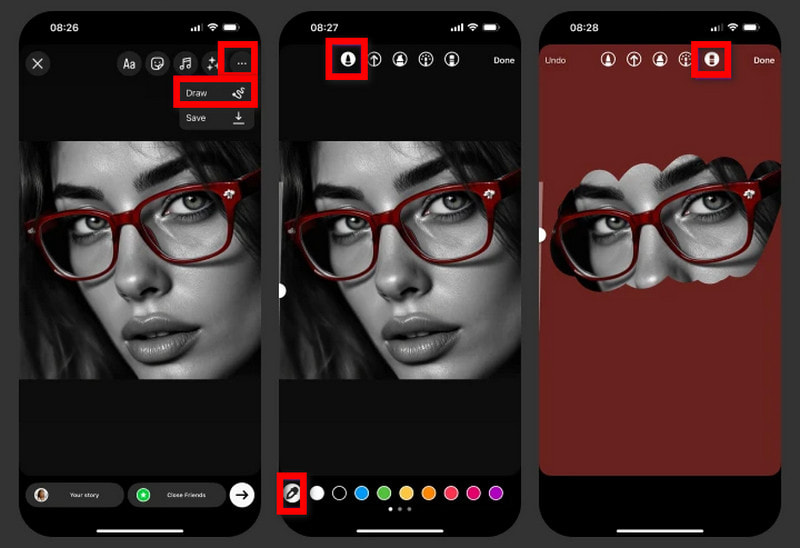
Step 3The Pen tool is located in the lower menu.
Step 4Select the background color.
- Use the Eyedropper tool if you want to select a color from the picture.
- Alternatively, you can select a color from the default Instagram colors.
Step 5Select a colored area and long-press on the image. Instagram will color the Story as such, and an image will fill the entire Story.
Step 6To reveal your original image, go to the Eraser tool. Use the slider on the left to change the size of the eraser.
Step 7Tap to remove the color and reveal the original photo.
Step 8If you make a mistake, tap Undo at the top.
- This technique is great when having a strong, bold color background while having a part of the photo show with a pictorial, creative essence. A use-case is featured products, artistic layouts, or branded content. Preferably, have a color that contrasts with the focal point of the photo, do not erase too much, and, for cleaner edges, alter the size of the eraser brush.
Part 2. Change Background Color on Instagram Story with Gradient Tool
Instead of reaching for a plain single-colored background, Instagram offers users more customization with pop backgrounds using created gradients. Apart from plain colors, Custom background gradients offer a more vibrant and colorful mood to your story. This is perfect for announcements or any story layout that requires more of a mood for your followers. Custom gradient backgrounds available through Create mode on Instagram offer multiple blends and are great for more personalized and engaging designs.
Step 1Launch the Instagram App and click the + button at the bottom of the screen.
Step 2In the pop-up that appears, select the Story option.
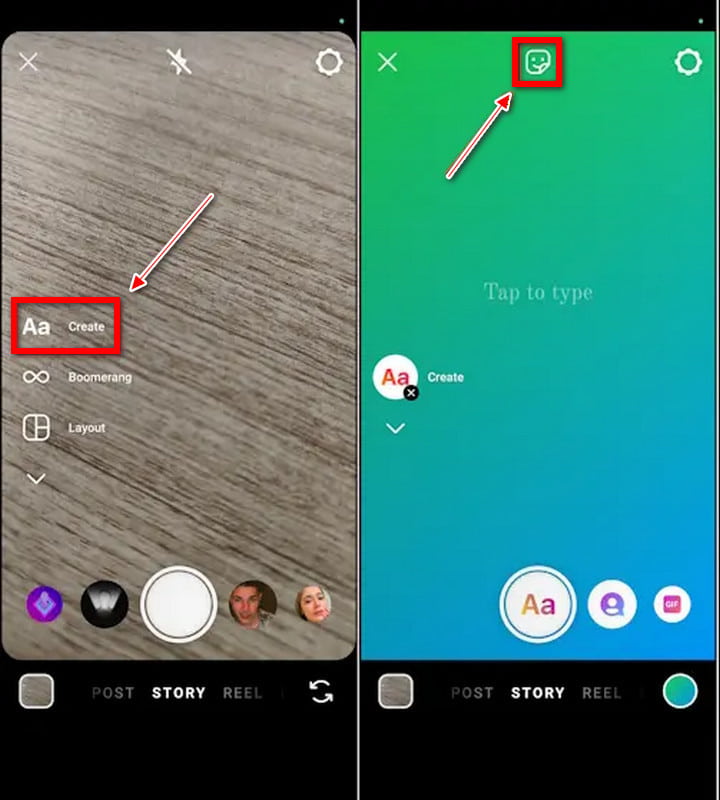
Step 3Opt for the Aa Create option on the left-hand side. Now, a story layout has been generated for you, as the background is a gradient.
Step 4Locate the color wheel in the bottom right corner. Tap it a few times to toggle through different gradient styles.
Step 5You can now choose a gradient to your liking. Select the button at the top left to pull from the Photos of your phone.
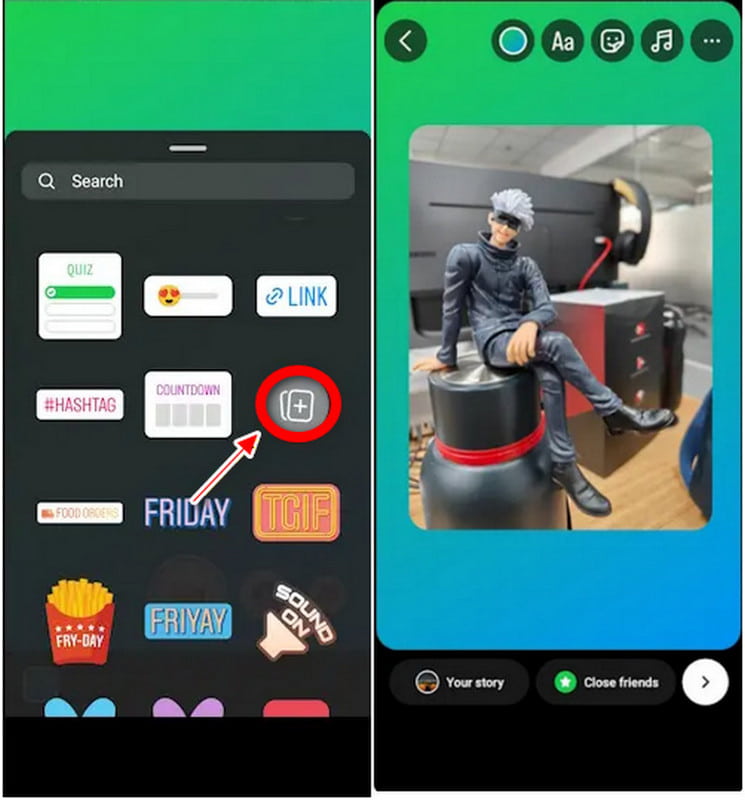
Step 6Now, you can adjust the background color to your liking.
- Instagram has a limited selection of gradient backgrounds, so if you would like more options, save your desired gradients from other apps or design tools to your device and customize them to your Story as a background. This also helps when you want to align your gradients to your branding colors, set a specific mood, or if you want to use one of your own gradients that Instagram does not have.
Part 3. Change Background Color on Instagram Story with Solid Color
Instagram allows you to have clean, solid backgrounds for your Stories, and this function works well if you want a simple background, for example, a quote, announcement, or any Story where you want the background to be minimally distracting. If you want to add a background to a picture with a solid color, follow the steps below.
Step 1To get started creating your story, hit Add post to your story from the options, where it will ask whether the + button is desired or what it will be.
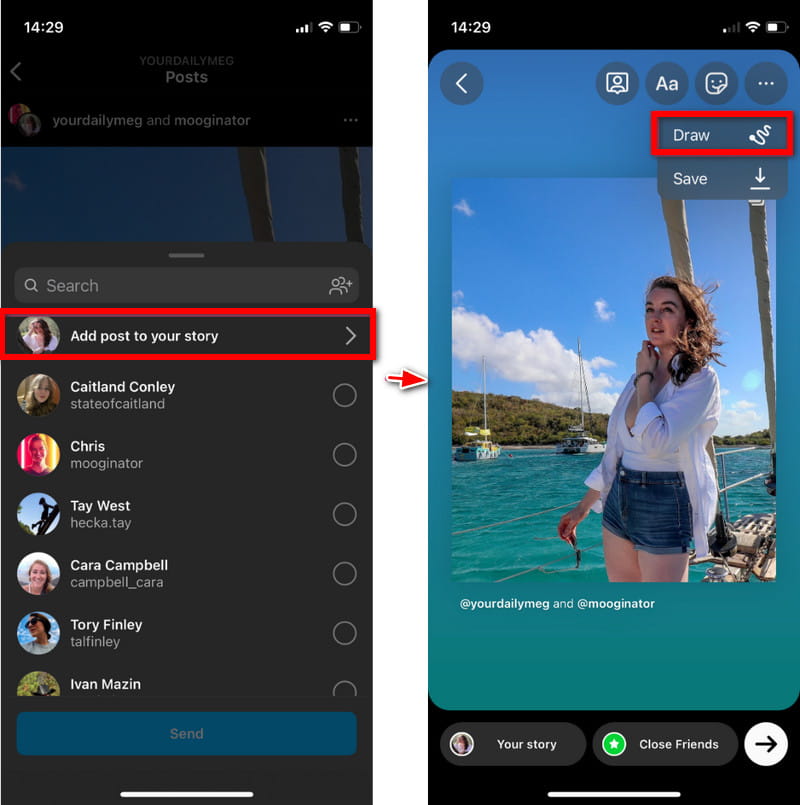
Step 2Now, you must pull up your camera roll, and NO, this image is just to get you started, and you should tap on any image.
Step 3Next, you will draw on the story and tap on where the Draw button is.
Step 4Now comes the pen tool, pick one and touch to wish to solidify, whatever opaque color you could want to make.
Step 5Once you do this, you will tap and hold the touch screen, where it will fill in whatever color you pick for the background, and make the entire background a fully opaque shade.
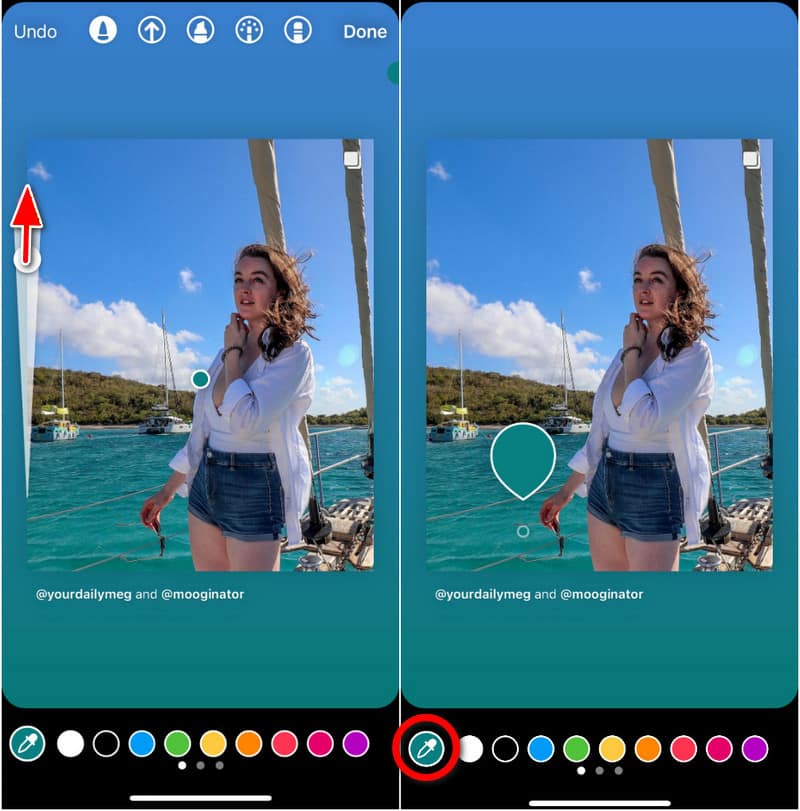
Step 6Tap Done.
Step 7Once you get to this point, you can add in pictures, text, and other story stickers on the background, and any image, just to use as a placeholder.
- Now, you have completed the solid background. It is a simple and effective tool for creating Instagram story posts in the color or appearance you desire. This tool allows you to share text and updates, or any type of content you please.
Part 4. The Easiest Way to Change Photo Background Color for Instagram Story
AVAide Background Eraser is an easy-to-use AI online tool that helps you change photo backgrounds quickly and accurately. With full automation, it instantly detects subjects and removes backgrounds, allowing you to add solid colors or clean overlays. Everything works directly in your browser with no installation needed. It is ideal for creating visually appealing images for stories or social posts without relying on advanced or expensive editing software.
Step 1Upload Your Photo
Open the AVAide Background Eraser, then click on Choose a Photo. Please select an image from your device, or simply drag it to the designated area.

Step 2Remove the Background Automatically
After uploading, the AI will automatically identify the subject of the uploaded image and remove the background, leaving only the subject on a transparent background.
Step 3Refine the Edges
Open the Edge Refine to manually double-check the edges of the cutout and smoothen or polish them to your liking. This will ensure a more accurate and more polished cutout.
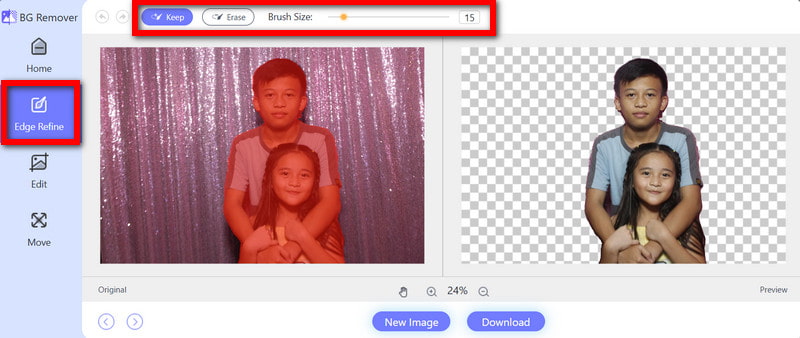
Step 4Edit the Background Color or Add a New One
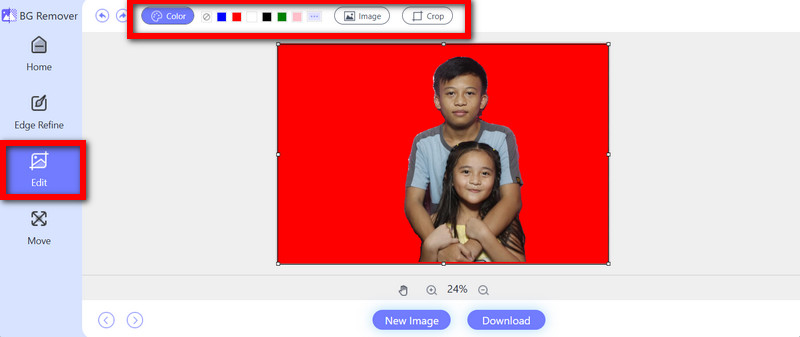
Switch to the Edit tab, where you can do the following:
- Change the Background to a solid color of your preference: a white background, black, a pastel color, a branded color, etc.
- Upload a background image of your choice.
- Crop the canvas in case you want it to match Instagram Story dimensions to save you from resizing the image.
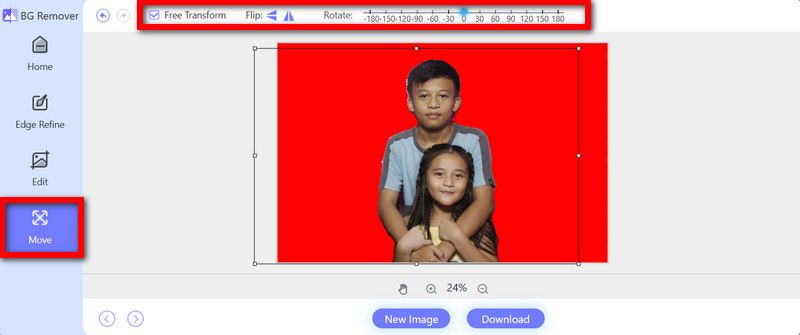
Step 5Adjust the Position of Your Photo
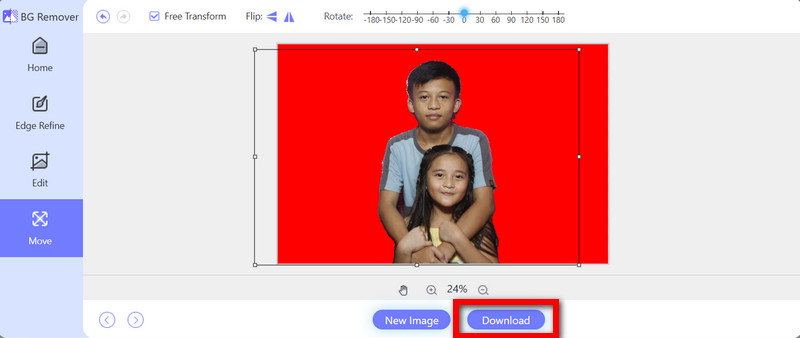
Open the Move tab to adjust the position of your photo. If you want to reposition the subject to your preference, you can resize it, move it to your desired position, or center it.
Step 6Download Your Final Image
If you are satisfied with your edits, simply click on Download to save the photo, which is now ready to be uploaded to your Instagram Story.
Understanding how to change the background color of an Instagram Story is essential when you want your posts to match your mood, highlight an announcement, or create a more polished look for your content. Built-in tools of Instagram make it easy to switch between solid colors, gradients, and creative overlays, allowing you to design Stories that stand out in seconds. And when you need a cleaner, more professional background for photos, AVAide Background Eraser offers an effortless way to remove and replace backgrounds with precision. With these options, you can create visually appealing Stories that stay consistent with your style or brand.
ABOUT THE AUTHOR


Uses AI and automated background removal technology to capture complex backgrounds from JPG, JPEG, PNG, and GIF.
PROCESS NOW