ASUS er et velkjent merke for sine spill-bærbare PC-er, som ASUS TUF og ASUS ROG. Fordi dette merket fokuserer mer på spillere, har de stor etterspørsel etter pålitelige skjermbildefunksjoner for bruk i spilling. Hvis du er en av deres ivrige brukere, kan du oppdage hvordan du tar et skjermbilde på en ASUS bærbar PC på forskjellige måter. Denne artikkelen viser viktige snarveier for å aktivere skjermbildealternativet, samt bruk av diverse innebygde applikasjoner for å benytte seg av alle typer nettaktiviteter uten begrensninger.
Del 1. De beste måtene å ta skjermbilder på en ASUS Windows-bærbar PC
Det du trenger å vite om hvordan du tar skjermbilder på en Chromebook fra ASUS, er at det finnes flere standardmetoder for å gjøre det. Gitt navnet, er PrintScreen-knappen på tastaturet det innebygde skjermbildealternativet for deg, men det kan være enkelt. Det betyr at den bare kan ta skjermbilder av hele skjermen eller et ønsket område. PrintScreen får likevel jobben gjort, men du kan oppdage andre måter å ta skjermbilder på ved å lese gjennom avsnittet nedenfor.
1. Bruk av standard Windows-tastatursnarveier
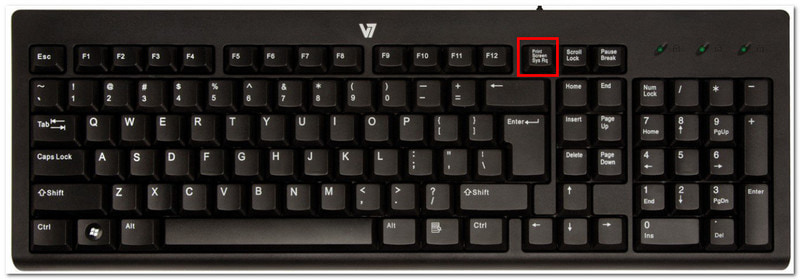
• PrtSc (Skjermbilde)
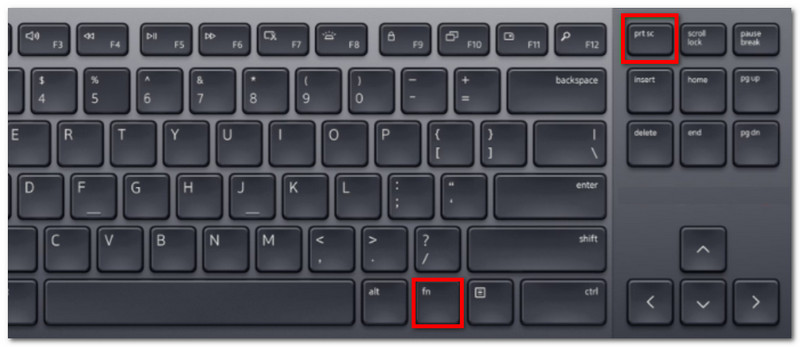
Trykk på PrintScreen eller PRT SC -knappen på tastaturet. Den er vanligvis plassert øverst til høyre. En menylinje vises øverst i midten av skjermen med alternativer for fullskjerm, vindu og frittstående utklipp. Velg én for å ta et skjermbilde.
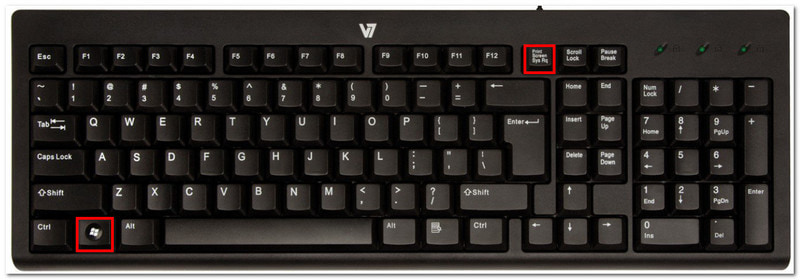
• Windows + PrtSc
Ved å trykke samtidig på Windows og Utskriftsskjerm knapper, har du tatt et skjermbilde i fullskjerm. Men i stedet for at systemet automatisk lagrer bildet i en mappe, lagres det på utklippstavlen, som du kan lime inn i en melding, et dokument osv.
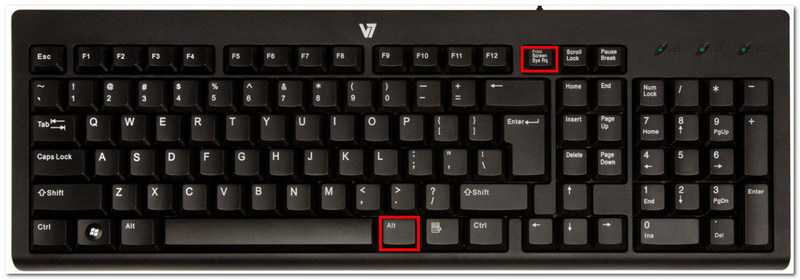
• Alt + PrtSc
En annen metode du bør prøve er Alt og PrtSc snarvei. Med dette alternativet vil datamaskinen din kun fange ett aktivt vindu. Deretter kan du lime det inn hvor som helst, siden det bare lagres på utklippstavlen. Sørg for at du klikker på ønsket vindu før du bruker Alt + PrtSc.
• Fn + PrtSc
Dette alternativet har samme funksjon som den eneste PrtSc-knappen. Den lar deg få tilgang til menylinjen med forskjellige skjermbildemoduser. Det vil imidlertid være et godt alternativ hvis PrtSc-knappen din ikke fungerer noen ganger.
2. Bruk av Windows Snipping Tool og Snip & Sketch
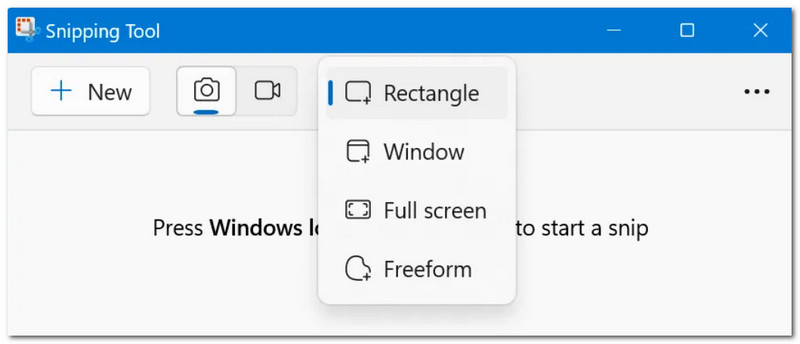
Når du leter etter en måte å ta skjermbilder på en ASUS Vivobook, har du det innebygde Snipping Tool og Snip & Sketch. De to forhåndsinstallerte verktøyene går hånd i hånd for å ta skjermbilder, og de tilbyr også tegnefunksjoner som lar deg markere og kommentere bildet før du lagrer eller limer det inn. Dessuten kan den angi en forsinkelsesplan på opptil 10 sekunder før du tar et skjermbilde. Hvis ASUS-en din ikke har det, er det gratis å laste ned fra Microsoft Store.
3. Bruk av Xbox Game Bar (for spillere)
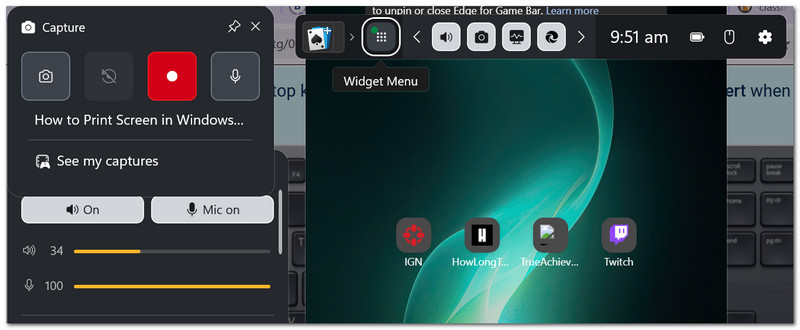
Xbox Game Bar er et annet forhåndsinstallert verktøy for Windows 10 og nyere. Det har diverse funksjoner å tilby gratis, inkludert å ta skjermbilder. Siden det er for spillere, kan det ta et skjermbilde uten å forstyrre spillingen. Du kan aktivere Game Bar ved å trykke på Windows og G på tastaturet, og deretter kan du trykke Windows + Alt + PrtSc for å ta et skjermbilde i fullskjerm.
4. Bruk av tredjepartsverktøy
Etter at du har lært hvordan du tar et skjermbilde på en ASUS-bærbar PC på grunnleggende måter, kan du fortsatt oppgradere skjermbildeopplevelsen din ved å bruke AVAide skjermopptakerDet er en alt-i-ett-løsning når det gjelder å ta skjermbilder, spille inn video og lyd. Den tar bilder av høy kvalitet i fritt område, og du kan lagre dem i forskjellige bildeformater, for eksempel JPG, PNG, TIFF, BMP og GIF. Den tilbyr innebygde tegnealternativer, slik at du kan tegne med forskjellige farger eller legge til merknader i bildet.
Trinn 1Last ned AVAide Screen Recorder på datamaskinen din, og installer det ved å fullføre installasjonsprosessen.

GRATIS NEDLASTING For Windows 7 eller nyere
 Sikker nedlasting
GRATIS NEDLASTING For Mac OS X 10.13 eller nyere
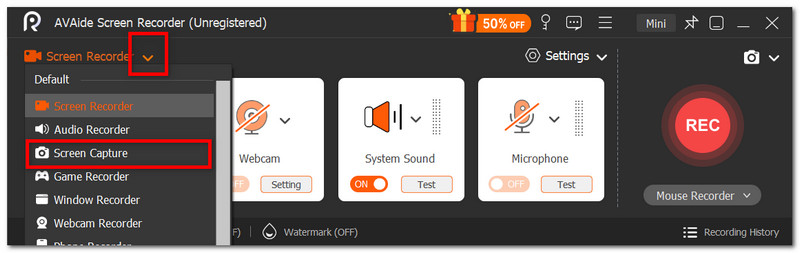
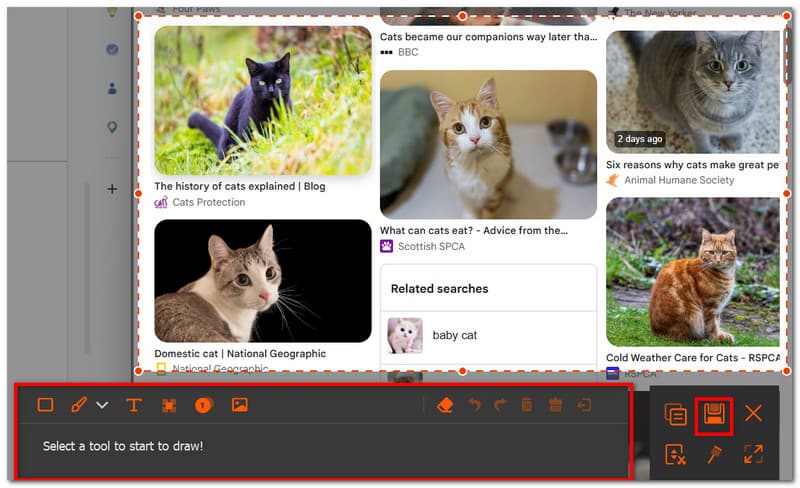
Sikker nedlastingSteg 2Fra rullegardinmenyen velger du Skjermfangst alternativ. Funksjonen kan umiddelbart brukes til å ta et skjermbilde. Dra markøren til skjermen der du vil ta et skjermbilde.
Trinn 3Bruk redigeringsfunksjonene til å tegne eller legge til merknader på bildet. Klikk til slutt på Lagre -knappen for å lagre skjermbildet i den angitte mappen.
Del 2. ASUS-spesifikke skjermbildemetoder (skjulte snarveier)
Denne delen omhandler metoder for skjermbilder som er eksklusive for ASUS bærbare datamaskiner. Disse vil være en god løsning hvis skjermbildeutskriftsknappen ikke fungerer.
1. ASUS-spesifikke skjermbildemetoder (skjulte snarveier)
For det første, hvis ASUS-modellen din er mellom ROG-spillseriene eller en bestemt Zenbook-serie, Fn + F11 kan få tilgang til utklippsverktøyet på enheten din. Men hvis du prøver dette alternativet, og det gjør et aktivt vindu om til fullskjerm, er det ikke sikkert at den bærbare datamaskinen din er inkludert i den nevnte serien.
Den andre skjulte snarveien er Windows + Skift + S, som du kan bruke på alle ASUS-modeller. Slik tar du et skjermbilde på en ASUS-bærbar PC uten skjermbildeknappen, da det er en alternativ måte å få tilgang til utklippsverktøyet på.
2. Bruk av MyASUS-appen (for utvalgte modeller)
Hvis ASUS-en din er fra Zenbook S- eller Vivobook S-serien, er det en god metode å bruke MyASUS-appen. Selve appen tilbyr imidlertid ikke et skjermbildealternativ, men gir heller skjermbildefunksjoner som Perfect Screenshot og ScreenXpert. Den tilpasser også snarveiene, så det kan være nyttig når PrtSc mangler på tastaturet.
Del 3. Slik tar du skjermbilde på en ASUS Chromebook
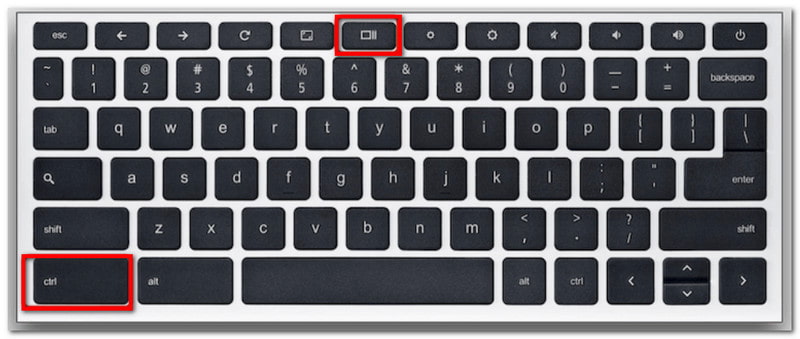
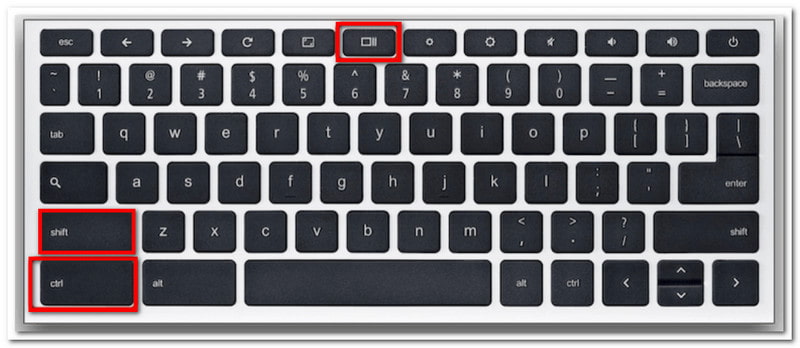
Å ha en Chromebook gjør det litt annerledes å ta skjermbilder enn på andre ASUS-modeller. Du legger kanskje merke til at tastaturet ditt ikke har PrtSc, men du kan fortsatt aktivere skjermbildefunksjonen ved å gjøre følgende:
Trinn 1trykk Ctrl + Vis knappene samtidig for å ta et skjermbilde i fullskjermmodus.
Steg 2For delvis skjermbildemodus, trykk Skift + Ctrl + Vis, og dra og klikk deretter til ønsket område.
Del 4. Rask sammenligningstabell: Velg din beste metode
Med mange metoder for å ta skjermbilder på ASUS-bærbar PC, kan du bli forvirret over hvilken som er best å bruke for spesifikke behov. Vel, vi har utarbeidet en tabell med alle metodene som er nevnt i denne artikkelen, slik at du kan se forskjellen.
| Skjermbildemetoder | Best for | Hvor filen går |
| Standard Windows-tastatursnarveier | Standard skjermbilde på alle ASUS-modeller | Utklippstavle, Bilder > Skjermbilder-mappe |
| Windows Utklippsverktøy og Utklipp og Sketch | Redigering, utheving, tegning og annotering av skjermbilder | Utklippstavlen |
| Xbox Game Bar | Skjermbilde med uavbrutt spilling | Videoer > Opptaksmappe |
| ASUS-spesifikke skjulte snarveier | Tilpassede snarveier | MyASUS-nedlastinger eller app-hurtigbuffermappe |
| AVAide skjermopptaker | Allsidig skjermbildebehandling; Lagrer skjermbilder som BMP, TIFF, JPEG, osv. | AVAide Studio-mappen |
Med de medfølgende instruksjonene på hvordan du tar et skjermbilde på en ASUS bærbar PC, vil du ikke gå tom for metoder for å fange opp aktiviteter på skjermen. Denne artikkelen har vist snarveiene og innebygde applikasjoner på enheten din. Videre ble AVAide Screen Recorder introdusert som et bedre alternativ, ikke bare for skjermbilder, men også som det beste videoopptakerOpplev den ultimate innspillingsprogramvaren på Windows og Mac ved å klikke på Last ned-knappen.
OM FORFATTEREN

Ta opp skjerm, lyd, webkamera, spilling, nettmøter, samt iPhone/Android-skjerm på datamaskinen din.
Skjermopptak