


Den innebygde Android-skjermopptakeren har kanskje ikke nok funksjoner. Det finnes imidlertid noen praktiske tips du kan lære for å gjøre enklere og mer allsidige opptak på telefonskjermen. Dette innlegget vil vise deg omfattende Android-skjermopptak veiledning.
Hvis du foretrekker avansert skjermopptak for spilling, veiledninger eller profesjonelle demonstrasjoner, kan vi også hjelpe deg med å unngå rotet og gi deg de beste Android-skjermopptaksmetodene og -appene som er tilgjengelige i dag, komplett med trinnvise veiledninger som hjelper deg med å oppnå skarpe resultater i høy oppløsning.
- Del 1: Slik bruker du den innebygde Android-skjermopptakeren
- Del 2: Noen merkespesifikke Android-opptakerverktøy
- Del 3: 4 flere allsidige måter å skjermopptak på Android
- Bonus: Ta opp skjermbilde på datamaskin og mobiltelefon med beste kvalitet
- Del 4: Vanlige spørsmål om hvordan du tar opp skjermbilder på Android
Del 1: Slik bruker du den innebygde Android-skjermopptakeren
De fleste enheter som kjører Android 11 eller nyere leveres med en innebygd skjermopptaksapp som ligger i hurtiginnstillingspanelet. Du kan bare bruke den til å ta opp telefonens skjerm.
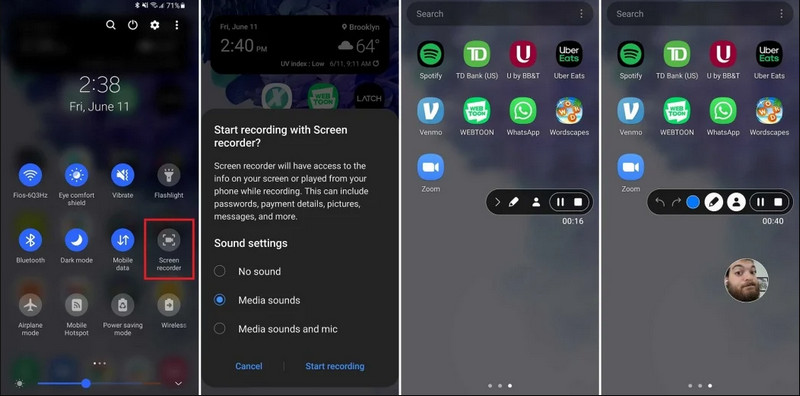
Trinn 1Få tilgang til hurtiginnstillinger
Sveip ned to ganger fra toppen av skjermen for å utvide hele Hurtiginnstillinger-menyen.
Steg 2Velg skjermopptaker
Se etter SkjermopptakHvis du ikke ser den, trykker du på Redigere -knappen (med et blyantikon) og dra Skjermopptak-flisen inn i det aktive rutenettet.
Trinn 3Konfigurer opptaksinnstillinger
Når du finner Android-en Skjermopptaker verktøyet, har du flere opptaksalternativer. Å velge et passende alternativ kan gjøre Android-skjermopptaket ditt effektivt.
- Ingen lyd: Ta bare opp telefonskjermen uten systemlyd eller ekstern lyd.
- Medielyder: Spill inn skjermen med alle systemlyder, inkludert lyd fra alle apper på telefonen din.
- Medielyder og mikrofon: Ta opp både systemlyder og eksterne lyder (telefonens innebygde mikrofon eller mikrofonen fra øretelefonene).
Trinn 4Start og stopp skjermopptak
Gjør ditt valg og trykk på Start omkoding -knappen. En nedtelling vises i statuslinjen. For å stoppe Android-skjermopptaket, trykk på Stoppe -knappen (hvis det finnes en statuslinje for opptak) eller sveip ned varslingspanelet og trykk på den røde Stoppe knapp.
Del 2: Noen merkespesifikke Android-opptakerverktøy
Mange Android-telefonprodusenter tilbyr proprietære skjermopptakere med avanserte funksjoner som overlegg for selfiekamera. Sjekk ut noen populære Android-merkers spesialopptaksfunksjoner:
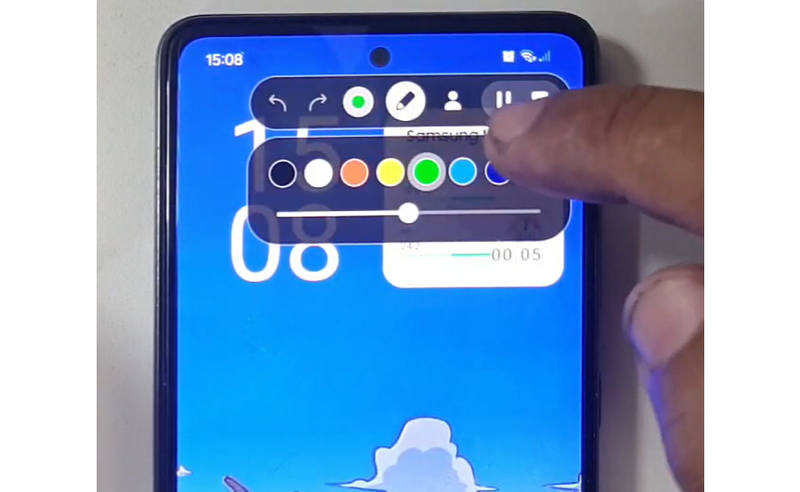
Samsung (One UI): Inkluderer en skjermopptaker med en verktøylinje som lar deg tegne på skjermen i sanntid.
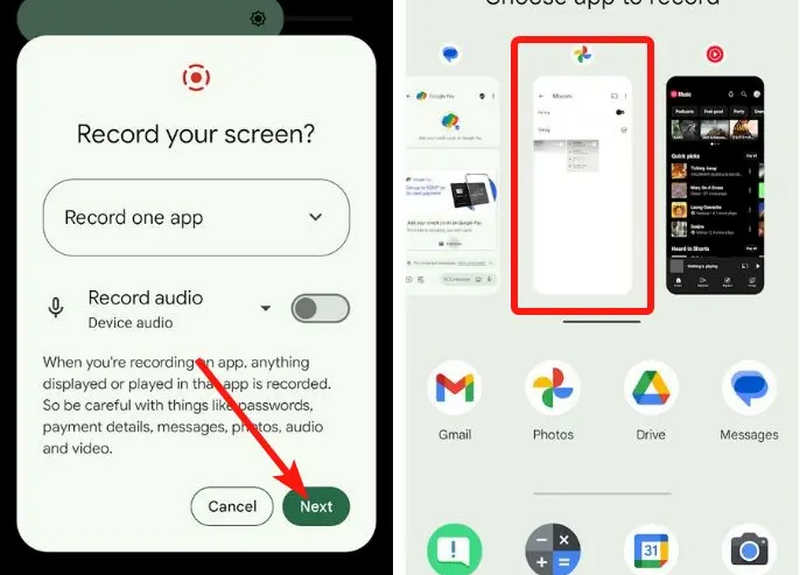
Google Pixel: Du kan velge en bestemt app (f.eks. en bankapp eller WhatsApp) for opptak. Hvis du avslutter appen eller trekker ned varslingspanelet under økten, vil ikke disse handlingene vises i den endelige videoen.
Xiaomi (MIUI/HyperOS): Har en dedikert «Screen Recorder»-app med dyp tilpasning for bildefrekvenser (FPS) og bithastigheter.
Huawei & Honor (HarmonyOS / MagicOS): En unik maskinvare-programvare-integrasjon der du kan starte eller stoppe et opptak ved å dobbeltbanke på skjermen med to knoker.
OPPO, vivo og realme (ColorOS / OriginOS): Når et spill startes, optimaliserer skjermopptakeren automatisk CPU-/GPU-ressurser for å sikre at opptak av et 4K/60 FPS-klipp ikke forårsaker forsinkelser eller bildetap i spillet.
Del 3: 4 flere allsidige måter å skjermopptak på Android
Hvis Android-telefonen din ikke har tilfredsstillende skjermopptaksfunksjoner, kan du sjekke de fire Android-skjermopptakerappene. De kan tilby noen praktiske og praktiske funksjoner.
1. AZ-skjermopptaker
AZ skjermopptaker er en veldig populær Android-skjermopptaker-app i Play Store. Den kan ta opp høyoppløselig video på Android-telefonskjermen din. Applikasjonen lar deg også justere oppløsning, bildefrekvens og bithastighet avhengig av ulike opptaksformål.
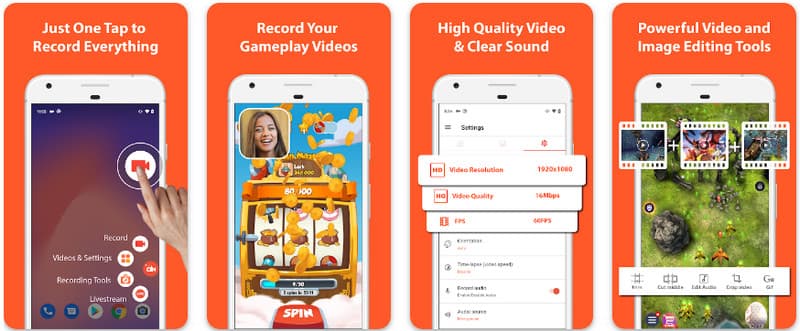
Dessuten lar AZ Screen Recorder brukere ta opp lyden som spilles av på enheten ved hjelp av en mikrofon. Dette gjør opptak til og med de mest intrikate opptakene av høy standard mulig. Dens enkle arrangement av knapper og konsekvent ytelse gjør appen til en favoritt for mange. Lær hvordan du tar opp en Android-skjerm med dette ved å bruke opplæringen nedenfor.
Trinn 1Etter at du har lastet ned appen på Android, start den. Klikk deretter på kamera for å få tilgang til skjermopptaksfunksjonen til den.
Steg 2Trykk på Start nå for å starte skjermopptaket på Android-enheten din, og en nedtelling vil vises på skjermen.
Trinn 3For å stoppe skjermopptaket på Android-telefonen din, trykk på Ta opp knappen igjen. Med denne appen kan du også skjermopptak på din iPhone med lyder aktivert.
2. Mobizen Skjermopptaker
Mobizen skjermopptaker er en annen app for skjermopptak på Android som er gratis tilgjengelig i Play Store og lover enkelt og høykvalitetsopptak. Den tilbyr alternativer for HD-opptak med justerbare parametere og rent opptak for å fjerne vannmerker. Videre har Mobizen også internt lydopptak, som kan brukes til opptak, samt ansiktskamera og GIF, som kan legge til mer til opptaket. Den bruker også enkel tilgang til de forskjellige funksjonene og kontrollene som hjelper brukeren med å starte Android-skjermopptak eller redigere innhold uten å fomle mye med appen. Finn ut hvordan du kan ta opp skjerm med Android ved hjelp av denne appen.
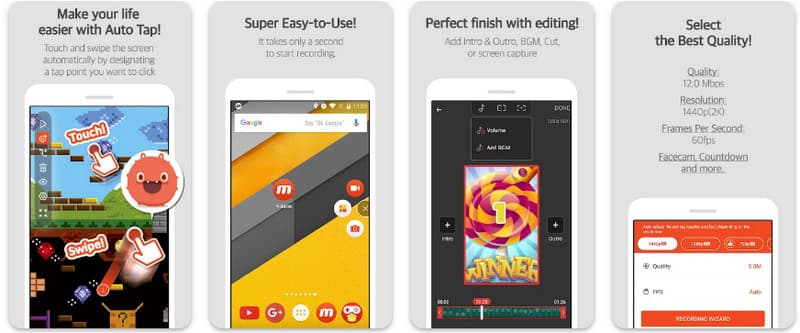
Trinn 1Last den ned nå på din Android og åpne appen.
Steg 2Gjør oppsettet som kreves før du kan bruke skjermopptakeren. En flytende opptakslinje vises på skjermen. Trykk på kamera knappen, da Start nå for å starte skjermopptaket.
Trinn 3Når du er ferdig, trykk på M og Stoppe -knappen for å stoppe skjermopptaket på Android-telefonen din.
3. Skjermopptaker - XRecorder av Inshot
Skjermopptaker - XRecorder er et kraftig alt-i-ett Android-verktøy som forenkler skjermopptak ved å tilby HD-opptak, opptil 1080p ved 60 FPS, uten å kreve root-tilgang eller legge inn vannmerker. Som en ledende metode for skjermopptak på Android 17/16, gir den en sømløs brukeropplevelse gjennom et flytende kontrollvindu som lar deg starte, sette på pause og tegne på skjermen i sanntid ved hjelp av et innebygd penselverktøy. Utover enkel videoopptak støtter den intern lydopptak, facecam-overlegg for streamere og integrert videoredigering, noe som gjør det til et ideelt valg for alle som trenger å lage profesjonelle veiledninger, spillklipp eller tydelige demonstrasjoner direkte fra mobilenheten sin.
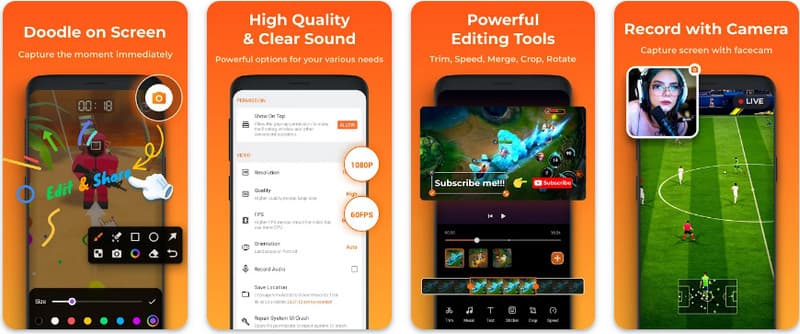
Trinn 1Når nedlastingen av XRecorder er ferdig, åpner du den og trykker på Aktiver flytende ikon.
Steg 2Etter det, trykk på Ta opp knappen for å starte opptaket og Start nå å bekrefte.
Trinn 3Som du kan se, vises lengden på opptaket som et flytende ikon; trykk på Stoppe for å lagre opptaket.
4. Super Screen Recorder
Super skjermopptaker er en førsteklasses løsning for alle som leter etter en profesjonell måte å ta opp skjermbilder på Android med maksimal fleksibilitet. Denne kraftige appen leverer HD-opptak og skiller seg ut ved å tilby en vannmerkefri opplevelse selv i gratisversjonen, noe som sikrer at innholdet ditt forblir rent og profesjonelt. Den har et integrert ansiktskamera for å fange opp reaksjoner i sanntid og et allsidig penselverktøy som lar deg tegne på skjermen under opptak, en viktig funksjon for å lage engasjerende veiledninger eller gjennomganger. Enten du er nybegynner eller avansert bruker, tilbyr Super Screen Recorder den robuste tilpasningen som trengs for å mestre Android-skjermopptak med letthet.
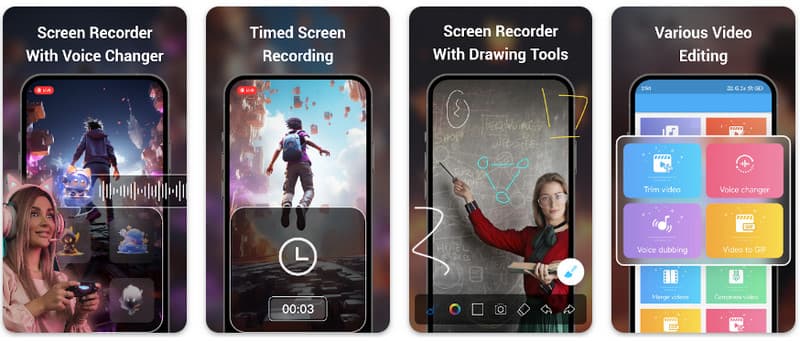
Trinn 1Åpne Super Screen Recorder på Android, og aktiver deretter den flytende funksjonen til appen for å bruke den.
Steg 2På skjermen trykker du på kamera -knappen, bekreft innstillingene og trykk på Start nå. Deretter vises en nedtelling på tre sekunder før opptaket begynner.
Trinn 3Trykk på kvadrat for å avslutte opptaket og lagre det på Android-enheten din.
Bonus: Ta opp skjermbilde på datamaskin og mobiltelefon med beste kvalitet
Tror du at du kan ta opp skjermen på Android-telefonen din på en datamaskin? AVAide skjermopptaker er primært utviklet for skjermopptak på Windows og Mac. Men den kan også ta opp fullskjerm på Android-telefonen din. Dette er spesielt nyttig når du trenger å lage en veiledning om visse operasjoner på Android og deretter redigere videoen direkte på Mac eller Windows.
For skjermopptak på Windows og Mac støtter AVAide Screen Recorder AV1- og HEVC-kodeker, som kan komprimere opptaksresultatet kraftig samtidig som den beste videokvaliteten opprettholdes. Full maskinvareakselerasjon lar deg ta opp lange videoer med svært lav CPU-bruk. Enda mer interessant er at den har en forbedret mikrofon som forbedrer klarheten ved å kansellere bakgrunns- og ekkolyder. Programvaren lager utmerkede opptak med enkle navigasjons- og redigeringsfunksjoner, som trimming og merknader. Selv om det er kostbar programvare, anbefales den på det sterkeste fordi den kan brukes til personlige og forretningsmessige formål.
- Spill inn Android- eller iOS-enheten din med den beste videokvaliteten.
- Lag enkelt veiledningsopptak med tegne- og merknadsfunksjoner.
- Støtt AV1- og HEVC-utgangskodeker for å komprimere utgangsvideoen kraftig.
- Tilbyr brukervennlige videoredigeringsfunksjoner for å redigere opptakene dine på Android.
Trinn 1Du kan nå laste ned skjermopptakeren på din PC ved å krysse av for nedlastingsknappen her. Installer deretter appen ved å følge ledeteksten på skjermen og start den for å gå videre til neste trinn.

GRATIS NEDLASTING For Windows 7 eller nyere
 Sikker nedlasting
GRATIS NEDLASTING For Mac OS X 10.13 eller nyere
Sikker nedlastingSteg 2Nå som det allerede kjører inn i systemet ditt, plasser innspillingsrammen i området der du vil starte opptaket. Her kan du ta opp hele skjermen ved å velge Fullskjerm-alternativet i stedet for Region-alternativet.

Trinn 3Deretter kan systemet og mikrofonopptaket settes opp om nødvendig. Hvis du vil legge til ansiktet ditt i opptaket, aktiverer du Webcam-alternativet her. Klikk deretter REC for å starte nedtellingen og starte opptaket.

Trinn 4Når du avslutter opptaket, klikker du på Stoppe knappen, som er en rød firkant. Til neste vindu som vises, kan du redigere opptaket du tok tidligere med alternativene som er tilgjengelige her, og deretter plassere markøren på opptaket og trykke på nedlasting knappen for å lagre den. Denne appen beviser sin verdi som beste åpen kildekode-opptaker tilgjengelig.

Del 4: Vanlige spørsmål om hvordan du tar opp skjermbilder på Android
Hvor finner jeg skjermopptaket i innstillingene mine?
For å få tilgang til den innebygde funksjonen skjermopptak på Android uten tredjepartsapper, sveip ned to ganger fra toppen av skjermen for å åpne Hurtiginnstillinger panel og se etter Skjermopptak (eller «Skjermopptak»-ikonet. Hvis det ikke er synlig, trykker du på Redigere (blyant)-knappen for å dra skjermopptaksbryteren inn i de aktive rutene. Når den er lagt til, kan du ganske enkelt trykke på ikonet, velge lydpreferanser, for eksempel opptak av interne systemlyder eller mikrofonen din, og trykke start for å begynne å ta opp skjermen direkte fra systeminnstillingene.
Hvorfor finner jeg ikke skjermopptak på Android-en min?
Fraværet av et innebygd alternativ for skjermopptak på Android skyldes vanligvis at enheten din kjører et eldre operativsystem, ettersom den innebygde funksjonen først ble standardisert med Android 11Hvis programvaren din er oppdatert, kan det hende at bryteren rett og slett er skjult for deg. Hurtiginnstillinger menyen; du kan vanligvis vise den ved å trykke på Redigere -knappen i varslingspanelet og dra «Skjermopptak»-flisen inn i den aktive visningen. I tillegg kan noen «Go Edition»-enheter på inngangsnivå eller spesifikke produsentskinn deaktivere denne funksjonen for å spare systemressurser. I så fall er det å bruke en tredjepartsapp som XRecorder eller Super Screen Recorder den mest effektive løsningen.
Hvorfor forsvant skjermopptaksknappen?
Skjermopptaksknappen forsvinner vanligvis fordi den ved et uhell ble flyttet ut av det aktive området for hurtiginnstillinger. Du kan ofte gjenopprette den ved å trykke på Rediger (blyantikon) i varslingspanelet og dra flisen tilbake. Den kan også være skjult på grunn av strømsparingsmodus, begrenset av en arbeidsprofil, eller rett og slett kreve en systemomstart for å oppdatere brukergrensesnittet etter en programvareoppdatering.
Ved å bruke opplæringen som er oppført her, har du lært hvordan skjermopptak på Android Samsung. Denne opplæringen vil ha stor nytte for deg angående skjermopptaksoppgaven din, spesielt hvis du er en Android-bruker. Del denne informasjonen med Android-brukervennen din for å gi dem en ide om hvordan du gjør det.
OM FORFATTEREN

Ta opp skjerm, lyd, webkamera, spilling, nettmøter, samt iPhone/Android-skjerm på datamaskinen din.
Skjermopptak


