"Bildet er ikke ment å være så uskarpt. Powerpoint gjør det automatisk når du gjør det større, og det ser forferdelig ut. Er det en måte å få det til å ikke gjøre dette?"-Reddit
Vel, hvis du ønsker å løse problemet ditt, er vi her for å hjelpe deg. I dette innlegget vil vi gi deg detaljerte instruksjoner om hvordan du fjerner uskarphet bilder på PowerPoint. Med det kan du fortsatt få den beste kvaliteten på bildene dine. Bortsett fra det, vil du også lære ulike årsaker til at bilder blir uskarpe på programvaren. Vi oppfordrer deg til å lese alt fra dette innlegget og lære mer om den mest effektive måten å gjøre det på fjerne uskarphet bilder på PowerPoint.
Del 1. Hvorfor bilder blir uskarpe i PowerPoint
Før du løser problemet, er det nyttig å forstå hvorfor PowerPoint forringer grafikken din:
- Automatisk komprimering: For å holde presentasjonsfilstørrelsene lave, komprimerer PowerPoint bilder automatisk under lagringsprosessen.
- Lav kildeoppløsning: Å strekke et lite eller lavoppløst bilde over et stort lysbilde introduserer med makt pikselering.
- Kopier-og-lim-inn-nedbrytning: Å dra eller lime inn bilder direkte fra nettet til PowerPoint kopierer ofte hurtigbufferfiler av lavere kvalitet i stedet for den opprinnelige kilderessursen.
- Tapsgivende formater: Formater som JPEG forringes med hver lagring. Tapsfrie formater (som PNG) beholder skarpheten mye bedre.
Del 2. Slik fjerner du uskarphet i bilder på PowerPoint
Hvis du vil uskarpe bilder på PowerPoint, er det ulike metoder du kan bruke. Så for å finne den beste løsningen for å oppnå målet ditt, se alle veiledningene i denne delen.
Metode 1: Deaktiver alternativet Ikke komprimer
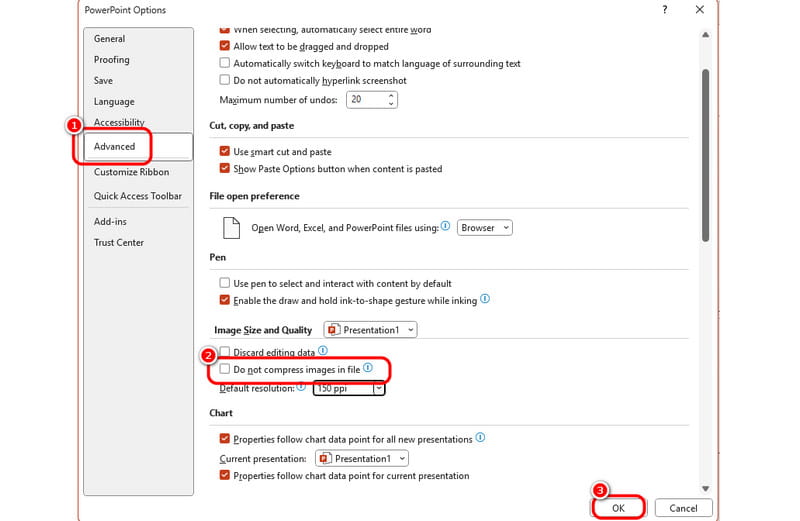
Som vi har diskutert, kan PowerPoint-programmet automatisk komprimere bildet du har satt inn. Så hvis du vil forhindre denne typen handling, bør du forhindre at det komprimerer bilder. For å gjøre det kan du følge de enkle trinnene nedenfor.
Trinn 1Åpne din PowerPoint programvare og fortsett til Fil > Alternativer del. Etter det har PowerPoint-alternativer vinduet vises på skjermen.
Steg 2Etter det, gå til Avansert > Bildestørrelse og kvalitet alternativer. Aktiver deretter Ikke komprimer bildet alternativ.
Trinn 3Kryss av OK knappen nedenfor for å lagre og bruke endringene for den siste prosessen.
Metode 2: Endre standardoppløsningen
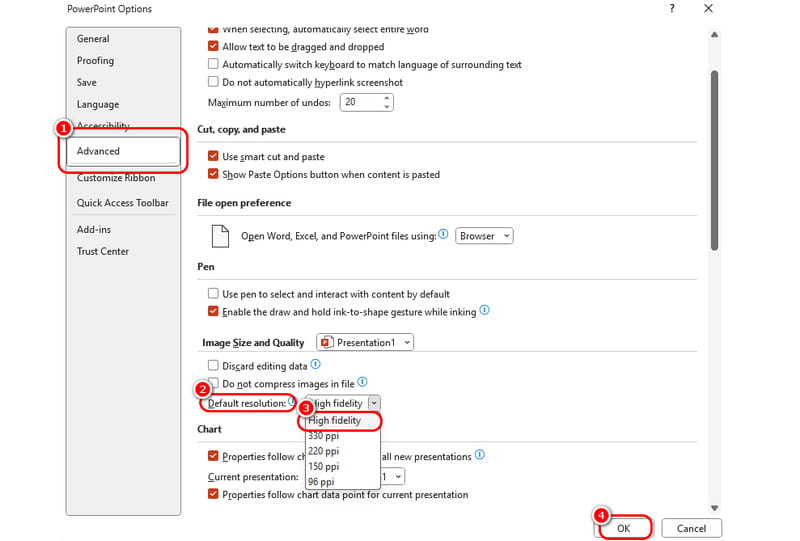
For den andre metoden for å fjerne uskarpheten i et bilde i PowerPoint, endrer vi standardoppløsningen. For å fjerne uskarpheten i bildet i PowerPoint, er det beste å sette oppløsningsinnstillingen til et High Fidelity-alternativ. Så hvis du vil fortsette med prosessen, se metoden nedenfor.
Trinn 1Etter at du har startet PowerPoint-programvaren, klikker du på Fil knappen øverst til venstre og velg Alternativer fra venstre grensesnitt.
Steg 2Når PowerPoint-alternativer vinduet vises, klikk på Avansert og velg Bildestørrelse og kvalitet alternativ.
Trinn 3Klikk på Standard oppløsning -knappen og velg alternativet for høy kvalitet. Når du er ferdig, klikker du på OK -knappen for å bruke endringene. Hvis du vil øke bildets oppløsning, kan du bruke denne metoden.
Metode 3: Juster bildeskarphet
For den siste metoden vår kan du bruke skarphetsfunksjonen for å forbedre uskarpe bilder. Den har en enkel prosess, noe som gjør den ideell for nybegynnere. Følg trinnene nedenfor for å begynne å fikse uskarpe bilder i PowerPoint.
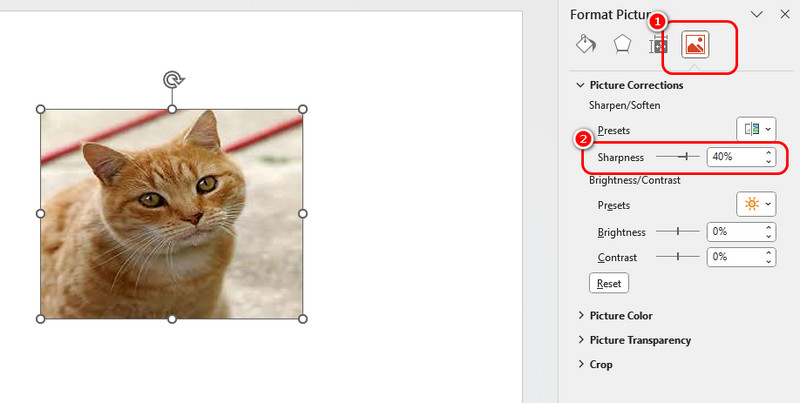
Trinn 1Det første du må gjøre er å sette inn bildet i PowerPoint. Finn presentasjonen din, gå til Sett inn > Bilde > Denne enheten mulighet for å legge til bildet.
Steg 2Høyreklikk på bildet og trykk på Formater bilde alternativ. Med det vil ulike funksjoner vises på høyre grensesnitt.
Trinn 3Klikk på Bilde knappen og fortsett til Bildekorreksjon seksjon. Velg deretter Skarphet funksjon og bruk glidebryteren til å justere skarphetsnivået til bildet. Når du er ferdig, kan du lagre presentasjonen til Fil > Lagre som alternativer.
Profftips for å opprettholde skarpe presentasjonsbilder
- Bruk tapsfrie formater: Len deg alltid mot PNG eller TIFF filer når gjennomsiktighet og skarpe linjer er avgjørende.
- Sett inn, ikke lim inn: Bruk Sett inn > Bilder > Denne enheten i stedet for Ctrl+C / Ctrl+V fra en nettleser for å bevare originale metadata og kvalitet.
- Match sideforhold: Unngå å strekke bilder manuelt via sidehåndtakene. Hold Shift-tasten nede mens du drar i hjørnene for å skalere proporsjonalt.
- Forbedre før du legger til: Du kan bruke en AI pikselforsterker for å forbedre bildet før du legger det til i PowerPoint. Det vil gjøre det visuelle bedre.
Del 3. Online metode for å fjerne uskarphet bilder gratis
Hva om selve bildet er for lite eller uskarpt? Juster alle innstillingene du ønsker i PowerPoint, men det vil ikke gjenskape manglende piksler. Dessuten er det for komplisert å justere hvert bilde ett etter ett i PowerPoint.
Det er der AVAide Image Upscaler Online kommer inn. Det er et gratis, nettleserbasert verktøy som bruker AI til å fikse uskarpe bilder for PowerPoint umiddelbart.
Nøkkelfunksjoner til AVAide Image Upscaler:
- 8× Forbedring: Den strekker ikke bare bildet ditt; den bruker AI-oppskalering for å skalere det opp til 2×, 4×, 6× eller 8× av den opprinnelige størrelsen.
- 100% Gratis og uten vannmerker: Du får rene nedlastinger i høy oppløsning uten skjulte kostnader eller irriterende logoer.
- Superenkelt: Du trenger ikke fotoredigeringsferdigheter. AI-en håndterer det tunge arbeidet med ett klikk.
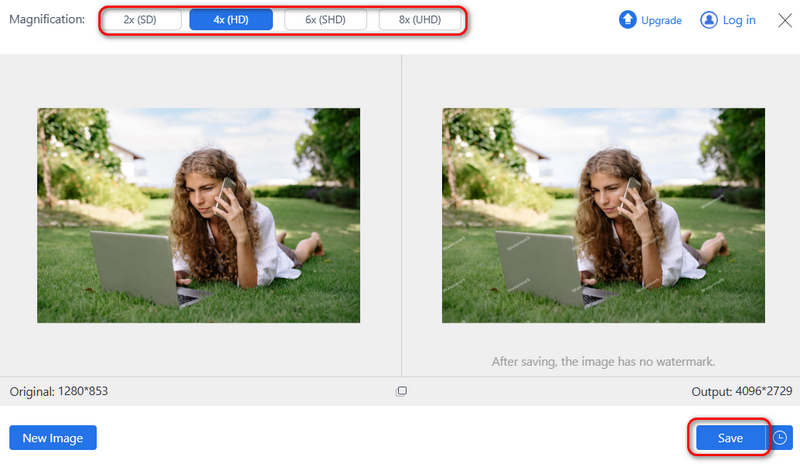
Trinn 1Adgang AVAide Image Upscaler Online i nettleseren din. Klikk på Last opp bildet ditt -knappen for å legge til bildene dine i dette nettbaserte verktøyet. Du kan også klikke på Gruppe knappen for å legge til flere bilder.

Steg 2Nå kan du velge ønsket forstørrelse, som 2X, 4X, 6X og til og med 8x. Klikk deretter på Lagre -knappen for å fikse det uskarpe bildet for PowerPoint og lagre bildet på din lokale lagring.
Del 4. Vanlige spørsmål om å fjerne uskarphet i bilde i PowerPoint
Hvordan pakker jeg ut et bilde i PowerPoint?
Start PowerPoint-programvaren, og klikk deretter Fil > Alternativer > Avansert > Bildestørrelse og kvalitetAktiver deretter Ikke komprimer bilder i filen.
Kan et uskarpt bilde fjernes fra uskarpheten?
Hvis et bilde er manuelt uskarpt, er det svært vanskelig å fjerne uskarpheten. Det hjelper kanskje ikke å bare oppskalere oppløsningen eller øke skarpheten, og du må kanskje bruke AI-verktøy for å «lage» nye piksler for bildet.
Hvordan myker jeg opp et bilde i PowerPoint?
Klikk på bildet for å velge det. Gå til Bildeformat fanen øverst på skjermen. Klikk på Bildeeffekter (i gruppen Bildestiler), hold musepekeren over Myke kanter, og velg en forhåndsinnstilt prosentandel (f.eks. 5-punkts, 10-punkts osv.) for å se det blandes umiddelbart.
Dette innlegget viser deg tre offisielle måter å fikse uskarpe bilder i PowerPointDu kan også lære noen tips for å opprettholde høy kvalitet på bildene dine. Men hvis bildet ditt er for lite, kan ikke disse funksjonene i PowerPoint hjelpe deg, så du kan bruke AVAide Image Upscaler for å skalere bilder direkte før du legger dem til i presentasjonen.
OM FORFATTEREN


AI-teknologien vår vil automatisk forbedre kvaliteten på bildene dine, fjerne støy og fikse uskarpe bilder på nettet.
BEHANDL NÅ