Canon-kameraer tar opp bilder i CR2, et råbildeformat som er utviklet for å fange opp maksimale bildedetaljer. Selv om det er praktisk for redigering, kan det ikke brukes i daglige applikasjoner på grunn av den store filstørrelsen og begrensede kompatibiliteten. Når konvertering av CR2 til JPG, kan den deles enklere, lastes opp raskere og støttes på et bredere spekter av enheter. Det er også en prosess som minimerer lagringsbehov uten å kreve teknisk ekspertise på høyt nivå. Denne veiledningen er delt inn i årsaker, metoder og verktøy basert på vanlige praksiser for bildehåndtering for å hjelpe deg med å administrere filene dine på en tydelig og kontrollert måte.
Del 1. Canon CR2: Hvorfor du trenger å konvertere den
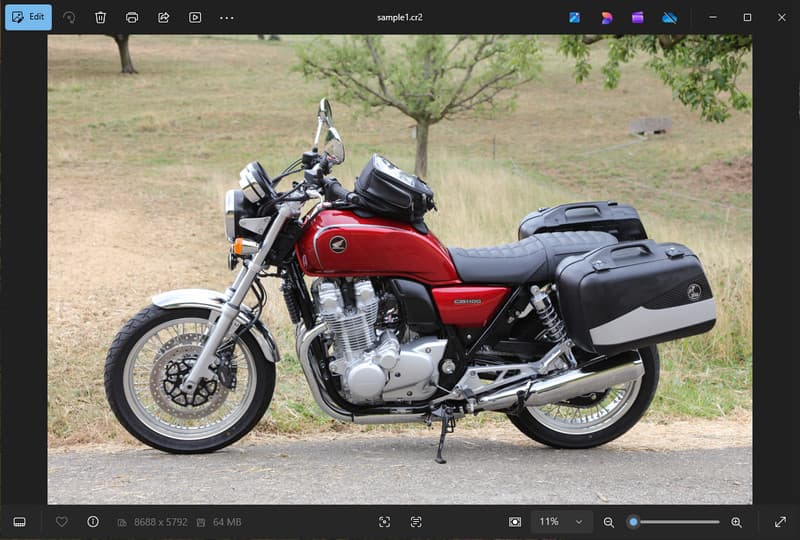
Canon CR2 er et råfilformat som registrerer råinformasjon fra kamerasensoren. Selv om det er ekstremt detaljert, kan det være nødvendig å konvertere CR2-filformatet til JPG, ettersom mange enheter og applikasjoner ikke støtter råfiler.
1. Begrenset kompatibilitet
Mange standardverktøy støtter ikke CR2-filer, noe som gjør det vanskelig å vise bilder. Konvertering av en CR2-fil til JPG sikrer at bildene dine åpnes problemfritt på tvers av enheter, nettlesere og vanlige bildevisningsprogrammer.
2. Stor filstørrelse
Råfiler er veldig store siden de lagrer mer bildedata. Dette påvirker lagring og ytelse. Å endre CR2-bilder til JPG reduserer filstørrelsen, noe som gjør det enklere å lagre og overføre bilder effektivt.
3. Enklere deling og opplasting
Mange plattformer godtar ikke råformater eller er trege å behandle. Å bytte fra CR2 til JPG er en rask og enkel måte å laste opp bildene dine på og sikre at bildene dine vises i riktig format på sosiale medier, e-post og andre nettsteder.
4. Ingen behov for spesialisert programvare
CR2-filer trenger redigeringsprogramvare som kan behandle råfilen. Når du konverterer CR2 til JPG, eliminerer du bruken av sofistikerte programmer og får enkelt bilder du kan bruke i hverdagen.
5. Raskere arbeidsflyt
Å jobbe med råfiler kan forsinke prosessen, spesielt i store mengder. Å bruke en pålitelig CR2-til-JPG-konverter bidrar til å øke hastigheten på bildebehandlingen og forbedre den generelle produktiviteten.
6. Enklere prosess for nybegynnere
Råformater kan virke komplekse for nye brukere. Å lære å konvertere CR2 til JPG forenkler arbeidsflyten og gjør bildehåndtering enklere uten tekniske hindringer.
Å forstå disse punktene forklarer hvorfor konvertering ofte er det praktiske valget. I neste avsnitt vil du utforske de beste metodene for å konvertere CR2 til JPG effektivt.
Del 2. 5 beste måter å konvertere CR2 til JPG
1. AVAide Image Converter (beste gratis alternativ på nett)
AVAide Image Converter er en rask, nettleserbasert løsning utviklet for brukere som trenger raske resultater uten å installere programvare. Den er spesielt nyttig når du trenger å konvertere CR2 til JPG i bulk samtidig som du opprettholder bildekvaliteten.
Nøkkelegenskaper:
- Konverterer til og fra batch-CR2-filer.
- Opprettholder høy bildekvalitet og naturlige farger.
- Helt på nett uten behov for installasjon
- Godtar JPG, PNG og andre.
- Brukervennlig grensesnitt for akselerert behandling.
Plattformer:
- Nettbasert, som fungerer på Windows, Mac, Linux og mobile nettlesere
Trinn 1Besøk den offisielle nettsiden
Gå til nettleseren din og få tilgang til den offisielle AVAide Image Converter-siden. Når den er lastet inn, kan du begynne å konvertere umiddelbart uten å registrere deg eller installere noe.
Steg 2Angi utdata og opplasting
Velg JPG som ønsket utdataformat. Klikk deretter på + -knappen eller dra og slipp CR2-filene dine inn i opplastingsområdet for å begynne.
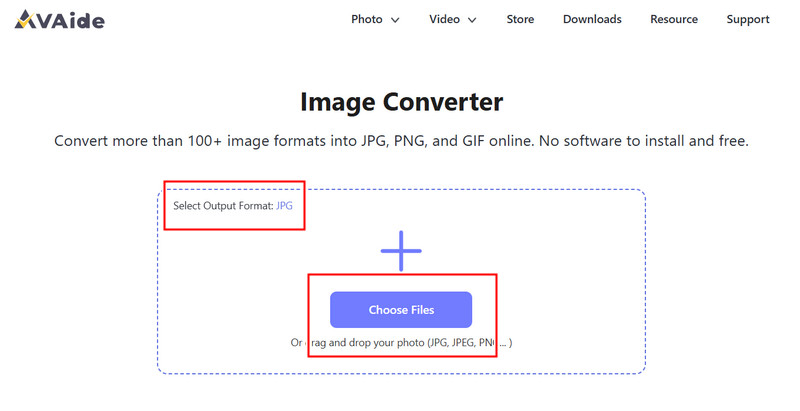
Trinn 3Begynn å konvertere CR2
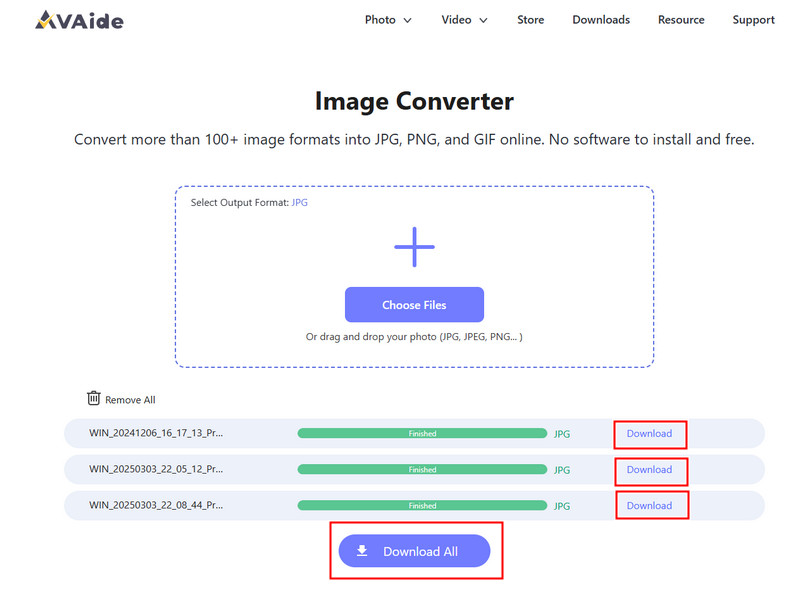
Vent til verktøyet er ferdig med å behandle filene dine. Når du er ferdig, klikker du nedlasting for en enkelt fil eller Last ned alle hvis du konverterte flere bilder.
- Fordeler
- Enkel og rask å bruke
- Ingen oppsett eller installasjon nødvendig
- Effektiv støtte for batchbehandling
- Opprettholder jevn utskriftskvalitet
- Ulemper
- Krever en internettforbindelse
- Begrensede avanserte redigeringsverktøy
2. Adobe Photoshop
Adobe Photoshop er et effektivt program som lar deg redigere råfiler før eksport. Det brukes vanligvis når du trenger å konvertere CR2 til JPG og ha full kontroll over bildeendringer.
Nøkkelegenskaper:
- Avansert CR2-redigering via Camera Raw
- Eksportalternativer av høy kvalitet
- Redigeringsverktøy i profesjonell kvalitet
Plattformer:
- Windows og Mac
Trinn 1Start Photoshop og åpne CR2-filen din, som lastes inn automatisk i Camera Raw.
Steg 2Juster eksponering, hvitbalanse eller farge etter behov, og klikk deretter på Åpen å fortsette.
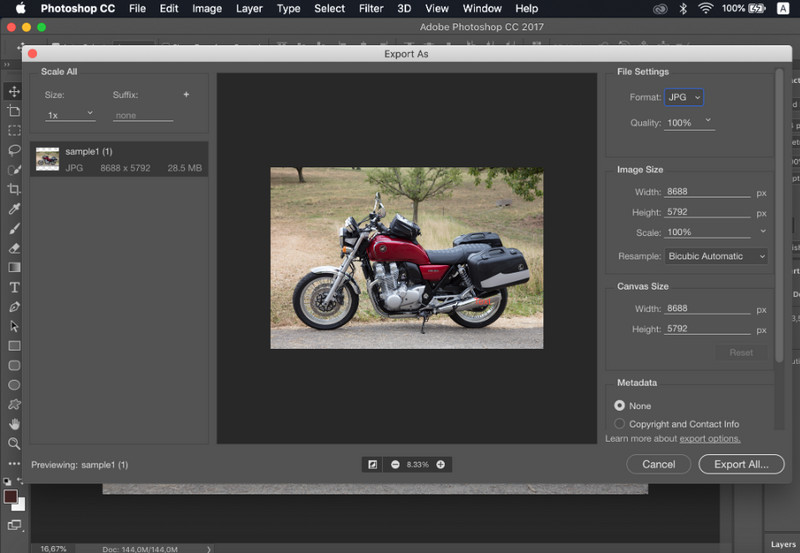
Trinn 3Gå til Fil, plukke ut Lagre som, velg JPG formatet, angi kvaliteten og lagre bildet.
- Fordeler
- Utmerket bildekontroll og presisjon
- Bransjestandard programvare
- Ulemper
- Krever abonnement
- Bratt læringskurve
3. Lightroom
Lightroom er ideelt for fotografer som administrerer store bildebiblioteker, og selv om du vil fjern bakgrunnen i LightroomDet forenkler batchredigering og eksport, noe som gjør det enkelt å bruke en CR2-til-JPG-konverteringsarbeidsflyt for flere bilder samtidig.
Nøkkelegenskaper:
- Batchredigering og eksport
- Ikke-destruktivt redigeringssystem
- Organisert fotohåndtering
Plattformer:
- Windows, Mac og mobil
Trinn 1Åpne Lightroom og legg CR2-filene dine til i biblioteket.
Steg 2Velg bildene og rediger dem om nødvendig.
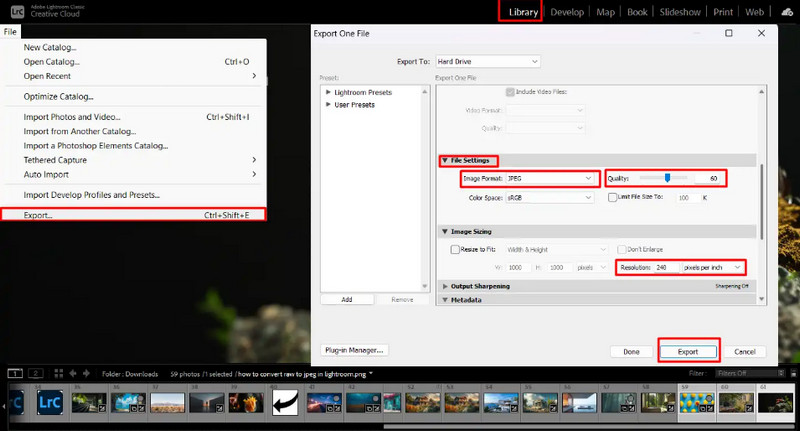
Trinn 3Klikk Eksport, plukke ut JPG formater, angi innstillinger og velg hvor du vil lagre.
- Fordeler
- Effektiv for bulkbildebehandling
- Konsekvent utskriftskvalitet
- Ulemper
- Abonnement kreves
- Krever læring for nybegynnere
4. GIMP
GIMP bilderedigerer er et gratis redigeringsprogram med åpen kildekode som kan håndtere råbilder ved hjelp av programtillegg. Det er et effektivt alternativ hvis du lærer hvordan du konverterer CR2 til JPG uten å bruke penger på betalt programvare.
Nøkkelegenskaper:
- Gratis og åpen kildekode-programvare
- Støtter flere bildeformater
- Grunnleggende redigerings- og konverteringsfunksjoner
Plattformer:
- Windows, Mac, Linux
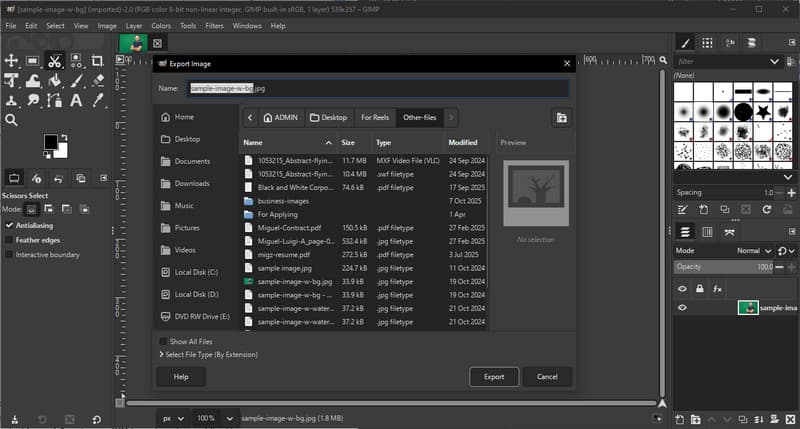
Trinn 1Åpne GIMP og last inn CR2-filen din ved hjelp av en RAW-plugin.
Steg 2Juster bildeinnstillingene i importvinduet og bekreft.
Trinn 3Gå til Fil, plukke ut Eksporter som, velg JPG formatet og eksporter filen.
- Fordeler
- Helt gratis å bruke
- Fleksibel med plugins og utvidelser
- Ulemper
- Oppsettet kan være teknisk
- Mindre polert grensesnitt
5. Konvertering
Konvertering er et velkjent nettbasert verktøy som lar brukere konvertere filer raskt uten installasjon. Det er et praktisk valg når brukere spør hvordan de kan konvertere CR2 til JPG ved hjelp av en enkel online plattform.
Nøkkelegenskaper:
- Støtter flere filformater, inkludert CR2 og JPG
- Fungerer direkte i nettleseren
- Tillater filopplasting fra enhet, sky eller URL
- Enkel og rask konverteringsprosess
Plattformer:
- Nettbasert
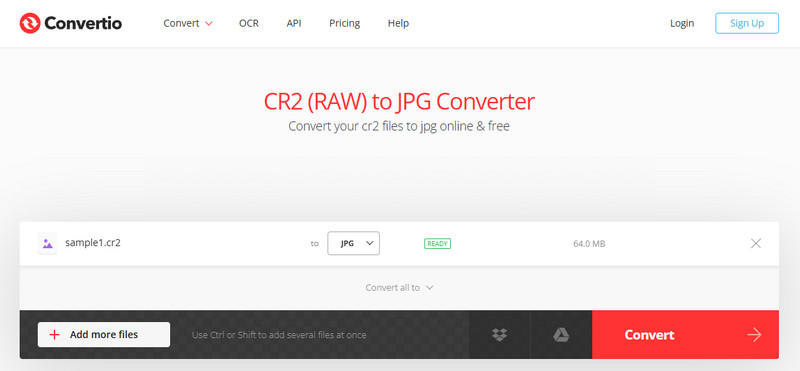
Trinn 1Åpne Convertio i nettleseren din og last opp CR2-filen din.
Steg 2Plukke ut JPG som utdataformat.
Trinn 3Start konverteringen og last ned filen når den er ferdig
- Fordeler
- Enkel å få tilgang til og bruke
- Ingen installasjon nødvendig
- Støtter ulike filkilder
- Ulemper
- Filstørrelsesgrenser på gratisversjonen
- Krever en internettforbindelse
Del 3. Sammenligning av de 5 CR2 til JPG-konvertererne
| Funksjoner | AVAide Image Converter | Adobe Photoshop | Lightroom | GIMP | Konvertering |
| Lett å bruke | Veldig enkelt | Moderat | Moderat | Moderat | Lett |
| Batch-konvertering | Ja | Begrenset | Begrenset | Begrenset | Begrenset til 5 |
| Bildekvalitet | Høyest | Høy | Høy | Høy | Høy |
| Hastighet | Rask | Moderat | Rask | Moderat | Rask |
| Begrensning av filstørrelse | Nei | Nei | Nei | Nei | Ja |
Del 4. Vanlige spørsmål om konvertering av CR2 til JPG
Hva skal man gjøre med CR2-filer?
CR2-filer er råbilder som inneholder ubehandlede data fra et Canon-kamera. De er nyttige hvis du vil ha full kontroll over redigering, for eksempel justering av lysstyrke, farge og skarphet. De er imidlertid ikke enkle å bruke til hverdagsoppgaver som deling eller opplasting.
Hvilke apper åpner CR2-filer?
CR2-filer kan åpnes med flere bilderedigeringsprogrammer. Adobe Photoshop og Lightroom er de vanligste valgene fordi de støtter råformater fullt ut og tilbyr avanserte redigeringsverktøy. GIMP kan også åpne CR2-filer med en plugin.
Hvordan konvertere RAW til JPG på én gang?
For å konvertere flere råfiler samtidig trenger du et verktøy som støtter batchkonvertering. Programmer som Lightroom eller nettbaserte verktøy som AVAide Image Converter lar deg importere eller laste opp flere CR2-filer samtidig. Du velger ganske enkelt JPG som utdataformat og starter prosessen.
Å konvertere CR2-filer til JPG gjør det enklere å dele, vise og lagre bilder. Mens CR2 er flott for redigering, er JPG mer praktisk for daglig bruk. Hvis du lurer på hvordan endre filtypen fra CR2 til JPG, kan du bruke verktøy som Photoshop, Lightroom eller online konverterere som AVAide Image ConverterMålet er enkelt: å gjøre store råfiler om til mindre, brukbare JPG-bilder uten å miste viktig kvalitet.
OM FORFATTEREN


Du kan enkelt konvertere bildet ditt fra hvilket som helst bildeformat til en populær JPG, PNG eller GIF uten tap av kvalitet.
BEHANDL NÅ