お使いのコンピューターは、編集、視聴、ゲームなど、オンライン活動に必要なすべての機能を備えています。誰もが必要とする機能の1つがスクリーンショット機能で、画面全体または特定の領域をキャプチャできます。さまざまなブランドのコンピューターがあるため、この記事では、 Windows Acerでスクリーンショットを撮る方法まず、ノートパソコンやデスクトップパソコン、Chromebook、タブレットに搭載されているスクリーンショット機能にアクセスするさまざまな方法をご紹介します。さらに、Acer端末にPrintScreenボタンがなく、スクリーンショットを撮れないといった困った状況に陥った場合の解決策も掲載しています。
パート1:Acer製Windowsノートパソコンまたはデスクトップパソコンでスクリーンショットを撮る方法
以下は、標準的なショートカットキーとアプリを使用してAcer製ノートパソコンでスクリーンショットを撮る方法です。分かりやすい手順を記載していますので、ぜひご自身でお試しください。それでは早速始めましょう。
1. 従来のプリントスクリーン(PrtSc)ボタン
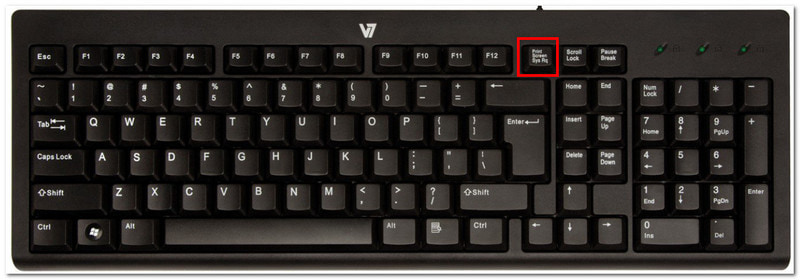
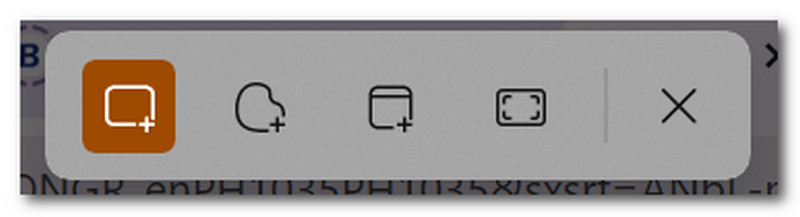
ステップ1見つけて押す PrtSc キーボード右上のボタンを押してください。画面が暗くなり、画面上部中央に小さなバーメニューが表示されます。
ステップ2モードを選択してください: 長方形, フリーフォーム, 窓、 と 全画面表示完了すると、スクリーンショットは自動的にクリップボードにコピーされ、空白のドキュメント、メッセージチャットなどに貼り付けることができます。
2. スニッピングツールとスニップ&スケッチ(カスタムエリアに最適)
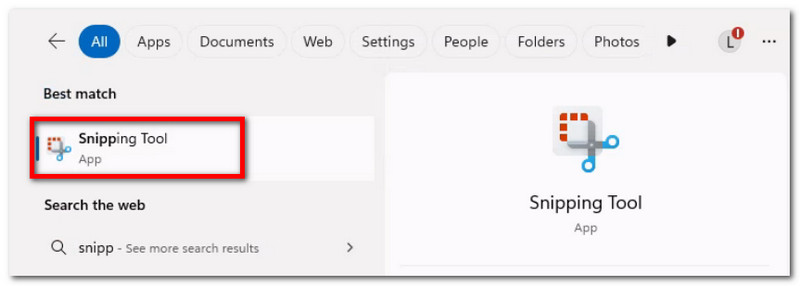
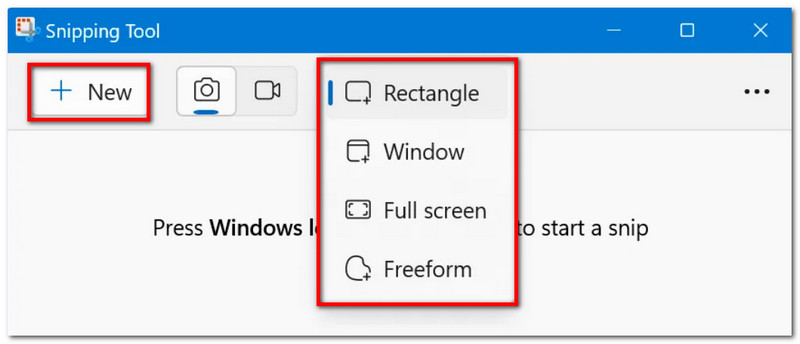
ステップ1検索バーでアプリを検索してください。アプリの名前は次のように表記されることがあります。 スニッピングツール また 切り取り&スケッチお使いのデバイスのWindowsのバージョンによって異なります。
ステップ2ドロップダウンメニューからモードを選択し、次にクリックします。 新しい スクリーンショットを撮るには、ボタンをクリックします。描画ツールを使用して編集してから、クリックします。 保存する スクリーンショットを保存する。
3. ゲームバー
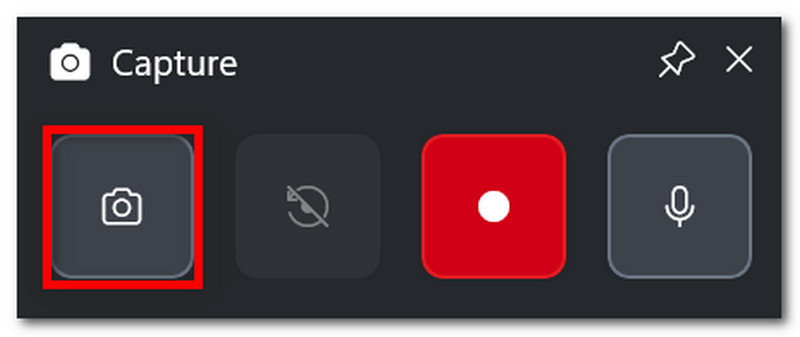
ステップ1プレス ウィンドウズ + G キーボードの上で。画面が暗くなると、いくつかのタスクバーが表示されます。
ステップ2クリック カメラ スクリーンショットを撮るためのアイコンです。 Windows + Alt + PrtSc ゲームプレイ中にこの機能にアクセスするには。
4. AVAideスクリーンレコーダー
デフォルトのスクリーンショット方法では、デバイスでできることは限られていると思うかもしれません。しかし、 AVAideスクリーンレコーダー スクリーンショット撮影の体験を凌駕するツールをお探しですか?洗練されたデザインと豊富な機能を備えたAVAideを使えば、画面キャプチャが簡単かつ高品質に行えます。画面全体、開いているウィンドウ、または小さな領域のスクリーンショットを撮影し、BMP、JPEG、PNG、GIF、TIFFなどの一般的な形式で保存できます。内蔵の編集オプションも便利で、保存前に自由に描画したり、数字やテキストを追加したり、写真の重要な部分をぼかしたりできます。さらに、AVAideの画面キャプチャは単体ツールとしてだけでなく、コンピューター、ウェブカメラ、インターネット上のあらゆる場所での録画にも使用できます。WindowsやMacでこの素晴らしい代替ツールを使って、スクリーンショット体験をレベルアップさせましょう。
ステップ1クリック ダウンロード ボタンを押して、AVAide Screen RecorderをAcerにインストールしてください。インストールが完了したら、ソフトウェアを開いてください。

 安全なダウンロード
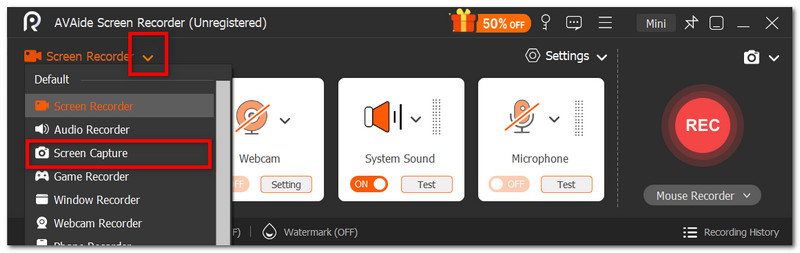
ステップ2UIの左隅にあるドロップダウンメニューに移動し、リストから選択します。 画面キャプチャ このオプションを選択すると、カーソルがすぐに変更され、それを使って画面のキャプチャする領域を選択できます。
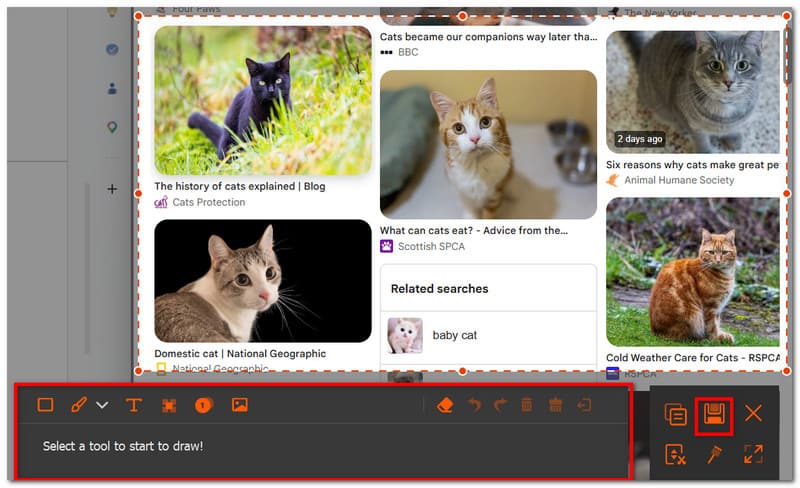
ステップ3撮影後、編集オプションを使用して画像を編集できます。その後、をクリックして画像をエクスポートします。 保存する ボタン。必要に応じて繰り返してください。
パート2:プリントスクリーンボタンを使わずにAcerでスクリーンショットを撮る方法
キーボードにPrtScキーがない場合、作業が大幅に遅れてしまうという困った状況に陥ることがあります。では、PrtScキーを使わずにAcerのパソコンでスクリーンショットを撮るにはどうすれば良いのでしょうか?この記事では、PrtScキーを使わずにAcerノートパソコンでスクリーンショットを撮る最適な方法をご紹介します。
解決策1:Fn + Windows + スペースバー(一般的なAcerショートカット)またはFn + PrtScを押します。
ステップ1Acerキーボードで、 Fn + Windows + スペースキー ボタン。画面が点滅したら、全画面スクリーンショットが撮影されたことを意味します。
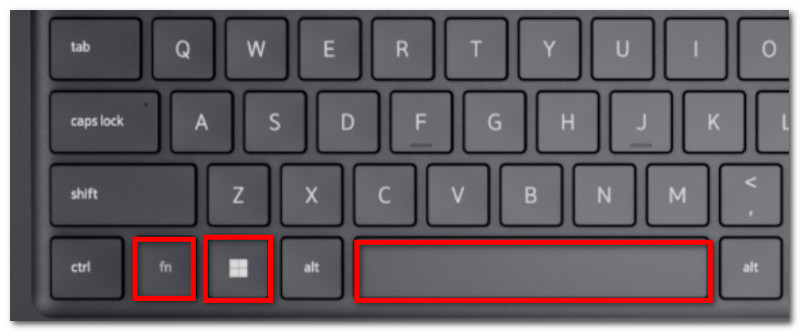
ステップ2空白の Word 文書に移動して、 Ctrl + V 画像を貼り付けます。その後、ドキュメントをフォルダに保存できます。
解決策2:Windowsキー + Shiftキー + Sキーを押す(Snipping Toolのキャプチャバーが開きます)
ステップ1同時に押す Windows + Shift + S キーボードのキーを押すと、Snipping Toolが開きます。
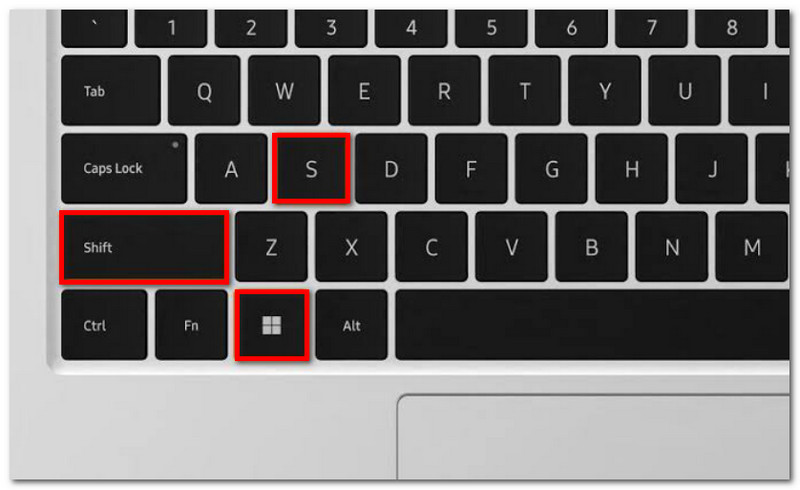
ステップ2スクリーンショットモードを選択し、カーソルをドラッグしてキャプチャしたい領域を選択します。 Ctrl + V 画像を貼り付ける。
解決策3:別のキーを再マッピングする
ステップ1Microsoft Store から PowerToys を入手してください。インターフェースの左側から、 キーボードマネージャー.
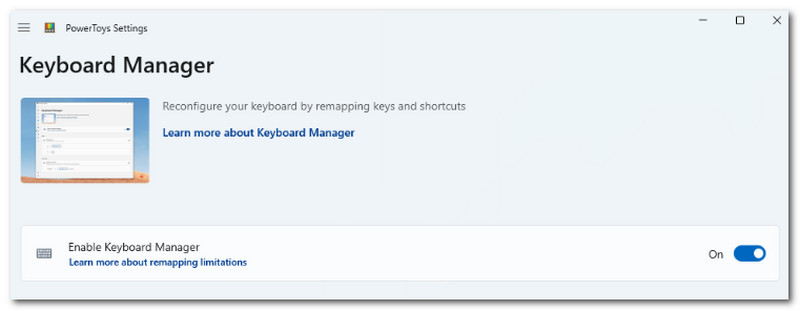
ステップ2必要に応じて、キーボードの任意の文字を選択してスニッピングツールにアクセスしてください。 わかった 変更を保存します。
パート3:Acer Chromebookでスクリーンショットを撮る方法
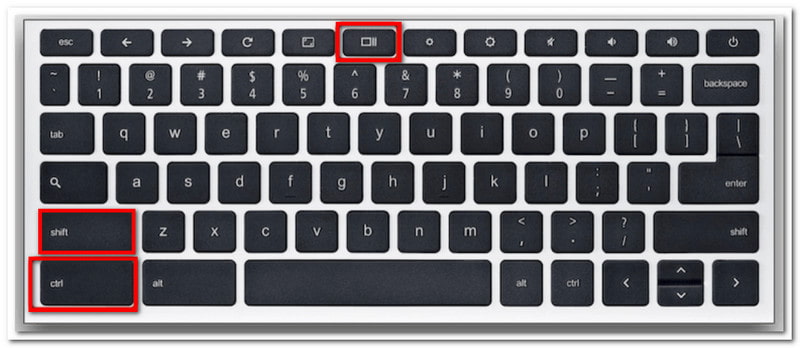
Acer Chromebookでは、スクリーンショットの撮り方が異なります。ほとんどのパソコンのキーボードにはPrtScキーがありますが、Chromebookにはそれがありません。では、Acer Chromebookで公式にスクリーンショットを撮るにはどうすればよいでしょうか?以下の手順で、全画面モードと部分画面モードで簡単にスクリーンショットを撮ることができます。
ステップ1全画面表示にするには、 Ctrl + 表示 ボタン。通常、「表示」ボタンはキーボードの中央上部にあり、2本の縦線が入った長方形のアイコンで表示されています。
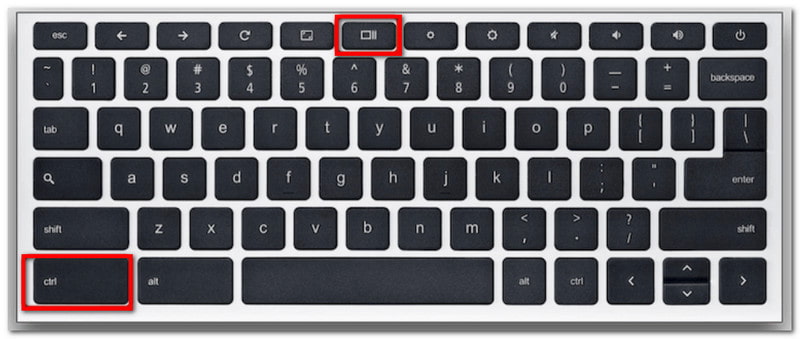
ステップ2スクリーンショットはクリップボードにコピーされますので、それを空白のWord文書に貼り付けて保存してください。
ステップ3部分モードの場合は、 Ctrl + Shift + Showマウスを使って、スクリーンショットを撮りたい領域を選択してください。
パート4:Acerタブレットでスクリーンショットを撮る方法
Acerタブレットはノートパソコンとは操作方法が異なります。しかし、タブレットでのスクリーンショット撮影は非常に簡単で、いくつかのボタン操作だけで済みます。ノートパソコンでは、スクリーンショットの保存方法によって画像が保存されますが、タブレットでは「写真」アプリにスクリーンショットが保存されます。以下の手順をご覧ください。
ステップ1Acerタブレットでキャプチャしたいコンテンツを準備します。 音量を下げる と 力 ボタン。
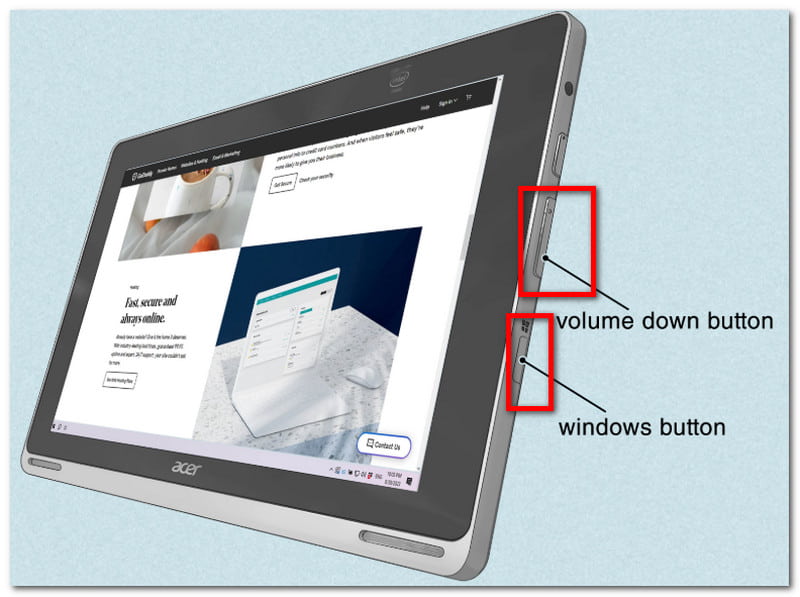
ステップ2画面が点滅したら、スクリーンショットが撮影されたことを示します。写真アプリを開いて画像を表示するか、 写真リサイザー スクリーンショットをトリミングする。
この記事では、 Acerでスクリーンショットを撮る お使いのデバイスで公式のスクリーンショット撮影方法を使用するようガイドしてくれるので、これまでになく簡単にスクリーンショットを撮ることができます。それだけでなく、デスクトップにPrintScreenキーがない場合の最適な方法も紹介しています。スクリーンショットを撮る、ビデオを録画する、オーディオを録音するなど、画面キャプチャのあらゆる場面で、AVAide Screen Recorderは常に優れた代替手段となることをお忘れなく。WindowsとMacで画面録画を行うための最適なソリューションをぜひお試しください。
著者について

画面、オーディオ、ウェブカメラ、ゲームプレイ、オンライン会議、およびiPhone/Android画面をコンピューターに記録します。