iPhoneで音声メッセージを録音する方法音声メッセージを録音すれば、文字入力なしで自分の考えを伝えたり、パーソナライズされた音声を送信したりするのに手軽な方法です。iPhoneに内蔵されている音声メッセージ機能を使えば、数回タップするだけで音声クリップを録音、保存、共有できます。モバイル端末で音声メッセージを録音して送信する包括的な方法をお探しなら、このチュートリアルを参考にしてください。
パート1:iMessageで音声メッセージを録音して送信する方法
iMessageは単なるコミュニケーションツールではありません。音声メッセージ機能も搭載しています。この機能を使えば、メッセージや考えを音声で送信・共有できます。キーボードで文字を入力せずにメッセージを送信したい場合に最適な機能です。音声メッセージの送信は非常に簡単なので、あらゆるユーザーにとって使いやすいでしょう。メッセージの録音と送信を始めたい方は、以下の手順をご覧ください。
iPhoneの音声メッセージを録音する方法
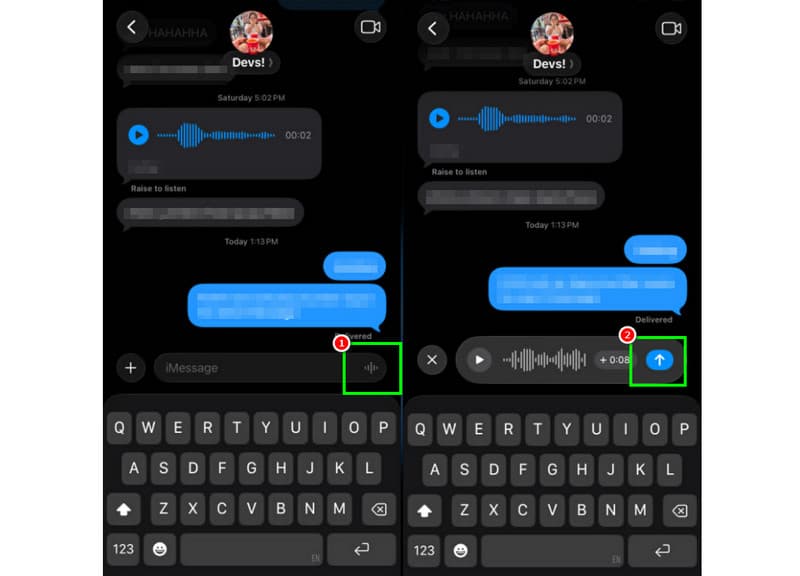
ステップ1iPhoneで起動します iMessage アプリを開いて、次に連絡を取りたい相手を選択してください。
ステップ2画面から、 マイクロフォン オプション。ボタンを押しながら、メッセージの録音と音声入力を開始できます。
ステップ3録音を停止するには、ボタンから指を離します。次に、 矢を送る メッセージ送信ボタン。
受信した音声メッセージを聞く
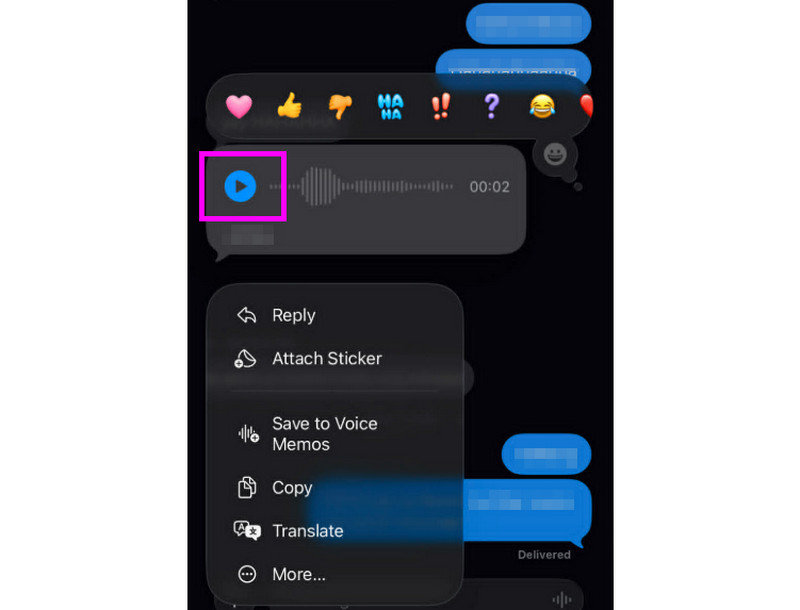
ステップ1音声メッセージを受信したら、タップできます 演奏する ボタン。
ステップ2iPhoneの側面ボタンで音量を調整すれば、メッセージを正しく聞き取ることができます。
ステップ32分後に音声メッセージは期限切れになります。メッセージを保存するには、 保つ 以下のオプション。
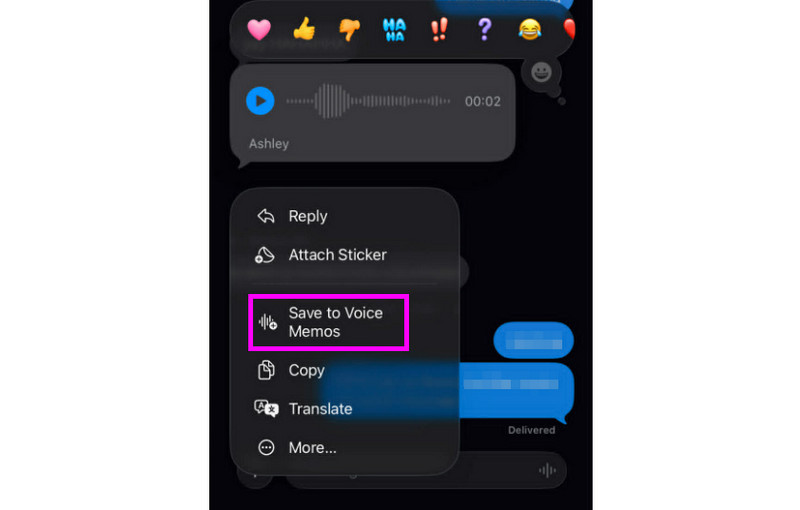
ステップ4音声メッセージを保存したい場合は、それを長押ししてタップします。 ボイスメモに保存 アプリ。 ボイスレコーダーアプリいつでもどこでもメッセージを再生できます。
音声メッセージ設定を調整する
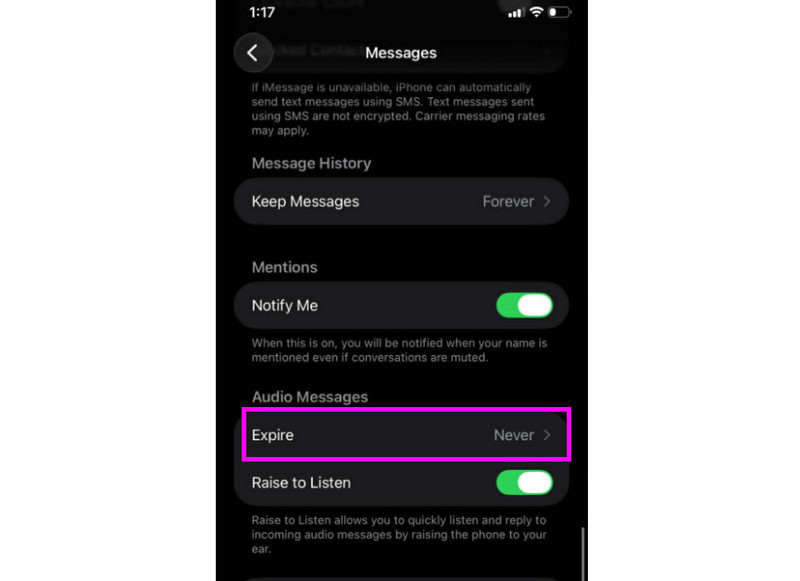
ステップ1あなたの 設定 アプリに進みます。 メッセージ アプリ。
ステップ2に移動します 音声メッセージ >> 期限切れ セクションをタップして 一度もない このオプションを使用すると、iMessageからの音声メッセージが期限切れになることはありません。
パート2:iPhoneでボイスメールの挨拶メッセージを録音する方法
電話に出られない場合、iPhoneで留守番電話メッセージを録音しておくと、発信者にカスタマイズされたメッセージが届きます。新しいメッセージの作成、古いメッセージの変更や削除、特別なイベント用の一時的なメッセージの使用も簡単です。電話アプリで数回タップするだけで、他の人に聞こえる留守番電話メッセージを完全に変更できます。手順を確認し、iPhoneで留守番電話メッセージを録音する方法を学びましょう。
留守番電話の挨拶メッセージを設定する
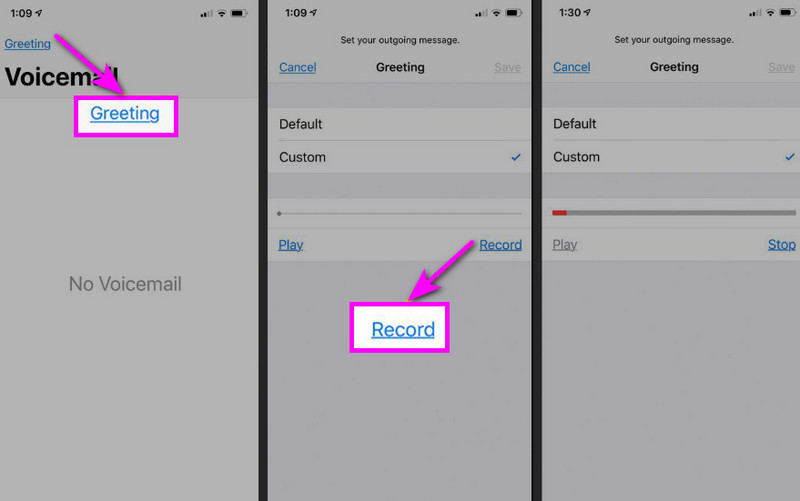
ステップ1に進みます 電話 アプリをタップして ボイスメール オプション。
ステップ2その後、 挨拶 画面左上の機能を押してください。 カスタム >> 記録 始めること iPhoneで音声を録音する 挨拶として。
ステップ3タップ やめる 終了して再生し、レビューします。完了したら、 保存する それをアクティブな挨拶として設定します。
挨拶文の変更または削除
ステップ1戻ることができます ボイスメール >> 挨拶 セクション。
ステップ2打つ カスタム そして、古い挨拶を置き換える新しい挨拶を録音します。
ステップ3次に、デフォルトに戻すには、 ディフォルト カスタムの代わりに。
プロのヒント:一時的な挨拶
短時間不在にする場合は、「カスタム」の手順に従って一時的な挨拶メッセージを録音してください。復帰後は、通常の挨拶メッセージまたはデフォルトのオプションに戻すだけで済みます。
パート3.トラブルシューティング - 音声メッセージを録音できない場合
このセクションにアクセスして、iPhoneでボイスメールメッセージを録音または送信する際に発生するいくつかの問題について解説したトラブルシューティングガイドをご覧ください。
メッセージアプリでマイクボタンがグレー表示になっている
解決: マイクへのアクセスが有効になっていることを確認してください。そのためには、「設定」>「プライバシーとセキュリティ」>「マイク」に進み、「メッセージ」へのアクセスを許可してください。
音声が送信されません
解決: インターネット接続は常に確認してください。また、「設定」>「メッセージ」>「iMessage」でiMessageが有効になっていることを確認してください。
留守番電話の挨拶メッセージを録音できません
解決: 挨拶メッセージオプションは、通信事業者がビジュアルボイスメールに対応している場合にのみ表示されます。オプションが表示されない場合は、電話アプリで「1」を長押ししてボイスメールに直接ダイヤルしてください。その後、通信事業者の指示に従って挨拶メッセージを録音できます。
受信者はあなたの声が聞こえないと言っています
解決: ボイスメモアプリを使ってマイクの動作確認ができます。また、マイクを塞いでいる可能性のあるケースやアクセサリーを取り外してください。布やミニブラシを使ってマイクの開口部を掃除するのも良い方法です。
クイックリファレンス:音声メッセージとボイスメールの違い
ボイスメッセージとボイスメールについてもっと詳しく知りたいですか?それなら、以下の簡単な表をご覧ください。
| 特徴 | 音声メッセージ(iMessage) | ボイスメール(通信事業者) |
| どのように送られるか | • メッセージアプリで録音 • iMessage経由で送信 | ・録音された挨拶 ・通信事業者によって保存された音声 |
| インターネット接続が必要です | はい(Wi-Fiまたはモバイルデータ通信) | いいえ、携帯電話ネットワーク経由で動作します |
| ストレージ | iMessageスレッドに保存されました | 通信事業者のボイスメールシステムに保存されています |
| コントロール | ユーザーは再送信、削除、または保存できます | 通信事業者はアクセスと保管を管理します |
ボーナス:音声録音の編集に役立つ最高のツール
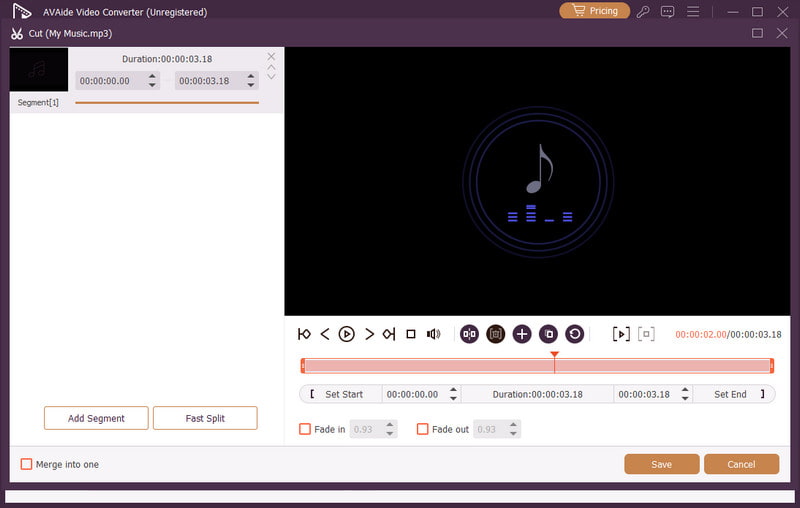
音声録音や音声メッセージを保存した後、より良い音声出力を得るために編集したい場合があります。そのため、音声を編集する際には、次のような優れた編集ツールを利用するのが良いでしょう。 AVAideビデオコンバーターこのプログラムには音声編集機能が搭載されており、音声ファイルを編集できます。音声トラックのトリミング、分割、結合が可能で、音量や遅延も好みに合わせて調整できます。さらに、プログラムのコンバーター機能を使えば、音声をあらゆる形式で保存できます。MP3、WAV、M4A、FLACなど、最大320kbpsの高音質で音声録音を保存できます。音声録音の編集に最適なソフトウェアをお探しなら、AVAide Video Converter以外に選択肢はありません。

 安全なダウンロード
その他の機能:
- スムーズな音声編集プロセスを提供できます。
- このプログラムは、複数の音声ファイルを結合して1つのファイルを作成できます。
- 音声および動画フォーマットを、120倍の高速変換速度で変換できます。
- このプログラムには、動画の結合、分割、トリミング、切り抜きなどのビデオ編集機能が内蔵されている場合もあります。
iPhoneで音声メッセージを送信する メッセージをより速く送信したい場合は、これが理想的な方法です。このチュートリアルのおかげで、音声メッセージを効果的に録音して送信する方法を学ぶことができました。音声メッセージを保存して制限なく再生する方法についても十分な知識を得られます。さらに、音声録音を編集したい場合は、 AVAideビデオコンバーターこのプログラムの音声編集機能を使えば、音声の質を向上させ、より高品質で満足度の高い音声再生を実現できます。
著者について

オーディオ、オンライン会議、ゲームプレイビデオ、音楽、Webカメラなどで画面アクティビティをキャプチャします。