Hogyan lehet képernyőfelvételt készíteni egy Lenovo laptopon a választott eszköztől függ, a beépített Windows-funkcióktól a fejlett szoftverekig. Ez az útmutató egyszerű, világos és hatékony módszereket mutat be a képernyőfelvétel készítéséhez Lenovo-eszközökön, legyen szó oktatóanyagokról, megbeszélésekről, játékmenetről vagy mindennapi felvételekről.
1. módszer. Az Xbox Game Bar használata
Az Xbox Game Bar beépített felvételi funkciója a Microsofté, zökkenőmentesen integrálódik a Windows rendszerrel, és a Lenovo-felhasználók számára a legkényelmesebb felvételi megoldás. Játékokhoz készült, miközben szabványos alkalmazásrögzítőként, oktatóanyag-készítőként és böngészőrögzítőként is szolgál. A legnagyobb előnye, hogy nem igényel beállítást; azonnal használatra kész.
De vannak határozott hátrányai is. Nem rögzíti az asztalt vagy a Fájlkezelőt, és a testreszabás professzionális eszközökre korlátozódik. Ennek ellenére továbbra is az egyik legkényelmesebb beépített opció a hétköznapi munkamenetekhez, ahol a minőség és az erőfeszítés nem olyan fontos.
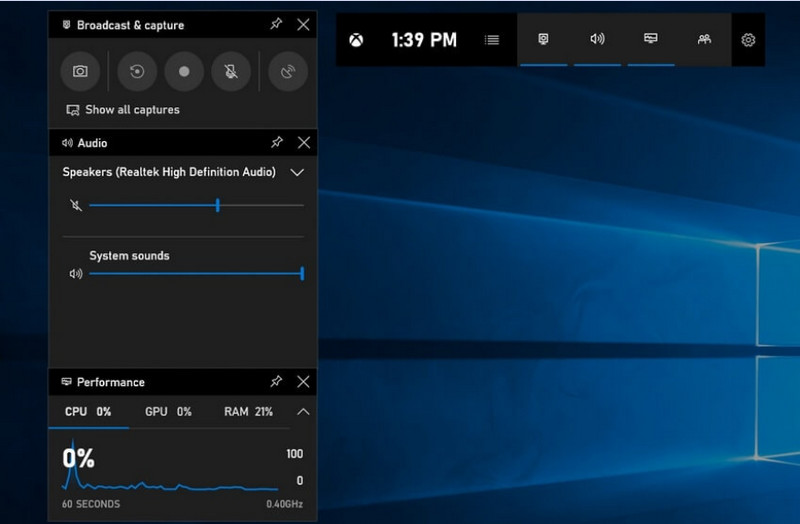
1. lépésAz Xbox Game Bar megnyitásához nyomja meg a Windows + G a billentyűzetén.
2. lépésTaláld meg Elfog panelen, vagy kattintson rá a Widgetek menü.
3. lépésKattints a Rekord (●) gombot vagy nyomja meg Windows + Alt + R.
4. lépésHa hangot szeretne rögzíteni, engedélyezze a Mikrofon.
5. lépésnyomja meg Windows + Alt + R újra vagy kattintson Megállás (■) befejezni.
6. lépésA felvételt itt találod: Videók > Rögzítések.
2. módszer. A Lenovo Vantage használata
A Lenovo Vantage nem képernyőrögzítő, hanem rendszerkezelő és -optimalizáló csomag. Inkább közvetett szerepet játszik a felvételkészítésben, nagyon kevés olyan funkcióval, amely valamilyen formában segíti a felvételi folyamatot, a felvevőeszköz modelljétől függően, sőt egyes eszközök parancsikonokat vagy kamera/kijelző eszközöket is kínálnak, amelyek segíthetik a felvételi folyamatot.
Ez teljesítményben és elérhetőségben is nagy eltéréseket mutat. Egyes Lenovo eszközök támogathatják az alapvető felvételi funkciókat, de másokon egyáltalán nem. A teljes képernyős felvevők esetében korlátozott és némileg következetlen a képességei, de értékes lehet azoknak a felhasználóknak, akik a Lenovo ökoszisztémáján belül szeretnének maradni, vagy podcast felvétele megelégedni az alapvető eszközökkel.
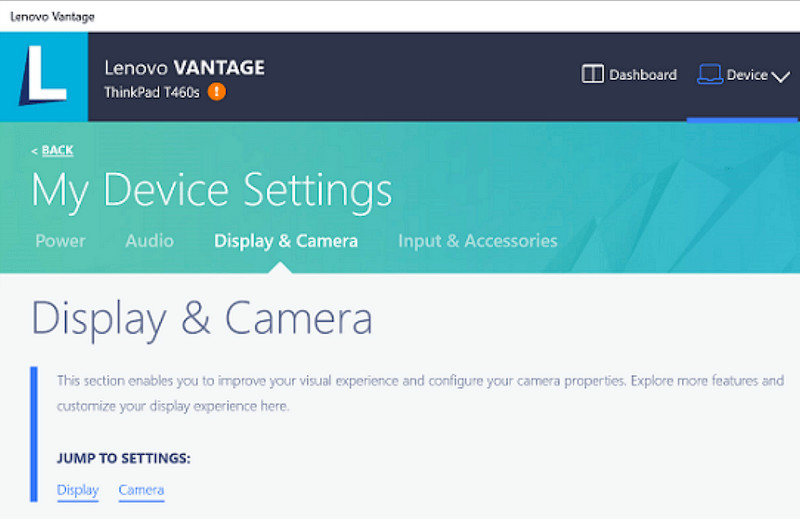
1. lépésMenj a Rajt menüt, és kattintson a Lenovo Vantage.
2. lépésKoppintson a Eszközbeállításaim > Kijelző és kamera.
3. lépésFelvételek vagy más elérhető funkciók keresése.
4. lépésTegye elérhetővé a szükséges opciókat vagy parancsikonokat.
5. lépésRögzítse a zenét a rendelkezésre álló funkcióval (ha lehetséges).
6. lépésKeresd meg a Videók mappába mentett felvételeidet.
3. módszer. A Legion Zone / Lenovo Nerve Center használata
A Lenovo Nerve Center (vagy Legion Nerve Center – a Legion újabb eszközei váltották fel a Nerve Sense-t) Lenovo eszközökre, különösen a játékosoknak szánt Lenovo Legion laptopokra van optimalizálva. Szorosan integrálva van a játékteljesítmény-eszközökkel is, így a felhasználók képernyőképeket készíthetnek játékaikról, miközben figyelik és optimalizálják a rendszer erőforrásait.
Ez azonban egy meglehetősen alapvető felvevő. Inkább a kényelemről szól, mint a testreszabásról, és csak alapvető felvételi lehetőségeket kínál, korlátozott felbontás-, bitráta- és speciális beállításokkal. Ezenkívül csak néhány újabb rendszeren érhető el, mások pedig lecserélték vagy kivették a rendszereikből, így nem olyan megbízható, mint régen volt.
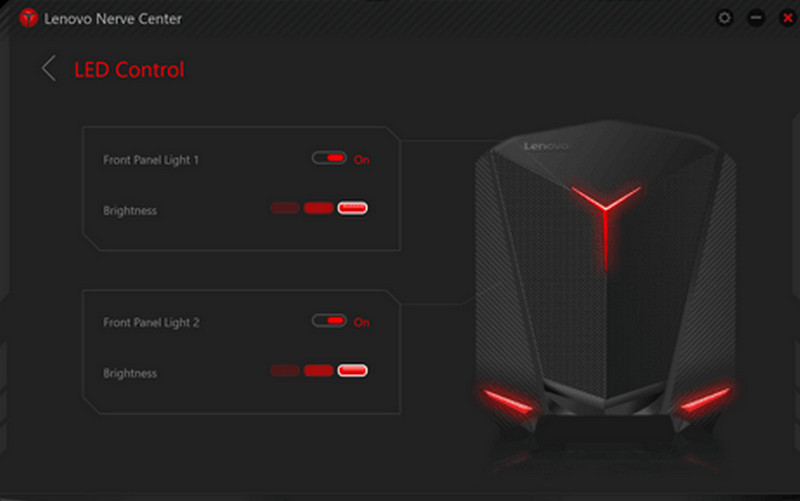
1. lépésHozzáférés a Lenovo Idegközpont vagy Légiózóna a készülékről.
2. lépésNavigálj a felvételi és/vagy játékeszközökhöz.
3. lépésHa van választási lehetőség, módosítsa a felvételi beállításokat, például a felbontást vagy a hangminőséget.
4. lépésIndítsd el a játékot vagy alkalmazást.
5. lépésRögzítés az alapértelmezett gyorsbillentyűvel vagy gombbal.
6. lépésÁllítsa le a felvételt, és nézzen a Videók mappát, hogy lássa, rögzítették-e a fájlt.
4. módszer. Az AVAide képernyőrögzítő használata
AVAide Screen Recorder egy kifinomultabb és sokoldalúbb képernyőrögzítő a Lenovo számára, mint a beépített képernyőrögzítő. Azok számára készült, akik videóminőséget, simább működést és nagyobb felvételi vezérlést szeretnének. Tökéletes eszköz oktatóanyagok készítéséhez, megbeszélések rögzítéséhez vagy játékmenet rögzítéséhez, bonyolult beállítások nélkül, mindezt professzionális szinten.
Miközben képes rögzíteni a rendszerhangot, a mikrofonbemenetet, a webkamerát és a képernyőterületeket, a Full HD és akár 4K felvételt is támogatja, minimális késleltetéssel az alapvető felvevőkhöz képest. Ezáltal egy univerzális képernyőrögzítő alkalmazássá válik munka és szabadidő számára egyaránt.
- Rögzítsen videókat 1080p vagy 4K felbontásban zökkenőmentes, akadozásmentes teljesítménnyel.
- Rögzítsen TELJES vagy EGYEDI képernyős módban az igényeitől függően.
- Rögzítse a belső hangot és a beszédhangot egyszerre, tiszta kimenettel.
- Facecam felvétel hozzáadása oktatóanyagokhoz, prezentációkhoz vagy játékmenet-videókhoz.
- A felvételek vágása, tömörítése és javítása a rögzítés után.

 Biztonságos letöltés
1. lépésTöltse le és telepítse a szoftvert
Látogassa meg az AVAide Screen Recorder hivatalos weboldalát. Töltse le a Windows Installer programot, telepítse a Lenovo laptopjára, és futtassa.
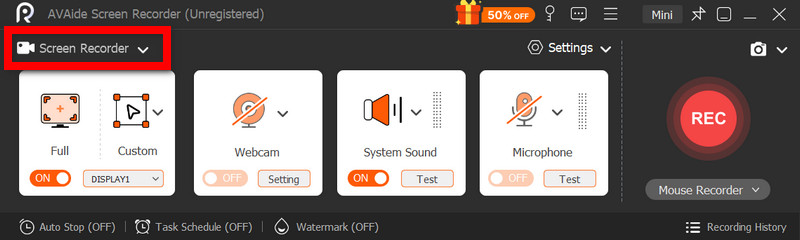
2. lépésFelvételi mód kiválasztása
Nyissa meg a szoftvert, majd kattintson a Képernyőrögzítő. Rögzítse a teljes képernyőt a Teljes vagy a képernyő egy részét Egyedi.
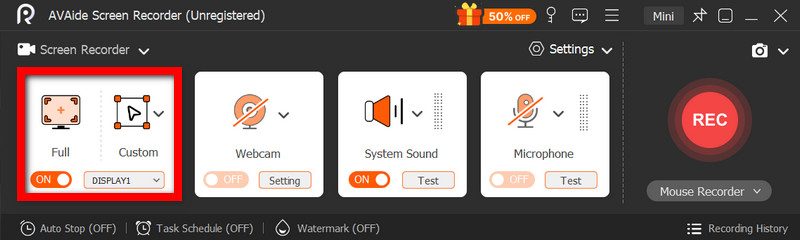
3. lépésHangbeállítások konfigurálása
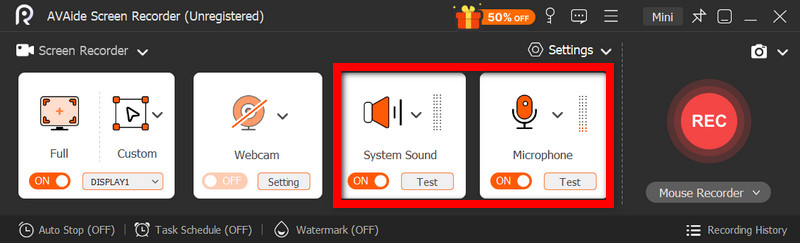
A számítógép által kiadott hangok rögzítéséhez aktiválja a RendszerhangSaját hangod hozzáadásához aktiváld a MikrofonA webkamera szükség szerint bekapcsolható.
4. lépésFelvételi beállítások módosítása
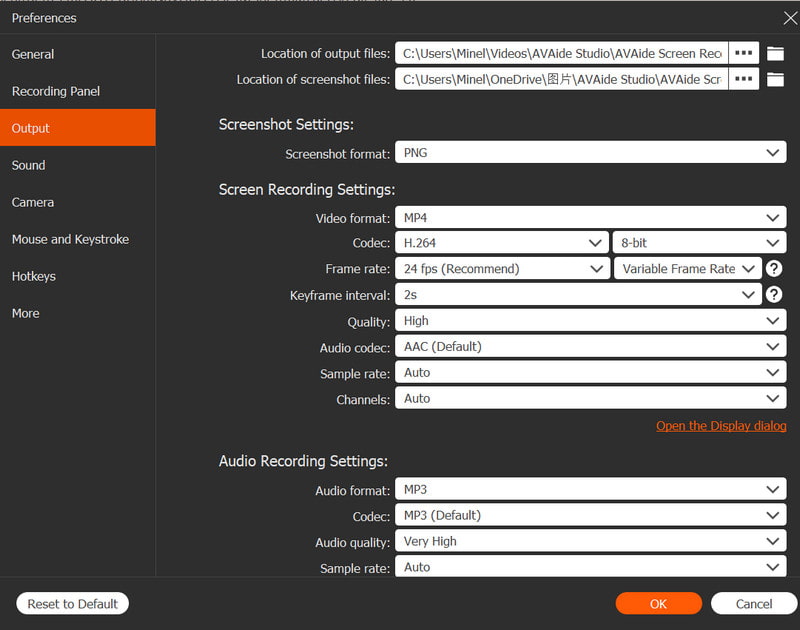
Használja a Beállítások gombbal konfigurálhatja a videó minőségét, felbontását, képkockasebességét és kimeneti formátumát az optimális felvételi teljesítmény elérése érdekében.
5. lépésFelvétel megkezdése
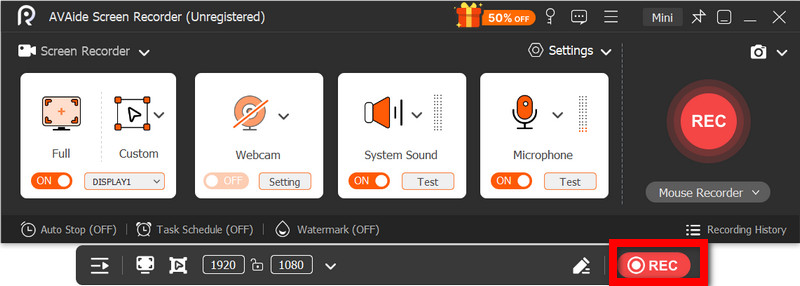
megnyomni a REC gombra a felvétel elindításához. A Google Meet-felvételek, oktatóanyagok, játékmenetek vagy bármilyen képernyőn végzett tevékenység zökkenőmentesen rögzíthető.
6. lépésA felvétel leállítása és mentése
Ha elkészült, kattintson a Álljon meg gomb. Tekintse meg a felvétel előnézetét, szükség esetén szerkessze gyorsan, és mentse el azonnal a számítógépére.
5. módszer. Gyorsbeállítások használata
A Lenovo Android tableteken beépített képernyőfelvételi lehetőség található a gyorsbeállításokban. Az oktatóanyagok, játékmenetek vagy alkalmazástevékenységek rögzítésének legjobb módja a tableten harmadik féltől származó alkalmazások letöltése nélkül. Egyszerű, gyors és mobil használatra optimalizált, ideális a gyors felvételekhez útközben.
Hiányoznak belőle a többi képernyőkép-készítő eszközben található fejlett szerkesztési és testreszabási funkciók, de elegendő az egyszerű, hanggal ellátott képernyőképekhez.
1. lépésA képernyő aljáról felfelé húzva nyissa meg a Gyorsbeállítások.
2. lépésKeresse meg a Képernyőfelvétel vagy Képernyőrögzítő gombra. Ha nincs ott, kattintson a Szerkesztés gombra, és add hozzá a paneledhez.
3. lépésKattintson Képernyőrögzítő, majd válassza ki a kívánt beállításokat.
4. lépésKoppintson a Rajt a felvétel elindításához. A felvétel megkezdése előtt visszaszámlálás lesz.
5. lépésKoppintson a lebegő eszköztárra vagy az értesítési sávra, majd nyomja meg a Álljon meg a felvétel befejezéséhez.
Gyakori képernyőfelvételi problémák elhárítása a Lenovo készülékeken
Tippeket olvashat a Lenovo eszközökön történő képernyőrögzítés során felmerülő gyakori problémák megoldásáról.
Bár általában nincsenek komolyabb problémák a Lenovo eszközökön történő képernyőrögzítéssel, a használt képernyőrögzítő eszköztől vagy eszköztől függően mindig fennáll a problémák lehetősége. Az alábbiakban a leggyakoribb problémákat és azok javításának módját ismertetjük.
- Képernyőrögzítő nem működik: Indítsd újra az eszközt, és próbáld újra. A beépített eszközök, mint például az Xbox Game Bar esetében győződj meg róla, hogy engedélyezve vannak a Windows beállításaiban a Játékok alatt.
- Nincs hangfelvétel: Felvétel előtt ellenőrizze, hogy a Rendszerhang vagy a Mikrofon be van-e kapcsolva. Ellenőrizze azt is, hogy a rendszerhang nincs-e elnémítva.
- Akadozó vagy alacsony minőségű videó: Csökkentsd a videó minőségét, vagy zárd be a háttérben futó alkalmazásokat. A grafikus illesztőprogramok frissítése szintén javíthatja a teljesítményt.
- Nem lehet rögzíteni az Asztal vagy a Fájlkezelő fájljait: Ez az Xbox Game Bar egyik gyakori korlátja. Ha rögzíteni szeretnéd a képernyődet, és mindent rögzíteni szeretnél, használj egy fejlett programot, például az AVAide Screen Recordert, amely az egyik a következők közül: legjobb képernyőrögzítők Mac-hez és Windows.
- Felvétel mentése nem lehetséges: Győződjön meg róla, hogy a tárhelye nincs tele, és ellenőrizze az alapértelmezett mentési helyet. A beállításokban módosítsa a kimeneti mappát, és próbálja ki.
Lenovo képernyőfelvétel gomb A lehetőségek eszköztől és a használt eszköztől függően változnak. Összességében a beépített funkciók és a harmadik féltől származó alkalmazások egyszerűvé teszik a felvételkészítést, rugalmas módokat kínálva a képernyőtevékenységek rögzítésére, mentésére és hatékony kezelésére a Lenovo eszközökön.
A SZERZŐRŐL

Rögzítse a képernyőn végzett tevékenységeket hanggal, online találkozókkal, játékvideóval, zenével, webkamerával stb.
Képernyőfelvétel
- Képernyőfelvétel Windows rendszeren
- Instagram élő felvétele
- Rip videók a Tubi-ból
- YouTube-videók konvertálása MP3-ba
- Videók letöltése a Fansly-ről
- JW Player videók letöltése
- Bilibili videók letöltése
- Patreon videók letöltése
- Töltsd le a SpankBang videókat
- Discord videók letöltése
- DoodSream videó letöltése