Próbálom kitalálni Hogyan lehet képernyőfelvételt készíteni Dell készüléken? Egy oktatóanyag, játékmenet vagy megbeszélés rögzítése zavaró lehet a megfelelő eszköz nélkül. Akár gyors, akár haladóbb feladatra van szükséged, ez az útmutató végigvezet a képernyő zökkenőmentes rögzítésének egyszerű és hatékony módszerein.
1. rész. A legegyszerűbb mód: az Xbox Game Bar használata
Az Xbox Game Bar elsősorban játékmenet rögzítésére szolgál, de napi képernyőfelvételre is használható. Lehetővé teszi a képernyő és a hangfelvételek rögzítését, valamint a klipek azonnali mentését. Mindazonáltal nem tudja rögzíteni az asztalt vagy a Fájlkezelőt; csak az aktív alkalmazásablakokat tudja rögzíteni.
1. lépésAz Xbox Game Bar átfedő megnyitásához nyomja meg a Windows + G billentyűket a billentyűzeteden. Ha a kérdés arra vonatkozik, hogy játékról van-e szó, válaszolj igennel.
2. lépésAz Elfog A panel az átfedésben található. Ha nem látja, akkor létrejön egy Widgetek menü, és a Rögzítés opció lesz kiválasztva.
3. lépésA képernyőfelvétel megkezdéséhez kattintson a Rekord (●) gombot, ill Windows + Alt + RAz eszköz automatikusan pillanatképet készít az aktív ablakról.
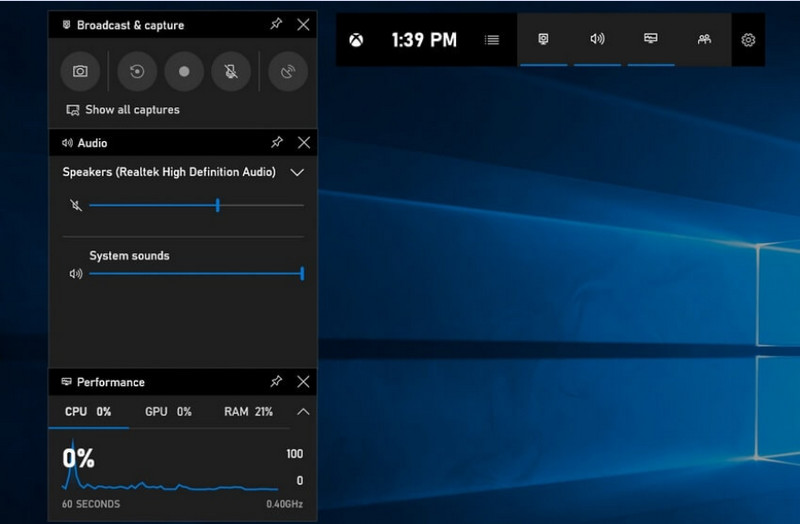
4. lépésA mikrofonfelvétel engedélyezéséhez kattintson a gombra Mikrofon gombot felvétel előtt vagy alatt.
5. lépésA felvétel leállításához nyomja meg a Windows + Alt + R másodszor, vagy nyomja meg a Megállás (■) gombra a lebegő sávon.
6. lépésA rögzített videók automatikusan mentésre kerülnek a Videók > Rögzítések a számítógép mappájában.
2. rész. A szakmai döntések
1. Az OBS képernyőrögzítő használata
OBS Screen Recorder egy ingyenes, nyílt forráskódú képernyőrögzítő, amelyet általában élő tartalom rögzítésére és streamelésére használnak. Testreszabható elrendezést kínál, amely lehetővé teszi a teljes képernyő, egy külön ablak vagy több forrás egyidejű rögzítését. Hatékony videó- és hangvezérlésének köszönhetően hatékony választás azoknak a felhasználóknak, akiket nem csak a legegyszerűbb képernyőrögzítés érdekel.
Teljesítmény:
Az OBS Screen Recorder egy hardveres gyorsítással rendelkező szoftver, amely megbízható teljesítményt nyújt, lehetővé téve a zökkenőmentes 1080p 60fps felvételt. Telepítés után hatékonyan működik, konzisztens kimenettel és kis késleltetéssel, hosszabb felvételi munkamenetek során kompatibilis rendszereken.
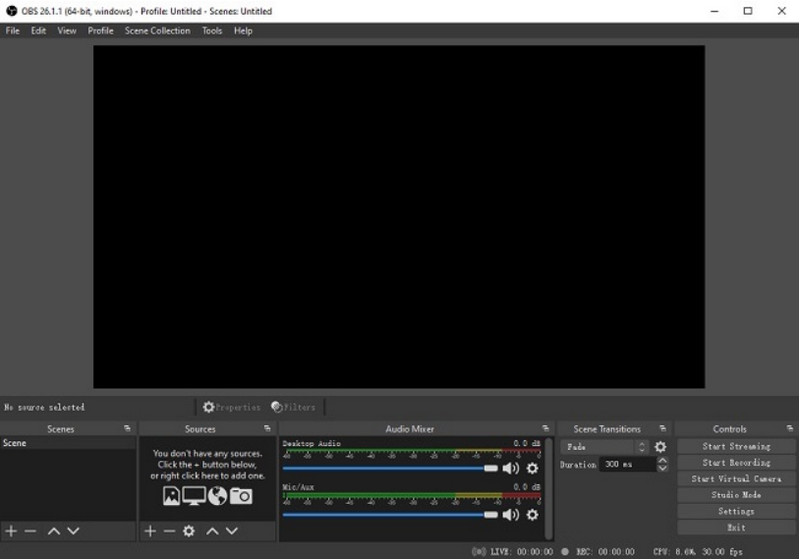
1. lépésMenj a hivatalos OBS Screen Recorder oldalra, töltsd le a telepítőt, és fejezd be a telepítést.
2. lépésNyisd ki OBS Screen RecorderA fő felület jelenik meg, olyan panelekkel, mint például Jelenetek és Források.
3. lépésA Jelenetek panelen kattintson a + gombra, és adj nevet a jelenetednek.
4. lépésKépernyőfelvételt vagy ablakfelvételt (egy adott alkalmazás rögzítéséhez) hozzáadhat a gombra kattintva. + ban,-ben Források panel és kiválasztás Display Capture vagy Ablakrögzítés.
5. lépésTesztelje a Audio keverő a mikrofon és a rendszerhang engedélyezésével és beállításával.
6. lépésmegnyomni a Felvétel megkezdése gombra a felület jobb oldalán.
7. lépésHa elkészült, kattintson Felvétel leállításaEz a videó automatikusan az alapértelmezett mappába kerül.
2. Az AVAide képernyőrögzítő használata
AVAide Screen Recorder egy egyszerű, mégis hatékony eszköz a képernyőn megjelenő tevékenységek kiváló minőségű rögzítésére. Azoknak a felhasználóknak készült, akiknek egy könnyen használható, tiszta hangzású rögzítőrendszerre, minimális konfigurációt igénylő rugalmas rögzítőrendszerre és intuitív kezelőszervekre van szükségük.
Teljesítmény:
Az AVAide képernyőrögzítő optimalizálva van a zökkenőmentes és stabil rögzítésre, még hosszú felvételek során is. Nagy felbontású kimenetet támogat 4K/1080p felbontásban, minimális késleltetéssel a gyakori alkalmazásokban. A szoftver hatékonyan kezeli az egyidejű képernyő- és hangfelvételt, hogy biztosítsa a rendszerhang és a mikrofonbemenet szinkronban maradását.
- Kiváló minőségű képernyőfelvételt készít, zökkenőmentes, akadásmentes teljesítménnyel.
- A rendszerhangot és a mikrofon hangját egyidejűleg rögzíti, tiszta hangkimenettel.
- Támogatja a webkamerás felvételt állítható kép a képben átfedéssel.
- Lehetővé teszi a teljes képernyő, egy kiválasztott ablak vagy egyéni régió rögzítését.
- Beépített szerkesztőeszközöket tartalmaz a videók vágásához, javításához és exportálásához.

 Biztonságos letöltés
1. lépésTöltse le és telepítse az eszközt
Látogasson el az AVAide Screen Recorder hivatalos weboldalára. Töltse le a Windows rendszeréhez tartozó telepítőt, és kövesse a telepítési folyamatot.
2. lépésIndítsa el a szoftvert
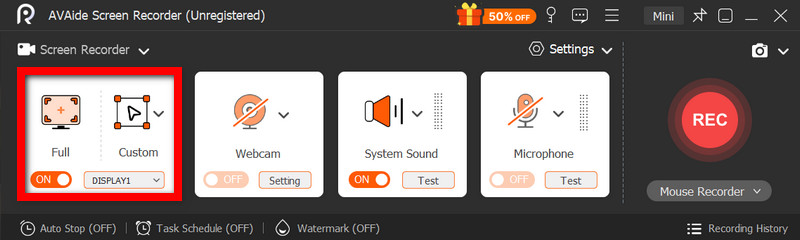
A telepítést a program megnyitásával lehet követni. A fő felületen kiválaszthatja a következőket: Képernyőrögzítő kezdeni azzal.
3. lépésFelvételi terület kiválasztása
Válasszon közülük Teljes és Egyedi felvételi módok az Ön igényei szerint.
4. lépésHang- és webkamera beállítása
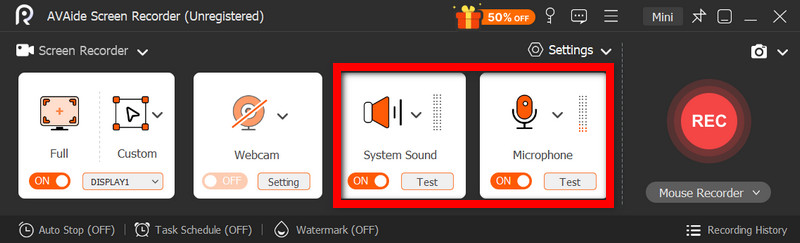
Engedélyezés Rendszerhang és a Mikrofon ha hangra van szüksége. A webkamera arcok rögzítéséhez is bekapcsolható.
5. lépésFelvétel megkezdése
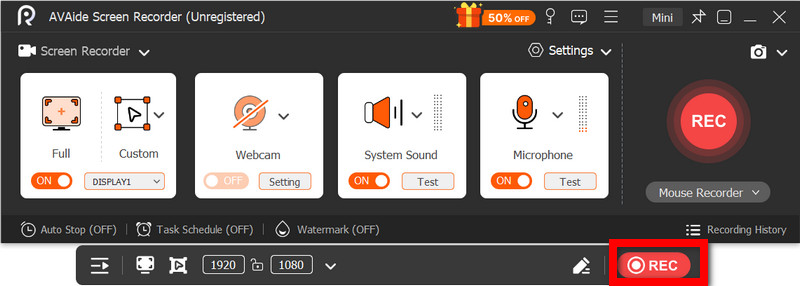
A képernyőfelvétel elindításához nyomja meg a REC gomb. Szükség esetén a felvétel során jegyzetek adhatók hozzá.
6. lépésA felvétel leállítása és mentése
Kattints a Álljon meg gombra, ha elkészült. A felvétel automatikusan mentésre kerül, és azonnal megtekintheti vagy szerkesztheti.
3. rész. Egyéb ingyenes és egyszerű módszerek
1. A Képmetsző eszköz használata (Windows 11)
A Windows 11 Snipping Tool beépített képernyőrögzítő funkcióval rendelkezik, amely egyszerű és gyors módot kínál a képernyőtevékenységek rögzítésére extra szoftver telepítése nélkül. Rövid klipek, oktatóanyagok és egyszerű rögzítési munkák esetén a leghatékonyabb.
Teljesítmény:
A Snipping Tool alkalmas könnyű felvételek készítésére, és kis méretű képek zökkenőmentes rögzítését teszi lehetővé. Ennek ellenére hiányoznak belőle a funkciók, nem támogatja a haladó beállításokat, és a hosszú vagy nagy teljesítményű felvételeket esetleg nem kezeli olyan hatékonyan, mint bizonyos eszközök.
1. lépésNyissa meg a Képernyőkép eszközt a gombra kattintva Rajt menü.
2. lépésAz eszköztár használatához kattintson a Rekord.
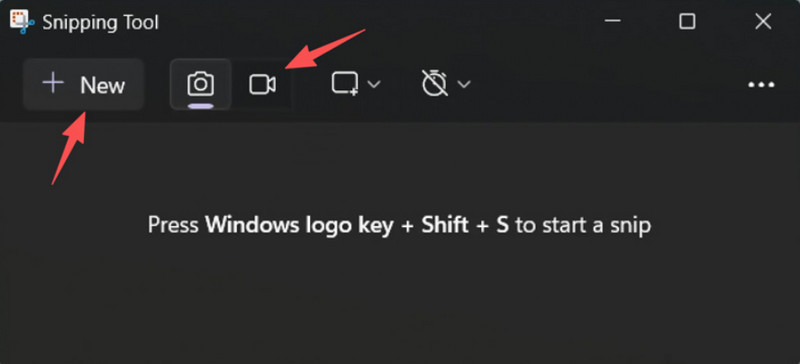
3. lépésÚj felvétel rögzítéséhez válassza a Új.
4. lépésJelölje ki a képernyő azon területét, amelyet rögzíteni szeretne.
5. lépésKattintson Rajt a felvétel elindításához.
6. lépésKattintson Álljon meg ha elkészült, és mentse el a felvételt.
2. A Microsoft PowerPoint használata (minden Windows verzió)
A Microsoft PowerPoint képernyőfelvételi funkcióval rögzíthet képernyőképeket, és beépítheti azokat egy bemutatóba. Ez egy egyszerű alternatívája az oktatóanyagok, bemutatók vagy diák fejlesztésének további rögzítő szoftver nélkül.
Teljesítmény:
A PowerPoint konzisztens eredményeket biztosít egyszerű képernyőfelvételek készítésekor, különösen prezentációk és rövid bemutatók esetén. Bár elfogadható videóminőséget kínál, hiányoznak belőle a fejlett vezérlők, és előfordulhat, hogy nem megfelelő a hosszú felvételek során rögzített videók minőségéhez.
1. lépésIndítsa el a Microsoft PowerPointot, és készítsen elő egy új vagy egy meglévő bemutatót.
2. lépésKattintson a Beszúrás fülre, majd Képernyőfelvétel.
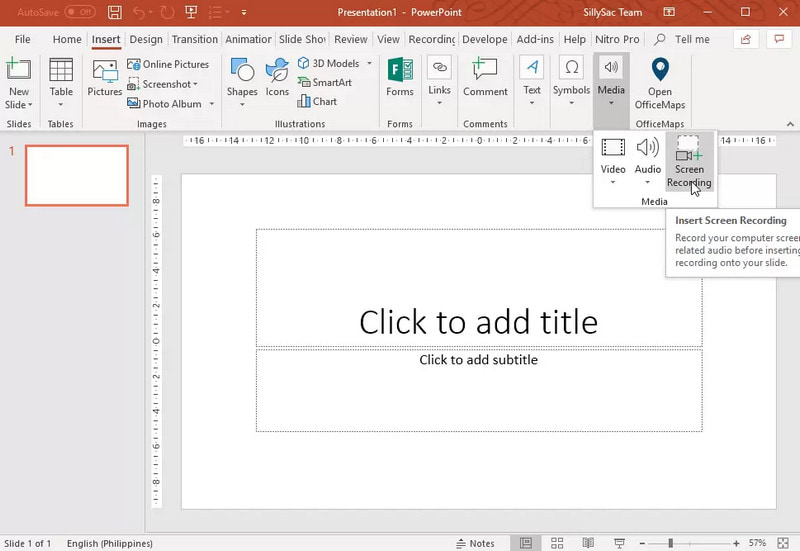
3. lépésVálassza ki a képernyő azon részét, amelyet rögzíteni szeretne.
4. lépésEngedélyezze a hang- vagy mutatófelvételt, ha szükséges.
5. lépésKattintson Rekord a képernyőfelvétel megkezdéséhez.
6. lépésA felvétel befejezéséhez nyomja meg a Windows + Shift + Q.
7. lépésA felvétel mentéséhez kattintson jobb gombbal a videóra, és válassza a Média mentése másként.
4. rész. Gyakori problémák elhárítása
| Probléma | Megoldás |
| A Game Bar nem nyílt meg, és nem is vett fel videót. | A beállításokban kikapcsolhatod az Xbox Game Bart. Lépj ide: Beállítások > Szerencsejáték > Game Bar és fordítsd meg TOVÁBBMegpróbálja megnyomni Windows + G újra, és indítsa újra a számítógépet (ahol szükséges). |
| A felvételnek nincs hangja. | Győződjön meg arról, hogy a rendszerhang és a mikrofon be van kapcsolva a Game Bar beállításaiban. Győződjön meg arról is, hogy a hangeszköz nincs elnémítva, vagy nincs helytelenül kiválasztva a Windows hangbeállításaiban. |
| A Dell laptopom felvétel közben lassan fut. | A Bezárás vagy a Minimalizálás funkcióval csökkentheti a felesleges alkalmazások és böngészőlapok számát. Váltson Nagy teljesítményű módra az energiagazdálkodási beállításokban, és szükség esetén csökkentse a felvételi felbontást a teljesítmény javítása érdekében. |
| A rögzített videó minősége gyenge. | Állítsd a felvételi minőséget a lehető legjobbra a Játéksávon, különösen akkor, ha Google Meet felvétele munkamenetek. Állítsd a kijelzőt natív felbontásra, és frissítsd a grafikus illesztőprogramokat, hogy élesebb és stabilabb legyen a kép. |
Tanulás Hogyan lehet képernyőfelvételt készíteni egy Dell laptopon rugalmasságot biztosít oktatóanyagok, megbeszélések vagy akár játékok során is. Legyen szó beépített eszközről vagy kifinomult szoftverről, a megfelelő módszer kiválasztása biztosítja, hogy a felvétel könnyedén és kiváló minőségben készüljön el, és a munkafolyamat zökkenőmentes legyen.
A SZERZŐRŐL

Rögzítsen képernyőt, hangot, webkamerát, játékmenetet, online találkozókat, valamint iPhone/Android képernyőt a számítógépén.
Képernyőfelvétel
- Képernyőfelvétel Windows rendszeren
- Instagram élő felvétele
- Rip videók a Tubi-ból
- YouTube-videók konvertálása MP3-ba
- Videók letöltése a Fansly-ről
- JW Player videók letöltése
- Bilibili videók letöltése
- Patreon videók letöltése
- Töltsd le a SpankBang videókat
- Discord videók letöltése
- DoodSream videó letöltése