האם אתם רוצים להקליט את המסך והשמע שלכם במחשב Windows שלכם? ישנן סיבות רבות מדוע אתם צריכים להקליט את מסך המחשב והשמע שלכם. אתם יכולים להקליט את המשחקים שלכם, ליצור הדרכה, לסקור תוכן או מוצרים, ליצור תוכן ועוד. ויזואליה ושמע ברורים וחלקים יכולים להפוך את ההקלטות שלכם למצוינות. אתם יכולים לעקוב אחר 5 השיטות בפוסט הזה כדי ביעילות... הקלט מסך ושמע ב-Windows.
חלק 1. האם Windows יכול להקליט מסך עם אודיו
כן, Windows מאפשר לך להקליט את מסך שולחן העבודה עם שמע מערכת ומיקרופון. מקליט המסך והקול המתאימים הם המפתח ללכידת מסך ואודיו חלקה. בין אם אתה זקוק למקליט בעל ביצועים גבוהים למשחקים או לפתרון חד למדריכים, הכלי המושלם מבטיח שהוויזואליה והסאונד שלך יהיו מסונכרנים בצורה מושלמת. עשינו את העבודה הקשה בשבילך! צללו לסעיף הבא כדי לחקור את השיטות הטובות ביותר ותובנות שלב אחר שלב להקלטת מסך Windows שלך עם שמע כמו מקצוען.
חלק 2. 3 דרכים להקליט מסך ב-Windows עם אודיו
1. הקלטת מסך עם אודיו ב-Windows באמצעות מקליט המסך AVAide
אחד ממקליטי המסך היעילים ביותר עם מיקרופון ואודיו של המערכת שבהם ניתן להשתמש כדי להקליט את המסך שלך עם אודיו ב-Windows הוא מקליט מסך AVAideמקליט מסך ואודיו זה יכול לעזור לך להשיג את המטרה שלך בקלות רבה יותר. בנוסף, מקליט מסך ואודיו זה ב-Windows מאפשר לך להקליט את מסך המחשב שלך בשתי דרכים. אתה יכול להקליט באופן מיידי את מסך המחשב כולו או חלק מסוים ממנו. אתה יכול אפילו להקליט תוכן מגוון, כגון שיחות וידאו, סרטונים, פגישות זום, משחקיות, סרטוני הדרכה ועוד. בנוסף, הוא יכול לספק תהליך הקלטה ללא בעיות. אתה יכול להשתמש במקליט זה בקלות ובחלקות אם אתה משתמש לא מקצועי או מיומן.
יתר על כן, אתה יכול לשפר את הקובץ שלך לאחר תהליך הקלטת המסך והשמע. אתה יכול לדחוס, לחתוך, לחתוך ולשנות את פורמט הווידאו. עם זה, אתה יכול לקבל את התוצאה הרצויה לפני שמירת הסרטון במחשב שלך. לכן, כדי ללמוד כיצד להקליט מסך עם אודיו ב-Windows, בדוק את השלבים שלהלן.
שלב 1גִישָׁה מקליט מסך AVAide במחשב Windows שלך. לחץ על הכפתורים למטה כדי להוריד ולהתקין את התוכנה במחשב שלך באופן מיידי.

 הורדה מאובטחת
שלב 2לאחר מכן, בחר את הדרך שבה אתה רוצה להקליט את המסך שלך. אתה יכול לבחור מלא אוֹ המותאם אישית. לאחר מכן, הפעל את מערכת סאונד כדי להקליט את המסך שלך עם אודיו.

שלב 3כדי להתחיל להקליט את המסך שלך עם אודיו, לחץ על REC לַחְצָן. לאחר שלוש שניות, התוכנית תתחיל בתהליך ההקלטה. לאחר מכן, לחץ תפסיק כדי לסיים את הקלטת המסך שלך.

שלב 4לחץ על יְבוּא לחצן מהממשק התחתון כדי לשמור את המסך המוקלט שלך.

2. השתמש ב-OBS כדי להקליט מסך עם אודיו ב-Windows
OBS הוא בין מקליטי המסך הטובים ביותר בקוד פתוח להקלטת המסך שלך עם אודיו. זוהי בין התוכנות הפופולריות שתוכל לסמוך עליהן לקבלת התוצאה המועדפת עליך. בנוסף, היא מסוגלת להקליט קבצי מדיה שונים על המסך שלך. אתה יכול אפילו להקליט כרטיסיות, חלונות, משחקים ועוד. אם אתה רוצה להקליט את מסך המחשב שלך עם קול בצורה מושלמת תוך קבלת איכות מעולה, השתמש ב-OBS באופן מיידי. החיסרון היחיד כאן הוא שהממשק יכול להיות ברור יותר. אם אתה מתחיל, כדאי לך להקדיש זמן ללמוד להשתמש במקליט המסך הזה עם קול. אם אתה רוצה ללמוד כיצד להקליט מסך ב-Windows 10 עם אודיו, בצע את ההליך שלהלן.
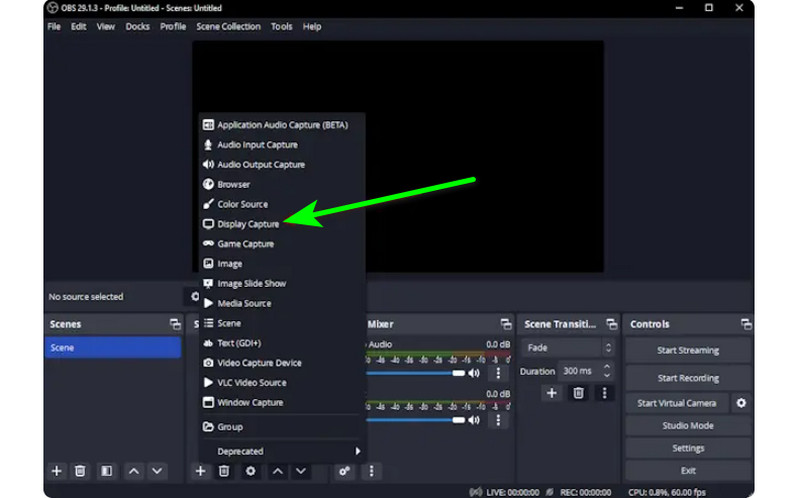
שלב 1הפעל את OBS התוכנית לאחר תהליך ההתקנה. לאחר מכן, עבור אל ועוד סמל למטה ובחר את לכידת תצוגה אוֹפְּצִיָה. אתה יכול לבחור איזה תוכן אתה רוצה להקליט על המסך שלך.
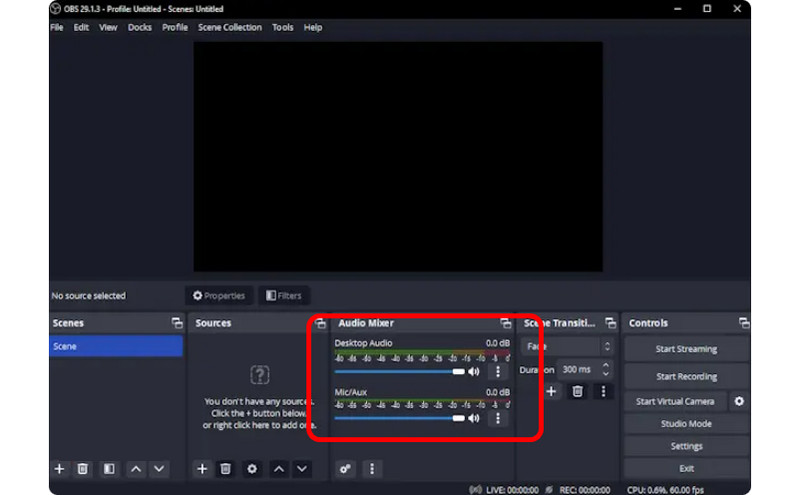
שלב 2לאחר מכן, עבור אל מיקסר אודיו והפעל את האודיו כדי שתוכל להקליט את המסך עם סאונד.
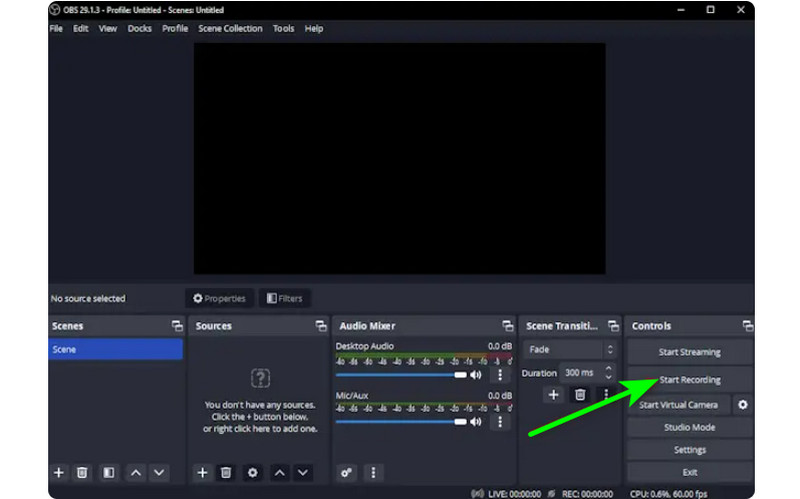
שלב 3לחץ על התחל להקליט אפשרות בממשק הימני כדי להתחיל להקליט את המסך שלך. אם ברצונך להפסיק את תהליך ההקלטה, לחץ על הפסק להקליט לַחְצָן.
3. השתמשו ב-Clipchamp כדי להקליט מסך עם אודיו ב-Windows
האם אתה רוצה ללמוד כיצד להקליט מסכים ב-Windows 11 עם אודיו? לאחר מכן, השתמש קליפשאמפ בתור מקליט המסך המצוין שלך. תוכנה שימושית זו מאפשרת לך להקליט את המסך שלך עם אודיו בצורה חלקה מכיוון שיש לה תהליך פשוט שאתה עשוי ליהנות ממנו. אתה יכול אפילו להפעיל את מצלמת האינטרנט שלך אם תרצה. זה מושלם להערות על תוכן ספציפי או ליצירת סרטוני הדרכה. אז כדי להתחיל ללמוד כיצד להקליט מסך ב- Windows, עיין בשיטות שלהלן.
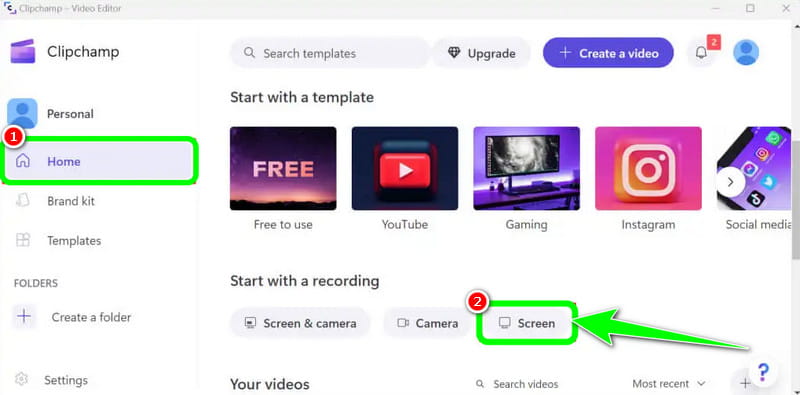
שלב 1מהממשק הראשי של קליפשאמפ, נווט אל ה בית סעיף ולחץ על מָסָך אוֹפְּצִיָה. לאחר מכן, דף אינטרנט נוסף יופיע על המסך שלך.
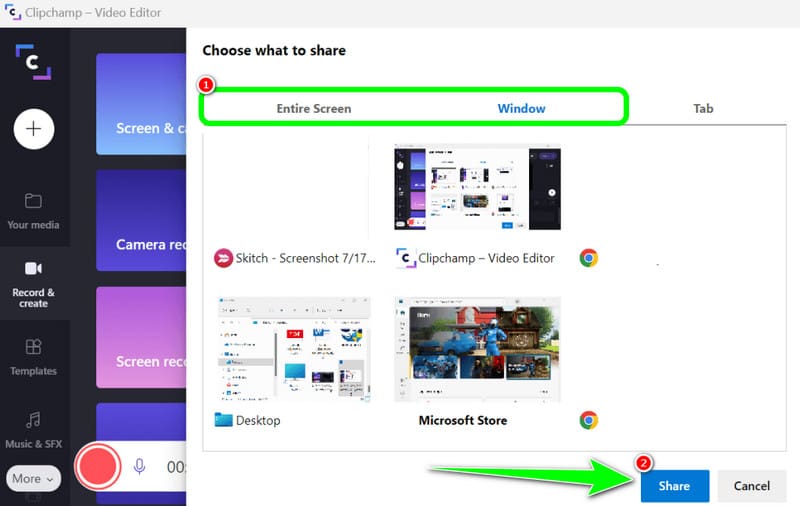
שלב 2לאחר מכן, לחץ על אָדוֹם כפתור מהממשק השמאלי. לאחר מכן, תראה את כל התוכן שלך על המסך, כגון כרטיסיות, חלונות ועוד.
שלב 3לחץ על המסך שברצונך להקליט, כגון מסך שלם, חלון וכרטיסייה. כדי להתחיל להקליט, לחץ על לַחֲלוֹק לַחְצָן. לאחר מכן, לאחר התהליך, לחץ הפסק להקליט כדי לשמור את המסך המוקלט במחשב שלך.
חלק 3. 2 דרכים להקליט אודיו ב-Windows 10 ו-11
1. הקלטת אודיו ב-Windows באמצעות Audacity
האם אתה רוצה ללמוד כיצד להקליט אודיו ב-Windows 10? אם כן, השתמש ב-Audacity. תוכנה לא מקוונת זו יכולה לעזור לך להקליט כל צליל מהמחשב שלך. בנוסף, לא תמצא את זה מאתגר מכיוון שהתוכנה יכולה להציע תהליך קל, מה שהופך אותה למקליט אודיו אידיאלי עבור כל המשתמשים. לכן, כדי להתחיל להקליט את האודיו שלך, ראה את השלבים שסיפקנו להלן.
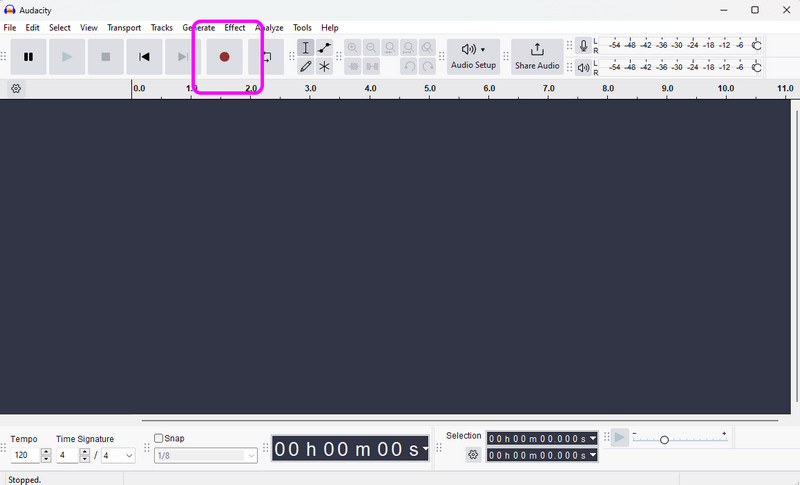
שלב 1התקן והפעל חוּצפָּה ב-Windows שלך. לאחר מכן, מהממשק הראשי, לחץ על תקליט כפתור מהממשק העליון. עם זה, תהליך הקלטת האודיו יתחיל.
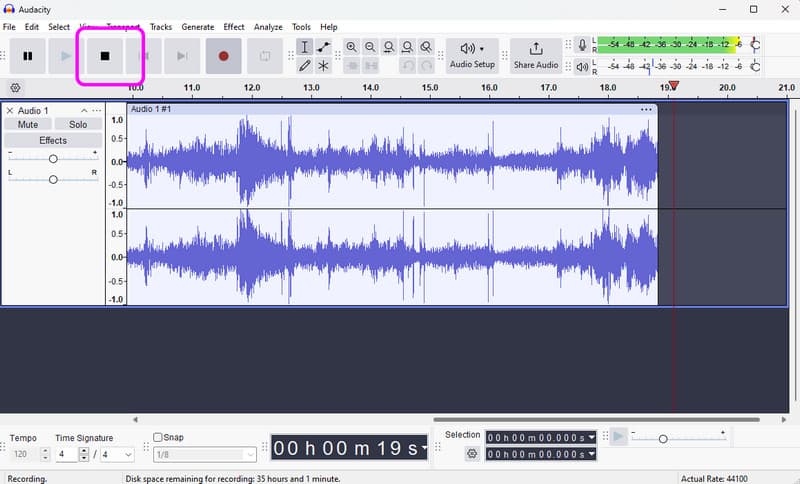
שלב 2לאחר מכן, אם סיימת להקליט, לחץ על תפסיק לַחְצָן. לאחר מכן, תוכל להמשיך להליך השמירה.
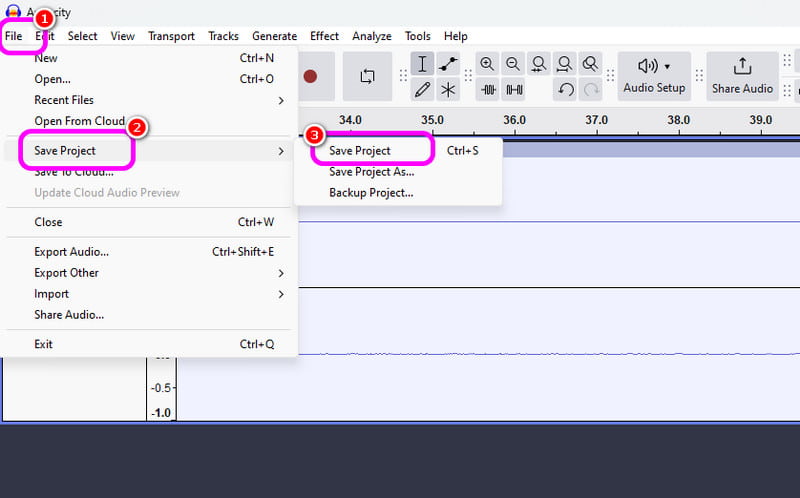
שלב 3כדי לשמור את השמע המוקלט, עבור אל קוֹבֶץ > שמור פרויקט כדי לשמור את קובץ השמע הסופי במכשיר שלך.
2. הקלטת שמע ב-Windows באמצעות מקליט הקול של Windows
תוכנה נוספת שיכולה לתת לך תהליך הקלטת אודיו חלק של Windows היא מקליט קול של Windows. לאחר שתיגשת למקליט השמע הזה, תוכל להתחיל להקליט כל תוכן שמע מהמכשיר שלך. מה שאנחנו אוהבים כאן הוא שהממשק פשוט כך שתוכל להקליט אודיו בקלות ובמהירות. החיסרון היחיד הוא שהוא לא מציע כלי עריכה לשיפור האודיו המוקלט שלך.
שלב 1הורד את מקליט קול של Windows במכשיר שלך. לאחר מכן, הפעל אותו כדי להתחיל בתהליך.
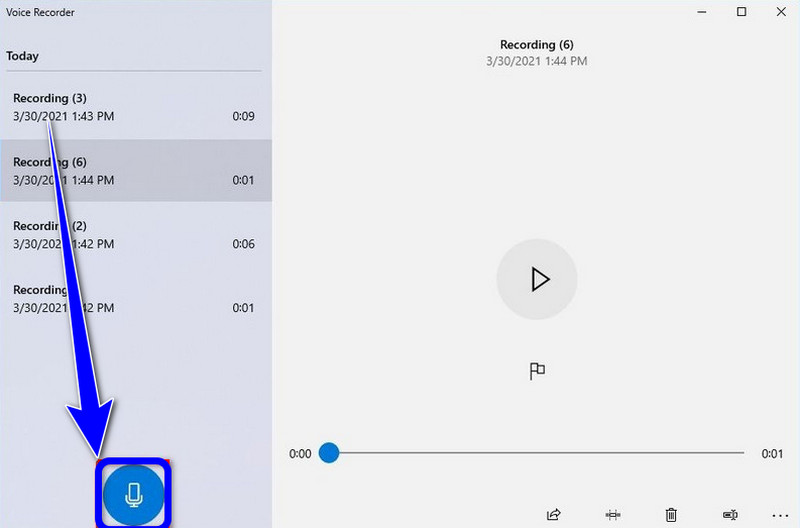
שלב 2מהממשק הראשי, לחץ על מִיקרוֹפוֹן סמל כדי להתחיל את תהליך ההקלטה.
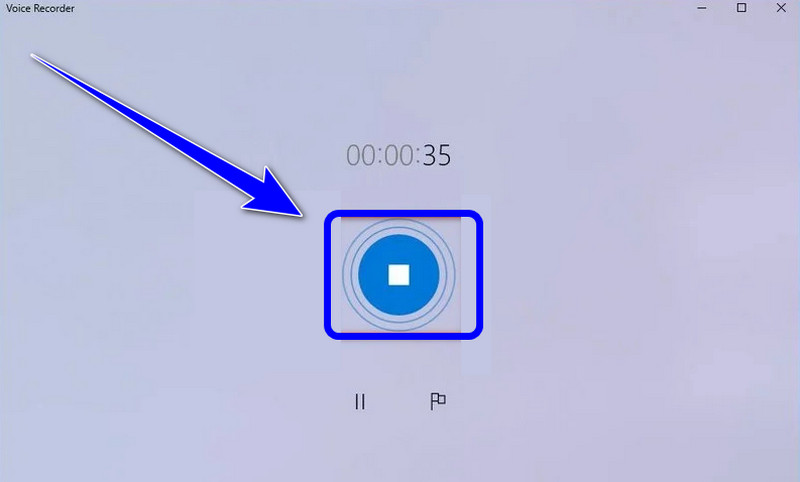
שלב 3כדי לעצור את תהליך הקלטת האודיו, לחץ על תפסיק לַחְצָן. לאחר מכן, אתה כבר יכול להאזין לשמע שהקלטת.
חלק 4. השוואה בין 5 מקליטי המסך והשמע
| תכונה | מקליט מסך AVAide | סטודיו OBS | קליפשאמפ | חוּצפָּה | מקליט קול של Windows |
| קטגוריה ראשית | חבילת לכידה הכל-באחד | שידור מקצועי | עורך דפדפן בסיסי | עורך אודיו מקצועי | תזכיר קולי בסיסי |
| הקלטת וידאו | נתמך (עד 4K/60fps) | נתמך (מתקדם) | נתמך (בסיסי) | אינו נתמך | אינו נתמך |
| הקלטת שמע | מערכת ומיקרופון בו זמנית | תמיכה מרובת ערוצים | קלט בסיסי בלבד | לכידת אודיו מתקדמת | מיקרופון בלבד |
| ממשק משתמש | אינטואיטיבי וידידותי למשתמש | עקומת למידה תלולה | מבוסס דפדפן פשוט | טכני/מסורתי | מינימליסטי ביותר |
| עריכה מובנית | ביאור/חיתוך בזמן אמת | אין (נדרש גישה חיצונית) | עורך ציר זמן מלא | עריכת אודיו מתקדמת | גיזום בסיסי בלבד |
| נקודת מכירה ייחודית | מצבי משחק וטלפון ייעודיים | שכבות סצנה ללא הגבלה | שילוב מדיה של סטוק | הפחתת רעש/ערבוב | כלי עזר למערכת מקורית |
| ערך כולל | הטוב ביותר ליעילות ואיכות | הטוב ביותר עבור טכנאים מתקדמים | הטוב ביותר לקליפים חברתיים מהירים | הטוב ביותר לעבודות אודיו טהורות | הטוב ביותר עבור הערות פשוטות |
חלק 5: שאלות נפוצות על הקלטת מסך ואודיו ב-Windows
למה Alt+R בווינדוס לא עובד?
אם קיצור הדרך Alt + R (קיצור המקשים הסטנדרטי עבור Windows Xbox Game Bar) אינו פועל, הסיבה לכך היא בדרך כלל התנגשות תוכנה, הגדרה מושבתת או מגבלות חומרה. עליך לצאת מתוכניות אחרות הכוללות תכונות הקלטת מסך.
למה אין קול כשאני מקליט מסך ב-Windows?
הסיבה הנפוצה ביותר להקלטות שקטות היא הגדרות קלט שמע שגויות. כדי לתקן זאת, ודא ששמע המערכת (צליל פנימי) וגם המיקרופון מופעלים בתוכנת ההקלטה שלך. ב-Windows 11, בדוק את הגדרות הפרטיות והאבטחה שלך כדי לוודא שלאפליקציה יש הרשאה לגשת למיקרופון. בנוסף, ודא שהתקן ההשמעה שלך מוגדר כ'התקן ברירת מחדל' בלוח בקרת הצליל של Windows, מכיוון שמקליטי שמע רבים אינם יכולים ללכוד שמע מיציאות 'וירטואליות' או 'Bluetooth' אלא אם כן הוגדרו במפורש.
איך אני יכול להקליט אודיו פנימי בווינדוס בלי מיקרופון?
כדי להקליט שמע פנימי של המערכת מבלי לקלוט רעשי רקע מהמיקרופון, עליך לכבות את האפשרות 'צליל מערכת' או 'שמע פנימי' במסך ובתוכנת הקלטת השמע.
אם אתה רוצה ללמוד כיצד להקליט מסך ב-Windows עם אודיו, אתה יכול לקבל את כל הפרטים מהפוסט הזה. אז, ראה את כל המידע ונסה את התהליך כדי לקבל מסך יעיל תהליך הקלטת אודיו. כמו כן, אם אתה רוצה שהתוכנה האמינה ביותר תעזור לך להקליט מסך עם אודיו בצורה מושלמת, אין ספק ש-AVAide Screen Recorder היא התוכנה הטובה ביותר שתוכל לגשת אליה. לפיכך, הפעל את התוכנה ב-Windows שלך ותיהנה מהיכולות הכוללות שלה.
אודות המחבר

הקלט מסך, אודיו, מצלמת אינטרנט, משחקיות, פגישות מקוונות, כמו גם מסך אייפון/אנדרואיד במחשב שלך.