מנסה להבין איך להקרין הקלטה במחשב דל אמנם צילום מדריך, משחק או פגישה יכול להיות מבלבל ללא הכלי הנכון. בין אם אתם זקוקים למשהו מהיר או מתקדם יותר, מדריך זה ידריך אתכם בשיטות פשוטות ויעילות להקלטת המסך בצורה חלקה.
חלק 1. הדרך הקלה ביותר: שימוש בסרגל המשחקים של Xbox
סרגל המשחקים של Xbox מיועד בעיקר להקלטת משחקים, אך ניתן להשתמש בו גם להקלטת מסך יומית. הוא מאפשר לך להקליט את המסך והשמע שלך, ולשמור קליפים באופן מיידי. עם זאת, הוא אינו יכול ללכוד את שולחן העבודה שלך או את סייר הקבצים; הוא יכול ללכוד רק חלונות יישומים פעילים.
שלב 1כדי לפתוח את שכבת ה-Xbox Game Bar, לחצו על חלונות + G מקשים במקלדת. אם השאלה היא האם מדובר במשחק, ענה בחיוב.
שלב 2ה לִלְכּוֹד הפאנל נמצא בשכבת העל. אם אינך יכול לראות אותו, ייווצר תפריט ווידג'טים, ואפשרות הצילום תיבחר.
שלב 3כדי להתחיל להקליט את המסך, לחצו על הלחצן רשומה (●) כפתור או Windows + Alt + Rהכלי ילכד באופן אוטומטי תמונה של החלון הפעיל.
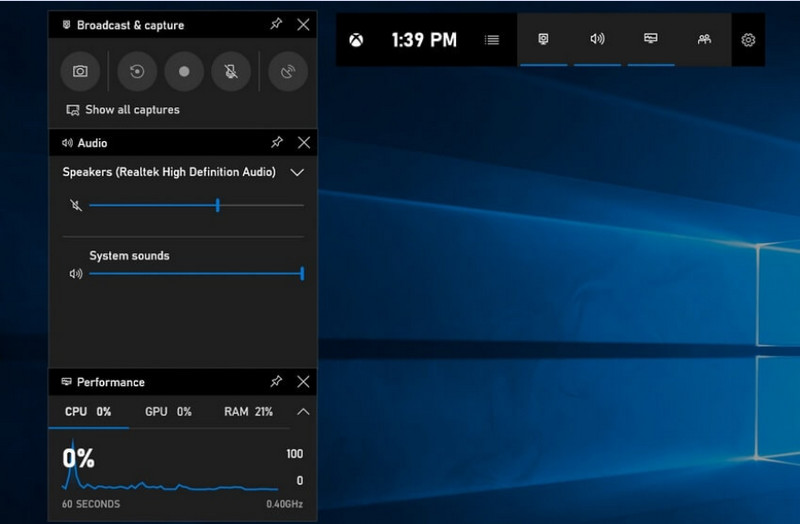
שלב 4ניתן להפעיל הקלטת מיקרופון על ידי לחיצה על מיקרופון כפתור לפני או במהלך ההקלטה.
שלב 5כדי להפסיק את ההקלטה, לחצו Windows + Alt + R פעם שנייה או לחץ על עצור (■) כפתור בסרגל הצף.
שלב 6סרטונים שאתה מקליט נשמרים אוטומטית ב סרטונים > לוכדים תיקייה של המחשב שלך.
חלק 2. הבחירות המקצועיות
1. שימוש במקליט המסך OBS
מקליט מסך OBS הוא מקליט מסך חינמי בקוד פתוח המשמש בדרך כלל להקלטה והזרמת תוכן חי. והוא מספק סידור הניתן להתאמה אישית המאפשר לך להקליט את כל התצוגה שלך, חלון נפרד או מקורות מרובים בו זמנית. פקדי הווידאו והשמע החזקים שלו הופכים אותו לאופציה יעילה עבור משתמשים שאינם מעוניינים רק בסוג הקלטת המסך הפשוט ביותר.
ביצועים:
מקליט המסך OBS הוא תוכנה עם האצת חומרה המספקת ביצועים אמינים, ומאפשרת הקלטה חלקה ברזולוציית 1080p ובקצב של 60 פריימים לשנייה. לאחר ההתקנה, הוא יכול לפעול ביעילות, עם פלט עקבי והשהיה נמוכה, במהלך הקלטות ממושכות במערכות תואמות.
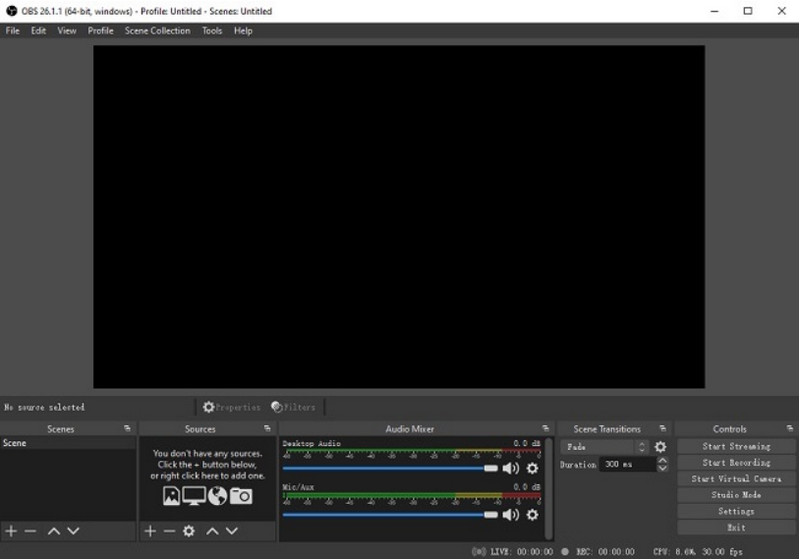
שלב 1עבור לאתר הרשמי של OBS Screen Recorder, הורד את קובץ ההתקנה והשלם את ההתקנה.
שלב 2לִפְתוֹחַ מקליט מסך OBSיוצג בפניך הממשק הראשי עם פאנלים כגון סצנות ו מקורות.
שלב 3בחלונית הסצנות, לחצו על הלחצן + כפתור ותן שם לסצנה שלך.
שלב 4ניתן להוסיף לכידת תצוגה או לכידת חלון (כדי ללכוד אפליקציה מסוימת) על ידי לחיצה + בתוך ה מקורות פאנל ובחירה לכידת תצוגה אוֹ לכידת חלון.
שלב 5בדוק את מיקסר אודיו על ידי הפעלה וכוונון המיקרופון וצליל המערכת.
שלב 6הקש על התחל להקליט כפתור בצד ימין של הממשק.
שלב 7לאחר שתסיים, לחץ הפסק להקליטסרטון זה יועבר אוטומטית לתיקיית ברירת המחדל שלך.
2. שימוש במקליט המסך AVAide
מקליט מסך AVAide הוא כלי פשוט אך יעיל להקלטת פעילות מסך באיכות גבוהה. הוא מיועד למשתמשים הזקוקים למערכת הקלטה קלה לשימוש עם אודיו צלול, מערכת לכידה גמישה עם תצורה מינימלית ובקרות אינטואיטיביות.
ביצועים:
מקליט המסך AVAide מותאם להקלטה חלקה ויציבה, אפילו במהלך הפעלות ארוכות. הוא יכול לתמוך בפלט ברזולוציה גבוהה של 4K/1080p עם השהייה מינימלית ביישומים נפוצים. התוכנה יכולה לנהל ביעילות הקלטת מסך ואודיו בו זמנית כדי להבטיח שצליל המערכת וקלט המיקרופון יישארו מסונכרנים.
- מקליט מסך באיכות גבוהה עם ביצועים חלקים וללא השהיות.
- לוכד צליל מערכת ומיקרופון בו זמנית עם פלט שמע ברור.
- תומך בהקלטה ממצלמת רשת עם שכבת-על של תמונה בתוך תמונה מתכווננת.
- מאפשר הקלטה של מסך מלא, חלון נבחר או אזור מותאם אישית.
- כולל כלי עריכה מובנים לחיתוך, שיפור וייצוא סרטונים.

 הורדה מאובטחת
שלב 1הורד והתקן את הכלי
עבור לאתר הרשמי של מקליט המסך של AVAide. הורד את קובץ ההתקנה עבור מערכת ההפעלה Windows שלך ופעל לפי תהליך ההתקנה.
שלב 2הפעל את התוכנה
ניתן לאחר ההתקנה לפתוח את התוכנה. בממשק הראשי, ניתן לבחור מקליט מסך להתחלה.
שלב 3בחירת אזור הקלטה
בחר בין מלא ו המותאם אישית מצבי הקלטה בהתאם לצרכים שלך.
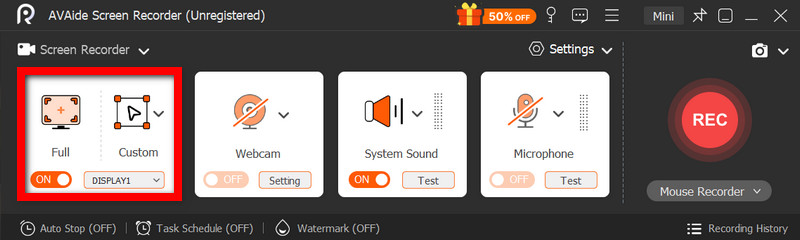
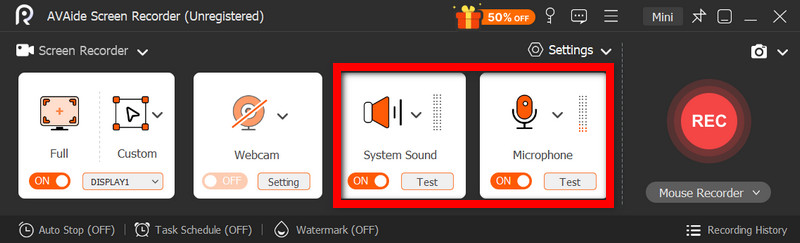
שלב 4הגדרת שמע ומצלמת אינטרנט
לְאַפשֵׁר שמע מערכת וה מִיקרוֹפוֹן אם אתם זקוקים לשמע. ניתן גם להפעיל את מצלמת הרשת כדי להקליט פרצופים.
שלב 5התחל להקליט
כדי להתחיל להקליט את המסך, לחצו על REC כפתור. ניתן להוסיף הערות במהלך ההקלטה במידת הצורך.
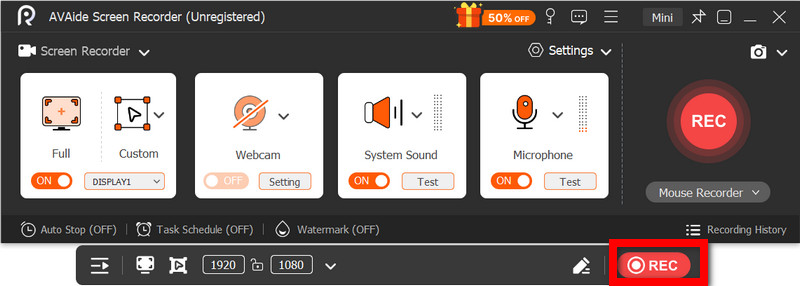
שלב 6עצירה ושמירה של ההקלטה
לחץ על תפסיק לחצו על הכפתור לאחר שתסיימו. ההקלטה תישמר אוטומטית, ותוכלו לצפות בה בתצוגה מקדימה או לערוך אותה באופן מיידי.
חלק 3. שיטות חינמיות ופשוטות אחרות
1. שימוש בכלי החיתוך (Windows 11)
כלי החיתוך ב-Windows 11 כולל הקלטת מסך מובנית, המספקת דרך פשוטה ומהירה ללכוד פעילות מסך מבלי להתקין תוכנה נוספת. הוא יעיל ביותר עם קטעים קצרים, הדרכות ועבודת הקלטה פשוטה.
ביצועים:
כלי החיתוך מתאים להקלטות קלות ומציע לכידה חלקה של צילומים קצרים. עם זאת, הוא חסר תכונות, אינו תומך בהגדרות מתקדמות, וייתכן שלא יטפל ביעילות בהקלטות ארוכות או בעלות ביצועים גבוהים כמו כלים ספציפיים.
שלב 1פתח את כלי החיתוך על ידי לחיצה על הַתחָלָה תַפרִיט.
שלב 2כדי להשתמש בסרגל הכלים, לחצו על הלחצן תקליט.
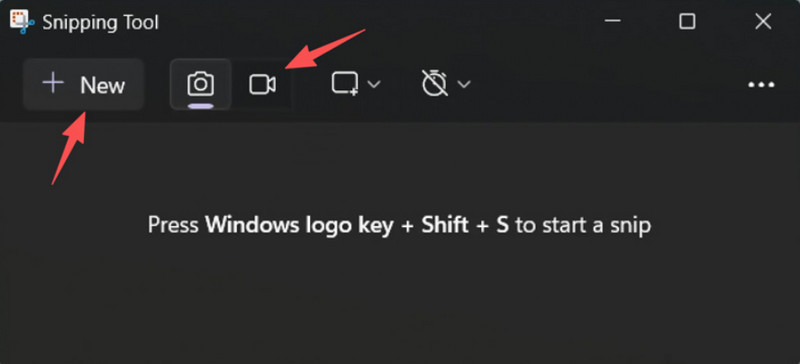
שלב 3כדי להקליט הקלטה חדשה, בחר חָדָשׁ.
שלב 4בחר את האזור במסך שברצונך ללכוד.
שלב 5נְקִישָׁה הַתחָלָה כדי להתחיל להקליט.
שלב 6נְקִישָׁה תפסיק לאחר שתסיים ושמור את ההקלטה שלך.
2. שימוש ב-Microsoft PowerPoint (כל גרסאות Windows)
Microsoft PowerPoint כולל תכונת הקלטת מסך המאפשרת לך לצלם צילום מסך ולשלב אותו במצגת. זוהי גם אלטרנטיבה קלה לפיתוח הדרכות, הדגמות או שקופיות הוראה ללא צורך בתוכנת הקלטה נוספת.
ביצועים:
PowerPoint מספק תוצאות עקביות בהקלטת מסך פשוטה, במיוחד עבור מצגות והדגמות קצרות. למרות שהוא מציע איכות וידאו סבירה, הוא חסר בקרות מתקדמות וייתכן שאינו מתאים לאיכות הסרטונים שצולמו במהלך הקלטות ארוכות טווח.
שלב 1הפעל את Microsoft PowerPoint והכן מצגת חדשה או קיימת.
שלב 2לחצו על הכרטיסייה הוספה, לאחר מכן הקלטת מסך.
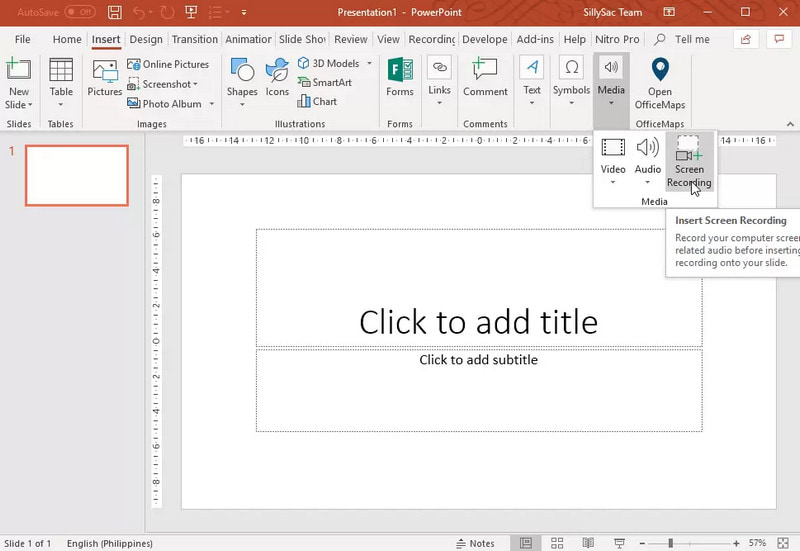
שלב 3בחר את החלק של המסך שברצונך ללכוד.
שלב 4אפשר הקלטת שמע או מצביע בעת הצורך.
שלב 5נְקִישָׁה תקליט כדי להתחיל להקליט את המסך שלך.
שלב 6כדי לסיים את ההקלטה, לחצו חלונות + Shift + Q.
שלב 7כדי לשמור את ההקלטה, לחצו לחיצה ימנית על הסרטון ובחרו שמור מדיה בשם.
חלק 4. פתרון בעיות נפוצות
| בְּעָיָה | פִּתָרוֹן |
| סרגל המשחקים לא נפתח או מקליט. | בהגדרות, ניתן לכבות את סרגל המשחקים של Xbox. עבור אל הגדרות > גיימינג > בר משחק ולהפוך אותו עַלניסיון ללחוץ חלונות + G שוב, והפעל מחדש את המחשב (במידת הצורך). |
| להקלטה אין קול. | ודא ששמע המערכת והמיקרופון מופעלים בהגדרות סרגל המשחקים. כמו כן, ודא שהתקן הקול שלך אינו מושתק או שנבחר באופן שגוי בהגדרות הקול של Windows. |
| המחשב הנייד של דל שלי פועל לאט בזמן ההקלטה. | השתמשו באפשרות סגור או מזער כדי להפחית יישומים וכרטיסיות דפדפן מיותרות. עברו למצב ביצועים גבוהים בהגדרות צריכת החשמל והקטינו את רזולוציית ההקלטה בעת הצורך כדי לשפר את הביצועים. |
| איכות הווידאו המוקלטת ירודה. | הגדר את איכות ההקלטה להגדרה הטובה ביותר הזמינה בסרגל המשחקים, במיוחד כאשר הקלטת גוגל מיץ הגדר את הצג לרזולוציה המקורית שלו ועדכן את מנהלי ההתקן הגרפיים שלך כדי להפוך אותו לחד ויציב יותר. |
לְמִידָה כיצד להקליט מסך במחשב נייד של Dell יעניק לכם גמישות עבור הדרכות, פגישות או אפילו משחקים. בין אם מדובר בכלי מובנה או בתוכנה מתוחכמת, בחירת השיטה הנכונה תבטיח שההקלטה תתבצע בקלות ובאיכות גבוהה, ושתהליך העבודה יהיה יעיל.
אודות המחבר

הקלט מסך, אודיו, מצלמת אינטרנט, משחקיות, פגישות מקוונות, כמו גם מסך אייפון/אנדרואיד במחשב שלך.