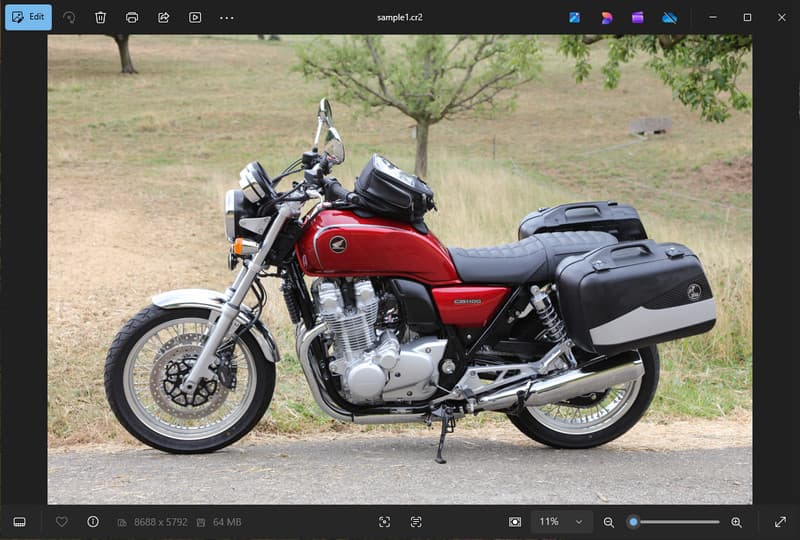
מצלמות קנון מקליטות תמונות בפורמט CR2, פורמט תמונה גולמי שנועד ללכוד את פרטי התמונה המרביים. למרות שהוא שימושי לעריכה, לא ניתן להשתמש בו ביישומים יומיומיים עקב גודל הקובץ הגדול שלו והתאימות המוגבלת שלו. המרת CR2 ל-JPG, ניתן לשתף אותו ביתר קלות, להעלות אותו מהר יותר ולתמוך בו במגוון רחב יותר של מכשירים. זהו גם תהליך שממזער את דרישות האחסון מבלי לדרוש מומחיות טכנית ברמה גבוהה. מדריך זה מחולק לסיבות, שיטות וכלים המבוססים על שיטות נפוצות לטיפול בתמונות כדי לעזור לך לנהל את הקבצים שלך בצורה ברורה ומבוקר.
חלק 1. קנון CR2: למה אתה צריך להמיר אותו
קנון CR2 הוא פורמט קובץ גולמי (raw) שמתעד מידע גולמי מחיישן המצלמה. למרות שהוא מפורט ביותר, ייתכן שיהיה צורך להמיר את פורמט הקובץ CR2 ל-JPG, מכיוון שמכשירים ויישומים רבים אינם תומכים בקבצי גולמי.
1. תאימות מוגבלת
כלים סטנדרטיים רבים אינם תומכים בקבצי CR2, מה שמקשה על צפייה בתמונות. המרת קובץ CR2 ל-JPG מבטיחה שהתמונות שלך ייפתחו בצורה חלקה במכשירים, בדפדפנים ובצופי תמונות בסיסיים.
2. גודל קובץ גדול
קבצי RAW גדולים מאוד מכיוון שהם משמרים יותר נתוני תמונה. זה משפיע על האחסון והביצועים. שינוי תמונות CR2 ל-JPG מפחית את גודל הקובץ, מה שמקל על אחסון והעברת תמונות ביעילות.
3. שיתוף והעלאה קלים יותר
פלטפורמות רבות אינן מקבלות פורמטים גולמיים או שהעיבוד שלהן איטי. מעבר מ-CR2 ל-JPG הוא דרך מהירה וקלה להעלות את התמונות שלך ולהבטיח שהן יופיעו בפורמט הנכון ברשתות חברתיות, בדוא"ל ובאתרים אחרים.
4. אין צורך בתוכנה ייעודית
קבצי CR2 זקוקים לתוכנת עריכה המסוגלת לעבד את הקובץ הגולמי. כאשר ממירים CR2 ל-JPG, חסרים תוכנות מתוחכמות ומקבלים בקלות תמונות לשימוש יומיומי.
5. זרימת עבודה מהירה יותר
עבודה עם קבצים גולמיים יכולה להאט את התהליך, במיוחד בכמות גדולה. שימוש בממיר CR2 ל-JPG אמין מסייע להאיץ את עיבוד התמונה ולשפר את הפרודוקטיביות הכוללת.
6. תהליך פשוט יותר למתחילים
פורמטים גולמיים יכולים להרגיש מורכבים עבור משתמשים חדשים. לימוד כיצד להמיר CR2 ל-JPG מפשט את תהליך העבודה ומקל על ניהול תמונות ללא מכשולים טכניים.
הבנת נקודות אלו מסבירה מדוע המרה היא לעתים קרובות הבחירה המעשית. בסעיף הבא, תחקרו את השיטות הטובות ביותר להמרת CR2 ל-JPG ביעילות.
חלק 2. 5 הדרכים הטובות ביותר להמרת CR2 ל-JPG
1. ממיר תמונות AVAide (האפשרות החינמית הטובה ביותר באינטרנט)
ממיר תמונה של AVAide הוא פתרון מהיר מבוסס דפדפן שנועד למשתמשים הזקוקים לתוצאות מהירות מבלי להתקין תוכנה. הוא שימושי במיוחד כאשר צריך להמיר CR2 ל-JPG בכמות גדולה תוך שמירה על איכות התמונה.
תכונות עיקריות:
- ממיר אל ומקבצי CR2 באצווה.
- שומר על איכות תמונה גבוהה וצבע טבעי.
- מקוון לחלוטין ללא צורך בהתקנה
- מקבל קבצי JPG, PNG ואחרים.
- ממשק קל לשימוש לעיבוד מהיר.
פלטפורמות:
- מבוסס אינטרנט, שעובד על Windows, Mac, Linux ודפדפנים ניידים
שלב 1בקר באתר הרשמי
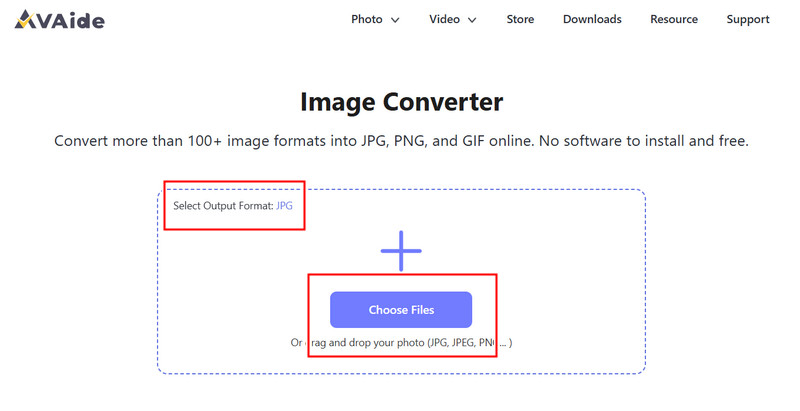
עבור לדפדפן שלך וגש לדף הרשמי של AVAide Image Converter. לאחר הטעינה, תוכל להתחיל להמיר באופן מיידי מבלי להירשם או להתקין דבר.
שלב 2הגדר פלט והעלאה
בחר JPG כפורמט הפלט הרצוי. לאחר מכן, לחץ על כפתור + או גרור ושחרר את קבצי ה-CR2 שלך לאזור ההעלאה כדי להתחיל.
שלב 3התחל להמיר CR2
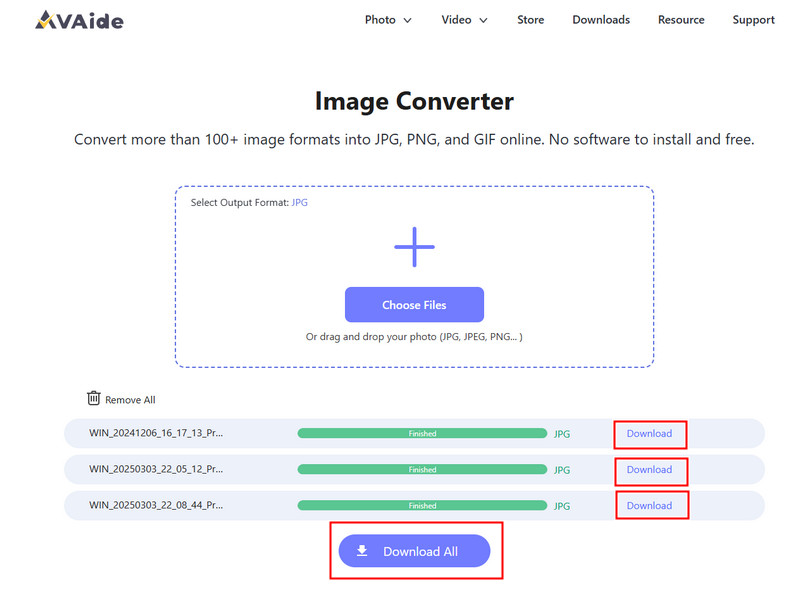
המתן עד שהכלי יסיים לעבד את הקבצים שלך. לאחר שתסיים, לחץ הורד עבור קובץ בודד או הורד הכל אם המרת מספר תמונות.
- יתרונות
- קל ומהיר לשימוש
- אין צורך בהתקנה או הגדרה
- תמיכה יעילה בעיבוד אצווה
- שומר על איכות פלט עקבית
- חסרונות
- דורש חיבור לאינטרנט
- כלי עריכה מתקדמים מוגבלים
2. אדובי פוטושופ
אדוב פוטושופ הוא יישום יעיל המאפשר לבצע עריכות בקבצים גולמיים לפני ייצוא. הוא משמש בדרך כלל כאשר צריך להמיר CR2 ל-JPG ולקבל שליטה מלאה על שינויי התמונה.
תכונות עיקריות:
- עריכה מתקדמת של CR2 באמצעות Camera Raw
- אפשרויות ייצוא איכותיות
- כלי עריכה ברמה מקצועית
פלטפורמות:
- Windows ו-Mac
שלב 1הפעילו את Photoshop ופתחו את קובץ CR2 שלכם, שיטען אוטומטית ב-Camera Raw.
שלב 2התאם את החשיפה, איזון הלבן או הצבע לפי הצורך, ולאחר מכן לחץ לִפְתוֹחַ להמשיך.
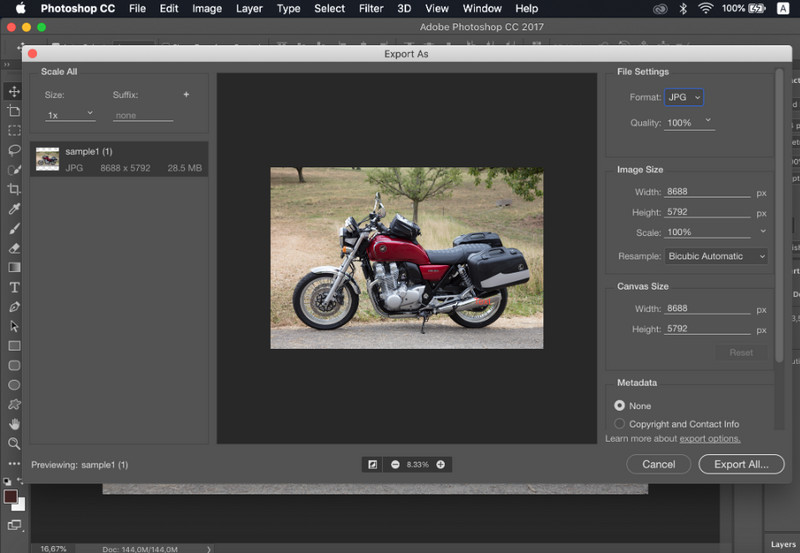
שלב 3לך ל קוֹבֶץ, בחר שמור כ, בחר JPG פורמט, קבע את האיכות ושמור את התמונה.
- יתרונות
- שליטה ודיוק מצוינים בתמונה
- תוכנה סטנדרטית בתעשייה
- חסרונות
- דורש מנוי
- עקומת למידה תלולה
3. לייטרום
לייטרום אידיאלי לצלמים המנהלים ספריות תמונות גדולות, ואפילו אם אתם רוצים הסרת הרקע בלייטרוםזה מפשט עריכה וייצוא של קבוצות, מה שמקל על השימוש בתהליך עבודה של ממיר CR2 ל-JPG עבור מספר תמונות בו זמנית.
תכונות עיקריות:
- עריכה ויצוא בקבוצות
- מערכת עריכה לא הרסנית
- ניהול תמונות מאורגן
פלטפורמות:
- Windows, Mac ונייד
שלב 1פתחו את Lightroom והוסיפו את קבצי CR2 שלכם לספרייה.
שלב 2בחרו את התמונות ובצעו עריכות, במידת הצורך.
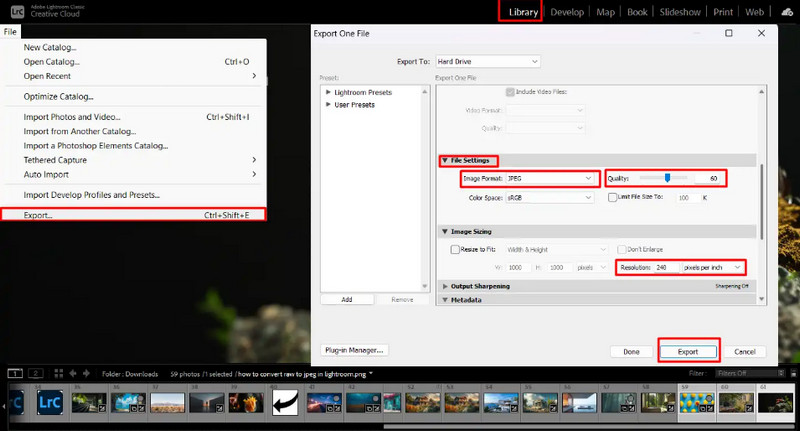
שלב 3נְקִישָׁה יְצוּא, בחר JPG פורמט, קבע הגדרות ובחר היכן לשמור.
- יתרונות
- יעיל לעיבוד תמונה בכמות גדולה
- איכות פלט עקבית
- חסרונות
- נדרש מנוי
- דורש למידה למתחילים
4. גימפ
עורך תמונות GIMP הוא עורך חינמי בקוד פתוח שיכול להתמודד עם תמונות גולמיות באמצעות תוספים. זוהי אפשרות יעילה אם אתם לומדים כיצד להמיר CR2 ל-JPG מבלי להוציא כסף על תוכנה בתשלום.
תכונות עיקריות:
- תוכנה חופשית וקוד פתוח
- תומך בפורמטים מרובים של תמונות
- תכונות עריכה והמרה בסיסיות
פלטפורמות:
- Windows, Mac, Linux
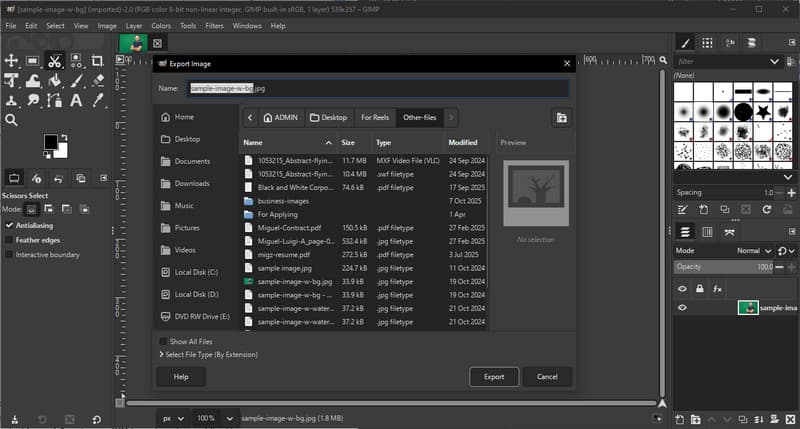
שלב 1פתחו את GIMP וטענו את קובץ CR2 שלכם באמצעות תוסף RAW.
שלב 2התאם את הגדרות התמונה בחלון הייבוא ואשר.
שלב 3לך ל קוֹבֶץ, בחר ייצא בשם, בחר JPG פורמט, וייצא את הקובץ.
- יתרונות
- שימוש חופשי לחלוטין
- גמיש עם תוספים ותוספים
- חסרונות
- ההתקנה יכולה להיות טכנית
- ממשק פחות מלוטש
5. Convertio
Convertio הוא כלי אינטרנט ידוע המאפשר למשתמשים להמיר קבצים במהירות ללא התקנה. זוהי בחירה מעשית כאשר משתמשים שואלים כיצד להמיר CR2 ל-JPG באמצעות פלטפורמה מקוונת פשוטה.
תכונות עיקריות:
- תומך בפורמטים מרובים של קבצים, כולל CR2 ו-JPG
- עובד ישירות בדפדפן
- מאפשר העלאת קבצים ממכשיר, ענן או כתובת URL
- תהליך המרה פשוט ומהיר
פלטפורמות:
- מבוסס רשת
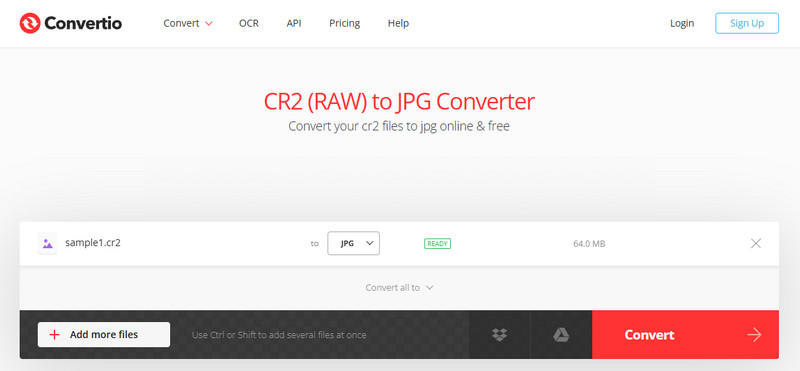
שלב 1פתחו את Convertio בדפדפן שלכם והעלו את קובץ ה-CR2 שלכם.
שלב 2בחר JPG כפורמט הפלט.
שלב 3התחל את ההמרה והורד את הקובץ לאחר שתסיים
- יתרונות
- קל לגישה ולשימוש
- אין צורך בהתקנה
- תומך במקורות קבצים שונים
- חסרונות
- מגבלות גודל קובץ בגרסה החינמית
- דורש חיבור לאינטרנט
חלק 3. השוואה בין 5 ממירי CR2 ל-JPG
| תכונות | ממיר תמונה של AVAide | אדוב פוטושופ | לייטרום | GIMP | Convertio |
| קל לשימוש | קל מאוד | לְמַתֵן | לְמַתֵן | לְמַתֵן | קַל |
| המרת אצווה | כן | מוגבל | מוגבל | מוגבל | מוגבל ל-5 |
| איכות תמונה | הֲכִי גָבוֹהַ | גָבוֹהַ | גָבוֹהַ | גָבוֹהַ | גָבוֹהַ |
| מְהִירוּת | מָהִיר | לְמַתֵן | מָהִיר | לְמַתֵן | מָהִיר |
| מגבלת גודל קובץ | לא | לא | לא | לא | כן |
חלק 4. שאלות נפוצות על המרת CR2 ל-JPG
מה לעשות עם קבצי CR2?
קבצי CR2 הם תמונות גולמיות המכילות נתונים לא מעובדים ממצלמת קנון. הם שימושיים אם אתם רוצים שליטה מלאה על עריכה, כגון התאמת בהירות, צבע וחדות. עם זאת, הם אינם קלים לשימוש עבור משימות יומיומיות כמו שיתוף או העלאה.
אילו אפליקציות פותחות קבצי CR2?
ניתן לפתוח קבצי CR2 באמצעות מספר יישומי עריכת תמונות. Adobe Photoshop ו-Lightroom הן האפשרויות הנפוצות ביותר מכיוון שהן תומכות באופן מלא בפורמטים גולמיים ומספקות כלי עריכה מתקדמים. GIMP יכולה גם לפתוח קבצי CR2 באמצעות תוסף.
איך להמיר קובץ RAW ל-JPG בבת אחת?
כדי להמיר מספר קבצי RAW בו זמנית, אתם זקוקים לכלי התומך בהמרת אצווה. תוכנות כמו Lightroom או כלים מקוונים כמו AVAide Image Converter מאפשרים לכם לייבא או להעלות מספר קבצי CR2 בו זמנית. פשוט בחרו JPG כפורמט הפלט ומתחילים את התהליך.
המרת קבצי CR2 ל-JPG הופכת תמונות לקלות יותר לשיתוף, צפייה ואחסון. בעוד ש-CR2 מצוין לעריכה, JPG פרקטי יותר לשימוש יומיומי. אם אתם תוהים... כיצד לשנות את סוג הקובץ מ-CR2 ל-JPG, ניתן להשתמש בכלים כמו פוטושופ, לייטרום, או ממירים מקוונים כמו ממיר תמונה של AVAideהמטרה פשוטה: להפוך קבצי RAW גדולים לתמונות JPG קטנות ושימושיות, מבלי לאבד איכות חשובה.
אודות המחבר


אתה יכול בקלות להמיר את התמונה שלך מכל פורמט תמונה ל-JPG, PNG או GIF פופולרי ללא אובדן איכות.
תהליך עכשיו