Comment enregistrer un message vocal sur un iPhoneEnregistrer un message vocal est un moyen rapide de partager vos pensées ou d'envoyer un message audio personnalisé sans avoir à taper. Grâce à la fonction de messagerie vocale intégrée à l'iPhone, vous pouvez enregistrer, sauvegarder et partager instantanément vos messages audio en quelques clics. Si vous cherchez une solution complète pour enregistrer et envoyer un message vocal sur votre mobile, consultez ce tutoriel pour y parvenir.
Partie 1. Comment enregistrer et envoyer un message vocal dans iMessage
iMessage n'est pas qu'un simple outil de communication. Il propose également une fonction de messagerie vocale. Grâce à elle, vous pouvez envoyer et partager vos messages et pensées à la voix. C'est la solution idéale si vous souhaitez envoyer des messages sans avoir à saisir de texte au clavier. L'avantage principal ? Envoyer un message vocal est très simple, ce qui le rend accessible à tous. Alors, si vous souhaitez commencer à enregistrer et à envoyer des messages, suivez les instructions ci-dessous.
Comment enregistrer un message vocal sur iPhone
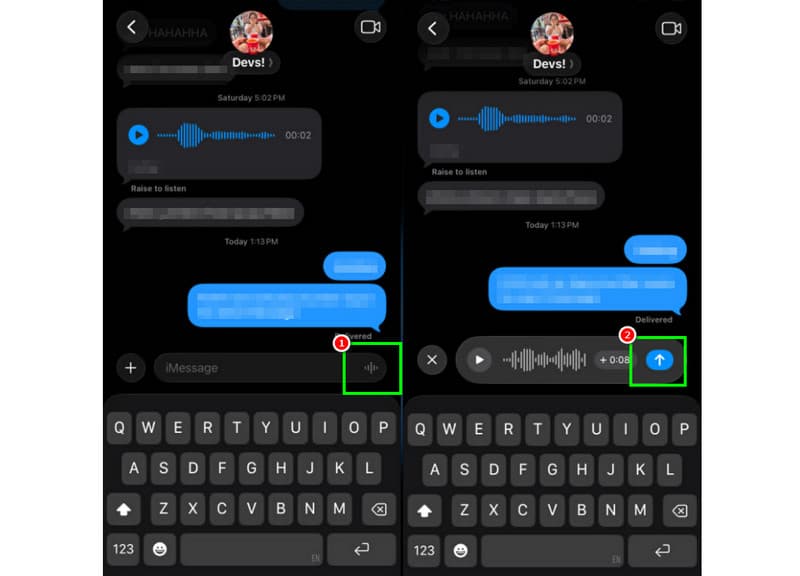
Étape 1Sur votre iPhone, lancez l'application iMessage Ensuite, accédez à l'application et contactez la personne avec laquelle vous souhaitez communiquer.
Étape 2Depuis votre écran, appuyez et maintenez la touche Microphone option. Tout en maintenant la touche enfoncée, vous pouvez commencer à enregistrer et à lire votre message.
Étape 3Pour arrêter l'enregistrement, relâchez le bouton. Ensuite, appuyez sur le Envoyer une flèche bouton pour envoyer le message.
Écouter les messages vocaux entrants
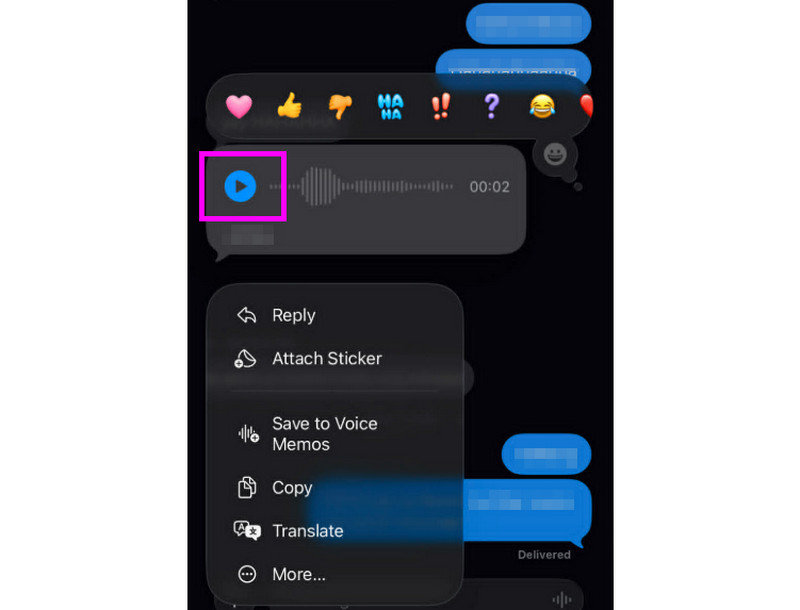
Étape 1Après avoir reçu le message vocal, vous pouvez appuyer sur Jouer bouton.
Étape 2Vous pouvez également régler le volume à l'aide du bouton latéral de votre iPhone pour bien entendre le message.
Étape 3Le message vocal expirera au bout de deux minutes. Pour le conserver, appuyez simplement sur la touche correspondante. Donjon option ci-dessous.
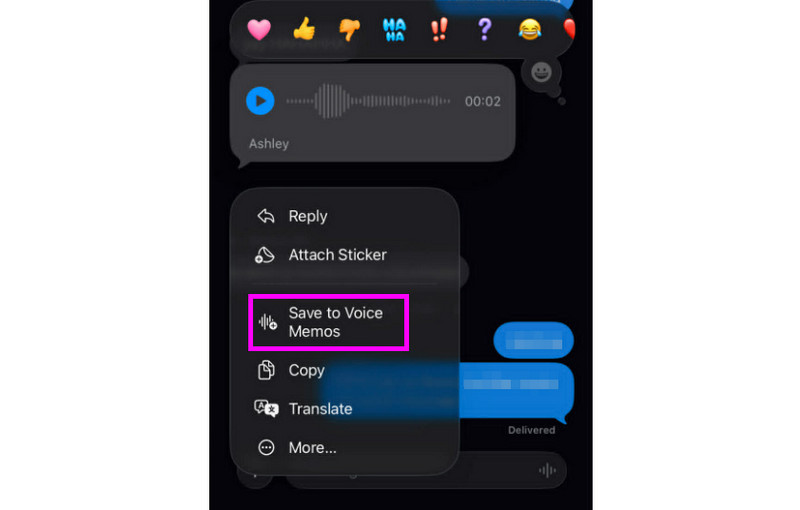
Étape 4Si vous souhaitez enregistrer le message vocal, appuyez longuement dessus et appuyez sur Enregistrer dans les mémos vocaux application. Avec cette application d'enregistrement vocalVous pouvez réécouter le message à tout moment et n'importe où.
Paramètres de la messagerie vocale
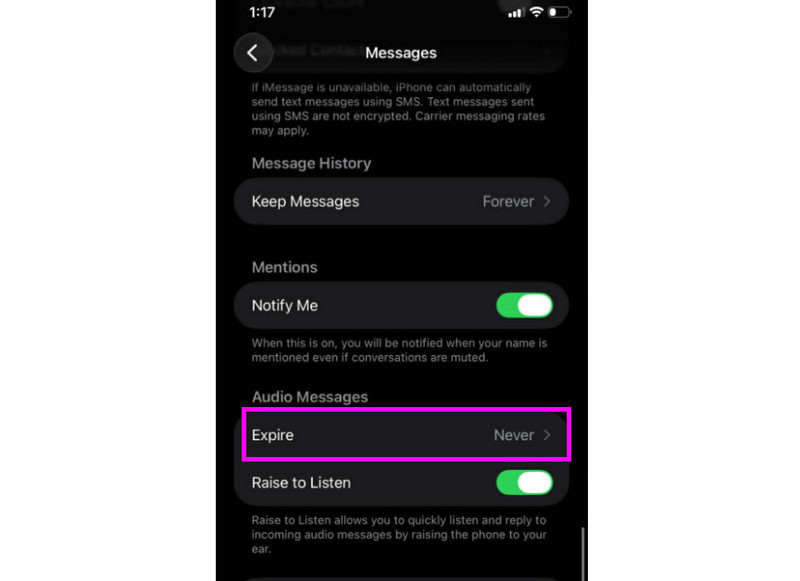
Étape 1Allez à votre Réglages L'application. Ensuite, passez à l'application. Messages application.
Étape 2Naviguez vers le Messages audio > Expirer section et appuyez sur le Jamais Cette option permet de conserver vos messages vocaux iMessage.
Partie 2. Méthode pour enregistrer un message d'accueil vocal sur iPhone
Lorsque vous n'êtes pas joignable, vos correspondants entendront un message personnalisé si vous enregistrez un message d'accueil sur votre messagerie vocale depuis votre iPhone. Créer un nouveau message, modifier ou supprimer un ancien, ou même utiliser un message temporaire pour des occasions spéciales, est très simple. En quelques clics dans l'application Téléphone, vous pouvez personnaliser entièrement le son de votre messagerie vocale. Découvrez la marche à suivre et apprenez à enregistrer un message d'accueil sur iPhone.
Configuration de votre message d'accueil vocal
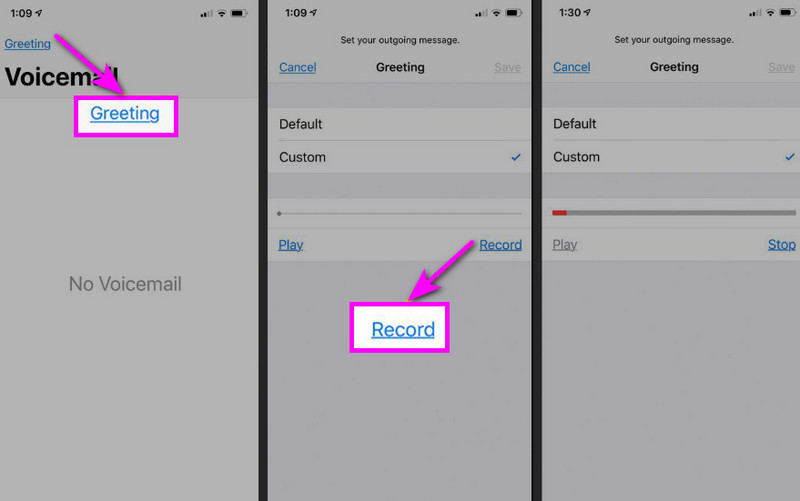
Étape 1Passez à la Téléphoner l'application et appuyez sur Messagerie vocale option.
Étape 2Après cela, appuyez sur le bouton Salutation Utilisez cette fonction située en haut à gauche de votre écran. Appuyez sur Personnalisé > Disque commencer enregistrer du son sur votre iPhone comme salutation.
Étape 3Robinet Arrêter pour terminer et jouer pour évaluer. Une fois terminé, appuyez sur Sauvegarder pour le définir comme message d'accueil actif.
Modifier ou supprimer votre message d'accueil
Étape 1Vous pouvez retourner au Messagerie vocale > Salutation section.
Étape 2Frapper Personnalisé et enregistrez un nouveau message d'accueil pour remplacer l'ancien.
Étape 3Ensuite, pour revenir aux paramètres par défaut, vous pouvez sélectionner Défaut au lieu de Personnalisé.
Conseil de pro : Salutation temporaire
Si vous êtes indisponible pour une courte durée, enregistrez un message d'accueil temporaire en suivant les mêmes étapes que dans la section « Personnalisé ». À votre retour, vous pourrez simplement rétablir votre message d'accueil habituel ou l'option par défaut.
Partie 3. Dépannage - Impossible d'enregistrer un message vocal
Rendez-vous dans cette section pour consulter le guide de dépannage qui traite de certains problèmes rencontrés lors de l'enregistrement ou de l'envoi d'un message vocal sur un iPhone.
Le bouton du microphone est grisé dans Messages.
Solution: Assurez-vous que l'accès au microphone est activé. Pour ce faire, accédez à Paramètres > Confidentialité et sécurité > Microphone et autorisez l'accès pour Messages.
La fonction vocale ne s'envoie pas
Solution: Vérifiez toujours votre connexion Internet. Assurez-vous également que iMessage est activé dans Réglages > Messages > iMessage.
Impossible d'enregistrer le message d'accueil de la messagerie vocale
Solution: L'option « Message d'accueil » ne s'affiche que si votre opérateur prend en charge la messagerie vocale visuelle. Si elle est absente, appuyez longuement sur la touche 1 de l'application Téléphone pour composer directement le numéro de la messagerie vocale. Suivez ensuite les instructions de votre opérateur pour enregistrer votre message d'accueil.
Les destinataires disent qu'ils ne vous entendent pas.
Solution: Vous pouvez tester votre microphone avec l'application Dictaphone. Vous pouvez également retirer toute coque ou accessoire susceptible de bloquer le micro. Une autre solution consiste à nettoyer l'ouverture du microphone avec un chiffon ou une petite brosse.
Référence rapide : Message vocal vs. Messagerie vocale
Vous souhaitez en savoir plus sur les messages vocaux et la messagerie vocale ? Consultez le tableau ci-dessous.
| Caractéristique | Message vocal (iMessage) | Messagerie vocale (opérateur) |
| Comment est-il envoyé | • Enregistré dans l'application Messages • Envoyé par iMessage | • Message d'accueil enregistré • Audio stocké par l'opérateur |
| Internet nécessaire | Oui (Wi-Fi ou données cellulaires) | Non, cela fonctionne via un réseau cellulaire |
| Stockage | Enregistré dans la conversation iMessage | Stocké dans le système de messagerie vocale de l'opérateur |
| Contrôler | L'utilisateur peut renvoyer, supprimer ou enregistrer. | L'opérateur contrôle l'accès et le stockage |
Bonus : Le meilleur outil pour vous aider à éditer vos enregistrements vocaux
Après avoir enregistré un message vocal, il arrive qu'on souhaite le modifier pour obtenir une meilleure qualité audio. Dans ce cas, pour éditer votre audio, il est préférable d'utiliser un excellent logiciel de montage, comme… AVAide Convertisseur vidéoCe programme offre une fonction d'édition audio vous permettant de modifier vos fichiers audio. Vous pouvez découper, diviser et fusionner des pistes audio. Vous pouvez même ajuster le volume et le délai selon vos préférences. Son principal atout réside dans la possibilité d'enregistrer l'audio dans n'importe quel format grâce à sa fonction de conversion. Vous pouvez ainsi enregistrer votre voix aux formats MP3, WAV, M4A, FLAC et bien d'autres, avec une qualité optimale jusqu'à 320 kbps. Si vous recherchez un logiciel idéal pour éditer vos enregistrements vocaux, AVAide Video Converter est la solution parfaite.

TÉLÉCHARGEMENT GRATUIT Pour Windows 7 ou version ultérieure
 Téléchargement sécurisé
TÉLÉCHARGEMENT GRATUIT Pour Mac OS X 10.13 ou version ultérieure
Téléchargement sécuriséPlus de fonctionnalités :
- Il permet une procédure de montage audio fluide.
- Le programme peut fusionner plusieurs fichiers audio pour créer un seul fichier.
- Il peut convertir les formats audio et vidéo à une vitesse de conversion 120 fois plus rapide.
- Le programme peut également proposer des éditeurs vidéo intégrés, tels que des outils de fusion, de division, de découpage, de recadrage, etc.
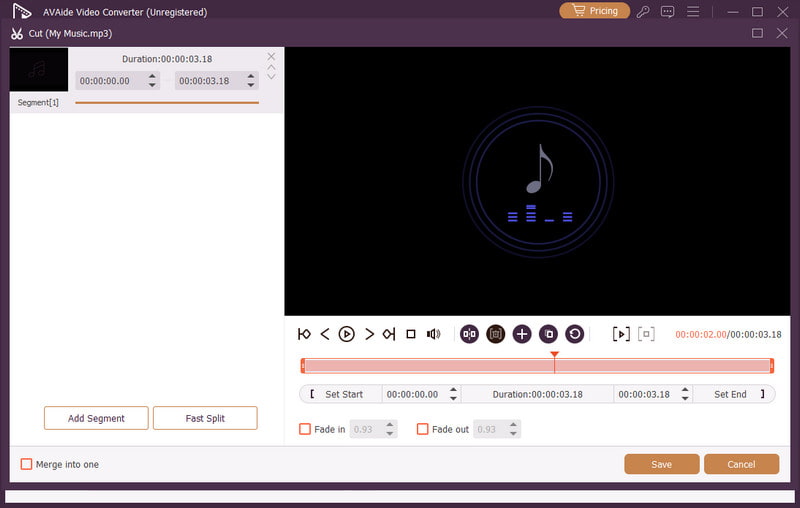
Envoyer un message vocal sur un iPhone C'est la solution idéale pour envoyer votre message plus rapidement. Grâce à ce tutoriel, vous avez appris à enregistrer et à envoyer efficacement un message vocal. Vous avez également découvert comment sauvegarder votre message vocal pour le réécouter sans aucune limitation. De plus, si vous souhaitez modifier vos enregistrements vocaux, il serait préférable d'y accéder. AVAide Convertisseur vidéoGrâce à la fonction d'édition audio de ce programme, vous pouvez améliorer votre audio, ce qui permet une lecture audio de meilleure qualité et plus satisfaisante.
À PROPOS DE L'AUTEUR

Capturez les activités de l'écran avec de l'audio, des réunions en ligne, des vidéos de jeu, de la musique, une webcam, etc.
Enregistrement audio
- Enregistrer l'audio depuis l'ordinateur
- Meilleur logiciel d'enregistrement audio
- Enregistrer les appels iPhone
- Studio d'enregistrement FL
- Comment enregistrer un podcast
- Télécharger Soundgasm
- Télécharger les chansons d'Audiomack
- Enregistrer de la musique depuis Deezer
- SoundCloud en MP3
- Télécharger X Space Audio
- Téléchargement de musique gratuit