Tratando de reproducir música mientras se graba el vídeo Los vídeos grabados con iPhone para TikTok, recuerdos de viajes o vlogs rápidos pueden resultar frustrantes cuando el audio se corta de repente. Muchos usuarios se encuentran con este problema en momentos importantes. Por suerte, existen varias maneras sencillas de mantener la música sonando mientras se graba, tanto en dispositivos iPhone como Android.
- Parte 1. iPhone: Cómo reproducir música mientras se graba un vídeo.
- Parte 2. Android: Cómo reproducir música mientras se graba un vídeo.
- Parte 3. ¿Por qué mi iPhone pausa la música cuando empiezo a grabar?
- Parte 4. La música se detiene o no se reproduce [Soluciones rápidas]
- Parte 5. ¿Qué tal usar una grabadora de pantalla profesional?
Parte 1. iPhone: Cómo reproducir música mientras se graba un vídeo.
Método 1: El método integrado
iOS 18 trae mejoras muy bienvenidas en la facilidad de uso para los usuarios de iPhone. Anteriormente, las versiones anteriores de iOS pausaban la reproducción de música mientras la app Cámara grababa, pero esta actualización soluciona ese problema y permite escuchar música mientras se graba. Es la forma más sencilla y fiable, ya que no es necesario instalar aplicaciones adicionales ni usar trucos; funciona directamente en el sistema del iPhone.
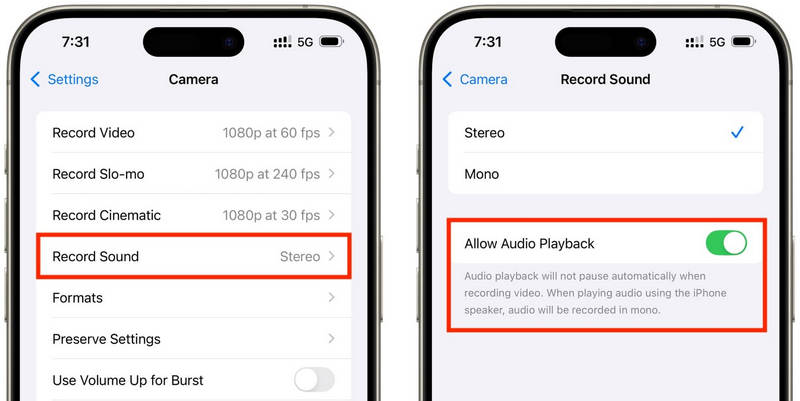
Paso 1Ve a la aplicación Ajustes en tu iPhone.
Paso 2Toque en el Cámara en la parte inferior de la pantalla.
Paso 3 Seleccione Grabar sonido o la misma opción de audio y active el interruptor. Permitir la reproducción de audio opción durante la grabación.
Etapa 4Reproduce una canción en la aplicación de música que prefieras.
Paso 5Abre el Cámara la aplicación y seleccione la Modo de vídeoTu música debería seguir sonando mientras grabas.
Método 2: El truco de QuickTake (para iOS 17 y versiones anteriores)
QuickTake es una de las maneras más sencillas de solucionar el problema de la pausa de la música al grabar vídeo en iPhones antiguos. A diferencia de entrar en el modo Vídeo, QuickTake te permite grabar clips directamente desde el modo Foto, de modo que la música de fondo sigue sonando. Es rápido y fácil para grabar vídeos cortos, vídeos para Twitter, vídeos tuyos en redes sociales o cualquier momento que quieras capturar sin que se interrumpa el audio.
Paso 1Reproduce tu canción en Apple Music, Spotify u otra aplicación de música.
Paso 2Mantener la configuración predeterminada Foto modo.
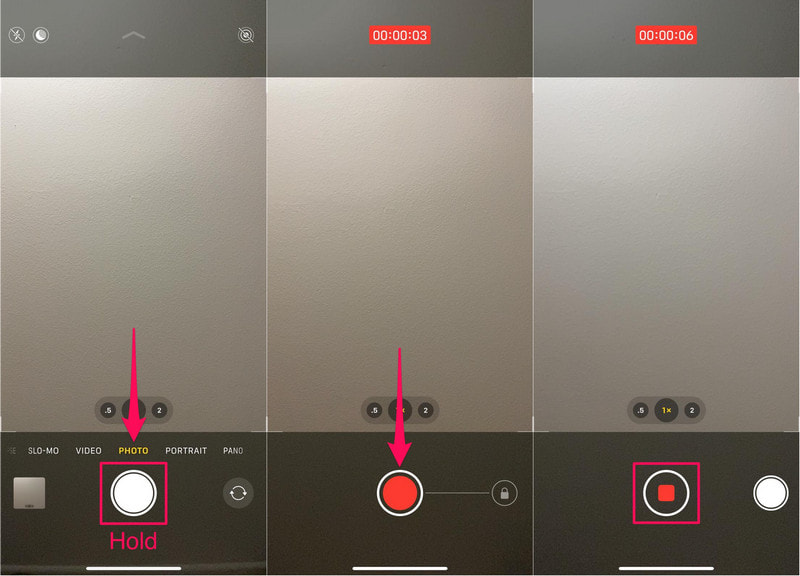
Paso 3Para iniciar la grabación de vídeo, mantenga pulsado el botón Obturador botón.
Etapa 4 Mueva el botón del obturador hacia la derecha para asegurar la grabación, de modo que no sea necesario mantenerlo pulsado.
Paso 5Clickea en el Detener botón una vez completado.
Método 3: Uso de una aplicación de terceros
Si la reproducción sigue interrumpiéndose por la música, las aplicaciones de grabación de terceros son la solución perfecta. La más popular es Mideo, una aplicación que permite reproducir música y grabar vídeos simultáneamente. Admite grabación en HD e incluso 4K en dispositivos compatibles e incluye todas las funciones esperadas, como controles de zoom, compatibilidad con las cámaras frontal y trasera, y guardado instantáneo en la app Fotos.
Paso 1Descarga Mideo desde la App Store.
Paso 2Permitir el acceso a la cámara y al micrófono.
Paso 3Abre Apple Music, Spotify u otra aplicación de streaming y empieza a reproducir.
Etapa 4Una vez que comience tu música, abre el Aplicación.
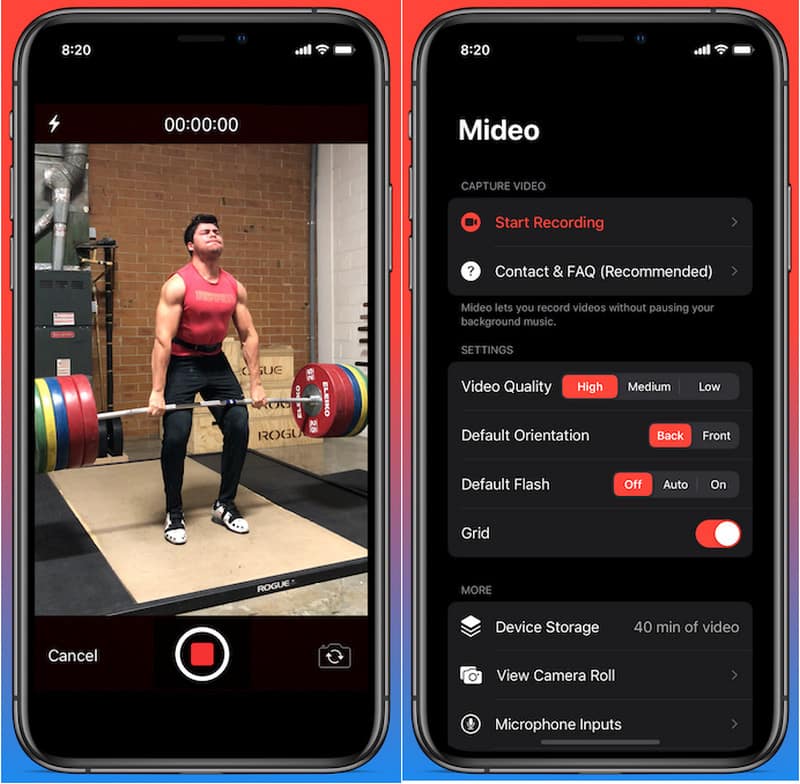
Paso 5presione el Registro Pulsa el botón y comienza a grabar mientras suena tu música de fondo.
Método 4: Uso del modo Imagen en imagen (PiP)
No es necesario interrumpir la reproducción multimedia al grabar vídeo; puedes usar la función Imagen en imagen. Tu iPhone puede seguir reproduciendo un vídeo o un archivo de música incluso después de abrir la app Cámara en primer plano. Este método sencillo no requiere instalar herramientas de grabación adicionales.
Paso 1Reproduce una canción o un vídeo desde una aplicación que admita el modo Imagen en imagen.
Paso 2Ir Ajustes > General > Imagen en imagen, luego enciende Iniciar PiP automáticamente.
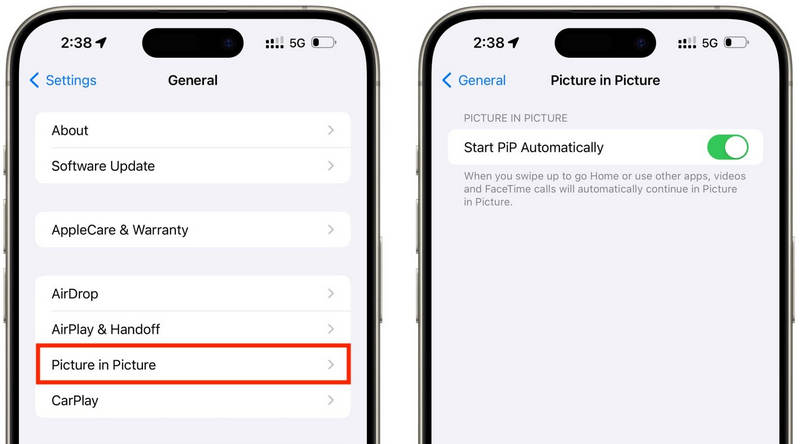
Paso 3Desliza el dedo hacia arriba o pulsa el botón PiP del reproductor de vídeo para minimizar el contenido multimedia en una ventana flotante.
Etapa 4Inicie la aplicación de la cámara con cuidado, sin interrumpir la reproducción multimedia.
Paso 5Graba tu vídeo mientras la música o el contenido multimedia sigue reproduciéndose de fondo.
Parte 2. Android: Cómo reproducir música mientras se graba un vídeo.
Método 1: Samsung One UI 7 (integrado)
Con Samsung One UI 7, la compañía mejora los controles de cámara y audio para facilitar la reproducción de música durante la grabación de vídeo. Esta función está integrada en el sistema, lo que permite a los usuarios disfrutar de una grabación más fluida sin necesidad de instalar aplicaciones adicionales. Resulta especialmente útil para crear vídeos para redes sociales, vlogs o vídeos informales con música de fondo.
Paso 1Abre el Cámara aplicación, luego toque el Ajustes botón.
Paso 2Compruebe el audio o Opciones de vídeo avanzadas.
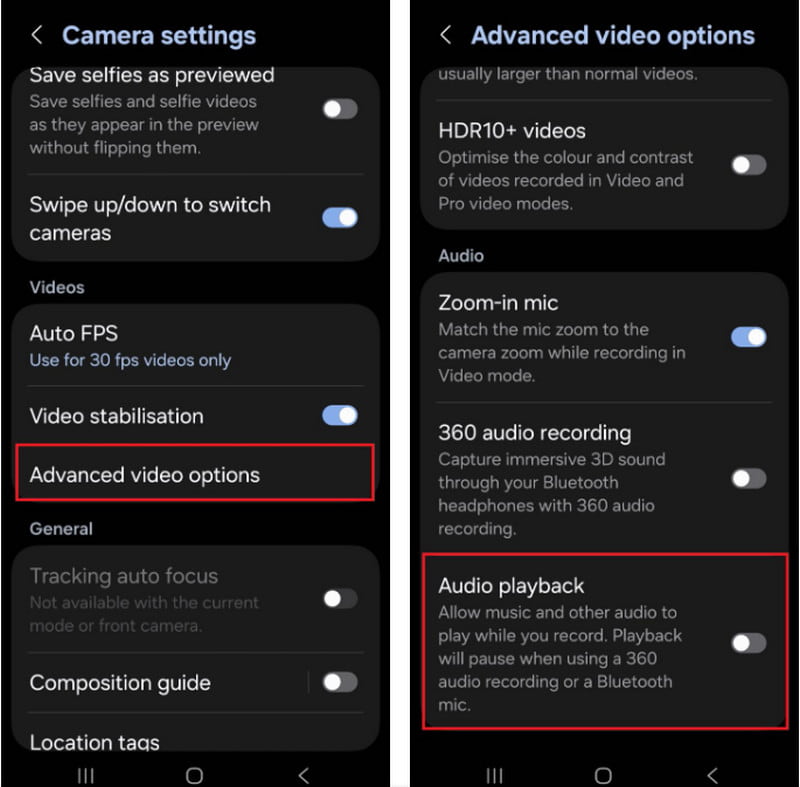
Paso 3Habilitar el Reproducción de audio.
Etapa 4Abre una canción en Spotify, YouTube Music u otra aplicación.
Paso 5Abre el Cámara aplicación y comienza a grabar.
Método 2: Usando la grabadora de pantalla de Google Pixel
La grabadora de pantalla integrada en los teléfonos Google Pixel también permite grabar el audio interno. Si bien es principalmente una aplicación para grabar la pantalla, también puede reproducir música durante la grabación. Resulta muy útil para tutoriales, demostraciones de juegos y demostraciones de aplicaciones con música de fondo.
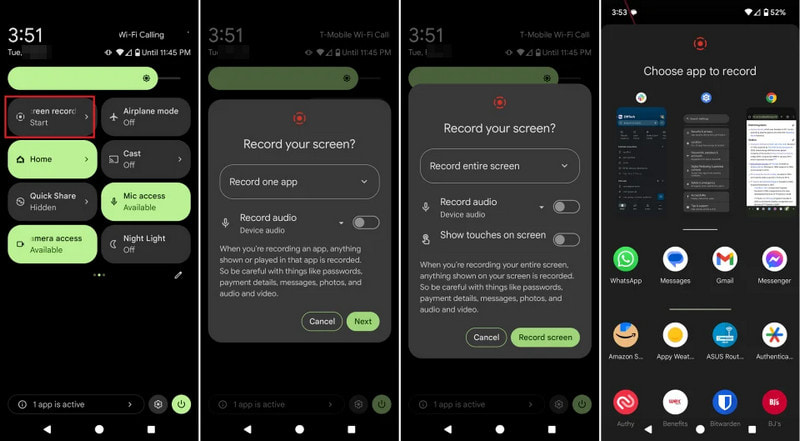
Paso 1 Pulsa y arrastra hacia abajo desde la parte superior de la pantalla.
Paso 2Elige la grabadora de pantalla que ya esté disponible.
Paso 3Seleccione la grabación de audio interna o del dispositivo.
Etapa 4Para reproducir la música, haz clic en tu aplicación de música favorita.
Paso 5Inicia la grabación de pantalla.
Método 3: Uso de una aplicación de terceros
Las aplicaciones de grabación de terceros, como Background Video Recorder, son muy utilizadas en Android, ya que son más compatibles con una amplia gama de marcas de teléfonos y versiones de Android. Un número significativo de aplicaciones ofrece reproducción de audio en segundo plano y opciones adicionales de grabación de audio, como calidad de video HD, controles manuales, filtros y estabilización. Pueden ser útiles para las personas que necesitan más opciones de grabación que las que ofrece la aplicación de cámara integrada, especialmente para los usuarios que desean grabar un podcasttutoriales, videoblogs o contenido para redes sociales con mejor calidad de audio y video.
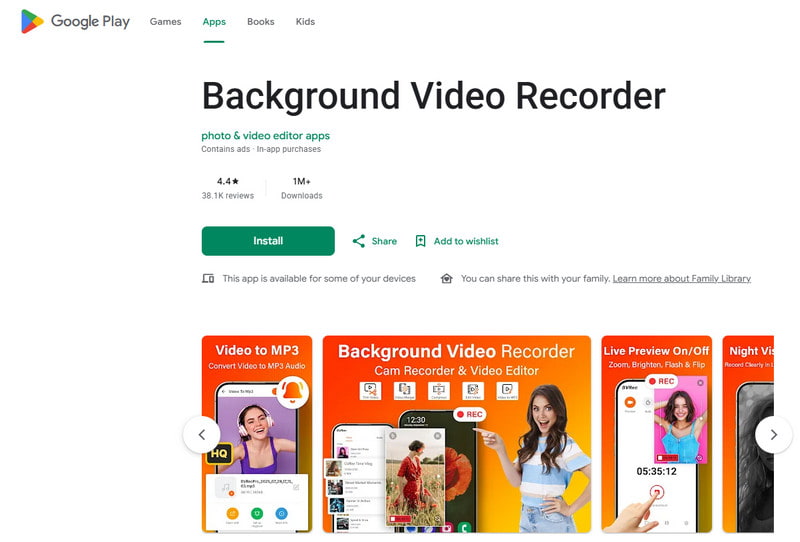
Paso 1Instala la aplicación Grabadora de vídeo en segundo plano desde Google Play Store.
Paso 2Permite el acceso a tu cámara, micrófono y almacenamiento cuando se te solicite.
Paso 3Abre Spotify, YouTube Music u otra aplicación de música y comienza a reproducir tu lista de reproducción.
Etapa 4Inicie la grabadora y ajuste la calidad del vídeo o la configuración de audio si es necesario.
Paso 5Pulsa el botón de grabar mientras la música sigue sonando en segundo plano.
Parte 3. ¿Por qué mi iPhone pausa la música cuando empiezo a grabar?
Algunos usuarios de iPhone informan que su música se detiene repentinamente cuando graban un video de sí mismos. Esto se debe a que en los dispositivos iOS, el micrófono de la cámara siempre se usa primero para grabar audio en lugar de para reproducir contenido multimedia. Este comportamiento es similar a cómo el software que graba voz en Mac Prioriza la entrada del micrófono durante las sesiones de grabación. Varias causas posibles pueden provocar este problema, dependiendo del modelo de iPhone y la versión de iOS.
- La aplicación de la cámara toma el control del audio: La aplicación Cámara prioriza automáticamente el micrófono para la grabación de vídeo con el fin de garantizar la mejor calidad de audio.
- Las versiones anteriores de iOS vienen con restricciones: En la mayoría de los casos, la música se pausa automáticamente al grabar vídeos en iOS 17 y versiones anteriores.
- Solo puedes reproducir música en segundo plano con algunas aplicaciones de música: Algunas aplicaciones de streaming podrían pausar temporalmente la transmisión si otra aplicación está utilizando la configuración de grabación de audio.
- Los dispositivos Bluetooth pueden causar conflictos: Los auriculares o altavoces inalámbricos pueden resultar una distracción durante las grabaciones.
- El modo de ahorro de batería puede interferir: El modo de bajo consumo puede restringir las operaciones en segundo plano, como la reproducción de música.
Parte 4. La música se detiene o no se reproduce [Soluciones rápidas]
| Problema | Solución rápida |
| La música se pausa inmediatamente después de que comienza la grabación. | Utilice el método QuickTake o active la función de reproducción integrada en la configuración de su cámara. |
| No se reprodujo música durante la grabación. | Reinicia las aplicaciones de Cámara y Música, y luego intenta grabar de nuevo. |
| El audio Bluetooth se desconecta. | Después de apagar y volver a encender el Bluetooth, vuelva a conectar sus auriculares o altavoz inalámbricos. |
| La grabadora de terceros no funciona. | Actualiza o reinstala la aplicación de grabación para solucionar posibles problemas de compatibilidad. |
| La música sigue deteniéndose en mi iPhone. | Reinicia tu iPhone e instala la última actualización de iOS disponible. |
| El vídeo grabado no tiene sonido. | Asegúrate de que los permisos de micrófono estén habilitados tanto para la aplicación de Cámara como para la de Música. |
Parte 5. ¿Qué tal usar una grabadora de pantalla profesional?
Grabador de pantalla AVAide Es un software profesional de grabación de pantalla para quienes prefieren grabaciones más fluidas y de mayor calidad en Windows y Mac. Puede capturar el audio del sistema, el audio del micrófono, el vídeo de la webcam e incluso la pantalla en alta calidad. El software es especialmente útil para crear tutoriales, vídeos de juegos, vídeos de reacciones, clases en línea y presentaciones de vídeo, sin retrasos y sin configuraciones complicadas.
- Graba vídeos con una resolución de hasta 4K o 1080p con un rendimiento fluido y estable.
- Captura simultáneamente el audio interno y el sonido del micrófono para obtener grabaciones más nítidas.
- Elige entre pantalla completa, ventana seleccionada o un área de grabación personalizada.
- Graba fácilmente imágenes de la cámara web o duplica y captura pantallas de iPhone y Android.
- Añade anotaciones durante la grabación y recorta o edita los vídeos inmediatamente después de capturarlos.

 Descarga segura
Paso 1Instalar AVAide Screen Recorder
Visita el sitio web oficial de AVAide y descarga el software para Windows o Mac. Instala el programa y ejecútalo una vez finalizada la instalación.
Paso 2Seleccione el modo de grabación
Para grabar la actividad de su pantalla, haga clic en el botón Grabador de pantalla opción desde la pantalla principal.
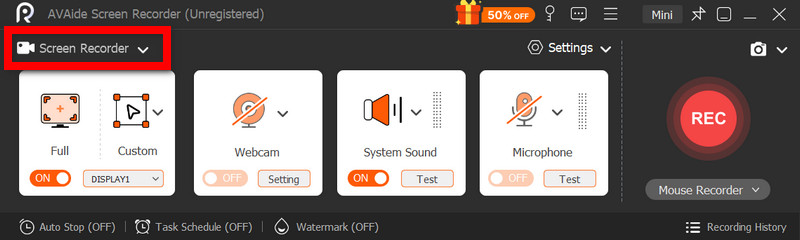
Paso 3Elija el área de grabación
Seleccione Completo o Personalizado Modo de grabación según sea necesario.
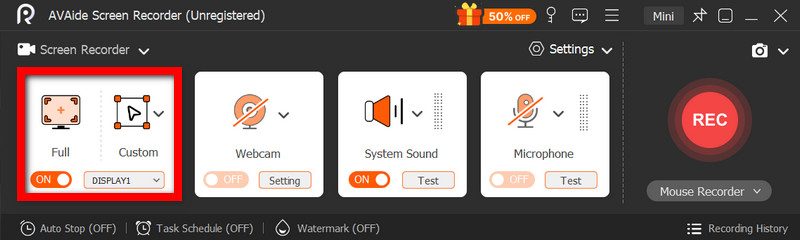
Etapa 4Habilitar fuentes de audio
Si quieres grabar tu voz, activa el Micrófono; si desea grabar el sonido interno, seleccione Sonido del sistema.
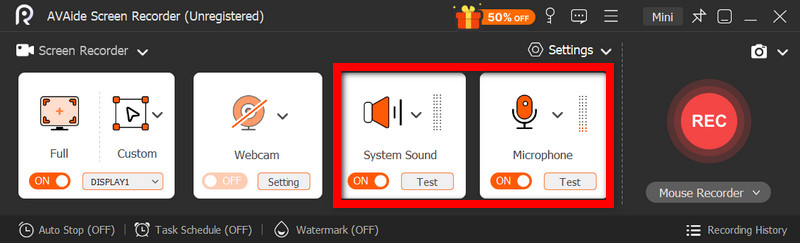
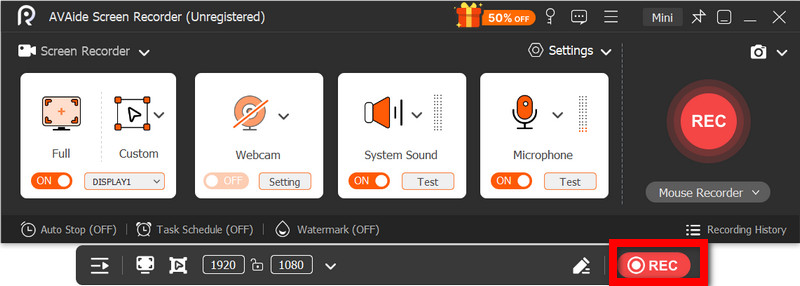
Paso 5Empezar a grabar
Haga clic en el REC Botón para grabar la actividad de tu pantalla, vídeo o audio.
Paso 6Edita y guarda la grabación.
Cuando termine, pulse el Detener botón. Mira el vídeo para hacerte una idea general, edítalo brevemente si es necesario y luego guárdalo en el ordenador.
Reproducir música mientras se graba Es algo con lo que muchos usuarios tienen dificultades al crear videos para redes sociales o uso personal. Con la configuración, los métodos y las herramientas adecuadas, tanto los usuarios de iPhone como de Android pueden grabar videos fácilmente sin interrumpir la música de fondo.
SOBRE EL AUTOR

Capture actividades de pantalla con audio, reuniones en línea, videos de juegos, música, cámara web, etc.
Grabación de pantalla
- Registro de pantalla en Windows
- Grabar Instagram Live
- Copiar vídeos de Tubi
- Convertir vídeos de YouTube a MP3
- Descargar vídeos de Fansly
- Descargar vídeos de JW Player
- Descargar vídeos de Bilibili
- Descargar vídeos de Patreon
- Descargar vídeos de SpankBang
- Descargar vídeos de Discord
- Descargar el vídeo de DoodSream