Intentando averiguarlo Cómo grabar la pantalla en una Dell Grabar un tutorial, una partida o una reunión puede resultar confuso sin la herramienta adecuada. Tanto si necesitas algo rápido como algo más avanzado, esta guía te muestra métodos sencillos y eficaces para grabar tu pantalla sin problemas.
Parte 1. La forma más sencilla: Usando la barra de juegos de Xbox
La barra de juegos de Xbox está diseñada principalmente para grabar partidas, pero también se puede usar para grabar la pantalla a diario. Permite grabar la pantalla y el audio, y guardar los clips al instante. Sin embargo, no puede capturar el escritorio ni el Explorador de archivos; solo captura las ventanas de las aplicaciones activas.
Paso 1Para abrir la superposición de la barra de juegos de Xbox, pulse el botón Windows + G teclas de tu teclado. Si la pregunta es sobre si es un juego, responde afirmativamente.
Paso 2los Captura El panel se encuentra en la superposición. Si no puede verlo, se creará un menú de widgets y se seleccionará la opción Capturar.
Paso 3Para comenzar a grabar su pantalla, haga clic en el Registro (●) botón o Windows + Alt + RLa herramienta capturará automáticamente una instantánea de la ventana activa.
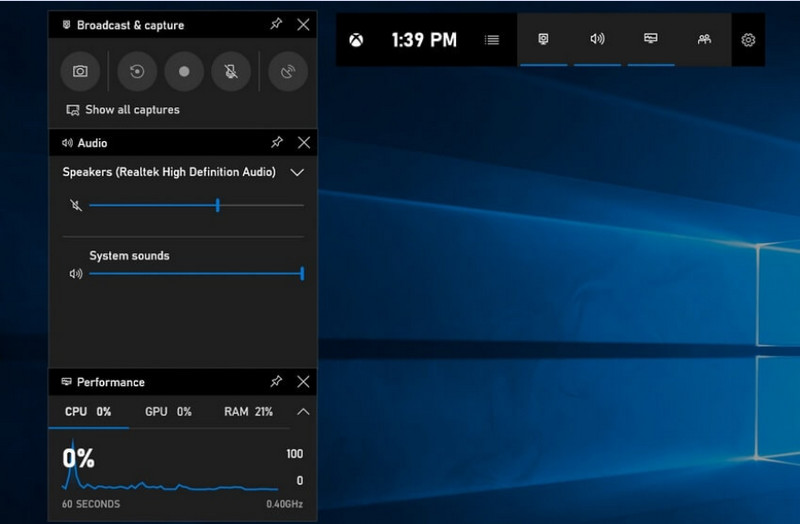
Etapa 4La grabación del micrófono se puede habilitar haciendo clic en el Micrófono botón antes o durante la grabación.
Paso 5Para salir de la grabación, pulse Windows + Alt + R una segunda vez o presione el Detener (■) botón en la barra flotante.
Paso 6Los vídeos que grabas se almacenan automáticamente en el Vídeos > capturas carpeta de su computadora.
Parte 2. Las opciones profesionales
1. Uso de la grabadora de pantalla OBS
Grabador de pantalla OBS Es una grabadora de pantalla gratuita y de código abierto, comúnmente utilizada para grabar y transmitir contenido en directo. Ofrece una configuración personalizable que permite grabar toda la pantalla, una ventana específica o varias fuentes simultáneamente. Sus potentes controles de vídeo y audio la convierten en una opción eficaz para usuarios que buscan algo más que una simple grabación de pantalla.
Actuación:
OBS Screen Recorder es un software con aceleración por hardware que ofrece un rendimiento fiable, permitiendo grabaciones fluidas a 1080p y 60 fps. Una vez instalado, funciona eficazmente, con una salida consistente y baja latencia, durante largas sesiones de grabación en sistemas compatibles.
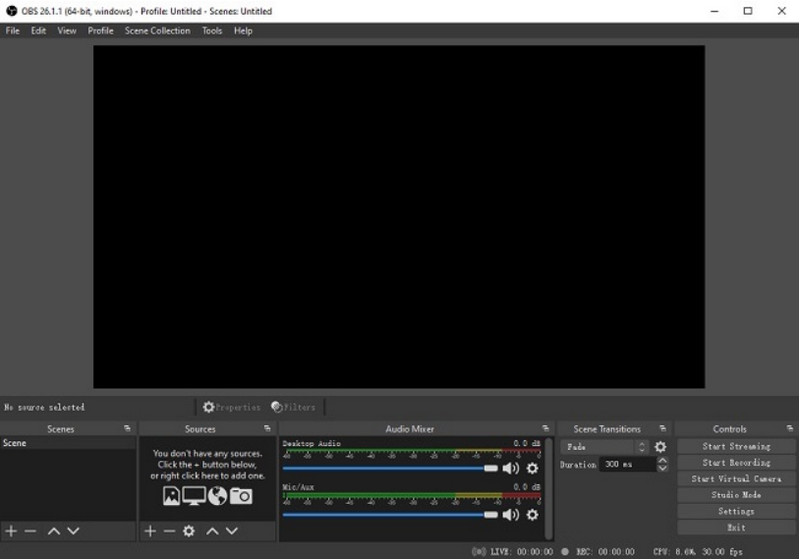
Paso 1Dirígete al sitio web oficial de OBS Screen Recorder, descarga el instalador y completa la instalación.
Paso 2Abierto Grabador de pantalla OBSSe le presentará la interfaz principal con paneles como Escenas y Fuentes.
Paso 3En el panel Escenas, haga clic en el + pulsa el botón y dale un nombre a tu escena.
Etapa 4Puedes agregar una captura de pantalla o una captura de ventana (para capturar una aplicación en particular) haciendo clic aquí. + en el Fuentes panel y selección Captura de pantalla o Captura de ventana.
Paso 5Prueba el Mezclador de audio activando y ajustando el micrófono y el sonido del sistema.
Paso 6presione el Empezar a grabar botón situado en el lado derecho de la interfaz.
Paso 7Cuando termine, haga clic Para de grabarEste vídeo se guardará automáticamente en tu carpeta predeterminada.
2. Uso de la grabadora de pantalla AVAide
Grabador de pantalla AVAide Es una herramienta sencilla pero eficaz para grabar la actividad de la pantalla con alta calidad. Está dirigida a usuarios que necesitan un sistema de grabación fácil de usar con audio nítido, un sistema de captura flexible con configuración mínima y controles intuitivos.
Actuación:
AVAide Screen Recorder está optimizado para grabar de forma fluida y estable, incluso durante sesiones prolongadas. Admite salida de alta resolución hasta 4K/1080p con mínima latencia en aplicaciones comunes. El software gestiona eficazmente la grabación simultánea de pantalla y audio para garantizar la sincronización entre el sonido del sistema y la entrada del micrófono.
- Graba la pantalla en alta calidad con un rendimiento fluido y sin interrupciones.
- Captura el sonido del sistema y del micrófono simultáneamente con una salida de audio nítida.
- Admite la grabación con cámara web con superposición de imagen en imagen ajustable.
- Permite grabar la pantalla completa, una ventana seleccionada o una región personalizada.
- Incluye herramientas de edición integradas para recortar, mejorar y exportar vídeos.

 Descarga segura
Paso 1Descargue e instale la herramienta
Visita el sitio web oficial de AVAide Screen Recorder. Descarga el instalador para tu sistema Windows y sigue el proceso de instalación.
Paso 2Inicie el software
La instalación puede realizarse abriendo el programa. En la interfaz principal, puede elegir Grabador de pantalla para empezar.
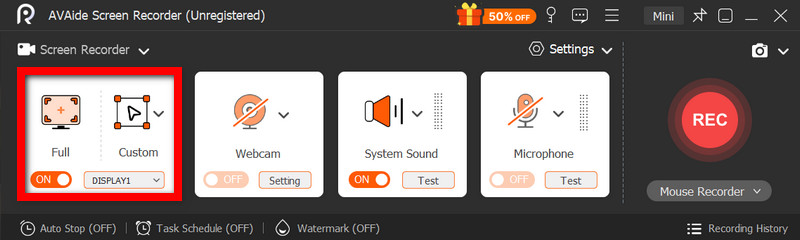
Paso 3Seleccione el área de grabación
Elegir entre Completo y Personalizado modos de grabación según tus necesidades.
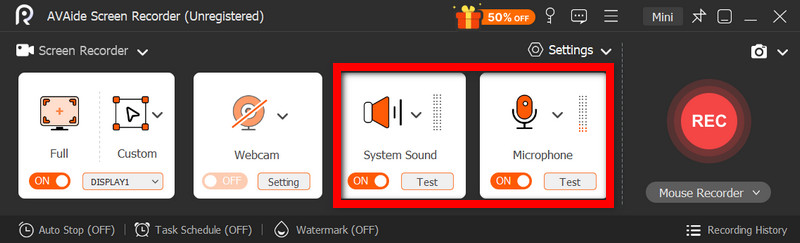
Etapa 4Configurar el audio y la cámara web
Permitir Sistema de audio y el Micrófono Si necesita audio, también puede encender la cámara web para grabar rostros.
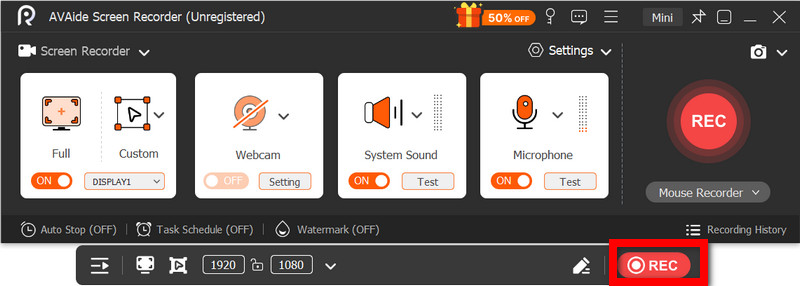
Paso 5Empezar a grabar
Para comenzar a grabar la pantalla, presione el botón REC Botón. Se pueden añadir anotaciones durante la grabación si es necesario.
Paso 6Detener y guardar la grabación
Haga clic en el Detener Cuando termine, pulse el botón. La grabación se guardará automáticamente y podrá previsualizarla o editarla de inmediato.
Parte 3. Otros métodos gratuitos y sencillos
1. Uso de la herramienta Recortes (Windows 11)
La herramienta Recortes de Windows 11 incluye grabación de pantalla integrada, lo que permite capturar la actividad de la pantalla de forma rápida y sencilla sin necesidad de instalar software adicional. Resulta especialmente eficaz con clips cortos, tutoriales y grabaciones sencillas.
Actuación:
La herramienta Recortes es adecuada para grabaciones ligeras y permite capturar imágenes pequeñas con fluidez. Sin embargo, carece de funciones, no admite ajustes avanzados y puede que no gestione grabaciones largas o de alto rendimiento con la misma eficacia que otras herramientas específicas.
Paso 1Abra la herramienta Recortes haciendo clic en el Comienzo menú.
Paso 2Para usar la barra de herramientas, haga clic en el Registro.
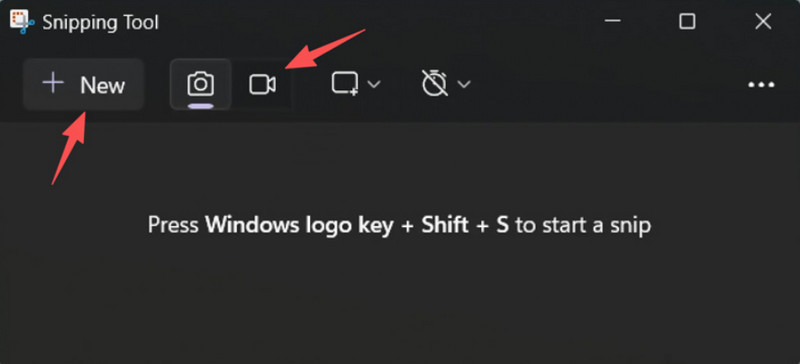
Paso 3Para grabar una nueva grabación, seleccione Nuevo.
Etapa 4Seleccione el área de la pantalla que desea capturar.
Paso 5Hacer clic Comienzo para iniciar la grabación.
Paso 6Hacer clic Detener Cuando termines, guarda tu grabación.
2. Uso de Microsoft PowerPoint (Todas las versiones de Windows)
Microsoft PowerPoint incluye una función de grabación de pantalla que permite capturar una imagen e incorporarla a una presentación. Además, es una alternativa sencilla para crear tutoriales, demostraciones o diapositivas didácticas sin necesidad de software de grabación adicional.
Actuación:
PowerPoint ofrece resultados consistentes en grabaciones de pantalla sencillas, especialmente para presentaciones y demostraciones breves. Si bien ofrece una calidad de video aceptable, carece de controles avanzados y podría no ser adecuado para grabaciones de larga duración.
Paso 1Inicie Microsoft PowerPoint y prepare una presentación nueva o actualice una existente.
Paso 2Haga clic en la pestaña Insertar y luego Grabación de pantalla.
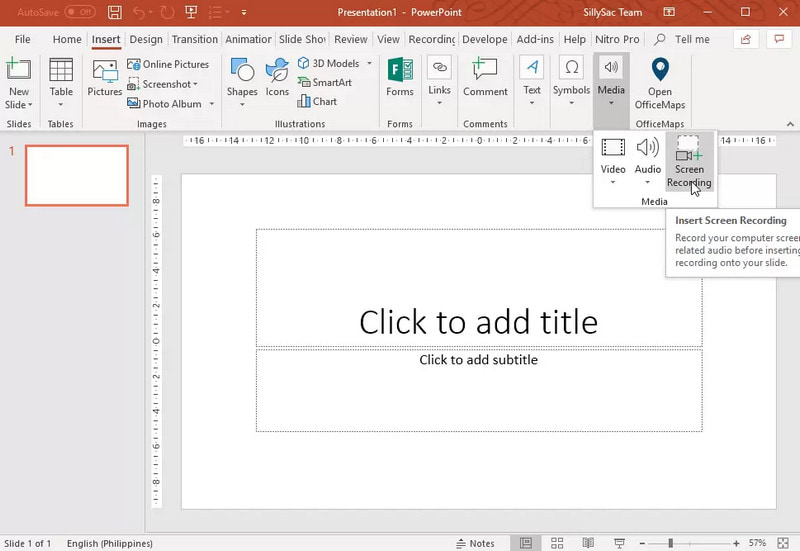
Paso 3Elige la parte de la pantalla que deseas capturar.
Etapa 4Permitir la grabación de audio o del puntero cuando sea necesario.
Paso 5Hacer clic Registro Para comenzar a grabar su pantalla.
Paso 6Para finalizar la grabación, pulse Windows + Mayús + Q.
Paso 7Para guardar la grabación, haga clic con el botón derecho en el vídeo y seleccione Guardar contenido multimedia como.
Parte 4. Solución de problemas comunes
| Problema | Solución |
| La barra de juegos no se abría ni grababa. | En la configuración, puedes desactivar la barra de juegos de Xbox. Ve a Ajustes > Juego de azar > Barra de juegos y girarlo ENIntentando presionar Windows + G nuevamente, y reiniciando su PC (cuando sea necesario). |
| La grabación no tiene sonido. | Asegúrate de que el audio del sistema y el micrófono estén activados en la configuración de la Barra de juegos. Además, verifica que tu dispositivo de sonido no esté silenciado ni seleccionado incorrectamente en la configuración de sonido de Windows. |
| Mi portátil Dell funciona lento durante la grabación. | Utilice Cerrar o Minimizar para reducir las aplicaciones y pestañas del navegador innecesarias. Cambie al modo de Alto rendimiento en la configuración de energía y reduzca la resolución de grabación cuando sea necesario para mejorar el rendimiento. |
| La calidad del vídeo grabado es deficiente. | Establece la calidad de grabación en la mejor configuración disponible en la Barra de juegos, especialmente cuando Grabación de Google Meet sesiones. Configure su pantalla a su resolución nativa y actualice sus controladores de gráficos para obtener una imagen más nítida y estable. |
Aprendiendo Cómo grabar la pantalla en un portátil Dell Te brindará flexibilidad para tutoriales, reuniones o incluso para jugar. Ya sea una herramienta integrada o un software sofisticado, elegir el método adecuado garantizará una grabación sencilla y de alta calidad, y un flujo de trabajo optimizado.
SOBRE EL AUTOR

Grabe la pantalla, el audio, la cámara web, el juego, las reuniones en línea, así como la pantalla de iPhone/Android en su computadora.
Grabación de pantalla
- Registro de pantalla en Windows
- Grabar Instagram Live
- Copiar vídeos de Tubi
- Convertir vídeos de YouTube a MP3
- Descargar vídeos de Fansly
- Descargar vídeos de JW Player
- Descargar vídeos de Bilibili
- Descargar vídeos de Patreon
- Descargar vídeos de SpankBang
- Descargar vídeos de Discord
- Descargar el vídeo de DoodSream