Looking for a reliable way to convert ARW to JPG without losing quality? Are you unsure which tool provides fast, accurate conversions while supporting batch processing and multiple formats? This guide reviews the top 11 ARW to JPG converters for photographers of all levels.
Part 1: Introduction to Sony ARW
Sony ARW is one of the RAW formats for images developed by Sony and used in their digital cameras. ARW stands for Alpha Raw, and a typical ARW image captures the unprocessed image data straight from the camera sensor, losing no detail. The image does, however, still retain all of the original unprocessed quality. Their images are compressed and/or finalized in-camera to save space and allow for more control when editing.
The ARW format is essential for situations that compromise quality, lighting, and colors. ARW image files are larger, and therefore, ARW images are typically not used in their original format. They are instead converted to JPG images, as JPG files are more easily used and accessible.
The key characteristics of ARW image files are:
- Unprocessed image data: Original data from the sensor.
- High image quality: The level of detail and clarity is unparalleled.
- Wide dynamic range: Highlights and shadows can be removed and added with a greater range.
- Non-destructive editing: The original file is no longer editable and remains unchanged.
- Large file size: They simply require more storage space.
- Limited Compatibility: ARW image files simply need the supporting software.
Part 2: Top 11 ARW to JPG Converters
1. AVAide Image Converter
Converting ARW files to JPGs has never been easier with AVAide Image Converter. It is fast, web-based, reliable, and easy to use. Photographers and casual users alike will love the ability to convert files without the hassle of downloading software. Plus, the web-based tool offers batch conversion for multiple formats, including JPG, PNG, BMP, and others. Original quality is preserved, and even though there are no advanced editing features, the web-based tool is great for fast and simple workflows.
Key Features:
- Batch processing allows for the conversion of numerous photos simultaneously.
- Conversions keep the original quality of your images.
- Multiple output formats (JPG, PNG, BMP) are supported.
- No download is necessary, as the tool is free to use online.
Step 1In the output formats available, select JPG to match your requirements for conversion.
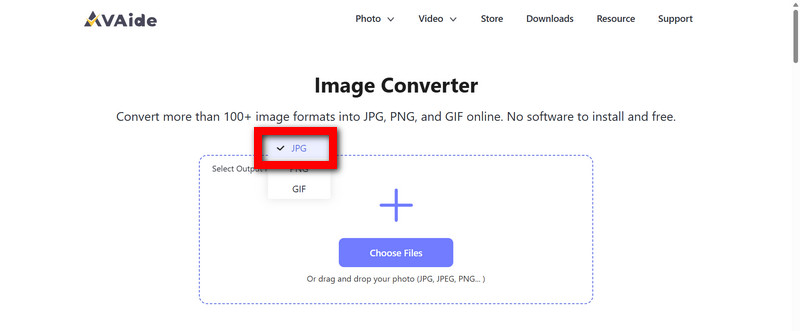
Step 2Use the Choose File button, or drag and drop your ARW files into the space provided to upload your files.
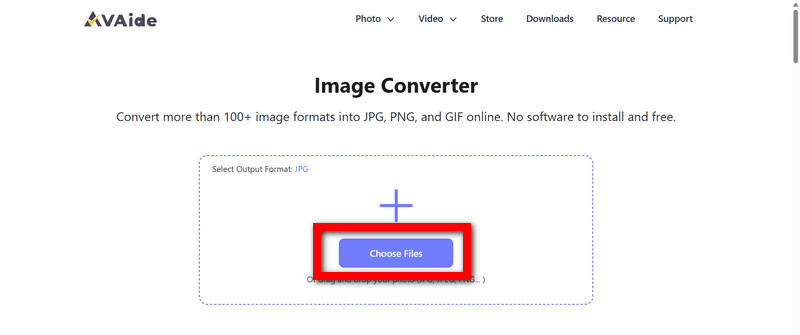
Step 3The tool will keep the original quality of your images and will convert them automatically.
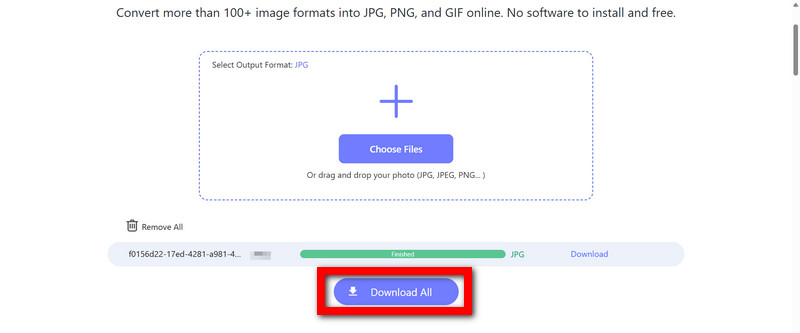
Step 4After the conversion has been finished, all the converted JPG images can be downloaded to your device by clicking the Download All button.
2. Adobe Camera Raw
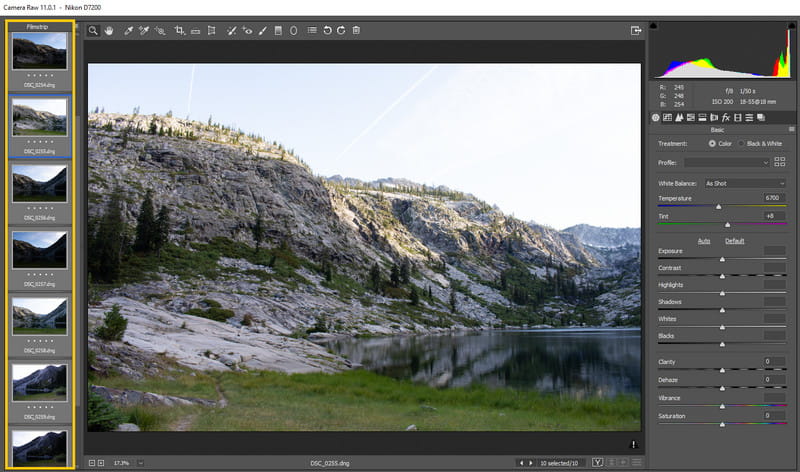
Adobe Camera Raw is a highly professional RAW processor, meaning it is designed for photographers who want full control over their images. It allows for non-destructive editing and supports almost all Sony cameras. Some of the adjustments that you can make before conversion are exposure, color, and detail. If you are a professional who uses Photoshop or Lightroom, you are in luck because it supports batch processing so that you can edit a large number of photos efficiently. However, many beginners are intimidated by its interface.
Instruction:
To open your ARW files in Camera Raw via Photoshop or Lightroom, go to Camera Raw and make whatever changes you want. After doing this, go to the tab labeled File, click on the option Save As, and from this window, select the file type option JPG. Then you can proceed to save the files.
3. Adobe Lightroom
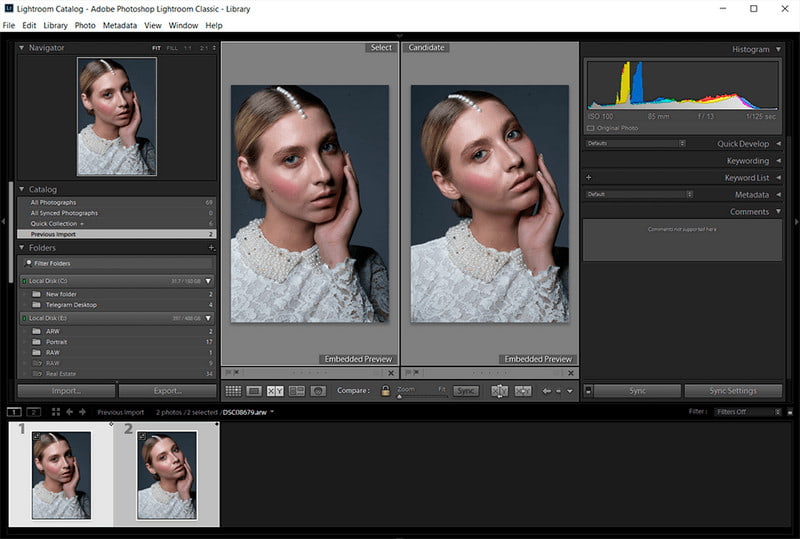
Adobe Lightroom is a RAW editor that lets you edit, organize, and store your RAW files in the cloud. You can use it to edit ARW files from a majority of the Sony cameras. You can even edit a group of files in one go (batch editing), which is a huge plus if you are someone who works with a lot of images. You can adjust the exposure of photos, the white balance, and increase the sharpness with ease. You can even adjust each of these settings and then convert the photo, which is something that I have found to be extremely useful, and is the reason the platform is so popular. This also makes it easier to remove an object with Lightroom while fine-tuning your edits before conversion.
Instruction:
To convert ARW images in bulk, use the import function, select the images, click on the tab labeled File, then go to the Export option. From this new window, select JPG as the file type, make whatever adjustments you need to your settings, and click on Export to finalize the changes.
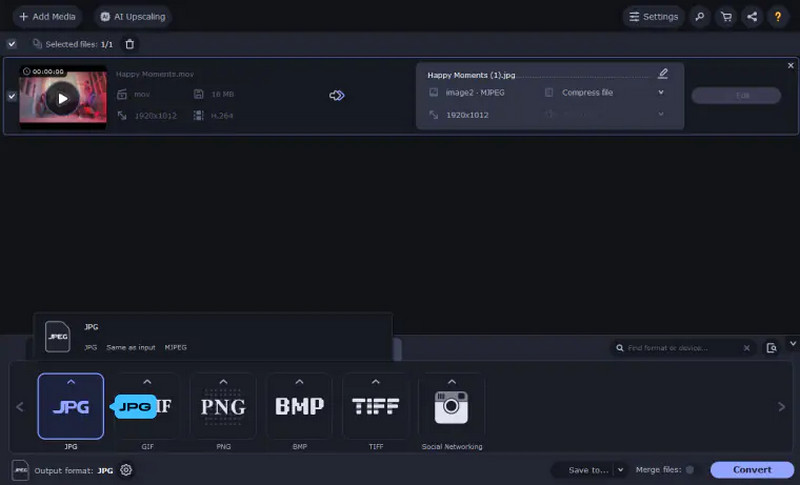
4. Movavi Video Converter
Movavi Video Converter is a tool that allows you to quickly and simply convert images from the ARW to the JPG file type. It can also batch process multiple images and has a feature that allows you to set the quality of the converted file (high, medium, or low). Because of its ease of use and its ability to convert large amounts of images quickly, it is a tool that I would recommend to people who do not want to edit the RAW files and want to quickly and simply convert the images.
Instruction:
To use Movavi Video Converter, first open the application and click on Add Media, then select Add Files. From there, you can select your files before setting the output file type to JPG. After this, you can adjust the quality of the file (high, medium, or low). After doing this, you can finalize your settings by clicking on Convert, which completes the conversion process.
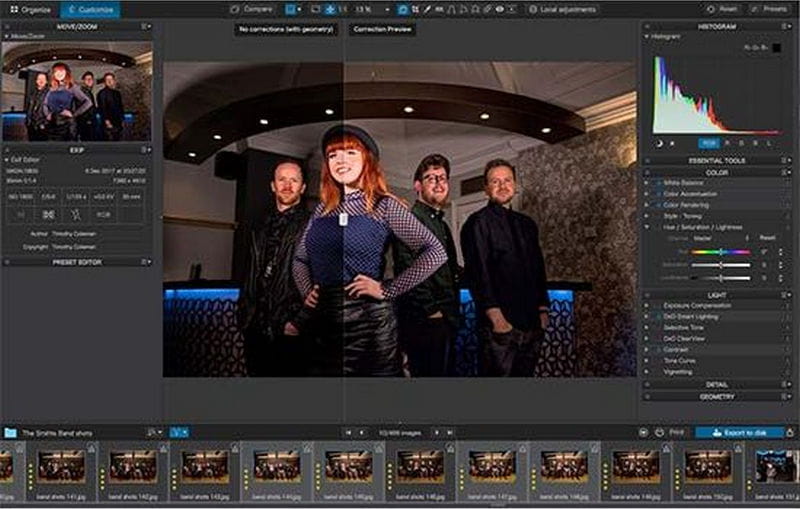
5. DxO PhotoLab
For its lens correction, noise reduction, and color enhancement, DxO PhotoLab has earned a reputation as one of the best editors. It is also compatible with most Sony cameras and ARW files and offers JPGs of professional quality. This software is best for photographers who require maximum optical precision and advanced editing before JPG conversion.
Instruction:
Once you have opened the photo with the desired ARW file in the DxO PhotoLab software, go to the top left and click on File, then select Save As, and select JPG for the file type and adjust to your liking.
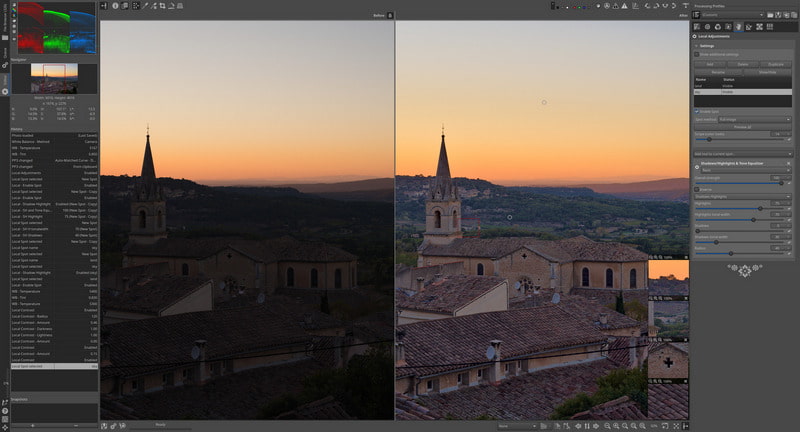
6. RawTherapee
With RawTherapee, you get a free and open source RAW photo editing software with as much control as a payware photo editing software. This editor has the ability to do batch conversions of ARW files and offers edit control for color, sharpening, and enhancement, so for most photographers needing advanced editing for free, this is your best option. The interface has a steeper learning curve because it is technical, it is.
Instruction:
In RawTherapee, open your ARW files and edit the file to your liking. Go to Save As, select JPG for the file type and quality, and Export.
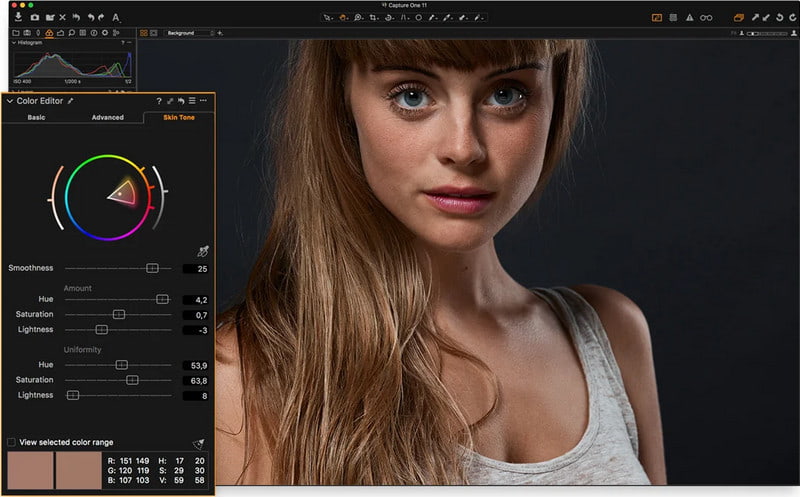
7. Capture One Pro (for Sony)
For RAW editing, Capture One Pro (for Sony) is one of the best editing software available on the market. It is best for professional editors because of batch editing, tab editing, and accurate color correction. It is very excellent for editing to get the best quality conversion and color correction. It does require a much higher performing computer than most software, and a person will need to dedicate a lot of time to learn the software.
Instruction:
To import ARW files into Capture One, click on the File button, click on the Export button, and then on the pop-up menu, click on Export as.... On the Export Variants page, choose the JPG option for export format and select the image quality before clicking Export.
8. RAW Viewer
RAW Viewer is a free and simple program created by Sony that is meant for viewing ARW files and converting them. It is for the people who want the quickest conversions possible and do not care about extra features. RAW Viewer does not come with editing features, but it does allow for a histogram check, as well as metadata editing before a quick JPG export. RAW Viewer has a simple design that is easy to use for people who do not want to think about the process too much and want a simple ARW to JPG converter.
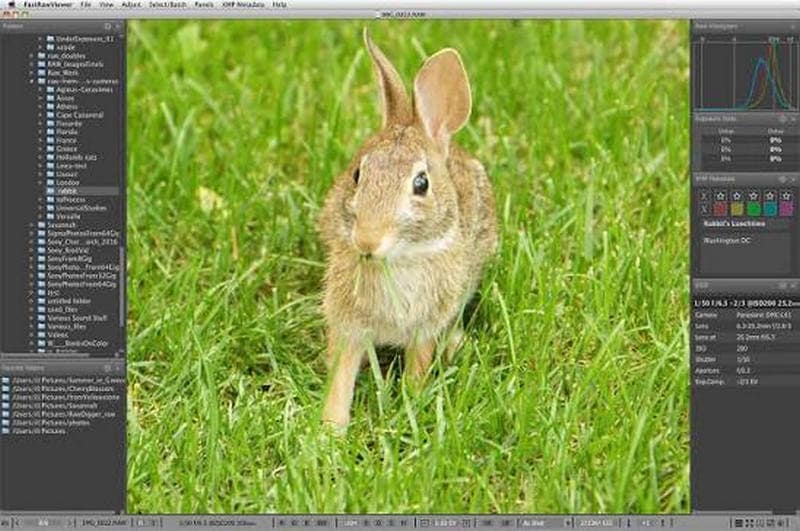
Instruction:
To use RAW Viewer, locate the ARW files, and then choose the File option, use the Save as option, choose JPG, edit quality if needed, and click Save.
9. Imaging Edge
Imaging Edge is a simple software suite created by Sony. It provides easy conversions and simple editing. Imaging Edge can process many ARW files at once, which is very useful for people who want the output to be the same as the original JPG image created by the camera. It is good for converting ARW images because it allows a very simple process that needs little effort, and it can also be used for tasks like ARW to PNG conversion when needed.
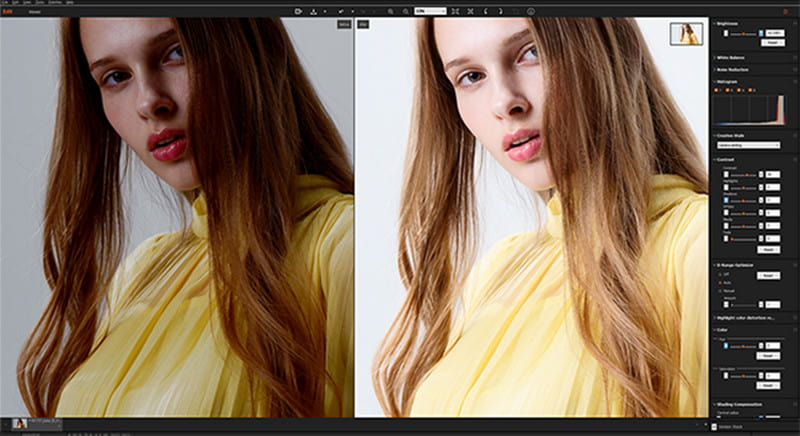
Instruction:
Open the ARW images on Imaging Edge, go to File, choose Export, click on Export as JPG, and if quality needs editing, adjust it before saving.
10. CloudConvert
CloudConvert is an online converter that can convert anything for free. CloudConvert can convert ARW files, and gives the option to change the resolution, the quality, and the size of the file once the conversion is finished. However, for those who want to customize the conversion, they will need to be patient for the conversion to complete. The conversion time is reliant on the speed of the internet and the size of the file.
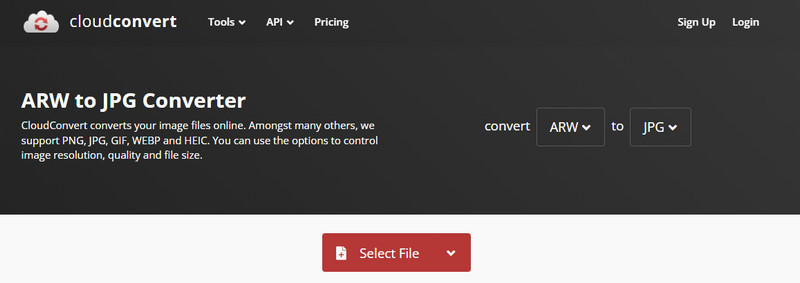
Instruction:
Upload ARW files, choose JPG for output format, modify conversion settings if desired, select Convert, and retrieve your files after conversion is complete.
11. FreeConvert
FreeConvert is a sample ARW file converter that is easy to use. It allows for the conversion of multiple files at once, and includes file size compression, diverse output formats, and multiple files at once. While at least one of the free online file editors is better, most casual users will be fine with this.
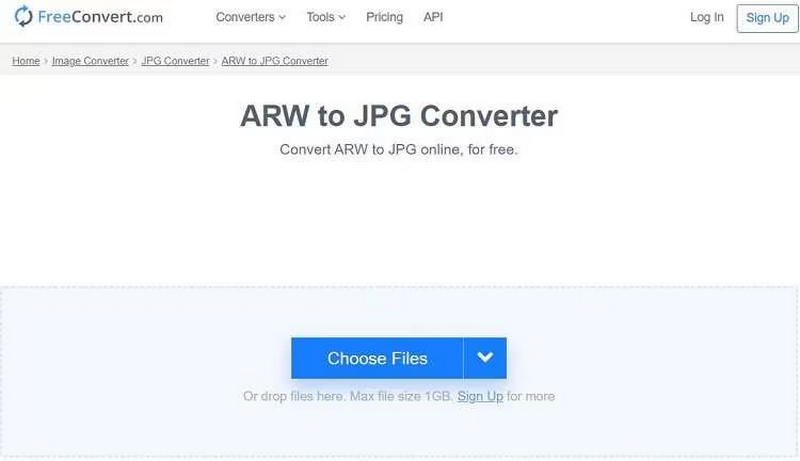
Instruction:
Drag or upload ARW files to FreeConvert, select JPG for output, adjust the quality to compression for conversion if desired, select Convert, and retrieve the transformed files.
Part 3: Comparison of 11 ARW to JPG Converters
| Converter | Free | Batch Conversion | Advanced Editing | Multi-Format Support | Online/Offline |
| AVAide Image Converter | ✔ | ✔ | ✔ | ✔ | Online |
| Adobe Camera Raw | ✖ | ✔ | ✔ | ✔ | Offline |
| Adobe Lightroom | ✖ | ✔ | ✔ | ✔ | Offline |
| Movavi Video Converter | ✖ | ✔ | ✖ | ✔ | Offline |
| DxO PhotoLab | ✖ | ✔ | ✔ | ✔ | Offline |
| RawTherapee | ✔ | ✔ | ✔ | ✔ | Offline |
| Capture One Pro (for Sony) | ✖ | ✔ | ✔ | ✔ | Offline |
| RAW Viewer | ✔ | ✔ | ✖ | ✖ | Offline |
| Imaging Edge | ✔ | ✔ | ✖ | ✔ | Offline |
| CloudConvert | ✔ | ✔ | ✖ | ✔ | Online |
| FreeConvert | ✔ | ✔ | ✖ | ✔ | Online |
Thanks to the right tools, ARW format to JPG conversion is simpler than simple. Free online converters, professional editors, and everything in between allow photographers to maintain quality, perform batch conversions, and choose the best workflow for their needs.
ABOUT THE AUTHOR


You can easily convert your photo from any image format to a popular JPG, PNG, or GIF with no quality loss.
PROCESS NOW