كيفية تسجيل الشاشة على جهاز كمبيوتر محمول من لينوفو يعتمد ذلك على الأداة التي تختارها، بدءًا من ميزات ويندوز المدمجة وصولًا إلى البرامج المتقدمة. يُقدّم هذا الدليل طرقًا بسيطة وواضحة وفعّالة لالتقاط شاشة أجهزة لينوفو، سواءً لأغراض الدروس التعليمية أو الاجتماعات أو الألعاب أو التسجيل اليومي.
الطريقة الأولى: استخدام شريط ألعاب Xbox
تُعدّ ميزة التسجيل المدمجة في شريط ألعاب Xbox من مايكروسوفت، وهي تتكامل بسلاسة مع نظام ويندوز، وتُمثّل الحلّ الأمثل لتسجيل الألعاب لمستخدمي لينوفو. صُمّمت هذه الميزة خصيصًا لتشغيل الألعاب، بالإضافة إلى كونها مسجّلًا قياسيًا للتطبيقات، ومنشئًا للدروس التعليمية، ومسجّلًا للمتصفح. أهمّ ما يُميّزها هو سهولة استخدامها الفوري، إذ لا تتطلّب أيّ إعدادات.
لكن هناك عيوبٌ واضحة. فهو لا يُسجّل سطح المكتب أو مستكشف الملفات، كما أن خيارات التخصيص تقتصر على الأدوات الاحترافية. مع ذلك، يظلّ أحد أكثر الخيارات المدمجة ملاءمةً للجلسات غير الرسمية حيث لا تُعدّ الجودة والجهد المبذول بالغا الأهمية.
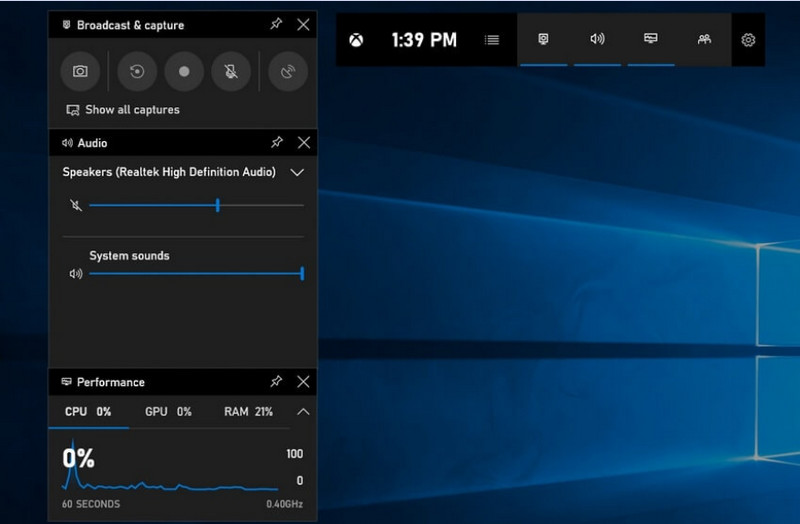
الخطوة 1لفتح شريط ألعاب Xbox، اضغط ويندوز + جي على لوحة المفاتيح الخاصة بك.
الخطوة 2أعثر على يأسر أو انقر عليه من اللوحة الأدوات قائمة.
الخطوه 3انقر على سجل (●) زر أو اضغط ويندوز + Alt + R.
الخطوة 4إذا كنت ترغب في تسجيل الصوت، فقم بتمكين ميكروفون.
الخطوة الخامسةيضعط ويندوز + Alt + R كرر العملية أو انقر توقف (■) لإكمالها.
الخطوة 6ستجد تسجيلك في أشرطة فيديو > يلتقط.
الطريقة الثانية: استخدام برنامج Lenovo Vantage
برنامج Lenovo Vantage ليس مسجلاً للشاشة، بل هو مجموعة أدوات لإدارة النظام وتحسين أدائه. ويقتصر دوره في التسجيل على وظائف غير مباشرة، حيث لا يوفر سوى عدد قليل من الميزات التي تُسهّل عملية التسجيل، وذلك بحسب طراز جهاز التسجيل، أو حتى مع وجود اختصارات أو أدوات للكاميرا/الشاشة في بعض الأجهزة تُساعد في عملية التسجيل.
يوجد تباين كبير في الأداء والتوافر. قد تدعم بعض أجهزة لينوفو وظائف التسجيل الأساسية، بينما قد لا تدعمها أجهزة أخرى على الإطلاق. يُعدّ هذا البرنامج محدودًا وغير متسق إلى حد ما فيما يتعلق بإمكانياته لتسجيل الشاشة الكاملة، ولكنه قد يكون مفيدًا للمستخدمين الذين يرغبون في البقاء ضمن منظومة لينوفو. بودكاست مسجل المحتوى باستخدام الأدوات الأساسية.
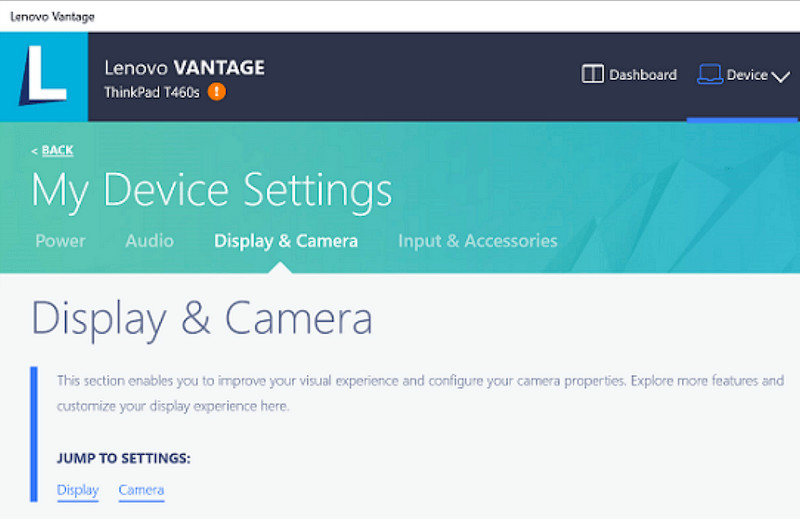
الخطوة 1اذهب إلى يبدأ القائمة، ثم انقر على لينوفو فانتاج.
الخطوة 2مقبض إعدادات جهازي > الشاشة والكاميرا.
الخطوه 3تحقق من وجود تسجيلات أو وظائف أخرى متاحة.
الخطوة 4قم بتوفير جميع الخيارات أو الاختصارات اللازمة.
الخطوة الخامسةقم بتسجيل الموسيقى باستخدام الوظيفة المتوفرة (إن أمكن).
الخطوة 6ابحث عن التسجيلات التي قمت بحفظها في مجلد الفيديوهات الخاص بك.
الطريقة الثالثة: استخدام Legion Zone / Lenovo Nerve Center
يُعدّ برنامج Lenovo Nerve Center (أو Legion Nerve Center - حيث حلّت أدوات Legion الأحدث محلّ Nerve Sense) مُحسّنًا لأجهزة Lenovo، وتحديدًا أجهزة الكمبيوتر المحمولة Lenovo Legion، والمُصمّم خصيصًا للاعبين. كما أنه مُدمجٌ بشكلٍ كامل مع أدوات تحسين أداء الألعاب، ما يُتيح للمستخدمين التقاط صورٍ لشاشات ألعابهم مع مراقبة موارد النظام وتحسينها.
مع ذلك، فهو مسجل بسيط للغاية. يركز على سهولة الاستخدام أكثر من التخصيص، ولا يوفر سوى خيارات تسجيل أساسية مع تحكم محدود في الدقة ومعدل البت والإعدادات المتقدمة. كما أنه متوفر فقط في بعض الأنظمة الحديثة، بينما استبدلته أنظمة أخرى أو أزالته منها، لذا لم يعد يتمتع بنفس الموثوقية السابقة.
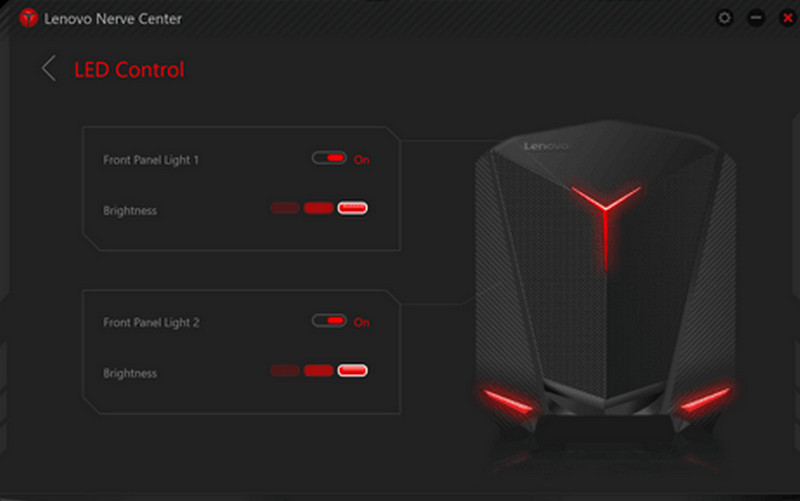
الخطوة 1الوصول إلى مركز أعصاب لينوفو أو منطقة الفيلق من الجهاز.
الخطوة 2انتقل إلى أدوات التسجيل و/أو أدوات الألعاب.
الخطوه 3إذا كان هناك خيار، فقم بتغيير إعدادات التسجيل، مثل الدقة أو جودة الصوت.
الخطوة 4قم بتشغيل اللعبة أو التطبيق.
الخطوة الخامسةسجل باستخدام الاختصار أو الزر الافتراضي.
الخطوة 6أوقف التسجيل وانظر في أشرطة فيديو قم بالبحث في المجلد لمعرفة ما إذا كان قد تم تسجيل الملف.
الطريقة الرابعة: استخدام مسجل الشاشة AVAide
AVAide مسجل الشاشة يُعدّ هذا البرنامج مُسجّل شاشة أكثر تطورًا وتعددًا في الاستخدامات لأجهزة لينوفو من مُسجّل الشاشة المُدمج. صُمّم خصيصًا لمن يرغبون بجودة فيديو عالية، وسلاسة في التشغيل، وتحكّم أكبر في التسجيل. إنه الأداة المثالية لإنشاء الدروس التعليمية، وتسجيل الاجتماعات، أو التقاط لقطات اللعب، دون الحاجة إلى إعدادات مُعقّدة، وبمستوى احترافي.
إلى جانب قدرته على تسجيل صوت النظام، ومدخلات الميكروفون، وكاميرا الويب، ومناطق الشاشة، يدعم هذا التطبيق أيضًا التسجيل بدقة Full HD وحتى 4K مع أقل تأخير ممكن مقارنةً ببرامج التسجيل الأساسية. وهذا ما يجعله تطبيقًا شاملًا لالتقاط الشاشة، مناسبًا للعمل والترفيه.
- قم بتسجيل مقاطع الفيديو بدقة 1080 بكسل أو 4K بأداء سلس وخالٍ من التأخير.
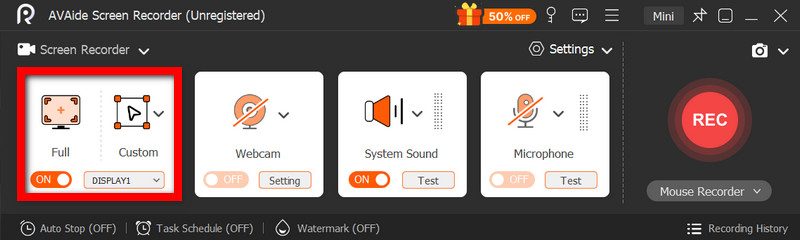
- سجل في وضع ملء الشاشة أو وضع الشاشة المخصصة حسب احتياجاتك.
- سجل الصوت الداخلي والصوت البشري في وقت واحد مع إخراج واضح.
- أضف خاصية تسجيل الكاميرا الأمامية للدروس التعليمية أو العروض التقديمية أو مقاطع الفيديو الخاصة باللعب.
- قم بقص وضغط وتحسين التسجيلات بعد التقاطها.

 تحميل آمن
الخطوة 1قم بتنزيل البرنامج وتثبيته
قم بزيارة الموقع الرسمي لبرنامج AVAide Screen Recorder. حمّل برنامج التثبيت الخاص بنظام ويندوز، وثبّته على جهاز الكمبيوتر المحمول من نوع لينوفو، ثم شغّله.
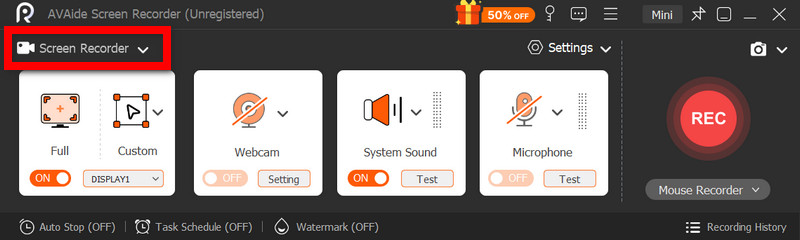
الخطوة 2اختر وضع التسجيل
افتح البرنامج، ثم انقر مسجل الشاشةسجّل الشاشة بأكملها باستخدام ممتلىء أو جزء من الشاشة مع العادة.
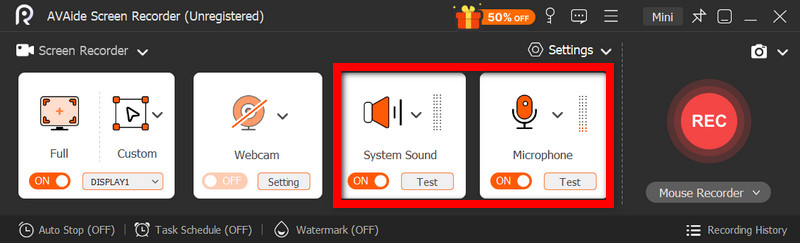
الخطوه 3ضبط إعدادات الصوت
لتسجيل أي أصوات يصدرها الكمبيوتر، قم بتفعيل صوت النظاملإضافة صوتك، فعّل ميكروفونويمكن أيضًا تشغيل كاميرا الويب حسب الحاجة.
الخطوة 4اضبط إعدادات التسجيل
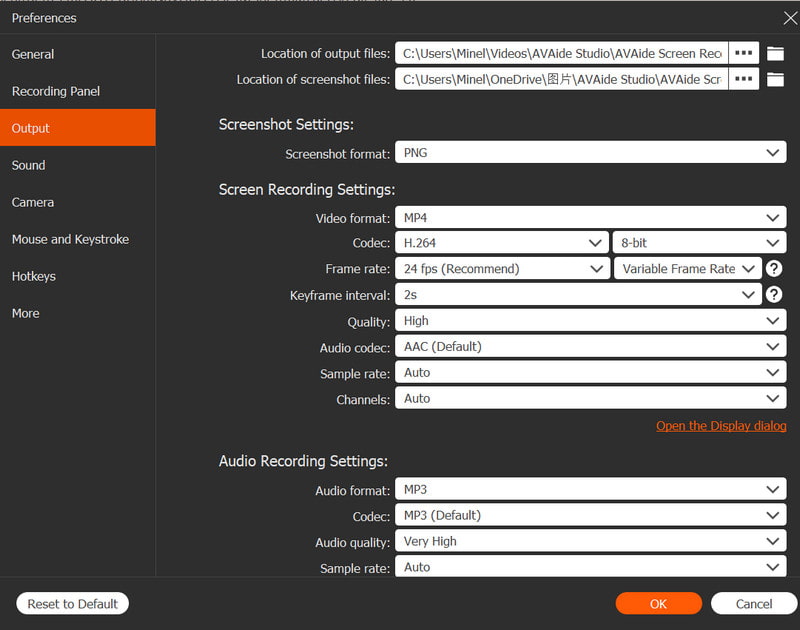
استخدم ال إعدادات زر لضبط جودة الفيديو ودقته ومعدل الإطارات وتنسيق الإخراج لتحقيق أداء تسجيل مثالي.
الخطوة الخامسةابدأ التسجيل
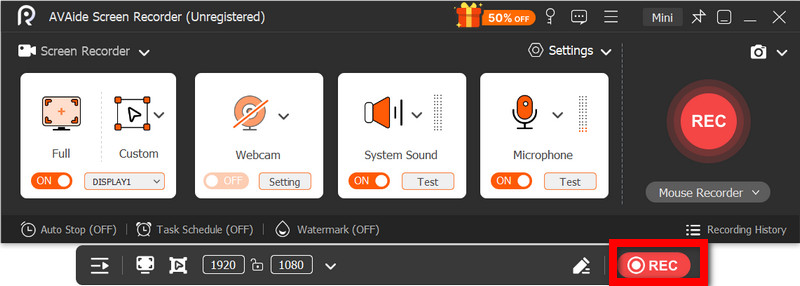
اضغط على REC زر لبدء التسجيل. يمكن تسجيل جلسات جوجل ميت، والدروس التعليمية، وألعاب الفيديو، أو أي نشاط على الشاشة بسلاسة.
الخطوة 6إيقاف التسجيل وحفظه
عند الانتهاء، انقر فوق قف زر. استعرض تسجيلك، وقم بتحريره بسرعة إذا لزم الأمر، واحفظه على جهاز الكمبيوتر الخاص بك على الفور.
الطريقة الخامسة: استخدام الإعدادات السريعة
تتوفر في أجهزة لينوفو اللوحية التي تعمل بنظام أندرويد خاصية تسجيل الشاشة المدمجة في الإعدادات السريعة. أفضل طريقة لتسجيل الدروس التعليمية، أو اللعب، أو نشاط التطبيقات على جهازك اللوحي هي دون الحاجة إلى تنزيل تطبيقات خارجية. سهلة وسريعة ومُحسّنة للاستخدام على الأجهزة المحمولة، مما يجعلها مثالية للتسجيلات السريعة أثناء التنقل.
يفتقر إلى ميزات التحرير والتخصيص المتقدمة الموجودة في أدوات التقاط الشاشة الأخرى، ولكنه كافٍ لالتقاط صور الشاشة البسيطة مع الصوت.
الخطوة 1اسحب لأعلى من أسفل الشاشة لفتح الإعدادات السريعة.
الخطوة 2بحث عن تسجيل الشاشة أو مسجل الشاشة الزر. إذا لم يكن موجودًا، فانقر على تعديل قم بتفعيل الزر وأضفه إلى لوحتك.
الخطوه 3انقر مسجل الشاشةثم حدد الإعدادات التي تريدها.
الخطوة 4مقبض يبدأ لبدء التسجيل. سيكون هناك عد تنازلي قبل بدء التسجيل.
الخطوة الخامسةانقر على شريط الأدوات العائم أو شريط الإشعارات، ثم اضغط قف لإنهاء التسجيل.
استكشاف أخطاء تسجيل الشاشة الشائعة وإصلاحها على أجهزة لينوفو
يمكنك قراءة نصائح حول حل المشكلات الشائعة عند تسجيل الشاشة على جهاز لينوفو.
على الرغم من عدم وجود مشاكل كبيرة في تسجيل الشاشة على أجهزة لينوفو عمومًا، إلا أن هناك دائمًا احتمالًا لحدوث بعض المشاكل اعتمادًا على أداة أو جهاز تسجيل الشاشة المستخدم. فيما يلي أكثر المشاكل شيوعًا وكيفية حلها.
- مسجل الشاشة لا يعمل: أعد تشغيل جهازك وحاول مرة أخرى. بالنسبة للأدوات المدمجة مثل شريط ألعاب Xbox، تأكد من تفعيلها في إعدادات ويندوز ضمن قسم الألعاب.
- لا يوجد صوت في التسجيل: تأكد من تشغيل صوت النظام أو الميكروفون قبل التسجيل. وتأكد أيضاً من عدم كتم صوت النظام.
- فيديو متقطع أو ذو جودة منخفضة: قلل جودة الفيديو أو أغلق التطبيقات التي تعمل في الخلفية. كما أن تحديث برامج تشغيل بطاقة الرسومات قد يُحسّن الأداء.
- لا يمكن تسجيل سطح المكتب أو مستكشف الملفات: هذا أحد القيود الشائعة لشريط ألعاب Xbox. إذا كنت ترغب في تسجيل شاشتك والتقاط كل شيء، فاستخدم برنامجًا متقدمًا مثل AVAide Screen Recorder، وهو أحد البرامج المتاحة. أفضل مسجلات الشاشة لنظام التشغيل Mac وويندوز.
- التسجيل لا يحفظ: تأكد من عدم امتلاء مساحة التخزين، وتحقق من موقع الحفظ الافتراضي. في الإعدادات، غيّر مجلد الإخراج، وجرّبه.
زر تسجيل الشاشة من لينوفو تختلف الخيارات باختلاف جهازك والأداة التي تستخدمها. عموماً، تُسهّل الميزات المدمجة وتطبيقات الطرف الثالث عملية التسجيل، مما يمنحك طرقاً مرنة لالتقاط نشاط الشاشة وحفظه وإدارته بكفاءة على أجهزة لينوفو.
نبذة عن المؤلف

تسجيل أنشطة الشاشة بالصوت ، والاجتماعات عبر الإنترنت ، ومقاطع فيديو اللعب ، والموسيقى ، وكاميرا الويب ، وما إلى ذلك.
تسجيل الشاشة