The selection of the image format depends on the quality and compatibility. PNG and TIFF are well-known; however, each of them is best used in different circumstances. Selecting the wrong one may lead to loss of color, file malfunctions or poor performance. This guide shows how to transform PNG to TIFF on Windows, Mac, and online. The steps are simple and keep your images clear. First, we explain the main differences between PNG and TIFF. Then, we show easy methods to convert files without losing quality.
Part 1: PNG vs TIFF - What Makes Them Different?
Choosing the right image format is important for quality, file size, and usage. PNG and TIFF are both popular, but each works best in different situations. Knowing the difference between them can guide you in the type of format to choose and also inform you about the ways to change PNG when it is required.
1. Compression:
One key difference in TIFF vs. PNG is compression. PNG is a lossless compressed file format that is not only smaller, but the quality is also good. TIFF also implements a lossless compression algorithm, but generates larger files that preserve all the image details; hence, it is more effective with high-resolution projects.
2. File Size and Sharing:
File size and sharing are important. PNG is also smaller in size and can be shared online or through email. TIFF images are bigger yet retain all image fidelity tendencies and thus can be better for detailed editing and professional use.
3. Image Quality:
The other distinction is image quality. PNG files are distinct and clear, and thus can be used in web graphics and simple images. TIFF files are more detailed, and this is ideal to be used in professional printing, editing and archiving. A PNG to TIFF converter may be used to preserve this quality in the conversion of files.
4. Usage:
PNG is ideal when sharing online graphics and engaging in simple projects, and when time is of the essence. TIFF is used when professional work, high-quality printing and maximum fidelity of images are necessary.
5. Transparency Support:
Transparency support is another factor. PNG supports transparent backgrounds, which is helpful for web design or overlaying images. TIFF generally does not support transparency, so it is better suited for standard images and layered editing. This shows why you may want to know how to convert PNG to TIFF correctly.
Part 2: How to Convert PNG to TIFF on Windows and Mac in the Best Quality
AVAide Video Converter is a perfect choice when users do not want their images to lose their quality, but still convert PNG to TIFF. It is compatible with Windows and Mac and still preserves all the details during conversion. The software enables the use of batch processing, such that it is possible to process many files simultaneously. Beginners can easily navigate its interface.
Fast, reliable, and accurate, AVAide ensures your images remain sharp and ready for printing, editing, or sharing. This makes it a dependable tool for both personal and professional use.
Step 1You can now download the AVAide converter ready on your PC or Mac by clicking the download button here. Follow the installation steps and click Start Now to proceed.

FREE DOWNLOAD For Windows 7 or later
 Secure Download
FREE DOWNLOAD For Mac OS X 10.13 or later
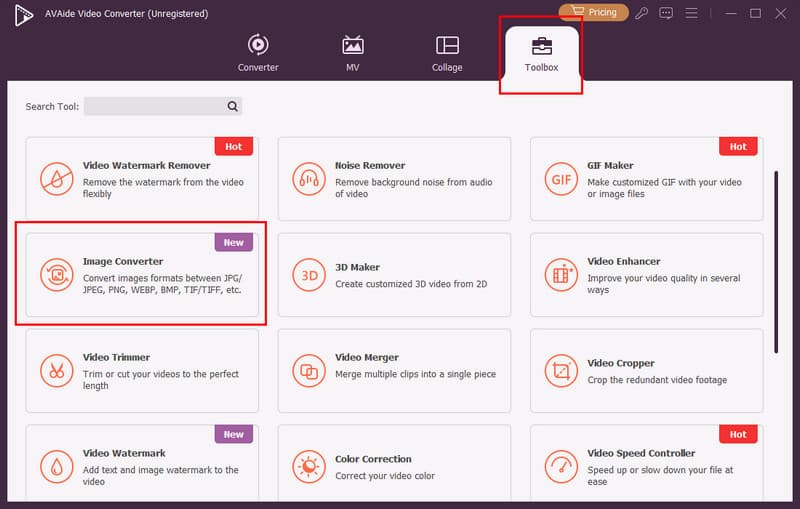
Secure DownloadStep 2Open the More Tools, and find the Image Converter since you want to convert the TIFF files you have. A new interface will emerge; click the + button to import it here.
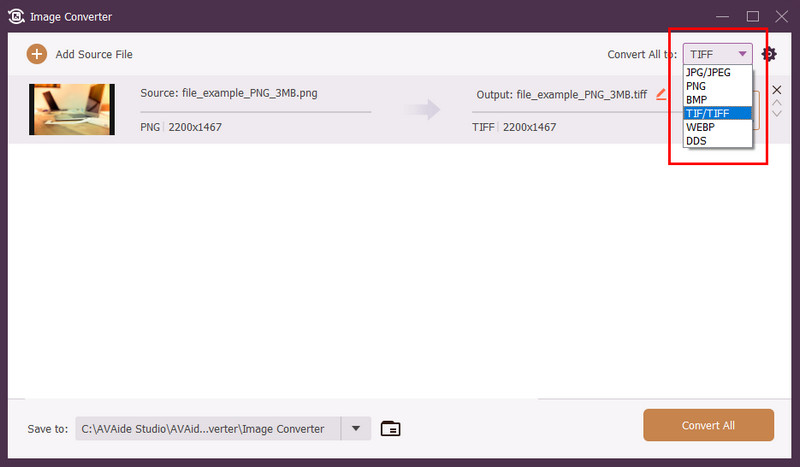
Step 3Hit the dropdown button and change the output to TIFF. Aside from that, you can choose the other formats available here.
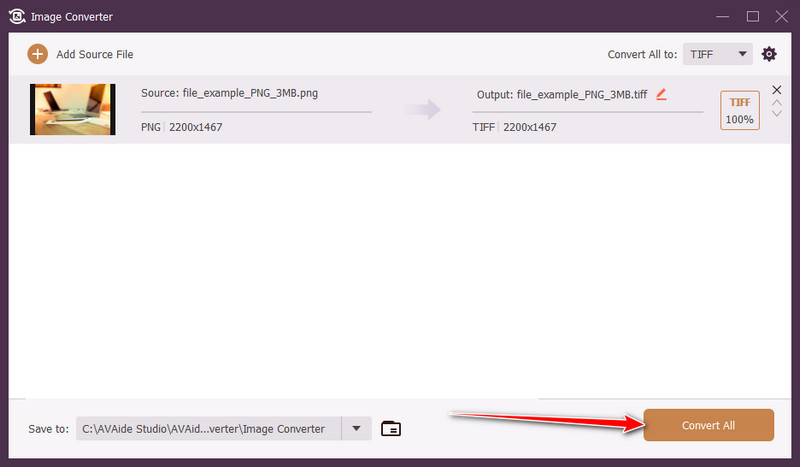
Step 4After setting up the format, click the Convert All button. As we said earlier, you can use this app to convert TIFF to JPG just by changing the output format and the file you imported.
Part 3: How to Convert PNG to TIFF on Windows with Paint
Microsoft Paint is an easy-to-use default Windows application. It is not as powerful as professional converters, but the PNG to TIFF conversion is fast and easy to do through Paint without any other software installed. It is best suited for simple image operations, especially when you are in a hurry. Paint is a fairly good preservation of images, though it does not have batch conversion and other high-level editing capabilities. All in all, it is handy in case of converting single files and also in case the user wants a lightweight and free tool.
Step 1Open Microsoft Paint on your Windows computer. You can search for Paint in the Start menu.
Step 2Click File > Open and select the PNG image you want to convert.
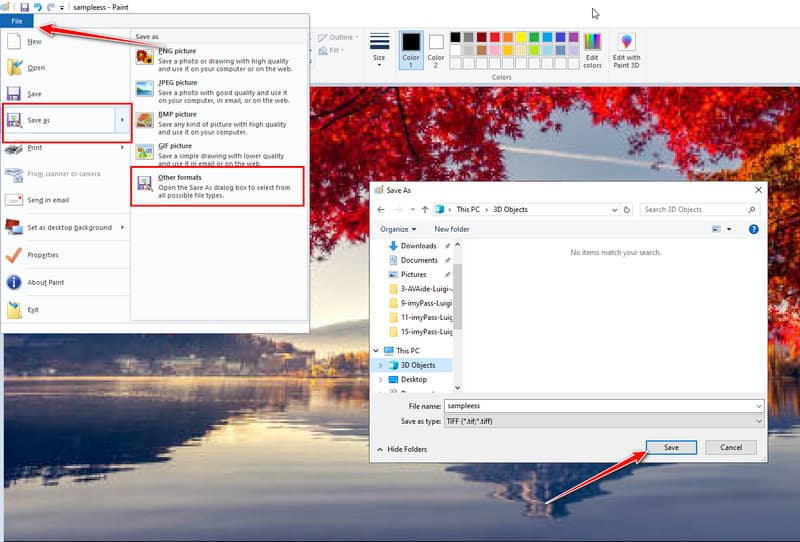
Step 3Once the image is open, click File > Save As > Other Formats. Choose the folder where you want to save the file, enter a name, set the format to TIFF, and click Save.
Part 4: How to Convert PNG to TIFF on Mac with Preview
Preview is the default image viewer on Mac, and it offers a fast and reliable way to change PNG to TIFF. While it is not a professional converter, Preview maintains image quality and supports a range of file formats. Its simple interface makes it easy for beginners to use, and it is ideal for single-image conversions without additional software. Preview does not support batch processing, but for quick conversions, it is convenient, free, and already installed on all Mac devices.
Step 1Open the PNG image in Preview by double-clicking it or using File > Open.
Step 2Click File > Export. In the Format dropdown, select TIFF.
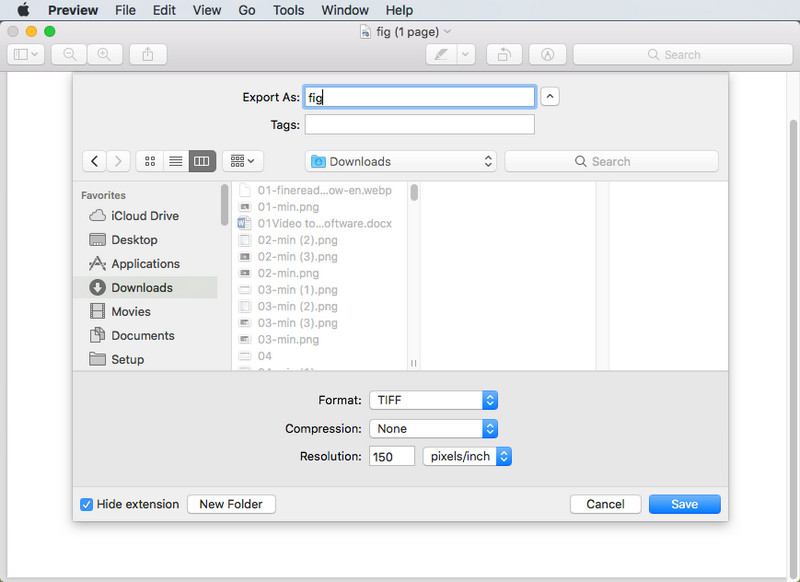
Step 3Choose the save location, adjust any optional settings like compression if needed, and click Save.
Part 5: How to Convert PNG to TIFF Free Online
Zamzar is a reliable online tool to convert PNG to a TIFF file without installing any software. It works on any device with a browser and supports multiple file formats. Zamzar keeps image quality intact during conversion, making it suitable for quick projects. While it does not offer batch processing for free accounts, it is fast, simple, and convenient for single-image tasks. For anyone looking to convert a PNG online, Zamzar is an accessible and effective choice.
Step 1Go to the Zamzar website at https://www.zamzar.com. Click Choose Files and select the PNG image you want to convert.
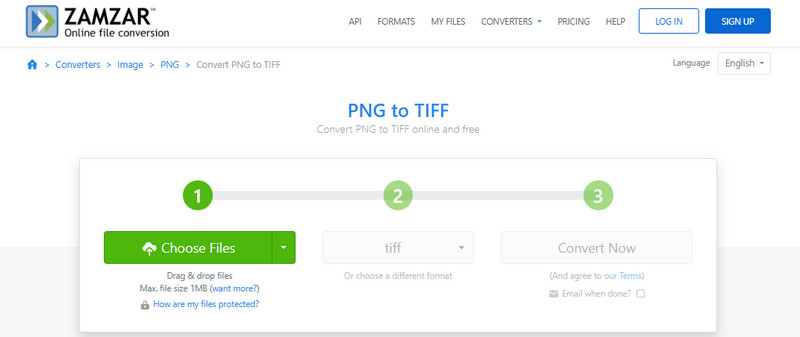
Step 2Under Convert To, choose TIFF as the output format.
Step 3Click Convert Now. Once the conversion is complete, download your TIFF file. You can also compress TIFF videos on Zamzar if you need to downsize their file size.
When you know the difference between TIFF vs PNG, then you can easily find the appropriate format to use on your pictures. It is always best to know when to use either PNG or TIFF when you are editing, sharing or printing and ensure quality and compatibility. You can easily change PNG to TIFF without the loss of detail using such tools as AVAide Video Converter, Paint, Preview and Zamzar. These steps will make sure that your pictures are always sharp, high quality and can be used anyhow.
Your complete video toolbox that supports 350+ formats for conversion in lossless quality.