The clarity and sharpness of an image can make a big difference, especially if we are into content creation, business, creating portfolios, and many more. By utilizing an upscaler technology, you can upscale it with advanced algorithms and AI-driven tools that significantly enhance the resolution and overall quality without compromising details. This article will introduce all methods to upscale images that work well online, on PCs, and even handheld devices.
Part 1. How to Upscale Images Online for Free - 5 Ways
1. AVAide Image Upscaler [Best Image Upscaler Online]
Of the many upscale image generators online, we can safely say that AVAide Image Upscaler is the best due to its ease of use and effectiveness. Thanks to the AI incorporated in AVAide, images can be upscaled up to 800 percent with an appropriate focus on detail and sharpness, which will be useful for photographers, designers, and content creators.
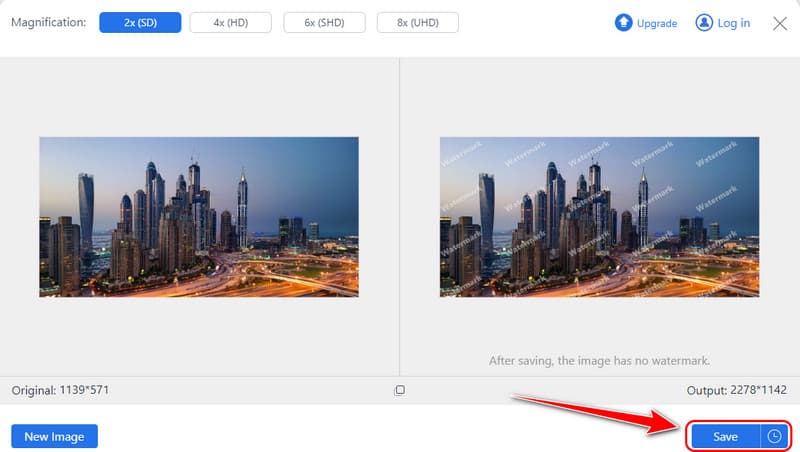
One of AVAide's major advantages lies in its ability to perform high-quality image processing without adding watermarks to the output. It delivers high-resolution images quickly without cumbersome setup. More importantly, AVAide genuinely adds pixels to photos rather than merely enlarging them, ensuring the output maintains its original quality after scaling. With its clean interface, flexible features, and user-friendly design, it's the ideal choice for users seeking effortless visual enhancement.
Step 1Open a new tab and search for the AVAide Image Upscaler by typing it on the search bar. Then, hit Enter on your keyboard and click it when it appears.
Step 2Click the Choose a Photo button here and pick the image you want to upscale on your device. This web tool supports various formats, so your image file is supported here.
Step 3After that, choose the magnification level you want to use, such as 2x and 4x. If you want to use the 6x and 8x, you must purchase a credit for a cheaper price.
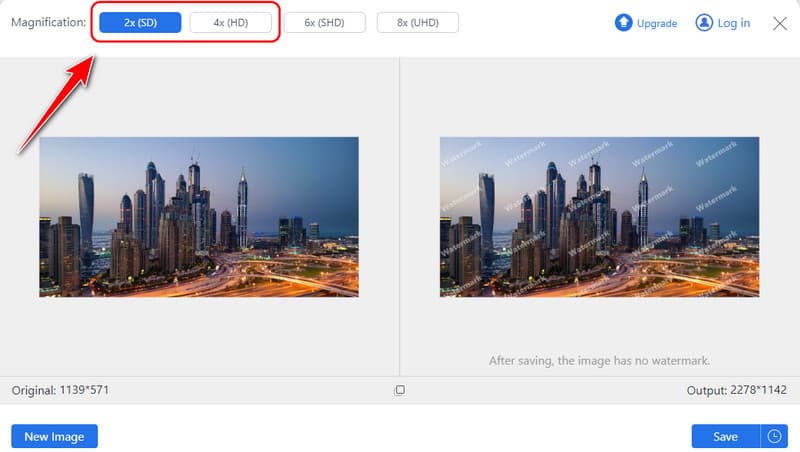
Step 4Take a quick preview of the upscaled version on the right side and click Save to download the upscaled version on your device.
2. Upscale. Media
Upscale. Media is straightforward, using media and scales well to the bigger image size. As a result of the technology, users can upscale their image up to 4 times without compromising anything. The platform is suitable for people who require quick answers since there is no need to choose complex options. Its simplicity is one of its major strengths, but it offers somewhat less customization processing than tools like AVAide.
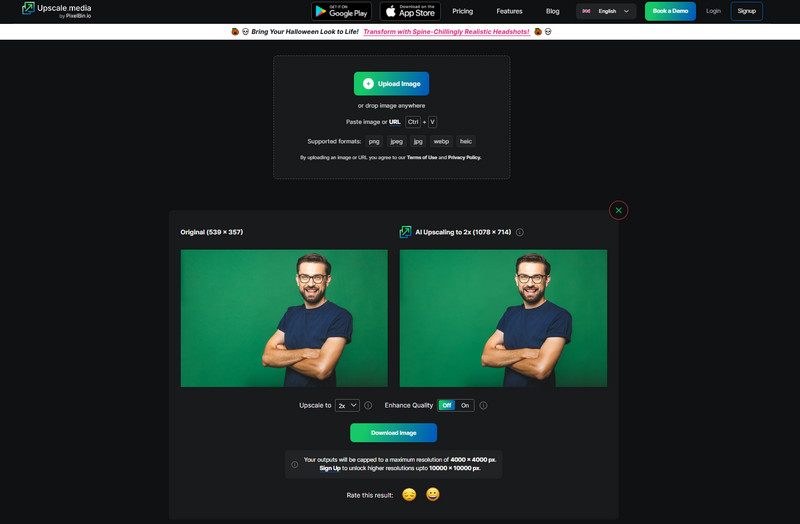
Step 1Open the browser and search the Upscale.Media. Here, click the Upload Image to import it.
Step 2Wait for the processing; click the drop-down button to choose what level of upscale you want to apply. Tick the Enhance Quality button to enhance the image quality.
Step 3After that, click Download Image to save the final output.
3. Pixelcut AI
Pixelcut AI has creative tools suitable for content creators, including the upscale image tool. This artificial intelligence-augmented platform improves visuals for posting on social media, product photography, and promotional material purposes. However, while it excels at fine adjustments when enlarging images, its image upscaling results are less refined compared to AVAide. Therefore, it is better suited for quick tweaks rather than complex processing. If you need an AI pixel enhancer on the go, this is one of the best options.
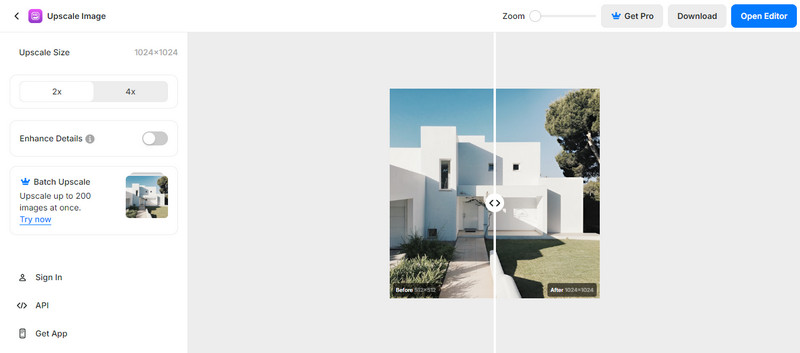
Step 1Go to the Pixelcut AI official page and click the Upscale Image to upload your photo here.
Step 2Choose between 2x and 4x the upscaling you want to apply to the photo. If necessary, click the Enhance Details to improve the quality, but this will only work for a premium user.
Step 3Tick the download-like button to get the final output.
4. IMGupscaler
Another online image upscaler that uses AI is IMGupscaler, which promises to increase the quality of the image. It provides up-scaling up to 4 times; it improves the images captured in portrait, landscape, product images and even more. Although credible, the IMGupscaler must incorporate the sophisticated enhancement capabilities that AVAide demonstrated by dealing with intricately texturized images and enhanced resolutions.
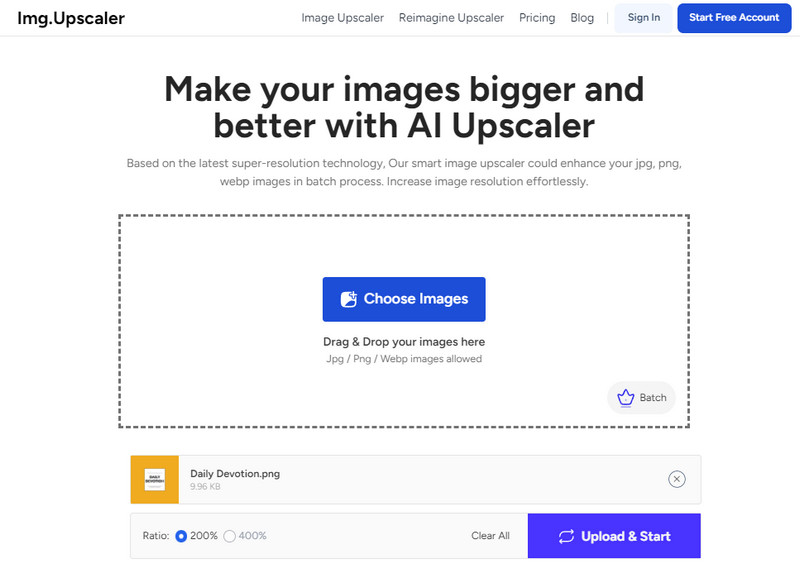
Step 1In the same way, open your browser and search the official page of it.
Step 2Click Choose Image to import the photo you want to enhance that is saved on your device.
Step 3Next, choose the ratio percentage you want to use and click Upload & Start to initiate the processing.
5. PicsArt
PicsArt is also a favored application for creativity freaks, and it is famous for its features that allow users to edit and upscale images. It is a tool that helps users rapidly increase image resolution, enriching their image library. In this regard, while there is a lot to love about PicsArt for the app’s casual users, the upscaling capabilities are not as nuanced and detailed as those offered by AVAide, the app is an option for anyone who wants to upscale images with or without intricate details.
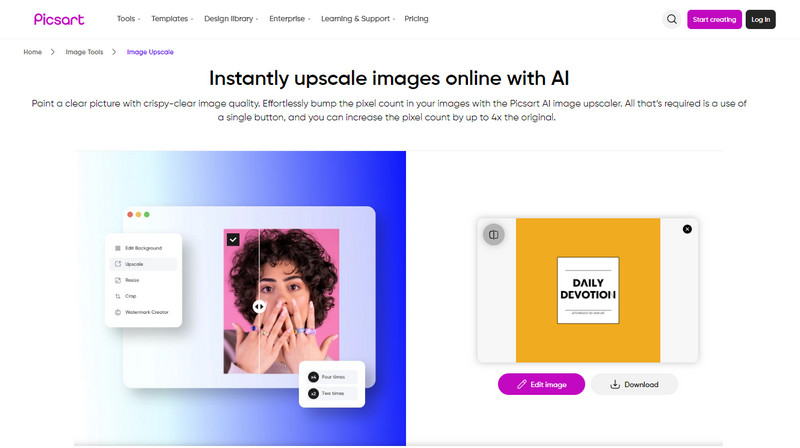
Step 1Open this web tool with your favorite browser and click Browse Files to locate the picture you want to upscale.
Step 2Wait for the processing, as the image is now going through the web tool's upscaling method.
Step 3When it is done, tick the Download button to save it.
Part 2. How to Upscale Picture with Software on Windows & Mac - 5 Ways
1. Topaz Gigapixel AI
Topaz Gigapixel AI is deemed one of the leading desktop tools for upscaling images. With its artificial intelligence technology, its image-improving capacity is as high as 600 percent, and it keeps a sharp image. For all forms of photos, paintings, and artworks, you get the sharp and detailed resolution you need with upscaling features that are regulable to one’s preference. Professionals mostly prefer this software because of its high quality and flexibility, which makes it suitable for Windows and Macintosh OS.
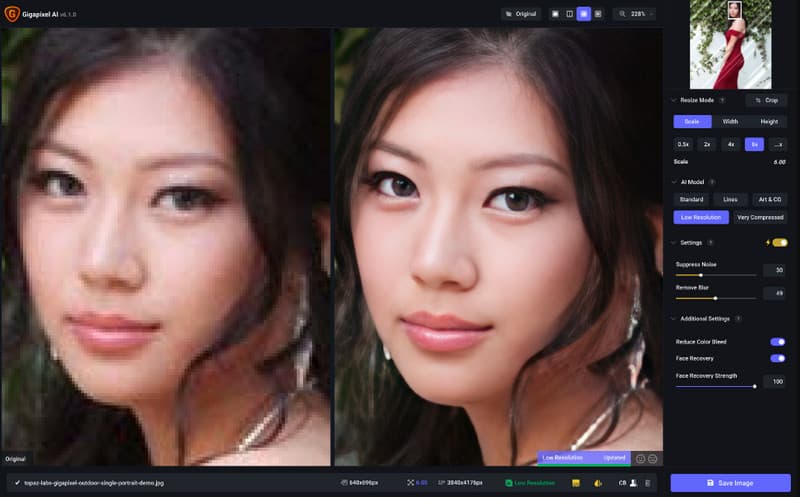
Step 1Open it and upload the image you want to upscale. Then, go to Edit, Preferences, and choose the newly added feature, Autopilot.
Step 2Choose the upscaling you want to apply to the image amongst the options here, and you can set an AI model for quality.
Step 3When finished, export the final output to get the upscaled version.
2. Adobe Photoshop
Adobe Photoshop is among the most widely used image editing tools, offering potentially boundless opportunities. Even though Photoshop is not an image more upscale at its core, it has fantastic resizing tools that you can use to enlarge details. The Photoshop tool is vibrant for one who wishes to use an enhancing module in addition to enlargement. Its learning curve creates a problem since it is not recommended for those who will not use it frequently, and the subscription is a drawback.
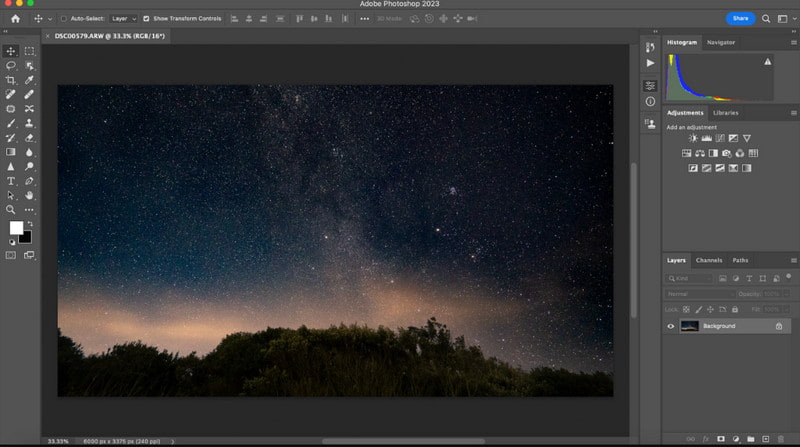
Step 1Open the image you want to edit in Photoshop, go to Photo, then Enhance.
Step 2Here, choose the Super Resolution from the box that appears and take a quick preview of the image, then click Apply or OK to save it.
Step 3Export the final output to have it on your PC.
3. Preview
Mac owners who want to crop or scale an image for free using basic tools will find Preview useful. It does not display the AI quality of some of the software in this list, but Preview is entirely simple to use and enough for basic image upscaling jobs. For users who want to zoom in on images quickly without the hassle of downloading other applications, it is perfect. So, if you want to learn how to upscale an image here, follow the instructions we added.
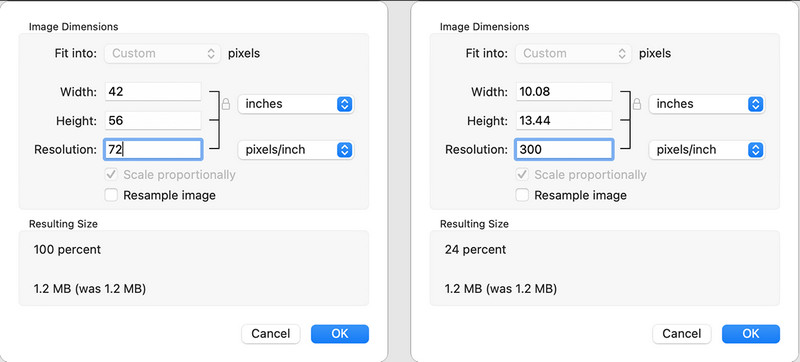
Step 1Open the image with Preview and select Tools from the options above. Then, click Adjust Size.
Step 2There will be options; you can choose the Fit Into or custom size the width and height of the image using the predetermined measurements.
Step 3If you are done, click OK and hold down the command and S to save it.
4. ON1 Resize AI
ON1 Resize AI is a pretty advanced upsizing software that combines artificial intelligence with sharpness technology. This tool is used frequently in photographic applications since it holds the right capabilities for scaling an image while maintaining higher strength on details regarding texture and edges. It also has batch processing and other elaborate characteristic features qual, such as tiling and gallery wrap support, and can be used with both Windows and MAC operating systems.
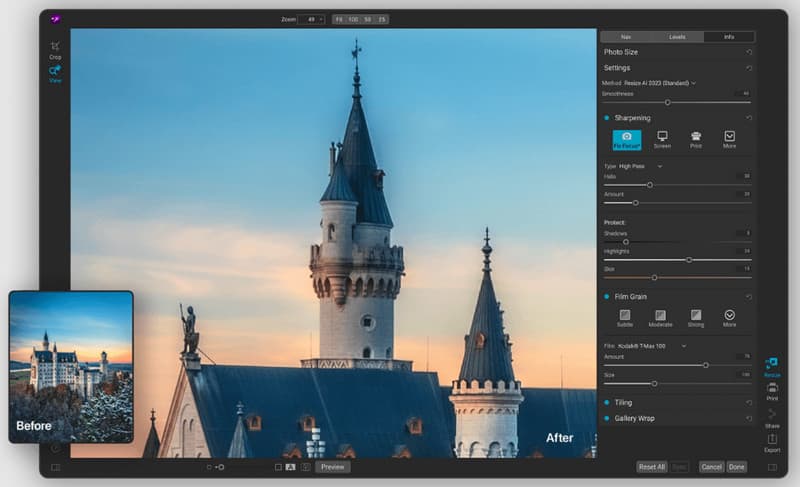
Step 1Upload the image you want here and open the Resize option on the right side of the interface.
Step 2Choose the value of resizing you want to use to upscale the image size to match your needs.
Step 3Tick Done and Export it when finished.
5. A Sharper Scaling
A Sharper Scaling is a small and free software that can upscale photos for the Windows operating system. It provides multiple algorithms to upscale the image at a great quality and is most suitable for individuals who want to avoid installing software that can enhance image quality. It can enhance images, web graphics, photographs and documents to bigger sizes above the originals or sm,aller as the case may be, though it does not come with all the intelligent features you may find in its competitors.
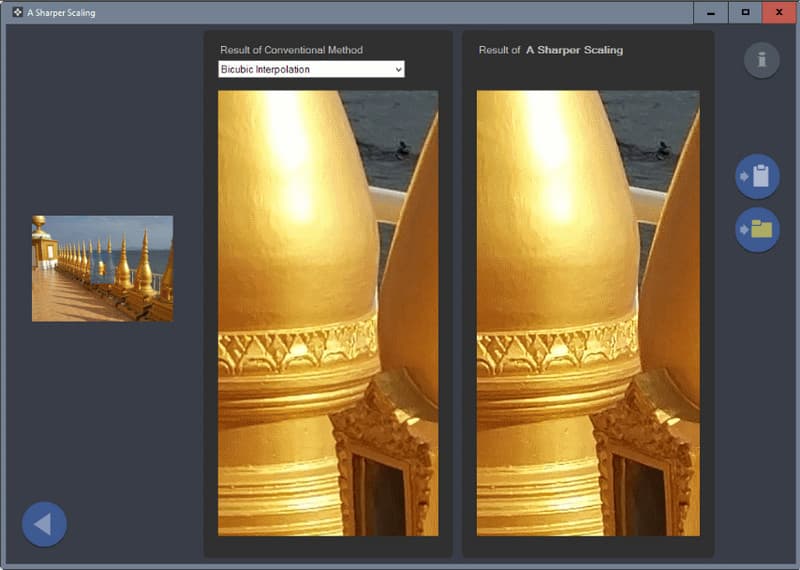
Step 1Open the app and import the picture you want to upscale here.
Step 2Tick the drop-down button to choose an option from the conventional method you want to use to upscale the image.
Step 3Take a quick preview and export it.
Part 3. How to Upscale Photo on iPhone/Android
Remini is another social application used for both iPhone and Android that can be used for image upscaling. With the help of AI, it is most resourceful in enlarging smaller images, increasing clarity, and reconstructing lost details. It is popular to request enhancing portrait photos, which indicates that the app is most suitable for individual use. However, Remini Photo Enhancer is free to use in the app store, but it consists of in-app purchase options where you can get better quality pictures and other features.
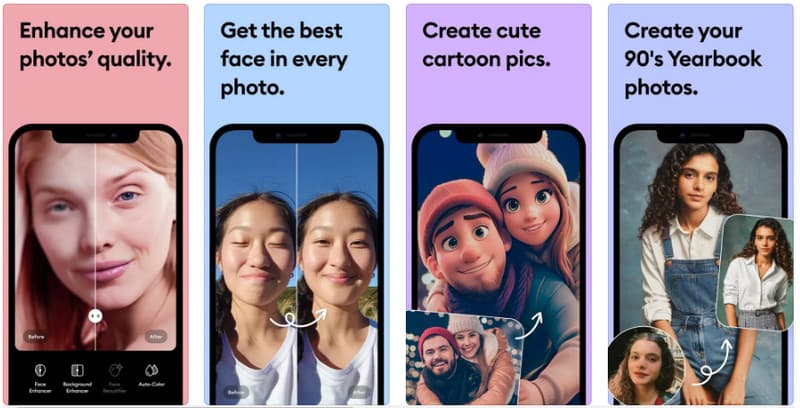
Step 1Download the Remini app on your Android or iPhone, then launch it afterward.
Step 2To upscale the image, click the Enhance button here and choose the image you want to upscale the quality.
Step 3When that is done, export the file to your Album or Gallery.
Part 4. FAQs of Upscaling Image
Can I upscale images for free?
Yes, you can. There are many free image upscalers. You can choose AVAide Image Upscaler, GIMP, and Waifu2x to upscale your photos for free.
How to convert a low-resolution image to high resolution?
You can use AI-based photo upscaler tools. They can not only upscale the resolution, but also sharpen edges, remove blur, and correct the color automatically.
Does upscaling images change their original size?
Usually, yes. Upscaling refers to increasing an image's resolution, such as from 720p to 1080p or 4K. This directly increases the number of pixels, thereby altering the image dimensions (width × height).
Will the file size of an upscaled image always increase?
In most cases, yes. The increased pixel count typically leads to larger file sizes, though the exact size depends on the compression format used (e.g., JPG, PNG, WebP) and compression parameters.
Finally, you have learned that to upscale an image online or offline, you will need a dedicated tool, and we have a list here. Choose which one you prefer and follow the steps we added.

Our AI technology will automatically enhance the quality of your images, remove noise and fix blurry images online.
PROCESS NOW