How to screen record on a Lenovo laptop depends on the tool you choose, from built-in Windows features to advanced software. This guide shows simple, clear, and efficient methods for capturing your screen on Lenovo devices, whether for tutorials, meetings, gameplay, or everyday recording.
Method 1. Using Xbox Game Bar
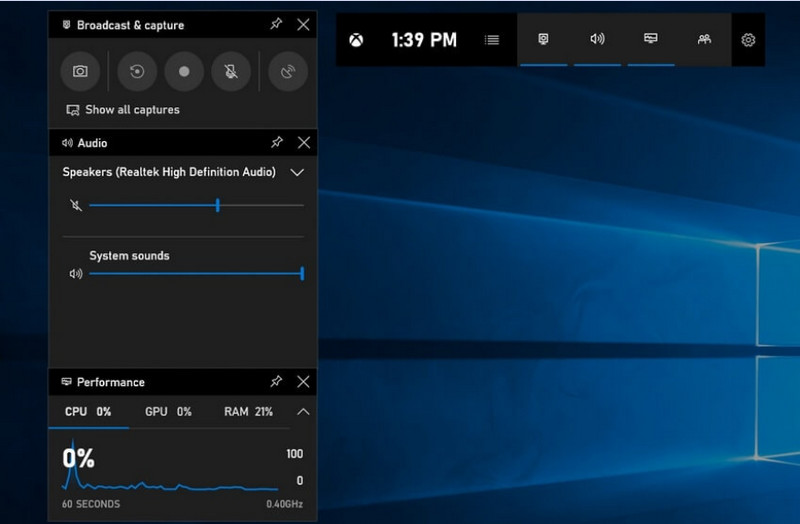
The built-in recording feature of the Xbox Game Bar is Microsoft's, seamlessly integrates with Windows, and is the most convenient recording solution for Lenovo users. It was created for playing games while also serving as a standard application recorder, tutorial creator, and browser recorder. The top advantage is that it requires no setup; it is ready for use right away.
But there are definite downsides. Does not record the desktop or File Explorer, and customization is restricted to professional tools. However, it is still one of the most convenient built-in options for casual sessions where quality and effort are not as important.
步驟1To open the Xbox Game Bar, press Windows + G 在你的鍵盤上。
第2步找出 捕獲 panel or click on it from the Widgets 菜單。
第 3 步點擊 Record (●) 按鈕或按下 Windows + Alt + R.
步驟4If you wish to record voice, enable the 麥克風.
第 5 步按 Windows + Alt + R again or click Stop (■) to complete.
第 6 步You will find your recording in 視頻 > 捕獲.
Method 2. Using Lenovo Vantage
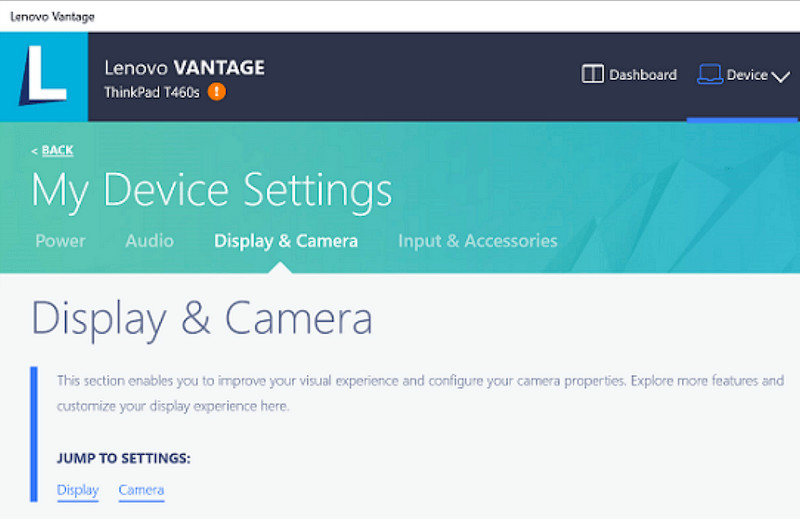
Lenovo Vantage is not a screen recorder; it is a system management and optimization suite. It is more of an indirect role in recording, with very few features that assist the recording process in some form, depending on the recording device model, or even with some devices offering shortcuts or camera/display tools that can help with the recording process.
This is a wide variation in performance and availability. Basic recording functions may be supported on some Lenovo devices, but others may not have these at all. It is limited and somewhat inconsistent in what it can do for full-screen recorders, but it might be valuable to users who want to remain within the Lenovo ecosystem or record podcast content with basic tools.
步驟1前往 開始 menu and click on Lenovo Vantage.
第2步輕敲 My Device Settings > Display & Camera.
第 3 步Check for recordings or other available functions.
步驟4Make any necessary options or shortcuts available.
第 5 步Record the music using the function provided (if possible).
第 6 步Find recordings you've saved in your Videos folder.
Method 3. Using Legion Zone / Lenovo Nerve Center
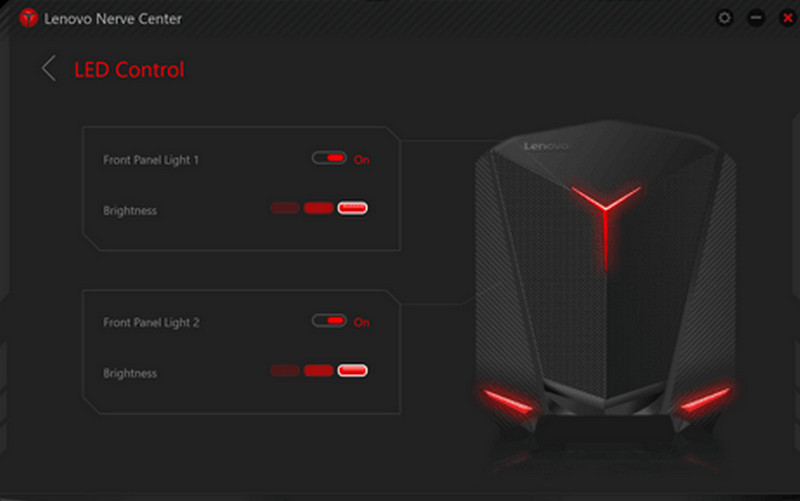
Lenovo Nerve Center (or Legion Nerve Center - newer tools from Legion have replaced Nerve Sense) is optimized for Lenovo devices, specifically Lenovo Legion laptops, aimed at gamers. It is also tightly integrated with gaming performance tools, so users can take screenshots of their games while monitoring and optimizing system resources.
It is, however, a rather basic recorder. It is more about convenience than customization, and only offers basic recording options with limited control over resolution, bitrate, and advanced settings. Also, it is only available on some newer systems, and others have replaced or taken it away from their systems, so it is not as reliable as it once was.
步驟1訪問 Lenovo Nerve Center 或者 Legion Zone from the device.
第2步Navigate to the recording and/or gaming tools.
第 3 步If there is a choice, change the recording settings, such as resolution or audio quality.
步驟4Start up the game or application.
第 5 步Record with the default shortcut or button.
第 6 步Stop recording and look in your 視頻 folder to see if the file has been recorded.
Method 4. Using AVAide Screen Recorder
AVAide 屏幕錄像 is a more sophisticated and versatile screen recorder for Lenovo than the built-in screen recorder. It is built for those who want video quality, smoother operation, and greater recording control. It's the perfect tool for creating tutorials, recording meetings, or capturing gameplay, with no complicated setup required, all at a professional level.
While it can capture system sound, microphone input, webcam, and screen areas, it also supports full HD and even 4K recording with minimal lag compared to basic recorders. This makes it an all-in-one screen-capture application for work and leisure.
- Capture videos in 1080p or 4K with smooth, lag-free performance.
- Record in FULL or CUSTOM screen modes depending on your needs.
- Record both internal sound and voice simultaneously with clear output.
- Add Facecam recording for tutorials, presentations, or gameplay videos.
- Trim, compress, and enhance recordings after capturing.
步驟1下載並安裝軟件
Visit the official website of AVAide Screen Recorder. Download Windows Installer, install it on your Lenovo laptop, and run it.
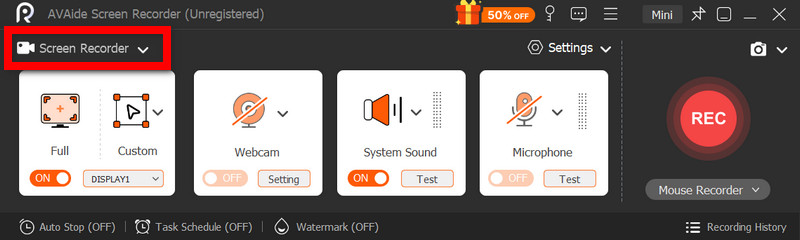
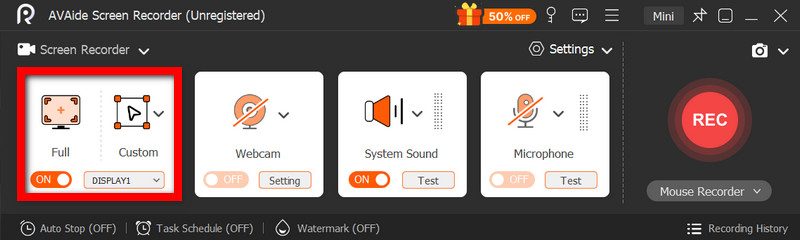
第2步Choose Recording Mode
Open the software, then click 屏幕錄像. Record the whole screen with 滿的 or a part of the screen with 風俗.
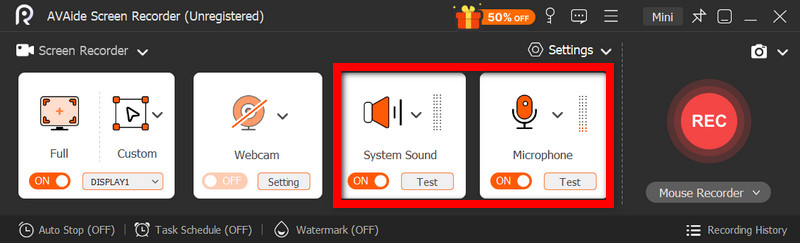
第 3 步Configure Audio Settings
To record any sounds made by the computer, activate 系統聲音. To include your own voice, activate the 麥克風. The webcam can also be switched on as appropriate.
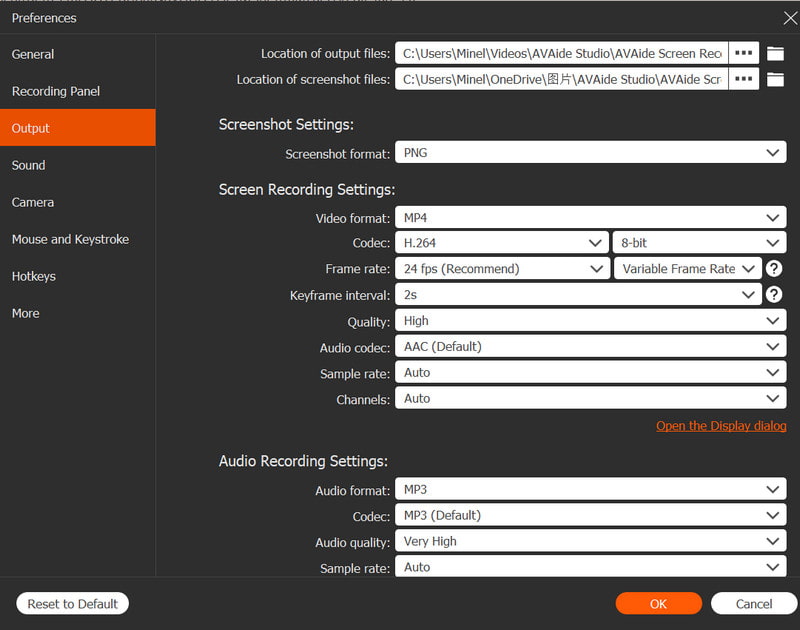
步驟4調整錄製設定
使用 設置 button to configure video quality, resolution, frame rate, and output format to achieve optimal recording performance.
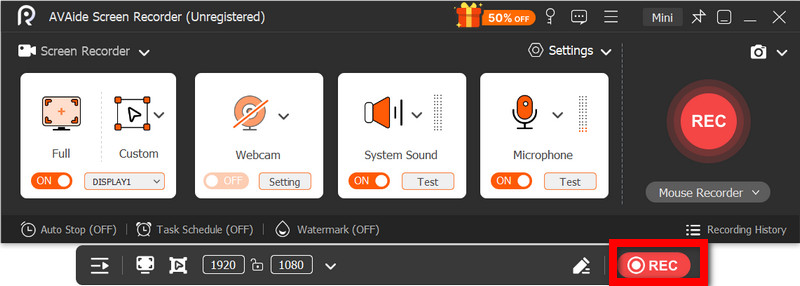
第 5 步開始錄製
按 錄音 button to start recording. Google Meet recordings, tutorials, gameplay, or any on-screen activity can be recorded smoothly.
第 6 步停止並儲存錄音
When you have finished, click the 停止 button. Preview your recording, edit it quickly if necessary, and save it to your computer instantly.
Method 5. Using Quick Settings
On Lenovo Android tablets, there is an in-built screen recording option in quick settings. The best way to record tutorials, gameplay, or app activity on your tablet is without downloading third-party apps. Easy, quick, and optimized for mobile use, it is ideal for quick recordings on the go.
It lacks the advanced editing and customization features found in other screen capture tools, but it is sufficient for simple screen captures with sound.
步驟1Swipe up from the bottom of the screen to open the 快速設定.
第2步尋找 螢幕錄製 或者 屏幕錄像 button. If it is not there, click the 編輯 button and add it to your panel.
第 3 步點擊 屏幕錄像, then select your desired settings.
步驟4輕敲 開始 to start recording. There will be a countdown before the recording begins.
第 5 步Tap the floating toolbar or notification bar, then press 停止 to end the recording.
Troubleshooting Common Screen Recording Problems on Lenovo
You can read tips on resolving common issues when recording the screen on a Lenovo device.
While there are generally no major complications with screen recording on Lenovo devices, there is always a possibility of issues depending on the screen recording tool or device used. Below are the most common problems and how to fix them.
- Screen Recorder Not Working: Restart your device and try again. For built-in tools like Xbox Game Bar, ensure it is enabled in Windows Settings under Gaming.
- No Audio in Recording: Check whether System Sound or Microphone is turned on before recording. Also, verify that your system volume is not muted.
- Laggy or Low-Quality Video: Reduce the video quality or close down applications in the background. Upgrading your graphics drivers can also enhance performance.
- Cannot record Desktop or File Explorer: This is one of the common limitations of the Xbox Game Bar. If you want to record your screen and capture everything, use an advanced program such as AVAide Screen Recorder, one of the Mac 最佳螢幕錄影軟體 和窗戶。
- Recording Not Saving: Ensure that your storage is not full, and verify the default save location. In settings, change the output folder, and try it.
Lenovo screen recording button options vary depending on your device and the tool you use. Overall, built-in features and third-party apps make recording simple, giving you flexible ways to capture, save, and manage screen activity efficiently on Lenovo devices.