If you are a Mac user and you need to record your screen and audio, there is no need to look anywhere else. Everything you need is already there with QuickTime Player.

在此 QuickTime Screen Recording guide, we will teach you how to use it from start to end. From opening the tool to stopping and saving your recording. Let us start now!

Part 1. A Quick Introduction to QuickTime Screen Recording

QuickTime Player is a free program on the Mac operating system. It comes pre-installed so that you can use it right away. While it is known as a media player, it also works as a Mac 的屏幕录像机. Because of this, you can capture your screen without third-party applications. In addition, the interface is simple, so it is easy to follow.

1. Core Capabilities

  • Can Record
    For everyday use, it covers the basics. You can record the full screen. You can also pick a selected area. At the same time, you can record webcam video using "New Movie Recording." It also lets you capture audio from a microphone. Plus, it can show mouse clicks on the screen.
  • Cannot Record (Natively)
    Unfortunately, it cannot record system sound. It is due to the Mac operating system's security. Also, it cannot record the screen and webcam together.
  • 限制
    Because it is a basic 4K视频播放器 and recorder, some features are missing. For one, it saves videos only in .mov format. As a result, file sizes can be large. In addition, it has no advanced editing features. So, there is no timeline editing. You also cannot add annotations or effects.

Part 2. How to Start a Screen Recording with QuickTime

If you want to know how to use QuickTime Player to record the screen with sound, it only takes a simple setup before you begin.

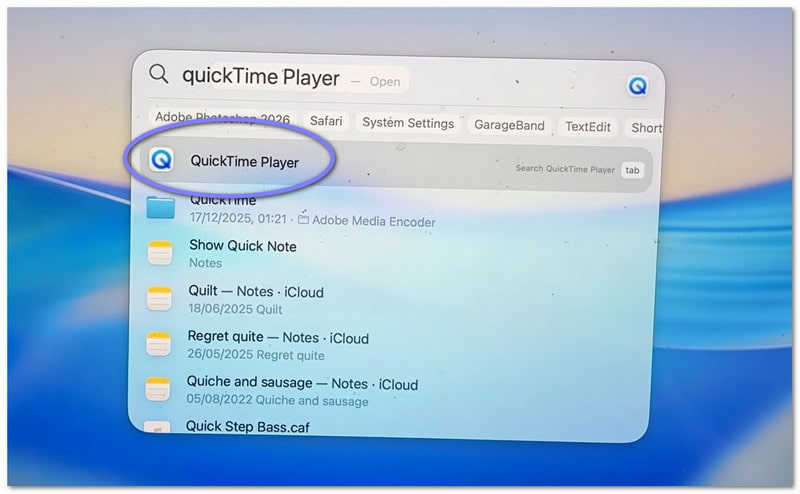
第1步First, go to your 应用 folder and open the program. If you want a faster way, use Spotlight search. Press 命令 + 空间, then type QuickTime 播放器。 按 进入 打开它。

Open QuickTime Player

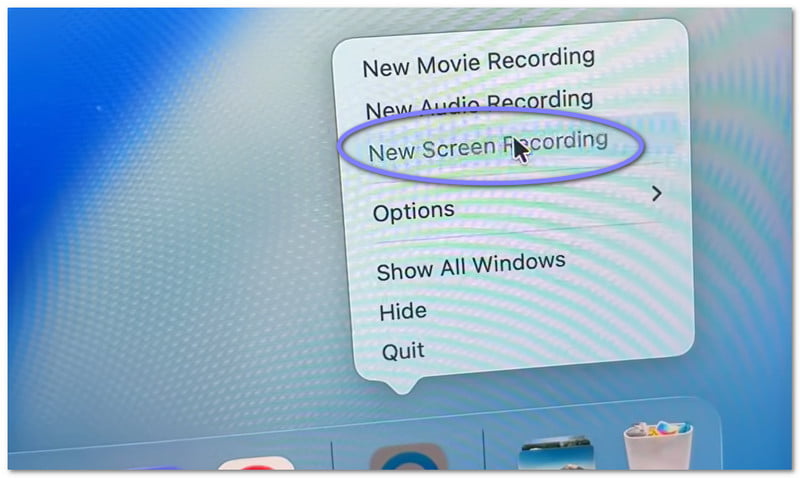
第2步Once the program is open, move to the top menu bar. Click 文件,然后选择 新录屏. You will see a small recording display appear. If you want a shortcut, press 命令 + 控制 + N. It opens the screen recording program right away.

Create a New Screen Recording

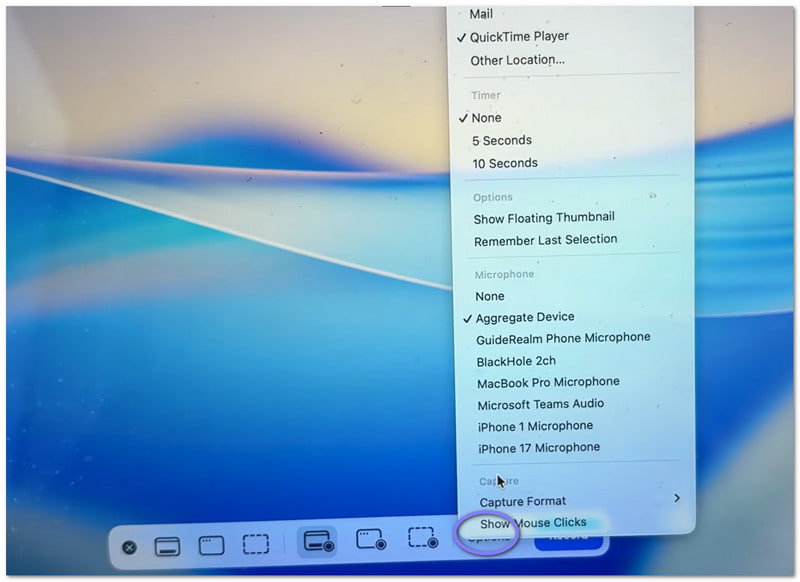
第 3 步Before you start, take a moment to check the settings. Click the 选项 button on the recording panel. Here, you can choose your microphone if you want to record your voice. You can also set a short timer if you need time to prepare. In addition, pick where you want to save the file after recording.

Set Your Recording Options

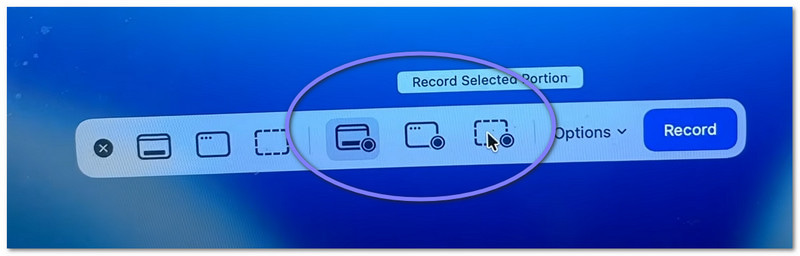
第四步Now, decide what you want to capture. If you want everything, just click anywhere on the screen. It will record the full screen. If you only need a part, select and drag your mouse to select an area.

Choose What Part of the Screen to Record

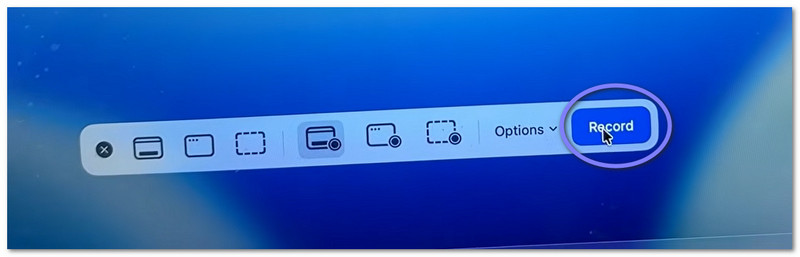
第 5 步最后,点击 记录 button to begin. After a short delay, your recording will start. While recording, do your task as needed.

Start and Control the Recording

Part 3. How to Stop and Save a QuickTime Recording

Below, we will teach you how to stop recording the screen with QuickTime, as well as save your file properly:

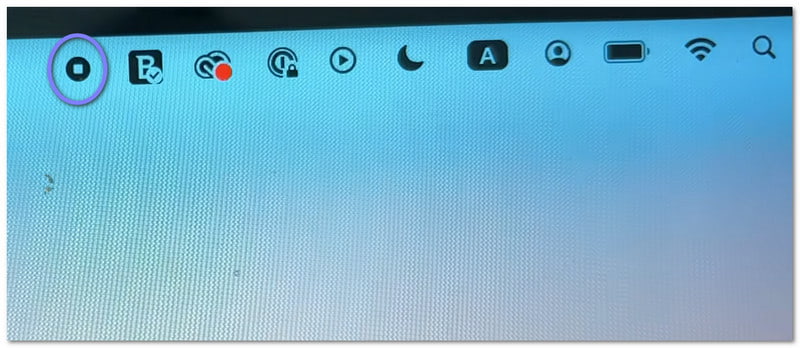
第1步First, move your cursor to the top right of your screen. Look for the 停止 button. It looks like a circle with a small square inside. Click it to end the recording. As another option, you can press 命令 + 控制 + 退出 在你的键盘上。

停止录制

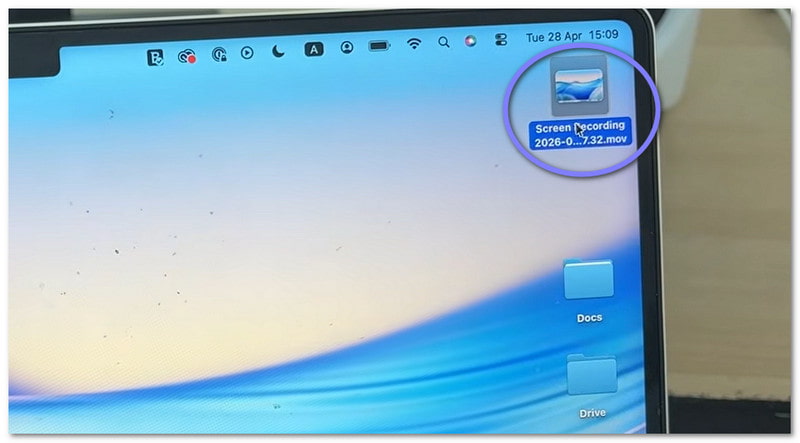
第2步After you stop, a small preview may appear at the corner of your screen. It is your recording. You can click it right away if you want to open and review the video. If you ignore it, the file will still be saved automatically.

Check the Preview Thumbnail

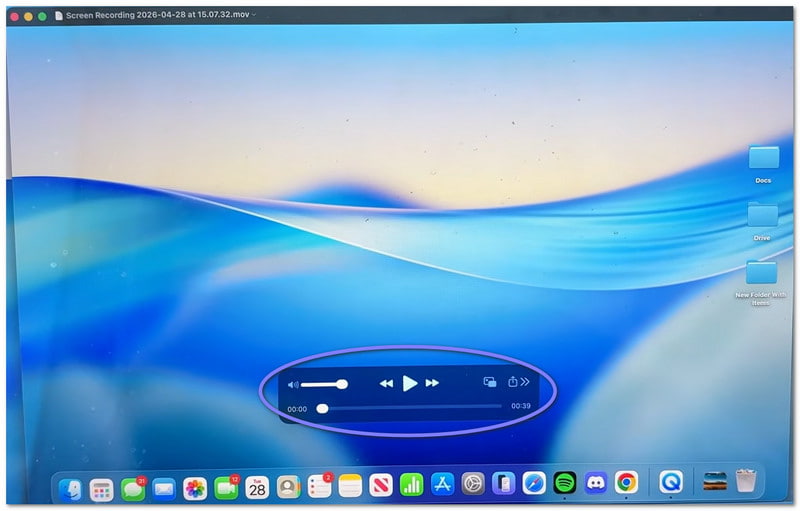
第 3 步By default, the video saves to your Desktop or your chosen location. If you want to save it yourself, open the video first. Then, head to the menu bar and click 文件, 然后 保存. After that, type a name for your file. Choose where you want to keep it, then click 保存.

保存录音

第四步Once the video opens, you can do simple edits. For example, you can trim the start or end. You can also rotate the video if needed. In addition, you can share it directly from the application.

Part 4. Troubleshooting

Sometimes, screen recording does not go as planned. Small issues can happen. The good part is that most of them are easy to fix in QuickTime Player.

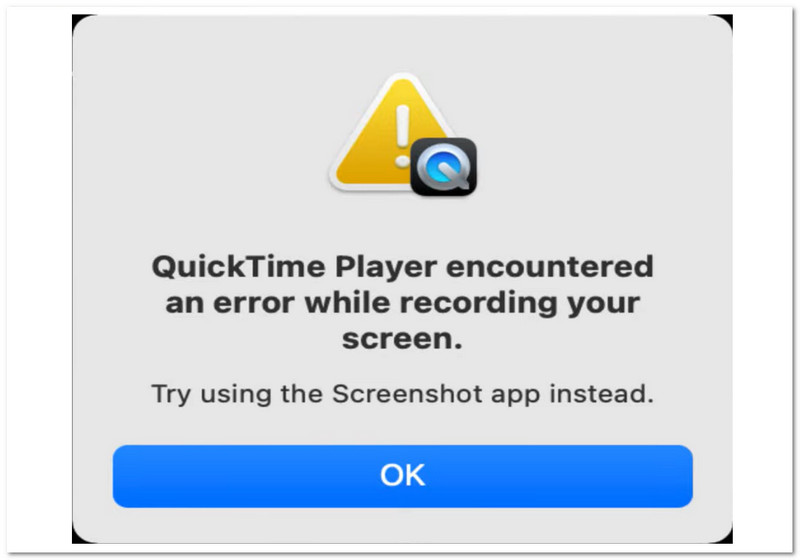
1. "QuickTime Player encountered an error while recording your screen."

QuickTime Player Encountered an Error While Recording Your Screen

There are a few basic reasons why this "QuickTime Player encountered an error while recording your screen" error can appear.

First, check your save location. If you are saving to an external drive, try switching to your Desktop. It often fixes the problem. Next, check your storage. If your disk is full, recording may fail.

Also, make sure permissions are on. Go to 系统设置 > Privacy & Security > 屏幕录制. Then, check if QuickTime Player is allowed.

2. My QuickTime Recording Has No Sound!

My QuickTime Recording Has No Sound!

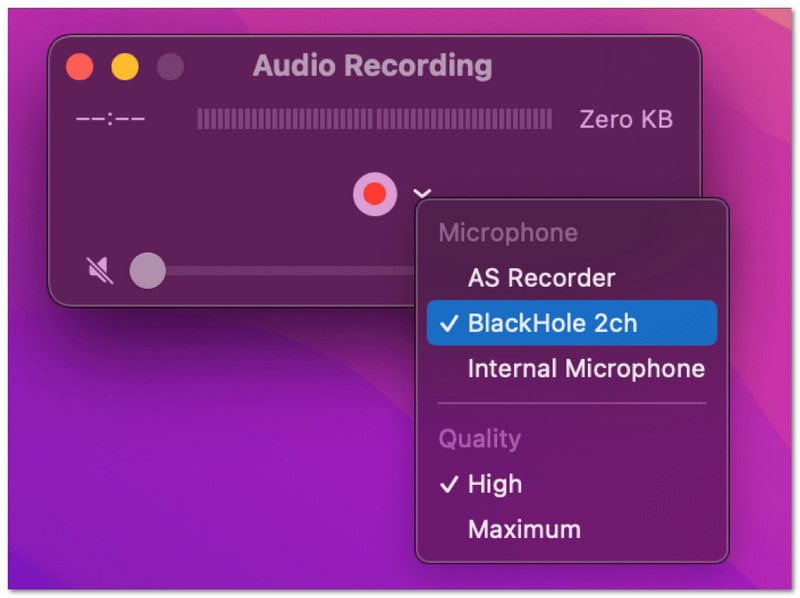
If your video has no sound, check the settings before recording. Open the 选项 menu. Then, choose a microphone, like "Built-in Microphone." If no mic is selected, no sound will be recorded. Also, test your mic first to make sure it works.

3. QuickTime Won't Record System Audio

QuickTime Won't Record System Audio

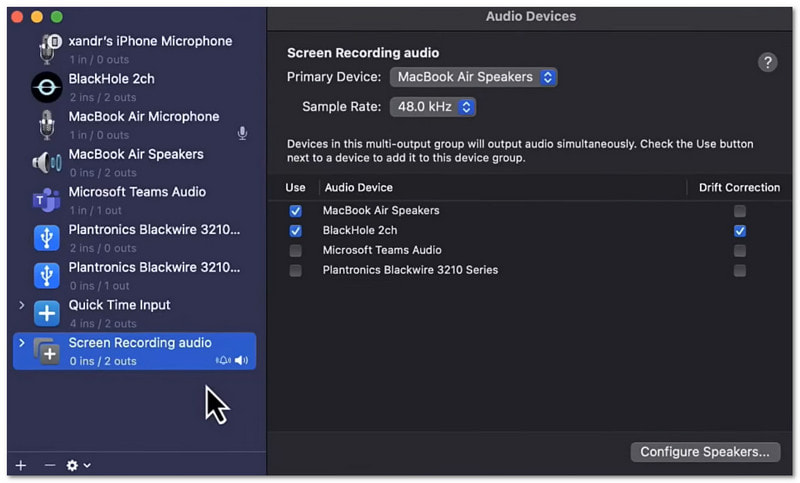
It is normal. QuickTime Player cannot record system sound by default. It is due to the Mac operating system rules. To record system audio, you need extra tools. For example, you can use Background Music or Loopback.

Part 5. Is There a QuickTime Alternative for Windows

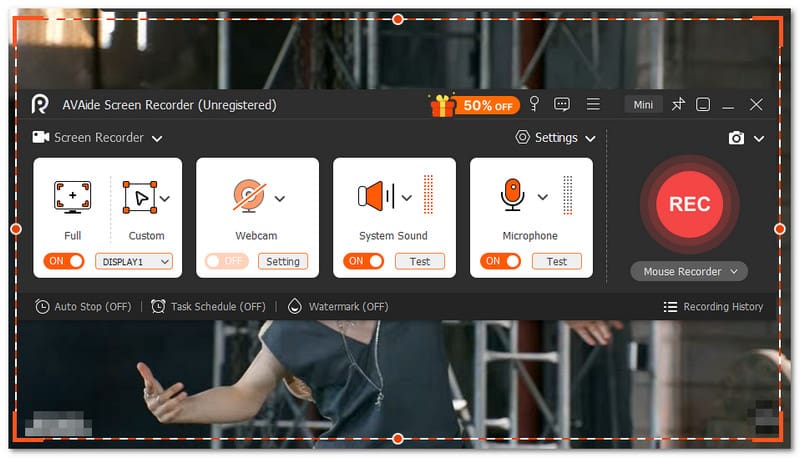
Avaide Screen Recorder QuickTime Alternative for Windows

Yes, there is a QuickTime to record screen alternative for Windows. And that is none other than AVAide 屏幕录像.

With this tool, you can easily choose full-screen or custom screen recording. You can also turn on the webcam, system sound, and microphone. You do not need a complex setup. You just enable what you need with one click. Even better, it lets you record screen video in high quality with no lag. It supports up to 4K resolution. So, everything looks clear and smooth.

So whatever you record, like tutorials, gameplay, meetings, or online videos, it can capture them with good clarity and steady performance.

主要特点:

  • You can set a time for the tool to start and stop recording automatically.
  • You can record for long hours smoothly without lag or performance issues.
  • You can watch your recording right after and re-record if you are not satisfied.
  • You can add text, images, whiteboard, and focus marks while recording to highlight key points.
  • You can trim, cut, compress, merge, convert videos, and adjust or boost audio after recording.
结论

How was learning how to use QuickTime Player to record the screen? It is just easy, right? You can start fast and finish with no trouble.
The only issue is that it has limited features. It does not have the power of a full recorder like AVAide 屏幕录像.
So, if you are a Windows user or even a Mac user, you can also rely on AVAide Screen Recorder. So, download it now and enjoy its features and smooth recording experience!

经过 艾莎·约翰逊 on 5 月 12, 2026

关于作者

艾莎·约翰逊
艾莎·约翰逊

艾莎·约翰逊是一位多媒体制作技术员,专长于屏幕录制和音频采集工作流程。她曾帮助教育工作者、培训师和播客团队搭建稳定的录制环境,并解决常见的硬件和配置问题。她的实践经验能够帮助创作者提升录制清晰度,制作出更可靠的内容。

相关文章