Minecraft is one of the most well-known games today, with over 151 million daily active users. With it being available on different platforms like PlayStation, PC, Xbox, and phones, you could think that it is special because of the things you can do in the game world. While here, you can farm, play with other friends, hunt for the best treasures, and even create your own world, and you would want to capture these important highlights. Depending on the platform you use, taking Minecraft screenshots is as easy as this article gathered methods you could use. So, hop in and let's get started.

Part 1. How to Take a Screenshot in Minecraft

Minecraft has two PC versions that have different ways to capture in-game photos. Check Java and Bedrock editions and learn how to screenshot in Minecraft on PC.

1. Java Edition - The Classic F2 Method

This edition of Minecraft is the original computer-based version of the game, and it has a built-in screenshot feature you can use. Here's how to screenshot Minecraft Java:

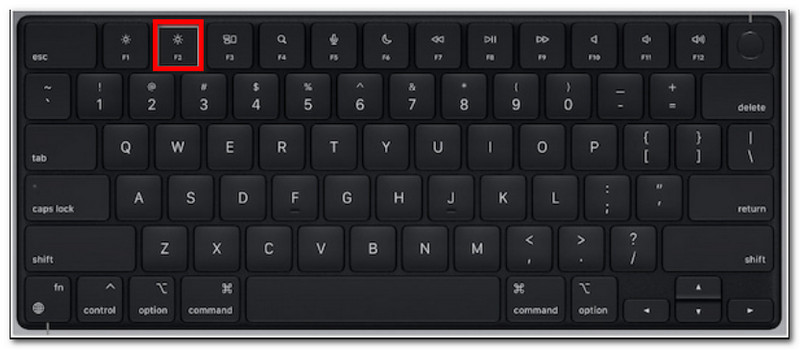
第1步Prepare the part of the game you want to capture, then press F2 在你的键盘上。

Java Edition F2

第2步When a message with a file name appears, click on it to preview the screenshot.

2. Bedrock Edition - Two Different Methods

The Bedrock edition highlights cross-device play on various platforms. This means even if you are using a PC, you can play with friends who use different devices. With that said, there are two popular screenshot methods in this edition.

Method A (Xbox Game Bar)

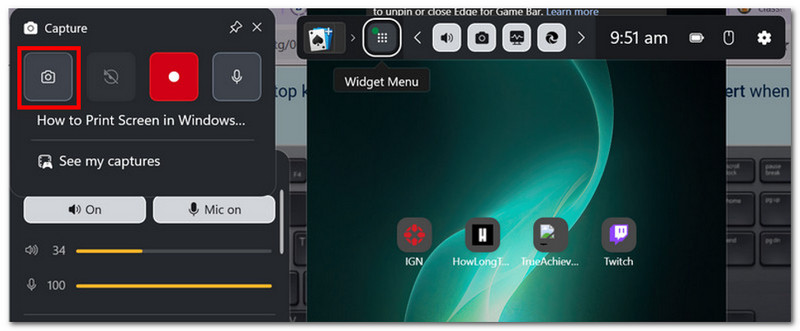
第1步Windows + G simultaneously on your keyboard. Your screen will dim, then click the 相机 icon to take a screenshot.

Xbox 游戏栏

第2步You can access the Minecraft screenshot folder from 视频 > 捕获, where photos taken by Game Bar are located.

Method B (In-Game Camera)

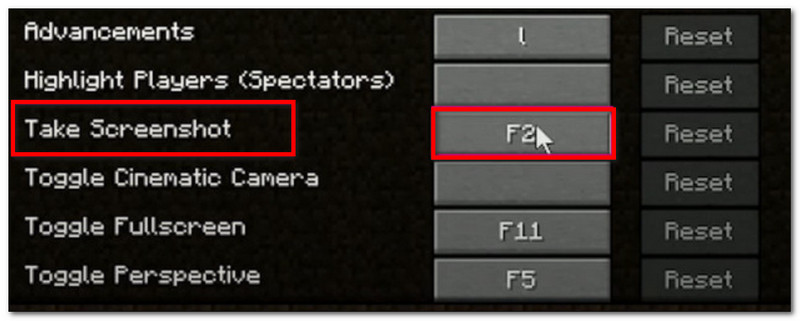
第1步Open Minecraft and enter a world. Click the Minecraft screenshot button or F2 on the screen to capture.

In Game Camera

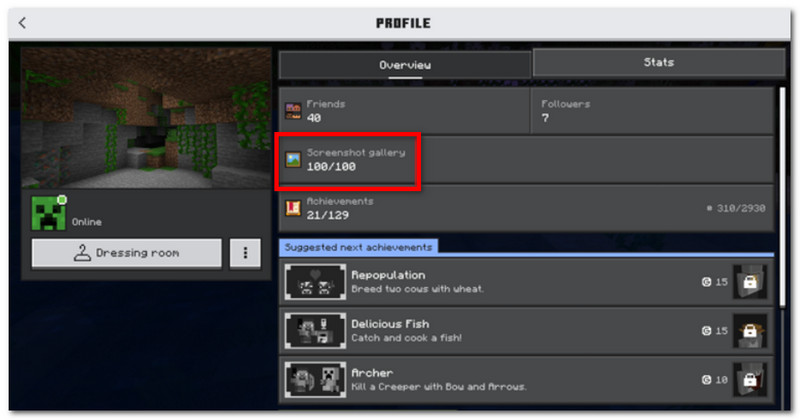
第2步To find the Minecraft screenshot location, simply go to 轮廓 并打开 Screenshot Gallery.

3. AVAide Screen Recorder

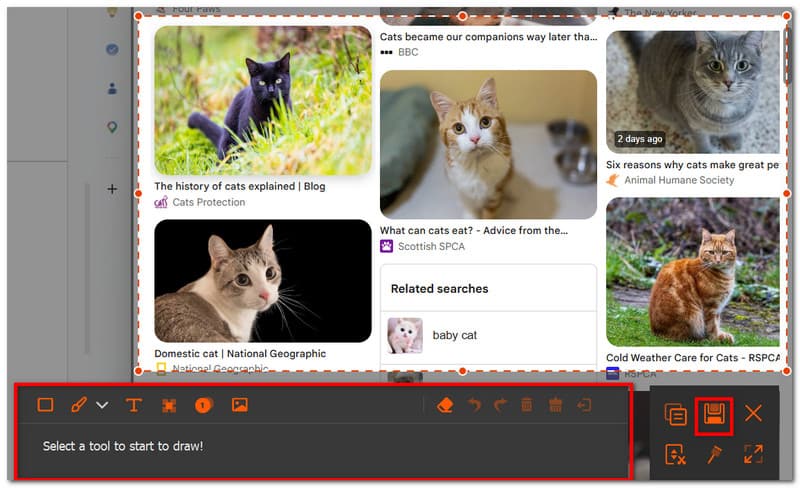
AVAide 屏幕录像 is an alternative tool to use for Minecraft Java and Bedrock editions. It is an all-in-one solution, where you can take screenshots and do video and audio recordings. Its Screen Capture is an intuitive feature to take screenshots in different modes: Fullscreen, Active Window, and Freeform using customizable shortcuts. On the other hand, it allows you to export screenshots in popular image formats, including JPEG, PNG, and GIF. What makes AVAide the best alternative is the built-in editing option to edit screenshots with tools like drawing, annotation, and other elements. Not to mention, the software offers high-quality screen recording that is perfect for capturing your gameplay on devices like PC and mobile phones.

第1步Download and install the screen recorder. Open it and choose the 屏幕截图 from the top left menu. Make sure that Minecraft is prepared on your computer.

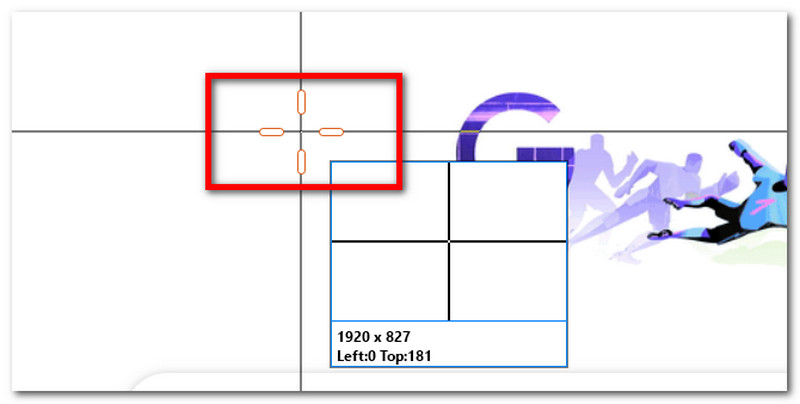
第2步When your mouse cursor turns into a crosshair, select the area you want to capture. Press 退出 if you want to exit the Screen Capture.

Avaide Crosshair Capture

第 3 步Use the editing options to edit the picture. Then, click 保存 to save the screenshot on your device. The Minecraft screenshot directory would be AVAide Studio > AVAide Screen Recorder.

Avaide Edit Export

Part 2. Where to Find Screenshots

Since Minecraft is available on almost any platform, you would wonder, 'Where are Minecraft screenshots saved?' This part will show the exact location of the folder of the screenshots once taken on the specific OS.

Windows 10/11 (Java Edition)

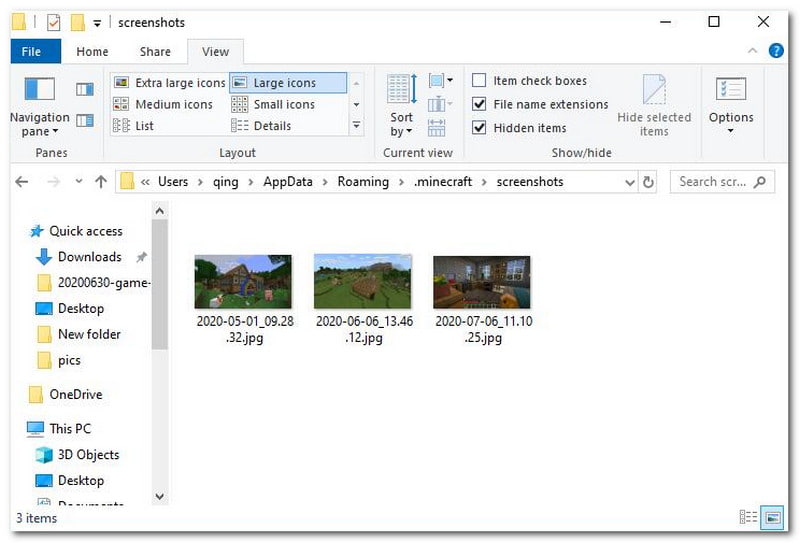
After taking the screenshot, you can access it from the chat. But if you missed it, go to the Search bar and type %appdata%,然后转到 .minecraft folder > screenshots.

Windows 10/11 (Bedrock Edition)

The Minecraft screenshot gallery for Bedrock Edition on Windows can be found within the game, located on 轮廓 > Screenshot Gallery.

Profile Screenshot Gallery

苹果电脑

If you play Minecraft and learn 如何在Mac上截屏, it can be found in ~/Library/ApplicationSupport/minecraft/screenshots.
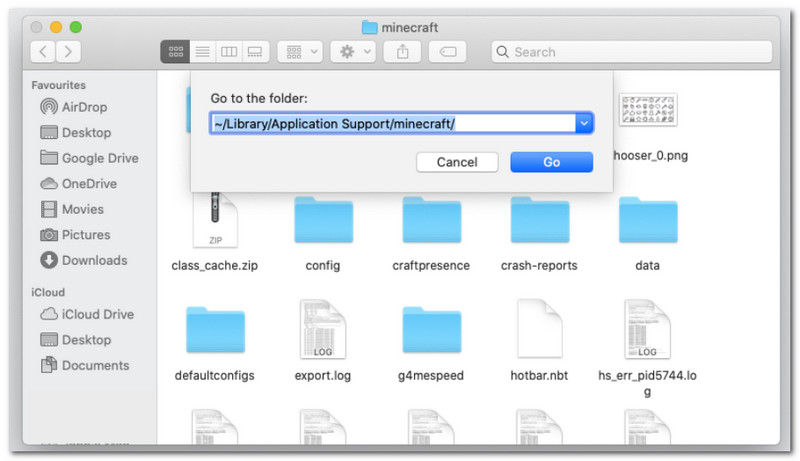
Mac Minecraft Screenshot Folder

Linux

You can access the screenshots of the game from Minecraft's home directory ~/.minecraft/screenshots.

Chromebook

The Minecraft screenshot folder on Chromebook is the same as that from other OS when using the F2 method for taking screenshots. You can find the photos from the Screenshot Gallery in the game.

Part 3. Console & Mobile Screenshots

After learning how to find Minecraft screenshots on Windows 11 and other OS, you can also take screenshots on smaller devices and consoles. Follow the steps for the platform on which you play the game.

Nintendo Switch

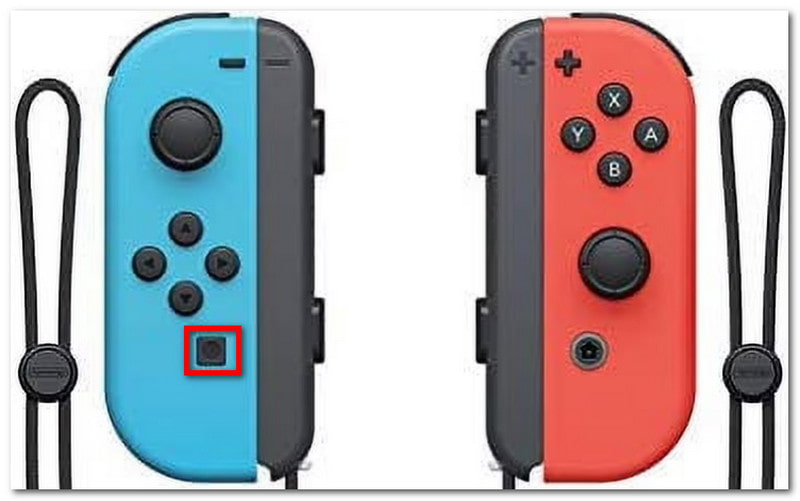
第1步Use the left Joy-Con and press the 相机 button to take a screenshot of the game.

Nintendo Switch Camera

第2步To view the screenshot, exit the game and go to the 专辑 where Minecraft screenshots are saved.

PlayStation

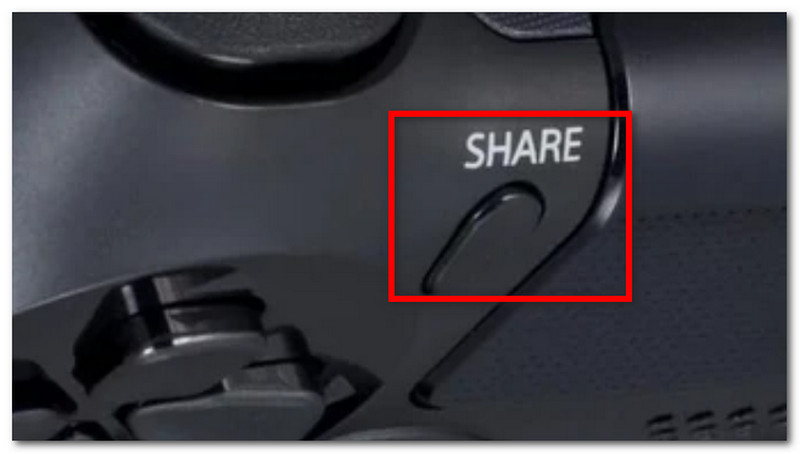
第1步How to take a Minecraft screenshot using PS4 DualShock 4? Press and hold the 分享 button for about one second. If you have a PS5 DualSend, press the 创建 按钮。

Playstation Share Button

第2步You can view the screenshot by navigating to the 拍摄图库 app or using the PlayStation app to view on your phone.

的Xbox

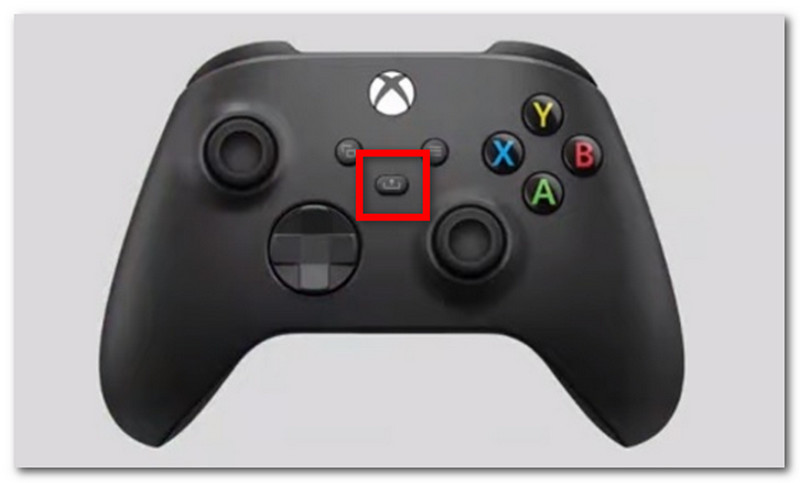
第1步For a standard Xbox controller, simply double-tap the 的Xbox button in the middle part and press to capture. For the Xbox Series, press the 分享 button once to take a screenshot.

Xbox Controller Share

第2步If you're unfamiliar with how to access Minecraft screenshots, just press the 的Xbox 按钮并转到 Capture & share 标签。

iOS

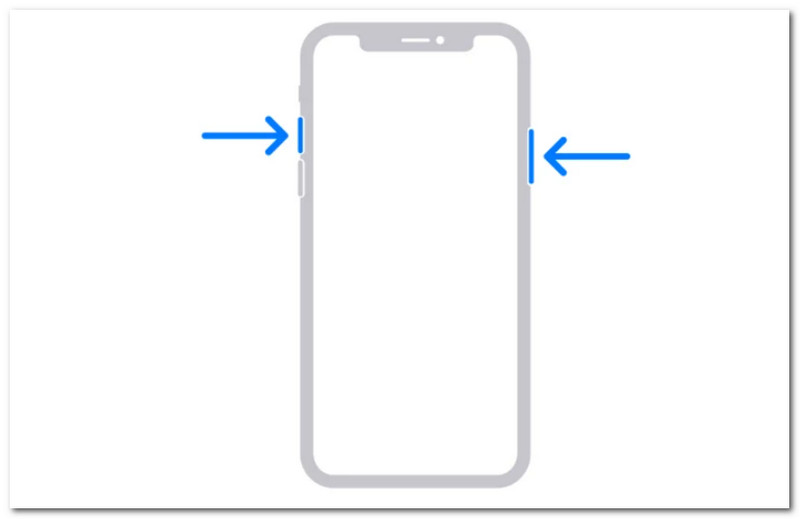
第1步力量 音量调高 buttons on your iPhone to take a screenshot.

Ios Power Volume Up

第2步How to find Minecraft screenshots on iPhone? You can locate the screenshots from the Photos app.

安卓

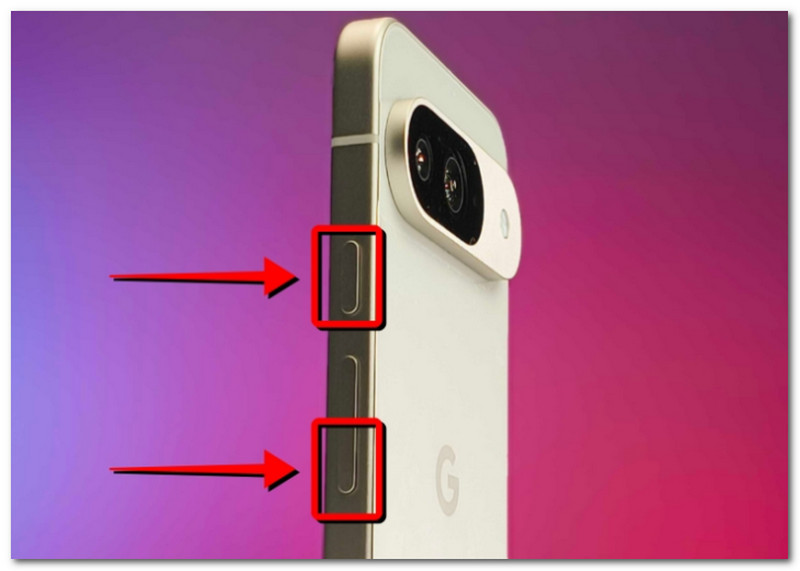
第1步Prepare the game and the area you want to capture. Press and hold the 力量 音量调低 buttons on your phone.

Android Power Volume Up

第2步When the screen flashes, the screenshot is ready, and you can locate it in the Gallery app.

Part 4. Managing Your Screenshot Collection

Other than sharing screenshots with your friends, you can also take this as an opportunity to track your world progression in Minecraft. But taking screenshots randomly will only lead to cluttered and confusing saved screenshots. If you don't know where to start, you can follow these basic rules to manage your screenshot collection.

1. Understanding File Names

When using the F2 method on Minecraft, it is important to understand the name, as it can help you define the date you took the screenshot. The default file name will be YYYY-MM-DD_HH.MM.SS.png, which translates to the year, month, day, hour, minute, and second when the screenshot was taken.

Minecraft File Name

2. Create Subfolders

Don't leave your screenshots in one folder, as it will slow you down when finding specific screenshots. Make sure to create subfolders with categories like world-building, project, and function.

3. Rename Files

You can change the name of your Minecraft screenshots to identify them not only by the datestamp but through your actual progress in the game. Always pick a file name that highlights your development in Minecraft.

4. Backup Your Shots

To avoid losing the screenshots when your device crashes, make sure to back them up with a cloud service like OneDrive or an external hard drive.

5. Share Screenshots

After organizing, show off your Minecraft game progress on various platforms. Your viewers will appreciate the organized screenshots that track your game improvement.

结论

Minecraft is a beloved game that anyone can enjoy, and learning how to take screenshots would allow you to save the highlights of your gameplay. This article not only shows the various methods for capturing the beautiful in-game world, but also shows how to view Minecraft screenshots on different platforms. For an alternative, this article recommends using AVAide Screen Recorder as it is flexible for taking screenshots on a computer, phone, and gaming consoles. Get one of the 最好的游戏记录器 for free on Windows and Mac and begin the limitless game recording.

经过 艾莎·约翰逊 on 7 月 03, 2026

关于作者

艾莎·约翰逊
艾莎·约翰逊

艾莎·约翰逊是一位多媒体制作技术员,专长于屏幕录制和音频采集工作流程。她曾帮助教育工作者、培训师和播客团队搭建稳定的录制环境,并解决常见的硬件和配置问题。她的实践经验能够帮助创作者提升录制清晰度,制作出更可靠的内容。

相关文章