The built-in Android screen recorder may not have enough features. However, there are some practical tips you can learn to make easier and more versatile recordings on your phone screen. This post will show you comprehensive Android screen recording tutorial.

If you prefer advanced screen recording for gaming, tutorials, or professional demos, we can also help you bypass the clutter to bring you the best Android screen recording methods and apps available today, complete with step-by-step tutorials to help you achieve crisp, high-definition results.

Part 1: How to Use the Built-in Android Screen Recorder

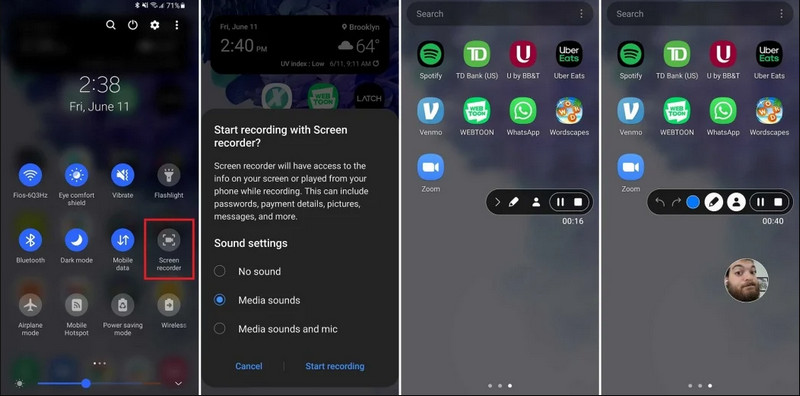
Most devices running Android 11 or higher come with a native screen recording app located in the Quick Settings panel. You can just use it to record your phone's screen.

Android 内置录音机

第1步Access Quick Settings

Swipe down twice from the top of your screen to expand the full Quick Settings menu.

第2步Select Screen Recorder

寻找 屏幕录制. If you don't see it, tap the 编辑 button (with a Pencil icon) and drag the Screen Record tile into your active grid.

第 3 步配置录制设置

When you find the Android 屏幕录像 tool, you have multiple recording options. Choosing a proper one can make your Android screen recording effective.

  • No sound: Record only the phone screen without system audio or external sound.
  • Media sounds: Record the screen with all system sounds, including sound from all apps within your phone.
  • Media sounds and mic: Record both system sounds and external sounds (phone's built-in mic or the mic from your earphones).

第四步Start and Stop Screen Recording

Make your choice and tap the Start Recoding button. A countdown will appear in the status bar. To stop Android screen recording, tap the 停止 button (if there's a recording status bar) or swipe down the notification shade and tap the red 停止 按钮。

Part 2: Some Brand-Specific Android Recorder Tools

Many Android phone manufacturers provide proprietary screen recorders with advanced features like Selfie Camera overlays. Check some popular Android brands' special recording features:

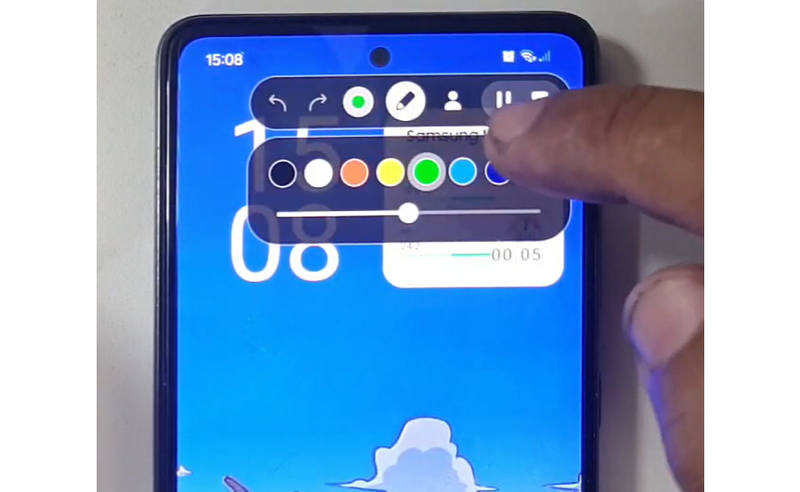
Samsung (One UI): Includes a Screen Recorder with a toolbar that allows you to draw on the screen in real-time.

Draw While Recording

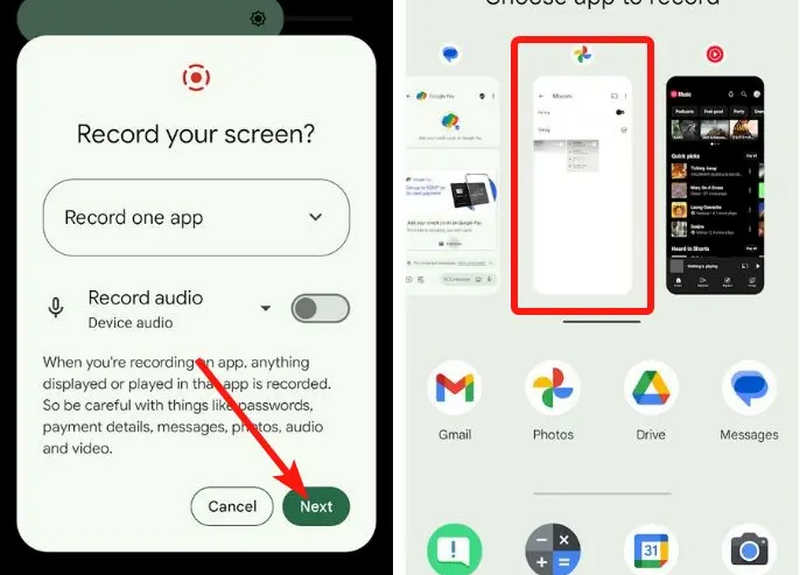
Google Pixel: You can select a specific app (e.g., a Banking app or WhatsApp) to record. If you exit the app or pull down your notification shade during the session, those actions will not appear in the final video.

Record Specific App

Xiaomi (MIUI/HyperOS): Features a dedicated "Screen Recorder" app with deep customization for frame rates (FPS) and bitrates.

Huawei & Honor (HarmonyOS / MagicOS): A unique hardware-software integration where you can start or stop a recording simply by double-knocking the screen with two knuckles.

OPPO, vivo, & realme (ColorOS / OriginOS): When a game is launched, the screen recorder automatically optimizes CPU/GPU resources to ensure that recording a 4K/60FPS clip doesn't cause in-game lag or frame drops.

Part 3: 4 More Versatile Ways to Screen Record on Android

If your Android phone doesn't have satisfied screen recording features, you can check the four Android screen recorder apps. They can provide some convenient and practical features.

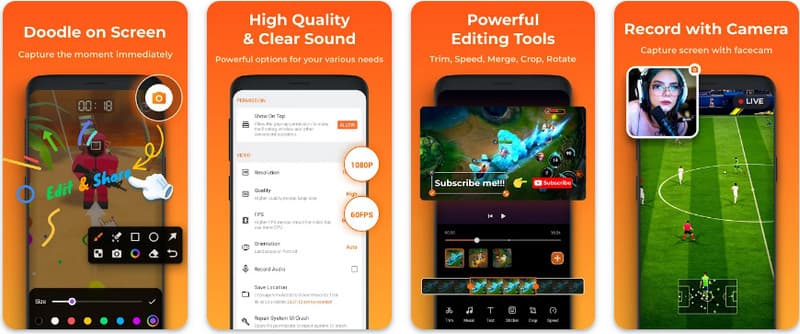
1. AZ 屏幕录像机

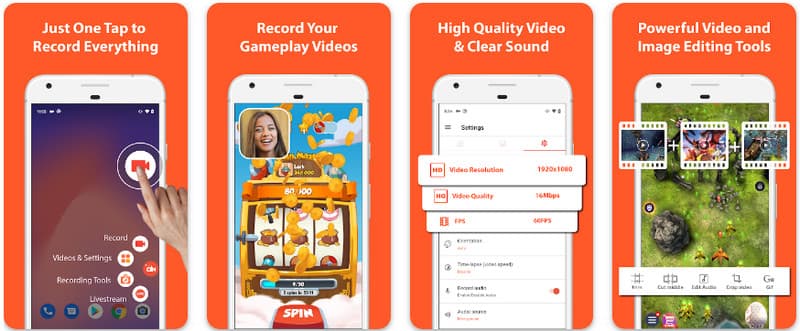
AZ 屏幕录像机 is a very popular Android screen recorder app in the Play Store. It can record high-res video on your Android phone screen. The application also allows you to adjust the resolution, frame rate, and bit rate depending on different recording purposes.

AZ 屏幕录像机

此外,AZ Screen Recorder 还允许用户使用麦克风录制设备上播放的声音。这使得录制最复杂和高标准的录音成为可能。其简单的按钮排列和一致的性能使该应用成为许多人的最爱。使用以下教程了解如何使用此应用录制 Android 屏幕。

第1步在 Android 上下载应用程序后,启动它。然后点击 相机 按钮来访问其屏幕录制功能。

第2步轻敲 现在开始 to begin the screen recording on your Android, and a countdown will appear on your screen.

第 3 步To stop the screen recording on your Android phone, tap the 记录 button again. With this app, you can also 使用声音在 iPhone 上录制屏幕 活性。

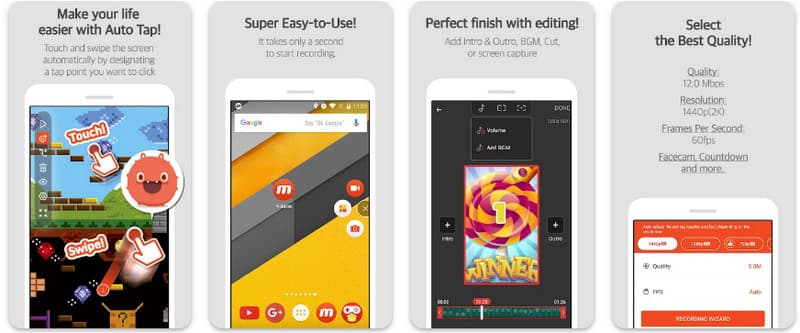
2. Mobizen 屏幕录像机

Mobizen 屏幕录像机 is another app to screen record on Android that is freely available on the Play Store and promises easy and high-quality recording. It provides options for high-definition recording with adjustable parameters and clean recording to remove watermarks. Further, Mobizen also has internal sound recording, which can be used for the recording, as well as face cam and GIF, which can add more to the recording. It also makes use of straightforward arising of the different features and controls that help the user to start Android screen recording or edit the content without much fumbling about the app. Find out how to screen record with Android using this app.

Mobizen 屏幕录像机

第1步立即在您的 Android 上下载并打开该应用程序。

第2步Do the setup that it requires you to do before you can use the screen recorder. A floating recorder bar will appear on your screen. Tap the 相机 按钮,然后 现在开始 to initiate the screen recording.

第 3 步完成后,点击 停止 button to stop the screen recording on your Android phone.

3. 屏幕录像机 - Inshot 的 XRecorder

Screen Recorder - XRecorder is a powerful, all-in-one Android utility that simplifies screen capturing by offering high-definition recording, up to 1080p at 60FPS, without requiring root access or imposing watermarks. As a premier method for screen recording on Android 17/16, it provides a seamless user experience through a floating control window that allows you to start, pause, and draw on your screen in real-time using a built-in brush tool. Beyond simple video capture, it supports internal audio recording, facecam overlays for streamers, and integrated video editing, making it an ideal choice for anyone needing to create professional tutorials, gameplay clips, or clear demonstrations directly from their mobile device.

录音机

第1步下载 XRecorder 完成后,打开它并点击 启用浮动图标.

第2步之后,点击 记录 按钮开始录制, 现在开始 确认。

第 3 步如您所见,录音长度显示为浮动图标;点击 停止 按钮保存录音。

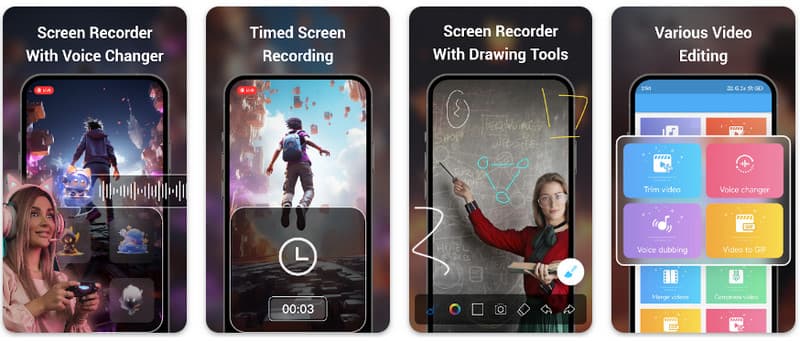
4. 超级屏幕录像机

超级屏幕录像机 is a top-tier solution for anyone looking for a professional way to screen record on Android with maximum flexibility. This powerful app delivers high-definition capture and stands out by offering a watermark-free experience even in its free version, ensuring your content remains clean and professional. It features an integrated facecam for capturing real-time reactions and a versatile brush tool that allows you to draw on the screen during recording, an essential function for creating engaging tutorials or walkthroughs. Whether you are a beginner or an advanced user, Super Screen Recorder provides the robust customization needed to master Android screen recording with ease.

超级屏幕录像机

第1步在 Android 上打开超级屏幕录像机,然后启用应用程序的浮动功能即可使用它。

第2步在屏幕上,点击 相机 按钮,确认设置,然后点击 现在开始。然后,在录制开始前会出现三秒的倒计时。

第 3 步点击 正方形 按钮结束录音并将其保存在您的 Android 设备上。

Bonus: Record Screen on Desktop and Mobile Phone with the Best Quality

Do you believe that you can record your Android phone's screen on a computer? AVAide 屏幕录像 is primarily designed for screen recording on Windows and Mac. But it can also record your Android phone's full screen. This is especially helpful when you need to create a tutorial of certain operations on Android and then directly edit the video on your Mac or Windows.

For screen recording on Windows and Mac, AVAide Screen Recorder supports AV1 and HEVC codecs, which can highly compress the recording result while keeping the best video quality. The full hardware acceleration can let you record long videos with very low CPU usage. Even more interesting is that it has an improved microphone that enhances clarity by canceling background and echo sounds. The software makes excellent recordings With simple navigation and editing features, like trimming and annotations. While it is costly software, it is highly recommended because it can be used for personal and business purposes.

AVAide 屏幕录像
  • Record your Android or iOS device with the best video quality.
  • Easily make tutorial recordings with drawing and annotation features.
  • Support AV1 and HEVC output codecs to highly compress the output video.
  • Offer easy-to-use video editing features to edit your recordings on Android.

第1步您现在可以通过勾选此处的下载按钮在电脑上下载屏幕录像机。然后,按照屏幕上的提示安装应用程序并启动它以继续下一步。

第2步现在它已经在您的系统中运行,请将录制框放在您想要开始录制的区域。在这里,您可以通过选择全屏选项而不是区域选项来录制整个屏幕。

调整录制区域

第 3 步接下来,可以根据需要设置系统和麦克风录制。如果您想将自己的脸部添加到录制中,请在此处激活网络摄像头选项。然后,单击 录音 开始倒计时并开始录制。

开始屏幕录制

第四步录制完成后,点击 停止 按钮,即红色方块。在出现的下一个窗口中,您可以使用此处提供的选项编辑之前录制的录音,然后将光标放在录音上并点击 下载 按钮保存。这款应用证明了它的价值,因为它 最好的开源录音机 可用的。

检查录制的视频

Part 4: FAQs of How to Screen Record on Android

Where can I find the screen record on my settings?

To access the built-in feature to Android 上的屏幕录制 without third-party apps, swipe down twice from the top of your screen to open the 快速设置 面板并寻找 屏幕录制 (or "Screen Recording") icon. If it isn't visible, tap the 编辑 (pencil) button to drag the screen record toggle into your active tiles. Once added, you can simply tap the icon, choose your audio preferences, such as recording internal system sounds or your microphone, and hit start to begin capturing your screen directly from your system settings.

Why can't I find screen recording on my Android?

The absence of a native option to screen record on Android is usually due to your device running an older operating system, as the built-in feature was only standardized with Android 11. If your software is up to date, the toggle might simply be hidden from your 快速设置 menu; you can typically reveal it by tapping the 编辑 button in the notification shade and dragging the "Screen Record" tile into your active view. Additionally, some entry-level "Go Edition" devices or specific manufacturer skins may disable this feature to save system resources, in which case using a third-party app like XRecorder or Super Screen Recorder is the most effective workaround.

Why did the screen record button disappear?

The screen record button usually disappears because it was accidentally moved out of the Quick Settings active area; you can often restore it by tapping the Edit (pencil icon) in your notification shade and dragging the tile back. It may also be hidden due to Power Saving Mode, restricted by a Work Profile, or simply requires a system restart to refresh the UI after a software update.

结论

使用此处列出的教程,您已经学到 如何在 Android 三星上录制屏幕。本教程将极大地帮助您完成屏幕录制任务,尤其是如果您是 Android 用户。与您的 Android 用户朋友分享此信息,让他们了解如何操作。

经过 艾莎·约翰逊 on 5 月 15, 2026

关于作者

艾莎·约翰逊
艾莎·约翰逊

艾莎·约翰逊是一位多媒体制作技术员,专长于屏幕录制和音频采集工作流程。她曾帮助教育工作者、培训师和播客团队搭建稳定的录制环境,并解决常见的硬件和配置问题。她的实践经验能够帮助创作者提升录制清晰度,制作出更可靠的内容。

相关文章