Minecraft là một trong những trò chơi nổi tiếng nhất hiện nay, với hơn 151 triệu người dùng hoạt động hàng ngày. Với việc có mặt trên nhiều nền tảng khác nhau như PlayStation, PC, Xbox và điện thoại, bạn có thể nghĩ rằng nó đặc biệt bởi những điều bạn có thể làm trong thế giới game. Tại đây, bạn có thể trồng trọt, chơi với bạn bè, săn tìm kho báu và thậm chí tạo ra thế giới của riêng mình, và bạn sẽ muốn ghi lại những khoảnh khắc quan trọng này. Tùy thuộc vào nền tảng bạn sử dụng, việc chụp ảnh sẽ khác nhau. Ảnh chụp màn hình Minecraft Việc này dễ như bài viết này đã tổng hợp các phương pháp bạn có thể sử dụng. Vậy thì, hãy cùng bắt đầu nào.
Phần 1. Cách chụp ảnh màn hình trong Minecraft
Minecraft có hai phiên bản dành cho PC với cách chụp ảnh trong game khác nhau. Hãy xem phiên bản Java và Bedrock để tìm hiểu cách chụp ảnh màn hình trong Minecraft trên PC.
1. Phiên bản Java - Phương pháp F2 cổ điển
Phiên bản Minecraft này là phiên bản gốc dành cho máy tính, và nó có tính năng chụp ảnh màn hình tích hợp mà bạn có thể sử dụng. Sau đây là cách chụp ảnh màn hình Minecraft Java:
Bước 1Chuẩn bị phần trò chơi bạn muốn ghi lại, sau đó nhấn F2 trên bàn phím của bạn.
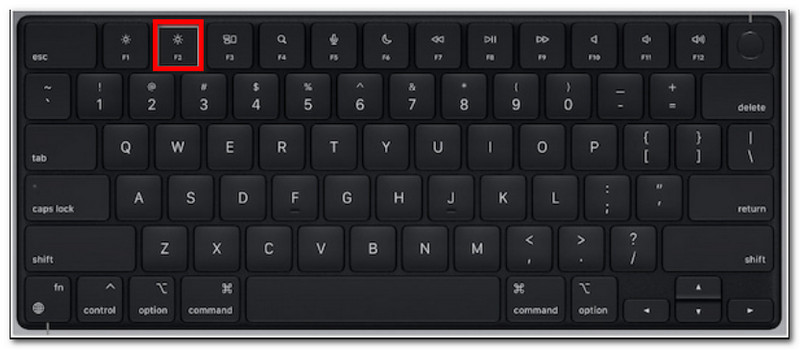
Bước 2Khi một thông báo có tên tệp xuất hiện, hãy nhấp vào đó để xem trước ảnh chụp màn hình.
2. Phiên bản Bedrock - Hai phương pháp khác nhau
Phiên bản Bedrock nhấn mạnh khả năng chơi đa thiết bị trên nhiều nền tảng khác nhau. Điều này có nghĩa là ngay cả khi bạn đang sử dụng PC, bạn vẫn có thể chơi với bạn bè sử dụng các thiết bị khác nhau. Bên cạnh đó, phiên bản này có hai phương pháp chụp ảnh màn hình phổ biến.
Phương pháp A (Xbox Game Bar)
Bước 1Nhấn Windows + G Nhấn đồng thời các phím trên bàn phím. Màn hình sẽ mờ đi, sau đó nhấp vào Máy ảnh biểu tượng để chụp ảnh màn hình.
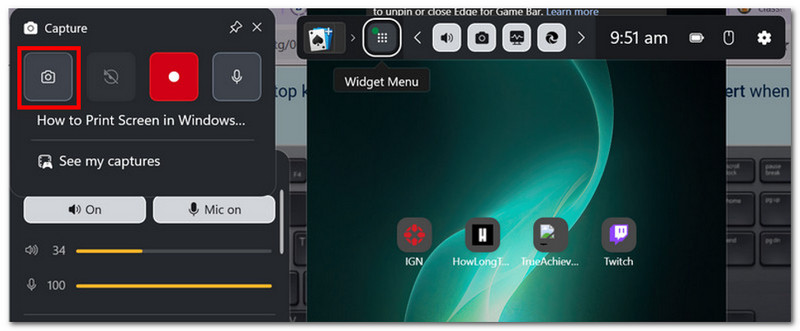
Bước 2Bạn có thể truy cập thư mục ảnh chụp màn hình Minecraft từ đó. Video > Chụp, nơi đặt những bức ảnh do Game Bar chụp.
Phương pháp B (Camera trong game)
Bước 1Mở Minecraft và vào một thế giới. Nhấp vào Ảnh chụp màn hình Minecraft Nhấn nút hoặc phím F2 trên màn hình để chụp ảnh.
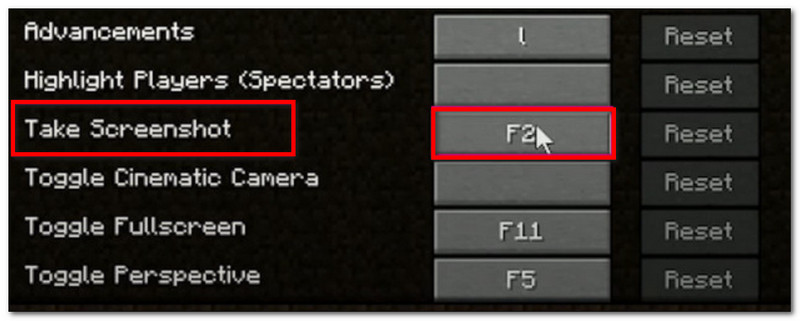
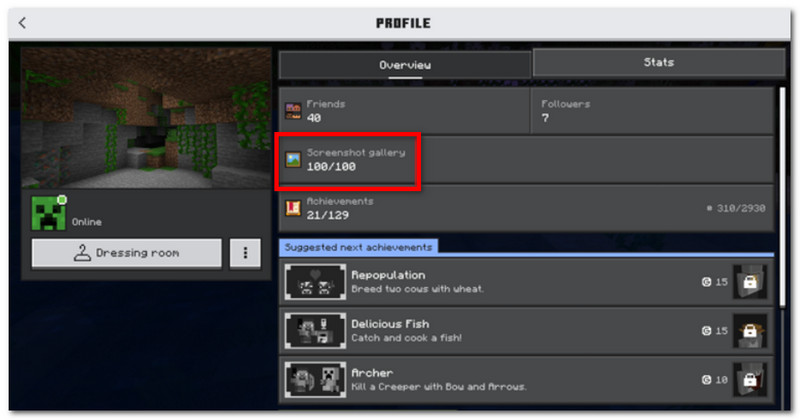
Bước 2Để tìm vị trí ảnh chụp màn hình Minecraft, chỉ cần truy cập vào... Hồ sơ và mở Bộ sưu tập ảnh chụp màn hình.
3. Phần mềm ghi màn hình AVAide
AVAide Screen Recorder AVAide là một công cụ thay thế hữu ích cho Minecraft Java và Bedrock. Đây là giải pháp đa năng, cho phép bạn chụp ảnh màn hình, quay video và ghi âm. Tính năng Chụp màn hình của nó rất trực quan, cho phép chụp ảnh màn hình ở nhiều chế độ khác nhau: Toàn màn hình, Cửa sổ hoạt động và Chế độ tự do bằng các phím tắt có thể tùy chỉnh. Bên cạnh đó, nó cho phép bạn xuất ảnh chụp màn hình ở các định dạng phổ biến, bao gồm JPEG, PNG và GIF. Điều làm cho AVAide trở thành lựa chọn thay thế tốt nhất là tùy chọn chỉnh sửa tích hợp, cho phép chỉnh sửa ảnh chụp màn hình với các công cụ như vẽ, chú thích và các yếu tố khác. Chưa kể, phần mềm này cung cấp khả năng ghi màn hình chất lượng cao, hoàn hảo để ghi lại quá trình chơi game của bạn trên các thiết bị như PC và điện thoại di động.
Bước 1Tải xuống và cài đặt phần mềm ghi màn hình. Mở phần mềm và chọn... Chụp màn hình Từ menu phía trên bên trái. Hãy chắc chắn rằng Minecraft đã được cài đặt trên máy tính của bạn.

TẢI VỀ MIỄN PHÍ Đối với Windows 7 trở lên
 An toàn tải
TẢI VỀ MIỄN PHÍ Dành cho Mac OS X 10.13 trở lên
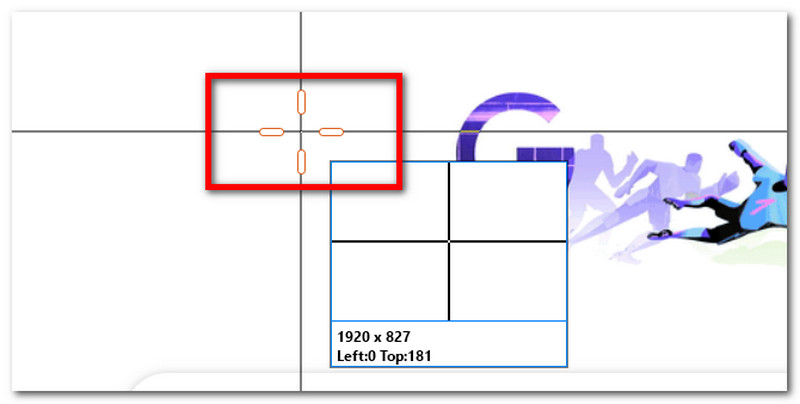
An toàn tảiBước 2Khi con trỏ chuột chuyển thành hình chữ thập, hãy chọn khu vực bạn muốn chụp. Nhấn Thoát ra Nếu bạn muốn thoát khỏi chế độ chụp màn hình.
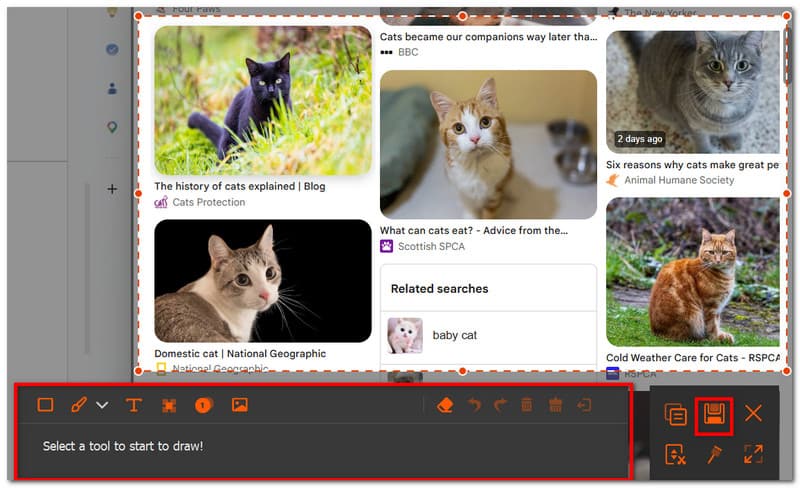
Bước 3Sử dụng các tùy chọn chỉnh sửa để chỉnh sửa ảnh. Sau đó, nhấp chuột. Cứu Để lưu ảnh chụp màn hình vào thiết bị của bạn. Thư mục ảnh chụp màn hình Minecraft sẽ là: Phòng thu AVAide > Ứng dụng ghi màn hình AVAide.
Phần 2. Nơi tìm ảnh chụp màn hình
Vì Minecraft có sẵn trên hầu hết mọi nền tảng, bạn có thể tự hỏi, 'Ảnh chụp màn hình Minecraft được lưu ở đâu?' Phần này sẽ chỉ cho bạn vị trí chính xác của thư mục chứa ảnh chụp màn hình sau khi đã chụp trên hệ điều hành cụ thể.
Windows 10/11 (Phiên bản Java)
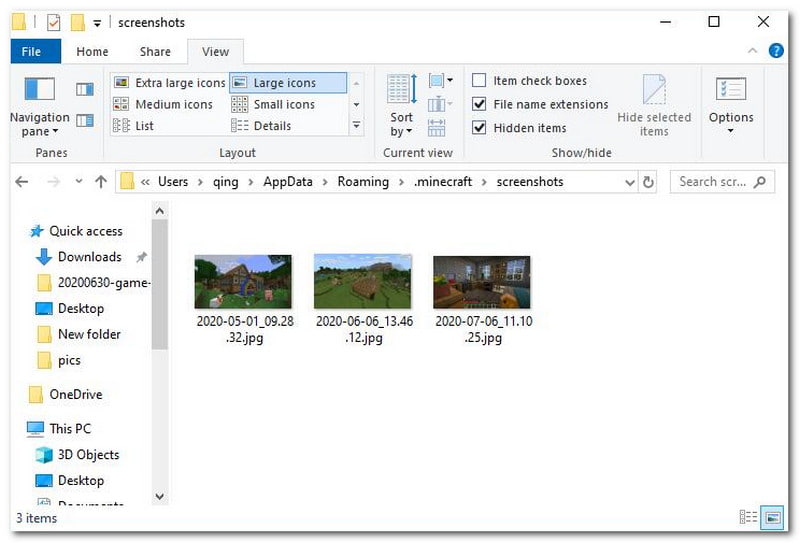
Sau khi chụp ảnh màn hình, bạn có thể truy cập nó từ khung chat. Nhưng nếu bạn bỏ lỡ, hãy vào thanh tìm kiếm và nhập %ứng dụngdữ liệu%, sau đó đi đến thư mục .minecraft > ảnh chụp màn hình.
Windows 10/11 (Phiên bản Bedrock)
Bạn có thể tìm thấy thư viện ảnh chụp màn hình Minecraft phiên bản Bedrock trên Windows ngay trong trò chơi, tại vị trí sau: Hồ sơ > Bộ sưu tập ảnh chụp màn hình.
Mac
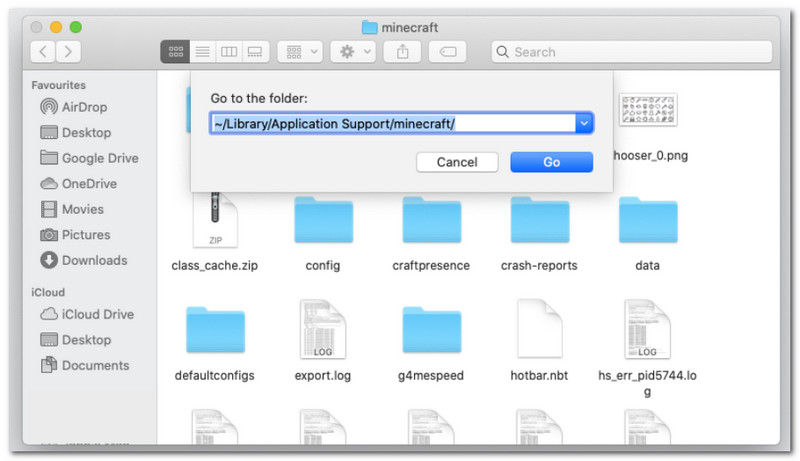
Nếu bạn chơi Minecraft và học hỏi Cách chụp ảnh màn hình trên máy MacNó có thể được tìm thấy ở ~/Library/ApplicationSupport/minecraft/screenshots.
Linux
Bạn có thể xem ảnh chụp màn hình của trò chơi từ thư mục chính của Minecraft. ~/.minecraft/screenshots.
Chromebook
Thư mục ảnh chụp màn hình Minecraft trên Chromebook giống với thư mục trên các hệ điều hành khác khi sử dụng phương pháp chụp ảnh màn hình bằng phím F2. Bạn có thể tìm thấy ảnh từ thư mục đó. Bộ sưu tập ảnh chụp màn hình trong trò chơi.
Phần 3. Ảnh chụp màn hình trên Console và thiết bị di động
Sau khi biết cách tìm ảnh chụp màn hình Minecraft trên Windows 11 và các hệ điều hành khác, bạn cũng có thể chụp ảnh màn hình trên các thiết bị nhỏ hơn và máy chơi game. Hãy làm theo các bước dành cho nền tảng mà bạn đang chơi game.
Nintendo Switch
Bước 1Sử dụng tay cầm Joy-Con bên trái và nhấn nút Máy ảnh nút để chụp ảnh màn hình trò chơi.
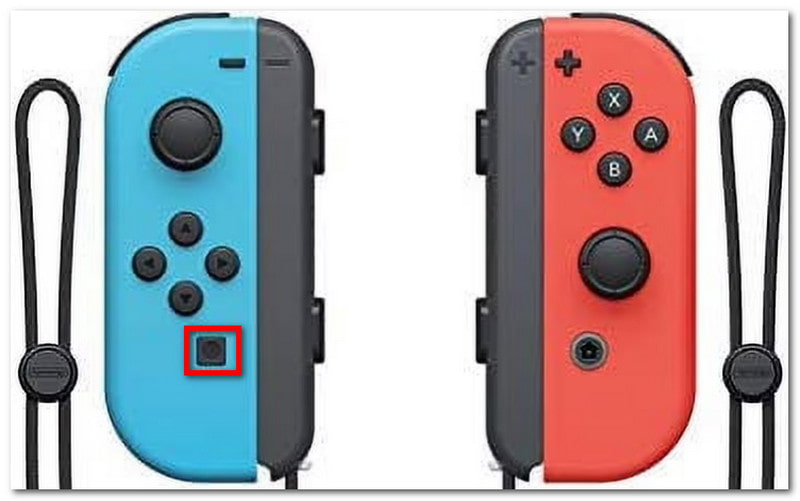
Bước 2Để xem ảnh chụp màn hình, hãy thoát khỏi trò chơi và vào... Album Nơi lưu ảnh chụp màn hình Minecraft.
PlayStation
Bước 1Cách chụp ảnh màn hình Minecraft bằng tay cầm PS4 DualShock 4? Nhấn và giữ nút... Chia sẻ Nhấn giữ nút khoảng một giây. Nếu bạn có tay cầm DualSend của PS5, hãy nhấn nút. Tạo ra cái nút.
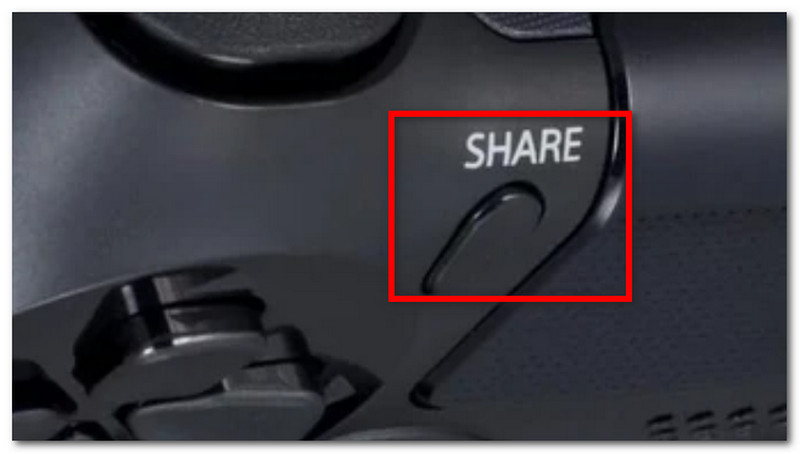
Bước 2Bạn có thể xem ảnh chụp màn hình bằng cách truy cập vào... Chụp thư viện ứng dụng hoặc sử dụng PlayStation Ứng dụng để xem trên điện thoại của bạn.
Xbox
Bước 1Đối với tay cầm Xbox tiêu chuẩn, chỉ cần nhấn đúp vào nút. Xbox nhấn nút ở phần giữa. Y để chụp. Đối với Xbox Series, hãy nhấn nút Chia sẻ Nhấn nút một lần để chụp ảnh màn hình.
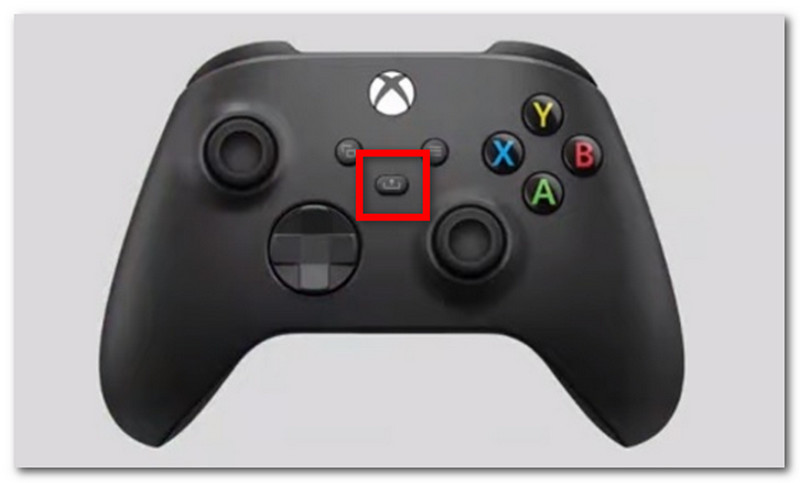
Bước 2Nếu bạn chưa biết cách xem ảnh chụp màn hình Minecraft, chỉ cần nhấn vào biểu tượng đó. Xbox nút và đi đến Chụp và chia sẻ chuyển hướng.
iOS
Bước 1Nhấn vào Quyền lực và Tăng âm lượng Các nút trên iPhone của bạn để chụp ảnh màn hình.
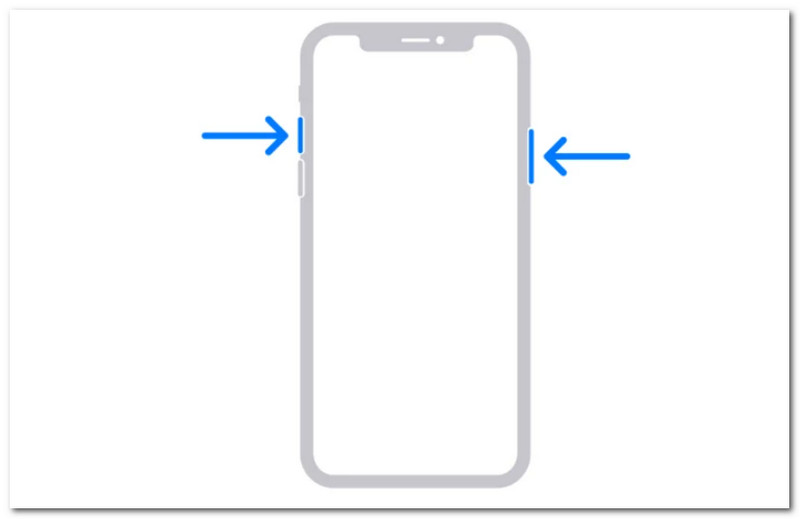
Bước 2Làm thế nào để tìm ảnh chụp màn hình Minecraft trên iPhone? Bạn có thể tìm thấy ảnh chụp màn hình trong ứng dụng Ảnh.
Android
Bước 1Chuẩn bị trò chơi và khu vực bạn muốn chiếm giữ. Nhấn và giữ Quyền lực và Giảm âm lượng các nút trên điện thoại của bạn.
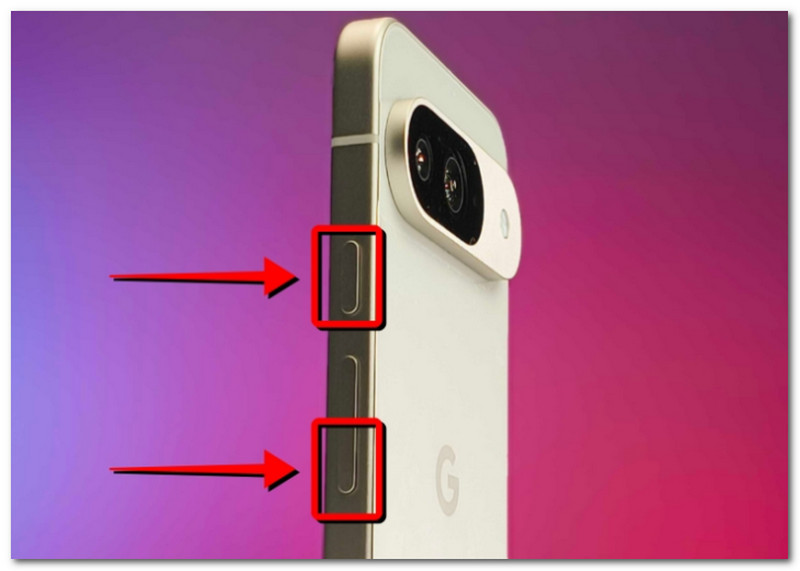
Bước 2Khi màn hình nhấp nháy, ảnh chụp màn hình đã sẵn sàng và bạn có thể tìm thấy nó trong ứng dụng Thư viện.
Phần 4. Quản lý bộ sưu tập ảnh chụp màn hình của bạn
Ngoài việc chia sẻ ảnh chụp màn hình với bạn bè, bạn cũng có thể tận dụng cơ hội này để theo dõi tiến trình khám phá thế giới Minecraft của mình. Tuy nhiên, việc chụp ảnh màn hình một cách ngẫu nhiên sẽ chỉ dẫn đến bộ sưu tập ảnh chụp màn hình lộn xộn và khó hiểu. Nếu bạn không biết bắt đầu từ đâu, bạn có thể làm theo những quy tắc cơ bản này để quản lý bộ sưu tập ảnh chụp màn hình của mình.
1. Hiểu về tên tệp
Khi sử dụng phương pháp F2 trong Minecraft, điều quan trọng là phải hiểu tên tệp, vì nó có thể giúp bạn xác định ngày chụp ảnh màn hình. Tên tệp mặc định sẽ là YYYY-MM-DD_HH.MM.SS.png, thể hiện năm, tháng, ngày, giờ, phút và giây khi ảnh chụp màn hình được thực hiện.
2. Tạo thư mục con
Đừng để ảnh chụp màn hình của bạn trong cùng một thư mục, vì điều đó sẽ làm chậm quá trình tìm kiếm ảnh chụp màn hình cụ thể. Hãy tạo các thư mục con với các danh mục như xây dựng thế giới, dự án và chức năng.
3. Đổi tên tệp tin
Bạn có thể đổi tên ảnh chụp màn hình Minecraft của mình để dễ nhận biết không chỉ bằng ngày chụp mà còn bằng tiến trình thực tế của bạn trong trò chơi. Luôn chọn tên tệp thể hiện rõ sự tiến bộ của bạn trong Minecraft.
4. Sao lưu ảnh chụp của bạn
Để tránh mất ảnh chụp màn hình khi thiết bị của bạn gặp sự cố, hãy sao lưu chúng bằng dịch vụ lưu trữ đám mây như OneDrive hoặc ổ cứng ngoài.
5. Chia sẻ ảnh chụp màn hình
Sau khi sắp xếp, hãy chia sẻ tiến trình chơi Minecraft của bạn trên nhiều nền tảng khác nhau. Người xem sẽ đánh giá cao những ảnh chụp màn hình được sắp xếp khoa học, giúp theo dõi sự tiến bộ của bạn trong trò chơi.
Minecraft là một trò chơi được yêu thích mà bất cứ ai cũng có thể thưởng thức, và việc học cách chụp ảnh màn hình sẽ cho phép bạn lưu giữ những khoảnh khắc đáng nhớ trong quá trình chơi game. Bài viết này không chỉ giới thiệu các phương pháp khác nhau để ghi lại thế giới tuyệt đẹp trong game, mà còn hướng dẫn cách chụp ảnh màn hình. Cách xem ảnh chụp màn hình Minecraft trên nhiều nền tảng khác nhau. Để thay thế, bài viết này khuyên bạn nên sử dụng AVAide Screen Recorder vì nó linh hoạt trong việc chụp ảnh màn hình trên máy tính, điện thoại và máy chơi game. Hãy tải một trong số... máy ghi trò chơi tốt nhất Tải xuống miễn phí trên Windows và Mac và bắt đầu ghi hình trò chơi không giới hạn.
GIỚI THIỆU VỀ TÁC GIẢ

Ghi lại màn hình, âm thanh, webcam, trò chơi, cuộc họp trực tuyến, cũng như màn hình iPhone / Android trên máy tính của bạn.