


Android'in yerleşik ekran kaydedicisinin özellikleri yeterli olmayabilir. Ancak, telefon ekranınızda daha kolay ve çok yönlü kayıtlar yapmanıza yardımcı olacak bazı pratik ipuçları öğrenebilirsiniz. Bu yazı size kapsamlı bir rehber sunacak. Android ekran kaydı eğitim videosu.
Oyun, eğitim videoları veya profesyonel sunumlar için gelişmiş ekran kaydı tercih ediyorsanız, size en iyi Android ekran kaydı yöntemlerini ve uygulamalarını sunarak karmaşayı ortadan kaldırmanıza yardımcı olabiliriz. Net ve yüksek çözünürlüklü sonuçlar elde etmenize yardımcı olacak adım adım eğitimler de sunuyoruz.
- Bölüm 1: Android'in Dahili Ekran Kaydedicisini Kullanma
- Bölüm 2: Bazı Markaya Özel Android Kayıt Araçları
- Bölüm 3: Android'de Ekran Kaydı Yapmanın 4 Daha Çok Yönlü Yolu
- Bonus: Masaüstü ve Cep Telefonlarında En İyi Kalitede Ekran Kaydı Yapın
- Bölüm 4: Android'de Ekran Kaydı Nasıl Yapılır Hakkında Sıkça Sorulan Sorular
Bölüm 1: Android'in Dahili Ekran Kaydedicisini Kullanma
Android 11 veya üzeri sürümlere sahip çoğu cihazda, Hızlı Ayarlar panelinde yerleşik bir ekran kayıt uygulaması bulunur. Telefonunuzun ekranını kaydetmek için bunu kullanabilirsiniz.
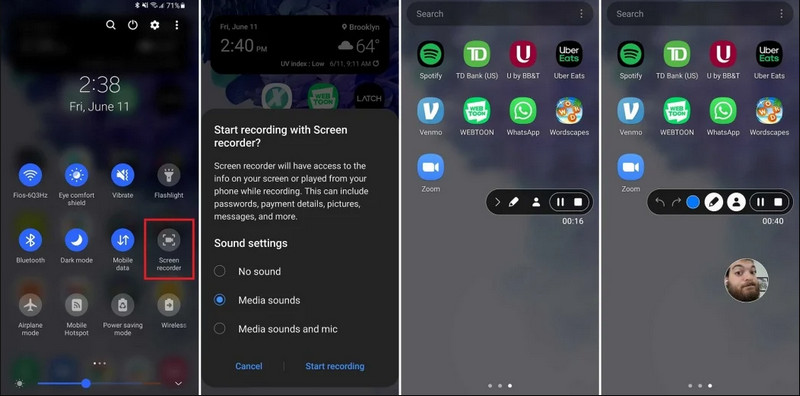
Aşama 1Hızlı Ayarlara Erişim
Ekranınızın üst kısmından iki kez aşağı kaydırarak Hızlı Ayarlar menüsünün tamamını açabilirsiniz.
Adım 2Ekran Kaydediciyi Seçin
Aramak Ekran KaydıEğer göremiyorsanız, üzerine dokunun. Düzenlemek Kalem simgesine sahip düğmeye tıklayın ve Ekran Kaydı kutucuğunu etkin ızgaranıza sürükleyin.
Aşama 3Kayıt Ayarlarını Yapılandırın
Android'i bulduğunuzda Ekran kaydedicisi Bu araç sayesinde birden fazla kayıt seçeneğiniz var. Doğru olanı seçmek, Android ekran kaydınızı etkili hale getirebilir.
- Ses yok: Telefon ekranını, sistem sesini veya harici sesi kaydetmeden yalnızca kaydedin.
- Medya sesleri: Telefonunuzdaki tüm uygulamaların sesleri de dahil olmak üzere, sistemdeki tüm sesleri kaydederek ekran kaydı yapın.
- Medya sesleri ve mikrofon: Hem sistem seslerini hem de harici sesleri (telefonun dahili mikrofonu veya kulaklığınızın mikrofonu) kaydedin.
4. AdımEkran Kaydını Başlat ve Durdur
Seçiminizi yapın ve dokunun. Kayda Başla Düğmeye dokunun. Durum çubuğunda bir geri sayım görünecektir. Android ekran kaydını durdurmak için, Durmak (Kayıt durumu çubuğu varsa) düğmesine basın veya bildirim çubuğunu aşağı kaydırın ve kırmızıya dokunun. Durmak buton.
Bölüm 2: Bazı Markaya Özel Android Kayıt Araçları
Birçok Android telefon üreticisi, Selfie Kamera katmanları gibi gelişmiş özelliklere sahip özel ekran kaydediciler sunmaktadır. İşte bazı popüler Android markalarının özel kayıt özellikleri:
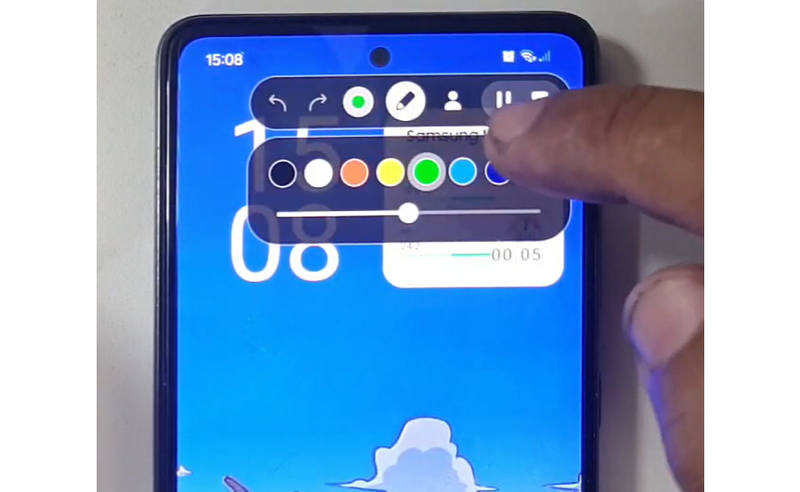
Samsung (One UI): Ekran üzerinde gerçek zamanlı olarak çizim yapmanıza olanak tanıyan bir araç çubuğu içeren bir Ekran Kaydedici de bulunmaktadır.
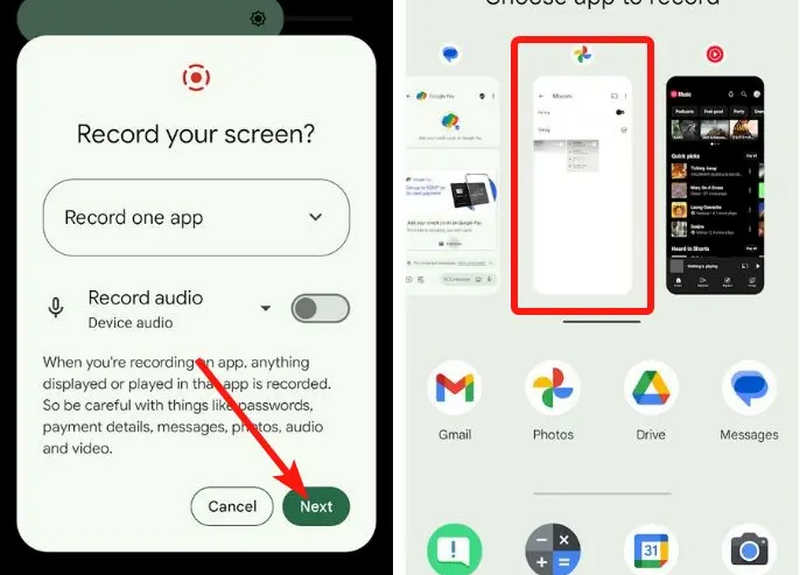
Google Pixel: Belirli bir uygulamayı (örneğin, bankacılık uygulaması veya WhatsApp) kaydetmek için seçebilirsiniz. Kayıt sırasında uygulamadan çıkarsanız veya bildirim çubuğunu aşağı çekerseniz, bu işlemler nihai videoda görünmeyecektir.
Xiaomi (MIUI/HyperOS): Kare hızı (FPS) ve bit hızı için ayrıntılı özelleştirme seçenekleri sunan özel bir "Ekran Kaydedici" uygulaması içerir.
Huawei ve Onur (HarmonyOS / MagicOS): Eşsiz bir donanım-yazılım entegrasyonu sayesinde, kaydı başlatmak veya durdurmak için ekrana iki parmağınızla iki kez vurmanız yeterli.
OPPO, vivo ve realme (ColorOS / OriginOS): Bir oyun başlatıldığında, ekran kaydedici, 4K/60FPS video kaydının oyun içi gecikmeye veya kare düşüşlerine neden olmaması için CPU/GPU kaynaklarını otomatik olarak optimize eder.
Bölüm 3: Android'de Ekran Kaydı Yapmanın 4 Daha Çok Yönlü Yolu
Android telefonunuzda tatmin edici ekran kaydı özellikleri yoksa, dört Android ekran kaydedici uygulamasını inceleyebilirsiniz. Bunlar size bazı kullanışlı ve pratik özellikler sunabilir.
1. AZ Ekran Kaydedici
AZ Ekran Kaydedici Play Store'da çok popüler bir Android ekran kaydedici uygulamasıdır. Android telefonunuzun ekranında yüksek çözünürlüklü video kaydedebilir. Uygulama ayrıca farklı kayıt amaçlarına bağlı olarak çözünürlüğü, kare hızını ve bit hızını ayarlamanıza olanak tanır.

Ayrıca, AZ Ekran Kaydedici kullanıcıların cihazda çalınan sesi bir mikrofon kullanarak kaydetmelerine olanak tanır. Bu, mümkün olan en karmaşık ve yüksek standartlı kayıtları bile kaydetmeyi sağlar. Düğmelerin basit düzenlemesi ve tutarlı performansı, uygulamayı birçok kişi için favori yapar. Aşağıdaki öğreticiyi kullanarak bir Android ekranının nasıl kaydedileceğini öğrenin.
Aşama 1Uygulamayı Android'inize indirdikten sonra başlatın. Ardından, kamera Ekran kaydı özelliğine erişmek için butona tıklayın.
Adım 2Musluk Şimdi başla Android cihazınızda ekran kaydını başlatmak için tıklayın; ekranınızda bir geri sayım görünecektir.
Aşama 3Android telefonunuzda ekran kaydını durdurmak için, aşağıdaki seçeneğe dokunun. Kayıt Tekrar düğmeye basın. Bu uygulama ile ayrıca şunları da yapabilirsiniz: iPhone'unuzda seslerle ekran kaydı aktifleştirildi.
2. Mobizen Ekran Kaydedici
Mobizen Ekran Kaydedici Android'de ekran kaydı yapmak için Play Store'da ücretsiz olarak bulunan ve kolay ve yüksek kaliteli kayıt vaat eden bir başka uygulama da Mobizen'dir. Ayarlanabilir parametrelerle yüksek çözünürlüklü kayıt ve filigranları kaldırmak için temiz kayıt seçenekleri sunar. Ayrıca, Mobizen'de kayıt için kullanılabilecek dahili ses kaydı, kayda daha fazla içerik ekleyebilecek yüz kamerası ve GIF özelliği de bulunmaktadır. Kullanıcının Android ekran kaydını başlatmasına veya içeriği düzenlemesine yardımcı olan farklı özelliklerin ve kontrollerin basit bir şekilde sunulmasını da sağlar. Bu uygulamayı kullanarak Android'de nasıl ekran kaydı yapacağınızı öğrenin.
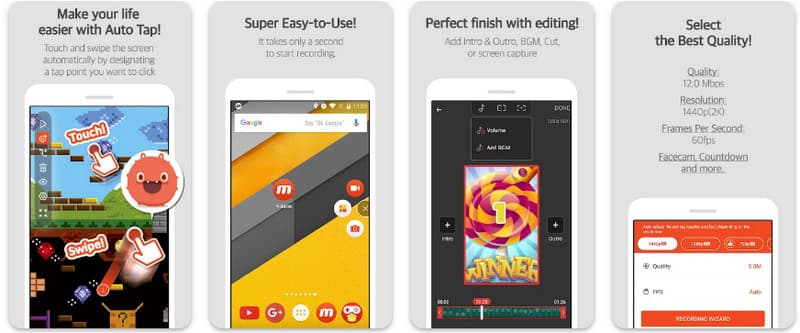
Aşama 1Hemen Android cihazınıza indirin ve uygulamayı açın.
Adım 2Ekran kaydediciyi kullanmadan önce yapmanız gereken kurulumu tamamlayın. Ekranınızda yüzen bir kaydedici çubuğu görünecektir. Üzerine dokunun. kamera düğmesine, ardından Şimdi başla Ekran kaydını başlatmak için.
Aşama 3İşiniz bittiğinde simgesine dokunun. M ve Dur Android telefonunuzda ekran kaydını durdurmak için kullanılan düğme.
3. Ekran Kaydedici - Inshot'tan XRecorder
Ekran Kaydedici - XRecorder Android 17/16'da ekran kaydı için önde gelen bir yöntem olan bu güçlü, hepsi bir arada yardımcı program, root erişimi gerektirmeden veya filigran eklemeden 1080p'ye kadar 60 FPS'de yüksek çözünürlüklü kayıt sunarak ekran yakalamayı basitleştirir. Dahili fırça aracıyla gerçek zamanlı olarak ekranda başlatmanıza, duraklatmanıza ve çizim yapmanıza olanak tanıyan yüzer bir kontrol penceresi aracılığıyla kusursuz bir kullanıcı deneyimi sağlar. Basit video yakalamanın ötesinde, dahili ses kaydı, yayıncılar için yüz kamerası katmanları ve entegre video düzenleme desteği sunarak, mobil cihazlarından doğrudan profesyonel eğitimler, oyun klipleri veya net gösterimler oluşturması gereken herkes için ideal bir seçimdir.
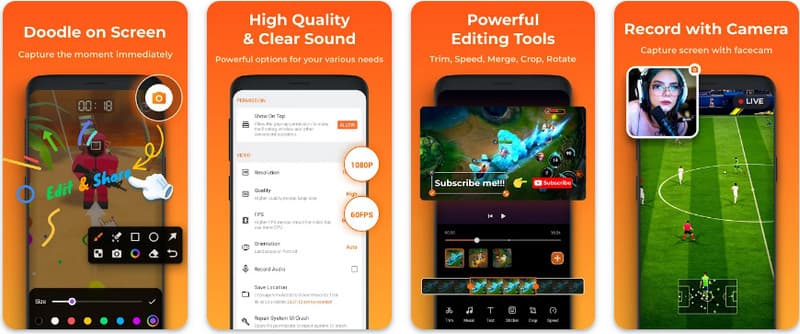
Aşama 1XRecorder'ı indirdikten sonra açın ve simgesine dokunun. Yüzen Simgeyi Etkinleştir.
Adım 2Bundan sonra, simgesine dokunun. Kayıt kaydı başlatmak için düğme ve Şimdi başla onaylamak.
Aşama 3Gördüğünüz gibi, kaydın uzunluğu yüzen bir simge olarak görünür; Dur Kaydı kaydetmek için düğmesine basın.
4. Süper Ekran Kaydedici
Süper Ekran Kaydedici Super Screen Recorder, Android'de maksimum esneklikle profesyonel bir şekilde ekran kaydı yapmak isteyen herkes için üst düzey bir çözümdür. Bu güçlü uygulama, yüksek çözünürlüklü kayıt sunar ve ücretsiz sürümünde bile filigransız bir deneyim sunarak içeriğinizin temiz ve profesyonel kalmasını sağlar. Gerçek zamanlı tepkileri yakalamak için entegre bir yüz kamerası ve kayıt sırasında ekrana çizim yapmanıza olanak tanıyan çok yönlü bir fırça aracı içerir; bu, ilgi çekici eğitimler veya adım adım kılavuzlar oluşturmak için önemli bir işlevdir. İster yeni başlayan ister ileri düzey bir kullanıcı olun, Super Screen Recorder, Android ekran kaydını kolaylıkla öğrenmek için gereken sağlam özelleştirme seçeneklerini sunar.
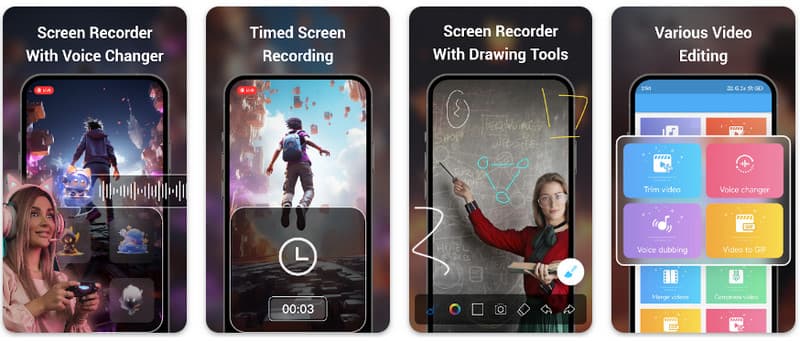
Aşama 1Android cihazınızda Süper Ekran Kaydedici'yi açın ve ardından uygulamanın yüzen özelliğini etkinleştirerek kullanın.
Adım 2Ekranınızda, öğesine dokunun kamera düğmesine basın, ayarları onaylayın ve dokunun Şimdi başlaDaha sonra kayıt başlamadan önce üç saniyelik bir geri sayım görünecektir.
Aşama 3öğesine dokunun. kare Kaydı sonlandırmak ve Android cihazınıza kaydetmek için düğmeye basın.
Bonus: Masaüstü ve Cep Telefonlarında En İyi Kalitede Ekran Kaydı Yapın
Android telefonunuzun ekranını bilgisayara kaydedebileceğinize inanıyor musunuz? AVAide Ekran Kaydedici Öncelikle Windows ve Mac'te ekran kaydı için tasarlanmıştır. Ancak Android telefonunuzun tam ekranını da kaydedebilir. Bu, özellikle Android'de belirli işlemlerin bir eğitim videosunu oluşturmanız ve ardından videoyu doğrudan Mac veya Windows'unuzda düzenlemeniz gerektiğinde çok faydalıdır.
Windows ve Mac'te ekran kaydı için AVAide Screen Recorder, AV1 ve HEVC kodeklerini destekler; bu sayede en iyi video kalitesini korurken kayıt sonucunu yüksek oranda sıkıştırabilir. Tam donanım hızlandırması, çok düşük CPU kullanımıyla uzun videolar kaydetmenizi sağlar. Daha da ilginç olanı, arka plan ve yankı seslerini ortadan kaldırarak netliği artıran geliştirilmiş bir mikrofona sahip olmasıdır. Yazılım, kırpma ve açıklama ekleme gibi basit gezinme ve düzenleme özellikleriyle mükemmel kayıtlar yapar. Pahalı bir yazılım olmasına rağmen, kişisel ve iş amaçlı kullanılabilmesi nedeniyle şiddetle tavsiye edilir.
- Android veya iOS cihazınızla en iyi video kalitesiyle kayıt yapın.
- Çizim ve açıklama ekleme özellikleriyle kolayca eğitim videoları oluşturun.
- Çıkış videosunu yüksek oranda sıkıştırmak için AV1 ve HEVC çıkış kodeklerini destekler.
- Android cihazınızda kayıtlarınızı düzenlemek için kullanımı kolay video düzenleme özellikleri sunar.
Aşama 1Şimdi ekran kaydediciyi bilgisayarınıza indirmek için buradaki indirme düğmesine tıklayabilirsiniz. Ardından, ekranınızdaki istemi izleyerek uygulamayı yükleyin ve bir sonraki adıma geçmek için başlatın.

ÜCRETSİZ İNDİR Windows 7 veya üzeri için
 Güvenli indirme
ÜCRETSİZ İNDİR Mac OS X 10.13 veya üzeri için
Güvenli indirmeAdım 2Artık sisteminizde çalıştığına göre, kayıt karesini kayda başlamak istediğiniz alana yerleştirin. Burada, Bölge seçeneği yerine Tam Ekran seçeneğini seçerek tüm ekranınızı kaydedebilirsiniz.

Aşama 3Daha sonra, gerekirse sistem ve mikrofon kaydı ayarlanabilir. Yüzünüzü kayda eklemek istiyorsanız, burada Webcam seçeneğini etkinleştirin. Ardından, tıklayın KAYIT Geri sayımı başlatmak ve kaydı başlatmak için.

4. AdımKaydı tamamladığınızda, Dur kırmızı bir kare olan düğme. Görünen bir sonraki pencerede, burada bulunan seçeneklerle daha önce aldığınız kaydı düzenleyebilir, ardından imlecinizi kaydın üzerine getirip indirmek kaydetmek için düğmeye basın. Bu uygulama, değerini kanıtlıyor en iyi açık kaynaklı kayıt cihazı mevcut.

Bölüm 4: Android'de Ekran Kaydı Nasıl Yapılır Hakkında Sıkça Sorulan Sorular
Ayarlarımda ekran kaydı özelliğini nerede bulabilirim?
Dahili özelliğe erişmek için Android'de ekran kaydı Üçüncü taraf uygulamalar olmadan, uygulamayı açmak için ekranınızın üst kısmından iki kez aşağı kaydırın. Hızlı Ayarlar panele gidin ve arayın Ekran Kaydı (veya "Ekran Kaydı") simgesine dokunun. Görünmüyorsa, üzerine dokunun. Düzenlemek Ekran kaydı düğmesini etkin kutucuklarınıza sürükleyip bırakmak için (kalem) düğmesini kullanın. Eklendikten sonra, simgeye dokunabilir, dahili sistem seslerini veya mikrofonunuzu kaydetme gibi ses tercihlerinizi seçebilir ve başlat düğmesine basarak ekranınızı doğrudan sistem ayarlarınızdan kaydetmeye başlayabilirsiniz.
Android cihazımda ekran kaydı özelliğini neden bulamıyorum?
Android'de yerleşik ekran kaydı seçeneğinin olmaması genellikle cihazınızın daha eski bir işletim sistemi kullanmasından kaynaklanır, çünkü bu özellik ancak yeni bir Android sürümüyle standartlaştırılmıştır. Android 11Yazılımınız güncelse, bu seçenek muhtemelen gizlenmiştir. Hızlı Ayarlar Menü; genellikle üzerine dokunarak ortaya çıkarabilirsiniz. Düzenlemek Bildirim çubuğundaki düğmeye basıp "Ekran Kaydı" kutucuğunu etkin görünümünüze sürükleyerek de bu özelliği etkinleştirebilirsiniz. Ayrıca, bazı giriş seviyesi "Go Edition" cihazlar veya belirli üretici arayüzleri, sistem kaynaklarından tasarruf etmek için bu özelliği devre dışı bırakabilir; bu durumda XRecorder veya Super Screen Recorder gibi üçüncü taraf bir uygulama kullanmak en etkili çözümdür.
Ekran kaydı düğmesi neden kayboldu?
Ekran kaydı düğmesi genellikle Hızlı Ayarlar'ın etkin alanının dışına yanlışlıkla taşındığı için kaybolur; genellikle üzerine dokunarak geri getirebilirsiniz. Düzenle (kalem simgesi) Bildirim çubuğunuzda ve kutucuğu geri sürükleyerek de bulabilirsiniz. Ayrıca, Güç Tasarrufu Modu nedeniyle gizlenmiş olabilir, bir İş Profili tarafından kısıtlanmış olabilir veya bir yazılım güncellemesinden sonra kullanıcı arayüzünü yenilemek için sistem yeniden başlatılmasını gerektirebilir.
Burada listelenen öğreticiyi kullanarak şunları öğrendiniz: Android Samsung'da ekran kaydı nasıl yapılır. Bu eğitim, özellikle bir Android kullanıcısıysanız, ekran kaydı görevinizle ilgili olarak size büyük fayda sağlayacaktır. Bu bilgiyi, nasıl yapılacağına dair bir fikir vermek için Android kullanıcısı arkadaşınızla paylaşın.
YAZAR HAKKINDA

Bilgisayarınızda ekran, ses, web kamerası, oyun, çevrimiçi toplantılar ve iPhone/Android ekranı kaydedin.
Ekran Kaydı
- Windows'ta Ekran Kaydı
- Instagram Canlı Yayınını Kaydedin
- Tubi'den Videoları Kopyala
- YouTube Videolarını MP3'e Dönüştürün
- Fansly'den Video İndir
- JW Player Videolarını İndirme
- Bilibili Videolarını İndirin
- Patreon Videolarını İndirin
- SpankBang Videolarını İndirin
- Discord Videolarını İndirin
- DoodSream Videosunu İndirin


