กล้อง Canon บันทึกภาพในรูปแบบไฟล์ CR2 ซึ่งเป็นรูปแบบไฟล์ภาพดิบที่ออกแบบมาเพื่อเก็บรายละเอียดภาพให้ได้มากที่สุด แม้ว่าจะสะดวกสำหรับการแก้ไขภาพ แต่ก็ไม่สามารถใช้ในแอปพลิเคชันประจำวันได้เนื่องจากขนาดไฟล์ใหญ่และความเข้ากันได้ที่จำกัด การแปลง CR2 เป็น JPGการจัดการรูปภาพอย่างเป็นระบบช่วยให้แชร์ได้ง่ายขึ้น อัปโหลดได้เร็วขึ้น และรองรับอุปกรณ์ได้หลากหลายมากขึ้น นอกจากนี้ยังช่วยลดความต้องการพื้นที่จัดเก็บข้อมูลโดยไม่จำเป็นต้องใช้ความเชี่ยวชาญทางเทคนิคระดับสูง คู่มือนี้แบ่งออกเป็นเหตุผล วิธีการ และเครื่องมือตามแนวทางการจัดการรูปภาพทั่วไป เพื่อช่วยให้คุณจัดการไฟล์ได้อย่างชัดเจนและมีประสิทธิภาพ
ส่วนที่ 1. แบตเตอรี่ Canon CR2: เหตุใดคุณจึงต้องแปลงไฟล์
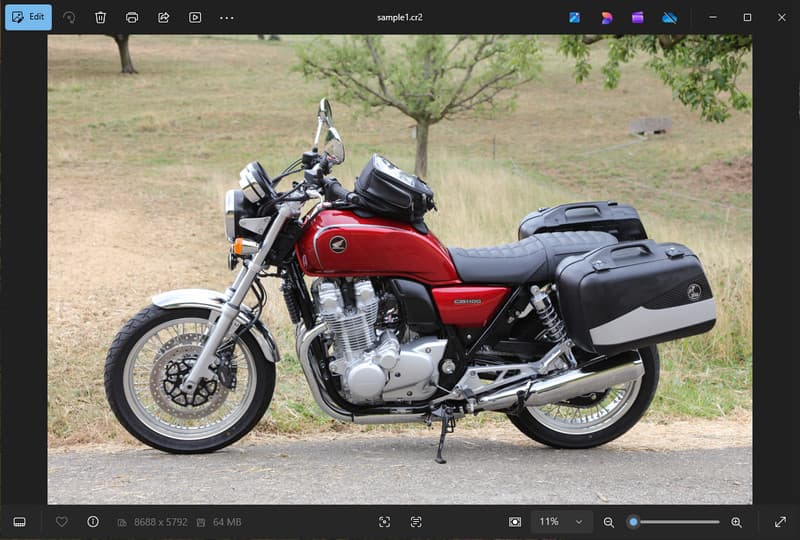
Canon CR2 เป็นไฟล์รูปแบบ RAW ที่บันทึกข้อมูลดิบจากเซ็นเซอร์กล้อง แม้ว่าจะมีรายละเอียดสูงมาก แต่บางครั้งอาจจำเป็นต้องแปลงไฟล์ CR2 เป็น JPG เนื่องจากอุปกรณ์และแอปพลิเคชันจำนวนมากไม่รองรับไฟล์ RAW
1. ความเข้ากันได้จำกัด
เครื่องมือมาตรฐานหลายอย่างไม่รองรับไฟล์ CR2 ทำให้การดูภาพทำได้ยาก การแปลงไฟล์ CR2 เป็น JPG จะช่วยให้ภาพถ่ายของคุณเปิดได้อย่างราบรื่นบนอุปกรณ์ต่างๆ เบราว์เซอร์ และโปรแกรมดูภาพพื้นฐานทั่วไป
2. ขนาดไฟล์ใหญ่
ไฟล์ RAW มีขนาดใหญ่มาก เนื่องจากเก็บข้อมูลภาพไว้มากกว่า ทำให้ส่งผลต่อพื้นที่จัดเก็บและประสิทธิภาพ การแปลงภาพ CR2 เป็น JPG จะช่วยลดขนาดไฟล์ ทำให้จัดเก็บและถ่ายโอนภาพได้อย่างมีประสิทธิภาพมากขึ้น
3. การแชร์และการอัปโหลดที่ง่ายขึ้น
แพลตฟอร์มหลายแห่งไม่รองรับไฟล์ RAW หรือประมวลผลช้า การเปลี่ยนจาก CR2 เป็น JPG เป็นวิธีที่รวดเร็วและง่ายในการอัปโหลดรูปภาพของคุณ และทำให้มั่นใจได้ว่ารูปภาพของคุณจะแสดงผลในรูปแบบที่ถูกต้องบนโซเชียลมีเดีย อีเมล และเว็บไซต์อื่นๆ
4. ไม่จำเป็นต้องใช้ซอฟต์แวร์เฉพาะทาง
ไฟล์ CR2 จำเป็นต้องใช้ซอฟต์แวร์แก้ไขภาพที่สามารถประมวลผลไฟล์ RAW ได้ แต่การแปลงไฟล์ CR2 เป็น JPG จะช่วยลดความจำเป็นในการใช้โปรแกรมที่ซับซ้อน และทำให้ได้ภาพที่สามารถใช้ในชีวิตประจำวันได้อย่างง่ายดาย
5. กระบวนการทำงานที่รวดเร็วยิ่งขึ้น
การทำงานกับไฟล์ RAW อาจทำให้กระบวนการทำงานช้าลง โดยเฉพาะอย่างยิ่งเมื่อต้องประมวลผลจำนวนมาก การใช้โปรแกรมแปลง CR2 เป็น JPG ที่เชื่อถือได้จะช่วยเร่งความเร็วในการประมวลผลภาพและเพิ่มประสิทธิภาพการทำงานโดยรวม
6. กระบวนการที่ง่ายกว่าสำหรับผู้เริ่มต้น
ไฟล์ RAW อาจดูซับซ้อนสำหรับผู้ใช้ใหม่ การเรียนรู้วิธีแปลง CR2 เป็น JPG จะช่วยให้ขั้นตอนการทำงานของคุณง่ายขึ้นและจัดการภาพได้สะดวกขึ้นโดยปราศจากอุปสรรคทางเทคนิค
การเข้าใจประเด็นเหล่านี้จะช่วยให้เข้าใจว่าทำไมการแปลงไฟล์จึงมักเป็นทางเลือกที่เหมาะสม ในส่วนถัดไป คุณจะได้เรียนรู้เกี่ยวกับวิธีการที่ดีที่สุดในการแปลงไฟล์ CR2 เป็น JPG อย่างมีประสิทธิภาพ
ส่วนที่ 2. 5 วิธีที่ดีที่สุดในการแปลงไฟล์ CR2 เป็น JPG
1. โปรแกรมแปลงรูปภาพ AVAide (ตัวเลือกออนไลน์ฟรีที่ดีที่สุด)
โปรแกรมแปลงรูปภาพ AVAide เป็นโซลูชันที่รวดเร็วและใช้งานผ่านเว็บเบราว์เซอร์ ออกแบบมาสำหรับผู้ใช้ที่ต้องการผลลัพธ์อย่างรวดเร็วโดยไม่ต้องติดตั้งซอฟต์แวร์ มีประโยชน์อย่างยิ่งเมื่อคุณต้องการแปลงไฟล์ CR2 เป็น JPG จำนวนมากโดยยังคงรักษาคุณภาพของภาพไว้
คุณสมบัติที่สำคัญ:
- แปลงไฟล์ CR2 เป็นไฟล์แบทช์ และแปลงไปมาระหว่างไฟล์ CR2 กับไฟล์แบทช์
- รักษาคุณภาพของภาพและสีสันที่เป็นธรรมชาติได้อย่างดีเยี่ยม
- ใช้งานออนไลน์ได้เต็มรูปแบบ ไม่ต้องติดตั้งโปรแกรมใดๆ
- รองรับไฟล์ JPG, PNG และไฟล์ประเภทอื่นๆ
- อินเทอร์เฟซที่ใช้งานง่ายเพื่อการประมวลผลที่รวดเร็วขึ้น
แพลตฟอร์ม:
- ใช้งานผ่านเว็บเบราว์เซอร์บน Windows, Mac, Linux และมือถือ
ขั้นตอนที่ 1เยี่ยมชมเว็บไซต์อย่างเป็นทางการ
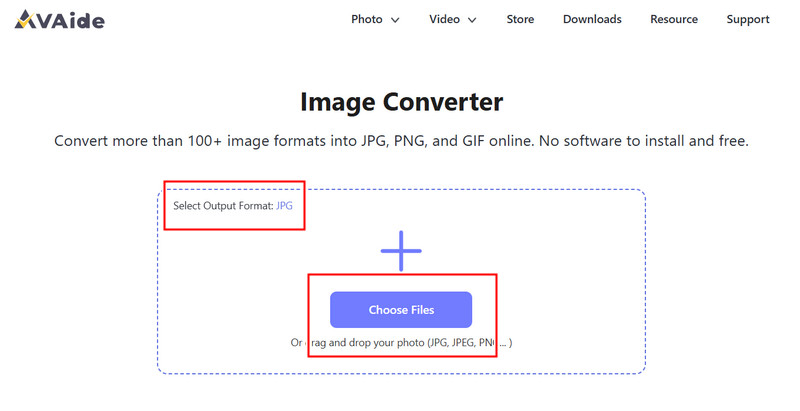
ไปที่เบราว์เซอร์ของคุณและเข้าถึงหน้าเว็บอย่างเป็นทางการของ AVAide Image Converter เมื่อโหลดเสร็จแล้ว คุณสามารถเริ่มแปลงไฟล์ได้ทันทีโดยไม่ต้องลงทะเบียนหรือติดตั้งอะไรเลย
ขั้นตอนที่ 2ตั้งค่าเอาต์พุตและอัปโหลด
เลือก JPG เป็นรูปแบบไฟล์เอาต์พุตที่ต้องการ จากนั้นคลิกปุ่ม + หรือลากและวางไฟล์ CR2 ของคุณลงในพื้นที่อัปโหลดเพื่อเริ่มต้น
ขั้นตอนที่ 3เริ่มการแปลง CR2
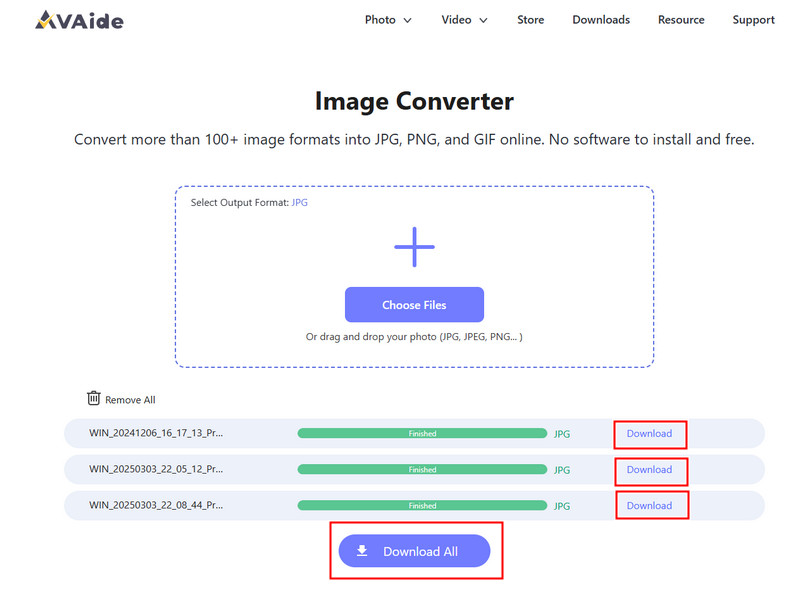
รอจนกว่าโปรแกรมจะประมวลผลไฟล์ของคุณเสร็จ เมื่อเสร็จแล้ว ให้คลิก ดาวน์โหลด สำหรับไฟล์เดียวหรือ ดาวน์โหลดทั้งหมด หากคุณแปลงรูปภาพหลายภาพ
- ข้อดี
- ใช้งานง่ายและรวดเร็ว
- ไม่ต้องตั้งค่าหรือติดตั้งใดๆ ทั้งสิ้น
- รองรับการประมวลผลแบบกลุ่มอย่างมีประสิทธิภาพ
- รักษาคุณภาพผลผลิตให้สม่ำเสมอ
- ข้อเสีย
- ต้องใช้การเชื่อมต่ออินเทอร์เน็ต
- เครื่องมือแก้ไขขั้นสูงมีจำกัด
2. Adobe Photoshop
Adobe Photoshop เป็นโปรแกรมที่มีประสิทธิภาพที่ช่วยให้สามารถแก้ไขไฟล์ภาพดิบก่อนส่งออกได้ โดยทั่วไปจะใช้เมื่อต้องการแปลงไฟล์ CR2 เป็น JPG และต้องการควบคุมการปรับแต่งภาพอย่างสมบูรณ์
คุณสมบัติที่สำคัญ:
- การแก้ไข CR2 ขั้นสูงผ่าน Camera Raw
- ตัวเลือกการส่งออกคุณภาพสูง
- เครื่องมือตัดต่อระดับมืออาชีพ
แพลตฟอร์ม:
- Windows และ Mac
ขั้นตอนที่ 1เปิดโปรแกรม Photoshop แล้วเปิดไฟล์ CR2 ของคุณ โปรแกรมจะโหลดไฟล์ Camera Raw โดยอัตโนมัติ
ขั้นตอนที่ 2ปรับค่าแสง สมดุลแสงขาว หรือสีตามต้องการ จากนั้นคลิก เปิด เพื่อจะดำเนินการต่อ.
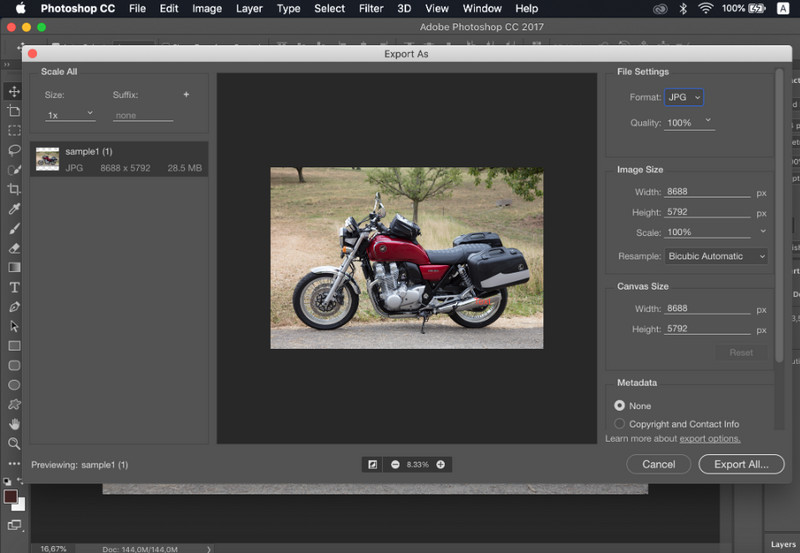
ขั้นตอนที่ 3ไปที่ ไฟล์, เลือก บันทึกเป็น, เลือก JPG จัดรูปแบบ ตั้งค่าคุณภาพ และบันทึกภาพ
- ข้อดี
- การควบคุมภาพและความแม่นยำที่ยอดเยี่ยม
- ซอฟต์แวร์มาตรฐานอุตสาหกรรม
- ข้อเสีย
- ต้องสมัครสมาชิก
- เส้นโค้งการเรียนรู้ที่สูงชัน
3. ไลท์รูม
Lightroom เหมาะอย่างยิ่งสำหรับช่างภาพที่จัดการคลังภาพขนาดใหญ่ และแม้ว่าคุณต้องการ... ลบพื้นหลังใน Lightroomช่วยลดความซับซ้อนในการแก้ไขและส่งออกไฟล์จำนวนมาก ทำให้สามารถใช้โปรแกรมแปลงไฟล์ CR2 เป็น JPG สำหรับรูปภาพหลายรูปพร้อมกันได้อย่างง่ายดาย
คุณสมบัติที่สำคัญ:
- การแก้ไขและการส่งออกแบบกลุ่ม
- ระบบแก้ไขแบบไม่ทำลายข้อมูล
- การจัดการภาพถ่ายอย่างเป็นระบบ
แพลตฟอร์ม:
- Windows, Mac และมือถือ
ขั้นตอนที่ 1เปิดโปรแกรม Lightroom แล้วเพิ่มไฟล์ CR2 ของคุณลงในไลบรารี
ขั้นตอนที่ 2เลือกรูปภาพและแก้ไขหากจำเป็น
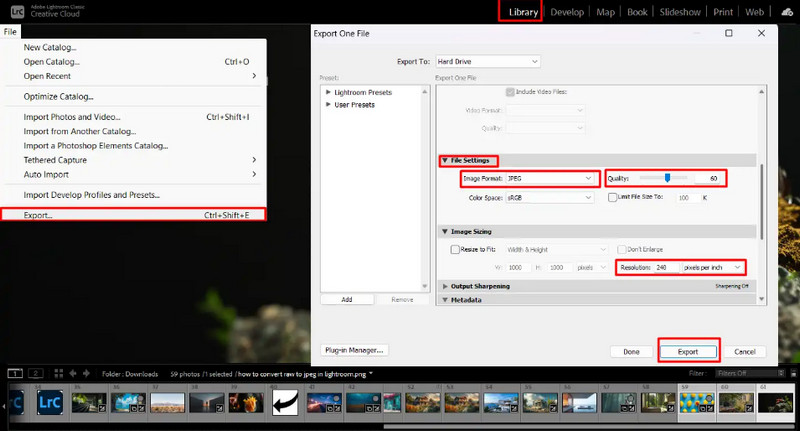
ขั้นตอนที่ 3คลิก ส่งออก, เลือก JPG จัดรูปแบบ ตั้งค่า และเลือกตำแหน่งที่จะบันทึก
- ข้อดี
- มีประสิทธิภาพสำหรับการประมวลผลภาพจำนวนมาก
- คุณภาพผลลัพธ์ที่สม่ำเสมอ
- ข้อเสีย
- ต้องสมัครสมาชิกก่อน
- ต้องใช้เวลาเรียนรู้สำหรับผู้เริ่มต้น
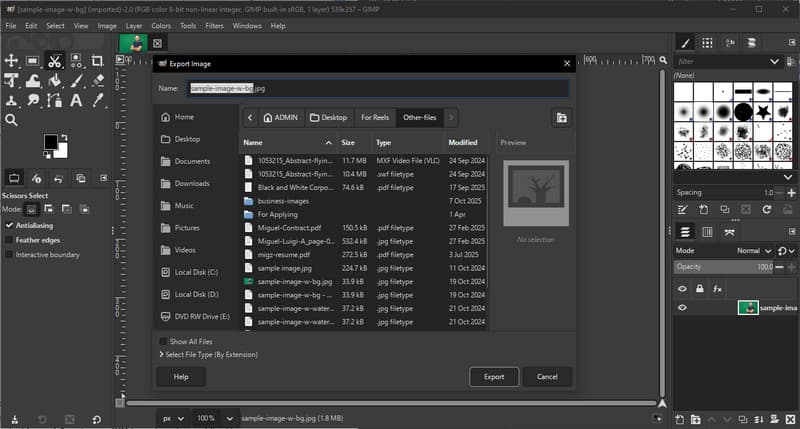
4. กิมป์
โปรแกรมแก้ไขภาพ GIMP เป็นโปรแกรมแก้ไขภาพแบบโอเพนซอร์สฟรี ที่สามารถจัดการกับภาพ RAW โดยใช้ปลั๊กอิน เป็นตัวเลือกที่มีประสิทธิภาพหากคุณกำลังเรียนรู้วิธีแปลง CR2 เป็น JPG โดยไม่ต้องเสียเงินซื้อซอฟต์แวร์แบบเสียเงิน
คุณสมบัติที่สำคัญ:
- ซอฟต์แวร์ฟรีและโอเพนซอร์ส
- รองรับรูปแบบไฟล์ภาพหลายรูปแบบ
- คุณสมบัติพื้นฐานสำหรับการแก้ไขและการแปลงไฟล์
แพลตฟอร์ม:
- Windows, Mac, Linux
ขั้นตอนที่ 1เปิดโปรแกรม GIMP และโหลดไฟล์ CR2 ของคุณโดยใช้ปลั๊กอิน RAW
ขั้นตอนที่ 2ปรับการตั้งค่ารูปภาพในหน้าต่างนำเข้า แล้วยืนยัน
ขั้นตอนที่ 3ไปที่ ไฟล์, เลือก ส่งออกเป็น, เลือก JPG จัดรูปแบบและส่งออกไฟล์
- ข้อดี
- ใช้งานได้ฟรีโดยสมบูรณ์
- มีความยืดหยุ่นในการใช้งานร่วมกับปลั๊กอินและส่วนเสริมต่างๆ
- ข้อเสีย
- การติดตั้งอาจค่อนข้างซับซ้อนทางเทคนิค
- อินเทอร์เฟซที่ไม่ได้รับการขัดเกลามากนัก
5. Convertio
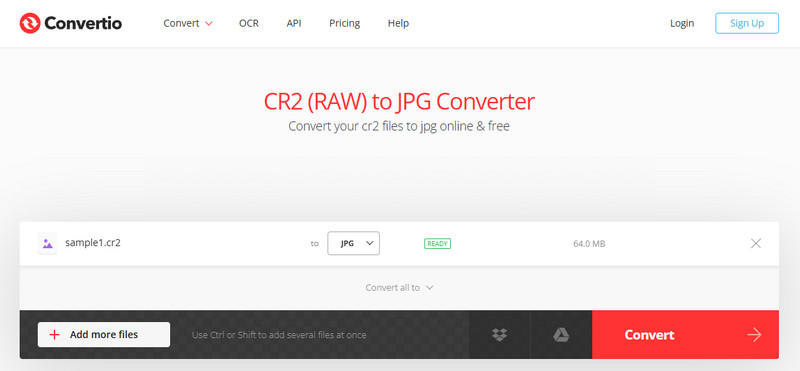
Convertio เป็นเครื่องมือบนเว็บที่รู้จักกันดี ซึ่งช่วยให้ผู้ใช้แปลงไฟล์ได้อย่างรวดเร็วโดยไม่ต้องติดตั้ง เป็นตัวเลือกที่เหมาะสมเมื่อผู้ใช้ถามถึงวิธีการแปลงไฟล์ CR2 เป็น JPG โดยใช้แพลตฟอร์มออนไลน์ที่ใช้งานง่าย
คุณสมบัติที่สำคัญ:
- รองรับไฟล์หลายรูปแบบ รวมถึง CR2 และ JPG
- ใช้งานได้โดยตรงในเบราว์เซอร์
- อนุญาตให้อัปโหลดไฟล์จากอุปกรณ์ คลาวด์ หรือ URL
- กระบวนการแปลงที่ง่ายและรวดเร็ว
แพลตฟอร์ม:
- บนเว็บ
ขั้นตอนที่ 1เปิด Convertio ในเบราว์เซอร์ของคุณและอัปโหลดไฟล์ CR2 ของคุณ
ขั้นตอนที่ 2เลือก JPG เป็นรูปแบบเอาต์พุต
ขั้นตอนที่ 3เริ่มการแปลงและดาวน์โหลดไฟล์เมื่อเสร็จสิ้น
- ข้อดี
- เข้าถึงและใช้งานง่าย
- ไม่ต้องติดตั้ง
- รองรับแหล่งไฟล์หลากหลายประเภท
- ข้อเสีย
- ข้อจำกัดขนาดไฟล์ในเวอร์ชันฟรี
- ต้องใช้การเชื่อมต่ออินเทอร์เน็ต
ส่วนที่ 3 การเปรียบเทียบโปรแกรมแปลงไฟล์ CR2 เป็น JPG ทั้ง 5 โปรแกรม
| คุณสมบัติ | โปรแกรมแปลงรูปภาพ AVAide | Adobe Photoshop | Lightroom | GIMP | Convertio |
| ง่ายต่อการใช้ | ง่ายมาก | ปานกลาง | ปานกลาง | ปานกลาง | ง่าย |
| การแปลงแบทช์ | ใช่ | ถูก จำกัด | ถูก จำกัด | ถูก จำกัด | จำกัดเพียง 5 ชิ้น |
| คุณภาพของภาพ | สูงสุด | สูง | สูง | สูง | สูง |
| ความเร็ว | เร็ว | ปานกลาง | เร็ว | ปานกลาง | เร็ว |
| ข้อจำกัดขนาดไฟล์ | ไม่ | ไม่ | ไม่ | ไม่ | ใช่ |
ส่วนที่ 4. คำถามที่พบบ่อยเกี่ยวกับการแปลงไฟล์ CR2 เป็น JPG
ควรทำอย่างไรกับไฟล์ CR2?
ไฟล์ CR2 คือไฟล์ภาพดิบที่เก็บข้อมูลก่อนการประมวลผลจากกล้อง Canon ไฟล์ประเภทนี้มีประโยชน์หากคุณต้องการควบคุมการแก้ไขภาพอย่างเต็มที่ เช่น การปรับความสว่าง สี และความคมชัด อย่างไรก็ตาม ไฟล์ประเภทนี้ใช้งานได้ไม่สะดวกนักสำหรับงานทั่วไป เช่น การแชร์หรือการอัปโหลดภาพ
มีโปรแกรมอะไรบ้างที่เปิดไฟล์ CR2 ได้?
ไฟล์ CR2 สามารถเปิดได้ด้วยโปรแกรมแก้ไขภาพหลายโปรแกรม Adobe Photoshop และ Lightroom เป็นตัวเลือกที่นิยมใช้มากที่สุด เนื่องจากรองรับไฟล์ RAW อย่างเต็มรูปแบบและมีเครื่องมือแก้ไขขั้นสูง นอกจากนี้ GIMP ก็สามารถเปิดไฟล์ CR2 ได้เช่นกันโดยใช้ปลั๊กอิน
วิธีแปลงไฟล์ RAW เป็น JPG ทั้งหมดในครั้งเดียว?
ในการแปลงไฟล์ RAW หลายไฟล์พร้อมกัน คุณต้องใช้เครื่องมือที่รองรับการแปลงแบบกลุ่ม โปรแกรมอย่าง Lightroom หรือเครื่องมือออนไลน์อย่าง AVAide Image Converter ช่วยให้คุณสามารถนำเข้าหรืออัปโหลดไฟล์ CR2 หลายไฟล์พร้อมกันได้ คุณเพียงแค่เลือก JPG เป็นรูปแบบเอาต์พุตและเริ่มกระบวนการ
การแปลงไฟล์ CR2 เป็น JPG ทำให้การแชร์ ดู และจัดเก็บรูปภาพง่ายขึ้น แม้ว่า CR2 จะเหมาะสำหรับการแก้ไขภาพ แต่ JPG นั้นใช้งานได้จริงมากกว่าในชีวิตประจำวัน หากคุณสงสัย วิธีเปลี่ยนประเภทไฟล์จาก CR2 เป็น JPGคุณสามารถใช้เครื่องมือต่างๆ เช่น Photoshop, Lightroom หรือโปรแกรมแปลงไฟล์ออนไลน์ได้ โปรแกรมแปลงรูปภาพ AVAideเป้าหมายนั้นเรียบง่าย: แปลงไฟล์ RAW ขนาดใหญ่ให้เป็นภาพ JPG ขนาดเล็กที่ใช้งานได้ โดยไม่สูญเสียคุณภาพที่สำคัญ
เกี่ยวกับผู้เขียน


คุณสามารถแปลงภาพถ่ายของคุณจากรูปแบบภาพใดๆ ให้เป็น JPG, PNG หรือ GIF ยอดนิยมได้อย่างง่ายดายโดยไม่สูญเสียคุณภาพ
ดำเนินการทันที