YouTube găzduiește milioane de videoclipuri, care prezintă creativitatea oamenilor prin intermediul blogurilor, sfaturilor utile sau recenziilor. Dar, deoarece dorește să protejeze conținutul de pe site, YouTube le interzice utilizatorilor săi să descarce videoclipuri în afara platformei. Deoarece există persoane care încarcă conținut care nu le aparține și nu notifică în mod corespunzător creatorul original, acest lucru este considerat un comportament rău intenționat. Dacă este pentru uz personal, o modalitate de a avea propria copie este prin înregistrare. Acest articol vă va ghida... cum să înregistrezi videoclipuri pe YouTube pe diverse dispozitive, cum ar fi computerul sau telefonul.
- Partea 1. Înregistrați videoclipuri YouTube pe PC sau Mac (metoda desktop)
- Partea 2. Înregistrați videoclipuri YouTube pe iPhone sau Android (pe mobil)
- Partea 3. Înregistrați videoclipuri YouTube pe Xbox (în stilul consolei)
- Partea 4. Cum să înregistrezi audio de pe YouTube (doar extragerea sunetului)
- Partea 5. Cum să înregistrezi conținut de înaltă calitate pentru canalul tău de YouTube
Partea 1. Înregistrați videoclipuri YouTube pe PC sau Mac (metoda desktop)
1. Instrumente încorporate (cele mai simple și gratuite)
Cum să înregistrezi un videoclip YouTube pe PC? Indiferent dacă folosești un computer cu sistem de operare Windows sau Mac, ai la dispoziție o modalitate gratuită de a captura videoclipuri de pe YouTube și de pe alte site-uri web. Consultă pașii următori pentru a afla cum să faci acest lucru.
Windows - Bara de jocuri Xbox
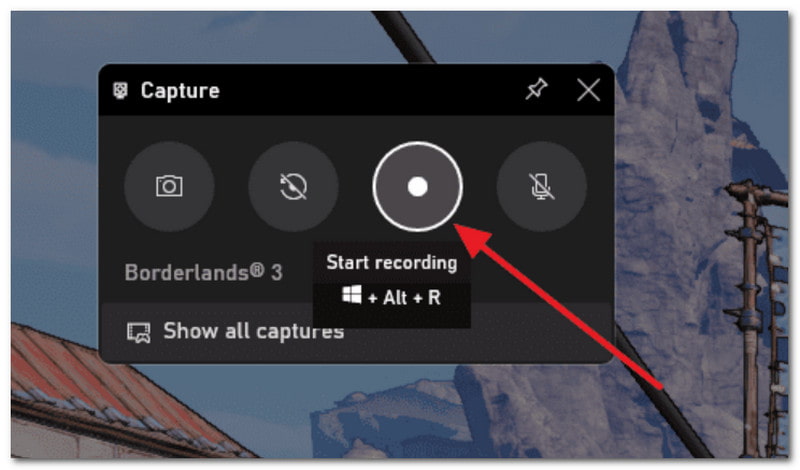
Asigură-te că ai PC-ul actualizat la Windows 10 sau o versiune ulterioară pentru a instala Xbox Game Bar. Apoi, procedează astfel:
Pasul 1Deschide YouTube și găsește videoclipul pe care dorești să-l înregistrezi. Apăsă simultan Windows și G tastele de pe tastatură.
Pasul 2Din colțul din dreapta, faceți clic pe Cerc pentru a începe înregistrarea. Apoi, puteți face clic pe același buton pentru a opri înregistrarea odată ce ați terminat.
Mac - Player QuickTime
Deși QuickTime Player este utilizat pentru redarea fișierelor media pe Mac, acesta poate fi folosit și ca un înregistrator video YouTube. Iată pașii de urmat:
Pasul 1Deschideți QuickTime Player pe PC și faceți clic pe Fişier. Alege Noua înregistrare a ecranului opțiune.
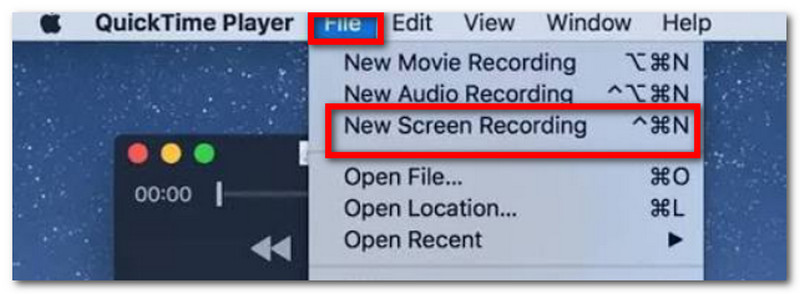
Pasul 2Din săgeata mică de lângă înregistrator, puteți modifica câteva setări. Apoi, faceți clic pe Record buton pentru a captura videoclipuri YouTube.
2. Extensii de browser (cele mai simple pentru un singur videoclip)
Loom este una dintre cele mai simple metode de a înregistra videoclipuri YouTube ca extensie. Oferă o curbă de învățare rapidă pentru a captura conținut de pe ecran și generează un link pentru partajare cu alte persoane. Caracteristicile sale includ, de asemenea, capturarea simultană a videoclipurilor, a microfonului și a sunetului intern, precum și salvarea automată a videoclipurilor în cloud. Acestea fiind spuse, iată cum să utilizați Loom ca înregistrator de ecran YouTube:
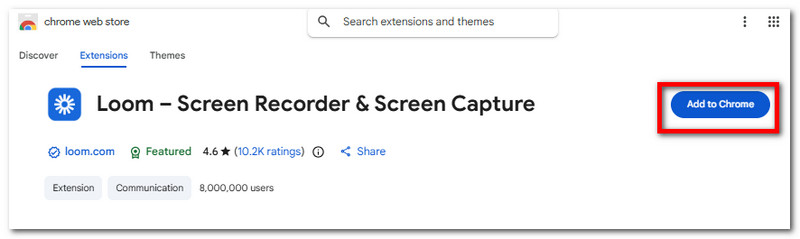
Pasul 1Deschideți Magazinul web Chrome și descărcați Loom pentru a-l adăuga în browserul dvs. Din Extensii pictogramă, poți fixa Loom pentru a-l putea folosi oricând.
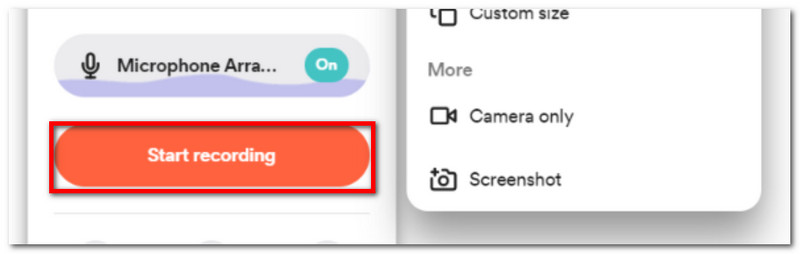
Pasul 2Configurați înregistratorul de ecran după cum doriți, apoi faceți clic pe Începe să înregistrezi pentru a captura videoclipuri YouTube. Videoclipurile dvs. vor fi salvate în contul înregistrat în Loom.
3. Înregistrator de ecran AVAide
Pe lângă videoclipuri, s-ar putea să vrei să înveți și cum să înregistrezi separat audio de pe YouTube. AVaide Screen Recorder este o alegere excelentă pentru capturarea de conținut de înaltă calitate pe Windows și Mac. Software-ul este conceput cu o interfață elegantă, permițându-vă să vă familiarizați cu navigarea instrumentelor sale. Desigur, oferă diverse modalități de înregistrare, cum ar fi prin intermediul unui microfon, al unei camere web, pentru întâlniri online și pe ecran. Bineînțeles, Screen Recorder salvează conținutul capturat în formate de ieșire populare, acceptând MP3, MP4, MOV, M4A și multe altele. În plus, vă permite să adăugați adnotări, să setați un program pentru înregistrare și să personalizați zona ecranului pe care doriți să o capturați. Cu adevărat, AVAide Screen Recorder este o alegere ideală pentru înregistrări video și audio excelente!
Pasul 1Descărcați AVAide Screen Recorder pe dispozitivul dvs. Citiți cu atenție instrucțiunile pentru a instala software-ul cu succes.

DESCĂRCARE GRATUITĂ Pentru Windows 7 sau o versiune ulterioară
 Descărcare sigură
DESCĂRCARE GRATUITĂ Pentru Mac OS X 10.13 sau o versiune ulterioară
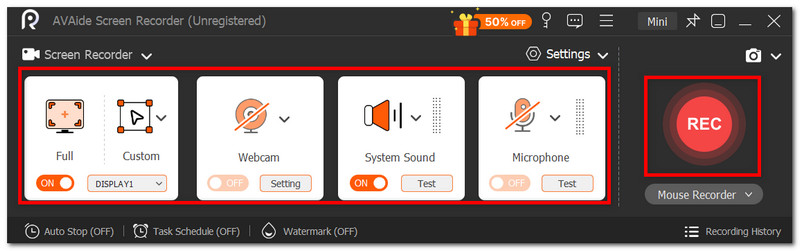
Descărcare sigurăPasul 2Din meniul Setări, puteți configura dimensiunea ecranului, intrarea audio etc. După ce ați terminat, faceți clic pe butonul ÎNREGISTRARE pentru a înregistra ecranul pe YouTube.
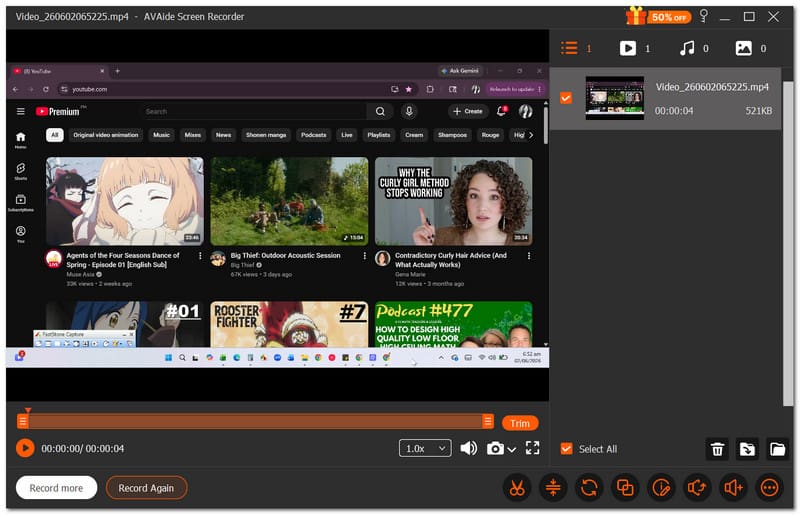
Pasul 3Apasă pe Stop dacă ați terminat înregistrarea. Previzualizați rezultatul sau salvați-l pe unitatea folderului local.
Partea 2. Înregistrați videoclipuri YouTube pe iPhone sau Android (pe mobil)
Nu există o modalitate dificilă de a învăța cum să înregistrezi un videoclip YouTube pe un iPhone sau Android, deoarece telefonul tău are un înregistrator de ecran încorporat pentru a captura conținutul de pe ecran. Cu toate acestea, reține că înregistratorul de ecran de pe telefonul tău nu capturează videoclipuri cu audio. O aplicație terță parte ar putea fi singura opțiune pentru înregistrarea ecranului cu sunet.
Pentru iPhone:
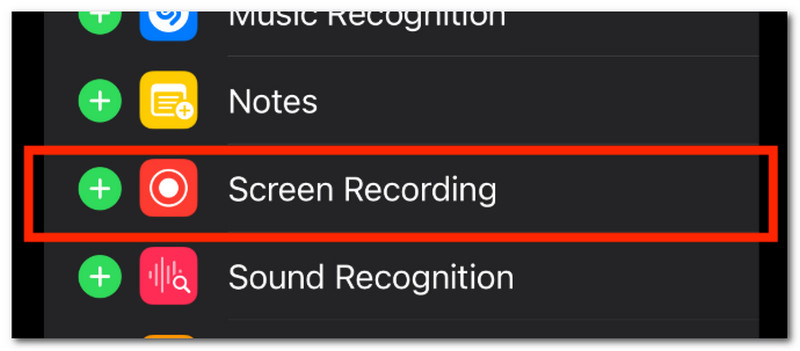
Pasul 1Accesați Setări pe telefon și navigați la Centrul de Control. Apasă pe Plus pentru a adăuga Înregistratorul de ecran la Centrul de control.
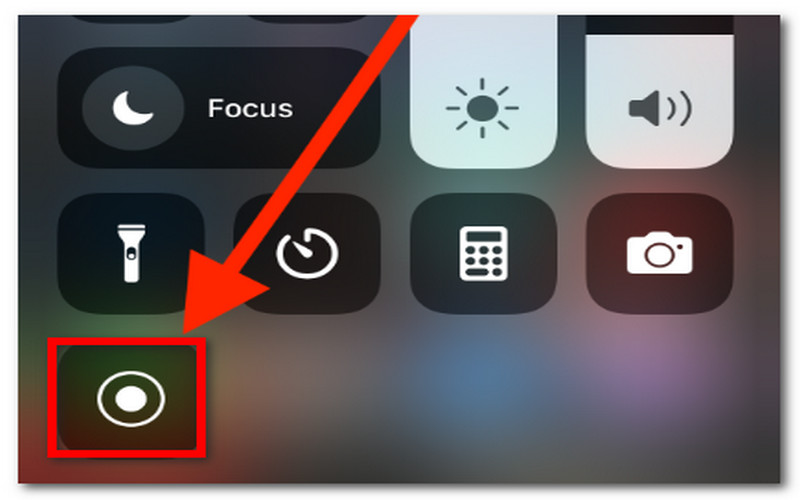
Pasul 2Din colțul din dreapta sus al ecranului, glisați în jos și atingeți Record După ce ați terminat de înregistrat, atingeți din nou butonul din Centrul de Control. Videoclipul înregistrat poate fi vizionat din aplicația Fotografii.
Pentru Android:
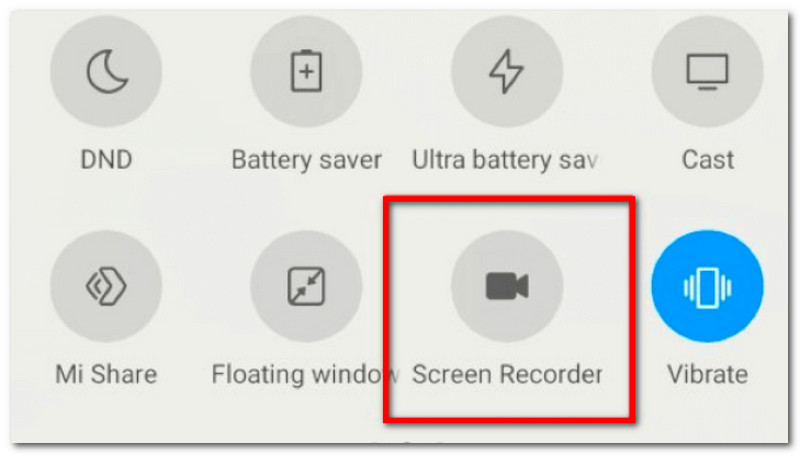
Pasul 1Glisați din partea superioară a telefonului pentru a accesa Panoul rapid. Atingeți Înregistrare ecran.
Pasul 2Opțional, puteți configura înregistrarea sunetului dispozitivului în videoclip. Apoi, atingeți notificarea Înregistrator ecran pentru a opri înregistrarea.
Partea 3. Înregistrați videoclipuri YouTube pe Xbox (în stilul consolei)
O modalitate de a captura videoclipuri YouTube folosind consola este să utilizați o placă de captură pentru PC. Aceasta vă va permite să afișați conținutul computerului pe consolă, pe care îl puteți înregistra cu ajutorul înregistratorului de ecran încorporat al Xbox. Consultați următorul ghid despre cum să înregistrați un videoclip YouTube pe Xbox:
Pasul 1Introduceți Cablu HDMI X în Port de intrare HDMI a plăcii de captură externe. Apoi, conectați cablul USB al plăcii de captură la computer.
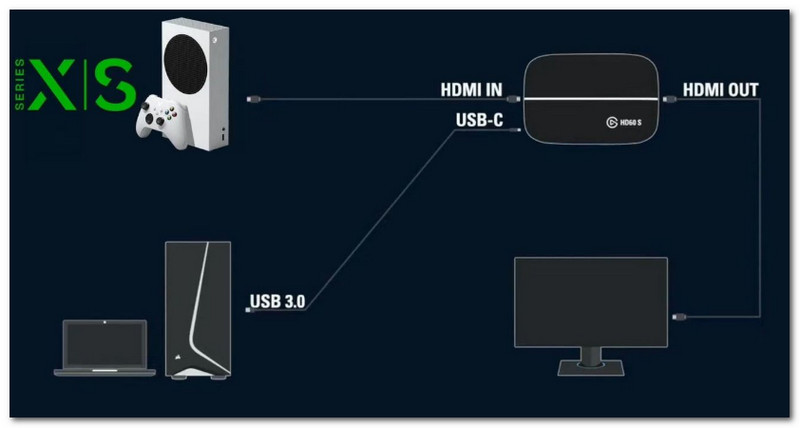
Pasul 2De pe placa de captură Port de ieșire HDMI, conectați un alt cablu HDMI la monitor. Trebuie să aveți un software precum OBS Studio pe PC pentru a adăuga placa de captură ca Dispozitiv de captură video.
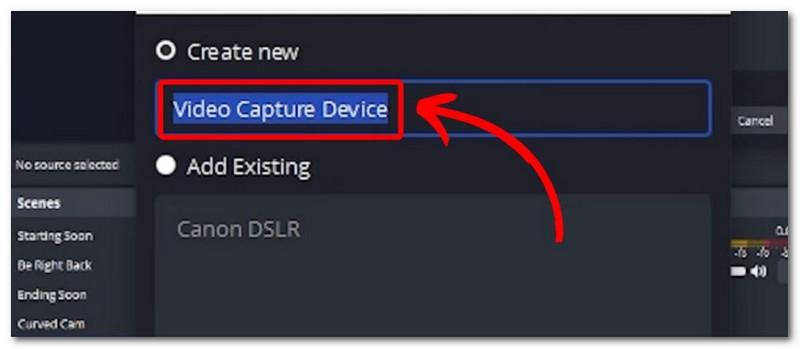
Pasul 3Deschide YouTube, apoi apasă butonul Xbox buton pentru a naviga la Captură și partajare fereastră. Clic Începe să înregistrezi pentru a captura videoclipuri de pe YouTube.
Partea 4. Cum să înregistrezi audio de pe YouTube (doar extragerea sunetului)
Pentru a înregistra sunet de pe YouTube, există două metode fiabile de a face acest lucru. Această parte va arăta cum să utilizați Audacity, o soluție gratuită de înregistrare audio pe care o puteți obține pe Windows și Mac, și un convertor YouTube în MP3 pentru a descărca videoclipuri YouTube ca fișiere audio.
Metoda 1: Software de înregistrare audio a sistemului (Audacity)
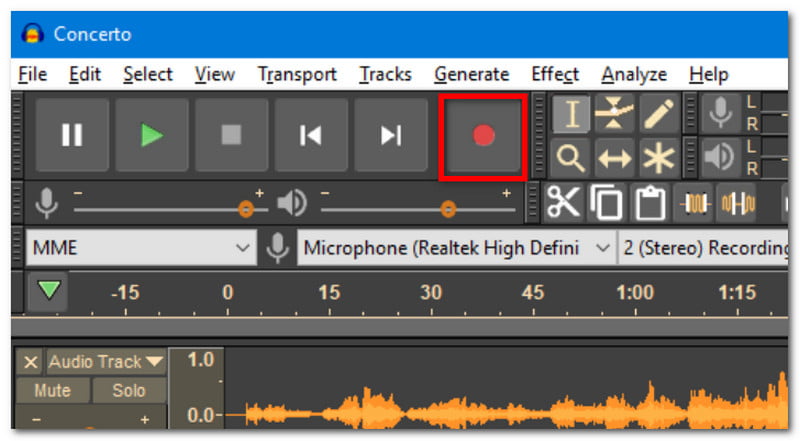
Pasul 1 Descărcați și instalați Audacity pe computer. Deschideți software-ul și configurați setările conform dorințelor.
Pasul 2Clic Record pentru a captura videoclipul de pe YouTube. Puteți editați pista audio prin decuparea începutului și a sfârșitului clipului audio și exportarea acestuia într-un folder.
Metoda 2: Convertor online de la YouTube la MP3
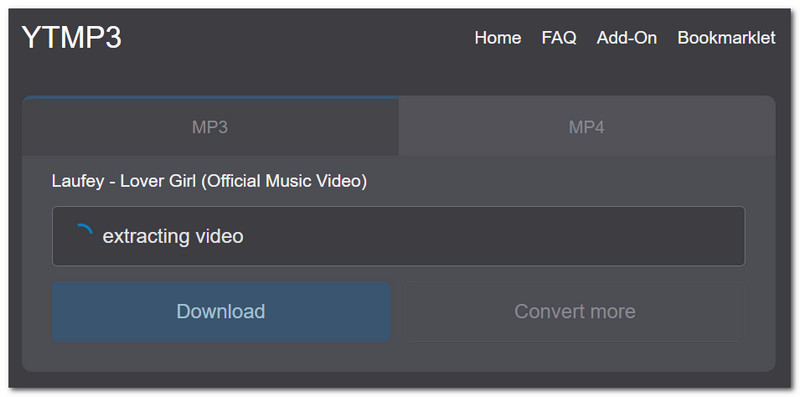
Pasul 1Deschide aplicația YouTube și caută videoclipul pe care vrei să-l convertești în format audio. Copiază linkul, apoi caută „Convertor YouTube în MP3” pentru a-l lipi.
Pasul 2Apoi apasa Convertit pentru a transforma videoclipul în audio și așteptați finalizarea procesului. Faceți clic pe Descarca pentru a salva fișierul audio.
Partea 5. Cum să înregistrezi conținut de înaltă calitate pentru canalul tău de YouTube
Poate te-ai întrebat pe Reddit: „Am nevoie de un trepied pentru a înregistra videoclipuri pe YouTube?” atunci când plănuiai să-ți înregistrezi propriul conținut. Vei avea nevoie de câteva echipamente pentru a începe înregistrarea, iar dacă ești începător, s-ar putea să vrei să începi cu următoarele:
Recomandări de echipamente
A avea un smartphone este deja un început bun pentru înregistrare. Dar cum să înregistrezi eficient videoclipuri YouTube pe un iPhone? Începe să investești în instrumente mici, cum ar fi un trepied și un inel de lumină pentru un efect de iluminare bun.
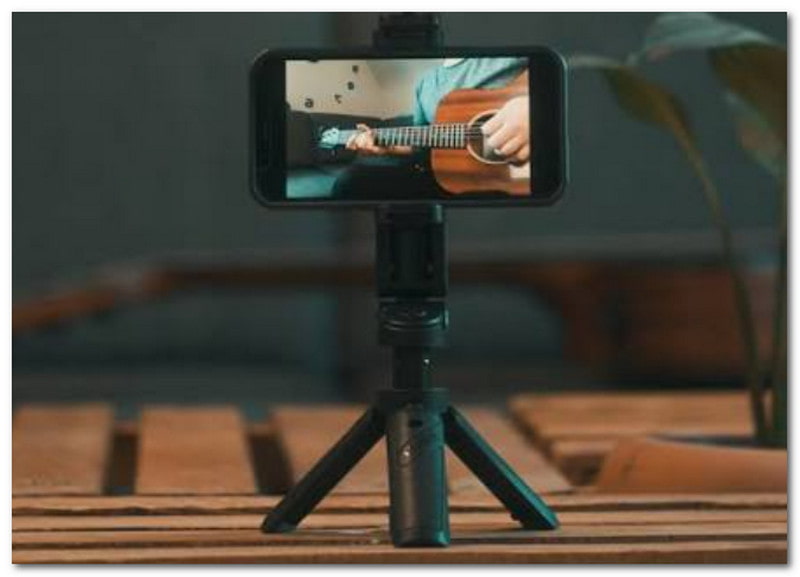
Durează câteva încercări până te apuci de filmat. Până atunci, poți explora mai profund instrumentele profesionale, cum ar fi ecranul verde, configurarea luminii și o cameră pentru înregistrarea videoclipurilor de pe YouTube.
Cum să înregistrezi ecranul + Face Cam pentru tutoriale
Dacă alegi o temă de tutoriale sau jocuri pe Twitch cu... cameră video frontală cu oglindă, atunci este recomandat să verificați un software care acceptă înregistrarea simultană a conținutului de pe ecran și a camerei web. OBS Studio ar fi o sugestie bună, dar din cauza curbei sale complexe de învățare, nu este potrivit pentru începători. Mai degrabă, puteți încerca AVAide Screen Recorder pentru a înregistra cu ușurință ecranul cu o cameră facială prin intermediul camerei web. Acest software de înregistrare a ecranului pentru YouTube oferă videoclipuri de înaltă calitate și o curbă de învățare ușoară.
În concluzie, este posibil să capturați videoclipuri YouTube în diferite moduri. Acest articol v-a ghidat și cu privire la cum să înregistrezi sunetul dintr-un videoclip de pe YouTube cu metode simple. Dar, în realitate, puteți realiza toate acestea mai ușor cu AVAide Screen Recorder, deoarece este echipat pentru a vă ajuta să capturați videoclipuri și audio de înaltă calitate de pe computer în doar câteva clicuri. Încercați-l astăzi descărcând software-ul complet de înregistrare a ecranului pe Windows sau Mac.
DESPRE AUTOR

Capturați activități pe ecran cu sunet, întâlniri online, videoclipuri de joc, muzică, cameră web etc.
Înregistrare ecran
- Înregistrare ecran pe Windows
- Înregistrați live pe Instagram
- Extrage videoclipuri din Tubi
- Convertește videoclipuri YouTube în MP3
- Descarcă videoclipuri de la Fansly
- Descărcarea videoclipurilor JW Player
- Descărcați videoclipuri Bilibili
- Descarcă videoclipuri Patreon
- Descarcă videoclipuri SpankBang
- Descarcă videoclipuri Discord
- Descărcați videoclipul DoodSream