Departea de cei dragi înseamnă că este important să discuți cu ei la telefon. Consideri că aceasta este o conexiune semnificativă în ciuda distanței și, uneori, vrei să păstrezi niște poze pe telefon sau să le partajezi pe rețelele de socializare în timpul unui apel video. Dar problema constă în faptul că FaceTime poate notifica cealaltă parte a apelului, iar tu nu îți dorești acest lucru de fiecare dată. Partea bună este că poți folosi Instagram, WhatsApp sau... Capturi de ecran de pe FaceTime de pe Snapchat în multe feluri, iar acest articol vorbește despre metodele pe care le puteți utiliza pe diferite dispozitive. Să intrăm în detalii începând cu câteva informații despre realizarea de capturi de ecran pe FaceTime.
- Partea 1. FaceTime notifică capturile de ecran?
- Partea 2. Cum să faci o captură de ecran FaceTime pe iPhone/iPad
- Partea 3. Cum să faci o captură de ecran FaceTime pe Mac
- Partea 4. Capturile de ecran FaceTime nu sunt salvate în biblioteca foto
- Partea 5. Cum să creezi capturi de ecran false pentru apeluri FaceTime
Partea 1. FaceTime notifică capturile de ecran?
FaceTime notifică despre capturile de ecran? Răspunsul este nu. Poți face o captură de ecran folosind funcția încorporată pe dispozitivul tău, iar cealaltă persoană din apelul video nu va primi nicio notificare despre aceasta. Cu toate acestea, utilizarea opțiunii Live Photos schimbă totul. Atunci când este utilizată, toți participanții la FaceTime vor fi notificați. Acest lucru se datorează faptului că Apple oferă o abordare oficială pentru ca utilizatorii să fie conștienți atunci când cineva din apel încalcă confidențialitatea conversației. Așadar, odată cu răspunsul la întrebarea „Dacă faci o captură de ecran pe FaceTime, cealaltă persoană va ști?”, hai să trecem la metodele de utilizat pentru a face capturi de ecran FaceTime.
Partea 2. Cum să faci o captură de ecran FaceTime pe iPhone/iPad
De cele mai multe ori, folosim telefoanele mobile pentru apeluri video, iar aceasta este cea mai ușoară modalitate de a face capturi de ecran și de a le lua cu noi oriunde mergem. Așadar, este corect să știm cum să activăm capturile de ecran pe FaceTime pe iPhone și iPad, mai ales dacă doriți o captură de ecran normală sau Live Photos. Aici puteți urma pașii de mai jos pentru capturare:
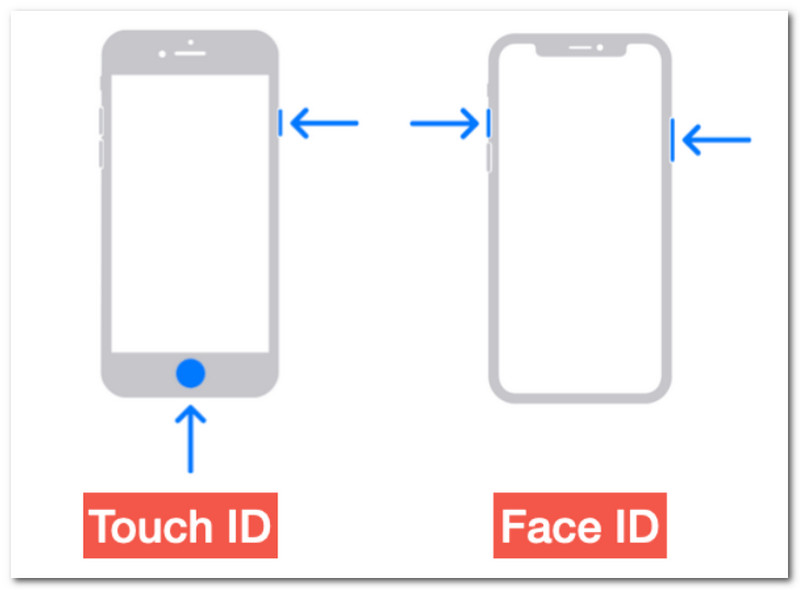
Pasul 1Deschide apelul FaceTime. Dacă telefonul sau tableta ta are ID-ul tactil, apăsați-l simultan cu Putere pentru a face o captură de ecran FaceTime cu iPhone-ul. Dacă dispozitivul are Face ID, apăsați butonul Putere și Mărire volum butoane.
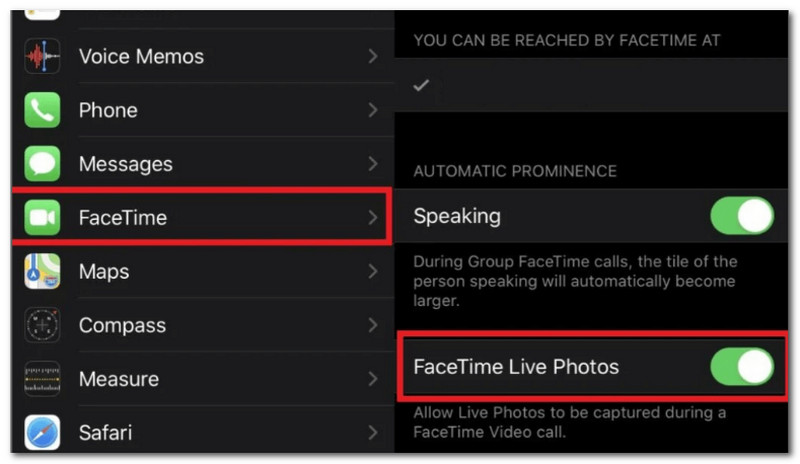
Pasul 2Pentru Live Photos, accesați setările iPhone-ului sau iPad-ului și navigați la AplicațiiMergeți la FaceTime meniu și activați Fotografii live FaceTime.
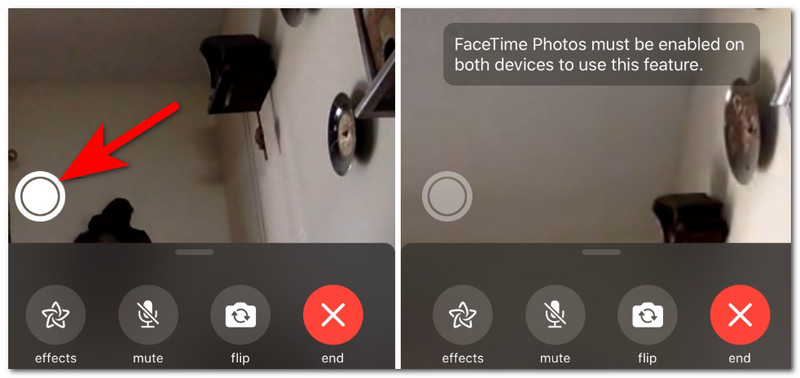
Pasul 3Într-un apel FaceTime, atingeți Cerc Alb pictograma din colțul ecranului pentru a face o captură de ecran FaceTime pentru iPhone sau iPad.
Pasul 4Unde se găsesc capturile de ecran FaceTime? Le poți găsi în aplicația Poze, precum și în Live Photos pe care le-ai făcut.
Partea 3. Cum să faci o captură de ecran FaceTime pe Mac
Poate vă întrebați cum să faceți o captură de ecran FaceTime pe un computer Mac. În acest caz, această parte prezintă metoda integrată și o soluție alternativă pentru a face capturi de ecran într-un apel video.
1. Shift + Comandă + 5/4/3
Metoda implicită de captură de ecran pe Mac este una dintre cele mai simple și mai practice funcții ale dispozitivului tău. Poate părea simplă, dar este utilă chiar și pentru a face capturi de ecran FaceTime pe WhatsApp. Aceasta este, de asemenea, o ocazie bună de a ști ce comenzi rapide de la tastatură să utilizezi, în funcție de dacă dorești să faci o captură de ecran complet, parțial sau pe anumite zone.
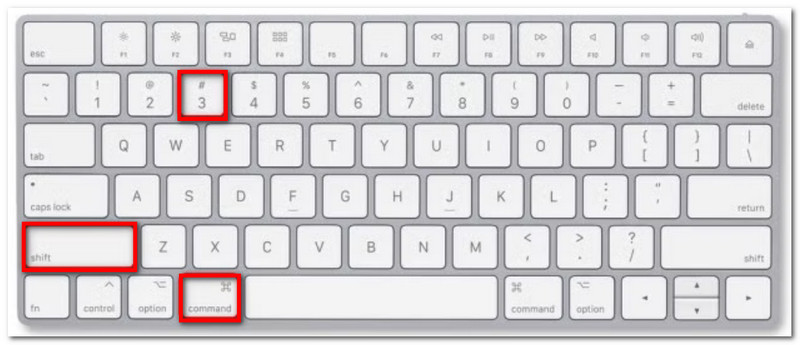
Pasul 1Pentru a face o captură de ecran audio FaceTime pe tot ecranul, apăsați simultan Shift + Comandă + 3Într-un colț va apărea o miniatură de previzualizare, pe care puteți face clic dacă doriți să o editați.
Pasul 2Dacă doriți să capturați doar o fereastră pentru pauză FaceTime, apăsați Shift + Comandă + 4 + Bară de spațiuCursorul va apărea ca o pictogramă de cameră pe care puteți face clic într-o fereastră sau un meniu activ.
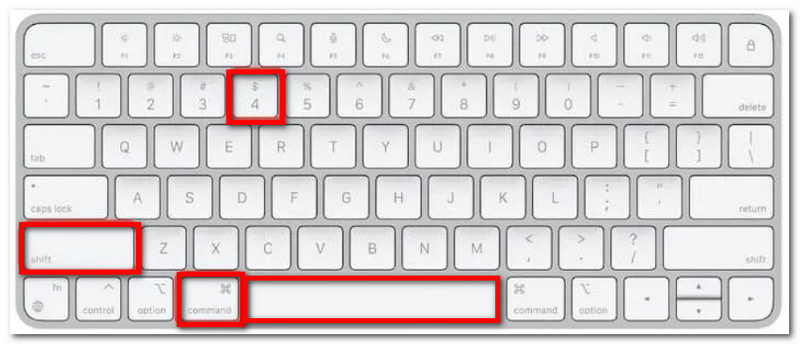
Pasul 3În cele din urmă, dacă nu puteți alege ce opțiune să utilizați, apăsați Shift + Comandă + 5 pentru a afișa butonul de captură de ecran FaceTime pe Mac. Puteți utiliza opțiunea de a selecta o porțiune a ecranului sau puteți utiliza înregistratorul de ecran încorporat.

2. Înregistrator de ecran AVAide
Indiferent dacă doriți capturi de ecran normale sau capturi de ecran false ale apelurilor FaceTime, este ușor de realizat cu AVaide Screen RecorderEste conceput ca o soluție multifuncțională pentru activitățile pe calculator, permițându-vă să faceți capturi de ecran și să înregistrați videoclipuri sau audio. Concentrându-se pe capacitatea sa de a face capturi de ecran, AVAide vă permite să capturați în diferite dimensiuni, fie că este vorba de întregul ecran, parțial sau în formă liberă. Deși pare un instrument simplu, acesta depășește așteptările oferind diverse formate de imagine de ieșire, cum ar fi BMP, JPEG și PNG, cu o calitate a imaginii fără pierderi. Mai mult, nu numai că acceptă captura pe Mac, dar are și un înregistrator de telefon care înregistrează fără efort iPhone și iPad. AVAide Screen Recorder depășește funcția nativă de captură de ecran a dispozitivelor, oferind cea mai bună experiență și rezultate în doar câteva clicuri.
Pasul 1Pentru a obține captura de ecran FaceTime dorită de pe Instagram, descarcă AVAide Screen Recorder pe Mac. Termină de configurat, apoi deschide software-ul.

DESCĂRCARE GRATUITĂ Pentru Windows 7 sau o versiune ulterioară
 Descărcare sigură
DESCĂRCARE GRATUITĂ Pentru Mac OS X 10.13 sau o versiune ulterioară
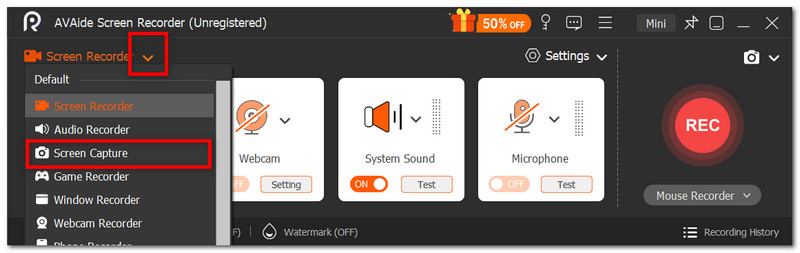
Descărcare sigurăPasul 2Din meniul derulant din colțul din stânga sus, selectați Captură de ecran opțiune. Cursorul se va schimba astfel încât să puteți selecta zona pe care doriți să o capturați.
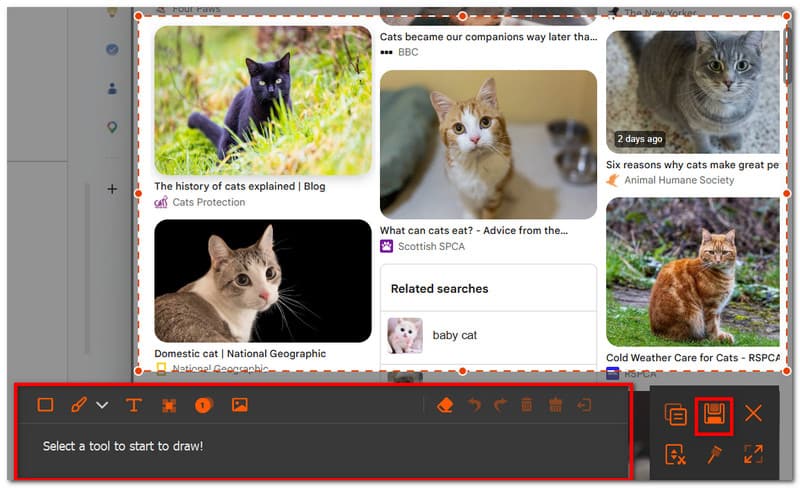
Pasul 3Opțional, utilizați funcțiile de editare încorporate pentru a desena, adnota și edita fotografia. Faceți clic pe salva buton pentru a exporta sau a partaja cu prietenii.
Partea 4. Capturile de ecran FaceTime nu sunt salvate în biblioteca foto
Dacă capturile de ecran FaceTime nu se salvează în biblioteca foto, problema obișnuită constă în setările FaceTime dezactivate pentru Live Photos. Însă, pentru o captură de ecran normală realizată din modul implicit de captură de ecran, poate fi o eroare temporară de software. Dacă tot nu găsiți capturile de ecran lungi din apelurile FaceTime, este posibil să fie nevoie să faceți niște depanări, cum ar fi:
- Reporniți dispozitivul și verificați butoanele pentru a vedea dacă funcționează
- Verificați spațiul de stocare în cloud
- Verifică captura de ecran din aplicația Poze, deoarece ar putea fi o eroare de previzualizare.
- Încearcă să închizi apelul FaceTime și să suni din nou.
Partea 5. Cum să creezi capturi de ecran false pentru apeluri FaceTime
Știați că puteți crea capturi de ecran false pentru apeluri FaceTime? Nu este nevoie de un apel video pentru a face acest lucru, dar veți avea nevoie de un instrument terț. Dacă sunteți într-o dispoziție proastă pentru o farsă inofensivă, atunci există câteva sugestii de care ați putea avea nevoie.
Generatoare online Internetul este plin de instrumente de mockup care au șabloane FaceTime. Poți folosi unul dintre aceste instrumente gratuit și pur și simplu să lipești fotografiile dorite.
Editori foto Să presupunem că vrei să mergi mai departe cu o farsă inofensivă și să faci ca captura de ecran falsă de grup FaceTime să pară reală; este mai bine să folosești cele mai bune editori foto, precum Photoshop. Dar puteți găsi opțiuni alternative cu șabloane simple, dar de încredere, cum ar fi pe Canva.
Editori video Nu numai că poți folosi capturi de ecran pentru farse amuzante, dar editorii video precum CapCut au pregătit un șablon video pentru apeluri FaceTime false. Bineînțeles, va trebui să te ocupi de actorie pentru a-l face credibil!
Ai învățat cele mai bune metode de a lua capturi de ecran pe FaceTime, Indiferent dacă folosești telefonul, tableta sau computerul. Deși unele aplicații notifică cealaltă persoană din apelul video, este posibil să faci acest lucru și poți face capturi de ecran cu funcția nativă a dispozitivului tău. Dar dacă totuși îți faci griji că cealaltă persoană va primi o notificare, poți alege AVAide Screen Recorder pentru a securiza fotografiile amuzante de pe FaceTime. Află și cum să înregistrezi FaceTime cu înregistrarea ecranului și a telefonului! Obțineți-l gratuit pe Windows sau Mac pentru a-i experimenta minunățiile.
DESPRE AUTOR

Înregistrați ecranul, sunetul, camera web, jocul, întâlnirile online, precum și ecranul iPhone/Android pe computer.
Înregistrare ecran
- Înregistrare ecran pe Windows
- Înregistrați live pe Instagram
- Extrage videoclipuri din Tubi
- Convertește videoclipuri YouTube în MP3
- Descarcă videoclipuri de la Fansly
- Descărcarea videoclipurilor JW Player
- Descărcați videoclipuri Bilibili
- Descarcă videoclipuri Patreon
- Descarcă videoclipuri SpankBang
- Descarcă videoclipuri Discord
- Descărcați videoclipul DoodSream