Camerele Canon înregistrează imagini în CR2, un format de imagine brută conceput pentru a capta detalii maxime ale imaginii. Deși este util pentru editare, nu poate fi utilizat în aplicațiile zilnice din cauza dimensiunii mari a fișierului și a compatibilității limitate. Când conversia CR2 în JPG, poate fi partajat mai ușor, încărcat mai rapid și acceptat pe o gamă mai largă de dispozitive. De asemenea, este un proces care minimizează cerințele de stocare fără a necesita expertiză tehnică la nivel înalt. Acest ghid este împărțit în motive, metode și instrumente bazate pe practici comune de gestionare a imaginilor pentru a vă ajuta să vă gestionați fișierele într-un mod clar și controlat.
Partea 1. Canon CR2: De ce trebuie să îl convertiți
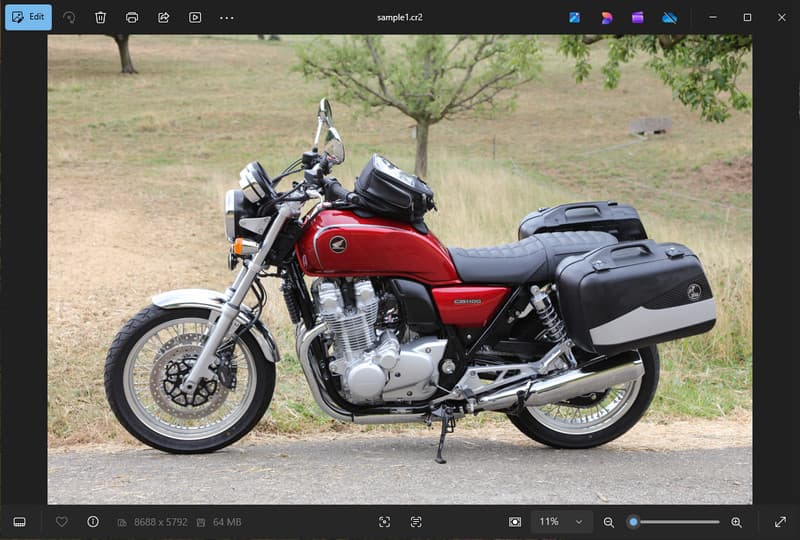
Canon CR2 este un format de fișier raw care înregistrează informații brute de la senzorul camerei. Deși este extrem de detaliat, poate fi necesară convertirea formatului de fișier CR2 în JPG, deoarece multe dispozitive și aplicații nu acceptă fișiere raw.
1. Compatibilitate limitată
Multe instrumente standard nu acceptă fișiere CR2, ceea ce face dificilă vizualizarea imaginilor. Conversia unui fișier CR2 în JPG asigură deschiderea fără probleme a fotografiilor pe diferite dispozitive, browsere și instrumente de vizualizare a imaginilor de bază.
2. Dimensiune mare a fișierului
Fișierele RAW sunt foarte mari, deoarece păstrează mai multe date de imagine. Acest lucru afectează stocarea și performanța. Schimbarea imaginilor CR2 în JPG reduce dimensiunea fișierului, facilitând stocarea și transferul eficient al imaginilor.
3. Partajare și încărcare mai ușoară
Multe platforme nu acceptă formate RAW sau procesarea lor este lentă. Trecerea de la CR2 la JPG este o modalitate rapidă și ușoară de a încărca imaginile și de a vă asigura că acestea apar în formatul corect pe rețelele sociale, e-mail și alte site-uri web.
4. Nu este nevoie de software specializat
Fișierele CR2 necesită un software de editare capabil să proceseze fișierele RAW. Când convertiți CR2 în JPG, eliminați utilizarea unor programe sofisticate și obțineți cu ușurință imagini pe care le puteți utiliza în viața de zi cu zi.
5. Flux de lucru mai rapid
Lucrul cu fișiere RAW poate încetini procesul, în special în cazuri de volum mare. Utilizarea unui convertor CR2-JPG fiabil ajută la accelerarea procesării imaginilor și la îmbunătățirea productivității generale.
6. Proces mai simplu pentru începători
Formatele RAW pot părea complexe pentru utilizatorii noi. Învățarea modului de conversie a fișierelor CR2 în JPG simplifică fluxul de lucru și facilitează gestionarea imaginilor fără bariere tehnice.
Înțelegerea acestor aspecte explică de ce conversia este adesea alegerea practică. În secțiunea următoare, veți explora cele mai bune metode pentru a converti eficient CR2 în JPG.
Partea 2. 5 Cele mai bune metode de a converti CR2 în JPG
1. AVAide Image Converter (Cea mai bună opțiune online gratuită)
AVaide Image Converter este o soluție rapidă, bazată pe browser, concepută pentru utilizatorii care au nevoie de rezultate rapide fără a instala software. Este utilă în special atunci când trebuie să convertiți CR2 în JPG în bloc, menținând în același timp calitatea imaginii.
Caracteristici cheie:
- Convertește în și din fișiere CR2 în lot.
- Menține o calitate ridicată a imaginii și culori naturale.
- Complet online, fără instalare necesară
- Acceptă JPG, PNG și altele.
- Interfață ușor de utilizat pentru procesare accelerată.
Platforme:
- Bazat pe web, care funcționează pe Windows, Mac, Linux și browsere mobile
Pasul 1Vizitați site-ul oficial
Accesați pagina oficială AVAide Image Converter în browser. După încărcare, puteți începe conversia imediat, fără a vă înregistra sau a instala nimic.
Pasul 2Setați ieșirea și încărcați
Selectați JPG ca format de ieșire dorit. Apoi, faceți clic pe butonul + sau glisați și plasați fișierele CR2 în zona de încărcare pentru a începe.
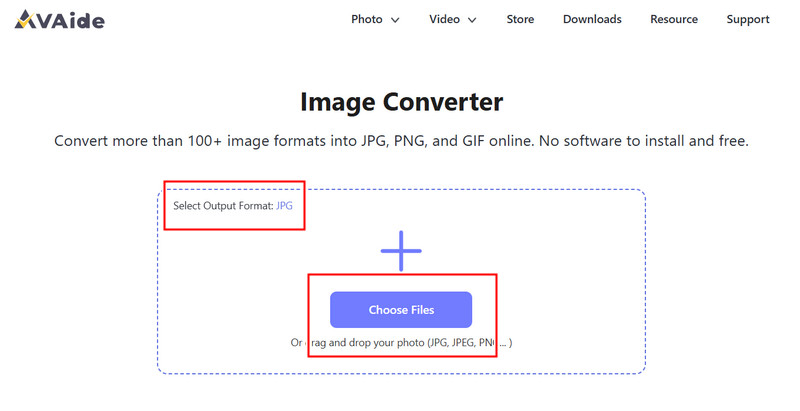
Pasul 3Începeți conversia CR2
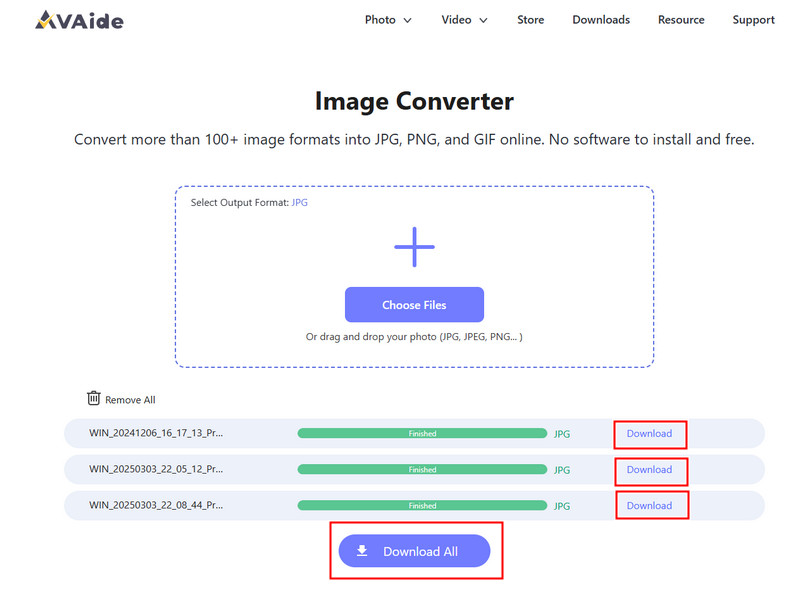
Așteptați ca instrumentul să termine de procesat fișierele. După ce ați terminat, faceți clic pe Descarca pentru un singur fișier sau descarca toate dacă ați convertit mai multe imagini.
- Pro
- Ușor și rapid de utilizat
- Nu este necesară configurarea sau instalarea
- Suport eficient pentru procesarea în loturi
- Menține o calitate constantă a rezultatelor
- Contra
- Necesită o conexiune la internet
- Instrumente avansate de editare limitate
2. Adobe Photoshop
Adobe Photoshop este o aplicație eficientă care permite editarea fișierelor RAW înainte de exportare. Este de obicei utilizată atunci când trebuie să convertiți CR2 în JPG și să aveți control complet asupra modificărilor imaginii.
Caracteristici cheie:
- Editare CR2 avansată prin Camera Raw
- Opțiuni de export de înaltă calitate
- Instrumente de editare de nivel profesional
Platforme:
- Windows și Mac
Pasul 1Lansați Photoshop și deschideți fișierul CR2, care se va încărca automat în Camera Raw.
Pasul 2Ajustați expunerea, balansul de alb sau culoarea după cum este necesar, apoi faceți clic pe Deschis a continua.
Pasul 3Mergi la Fişier, Selectați Salvează ca, alege JPG formatați, setați calitatea și salvați imaginea.
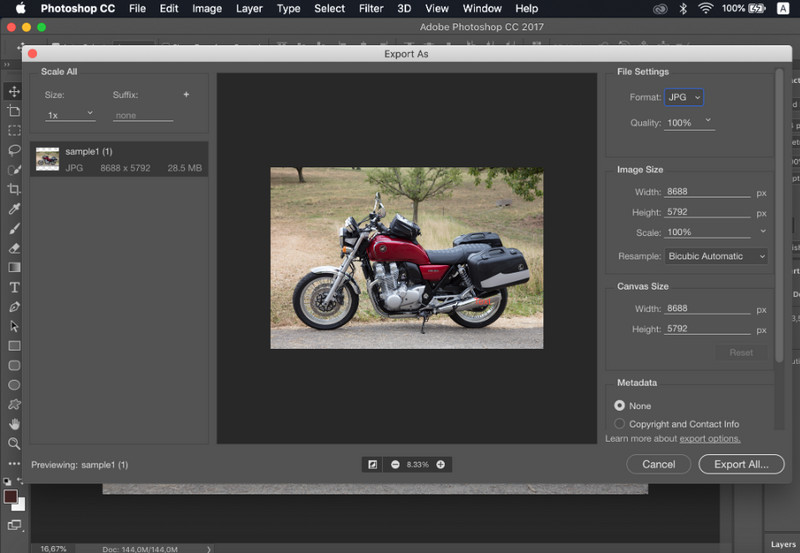
- Pro
- Control excelent al imaginii și precizie
- Software standard în industrie
- Contra
- Necesită abonament
- Curbă de învățare abruptă
3. Lightroom
Lightroom este ideal pentru fotografii care gestionează biblioteci mari de imagini și chiar dacă doriți eliminați fundalul în LightroomSimplifică editarea și exportul în lot, facilitând utilizarea unui flux de lucru de conversie CR2-JPG pentru mai multe imagini simultan.
Caracteristici cheie:
- Editare și export în lot
- Sistem de editare nedistructivă
- Gestionare organizată a fotografiilor
Platforme:
- Windows, Mac și mobil
Pasul 1Deschide Lightroom și adaugă fișierele CR2 în bibliotecă.
Pasul 2Alegeți imaginile și faceți modificări, dacă este necesar.
Pasul 3Clic Export, Selectați JPG formatați, setați setările și selectați locul de salvare.
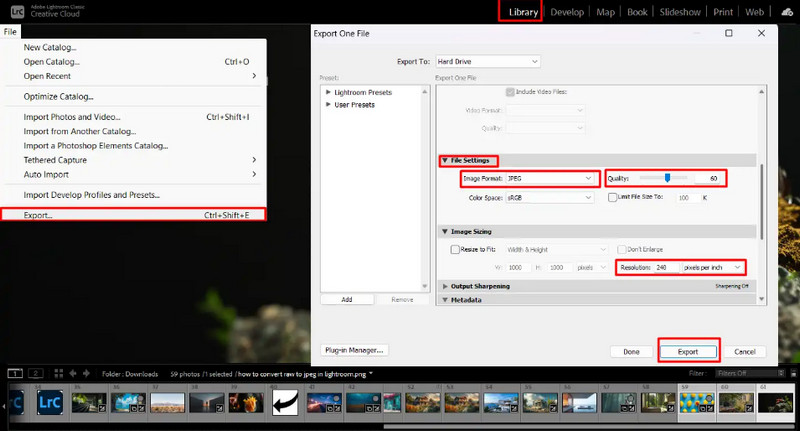
- Pro
- Eficient pentru procesarea imaginilor în vrac
- Calitate constantă a rezultatului
- Contra
- Abonament necesar
- Necesită învățare pentru începători
4. GIMP
Editor foto GIMP este un editor gratuit, open-source, care poate gestiona imagini brute folosind pluginuri. Este o opțiune eficientă dacă înveți cum să converti CR2 în JPG fără a cheltui bani pe software plătit.
Caracteristici cheie:
- Software gratuit și open-source
- Acceptă mai multe formate de imagine
- Funcții de bază de editare și conversie
Platforme:
- Windows, Mac, Linux
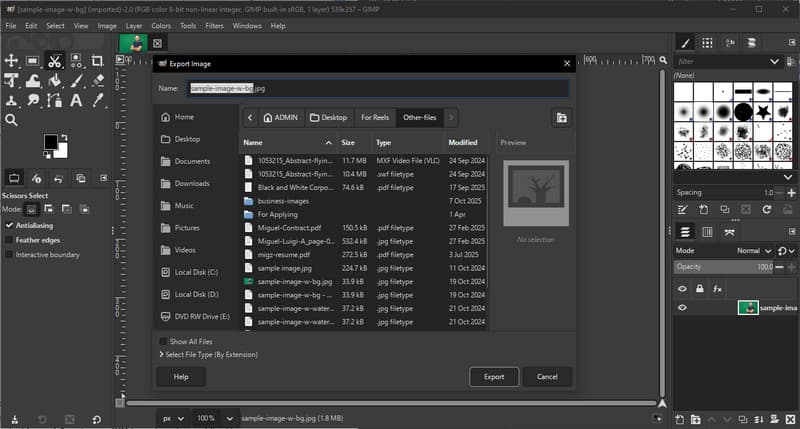
Pasul 1Deschideți GIMP și încărcați fișierul CR2 folosind un plugin RAW.
Pasul 2Ajustați setările imaginii în fereastra de import și confirmați.
Pasul 3Mergi la Fişier, Selectați Export ca, alege JPG formatați și exportați fișierul.
- Pro
- Complet gratuit de utilizat
- Flexibil cu pluginuri și extensii
- Contra
- Configurarea poate fi tehnică
- Interfață mai puțin rafinată
5. Convertio
Convertio este un instrument web binecunoscut care permite utilizatorilor să convertească rapid fișiere fără instalare. Este o alegere practică atunci când utilizatorii întreabă cum să convertească CR2 în JPG folosind o platformă online simplă.
Caracteristici cheie:
- Acceptă mai multe formate de fișiere, inclusiv CR2 și JPG
- Funcționează direct în browser
- Permite încărcarea fișierelor de pe dispozitiv, cloud sau URL
- Proces de conversie simplu și rapid
Platforme:
- Bazat pe web
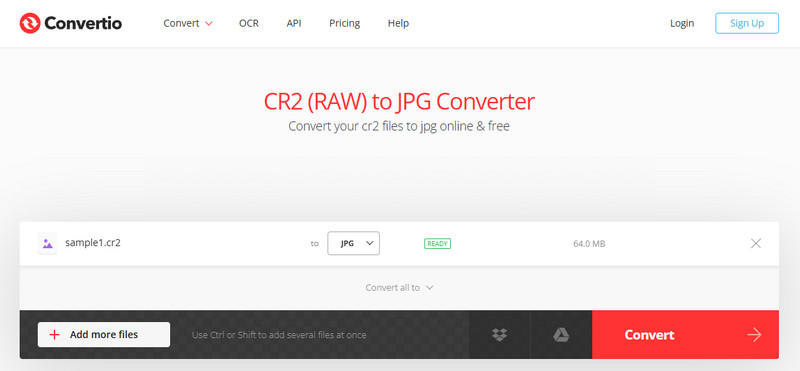
Pasul 1Deschide Convertio în browser și încarcă fișierul CR2.
Pasul 2Selectați JPG ca format de ieșire.
Pasul 3Începeți conversia și descărcați fișierul după finalizare
- Pro
- Ușor de accesat și utilizat
- Nu necesită instalare
- Acceptă diverse surse de fișiere
- Contra
- Limite de dimensiune a fișierelor pentru versiunea gratuită
- Necesită o conexiune la internet
Partea 3. Comparație între cele 5 convertoare CR2 în JPG
| Caracteristici | AVaide Image Converter | Adobe Photoshop | Lightroom | GIMP | Convertio |
| Ușor de folosit | Foarte ușor | Moderat | Moderat | Moderat | Uşor |
| Conversie lot | da | Limitat | Limitat | Limitat | Limitat la 5 |
| Calitatea imaginii | Cel mai înalt | Înalt | Înalt | Înalt | Înalt |
| Viteză | Rapid | Moderat | Rapid | Moderat | Rapid |
| Limitarea dimensiunii fișierului | Nu | Nu | Nu | Nu | da |
Partea 4. Întrebări frecvente despre conversia CR2 în JPG
Ce se poate face cu fișierele CR2?
Fișierele CR2 sunt imagini brute care conțin date neprocesate de la un aparat foto Canon. Sunt utile dacă doriți control deplin asupra editării, cum ar fi ajustarea luminozității, culorii și clarității. Cu toate acestea, nu sunt ușor de utilizat pentru sarcini de zi cu zi, cum ar fi partajarea sau încărcarea.
Ce aplicații deschid fișierele CR2?
Fișierele CR2 pot fi deschise folosind mai multe aplicații de editare foto. Adobe Photoshop și Lightroom sunt cele mai comune opțiuni, deoarece acceptă complet formatele raw și oferă instrumente avansate de editare. GIMP poate deschide, de asemenea, fișiere CR2 cu un plugin.
Cum să convertesc fișiere RAW în JPG dintr-o dată?
Pentru a converti mai multe fișiere raw simultan, aveți nevoie de un instrument care acceptă conversia în lot. Programe precum Lightroom sau instrumente online precum AVAide Image Converter vă permit să importați sau să încărcați mai multe fișiere CR2 simultan. Pur și simplu selectați JPG ca format de ieșire și începeți procesul.
Conversia fișierelor CR2 în JPG facilitează partajarea, vizualizarea și stocarea imaginilor. În timp ce CR2 este excelent pentru editare, JPG este mai practic pentru utilizarea de zi cu zi. Dacă vă întrebați cum se schimbă tipul de fișier din CR2 în JPG, puteți utiliza instrumente precum Photoshop, Lightroom sau convertoare online, cum ar fi AVaide Image ConverterScopul este simplu: transformarea fișierelor RAW mari în imagini JPG mai mici și utilizabile, fără a pierde din calitatea importantă.
DESPRE AUTOR


Vă puteți converti cu ușurință fotografia din orice format de imagine într-un JPG, PNG sau GIF popular, fără pierderi de calitate.
PROCESAȚI ACUM