Como editar uma gravação de vozEditar suas gravações de voz é uma maneira eficaz de aprimorar diversos aspectos do arquivo de áudio. Você pode melhorar a clareza, cortar trechos, aumentar e diminuir o volume, adicionar efeitos e muito mais, resultando em uma melhor reprodução de áudio. Seja para entrevistas, anotações pessoais ou podcasts, aprender as melhores práticas de edição é essencial para alcançar o resultado desejado. Neste guia, ensinaremos como editar sua gravação de voz usando as melhores ferramentas de edição de áudio. Continue lendo e saiba mais sobre o processo.
Parte 1. Editar gravação de voz no iPhone
Quer aprender a editar uma gravação de voz no iPhone? O iPhone oferece um aplicativo confiável para editar suas gravações de voz, principalmente para cortar, sobrepor e remover trechos. Para começar, confira todos os passos descritos nesta seção.
Aparar gravação em memorandos de voz
Memorandos de voz não é apenas um dos melhores aplicativos de gravação de vozAlém disso, oferece ferramentas de edição confiáveis para editar seu áudio. Com este aplicativo de gravação/edição, você pode cortar o áudio e remover partes desnecessárias. O aplicativo também possui um layout simples, tornando-o ideal e fácil de usar, principalmente para usuários sem experiência profissional.
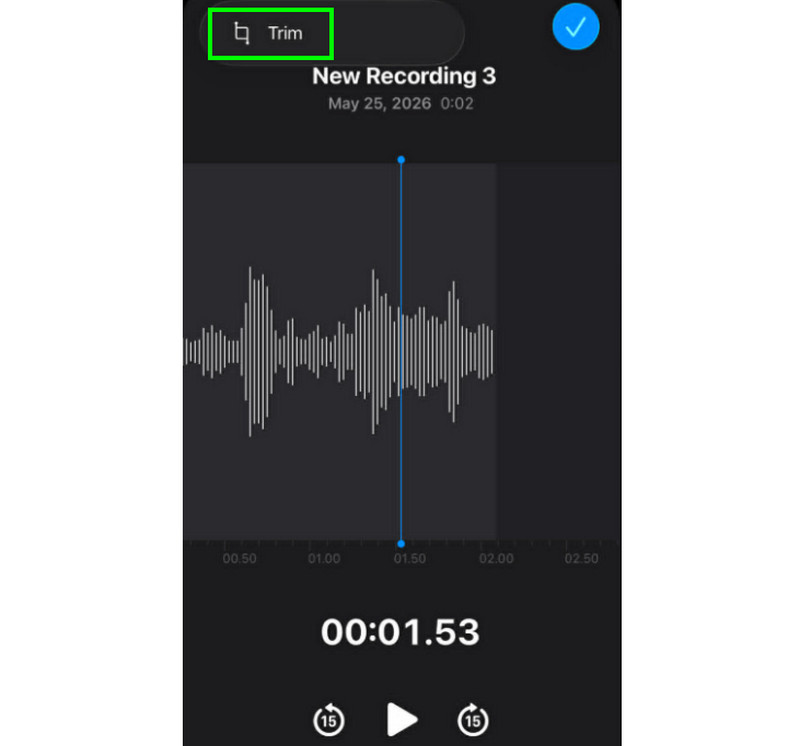
Passo 1Inicie o Memorandos de voz No aplicativo, procure a gravação de voz que deseja editar. Em seguida, clique em Aparar função.
Passo 2Depois disso, você pode começar a cortar o áudio. Em seguida, clique em Aparar O botão abaixo inicia a remoção das partes indesejadas do áudio.
etapa 3Após aparar, você pode pressionar o Aplicar botão acima para salvar as alterações.
Como remover uma seção no meio
Durante o processo de edição, você pode pensar que basta cortar o início ou o fim da faixa. A vantagem do aplicativo Gravador de Voz é que você também pode remover um trecho no meio. Com essa funcionalidade, remover partes desnecessárias da faixa de áudio se torna uma tarefa fácil.
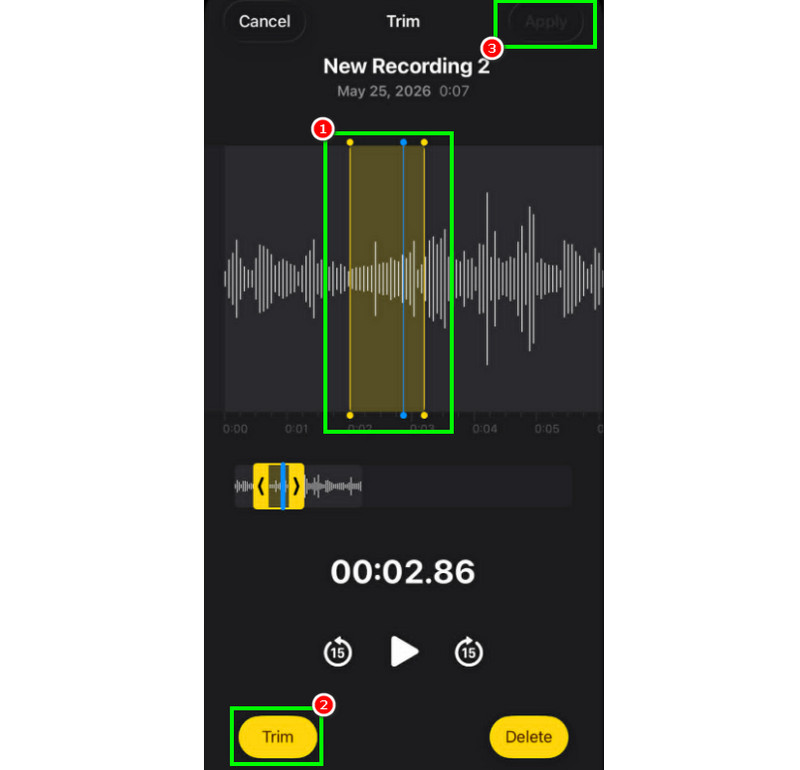
Passo 1Após selecionar o Aparar Com esse recurso, você pode tocar e controlar a linha ajustável a partir do trilho.
Passo 2Insira ou ajuste a linha na parte central onde deseja remover o trilho. Depois disso, clique em Aparar botão abaixo.
etapa 3Toque Aplicar Para salvar a gravação de voz editada.
Como sobrepor faixas em gravações de voz
O Gravador de Voz é uma ferramenta ideal para gravar voz e qualquer conteúdo de áudio. Ele permite até mesmo editar gravações, como cortar ou remover trechos. No entanto, se você deseja sobrepor faixas, infelizmente, a ferramenta não oferece essa funcionalidade. Para uma melhor sobreposição de faixas, é recomendável utilizar um aplicativo de edição de áudio mais avançado, como o GarageBand. Este aplicativo permite sobrepor faixas e criar um único arquivo.
Como compartilhar e exportar gravações de voz editadas
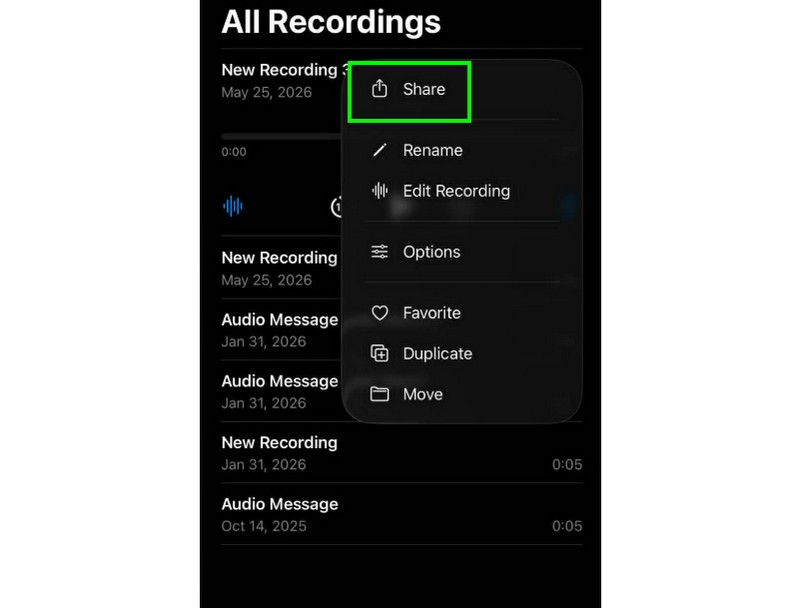
Compartilhar e exportar uma gravação de voz editada é simples. Basta localizar a gravação no aplicativo Gravador de Voz e tocar no botão com três pontos. Em seguida, toque na função Compartilhar. Pronto! Agora você pode compartilhar a gravação em diversas plataformas. Você também pode salvá-la na pasta desejada.
Aplicativos de edição recomendados para iPhone
Você deseja outro software de gravação e edição de voz? Como o aplicativo Gravador de Voz tem limitações na edição de gravações de voz, às vezes é necessário usar outra ferramenta de edição. Nesse caso, para uma edição melhor, você pode experimentar o GarageBand, o Ferrite Recording Studio e o Hokusai Audio Editor.
Parte 2. Editar gravação de voz no Android
Você é usuário de Android e quer editar suas gravações de voz? Então, você pode usar o Gravador de voz SamsungÉ um aplicativo gratuito que você pode usar para editar suas gravações de voz. Ele permite cortar suas gravações de acordo com suas preferências. O aplicativo oferece uma interface de usuário simples, facilitando a navegação.
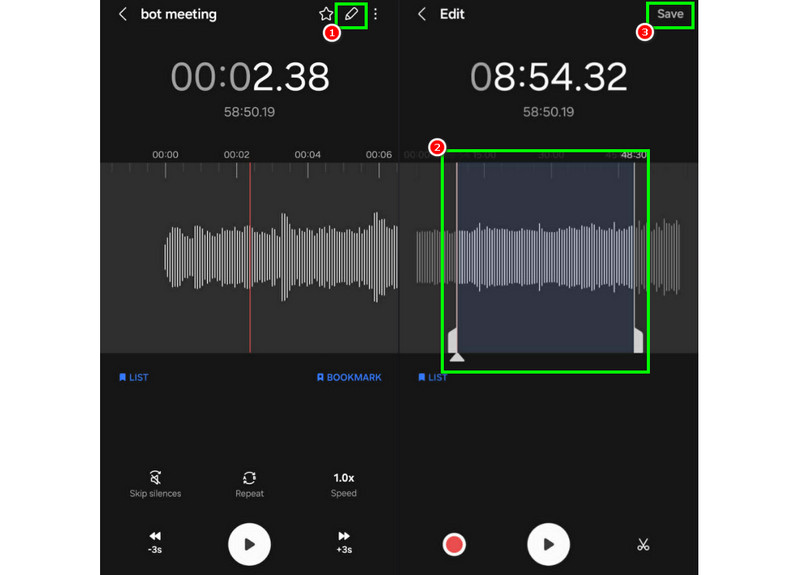
Passo 1Inicie o Gravador de voz SamsungDepois disso, prossiga para as gravações que deseja editar.
Passo 2Em seguida, abra as gravações e pressione o Editar função acima.
etapa 3Você pode começar o processo de recorte ajustando as linhas dos trilhos. Depois de concluir, você pode marcar a caixa. Salve botão acima.
Parte 3. Como editar gravações de voz no computador
Quer editar suas gravações de voz em um computador? Então, continue lendo, pois oferecemos os melhores métodos para um processo de edição de gravações de voz eficaz.
Método 1. Editar gravações de voz usando o Audacity
Audácia é um dos editores gratuitos para desktop nos quais você pode confiar para editar suas gravações. Você pode cortar o áudio, adicionar efeitos e anexar outras faixas. Você pode até mesmo gravar áudio do computador no Audacity e edite-o de acordo com suas preferências. O único problema é que o layout não é suficientemente atraente.
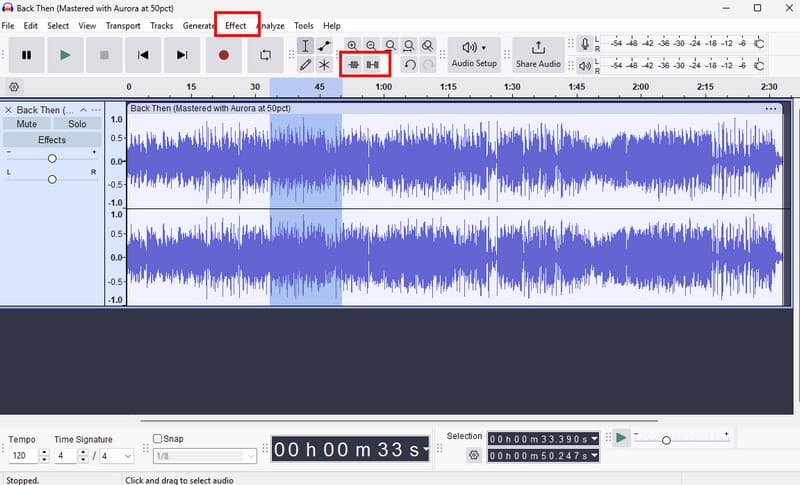
Passo 1Download Audácia no seu computador. Em seguida, prossiga para o Arquivo > Aberto Opções para adicionar suas gravações.
Passo 2Você pode começar a editar seu arquivo. Você pode cortar a faixa, adicionar efeitos, ajustar o andamento e muito mais.
etapa 3Após concluir, toque em Arquivo > Salvar Projeto para mantê-lo no seu dispositivo.
Método 2. Editar gravações de voz usando o conversor de vídeo AVAide
Se você deseja um editor de nível profissional, tente acessar AVAide Video ConverterEste programa permite editar seu áudio de diversas maneiras. Você pode cortar ou aparar uma faixa específica das gravações, dividi-las e mesclá-las. O melhor é que você pode até inserir um efeito de fade-in e fade-out no seu áudio. Além disso, você pode converter suas gravações para qualquer formato de áudio, como MP3, AAC, ALAC, M4A, WAV e muitos outros. Isso garante que você não terá problemas de compatibilidade durante a reprodução. Você pode até salvar as gravações com a melhor qualidade, até 320 kbps, tornando o programa ideal para todos os entusiastas de áudio.
Passo 1Download AVAide Video Converter No seu Mac ou Windows. Em seguida, instale e execute o programa para iniciar o processo de edição.

DOWNLOAD GRATUITO Para Windows 7 ou posterior
 Download seguro
DOWNLOAD GRATUITO Para Mac OS X 10.13 ou posterior
Download seguroPasso 2De Conversor Para adicionar gravações de voz, clique em Adicionar arquivos opção. Você pode até adicionar vários arquivos, se quiser.
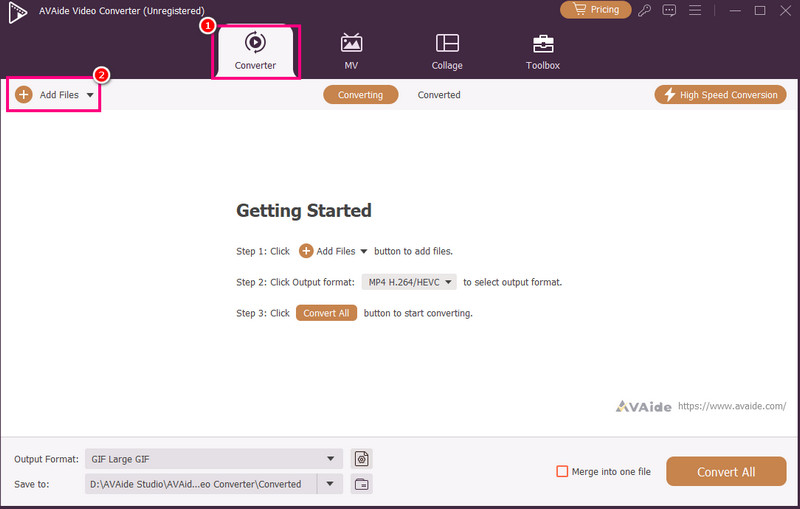
etapa 3Em seguida, clique no Cortar opção para iniciar o processo de edição. Você pode cortar e remover uma determinada parte da faixa. Você também pode usar o Dividir função para separar as faixas.
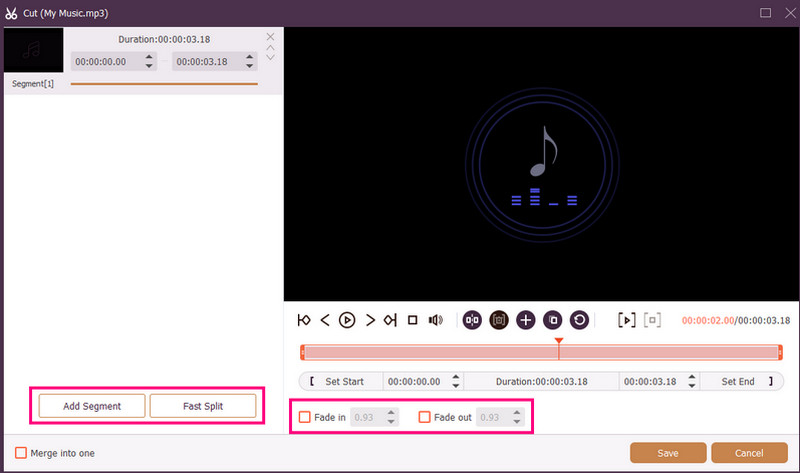
Você também pode anexar Entrada gradual e Desvanecer Adicione efeitos às suas gravações. Depois de concluir, clique em Salve .
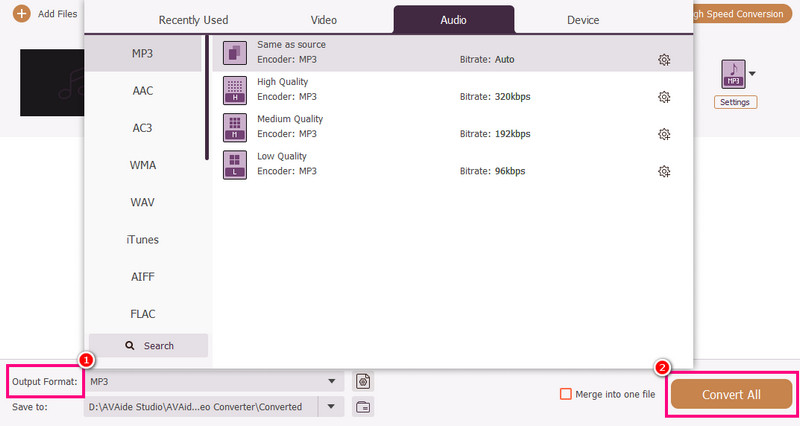
Passo 4Você também pode ir para o Formato de saída Na seção para escolher o formato de áudio desejado, marque a caixa. Converter tudo para iniciar o processo de salvamento.
Método 3. Editar gravações de voz usando o Adobe Audition
Adobe Audition É uma ferramenta confiável que você pode usar para editar suas gravações de voz. Ela oferece ferramentas de edição básicas e avançadas, sendo ideal para todos os usuários, especialmente profissionais. Você pode cortar as gravações, aplicar efeitos, sobrepor faixas e muito mais. No entanto, é preciso ter habilidade suficiente para usar essa ferramenta, já que sua interface de usuário tem uma curva de aprendizado acentuada.
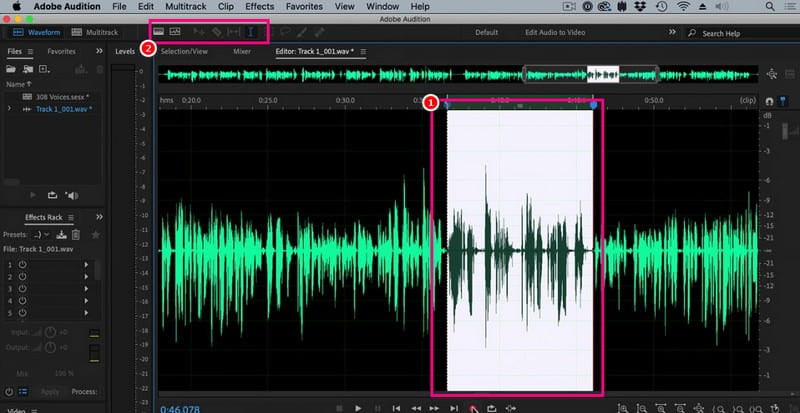
Passo 1Download Adobe Audition No seu computador. Depois disso, comece a adicionar a gravação de voz que deseja editar.
Passo 2Você pode usar o mouse/cursor para selecionar uma parte específica da faixa e editá-la. É possível cortar, adicionar efeitos e dividir o áudio usando todas as ferramentas de edição da interface superior.
etapa 3Após editar o áudio, você pode ir para o Arquivo > Salve Escolha as opções acima para iniciar o processo de salvamento.
Parte 4. Editar gravação de voz online
Editar suas gravações de voz online também é uma opção. Leia os detalhes abaixo e aprenda como editar seu arquivo de áudio no navegador.
Método 1. Editar gravações de voz usando o 123APPS
Esta ferramenta é perfeita se você deseja editar seu áudio gratuitamente. Ela permite cortar o áudio, remover o ruído de fundo, adicionar um efeito de fade e muito mais. Além disso, é simples de usar, sendo ideal para iniciantes.
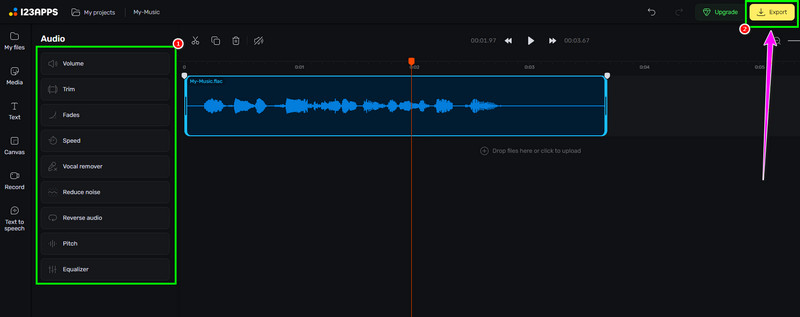
Passo 1Visite o site de 123APLICATIVOS e prossiga para o seu Editor de áudio recurso. Depois disso, clique em Escolher os arquivos Para enviar sua gravação.
Passo 2Em seguida, comece a editar seu áudio. Você pode cortar a gravação, adicionar efeitos, remover ruídos e muito mais.
etapa 3Após o processo de edição, clique Exportar acima para salvá-lo em seu dispositivo.
Método 2. Editar gravações de voz usando um editor de áudio online.
Se você deseja um excelente editor de áudio online para editar suas gravações de voz, pode experimentar o [nome do editor]. Editor de áudio onlineEsta ferramenta oferece diversas funcionalidades que você pode utilizar. Algumas delas são: aparador, cortador, removedor de ruído, carregador rápido e muito mais. Confira os passos abaixo e aprenda como editar uma gravação de voz.
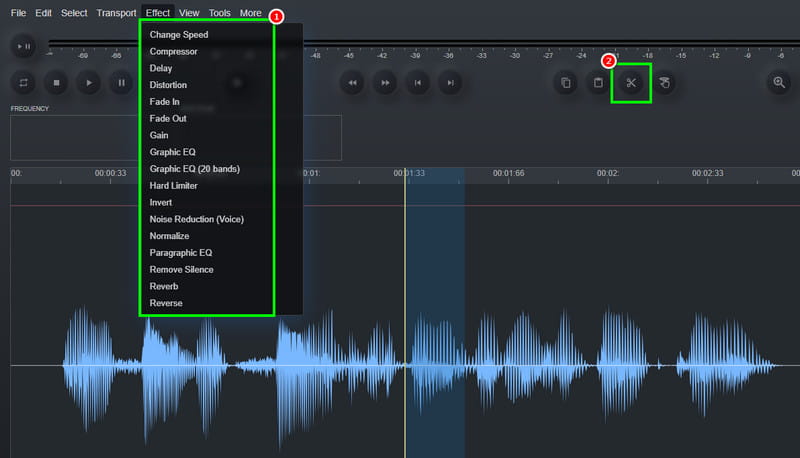
Passo 1Após acessar o Editor de áudio online ferramenta, clique no Arquivo > Aberto opção para fazer o upload da gravação de voz.
Passo 2Você pode começar o processo de edição. Vá para o Efeito seção para alterar a velocidade do áudio, adicionar um efeito, ajustar o atraso e muito mais. Você também pode usar o Cortar Ferramenta para remover a parte desnecessária do trilho.
etapa 3Para o último processo, clique em Arquivo > Salve botão para salvar a gravação editada no seu computador.
Parte 5. Qual método você deve escolher?
Está em dúvida sobre qual método escolher? Nesse caso, recomendamos fortemente o uso de... AVAide Video ConverterQuando se trata de edição, você pode ter certeza de que obterá o resultado desejado. É possível cortar, dividir e adicionar vários segmentos de áudio para criar um único arquivo. Você também pode acessar o recurso de Compressor de Áudio do programa para equilibrar o tamanho e a qualidade do seu arquivo de gravação. Ele permite ainda converter seu áudio para outros formatos, evitando problemas de compatibilidade. Portanto, confie neste programa e alcance a saída de áudio ideal.
Graças a este tutorial, você aprendeu como editar gravações de áudioPortanto, confira os métodos que oferecemos e lide com suas gravações de voz de acordo com suas preferências. Além disso, se você deseja um processo de edição de áudio mais ágil, sugerimos usar [nome da ferramenta/plataforma]. AVAide Video ConverterEste software garante que você possa editar e salvar o vídeo com a melhor qualidade, tornando-o um editor de primeira linha para os usuários.
SOBRE O AUTOR

Sua caixa de ferramentas de vídeo completa que suporta mais de 350 formatos para conversão em qualidade sem perdas.