Jak nagrywać muzykę na iPhonieNagrywanie ulubionej muzyki to proste zadanie dzięki wbudowanym funkcjom telefonu i niezawodnym aplikacjom. Niezależnie od tego, czy nagrywasz krótki utwór, pracujesz nad ścieżkami instrumentalnymi, czy odbierasz połączenia, Twój iPhone oferuje elastyczne opcje, które przydadzą się zarówno początkującym, jak i profesjonalistom. Jeśli więc chcesz poznać różne metody efektywnego nagrywania muzyki, lepiej zacznij od przeczytania całego tego poradnika.
- Część 1. Nagrywanie muzyki na iPhonie za pomocą wbudowanej aplikacji Notatki głosowe
- Część 2. Nagrywanie muzyki za pomocą GarageBand
- Część 3. Nagrywanie wielotorowe za pomocą aplikacji innych firm
- Część 4. Nagrywanie w formacie MP3
- Część 5. Jak nagrywać muzykę z YouTube na iPhonie
- Część 6. Profesjonalne porady dotyczące lepszej jakości dźwięku
Część 1. Nagrywanie muzyki na iPhonie za pomocą wbudowanej aplikacji Notatki głosowe
Jedną z aplikacji do nagrywania MP3 na iPhone'a, z której możesz korzystać, aby nagrywać muzykę, jest aplikacja Voice Memos. To wbudowana aplikacja dostępna na iPhonie. Ten rejestrator muzyki pozwala na nagrywanie i przechwytywanie dowolnych treści audio w sposób wyraźny i natychmiastowy. Idealnie nadaje się do zapisywania pomysłów na utwory, melodii i całych sesji ćwiczeniowych. Największą zaletą aplikacji jest intuicyjny interfejs użytkownika. Możesz płynnie przycinać nagrane treści, organizować je i udostępniać bez żadnych trudności. Aplikacja jest również idealna dla muzyków, którzy chcą… nagrywaj dźwięk na iPhonie, nie możemy stwierdzić, że aplikacja Notatki głosowe może być idealnym narzędziem.
Aby dowiedzieć się, jak nagrać plik MP3 na iPhonie, wykonaj poniższe szczegółowe czynności.
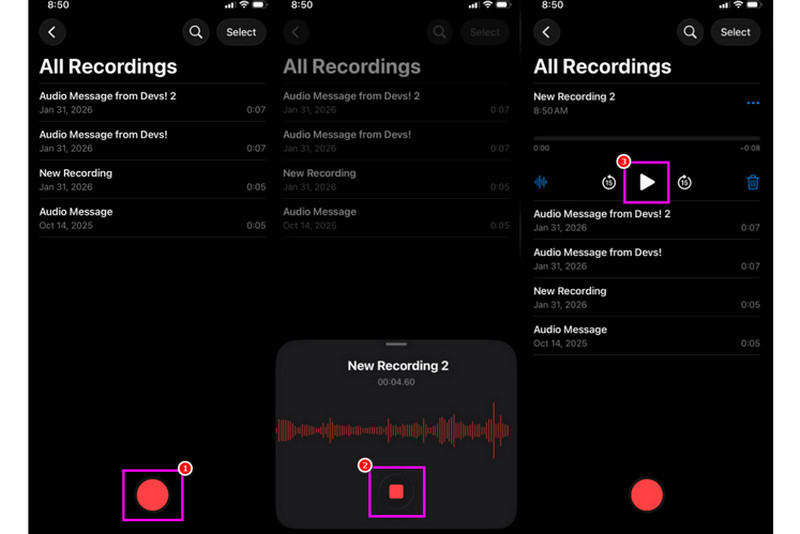
Krok 1Na swoim iPhonie przejdź do Narzędzia sekcja i dotknij Notatki głosowe Następnie upewnij się, że muzyka, którą chcesz nagrać, jest już przygotowana.
Krok 2Następnie przejdź do dolnego interfejsu i naciśnij Nagrywać przycisk. Po wykonaniu tej czynności możesz odtwarzać muzykę na swoim iPhonie lub innym urządzeniu.
Krok 3Po zakończeniu nagrywania naciśnij Zatrzymać Dzięki temu możesz teraz mieć nagraną muzykę. Możesz nawet edytować lub udostępnić plik, jeśli chcesz.
Część 2. Nagrywanie muzyki za pomocą GarageBand
Chcesz stworzyć własną muzykę i nagrać ją, aby zapisać na swoim urządzeniu? W takim przypadku możesz uzyskać dostęp GarageBandTo darmowa aplikacja, która umożliwia nagrywanie muzyki na iPhonie. Dzięki funkcji nagrywania nagrywanie muzyki jest niezwykle proste. Możesz nawet korzystać z różnych instrumentów, aby tworzyć własną muzykę. Jeśli więc potrzebujesz kompleksowego rozwiązania do nagrywania, rozważ skorzystanie z tej aplikacji.
Krok 1Przejdź do Sklep Apple i zacznij pobierać GarageBand. Po zainstalowaniu uruchom program na swoim urządzeniu.
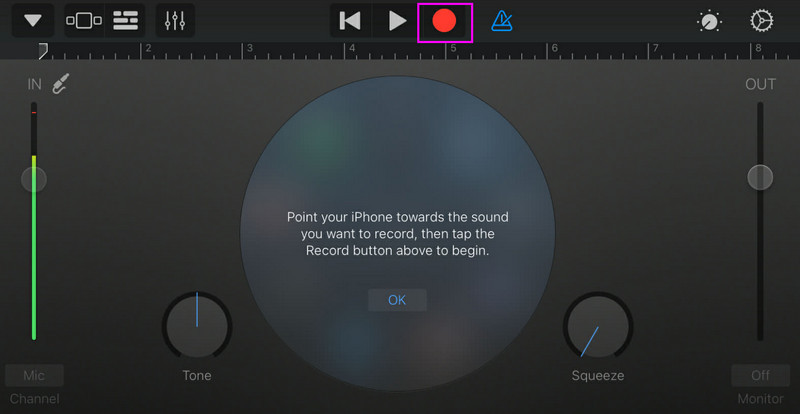
Krok 2Z poziomu interfejsu należy wybrać i nacisnąć Rejestrator dźwiękuNastępnie na ekranie pojawi się interfejs główny.
Krok 3Rozpocznij nagrywanie muzyki, dotykając Nagrywać przycisk powyżej. Następnie dotknij Zatrzymać aby zakończyć nagrywanie.
Część 3. Nagrywanie wielotorowe za pomocą aplikacji innych firm
GarageBand jest pomocny przy nagrywaniu muzyki. Dostępnych jest jednak więcej aplikacji, które mogą być dostosowane do różnych stylów pisania piosenek, nagrywania i współpracy międzyplatformowej. Oto niektóre z nich:
- BandLab - To narzędzie idealnie nadaje się do współpracy w chmurze. Jest idealne dla muzyków, ponieważ oferuje lepsze funkcje, takie jak algorytmy masteringowe, rozbudowaną bibliotekę pętli i możliwość nagrywania wielu utworów.
- FL Studio Mobile - To narzędzie oparte na subskrypcji. Preferowane przez producentów hip-hopu, elektroniki i popu.
- Cubasis 3 - To profesjonalne studio przeniesione z Cubase na komputery stacjonarne. Narzędzie oferuje elitarną edycję MIDI, nieograniczoną liczbę ścieżek audio i nagrywanie wielokanałowe, co czyni je idealnym narzędziem dla użytkowników.
Skuteczny sposób nagrywania muzyki na komputerze stacjonarnym
Szukasz rejestratora stacjonarnego, który pomoże Ci nagrać muzykę? W takim razie możesz skorzystać z… Rejestrator ekranu AVAideTen program oferuje funkcję Phone Recorder do nagrywania muzyki z iPhone'a. To idealne oprogramowanie, jeśli chcesz zapisać nagranie bezpośrednio na komputerze. To, co nam się podoba, to płynny i prosty proces nagrywania dzięki intuicyjnemu interfejsowi użytkownika. Program gwarantuje również najwyższą jakość dźwięku, do 320 kbps, co przekłada się na lepszą jakość odtwarzania. Możesz nawet edytować dźwięk według własnych preferencji, dzięki czemu ten rejestrator dźwięku jest idealny dla każdego użytkownika.
Krok 1Ściągnij Rejestrator ekranu AVAide na pulpicie. Następnie uruchom go, aby rozpocząć proces.

BEZPŁATNE POBIERANIE W systemie Windows 7 lub nowszym
 Bezpieczne pobieranie
BEZPŁATNE POBIERANIE Dla systemu Mac OS X 10.13 i nowszych
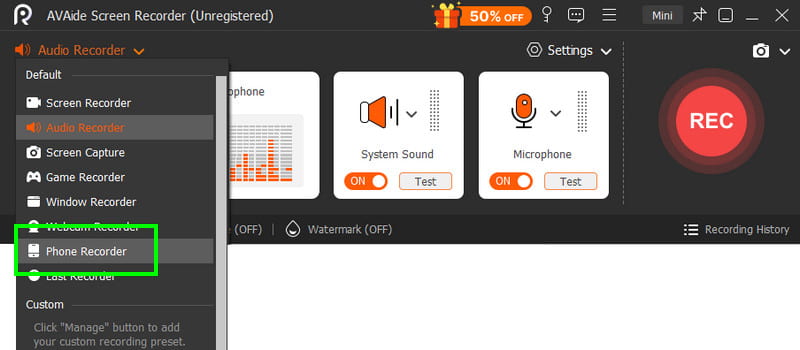
Bezpieczne pobieranieKrok 2Z interfejsu przejdź do upuścić i wybierz Rejestrator telefonu Następnie dotknij iOS i podłącz telefon.
Krok 3Następnie przejdź do Nagrywanie treści sekcja, aby odznaczyć Ekran opcję i wybierz Głośnik telefonu opcja. Po zakończeniu dotknij Nagrywać aby rozpocząć proces nagrywania.
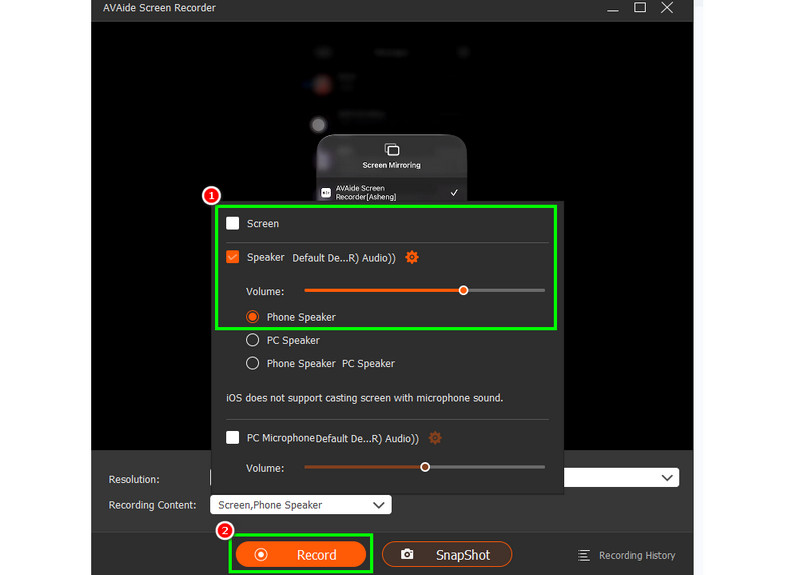
Uzyskiwać Zatrzymać aby zakończyć nagrywanie.
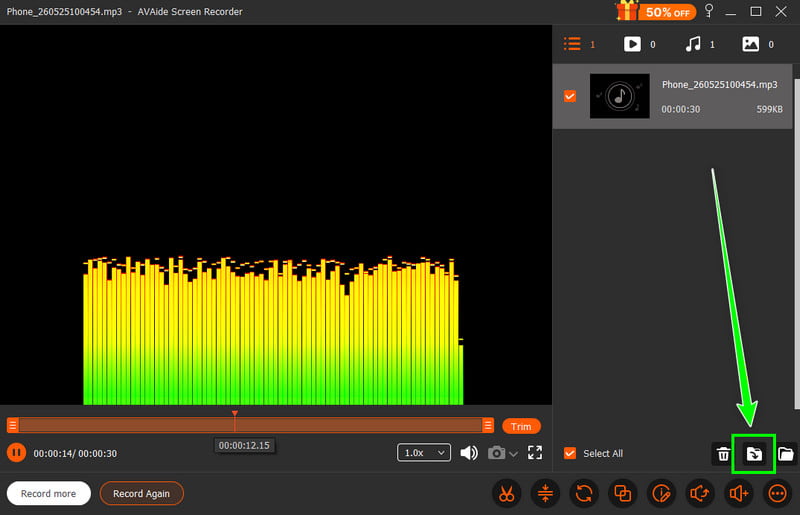
Krok 4Gdy pojawi się podgląd, kliknij Eksport aby rozpocząć zapisywanie nagranego dźwięku.
Część 4. Nagrywanie w formacie MP3
Domyślnie ekosystem Apple zapisuje muzykę w formacie WAV lub AAC. Mimo to możemy śmiało powiedzieć, że MP3 należy do najbardziej przenośnych formatów audio. Dlatego konwersja nagrań do formatu MP3 to najlepsze rozwiązanie. Aby przekonwertować nagranie, możesz skorzystać z aplikacji Audio Recorder. Za jej pomocą możesz przekonwertować nagrania z notatek głosowych do formatu MP3, aby zapewnić lepszą kompatybilność. Możesz przekonwertować AAC do MP3, WAV do MP4, FLAC do WAV i wiele innych.
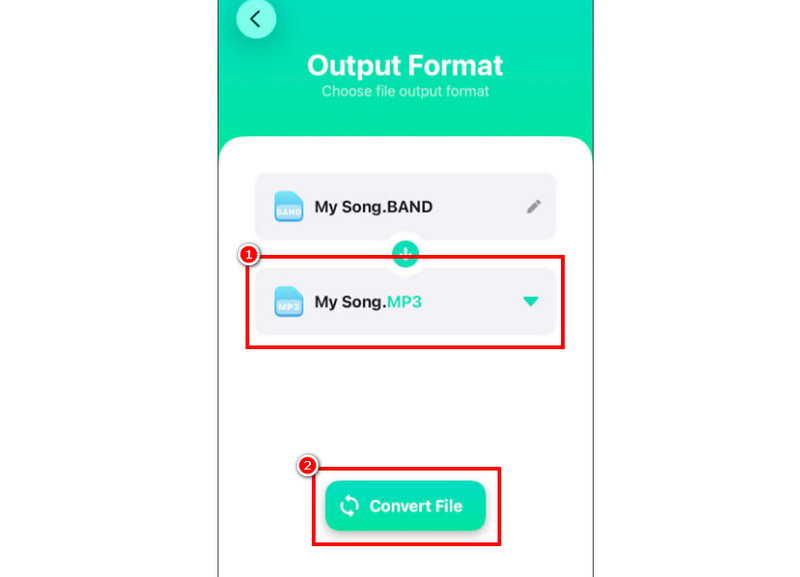
Krok 1Idź do swojego Sklep Apple i pobierz Konwerter audio Następnie uruchom konwerter i rozpocznij dodawanie nagrania.
Krok 2Od Format sekcja, zacznij wybierać MP3 format. Następnie dotknij Konwertować przycisk.
Krok 3Po zakończeniu konwersji możesz odtwarzać plik MP3.
Część 5. Jak nagrywać muzykę z YouTube na iPhonie
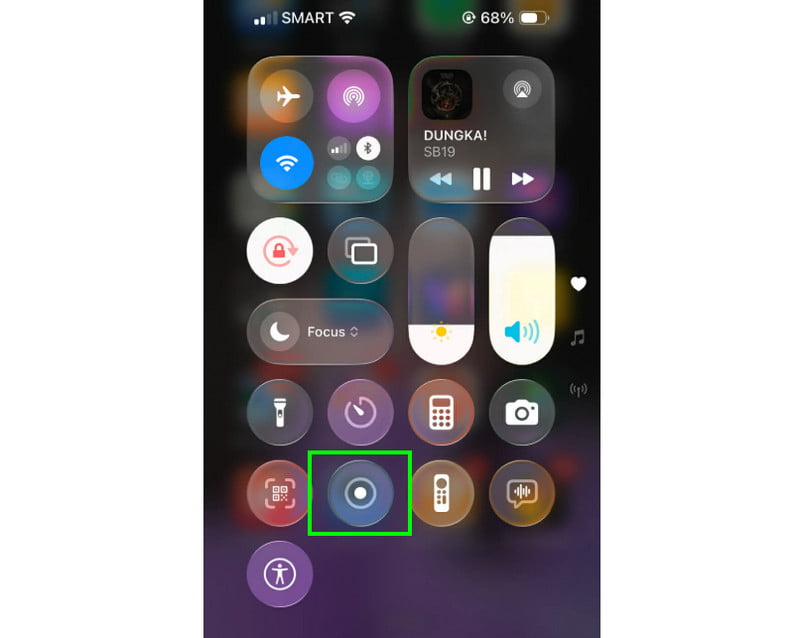
Chcesz nagrać muzykę z YouTube na swoim iPhonie? W takim razie wystarczy skorzystać z funkcji Rejestrator na swoim urządzeniu. Dzięki niej możesz nagrać dowolną muzykę z YouTube. Aby uruchomić nagrywanie, wystarczy dotknąć Wspomaganie dotykowe i przejdź do sekcji Centrum sterowania. Tam znajdziesz funkcję Rejestratora. Procedura rozpocznie się po 3-sekundowym odliczaniu. Teraz możesz rozpocząć odtwarzanie muzyki z YouTube. Stuknij „Stop”, aby zakończyć nagrywanie. Po zakończeniu nagrywania możesz użyć dowolnego konwertera wideo do formatu MP3, aby przekształcić wideo w plik audio.
Część 6. Profesjonalne porady dotyczące lepszej jakości dźwięku
Sprawdź tę sekcję i dowiedz się więcej na temat tego, jak uzyskać lepszą jakość dźwięku.
- Zawsze nagrywaj w cichym miejscu, aby zminimalizować hałas tła.
- Korzystając z aplikacji takiej jak GarageBand, należy zachować równowagę wzmocnienia sygnału wejściowego. Zawsze unikaj przesterowania, utrzymując się poniżej czerwonej strefy.
- Aby uzyskać lepszą jakość, zawsze nagrywaj w formacie AIFF lub WAV.
- Monitoruj nagrywanie za pomocą słuchawek. Możesz używać słuchawek przewodowych, aby rozwiązywać problemy w czasie rzeczywistym.
W celu nagraj piosenkę na iPhonieSkorzystaj ze wszystkich metod opisanych w tym samouczku. Dzięki temu uzyskasz pożądany rezultat. Jeśli chcesz nagrać muzykę z telefonu za pomocą komputera stacjonarnego, możesz skorzystać z… Rejestrator ekranu AVAideDzięki funkcji nagrywania telefonu tego programu możesz podłączyć swój iPhone i nagrać dowolną muzykę, a następnie zapisać ją w najlepszej jakości. To najlepszy rejestrator, na jaki możesz liczyć.
O AUTORZE

Przechwytuj działania na ekranie z dźwiękiem, spotkaniami online, filmami z gry, muzyką, kamerą internetową itp.