Jak nagrać wiadomość głosową na iPhonie? Cóż, nagrywanie wiadomości głosowej to szybki sposób na podzielenie się swoimi przemyśleniami lub wysłanie spersonalizowanego pliku audio bez konieczności pisania. Dzięki wbudowanej funkcji wiadomości głosowych iPhone'a możesz natychmiast nagrywać, zapisywać i udostępniać klipy audio za pomocą zaledwie kilku dotknięć. Jeśli więc szukasz kompleksowego sposobu na nagranie i wysłanie wiadomości głosowej na telefonie komórkowym, zapoznaj się z tym samouczkiem, aby osiągnąć pożądany efekt.
Część 1. Jak nagrać i wysłać wiadomość głosową w iMessage
iMessage to nie tylko proste narzędzie do komunikacji. Oferuje również funkcję wiadomości głosowych. Dzięki niej możesz wysyłać lub udostępniać swoje wiadomości i przemyślenia za pomocą głosu. To idealne rozwiązanie, jeśli chcesz wysyłać wiadomości bez wpisywania tekstu z klawiatury. Największą zaletą jest prostota wysyłania wiadomości głosowych, co czyni je idealnym rozwiązaniem dla wszystkich użytkowników. Jeśli chcesz rozpocząć nagrywanie i wysyłanie wiadomości, skorzystaj z poniższych instrukcji.
Jak nagrać wiadomość głosową na iPhonie
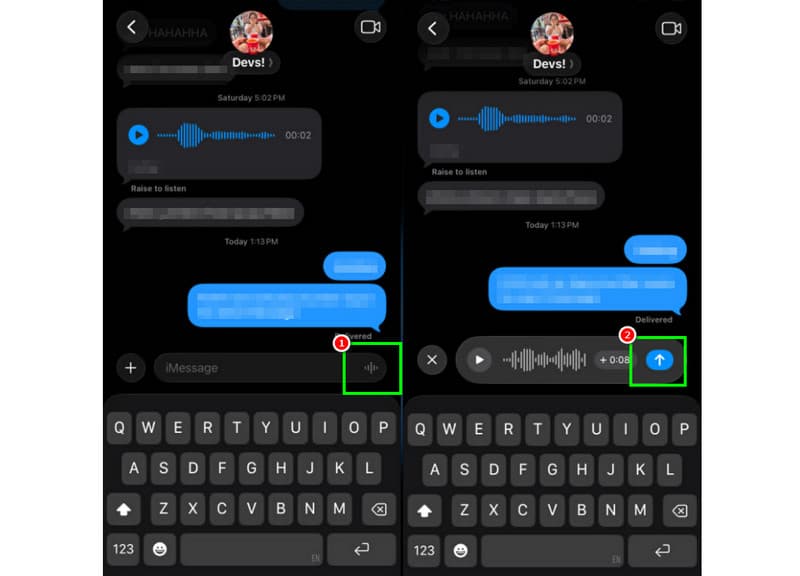
Krok 1Na swoim iPhonie uruchom iMessage aplikacji. Następnie przejdź do osoby, z którą chcesz się skontaktować.
Krok 2Na ekranie naciśnij i przytrzymaj Mikrofon opcja. Trzymając wciśnięty przycisk, możesz rozpocząć nagrywanie i wypowiadanie wiadomości.
Krok 3Aby zatrzymać nagrywanie, puść palec z przycisku. Następnie dotknij Wyślij strzałkę przycisk, aby wysłać wiadomość.
Słuchaj przychodzących wiadomości głosowych
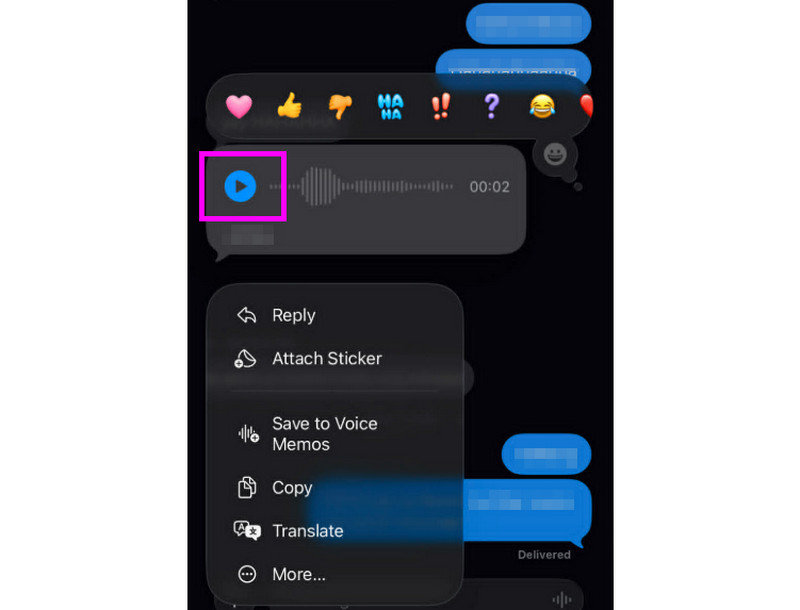
Krok 1Po otrzymaniu wiadomości głosowej możesz stuknąć Bawić się przycisk.
Krok 2Aby usłyszeć wiadomość prawidłowo, możesz również dostosować głośność za pomocą bocznego przycisku na swoim iPhonie.
Krok 3Po dwóch minutach wiadomość głosowa wygaśnie. Aby zachować wiadomość, wystarczy nacisnąć Trzymać opcja poniżej.
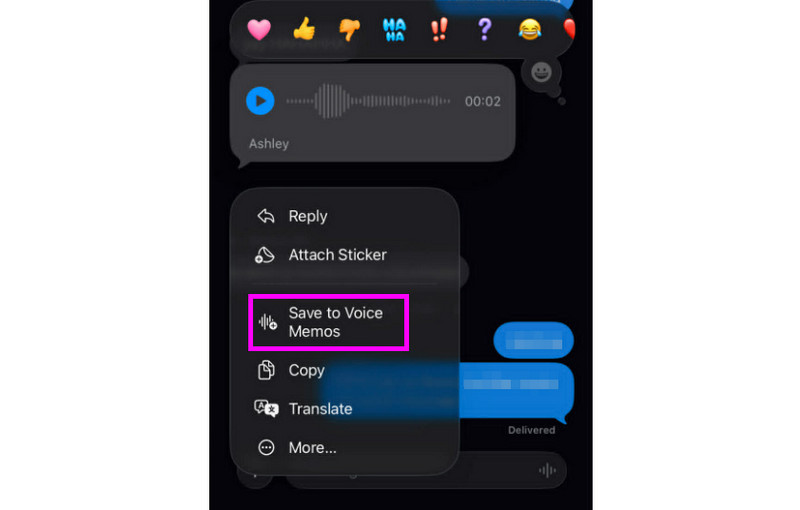
Krok 4Jeśli chcesz zapisać wiadomość głosową, naciśnij ją długo i stuknij Zapisz w notatkach głosowych aplikacja. Dzięki temu aplikacja do nagrywania głosu, możesz odtworzyć wiadomość w dowolnym czasie i miejscu.
Dostosuj ustawienia wiadomości głosowych
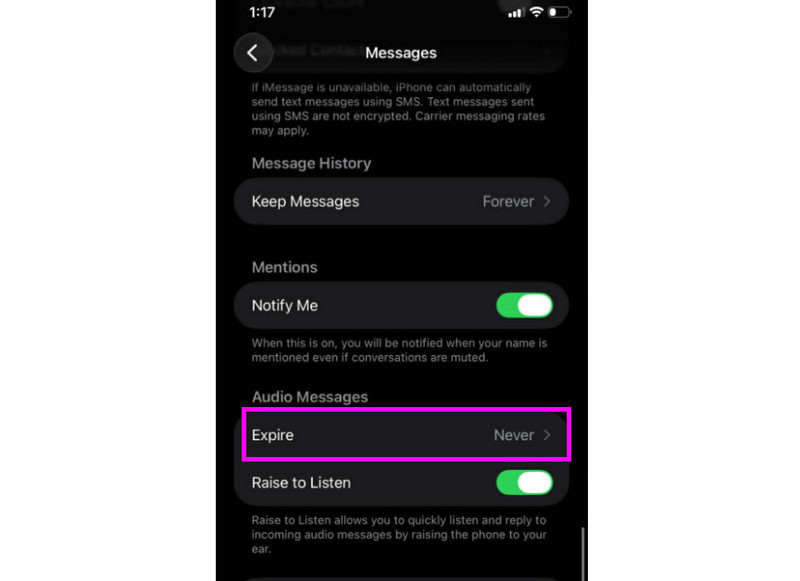
Krok 1Idź do swojego Ustawienia aplikacji. Następnie przejdź do Wiadomości aplikacja.
Krok 2Przejdź do Wiadomości audio > Wygasać sekcja i dotknij Nigdy opcja. W ten sposób wiadomości głosowe z Twojego iMessage nie wygasną.
Część 2. Metoda nagrywania powitania poczty głosowej na iPhonie
Gdy nie będziesz dostępny, dzwoniący otrzymają spersonalizowaną wiadomość, jeśli nagrasz powitanie poczty głosowej na swoim iPhonie. Możesz łatwo utworzyć nowe powitanie, zmodyfikować lub usunąć stare, a nawet użyć tymczasowego powitania na specjalne okazje. Możesz całkowicie zmienić sposób, w jaki Twoja poczta głosowa brzmi dla innych osób, wykonując zaledwie kilka ruchów w aplikacji Telefon. Zapoznaj się z metodami i dowiedz się, jak nagrać wiadomość poczty głosowej na iPhonie.
Konfigurowanie powitania poczty głosowej
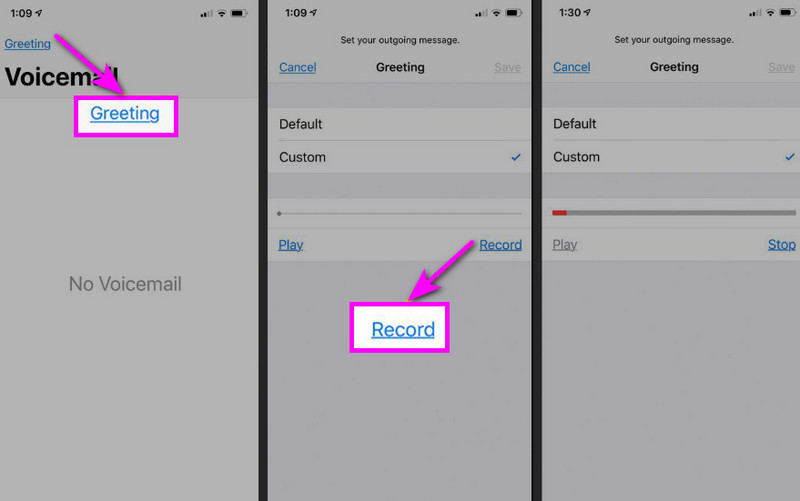
Krok 1Przejdź do Telefon aplikację i dotknij Poczta głosowa opcja.
Krok 2Następnie naciśnij Powitanie funkcję w lewym górnym rogu ekranu. Naciśnij Zwyczaj > Nagrywać zacząć nagrywanie dźwięku na iPhonie jako twoje powitanie.
Krok 3Uzyskiwać Zatrzymać Aby dokończyć i odtworzyć, aby przejrzeć. Po zakończeniu naciśnij Zapisać aby ustawić je jako aktywne powitanie.
Zmiana lub usuwanie powitania
Krok 1Możesz wrócić do Poczta głosowa > Powitanie Sekcja.
Krok 2Uderzyć Zwyczaj i nagraj nowe powitanie, które zastąpi stare.
Krok 3Następnie, aby powrócić do ustawień domyślnych, możesz wybrać Domyślna zamiast niestandardowego.
Wskazówka: Tymczasowe powitanie
Jeśli będziesz niedostępny przez krótki czas, nagraj powitanie tymczasowe, wykonując te same kroki w sekcji Niestandardowe. Po powrocie możesz po prostu przełączyć się z powrotem na swoje standardowe powitanie lub opcję domyślną.
Część 3. Rozwiązywanie problemów – Nie można nagrać wiadomości głosowej
Przejdź do tej sekcji i zapoznaj się z przewodnikiem rozwiązywania problemów, w którym opisano niektóre problemy, jakie mogą wystąpić podczas nagrywania lub wysyłania wiadomości głosowych na iPhonie.
Przycisk mikrofonu jest wyszarzony w Wiadomościach
Rozwiązanie: Upewnij się, że dostęp do mikrofonu jest włączony. Aby to zrobić, przejdź do Ustawień > Prywatność i bezpieczeństwo > Mikrofon i zezwól na dostęp dla Wiadomości.
Głos nie zostanie wysłany
Rozwiązanie: Zawsze sprawdzaj połączenie internetowe. Upewnij się również, że iMessage jest aktywny w Ustawieniach > Wiadomości > iMessage.
Nie można nagrać powitania poczty głosowej
Rozwiązanie: Opcja powitania pojawi się tylko wtedy, gdy operator obsługuje wizualną pocztę głosową. Jeśli jej nie ma, naciśnij i przytrzymaj klawisz 1 w aplikacji telefonu, aby bezpośrednio połączyć się z pocztą głosową. Następnie możesz postępować zgodnie z instrukcjami operatora, aby nagrać powitanie.
Odbiorcy twierdzą, że Cię nie słyszą
Rozwiązanie: Możesz przetestować swój mikrofon za pomocą aplikacji Notatki głosowe. Możesz również zdjąć etui lub inne akcesoria, które mogłyby blokować mikrofon. Inną metodą jest wyczyszczenie otworu mikrofonu ściereczką lub małą szczoteczką.
Krótki przewodnik: wiadomość głosowa a poczta głosowa
Chcesz dowiedzieć się więcej o wiadomościach głosowych i poczcie głosowej? Sprawdź poniższą prostą tabelę.
| Funkcja | Wiadomość głosowa (iMessage) | Poczta głosowa (operator) |
| Jak to jest wysyłane | • Nagrano w aplikacji Wiadomości • Wysłano przez iMessage | • Nagrane powitanie • Dźwięk przechowywany przez przewoźnika |
| Potrzebny internet | Tak (Wi‑Fi lub dane komórkowe) | Nie, działa przez sieć komórkową |
| Składowanie | Zapisano w wątku iMessage | Przechowywane w systemie poczty głosowej operatora |
| Kontrola | Użytkownik może ponownie wysłać, usunąć lub zapisać | Operator kontroluje dostęp i przechowywanie |
Bonus: Najlepsze narzędzie do edycji nagrań głosowych
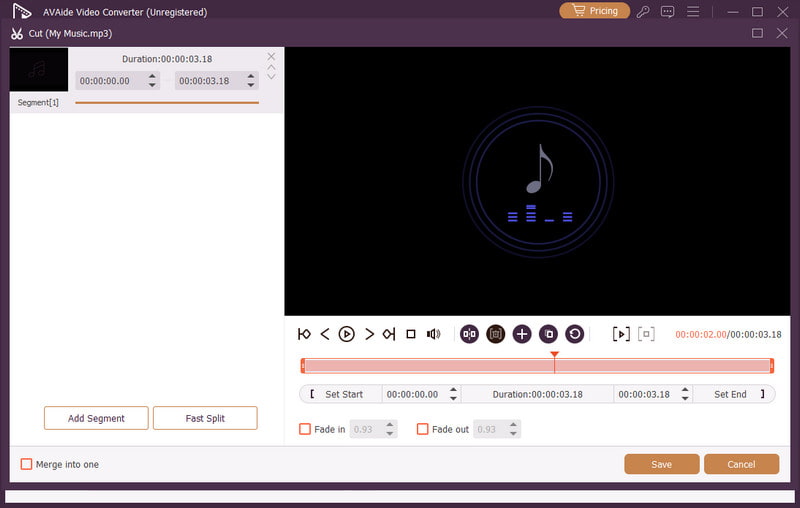
Po zapisaniu nagrania głosowego lub wiadomości głosowej zdarzają się sytuacje, gdy chcesz je edytować, aby uzyskać lepszą jakość dźwięku. W związku z tym, jeśli chodzi o edycję dźwięku, lepiej skorzystać z dobrego narzędzia do edycji, takiego jak Konwerter wideo AVAideTen program oferuje funkcję edycji dźwięku, umożliwiając edycję pliku audio. Możesz przycinać, dzielić i scalać ścieżki audio. Możesz nawet dostosować głośność i opóźnienie do swoich preferencji. Największą zaletą jest możliwość zapisania dźwięku w dowolnym formacie dzięki funkcji konwersji programu. Możesz zapisać nagranie głosowe w formatach MP3, WAV, M4A, FLAC i innych, z najwyższą jakością do 320 kb/s. Jeśli więc szukasz idealnego oprogramowania do edycji nagrań głosowych, AVAide Video Converter jest właśnie dla Ciebie.

BEZPŁATNE POBIERANIE W systemie Windows 7 lub nowszym
 Bezpieczne pobieranie
BEZPŁATNE POBIERANIE Dla systemu Mac OS X 10.13 i nowszych
Bezpieczne pobieranieWięcej funkcji:
- Umożliwia płynną edycję plików audio.
- Program umożliwia scalanie wielu plików audio w jeden plik.
- Może konwertować formaty audio i wideo ze 120-krotnie większą prędkością konwersji.
- Program oferuje również wbudowane edytory wideo, takie jak łączenie, dzielenie, przycinanie, kadrowanie itp.
Wysyłanie wiadomości głosowej na iPhonie To idealne rozwiązanie, jeśli chcesz szybciej wysłać wiadomość. Dzięki temu samouczkowi nauczyłeś się, jak skutecznie nagrać i wysłać wiadomość głosową. Dowiesz się również, jak zapisać wiadomość głosową i odtwarzać ją bez ograniczeń. Dodatkowo, jeśli chcesz edytować nagrania głosowe, lepiej będzie uzyskać dostęp do… Konwerter wideo AVAideDzięki funkcji edycji dźwięku tego programu możesz udoskonalić jakość swojego dźwięku, co przełoży się na lepsze i bardziej satysfakcjonujące odtwarzanie.
O AUTORZE

Przechwytuj działania na ekranie z dźwiękiem, spotkaniami online, filmami z gry, muzyką, kamerą internetową itp.