Sometimes, a photo looks perfect, but a stranger or unwanted person in the background can ruin it. The good news is, you can remove those. And this guide will show you how to remove people from pictures on an iPhone the right way. So, please scroll through the solutions below to find the efficient way to clean up your photos.
Part 1: [Built-in] How to Remove People from Pictures on iPhone with Clean Up
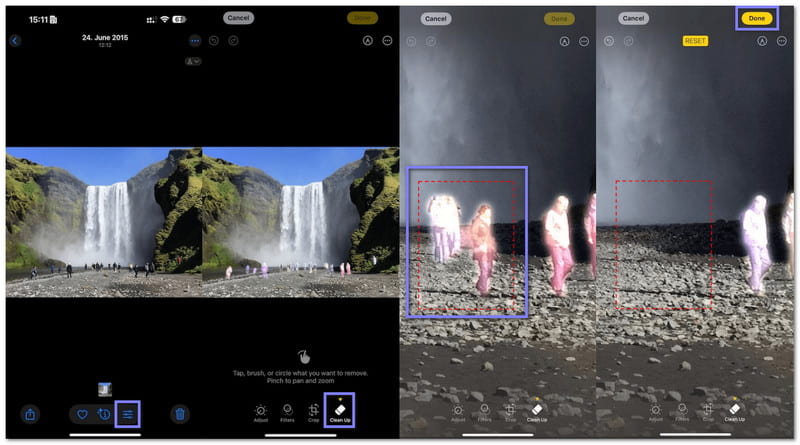
If you have ever wondered, Can I remove people from pictures on iPhone, this Clean Up feature can help. It uses Apple Intelligence to remove people from photos and works best on simple images. If people are small or too close together, the results may have minor imperfections. Also, make sure Apple Intelligence is turned on in your iPhone settings before you start.
Step 1Open the photo you want to refine in the Photos app. Press Edit at the top right. It switches the photo into editing mode, where you can make changes.
Step 2In the edit menu, look for Clean Up. If it does not appear, your iPhone might not support it, or Apple Intelligence might be off. Tap Clean Up to start. The first time you use it, the feature may take a moment to download and set up.
Step 3Apple Intelligence will highlight people in the photo with a glowing selection. You can zoom in to make sure the person is fully selected. Then, simply press the highlighted person, and the feature will remove them from the photo.
Step 4If someone is not automatically detected, draw a circle around them with your finger. Once you lift your finger, that person will be removed. You can skip anyone you do not want to remove by simply not tapping them.
Step 5Once you are done, press Done at the top right. The photo will save without the selected people.
Part 2: [Online] How to Remove People from a Picture on an iPhone Without Apps
No app is needed to remove people from pictures on an iPhone. AVAide Watermark Remover works fully online and opens right in your browser. With just one click, it removes unwanted people from your pictures immediately.
In addition, it blends surrounding colors and textures smoothly. The edges are restored, and gaps are filled, so the removed person leaves no trace. Best of all, it is free, easy to use, and gives clean outputs.
Step 1First, open Safari or any browser on your iPhone. Then, visit the official AVAide Watermark Remover website.
Step 2Next, press the Choose a Photo button. Your photo library will open right away. So, please select the picture that has the people you want to remove.
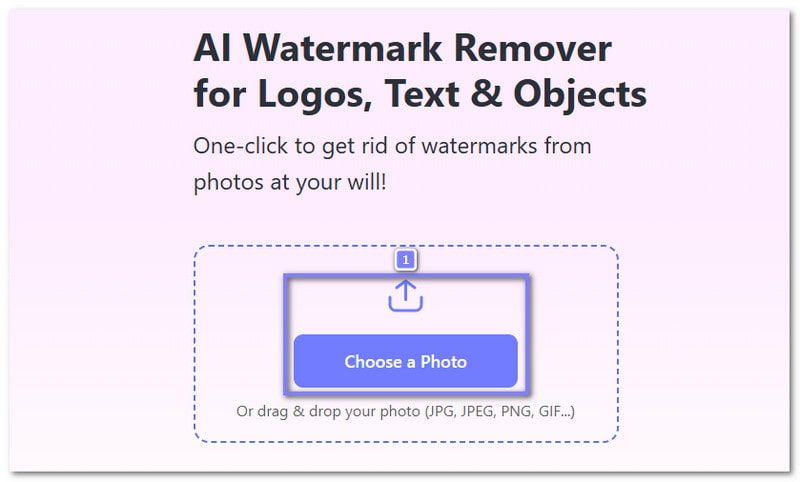
Step 3After the photo loads, choose a removal tool at the top.
- Brush lets you paint over people freely. It works well for small areas.
- Lasso helps you draw a loop around a person for faster selection.
- Polygonal lets you tap point by point for sharp and clean edges.
If needed, use the Eraser option to fix the selection and remove extra marks.
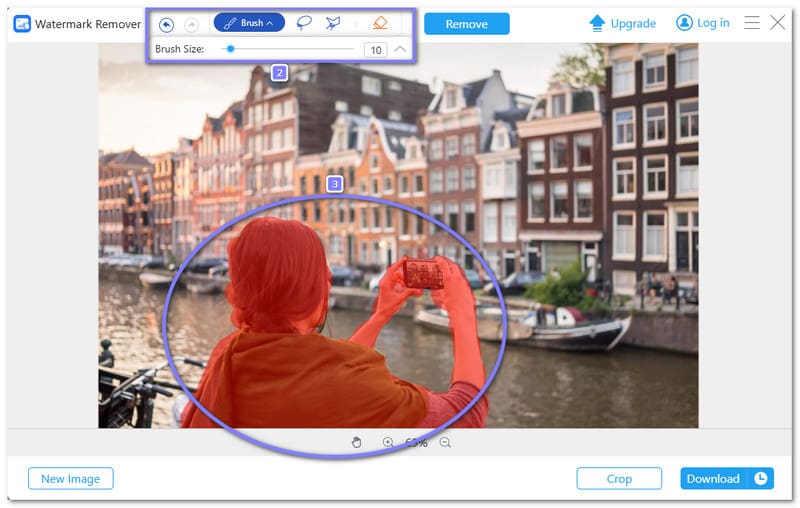
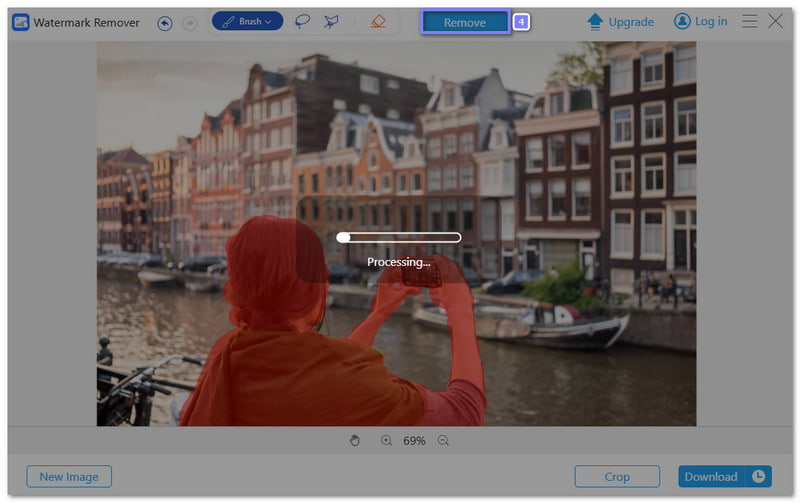
Step 4Once the person is fully highlighted, press the Remove button. Then, please wait a few seconds while the AVAide Watermark Remover clears the selected area and blends the background.
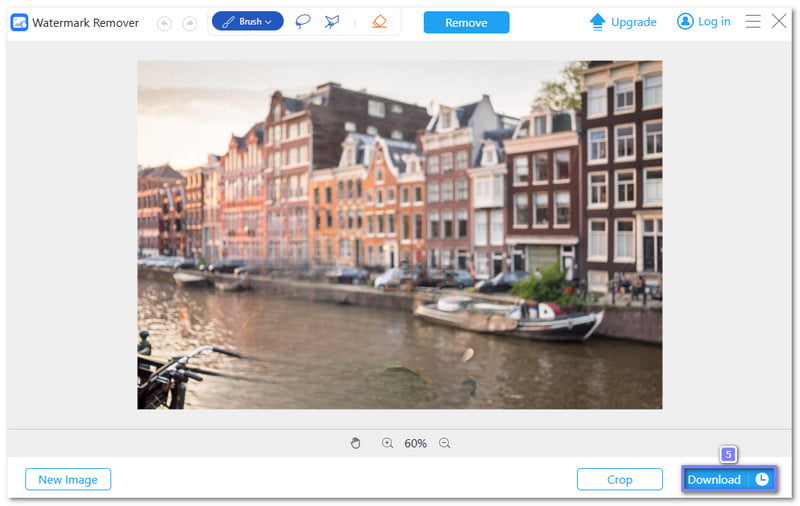
Step 5For the last step, press the Download button to store the edited photo to your iPhone. You can now enjoy a clean image without unwanted people in the frame!
What makes it shine:
- Supports multiple file types like JPEG, PNG, GIF, BMP, and more.
- Leaves no visible traces and keeps the original background intact.
- Easily remove logos, watermarks, text, people, and unwanted objects.
- Super fast processing powered by GPU, delivering results in seconds.
- Completely safe with 256-bit SSL encryption, virus-free, ad-free, and risk-free.
Part 3: [Apps] How to Remove People and Objects from a Picture on iPhone
Of course, you are not limited to the built-in or online tool. You can also use third-party apps available on your iPhone to remove people and objects from your photos. So, please check out the dependable apps and learn how to use them.
1. TouchRetouch
If you have ever asked yourself, How do I remove people from pictures on iPhone, TouchRetouch makes it easy to polish your photos in seconds. It can remove background items, shadows, wires, or even small imperfections like pimples. With a few taps, your photo looks clean and natural, as if nothing was ever there.
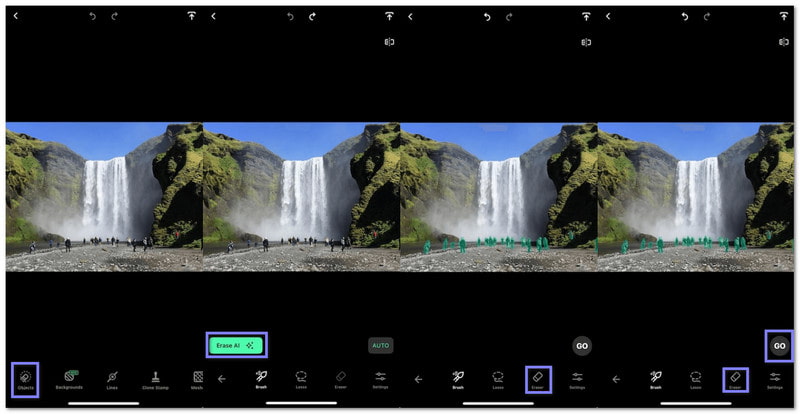
Step 1Open TouchRetouch and select the photo you want to edit.
Step 2Tap Objects in the menu bar, then choose Erase AI. The app will detect people and highlight them in green.
Step 3If you want to keep someone in the photo, use the Eraser option to remove them from the selection.
Step 4Once settled, press the Go button. TouchRetouch will remove the selected people or objects and fill the background naturally.
What makes it shine:
- Effortlessly remove text from any pictures.
- Restore and enhance old or damaged photos.
- Replace or blur backgrounds to make subjects stand out.
- Retouch skin imperfections like pimples, glare, acne, and wrinkles
2. Snapseed
When you need to know how to remove people from pictures on iPhone, Snapseed makes it quick and easy. It is a simple yet powerful photo editor that lets you remove objects or people with ease.
Using the healing feature, you can brush over unwanted items, and it will erase them smoothly. It works well for small or medium objects and helps make your photos look neat without extra effort.
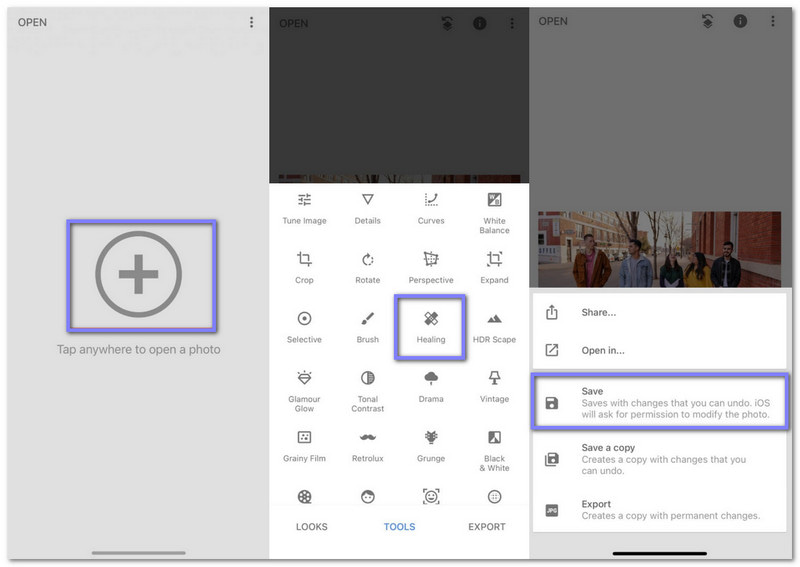
Step 1Get Snapseed from the App Store and open it.
Step 2Tap the Plus button to add the photo you want to edit. Then, go to Tools and select Healing.
Step 3Highlight the person or object you want to remove by brushing over it.
Step 4Once done, press the Check mark button to apply the changes and save your photo.
What makes it shine:
- User-friendly interface for beginners.
- Crop, rotate, and change perspective easily.
- Fine-tune and brighten your photos instantly.
- Brightness, contrast, and color correction for better photos.
3. PhotoDirector
If you are looking for another way how remove other people from a picture on an iPhone, PhotoDirector uses AI to do it automatically. You can choose auto mode for instant removal or manual mode for precise control. It blends the background naturally so your photos look real and clean. It is perfect for travel photos, selfies, or everyday pictures.
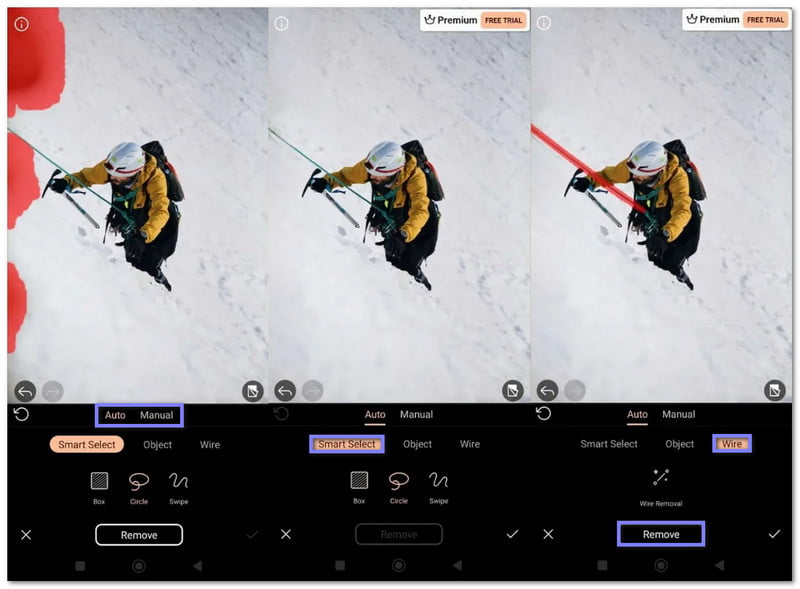
Step 1Install PhotoDirector on your iPhone and open the app. Then, choose the photo from your library.
Step 2Tap AI Removal. You can choose Auto Mode to detect objects automatically or Manual Mode to brush over areas for precise removal.
Step 3Let the AI detect the people or objects you want to remove. Auto Mode works best for fingers, wires, or small objects.
Step 4Tap Remove and save your edited photo. The app will fill the background so it looks natural.
What makes it shine:
- Enhance colors and details after removal.
- Smooth background blending for a natural look.
- Add creative effects or filters to your edited photos.
- Works on photos of any size, from small to high resolution.
No more "how can I remove people from a picture on iPhone" thoughts, because now you already know how. We are happy to be part of your photo editing journey.
So, if you do not want to install an app, you can freely rely on AVAide Watermark Remover. It can remove people, logos, text, and other objects without leaving a trace. It ensures your photos look clean, natural, and ready to share.
ABOUT THE AUTHOR


Easily get rid of annoying watermarks and unwanted objects from your photos without quality loss.
PROCESS NOW