Photos are usually disorganized when the backgrounds are not similar. A Canva transparent background fixes this. It allows photos to fit flawlessly with whichever design, be it a presentation or a post on social media. Many users find removing backgrounds tricky, which slows down their workflow. Knowing how to make images transparent in Canva can save time and improve design quality. This guide will show how to do it online, on mobile, and on desktop.
- Part 1: What Is a Transparent Background Image?
- Part 2: How to Make an Image Transparent in Canva Online
- Part 3: How to Make an Image Transparent in Mobile Canva
- Part 4: How to Make an Image Transparent in Canva on Mac or Windows
- Part 5: The Best Canva Alternative to Remove Image Background Online
- Part 6: How Much is the Pricing of the Canva Pro Plan & More
Part 1: What Is a Transparent Background Image?
A transparent background is an image with no color or design behind it. The space around the main subject is completely see-through. This allows the image to fit naturally on any background without showing a distracting box or border.
Learning how to make background transparent in Canva is useful for logos, icons, stickers, watermarks, and social media graphics. Transparent images are usually saved as PNG files because this format preserves the see-through areas.
It is important to note that only Canva Pro users can make an image background transparent. This feature is not available in the free version. Using transparency makes your designs cleaner, more flexible, and professional. With this approach, your visuals will blend seamlessly into websites, presentations, social media posts, or videos.
Part 2: How to Make an Image Transparent in Canva Online
Making an image transparent in Canva is straightforward, but it is important to note that only Canva Pro users can use this feature. Learning how to make a Canva background transparent helps your images blend naturally into any design, making them look professional and polished on presentations, social media, or websites.
Step 1Log in to Canva and start a new project. Upload your image or choose one from its library. Click the image to select it.
Step 2Click the BG Remover tool. Canva will remove the background automatically, leaving only the main subject.
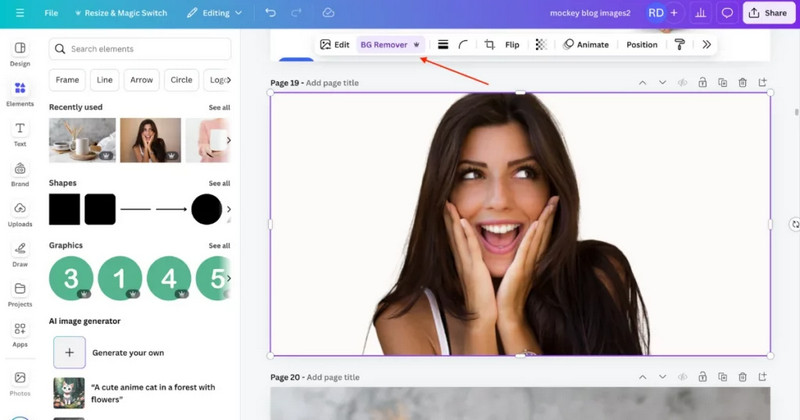
Step 3Click Share, then select Download. Select PNG as the file type and check the Transparent background box. This option is available only for Canva Pro users.
Step 4Click Download to save your transparent image. It is now ready to use in any design. Once you are done editing its transparency, you can now add a new background to a picture using Canva or another dedicated editor.
Part 3: How to Make an Image Transparent in Mobile Canva
Editing images on the go is easier than ever with Canva Mobile. If you want your images to fit smoothly into any design, you need a transparent background. Knowing how to make a transparent background on Canva on your phone allows you to create professional-looking visuals directly from your device. With just a few taps, you can upload your image, set it for transparency, and download it ready for use in social media posts, presentations, or other projects.
Step 1Open the Canva app on your phone. Choose a custom size or one of the suggested templates to start your project.
Step 2Tap the Uploads button and select the image you want to edit from your device. Add it to your canvas. Tap the Share button from the menu.
Step 3Choose PNG as the file type and check the Transparent background box. Remember, this option is available only for Canva Pro users. Tap Download to save your image. Your image now has a transparent background and is ready to use in any project.

Part 4: How to Make an Image Transparent in Canva on Mac or Windows
Adjusting the transparency of images, shapes, or text in Canva is a simple way to make your designs look polished and professional. Knowing how to create a transparent background in Canva on your Mac or Windows computer allows your elements to blend seamlessly into any layout. This technique is useful for overlay graphics, logos, and other design elements where you want part of the image to appear see-through. With just a few clicks, you can adjust the opacity, see the changes in real-time, and save your design ready for any project.
Step 1Log in to Canva on your Mac or Windows computer. Open an existing design or start a new project. Select the image, shape, or text element you want to make transparent.
Step 2Click on the element you want to adjust. Ensure it is highlighted so you can access the editing options in the toolbar.
Step 3Click Transparency on the toolbar. A slider will appear, and drag the slider left or right to change the opacity. You will see the changes in real-time on your canvas, allowing precise control over how transparent your element becomes.
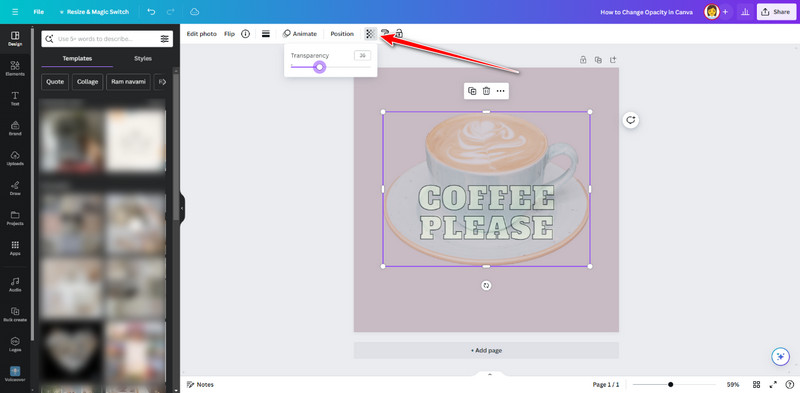
Step 4Once satisfied with the transparency, click Share or Download to save your design. Your element or image will now have the desired transparency effect and be ready for use in presentations, social media, or other projects. This method works well as a quick portrait background maker for creating clean, professional images.
Part 5: The Best Canva Alternative to Remove Image Background Online
If you want to remove a background without Canva Pro, AVAide Background Eraser is a reliable alternative. This free, web-based tool works on any device and does not require installation. It can quickly detect the subject in your image and remove the background, supporting multiple formats and allowing you to save the result as a high-quality PNG.
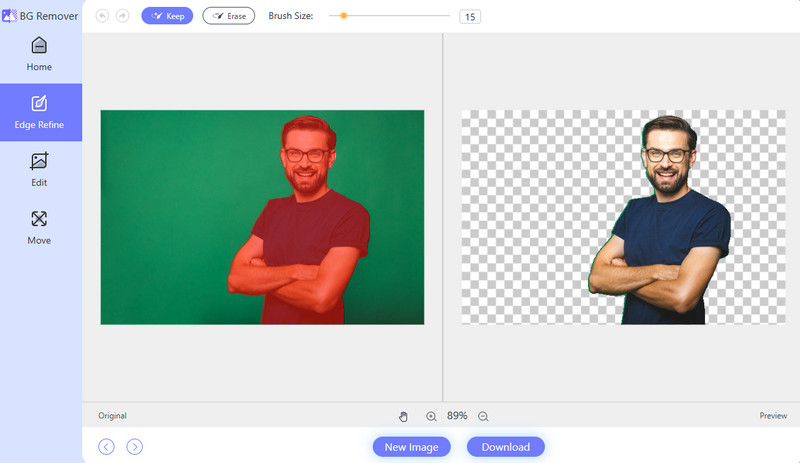
For anyone learning how to make a transparent background in Canva for free, AVAide provides a fast and straightforward solution, producing professional-looking images in just a few clicks.
Part 6: How Much is the Pricing of the Canva Pro Plan & More
Surely, you are curious about the pricing of Canva, and here is a clear overview of the available plans before you learn how to do a transparent background on Canva.
1. Canva Free
This plan is suitable for beginners, offering basic tools, 5GB of storage, and a limited selection of templates.
2. Canva Pro for $12.99 monthly / $119.99 annually:
Canva Pro provides 100GB of storage, premium templates, the Brand Kit, and the background remover, making it ideal for individual creators who need advanced features.
3. Canva for Teams for $14.99 monthly / $149.90 annually:
This plan includes all Pro features along with collaboration tools and brand controls, designed for small teams working together on projects.
4. Canva Enterprise has Custom pricing:
Canva Enterprise is designed with advanced security measures, asset management, single sign-on, and dedicated support and costs based on the requirements of a team in large organizations.
Learning how to get a transparent background in Canva makes creating clean and professional designs easy. Using Canva Pro, the mobile app, desktop version, or a free tool like AVAide, you can quickly remove backgrounds and make your images ready for social media, presentations, or any other project.
ABOUT THE AUTHOR


Uses AI and automated background removal technology to capture complex backgrounds from JPG, JPEG, PNG, and GIF.
PROCESS NOW