As far as images are concerned, they may appear blurry once they are enlarged or printed. This occurs in cases where the resolution is low. This guide shows how to increase the resolution of an image in Photoshop. It describes what a resolution is and why pictures become blurred. You will find easy methods of making pictures clear. They can be achieved by using manual means, Photoshop actions, and a free online alternative. Each step is easy to follow. This tutorial assists anybody in creating clearer and more precise photos.
- Part 1: What Is Image Resolution?
- Part 2: Manually Increase Image Resolution in Photoshop
- Part 3: Increase Image Resolution in Photoshop with Image Size
- Part 4: Increase Image Resolution in Photoshop with Super Resolution
- Part 5: Increase Image Resolution in Photoshop with Neural Filters
- Part 6: Easily Increase Image Resolution Free Online
Part 1: What Is Image Resolution?
The amount of details in a picture is known as image resolution. It implies the number of pixels crowded into a given space, generally in inches or centimeters. The more the pixels, the sharper and clearer the image. Images that are of low resolution become blurry or pixelated. Images in high resolution remain clear and crisp.
Being able to know how to resolve matters is significant to any person who deals with pictures. It influences the appearance of pictures on screens and in print of pictures. To increase the resolution of the image in Photoshop, you can adjust the number of pixels. This helps make images sharper for web, social media, or printing.
Part 2: Manually Increase Image Resolution in Photoshop
Photoshop also enables you to enhance the quality of output when exporting without applying the Image Size feature. They do not introduce new pixels in the process, but preserve the details of the picture when saving the file using this method. It comes in handy when a picture appears hard in Photoshop but becomes soft when it has been saved. For users asking how to improve the resolution of a photo in Photoshop, adjusting export settings is a simple manual option.
Step 1Open your image in Photoshop. Click File, then select Export, then choose Export As.
Step 2Pick an image format such as JPEG or PNG. Move the Quality slider to a higher value.
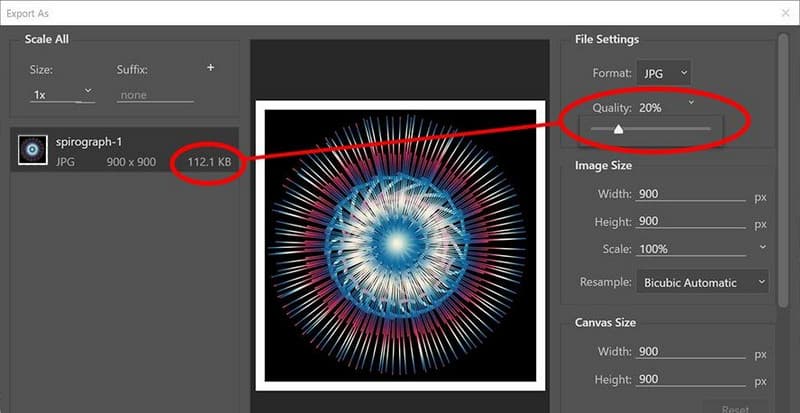
Step 3Set Scale to 1x to avoid resizing the image. Check the preview to confirm the image looks clear. Click Export and save the file.
Part 3: Increase Image Resolution in Photoshop with Image Size
In cases where image detail is required, the Image Size tool of Photoshop is a direct control of resolution and scaling. The technique functions through resampling the pixels and, as a result, enables Photoshop to recreate the image data when enlarging. It is one of the most reliable ways to increase photo resolution in Photoshop when preparing images for print or large displays.
Step 1Choose the picture you want to edit in Photoshop and click Image in the top menu, then select Image Size.
Step 2In the Image Size window, enable the Resample option. Choose a resampling method, such as Bicubic Smoother, for enlargement.
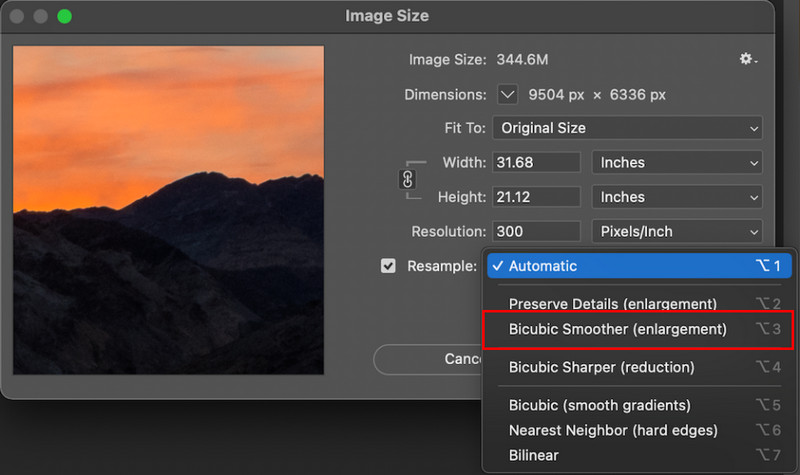
Step 3Type in the value of the desired width and height or change the value of the resolution. View the preview to verify the clarity of images. Click OK to apply the changes.
Image Size can also be used to make Photoshop smart enough to resize pixels whilst preserving smooth edges. This is a sure way of exporting printable images or, in cases where greater resolution is needed, but the original file need not be re-entered. It is a straightforward approach to how to increase image resolution in Photoshop.
Part 4: Increase Image Resolution in Photoshop with Super Resolution
Super Resolution is an underdeveloped Photoshop extension that is used to sharpen the image without compromising the details. It applies the Adobe AI to pixel analysis and reconstruction of lost detail. Such a technique is the most appropriate for JPEGs that should be increased in size without obvious blurring. For users searching for how to increase picture resolution in Photoshop, Super Resolution offers one of the cleanest results with minimal effort.
Step 1Open the JPEG image in Photoshop. In the Layers panel, right-click the image layer and select Convert to Smart Object.
Step 2Click Filter in the top menu, then choose Camera Raw Filter. Inside Camera Raw, right-click the image and select Enhance.
Step 3Check the Super Resolution option, then click Enhance.
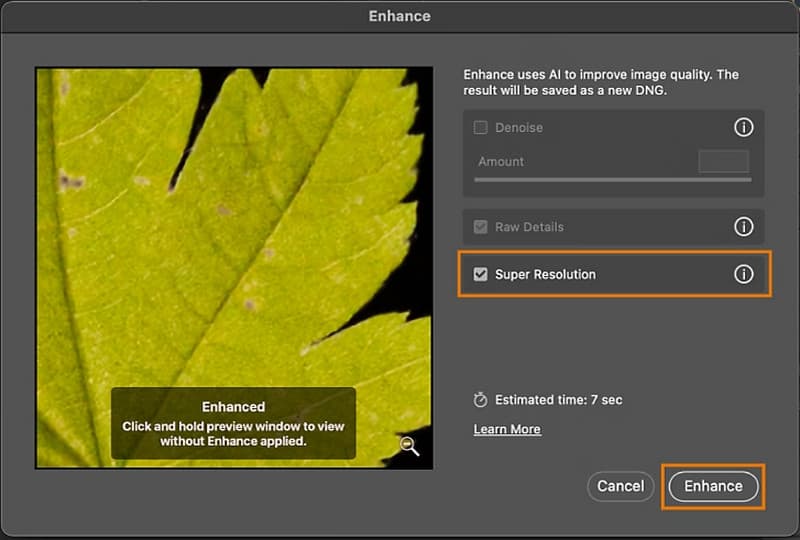
Step 4Wait for Photoshop to finish processing the image. Go to File, then Save As to export the enhanced image.
Super Resolution doubles the image size while keeping edges smooth and details sharp. It works well for enlarging photos for print, design work, or high-resolution displays. This feature is ideal for those looking for an easy way to how increase photo resolution in Photoshop.
Part 5: Increase Image Resolution in Photoshop with Neural Filters
Neural Filters use AI to upscale images with less manual work. One of the most useful options is Super Zoom. This filter enlarges images by rebuilding details instead of stretching pixels. It works best on photos with clear textures, such as landscapes or detailed portraits. For users learning how to change image resolution in Photoshop, Neural Filters offer a modern and simple solution.
Step 1Open your image in Photoshop. Click Filter in the top menu, then select Neural Filters.
Step 2In the Neural Filters panel, find Super Zoom and turn it on. Adjust the zoom level to control how much the image is enlarged.
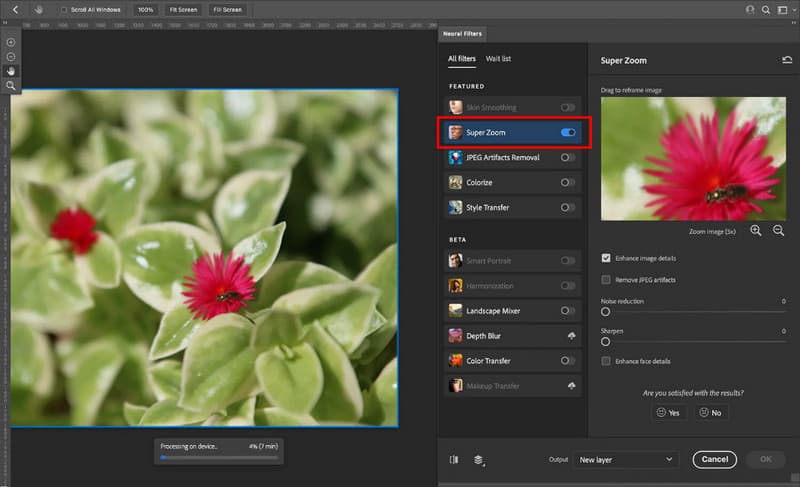
Step 3Preview the result to check the detail and clarity, and click OK to apply the filter.
Step 4Save the new upscaled image.
Super Zoom does not sharpen images since it is a neural network image upscaling method, so results depend on the original photo quality. For better results, sharpening tools can be applied after upscaling. This method is best for large prints or images that need extra detail. It is a simple solution for users learning how to change photo resolution in Photoshop.
Part 6: Easily Increase Image Resolution Free Online
If you need clearer images without installing any software, AVAide Image Upscaler is a fast and simple solution. This free online tool works directly in your browser, making it ideal for anyone who wants to increase picture resolution in Photoshop quickly. The AI-based technology improves the information on its own, and pictures remain clear and natural. Photos can be expanded by 2×, 4×, 6×, and 8×, and it is easy to enhance more than one photo at a time due to the batch processing.
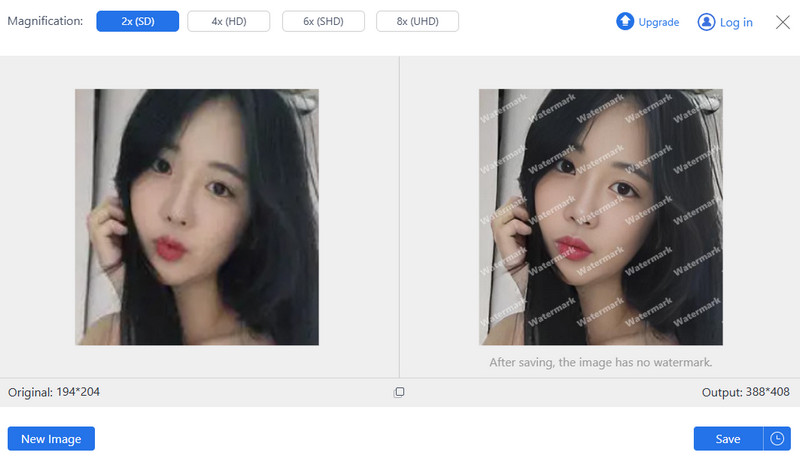
The interface is easy to use, and therefore, beginners can use the interface without any fear. AVAide Image Upscaler can be used on social media, fast projects or any other task where high-resolution pictures are required in a moment. It provides a professional appearance without difficult procedures, lengthy editing, and software downloads, and it saves time and enhances image quality. So, if you have a question about what image upscaling is, then try to use this app to see the result.
Learning how to make an image high resolution in Photoshop comes down to using the right tool for the right task. Manual export options allow quality to be maintained, Image Size is a full control option, and AI, such as Super Resolution and Neural Filters, are easy to use in terms of heavy upscaling. Online upscalers, which are free, provide an easy alternative to get rapid results. Knowing these possibilities, you are able to enhance the image quality without trial and error and select the technique that suits your working process, level of ability and result requirements.
ABOUT THE AUTHOR


Our AI technology will automatically enhance the quality of your images, remove noise and fix blurry images online.
PROCESS NOW