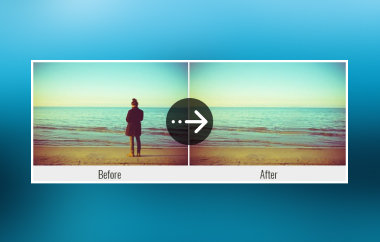
Sometimes you get a great photo, but that one person you wanted in it just isn't there. Instead of trying to wrangle everyone together for a reshoot, you can add the person in the photo yourself. With the help of AI, they will blend in naturally like they were really there, and the process is fast and automated. Here's how to do it, no matter what device you're on.
Part 1. How to Add a Person to Photo Using AI Online
The fastest free way is to isolate the person with an AI background remover, then place that cutout onto the photo you want them in. AVAide Background Eraser handles both steps in the browser: no install, no account required, and you get 10 free uses every day.
Step 1Open the background remover
Click Choose a Photo. Upload a clear photo of the person you want to add. Good lighting and a reasonably simple background give cleaner edges.
Step 2Let AI remove the background
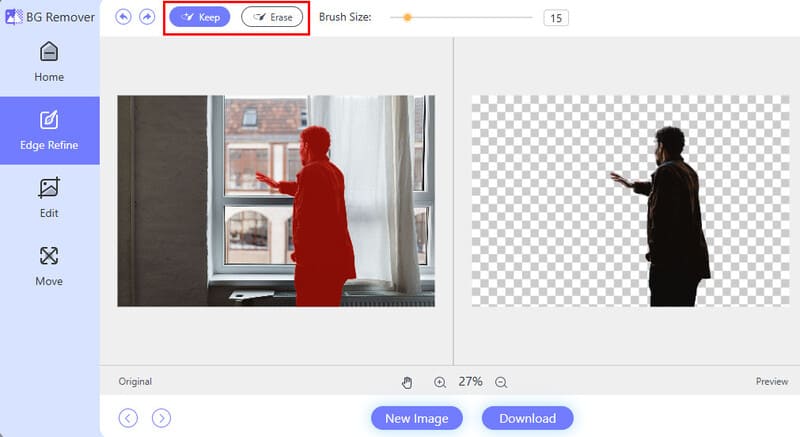
The tool then detects the subject and clears the background automatically. If hair or fine edges look rough, switch to the Edit tab and use the brush tools to refine the selection. You can also crop away extra space so the person is centered.
Step 3Add the new background photo
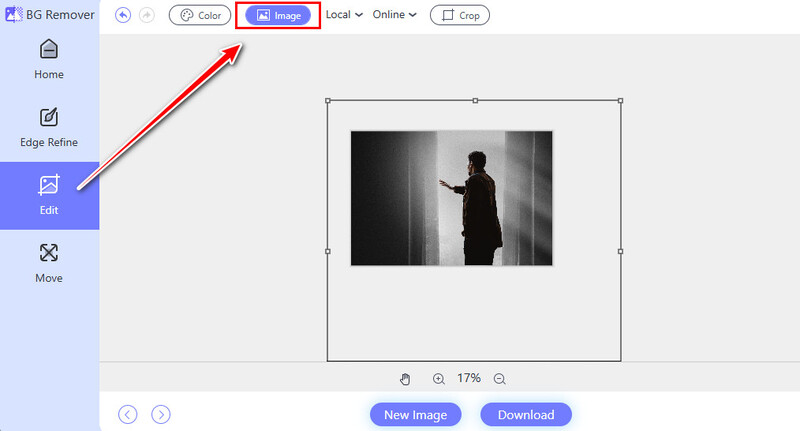
Still in the Edit tab, choose the option to add an image as the new background. Add the scene that the person should appear in. The cutout person now sits on top of that scene.
Step 4Position and download
Drag the person into place. Check that their size feels natural relative to other people or objects in the scene. When it looks right, click Download. You now have a composite ready for light touch-ups or sharing.
Part 2. How to Add a Person to a Photo in Photoshop Naturally
The big upgrade of Photoshop since 2025 is Harmonize, a Firefly-powered tool that automatically matches the color, lighting, shadows, and overall tone of the person you drop into a new scene. That single click replaces a lot of the old manual dodge, burn, and color-balance work.
Step 1Open both photos
Launch Photoshop and open the main scene via File > Open. Then open the photo of the person you want to add, or drag it into the same document so it appears as a new layer.
Step 2Select the person with Object Selection Tool
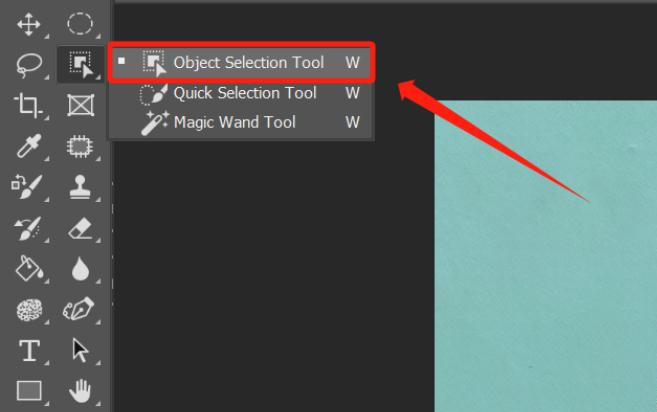
Select the Object Selection Tool (shortcut W). Hover over the person, then Photoshop highlights the subject automatically. Click to select, or use the Select People button in the options bar. Once selected, press Ctrl/Cmd + C, switch to the main scene, and press Ctrl/Cmd + V to paste.
Step 3Position and scale
Use the Move Tool and Free Transform to place the person and adjust size. Hold Shift while scaling to keep proportions natural. Check the perspective; if the person looks tilted relative to the ground plane, use Edit > Transform > Perspective or Distort for a quick fix.
Step 4Run Harmonize for lighting and shadows
With the person layer selected, look for the Harmonize button in the Contextual Task Bar. Click it. Firefly analyzes the background and generates variations that match lighting direction, shadow softness, color temperature, and overall tone. Pick the best variation. This is the step that makes the composite feel real instead of pasted-on.

Part 3. How to Add a Person to a Picture on an iPhone/Android
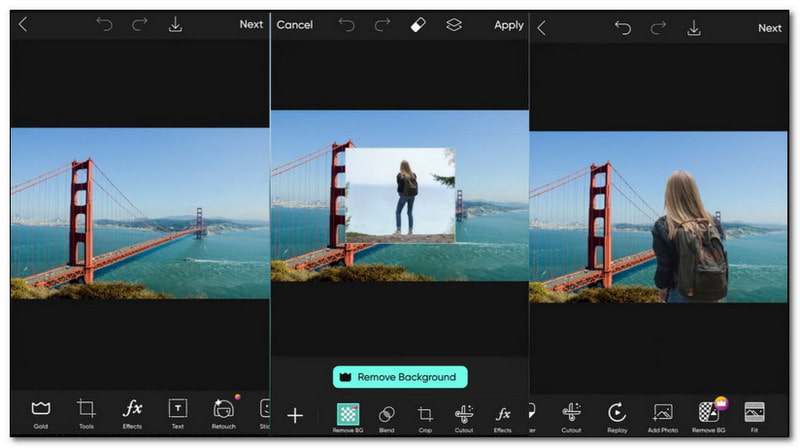
Are you a mobile device user wanting to discover how to add a person to a picture on an iPhone or Android? PicsArt can help you! It is a fantastic application that offers many features. These include the ability to incorporate another person into an existing picture. After editing your pictures, you can upload them straight to the supported social media platforms. The only challenge is that getting used to the options and functionalities takes some time.
Step 1Open PicsArt and import the main photo
Launch the app, tap the "+" button, and choose the background scene from your camera roll.
Step 2Add the person photo
Tap Add Photo and select the photo of the person. The new layer appears on top.
Step 3Cut out the person
If the person still has a background, use the Remove BG tool inside PicsArt.
Step 4Match scale, perspective, and tone
Pinch to resize so the person looks proportional to other people or objects in the scene. Rotate slightly if the camera angles differ. Then open the Adjust or Color tools and nudge brightness, contrast, and temperature until the skin and clothing tones sit closer to the background lighting. Reducing the person's opacity to 90-95 % can also help the blend.
Part 4. Troubleshooting: Why Does the Added Person Look Fake?
Why do I see a white or light halo around the person?
That's classic edge contamination from the original background. When you cut someone out, a few pixels of the old sky or wall often stay attached. In an online tool, go back and refine the edges with a smaller brush or the "erase" tool. In Photoshop, select the layer mask, zoom in, and paint black with a soft brush along the problem edges. A 1-pixel Gaussian Blur on the mask can also soften the transition without looking blurry.
The person looks too big or too small for the scene.
Scale is one of the first things our eyes notice. Compare the person's head height to other people already in the photo, or to the known objects like door frames, cars, chairs, etc. Use Free Transform in Photoshop or the pinch gesture on mobile. If the feet need to sit on the ground plane, make sure the bottom of the cutout lines up with the perspective lines of the floor or street.
There's no shadow under the person and they look like they're floating.
Most composites need at least a soft contact shadow. In Photoshop you can duplicate the person layer, fill it black, blur it heavily, lower the opacity, and place it under the feet. Harmonize often generates a plausible shadow automatically; if it doesn't, paint one manually with a soft black brush on a new layer set to Multiply. On mobile apps, look for a "shadow" or "drop shadow" option, or draw a dark oval under the feet and blur it.
The lighting direction doesn't match.
If the person was shot under soft window light and the background is harsh midday sun, the mismatch is obvious. Harmonize is built exactly for this: it re-lights the subject to match the scene. Without it, use Curves or Color Balance adjustment layers clipped to the person layer and push the highlights and shadows until the light side of the face agrees with the background light source.
Colors look off.
Grab a Color Balance or Photo Filter adjustment layer clipped to the person and shift the midtones toward the background's overall temperature. A quick way to check: sample a neutral area in the background and a similar tone on the person's clothing or skin, then nudge until they feel related.
You may want to add someone in a photo at some stage. Luckily, we have compiled a list of the best tools and resources to help you do that. With this post, you have learned how to add people to photos that are easy to follow. Get creative and make your memories even better by trying it out today!
ABOUT THE AUTHOR


Uses AI and automated background removal technology to capture complex backgrounds from JPG, JPEG, PNG, and GIF.
PROCESS NOW