Hoe je muziek opneemt met een iPhoneHet opnemen van je favoriete muziek is een fluitje van een cent, dankzij de ingebouwde functies en betrouwbare apps van je telefoon. Of je nu een kort nummer opneemt, instrumentale tracks bewerkt of telefoongesprekken vastlegt, je iPhone biedt flexibele opties die zowel beginners als professionals van pas komen. Dus, als je verschillende manieren wilt ontdekken om je muziek effectief op te nemen, lees dan vooral deze handleiding.
Deel 1. Muziek opnemen op de iPhone met de ingebouwde app voor spraakmemo's
Een van de iPhone MP3-recorder-apps die je kunt gebruiken om je muziek op te nemen, is de Voice Memos-app. Het is een ingebouwde app die je op je iPhone kunt gebruiken. Met deze muziekrecorder kun je audio-inhoud helder en direct opnemen. Het is ideaal voor het noteren van songideeën, melodieën en volledige oefensessies. Het beste is dat de app een intuïtieve gebruikersinterface heeft. Je kunt je opgenomen content gemakkelijk inkorten, ordenen en delen zonder problemen. Ook voor muzikanten die... audio opnemen op een iPhoneWe kunnen niet met zekerheid zeggen of de app 'Spraakmemo's' hiervoor het ideale hulpmiddel is.
Om te leren hoe je een MP3-bestand opneemt met een iPhone, kun je de onderstaande stappen volgen.
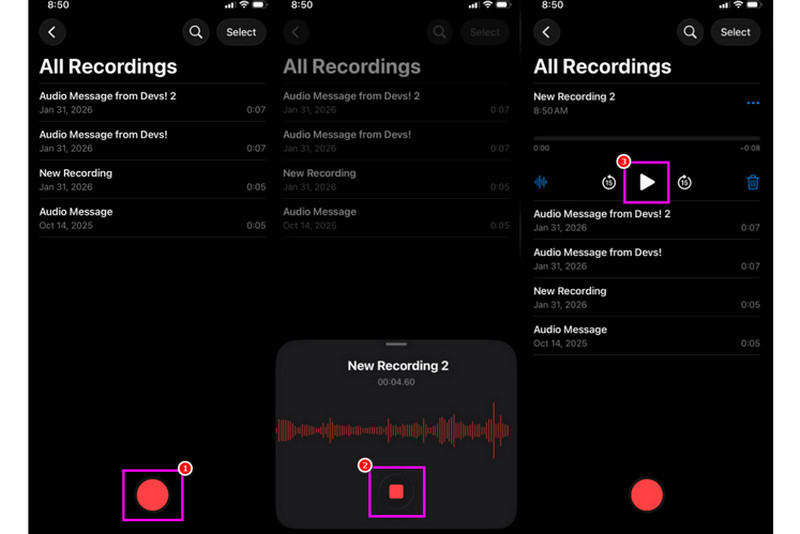
Stap 1Ga op je iPhone verder naar de Nutsvoorzieningen sectie en tik op de Spraak memos app. Zorg er vervolgens voor dat de muziek die je wilt opnemen al klaarstaat.
Stap 2Ga daarna naar de onderste interface en klik op de Vermelding knop. Zodra dit is gedaan, kun je de muziek afspelen op je iPhone of een ander apparaat.
Stap 3Zodra de opname is voltooid, druk je op de knop. Hou op knop. Daarmee heb je nu toegang tot je opgenomen muziek. Je kunt het bestand zelfs bewerken of delen als je dat wilt.
Deel 2. Muziek opnemen met GarageBand
Wil je je eigen muziek maken en opnemen om op je apparaat op te slaan? Dan heb je toegang tot... Garage bandDit is een gratis app waarmee je muziek kunt opnemen op je iPhone. Dankzij de opnamefunctie is het opnemen van je muziek een fluitje van een cent. Je hebt zelfs toegang tot verschillende instrumenten die je kunt gebruiken als je je eigen muziek wilt maken. Dus als je een alles-in-één opnameoplossing zoekt, is deze app zeker het overwegen waard.
Stap 1Ga naar de Apple Store en begin met downloaden Garage bandNa de installatie kunt u het programma op uw apparaat uitvoeren.
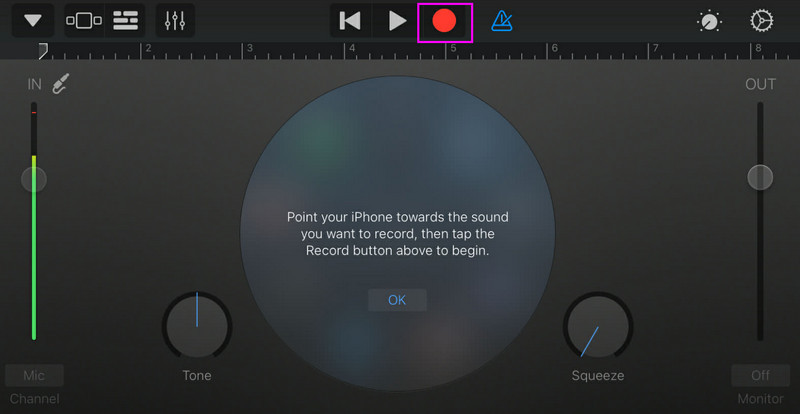
Stap 2Vanuit de interface moet je selecteren en op de drukken. AudiorecorderVervolgens verschijnt de hoofdinterface op je scherm.
Stap 3Begin met het opnemen van je muziek door op de knop te tikken. Vermelding Tik vervolgens op de knop hierboven. Hou op om de opname af te ronden.
Deel 3. Multitrack-opname met apps van derden
GarageBand is handig voor het opnemen van muziek. Er zijn echter meer apps beschikbaar die specifiek zijn afgestemd op verschillende stijlen van songwriting, opnames en samenwerking tussen verschillende platforms. Enkele voorbeelden van dergelijke apps zijn:
- BandLab - Deze tool is ideaal voor samenwerking in de cloud. Hij is perfect voor muzikanten dankzij de verbeterde functies, zoals mastering-algoritmes, een uitgebreide loopbibliotheek en multi-recording.
- FL Studio Mobiel - Dit is een tool op abonnementsbasis. Hip-hop-, elektronische- en popproducers geven er de voorkeur aan.
- Cubasis 3 - Het is een professionele studio-optie die is overgenomen van de desktopversie van Cubase. De tool biedt geavanceerde MIDI-bewerking, onbeperkte audiosporen en multitrack-opname, waardoor het een ideaal hulpmiddel is voor gebruikers.
Een effectieve manier om muziek op te nemen op een desktopcomputer
Zoekt u een desktoprecorder waarmee u uw muziek kunt opnemen? Dan kunt u gebruikmaken van... AVAide-schermrecorderDit programma biedt een telefoonrecorder waarmee je muziek van je iPhone kunt opnemen. Deze software is ideaal als je je opname direct op je computer wilt opslaan. Wat we prettig vinden, is dat deze recorder een soepel en eenvoudig opnameproces biedt dankzij de intuïtieve gebruikersinterface. Het programma zorgt er ook voor dat je de audio in de beste kwaliteit kunt opslaan, tot wel 320 kbps, wat resulteert in een betere geluidsweergave. Je kunt je audio zelfs bewerken naar je eigen voorkeuren, waardoor deze audiorecorder ideaal is voor alle gebruikers.
Stap 1Downloaden AVAide-schermrecorder op je bureaublad. Start het vervolgens op om het proces te beginnen.

GRATIS DOWNLOAD Voor Windows 7 of hoger
 Veilige download
GRATIS DOWNLOAD Voor Mac OS X 10.13 of hoger
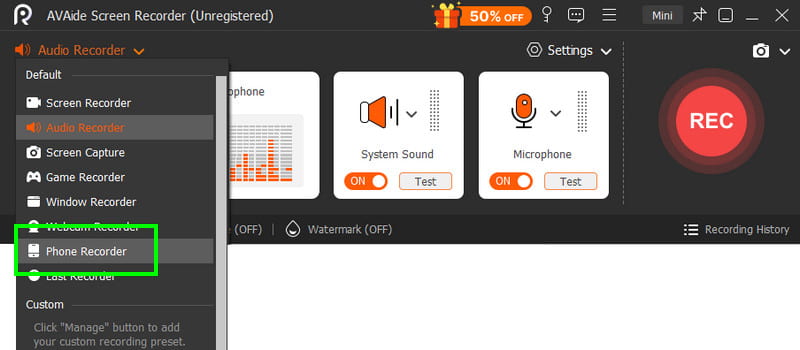
Veilige downloadStap 2Ga vanuit de interface naar de laten vallen knop en selecteer de Telefoonrecorder functie. Tik vervolgens op iOS en verbind je telefoon.
Stap 3Ga daarna verder met de Inhoud opnemen sectie om het vinkje te verwijderen Scherm optie en kies de Telefoon luidspreker optie. Tik vervolgens op Vermelding om het opnameproces te starten.
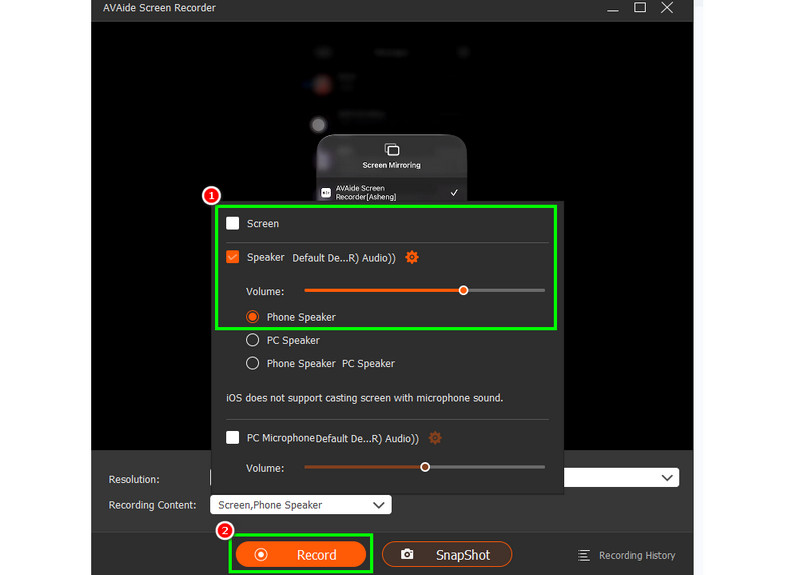
Kraan Hou op om de opname af te ronden.
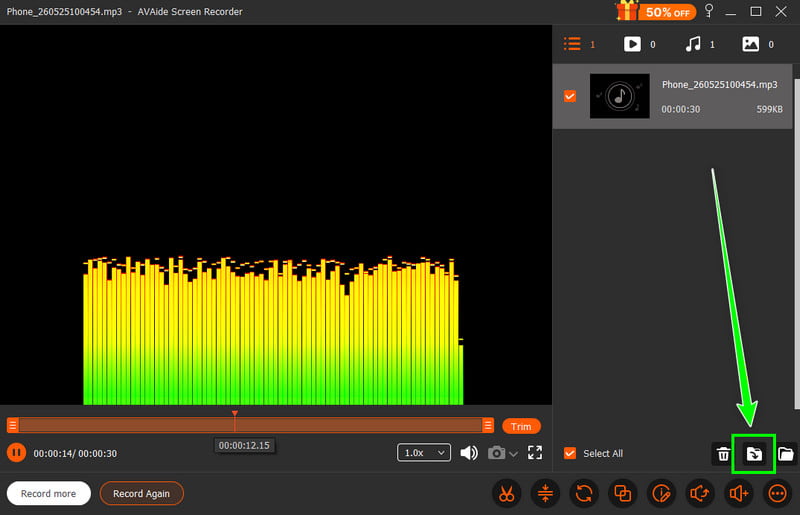
Stap 4Wanneer de voorbeeldweergave verschijnt, klikt u. Exporteren om te beginnen met het opslaan van de opgenomen audio.
Deel 4. Opnemen in MP3-formaat
Standaard slaat het Apple-ecosysteem muziek op als WAV of AAC. Toch kunnen we stellen dat MP3 een van de meest draagbare audioformaten is. Daarom is het converteren van je opnames naar MP3 de beste optie. Om je opnames te converteren, kun je de Audio Recorder-app gebruiken. Met deze app kun je je opnames, bijvoorbeeld spraakmemo's, converteren naar MP3 voor betere compatibiliteit. Je kunt ze converteren. AAC naar MP3WAV naar MP4, FLAC naar WAV en meer.
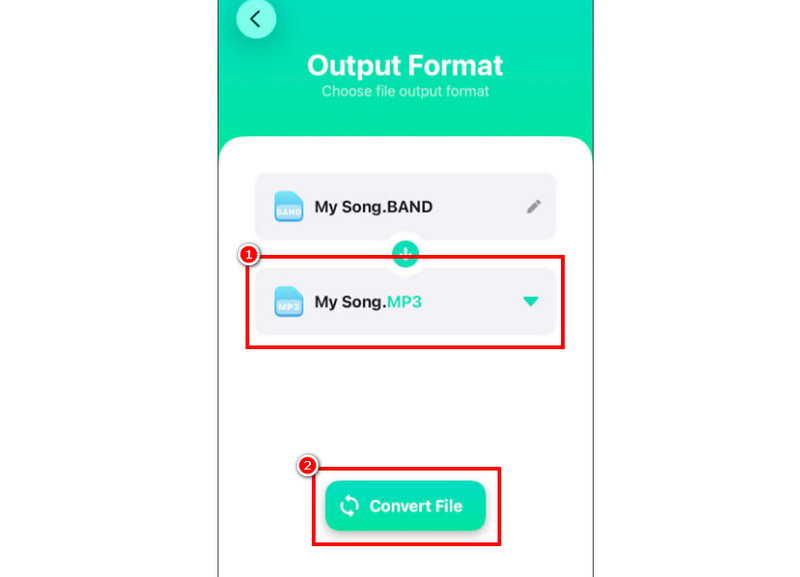
Stap 1Ga naar je Apple Store en download de Audio-omzetter app. Start vervolgens de converter en begin met het toevoegen van de opname.
Stap 2Van de Formaat begin met het kiezen van de sectie MP3 formaat. Tik vervolgens op de Converteren knop.
Stap 3Na het conversieproces kunt u uw MP3-bestand afspelen.
Deel 5. Muziek opnemen van YouTube op je iPhone
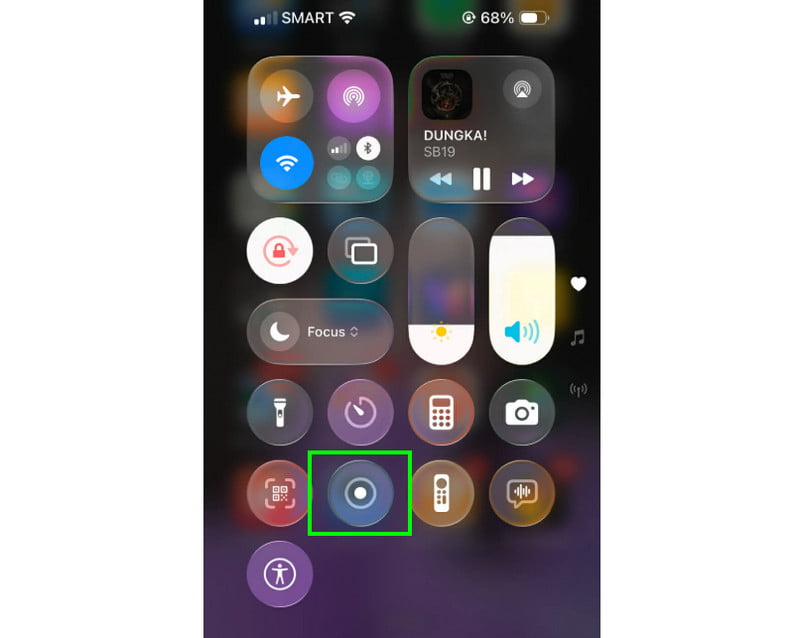
Wil je muziek van YouTube opnemen met je iPhone? Dan heb je alleen de opnamefunctie van je toestel nodig. Met deze functie kun je alle muziek van YouTube opnemen. Om de opname te starten, tik je gewoon op het opnamepictogram. Assistive Touch Ga naar het Control Center. Tik daar op de opnamefunctie. De opname start na een aftelling van 3 seconden. Je kunt nu de muziek van YouTube afspelen. Tik op Stop om de opname te beëindigen. Zodra de opname is voltooid, kun je een video-naar-MP3-converter gebruiken om je video naar een audiobestand om te zetten.
Deel 6. Professionele tips voor een betere geluidskwaliteit
Bekijk dit gedeelte voor meer informatie over hoe u een betere geluidskwaliteit kunt bereiken.
- Neem altijd op in een stille omgeving om achtergrondgeluiden te minimaliseren.
- Bij het gebruik van een app zoals GarageBand moet je de ingangsversterking in balans houden. Voorkom altijd clipping door onder het rode gebied te blijven.
- Voor een betere kwaliteit kunt u het beste opnemen in AIFF of WAV.
- Monitor de opname met een hoofdtelefoon. Je kunt een bedrade hoofdtelefoon gebruiken om problemen in realtime aan te pakken.
Naar een nummer opnemen met een iPhoneGebruik alle methoden die in deze handleiding worden beschreven. Daarmee kunt u na het proces het gewenste resultaat behalen. Als u bovendien muziek van uw telefoon wilt opnemen met uw computer, kunt u toegang krijgen tot de volgende opties: AVAide-schermrecorderMet de telefoonrecorderfunctie van dit programma kun je je iPhone aansluiten en muziek opnemen en opslaan in de beste kwaliteit, waardoor het de beste recorder is waarop je kunt vertrouwen.
OVER DE AUTEUR

Leg schermactiviteiten vast met audio, online vergaderingen, gameplay-video's, muziek, webcam, enz.