Hoe een spraakopname bewerkenHet bewerken van je spraakopnames is een effectieve manier om verschillende aspecten van het audiobestand te verbeteren. Je kunt de helderheid verbeteren, gedeeltes inkorten, het volume verhogen en verlagen, effecten toevoegen en nog veel meer, wat resulteert in een betere geluidsweergave. Of het nu gaat om interviews, persoonlijke notities of podcasts, het leren van de beste bewerkingstechnieken is essentieel om het gewenste resultaat te bereiken. In deze handleiding leren we je hoe je je spraakopname kunt bewerken met de beste audiobewerkingsprogramma's. Lees verder en ontdek meer over het proces.
Deel 1. Spraakopnamen bewerken op een iPhone
Wil je leren hoe je een spraakopname op een iPhone bewerkt? De iPhone biedt een betrouwbare app waarmee je je spraakopname kunt bewerken, met name voor het inkorten, toevoegen van lagen en verwijderen van gedeeltes. Om te beginnen kun je alle stappen in dit gedeelte bekijken.
Trim de opname van spraakmemo's
Spraak memos is niet zomaar een van de beste spraakopname-appsHet biedt ook betrouwbare bewerkingshul Hulpmiddelen voor het bewerken van je audio. Met deze opname-/bewerkingsapp kun je je audio inkorten om onnodige delen te verwijderen. Bovendien heeft de app een eenvoudige lay-out, waardoor hij ideaal en gemakkelijk te gebruiken is, vooral voor niet-professionele gebruikers.
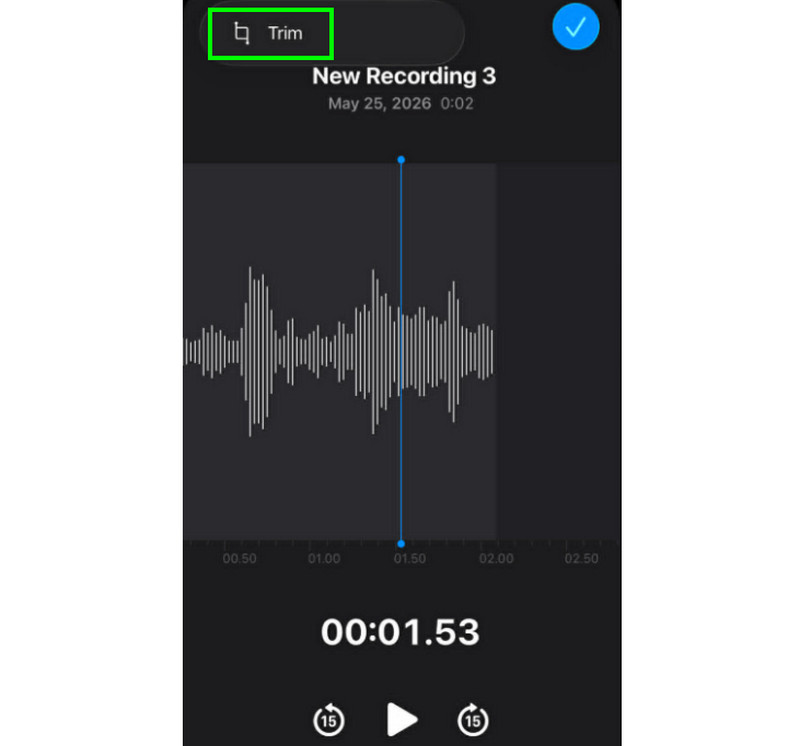
Stap 1Start de Spraak memos zoek in de app naar de spraakopname die je wilt bewerken. Klik vervolgens op de Trimmen functie.
Stap 2Daarna kun je de audio gaan inkorten. Druk vervolgens op de knop. Trimmen Klik op de knop hieronder om te beginnen met het verwijderen van de ongewenste delen uit de audio.
Stap 3Na het bijsnijden kunt u de Van toepassing zijn Klik op de knop hierboven om de wijzigingen op te slaan.
Hoe verwijder je een gedeelte in het midden?
Tijdens het inkorten denk je misschien dat je alleen het begin of het einde van de track kunt verwijderen. Het voordeel van de Voice Memos-app is dat je ook een gedeelte in het midden kunt verwijderen. Dankzij deze functie is het verwijderen van onnodige delen uit een audiotrack een eenvoudige klus.
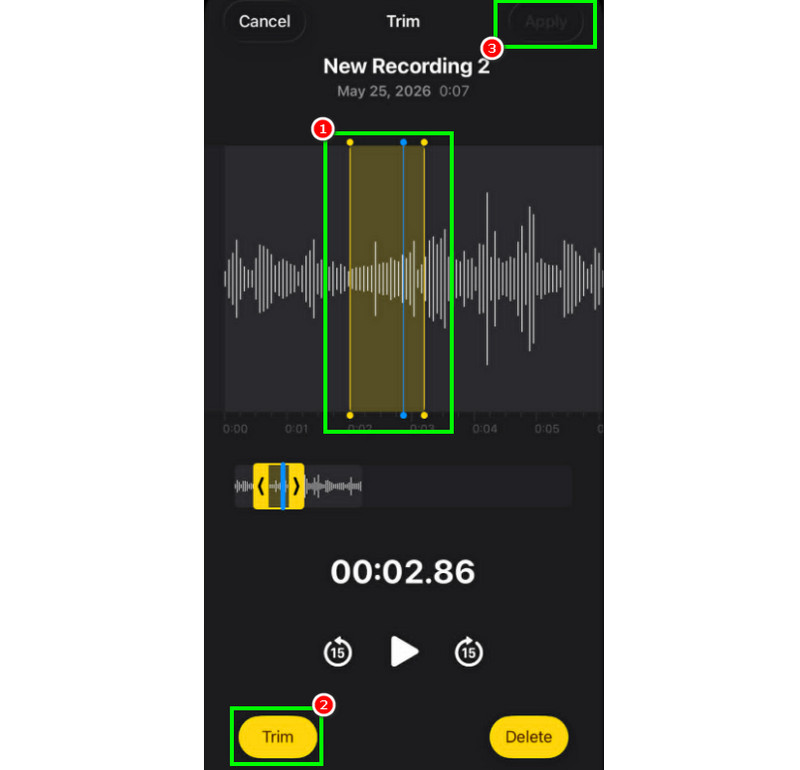
Stap 1Na het selecteren van de Trimmen Met deze functie kunt u de verstelbare lijn op de rail aanraken en bedienen.
Stap 2Voeg de lijn in of pas deze aan in het midden van de plek waar u de track wilt verwijderen. Druk daarna op de knop. Trimmen knop hieronder.
Stap 3Kraan Van toepassing zijn om de bewerkte spraakopname op te slaan.
Hoe je sporen in spraakmemo's kunt overlappen
Voice Memos is een ideaal hulpmiddel voor het opnemen van spraak en andere audio-inhoud. Je kunt er zelfs een opname mee bewerken, zoals inkorten of een bepaald gedeelte verwijderen. Helaas is het niet mogelijk om tracks over elkaar heen te leggen. Voor een betere manier om tracks over elkaar heen te leggen, kun je beter een geavanceerdere audiobewerkingsapp gebruiken, zoals GarageBand. Met deze app kun je tracks over elkaar heen leggen en één bestand maken.
Hoe je bewerkte spraakmemo's kunt delen en exporteren
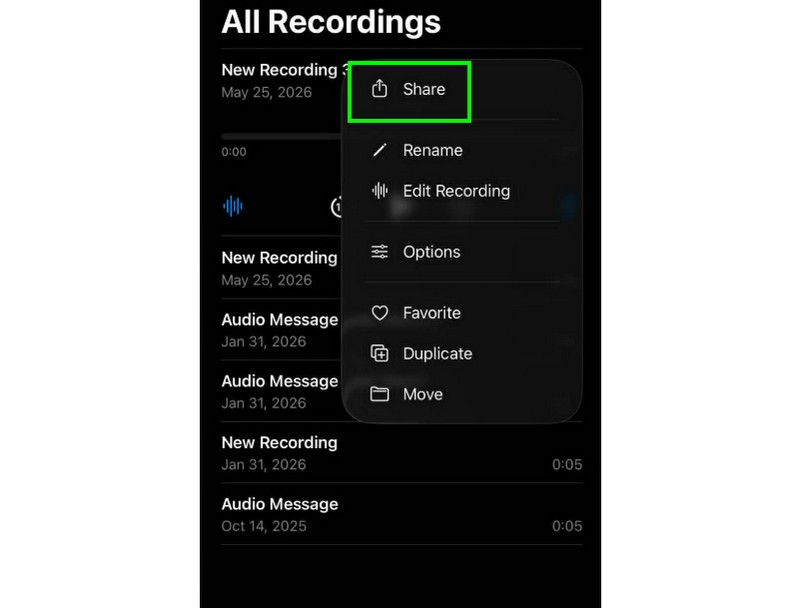
Het delen en exporteren van een bewerkte spraakopname is eenvoudig. Je hoeft alleen maar de opnames in de app 'Spraakmemo's' te zoeken en op de knop met de drie puntjes te drukken. Tik vervolgens op de functie 'Delen'. Daarmee kun je de opnames delen op verschillende platforms. Je kunt ze zelfs opslaan in de map van je keuze.
Aanbevolen iPhone-apps voor beeldbewerking
Wil je een ander programma voor spraakopname en -bewerking? Omdat de app Voice Memos beperkingen heeft als het gaat om het bewerken van je spraakopnames, zijn er momenten waarop je een ander bewerkingsprogramma nodig hebt. In dat geval kun je voor betere bewerkingen GarageBand, Ferrite Recording Studio en Hokusai Audio Editor proberen.
Deel 2. Spraakopnamen bewerken op Android
Ben je een Android-gebruiker en wil je je spraakopnames bewerken? Dan kun je gebruikmaken van de Samsung spraakrecorderHet is een gratis app waarmee je je spraakopnames kunt bewerken. Je kunt er je opnames mee inkorten naar je eigen voorkeuren. De app heeft een eenvoudige gebruikersinterface, waardoor hij makkelijk te gebruiken is.
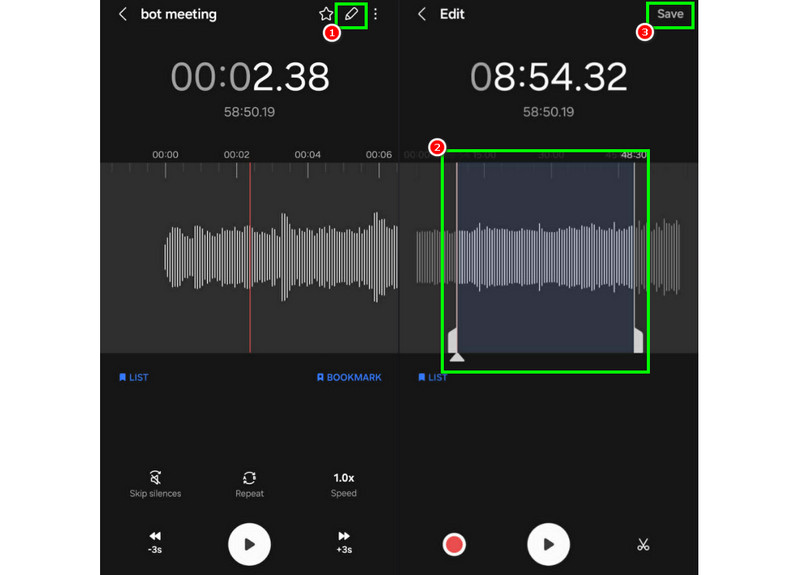
Stap 1Start de Samsung spraakrecorderGa vervolgens verder met de opnames die je wilt bewerken.
Stap 2Open vervolgens de opnames en druk op de Bewerk bovenstaande functie.
Stap 3Je kunt beginnen met het bijsnijden door de lijnen van de rails aan te passen. Als je dat gedaan hebt, kun je het vinkje zetten. Sparen knop hierboven.
Deel 3. Hoe je spraakopnames op je computer bewerkt
Wil je je spraakopname op je computer bewerken? Lees dan verder, want we bieden je de beste methoden voor een effectief bewerkingsproces van je spraakopname.
Methode 1. Spraakopnamen bewerken met Audacity
Durf is een van de gratis desktop-editors waarop je kunt vertrouwen om je opnames te bewerken. Je kunt de audio inkorten, effecten toevoegen en andere tracks koppelen. Je kunt zelfs Computergeluid opnemen in Audacity en bewerk het naar eigen voorkeur. Het enige probleem is dat de lay-out niet aantrekkelijk genoeg is.
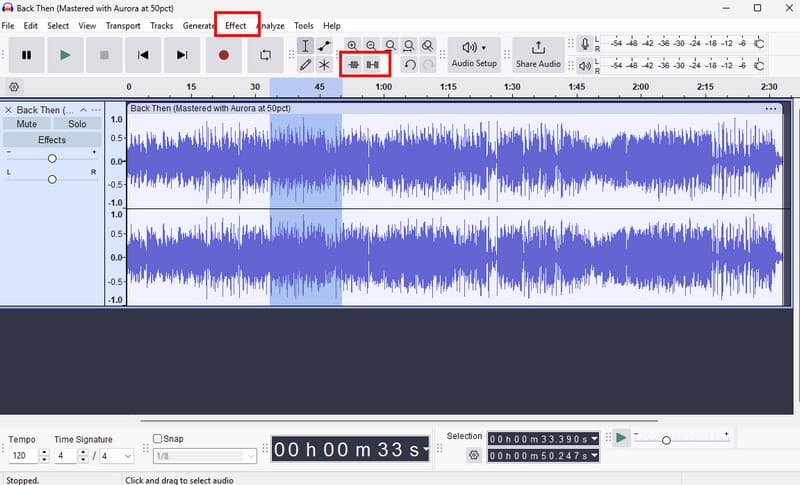
Stap 1Downloaden Durf op uw computer. Ga vervolgens verder met de Bestand > Open Opties om je opnames toe te voegen.
Stap 2Je kunt nu beginnen met het bewerken van je bestand. Je kunt de track inkorten, effecten toevoegen, het tempo aanpassen en meer.
Stap 3Tik vervolgens op Bestand > Project opslaan om het op je apparaat te bewaren.
Methode 2. Spraakopnamen bewerken met AVAide Video Converter
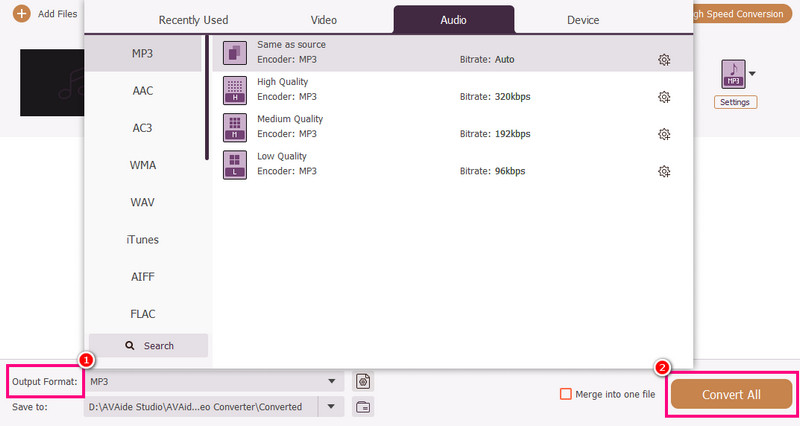
Als je een professionele editor wilt, probeer dan eens toegang te krijgen tot... AVAide Video ConverterDit programma biedt talloze mogelijkheden om je audio te bewerken. Je kunt bijvoorbeeld een specifiek nummer uit je opname knippen of inkorten, nummers splitsen en samenvoegen. Bovendien kun je zelfs een fade-in en fade-out effect aan je audio toevoegen. Daarnaast kun je je opnames converteren naar elk gewenst audioformaat, zoals MP3, AAC, ALAC, M4A, WAV en meer. Dit garandeert dat je geen compatibiliteitsproblemen zult ondervinden tijdens het afspelen. Je kunt de opnames zelfs opslaan in de beste kwaliteit tot 320 kbps, waardoor het programma ideaal is voor alle audiofielen.
Stap 1Downloaden AVAide Video Converter Installeer en start het programma op je Mac of Windows-computer om het bewerkingsproces te starten.

GRATIS DOWNLOAD Voor Windows 7 of hoger
 Veilige download
GRATIS DOWNLOAD Voor Mac OS X 10.13 of hoger
Veilige downloadStap 2Van de omzetter Voeg de spraakopnames toe door op de functie te klikken. Bestanden toevoegen optie. Je kunt desgewenst zelfs meerdere bestanden toevoegen.
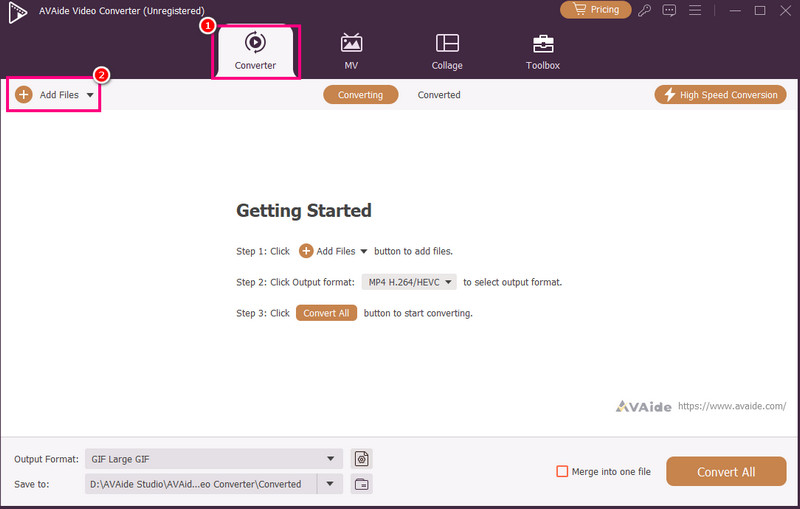
Stap 3Klik vervolgens op de Snee optie om het bewerkingsproces te starten. Je kunt een bepaald gedeelte uit de track knippen en verwijderen. Je kunt ook de Splitsen functie om de sporen te scheiden.
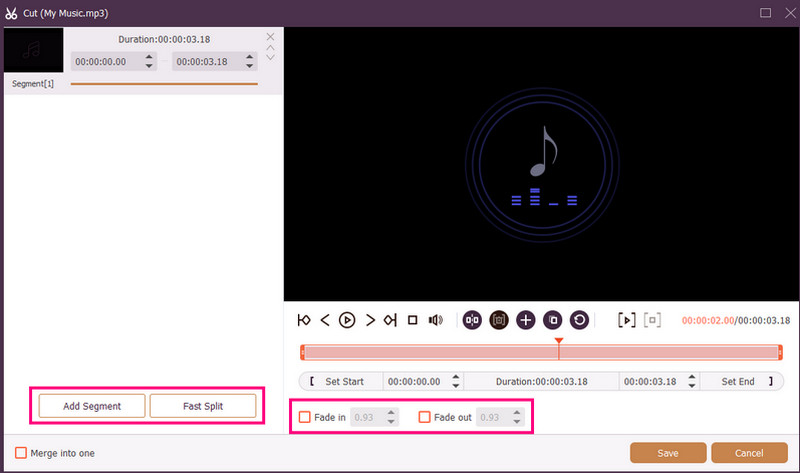
Je kunt ook bijlagen toevoegen Infaden en Vervagen effecten toevoegen aan je opnames. Als je klaar bent, druk je op Sparen.
Stap 4Je kunt ook naar de Uitvoerformaat In dit gedeelte kunt u het gewenste audioformaat kiezen. Vink tot slot het vakje aan. Alles omzetten om het opslagproces te starten.
Methode 3. Stemopnamen bewerken met Adobe Audition
Adobe-auditie Het is een betrouwbaar hulpmiddel voor het bewerken van je spraakopnamen. Het biedt zowel basis- als geavanceerde bewerkingsfuncties, waardoor het ideaal is voor alle gebruikers, met name professionals. Je kunt opnames inkorten, effecten toepassen, sporen over elkaar heen leggen en nog veel meer. Je moet echter wel over voldoende vaardigheid beschikken om dit programma te gebruiken, aangezien de gebruikersinterface een steile leercurve heeft.
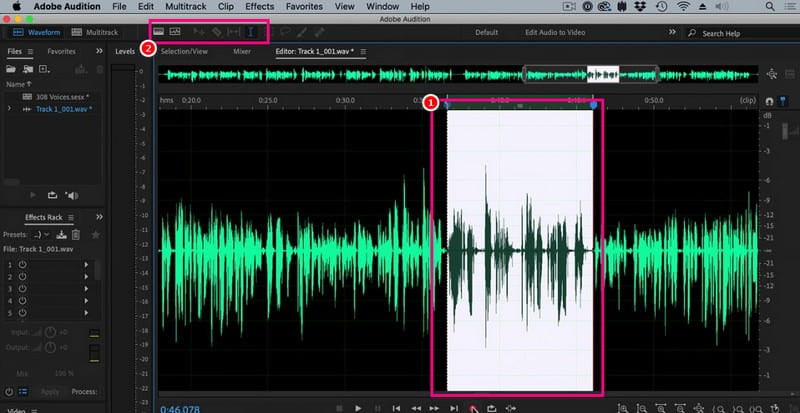
Stap 1Downloaden Adobe-auditie op je computer. Voeg daarna de spraakopname toe die je wilt bewerken.
Stap 2Je kunt je muiscursor gebruiken om een bepaald gedeelte van de track te selecteren en te bewerken. Je kunt de audio inkorten, effecten toevoegen en splitsen met behulp van alle bewerkingshulpmiddelen in de hoofdinterface.
Stap 3Nadat je de audio hebt bewerkt, kun je naar de Bestand > Sparen Selecteer bovenstaande opties om het opslagproces te starten.
Deel 4. Spraakopname online bewerken
Je kunt je spraakopnames ook online bewerken. Lees hieronder hoe je je audiobestand in je browser kunt bewerken.
Methode 1. Spraakopnamen bewerken met 123APPS
Deze tool is perfect als je je audio gratis wilt bewerken. Je kunt er je audio mee inkorten, achtergrondgeluid verwijderen, een fade-effect toevoegen en nog veel meer. Het is bovendien eenvoudig te gebruiken, waardoor het ideaal is voor beginners.
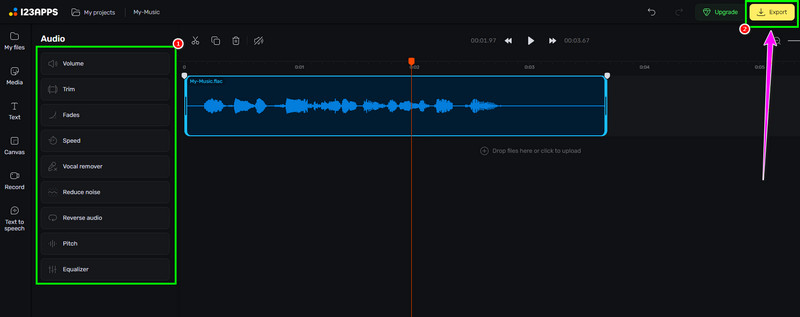
Stap 1Bezoek de website van 123APPS en ga verder met zijn Audio-editor functie. Druk daarna op de Kies documenten om je opname te uploaden.
Stap 2Begin vervolgens met het bewerken van je audio. Je kunt de opname inkorten, effecten toevoegen, ruis verwijderen en meer.
Stap 3Klik na het bewerkingsproces op Exporteren Hierboven kunt u het op uw apparaat opslaan.
Methode 2. Spraakopnamen bewerken met een online audio-editor.
Als je een uitstekende online audio-editor zoekt waarmee je je spraakopnames kunt bewerken, kun je proberen om te gebruiken Audio-editor onlineDeze tool biedt diverse mogelijkheden, zoals een trimmer, snijder, ruisonderdrukker, snellader en meer. Volg de onderstaande stappen om te leren hoe je een spraakopname bewerkt.
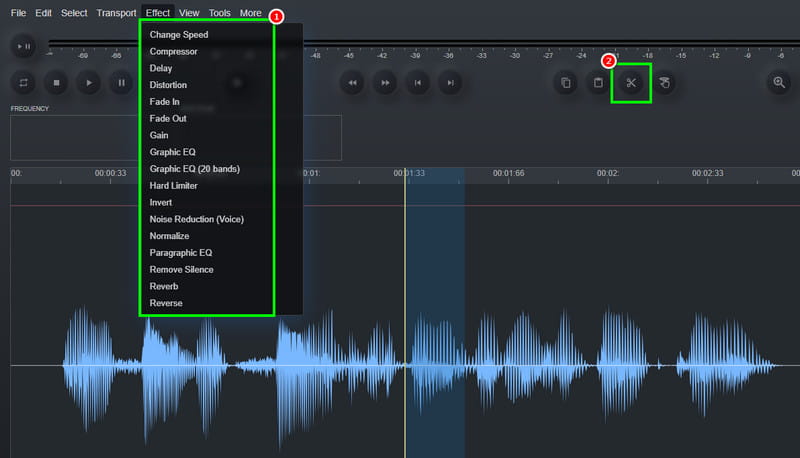
Stap 1Nadat u toegang hebt gekregen tot de Audio-editor online gereedschap, klik op de Bestand > Open optie om de spraakopname te uploaden.
Stap 2Je kunt beginnen met het bewerkingsproces. Ga naar de Effect In dit gedeelte kun je de afspeelsnelheid van de audio aanpassen, een effect toevoegen, de vertraging instellen en meer. Je kunt ook de volgende instellingen gebruiken: Snee gereedschap om het overbodige deel van de rails te verwijderen.
Stap 3Voor het laatste proces, klik op de Bestand > Sparen Met deze knop kunt u de bewerkte opname op uw computer opslaan.
Deel 5. Welke methode moet je kiezen?
Vraagt u zich af welke methode u moet kiezen? In dat geval raden wij u ten zeerste aan om gebruik te maken van... AVAide Video ConverterAls het op bewerken aankomt, kunt u er zeker van zijn dat u het gewenste resultaat krijgt. U kunt de audio inkorten, splitsen en meerdere segmenten samenvoegen tot één bestand. U kunt zelfs de audiocompressor van het programma gebruiken om de bestandsgrootte en de kwaliteit van uw opname in balans te brengen. Het programma stelt u ook in staat om uw audio naar andere formaten te converteren, waardoor u compatibiliteitsproblemen voorkomt. Vertrouw dus op dit programma en bereik de audio-output die u wenst.
Dankzij deze handleiding heb je geleerd... Hoe audio-opnamen te bewerkenBekijk dus de methoden die we hebben aangeboden en bewerk je spraakopnames naar eigen voorkeur. Als je een soepel audiobewerkingsproces wilt, raden we je aan om gebruik te maken van... AVAide Video ConverterDeze software zorgt ervoor dat je de video in de beste kwaliteit kunt bewerken en opslaan, waardoor het een eersteklas editor is voor gebruikers.
OVER DE AUTEUR

Uw complete videotoolbox die 350+ formaten ondersteunt voor conversie in verliesvrije kwaliteit.