Hoe neem je een spraakbericht op met een iPhone?Een spraakbericht opnemen is een snelle manier om je gedachten te delen of persoonlijke audio te versturen zonder te hoeven typen. Met de ingebouwde spraakberichtenfunctie van de iPhone kun je je audiofragmenten direct opnemen, opslaan en delen met slechts een paar tikken. Dus, als je op zoek bent naar een uitgebreide manier om een spraakbericht op te nemen en te versturen op je mobiel, bekijk dan deze handleiding om het gewenste resultaat te bereiken.
Deel 1. Hoe je een spraakbericht opneemt en verzendt in iMessage
iMessage is meer dan alleen een eenvoudig communicatiemiddel. Het biedt ook een spraakberichtenfunctie. Hiermee kun je berichten en gedachten via je stem versturen. Dit is ideaal als je berichten wilt verzenden zonder tekst te hoeven typen. Het grootste voordeel is dat het versturen van een spraakbericht heel eenvoudig is, waardoor het perfect is voor alle gebruikers. Wil je zelf berichten opnemen en versturen? Volg dan de onderstaande instructies.
Hoe neem je een spraakbericht op met je iPhone?
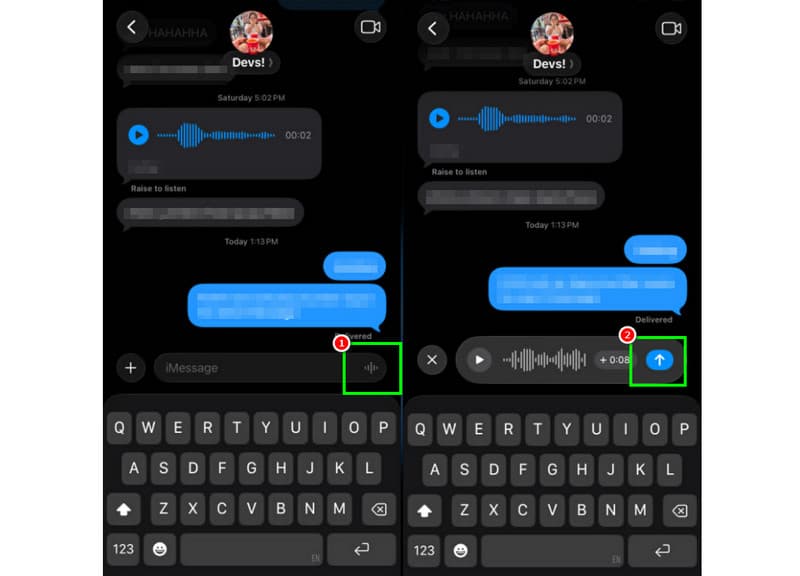
Stap 1Start de app op je iPhone. iMessage Ga vervolgens naar de persoon met wie je wilt communiceren.
Stap 2Houd op uw scherm de volgende knop ingedrukt: Microfoon optie. Terwijl u de knop ingedrukt houdt, kunt u beginnen met opnemen en uw bericht inspreken.
Stap 3Om de opname te stoppen, laat u de knop los. Tik vervolgens op de knop. Stuur pijl knop om het bericht te verzenden.
Luister naar inkomende spraakberichten
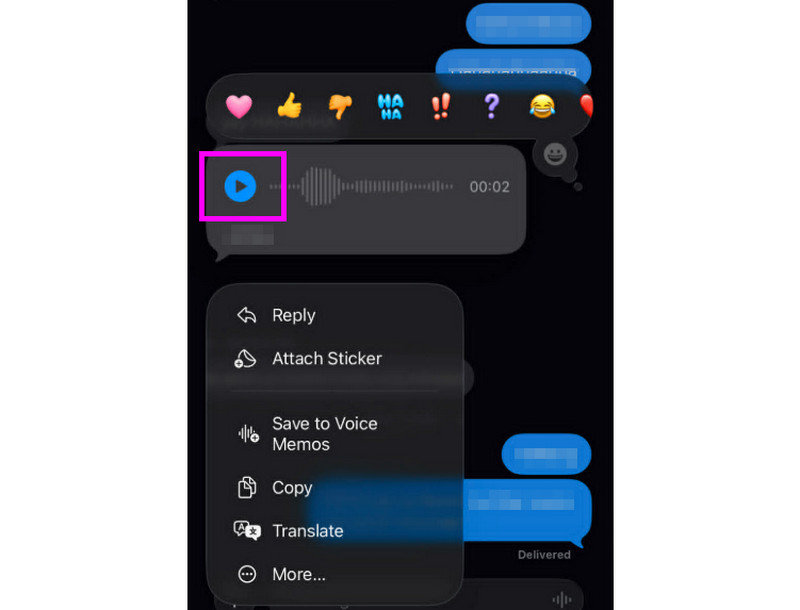
Stap 1Nadat je het spraakbericht hebt ontvangen, kun je tikken. Toneelstuk knop.
Stap 2Je kunt het volume ook aanpassen met de knop aan de zijkant van je iPhone om het bericht goed te kunnen verstaan.
Stap 3Na twee minuten verloopt het spraakbericht. Om het bericht te bewaren, drukt u gewoon op de knop. Houden optie hieronder.
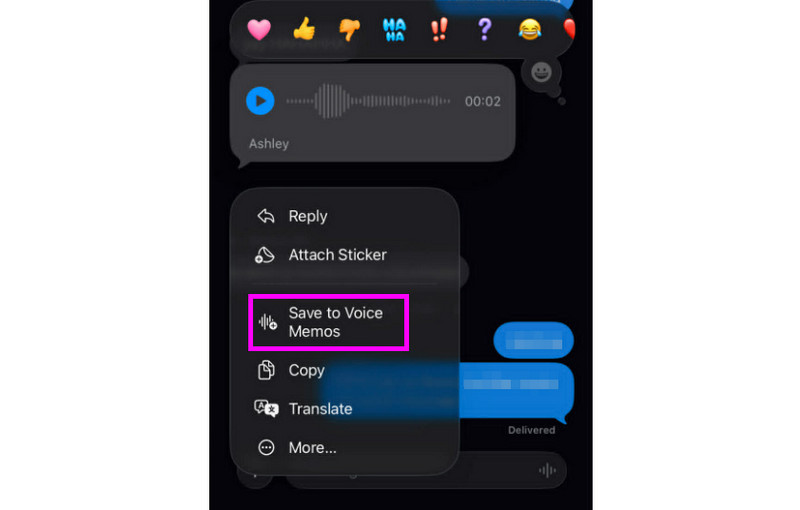
Stap 4Als je het spraakbericht wilt opslaan, houd het dan lang ingedrukt en tik op de Opslaan in Spraakmemo's app. Met deze spraakrecorder-appJe kunt het bericht altijd en overal opnieuw afspelen.
Instellingen voor spraakberichten aanpassen
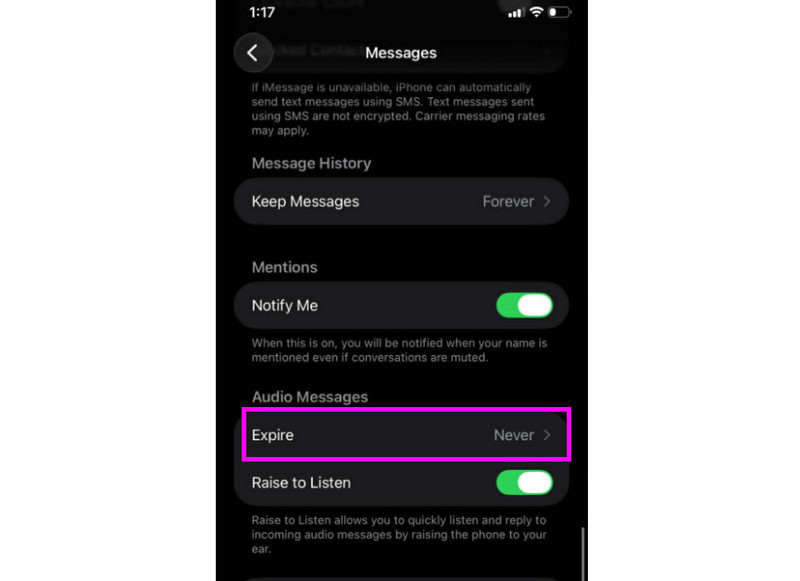
Stap 1Ga naar je Instellingen app. Ga vervolgens verder naar de Berichten toepassing
Stap 2Navigeer naar de Audioberichten > Verlopen sectie en tik op de Nooit optie. Op deze manier verlopen spraakberichten van iMessage niet.
Deel 2. Methode om een voicemailbegroeting op te nemen op de iPhone
Als je niet bereikbaar bent, ontvangen bellers een gepersonaliseerd bericht als je een voicemailbegroeting opneemt op je iPhone. Je kunt eenvoudig een nieuwe begroeting maken, een oude aanpassen of verwijderen, en zelfs een tijdelijke begroeting gebruiken voor speciale gelegenheden. Je kunt de toon van je voicemail voor anderen volledig aanpassen met slechts een paar tikken in de Telefoon-app. Bekijk de stappen in de bijlage en leer hoe je een voicemailbericht opneemt op een iPhone.
Uw voicemailbegroeting instellen
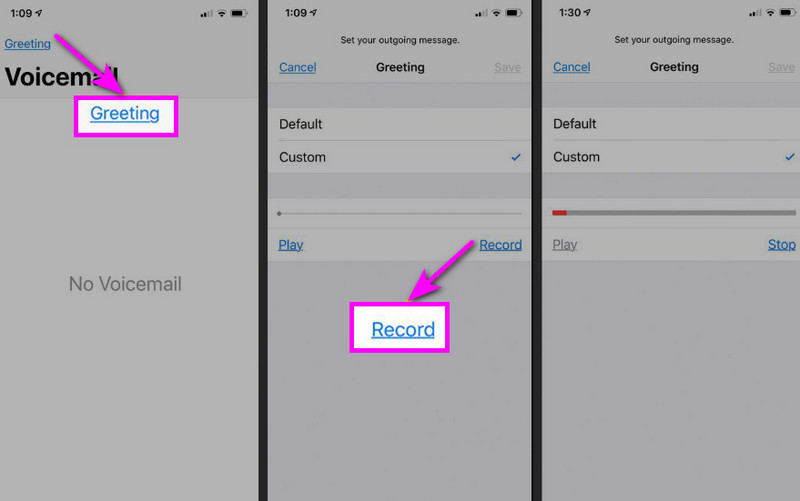
Stap 1Ga naar de Telefoon app en tik op de Voicemail optie.
Stap 2Druk daarna op de Groet De functie bevindt zich in de linkerbovenhoek van uw scherm. Druk op Aangepast > Vermelding beginnen Audio opnemen met je iPhone als begroeting.
Stap 3Kraan Hou op om het af te maken en te spelen ter beoordeling. Als je klaar bent, klik dan op Sparen om dit als je actieve begroeting in te stellen.
Je begroeting wijzigen of verwijderen
Stap 1Je kunt teruggaan naar de Voicemail > Groet sectie.
Stap 2Hit Aangepast en neem een nieuwe begroeting op ter vervanging van de oude.
Stap 3Om vervolgens terug te keren naar de standaardinstellingen, kunt u selecteren Standaard in plaats van Aangepast.
Pro-tip: Tijdelijke begroeting
Als u korte tijd niet beschikbaar bent, kunt u een tijdelijke begroeting opnemen door dezelfde stappen te volgen als bij 'Aangepast'. Zodra u terug bent, kunt u eenvoudig terugschakelen naar uw gebruikelijke begroeting of de standaardoptie.
Deel 3. Probleemoplossing - Kan geen spraakbericht opnemen
Ga naar dit gedeelte en bekijk de handleiding voor probleemoplossing, waarin enkele problemen bij het opnemen of verzenden van een voicemailbericht op een iPhone worden behandeld.
De microfoonknop is grijs weergegeven in Berichten.
Oplossing: Zorg ervoor dat de microfoontoegang is ingeschakeld. Ga hiervoor naar Instellingen > Privacy en beveiliging > Microfoon en geef toegang voor Berichten.
Spraak werkt niet.
Oplossing: Controleer altijd je internetverbinding. Zorg er ook voor dat iMessage is geactiveerd via Instellingen > Berichten > iMessage.
Kan geen voicemailbegroeting opnemen
Oplossing: De optie 'Begroeting' verschijnt alleen als je provider visuele voicemail ondersteunt. Als deze optie ontbreekt, kun je de 1 in de telefoonapp ingedrukt houden om direct de voicemail te bellen. Vervolgens kun je de instructies van je provider volgen om een begroeting in te spreken.
Ontvangers zeggen dat ze je niet kunnen horen.
Oplossing: Je kunt je microfoon testen met de app 'Spraakmemo's'. Je kunt ook eventuele hoesjes of accessoires verwijderen die de microfoon blokkeren. Een andere methode is om de microfoonopening schoon te maken met een doekje of een klein borsteltje.
Snel naslagwerk: Spraakbericht versus voicemail
Wil je meer weten over spraakberichten en voicemail? Bekijk dan de eenvoudige tabel hieronder.
| Voorzien zijn van | Spraakbericht (iMessage) | Voicemail (provider) |
| Hoe het verzonden wordt | • Opgenomen in de Berichten-app • Verzonden via iMessage | • Ingesproken begroeting • Audio opgeslagen door de provider |
| Internetverbinding vereist | Ja (wifi of mobiele data) | Nee, het werkt via een mobiel netwerk. |
| Opslag | Opgeslagen in iMessage-thread | Opgeslagen in het voicemailsysteem van de provider. |
| Controle | De gebruiker kan het bericht opnieuw verzenden, verwijderen of opslaan. | De provider beheert de toegang en opslag. |
Bonus: De beste tool voor het bewerken van spraakopnames
Nadat je een spraakopname of spraakbericht hebt opgeslagen, wil je deze soms bewerken om een betere geluidskwaliteit te krijgen. In dat geval is het handig om een goede bewerkingssoftware te gebruiken, zoals... AVAide Video ConverterDit programma biedt een audiobewerkingsfunctie waarmee u uw audiobestand kunt bewerken. U kunt de audiotrack inkorten, splitsen en samenvoegen. U kunt zelfs het volume en de vertraging aanpassen aan uw voorkeuren. Het beste is dat u de audio in elk gewenst formaat kunt opslaan met behulp van de converterfunctie van het programma. U kunt uw spraakopname opslaan als MP3, WAV, M4A, FLAC en meer, met de beste kwaliteit tot 320 kbps. Dus als u op zoek bent naar ideale software om uw spraakopnames te bewerken, hoeft u niet verder te zoeken dan AVAide Video Converter.

GRATIS DOWNLOAD Voor Windows 7 of hoger
 Veilige download
GRATIS DOWNLOAD Voor Mac OS X 10.13 of hoger
Veilige downloadMeer functies:
- Het kan een soepele audiobewerkingsprocedure bieden.
- Het programma kan meerdere audiobestanden samenvoegen tot één enkel bestand.
- Het kan audio- en videoformaten converteren met een conversiesnelheid die 120 keer hoger ligt.
- Het programma kan ook ingebouwde videobewerkingsprogramma's bieden, zoals samenvoegen, splitsen, bijsnijden, croppen, enzovoort.
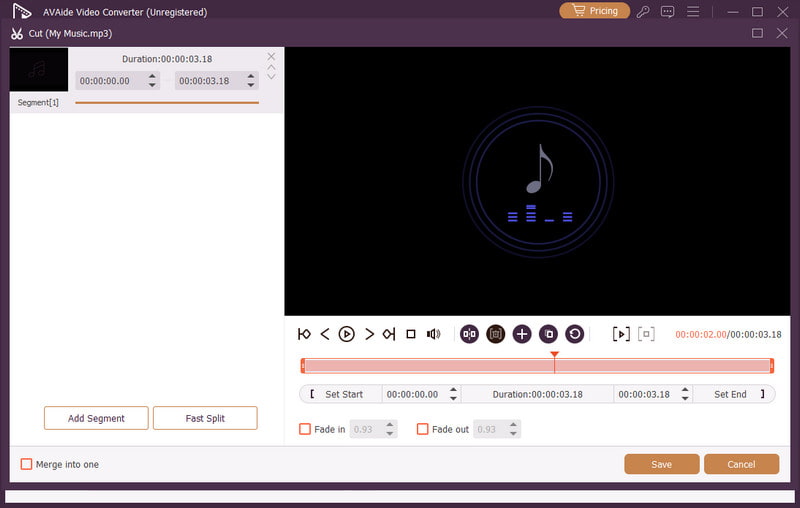
Een spraakbericht versturen op een iPhone Dit is een ideale manier als je je bericht sneller wilt versturen. Dankzij deze handleiding heb je geleerd hoe je effectief een spraakbericht kunt opnemen en verzenden. Je krijgt zelfs voldoende inzicht in hoe je het spraakbericht kunt opslaan om het zonder beperkingen af te spelen. Bovendien, als je je spraakopnames wilt bewerken, is het handig om toegang te krijgen tot de beschikbare opties. AVAide Video ConverterMet de audiobewerkingsfunctie van dit programma kunt u uw audio verbeteren, wat resulteert in een betere en prettigere geluidsweergave.
OVER DE AUTEUR

Leg schermactiviteiten vast met audio, online vergaderingen, gameplay-video's, muziek, webcam, enz.