Cara merakam muzik pada iPhoneMerakam muzik kegemaran anda adalah tugas yang mudah, terima kasih kepada ciri terbina dalam telefon dan aplikasi yang boleh dipercayai. Sama ada anda merakam lagu pendek, mengendalikan trek instrumental atau merakam panggilan, iPhone anda boleh menawarkan pilihan fleksibel yang boleh membantu pemula dan profesional. Jadi, jika anda mahukan pelbagai kaedah untuk merakam muzik anda dengan berkesan, adalah lebih baik untuk mula membaca semua yang ada dalam tutorial ini.
- Bahagian 1. Rakam Muzik pada iPhone Menggunakan Aplikasi Memo Suara Terbina Dalam
- Bahagian 2. Rakam Muzik Menggunakan GarageBand
- Bahagian 3. Rakaman Berbilang Trek dengan Aplikasi Pihak Ketiga
- Bahagian 4. Rakaman dalam Format MP3
- Bahagian 5. Cara Merakam Muzik dari YouTube pada iPhone
- Bahagian 6. Petua Profesional untuk Kualiti Bunyi yang Lebih Baik
Bahagian 1. Rakam Muzik pada iPhone Menggunakan Aplikasi Memo Suara Terbina Dalam
Salah satu aplikasi perakam MP3 iPhone yang boleh anda gunakan untuk merakam muzik anda ialah aplikasi Memo Suara. Ia merupakan aplikasi terbina dalam yang boleh anda akses pada peranti iPhone anda. Perakam muzik ini membolehkan anda merakam dan menangkap sebarang kandungan audio dengan jelas dan serta-merta. Ia sesuai untuk mencatat idea lagu, melodi dan sesi latihan penuh. Bahagian terbaik di sini ialah aplikasi ini mempunyai UI yang intuitif. Anda boleh memotong kandungan yang dirakam dengan lancar, menyusun dan berkongsi tanpa menghadapi sebarang masalah. Juga, untuk pemuzik yang ingin merakam audio pada iPhone, kami tidak dapat memastikan sama ada aplikasi Memo Suara mungkin alat yang ideal.
Untuk mengetahui cara merakam MP3 pada iPhone, anda boleh mengikuti langkah-langkah terperinci di bawah.
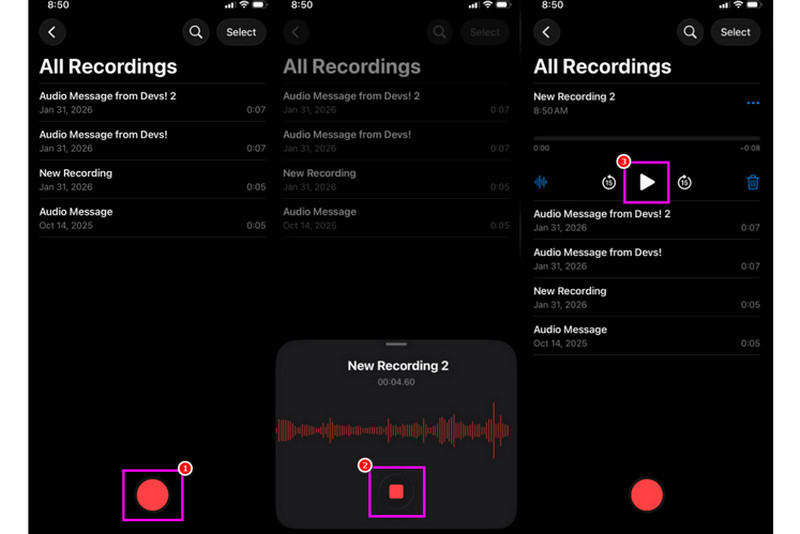
Langkah 1Pada iPhone anda, teruskan ke Utiliti bahagian dan ketik Memo Suara aplikasi. Kemudian, pastikan muzik yang anda ingin rakam telah disediakan.
Langkah 2Selepas itu, teruskan ke antara muka bawah dan tekan Rekod butang. Setelah selesai, anda kini boleh memainkan muzik pada iPhone atau peranti lain.
Langkah 3Setelah selesai merakam, tekan Berhenti butang. Dengan itu, anda kini boleh merakam muzik anda. Anda juga boleh mengedit atau berkongsi fail jika anda mahu.
Bahagian 2. Rakam Muzik Menggunakan GarageBand
Adakah anda ingin mencipta muzik anda sendiri dan merakamnya untuk menyimpannya pada peranti anda? Dalam kes itu, anda boleh mengakses GarageBandIni adalah aplikasi percuma yang memastikan anda boleh merakam muzik pada iPhone anda. Dengan ciri perakamnya, tidak syak lagi bahawa merakam muzik anda adalah tugas yang mudah. Anda juga boleh mengakses pelbagai instrumen yang boleh anda gunakan jika anda ingin mencipta muzik anda sendiri. Oleh itu, jika anda memerlukan penyelesaian rakaman semua-dalam-satu, pertimbangkan untuk menggunakan aplikasi ini.
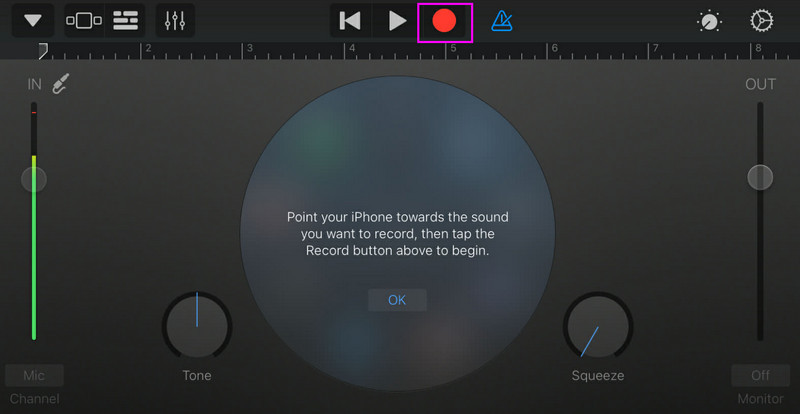
Langkah 1Pergi ke Kedai Apple dan mula memuat turun GarageBandSelepas pemasangan, jalankannya pada peranti anda.
Langkah 2Daripada antara muka, anda perlu memilih dan menekan butang Perakam audioKemudian, antara muka utama akan muncul di skrin anda.
Langkah 3Mula merakam muzik anda dengan mengetik Rekod butang di atas. Kemudian, ketik Berhenti untuk menyelesaikan rakaman.
Bahagian 3. Rakaman Berbilang Trek dengan Aplikasi Pihak Ketiga
GarageBand berguna untuk merakam muzik. Walau bagaimanapun, terdapat lebih banyak aplikasi yang boleh anda akses yang boleh memenuhi keperluan khusus pelbagai gaya penulisan lagu, penjejakan dan kolaborasi merentas platform. Antara aplikasinya ialah:
- BandLab - Alat ini sesuai untuk kolaborasi berasaskan awan. Ia sesuai untuk pemuzik kerana ia mempunyai ciri-ciri yang lebih baik, seperti menguasai algoritma, pustaka gelung yang luas dan berbilang rakaman.
- FL Studio Mudah Alih - Ini ialah alat berasaskan langganan. Penerbit hip-hop, elektronik dan pop lebih menyukainya.
- Cubasis 3 - Ia merupakan pilihan studio profesional yang dialihkan daripada Cubase desktop. Alat ini boleh menawarkan penyuntingan MIDI elit, trek audio tanpa had dan rakaman berbilang trek, menjadikannya alat yang ideal untuk pengguna.
Cara Berkesan untuk Merakam Muzik di Desktop
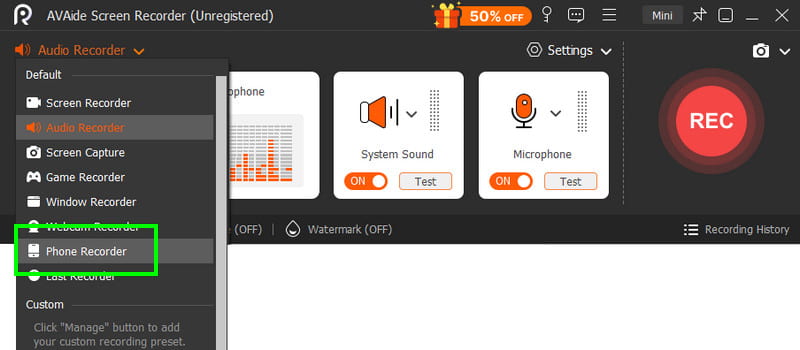
Adakah anda sedang mencari perakam berasaskan desktop yang boleh membantu anda merakam muzik anda? Dalam hal ini, anda boleh mengakses Perakam Skrin AVAideProgram ini menawarkan Perakam Telefonnya sendiri untuk merakam muzik anda dari iPhone anda. Perisian ini sesuai jika anda ingin menyimpan rakaman anda terus ke komputer anda. Apa yang kami sukai di sini ialah perakam ini dapat memberikan anda proses rakaman yang lancar dan mudah, berkat UI intuitifnya. Program ini juga memastikan anda dapat menyimpan audio dengan kualiti terbaik, sehingga 320 kbps, yang menghasilkan main balik audio yang lebih baik. Anda juga boleh mengedit audio anda berdasarkan pilihan anda, menjadikan perakam audio ini sesuai untuk semua pengguna.
Langkah 1Muat turun Perakam Skrin AVAide pada desktop anda. Kemudian, lancarkannya untuk memulakan proses.

MUAT TURUN PERCUMA Untuk Windows 7 atau lebih baru
 Muat Turun Selamat
MUAT TURUN PERCUMA Untuk Mac OS X 10.13 atau lebih baru
Muat Turun SelamatLangkah 2Dari antara muka, pergi ke jatuh turun butang dan pilih Perakam Telefon ciri. Kemudian ketik iOS dan sambungkan telefon anda.
Langkah 3Selepas itu, teruskan ke Kandungan Rakaman bahagian untuk menyahtanda Skrin pilihan dan pilih Pembesar Suara Telefon pilihan. Setelah selesai, ketik Rekod untuk memulakan proses rakaman.
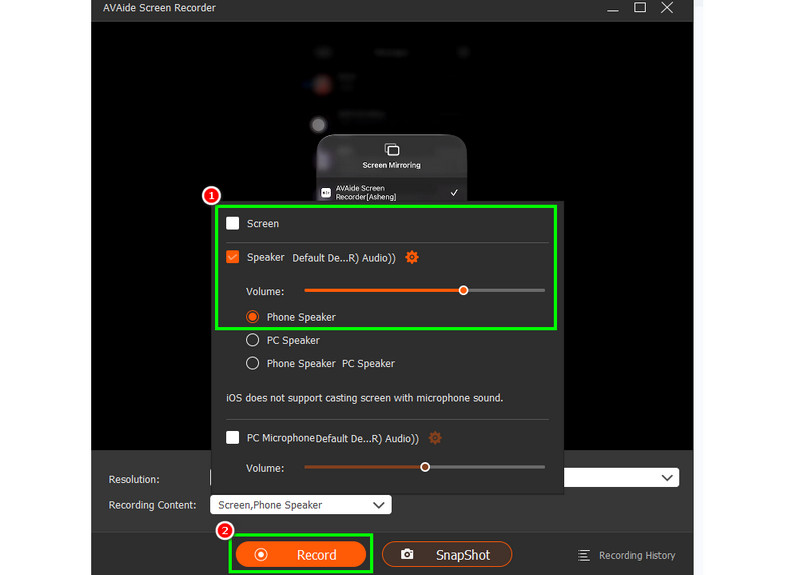
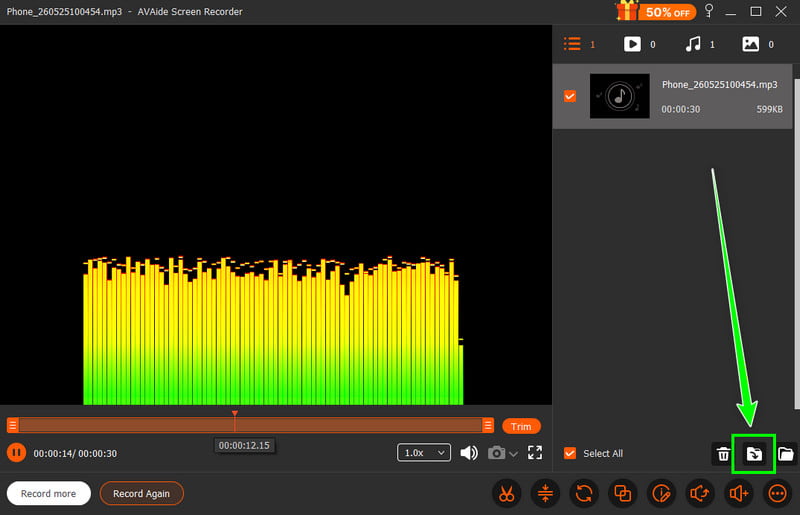
Ketik Berhenti untuk menyelesaikan rakaman.
Langkah 4Apabila Pratonton dipaparkan, klik Eksport untuk mula menyimpan audio yang dirakam.
Bahagian 4. Rakaman dalam Format MP3
Secara lalai, ekosistem Apple menyimpan muzik sebagai WAV atau AAC. Walau bagaimanapun, kita masih boleh mengatakan bahawa MP3 adalah antara format audio paling mudah alih di luar sana. Oleh itu, menukar rakaman anda kepada MP3 adalah pilihan terbaik. Untuk menukar rakaman anda, anda boleh menggunakan aplikasi Perakam Audio. Dengan aplikasi ini, anda boleh menukar rakaman anda daripada Memo Suara kepada MP3 untuk keserasian yang lebih baik. Anda boleh menukar AAC kepada MP3, WAV ke MP4, FLAC ke WAV dan banyak lagi.
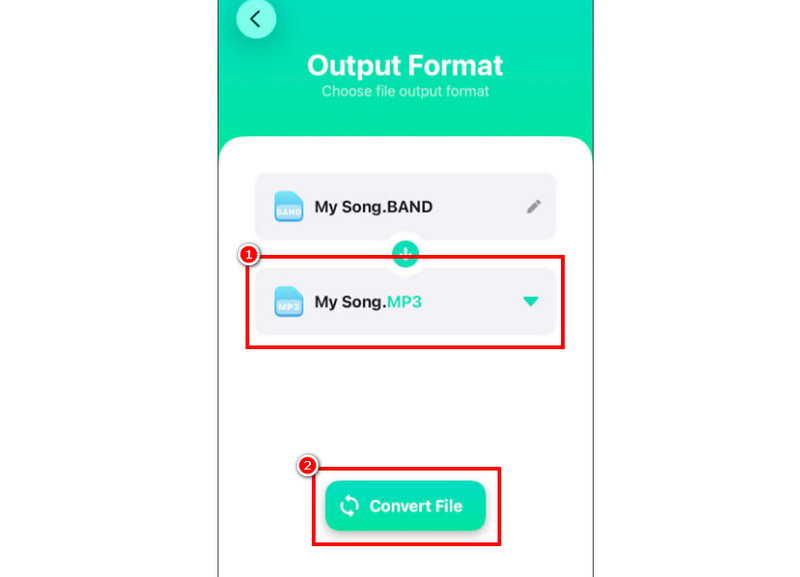
Langkah 1Pergi ke anda Kedai Apple dan muat turun Penukar Audio aplikasi. Kemudian, lancarkan penukar dan mula menambah rakaman.
Langkah 2Daripada Format bahagian, mula memilih MP3 format. Kemudian, ketik Tukar butang.
Langkah 3Selepas proses penukaran, anda kini boleh memainkan fail MP3 anda.
Bahagian 5. Cara Merakam Muzik dari YouTube pada iPhone
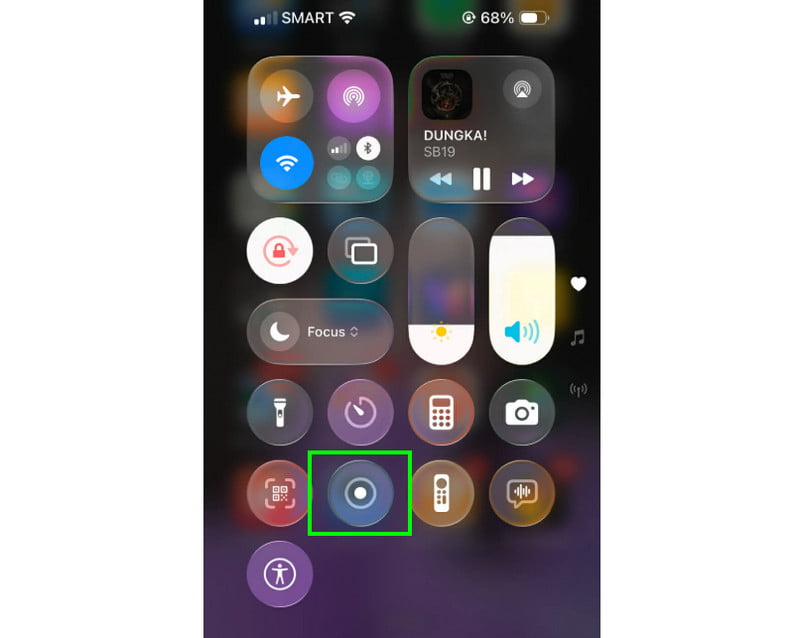
Adakah anda ingin merakam muzik dari YouTube pada iPhone anda? Dalam hal ini, anda hanya perlu menggunakan ciri Perakam pada peranti anda. Dengan ciri ini, anda boleh merakam sebarang muzik dari YouTube. Untuk memulakan ciri rakaman, anda hanya perlu mengetik Sentuhan Bantu dan teruskan ke bahagian Pusat Kawalan. Itu akan memaparkan ciri Perakam. Prosedur akan bermula selepas undur 3 saat. Dengan itu, anda boleh mula memainkan muzik dari YouTube. Ketik berhenti untuk menyelesaikan rakaman. Setelah selesai, anda kini boleh menggunakan mana-mana penukar video ke MP3 untuk menukar video anda menjadi fail audio.
Bahagian 6. Petua Profesional untuk Kualiti Bunyi yang Lebih Baik
Semak bahagian ini dan dapatkan lebih banyak maklumat tentang cara mendapatkan kualiti bunyi yang lebih baik.
- Sentiasa rakam di tempat yang sunyi untuk meminimumkan bunyi latar belakang.
- Apabila menggunakan aplikasi seperti GarageBand, anda mesti memastikan penguatan input seimbang. Sentiasa elakkan pemotongan dengan kekal di bawah zon merah.
- Untuk kualiti yang lebih baik, sentiasa rakam dalam AIFF atau WAV.
- Pantau rakaman dengan fon kepala. Anda boleh menggunakan fon kepala berwayar untuk menangani isu dalam masa nyata.
Kepada rakam lagu pada iPhone, gunakan semua kaedah yang disediakan dalam tutorial ini. Dengan itu, anda boleh mendapatkan hasil yang anda inginkan selepas proses tersebut. Selain itu, jika anda ingin merakam muzik dari telefon anda menggunakan desktop anda, anda boleh mengakses Perakam Skrin AVAideDengan ciri Perakam Telefon program ini, anda boleh menyambungkan iPhone anda dan merakam sebarang muzik serta menyimpannya dengan kualiti terbaik, menjadikannya perakam terbaik yang boleh anda harapkan.
TENTANG PENGARANG

Tangkap aktiviti skrin dengan audio, mesyuarat dalam talian, video permainan, muzik, kamera web, dsb.