
To start with, you need to download AVAide MKV Converter on your computer. The free trial version can be downloaded from the button above. Then, install the program and start your conversion
Please note that the free trial version has a few limitations, including:
You can convert 5 minutes of each file.
Themes for making movies are limited.
Tools like Media Metadata Editor, Video Compressor, GIF Maker, 3D Maker, Video Enhancer are also limited to 5 files.
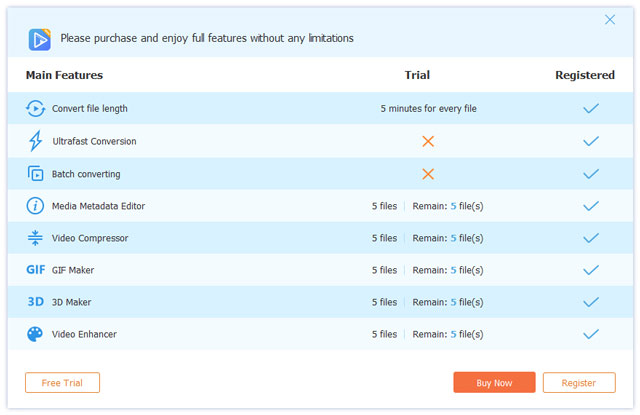
If you are satisfied with this software, you can purchase the full version to enjoy all pro features without limitations.
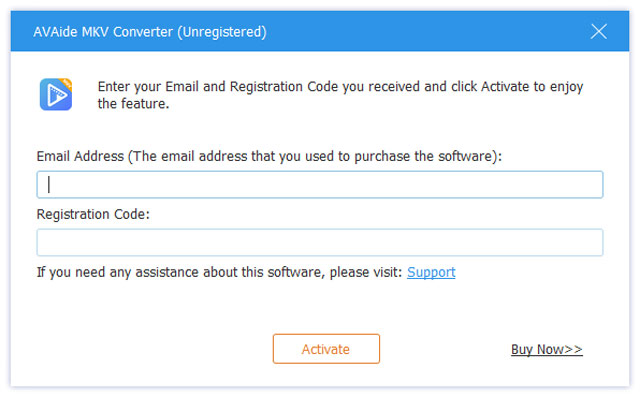
Click on the Register icon at the top right corner of the window. Then, enter the email address and registration code you received to register AVAide MKV Converter.
| Product Version | Supported OS | CPU/Processor | RAM |
| Windows | Windows 11/10/8.1/8/7/Vista/XP | 1GHz Intel/AMD CPU or above | 1GB RAM or more |
| Mac | Mac OS X 10.12 or above | 1GHz Intel® processor and Apple chip | 512 MB or more |
| File Types | |
| 8K/5K Video | MP4, MKV |
| 8K/5K Video Encoding | H.265/HEVC |
| 4K UHD Video | MP4, AVI, FLV, WebM, TS, MKV, MOV, MXF |
| 4K UHD Encoding | H.265/HEVC, H.264, VP8, VP9, MPEG, XviD |
| HD Video | 3GP(*.3gp;*.3g2), AVI, DV Files (*.dv;*.dif), MOD, MJPEG (*.mjpg;*.mjpeg), Flash Files (*.flv;*.swf;*.f4v), MKV, MPEG (*.mpg;*.mpeg;*.mpeg2;*.vob;*.dat), MPEG4 (*.mp4;*.m4v), MPV, QuickTime Files (*.qt;*.mov), Real Media Files (*.rm;*.rmvb), TOD, Video Transport Stream Files (*.ts;*.trp;*.tp), Windows Media Files (*.wmv;*.asf) |
| Audio | AAC, AIFF Files (*.aif;*.aiff), CUE, FLAC, M4A, MPEG Files (*.mp3;*.mp2), Monkey’s Audio Files (*.ape), Ogg, Raw AC3 Files (*.ac3), Real Audio Files (*.ra;*.ram), SUN AU Files (*.au), WAV, WMA |
| Image | GIF |
| File Types | |
| Video | MPG, MPEG-1, MPEG-2, MPEG-4, H.264, H.264/MPEG-4 AVC, DivX, XviD, AVI, FLV, MP4, M4V, MKV, MOV, 3GP, 3G2, MTV, SWF, WMV, ASF, DPG, TS, MTS, M2TS, DV, VOB, AMV, WebM, MXF, MPEG, OGV, TRP, F4V |
| 8K/5K Video | 8K H.265/HEVC MP4, 8K H.265/HEVC MKV, 5K H.265/HEVC MP4, 5K H.265/HEVC MKV |
| 4K UHD Video | 4K H.265/HEVC Video(*.mp4), 4K H.264/MPEG-4 Video(*.mp4), 4K H.264 MOV Video(*.mov), 4K ProRes Video(*.mov), 4K ProRes_KS Video(*.mov), 4K MPEG-4 Video(*.mp4), WebM-VP8 4K WebM Video(*.webm), WebM-VP9 4K WebM Video(*.webm), 4K AVI Video(*.avi), 4K H.265/MKV Video(*.mkv), YouTube 4K Video(*.mp4) |
| HD Video | H.265/HEVC Video, H.264/MPEG-4 AVC, AVI, ASF, MKV, MOV, MPG, TS, MTS, M2TS, WMV, MP4, WebM, MKV, MXF, M4V, XviD, MPEG, OGV, DivX, TRP, MPG, FLV, F4V, SWF |
| 3D Video | MP4 Side by Side 3D, MP4 Top and Bottom 3D, MP4 Anaglyph 3D, MOV Side by Side 3D, MOV Top and Bottom 3D, MOV Anaglyph 3D, MKV Side by Side 3D, MKV Top and Bottom 3D, MKV Anaglyph 3D, WMV Side by Side 3D, WMV Top and Bottom 3D, WMV Anaglyph 3D, WebM Side by Side 3D, WebM Top and Bottom 3D, WebM Anaglyph 3D, M4V Side by Side 3D, M4V Top and Bottom 3D, M4V Anaglyph 3D, TS Side by Side 3D, TS Top and Bottom 3D, TS Anaglyph 3D, AVI Side by Side 3D, AVI Top and Bottom 3D, AVI Anaglyph 3D, FLV Side by Side 3D, FLV Top and Bottom 3D, FLV Anaglyph 3D, VOB Side by Side 3D, VOB Top and Bottom 3D, VOB Anaglyph 3D, TRP Side by Side 3D, TRP Top and Bottom 3D, TRP Anaglyph 3D, SWF Side by Side 3D, SWF Top and Bottom 3D, SWF Anaglyph 3D, ASF Side by Side 3D, ASF Top and Bottom 3D, ASF Anaglyph 3D, OGV Side by Side 3D, OGV Top and Bottom 3D, OGV Anaglyph 3D |
| Audio | AAC, AC3, AIFF, AMR, AU, FLAC, M4A, M4B, M4R, MKA, MP2, MP3, OGG, WAV, WMA, DTS, APE, ALAC |
| Image | GIF |
| Device Types | |
| Apple | iPhone Duo, iPhone 18 Pro, iPhone 18 Pro Max, iPhone 17, iPhone 17e, iPhone Air, iPhone 17 Pro, iPhone 17 Pro Max, iPhone 16, iPhone 16 Plus, iPhone 16 Pro, iPhone 16 Pro Max, iPhone 15, iPhone 15 Plus, iPhone 15 Pro, iPhone 15 Pro Max, iPhone 14, iPhone 14 Pro, iPhone 14 Pro Max, 14 Plus, iPhone 13, iPhone 13 Pro, iPhone 13 Pro Max, iPhone 13 mini, iPhone 12, iPhone 12 Pro, iPhone 12 Pro Max, iPhone 12 mini, iPhone 11, iPhone 11 Pro, iPhone 11 Pro Max, iPhone XS, iPhone XS Max, iPhone XR, iPhone X, iPhone 8, iPhone 8 Plus, iPhone 7, iPhone 7 Plus, iPhone SE, iPhone 6s, iPhone 6s Plus, iPhone 6, iPhone 6 Plus, iPhone 5s/5c, iPhone 5, iPhone 4S/4, iPhone 3GS, iPhone, etc.iPad 2019, iPad Pro, iPad Air, iPad mini with Retina Display, iPad mini, iPad 4, the new iPad, iPad 2, etc.iPod touch 7, iPod touch 6, iPod touch 5, iPod touch 4, iPod touch 3, iPod touch 2, iPod touch.Apple TV |
| Android | Samsung Galaxy, Motorola, Google, LG, Sony, HTC, etc. |
| Game hardware | Wii, PS4, PS3, PSP, NDS, Xbox |
To convert your MKV files to MP4, MOV, MP3, or other file formats, follow the steps below.
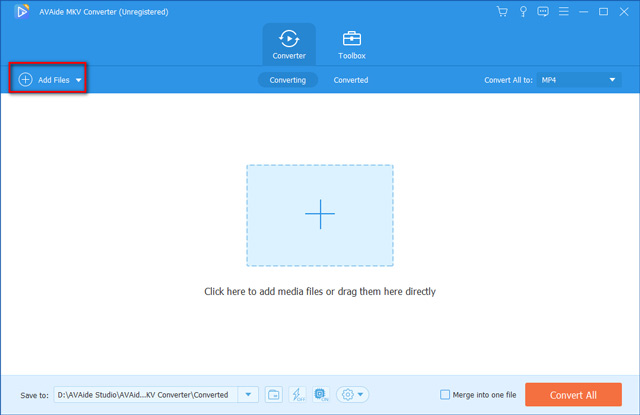
Step 1. Add files
Launch the software, then click the Add Files button at the top left to select MKV files from your computer, then click Open to continue.
Step 2. Select output format
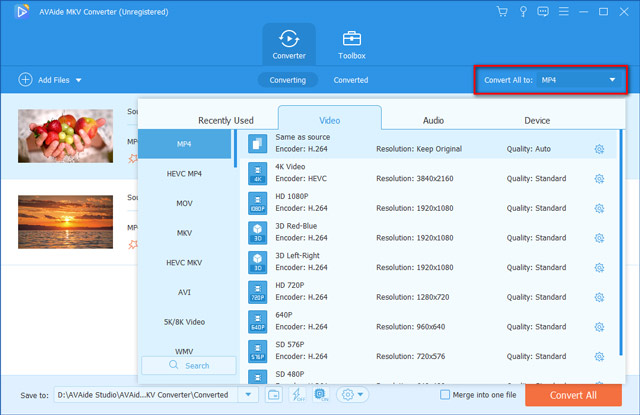
Next, you need to choose your desired output format for the MKV videos you want to convert. You can click the Output Format dropdown button, then select the output format from the Video, Audio, or Device tab.
Step 3. Start your conversion
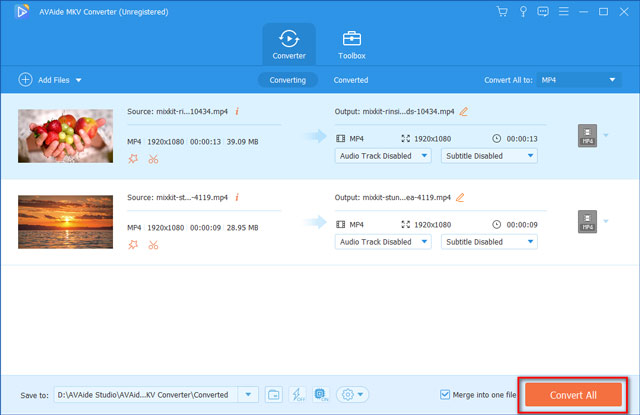
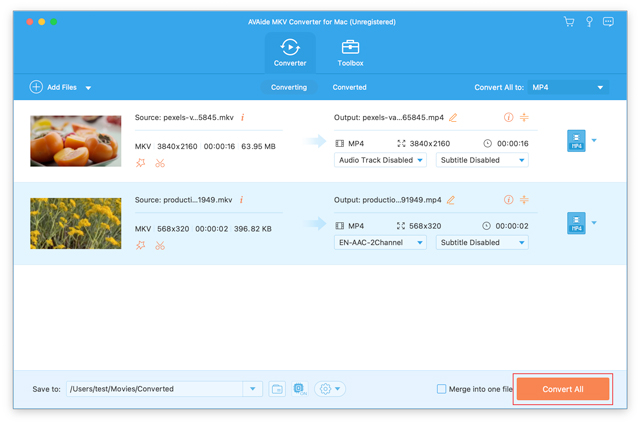
Now, you can change the output folder path by going to Save to on the bottom of the main interface. Here you can set the destination folder to save your converted files. Finally, hit on the Convert All button to start the conversion process. Once the conversion is over, you can switch the tab from Converting to Converted, where you can find all converted files easily.
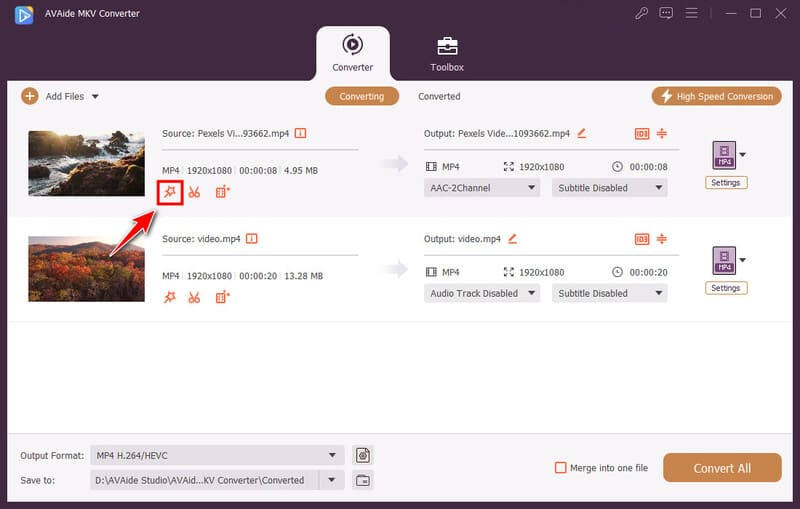
Click the wand button next to the video thumbnail to open the Edit window.
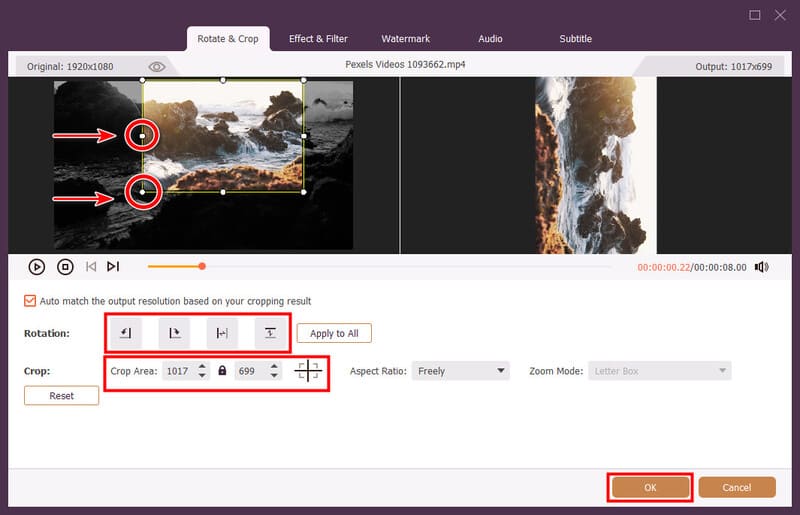
Step 1 In the Rotate & Crop tab, there are 4 buttons next to Rotation.
Step 2 Click the Left Rotate or Right Rotate button to rotate the video by 90 degrees.
Step 3 Click the Horizontal Flip or Vertical Flip button to flip the video.
Step 4 To crop the video, you can either drag the white dots around the video frame, or set a precise width and height in the Crop Area boxes.
Click the lock button in Crop Area to preserve the aspect ratio. Click the plus button to reposition the cropping area to the center of the video.
Step 5 Click OK to save the result.
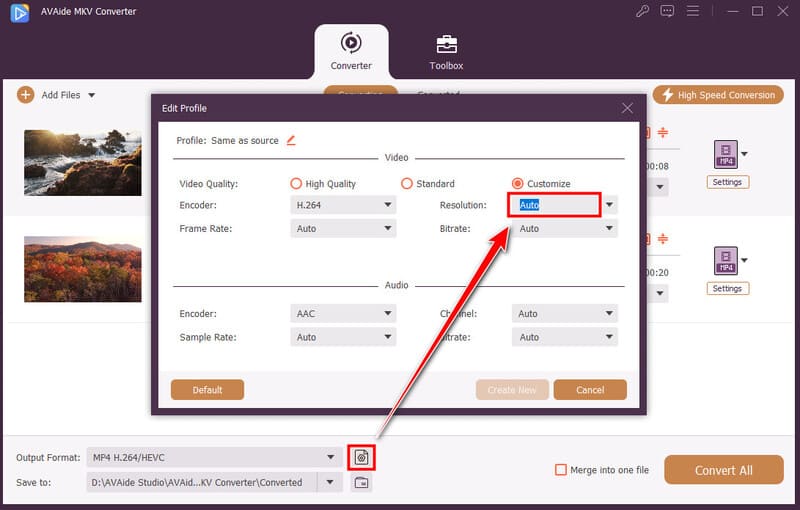
Tip: If you have black bars around the rotated video, you can remove them by clicking the gear button next to Output Format, and selecting a new resolution that fits the output.
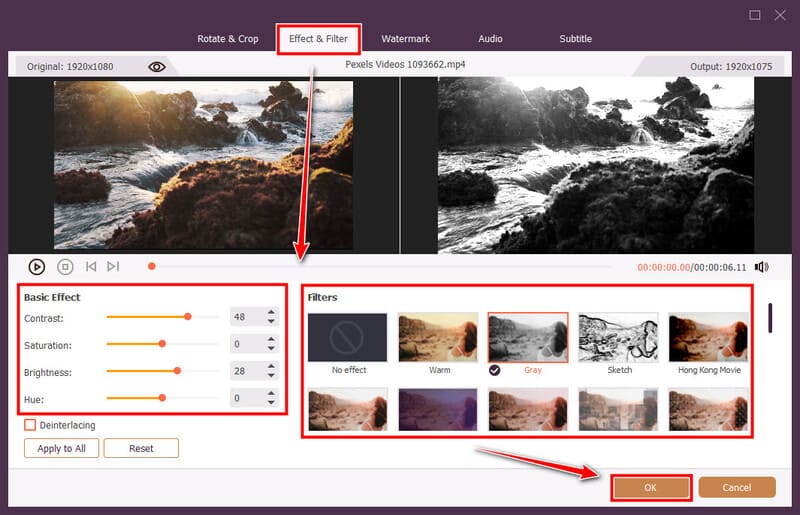
Step 1 Go to the Effect & Filter panel.
Step 2 Drag the sliders to adjust the contrast, saturation, brightness, and hue. You can also tick Deinterlacing to remove combing of an interlaced video.
Step 3 Choose a filter from the right-side panel.
Step 4 Click OK.
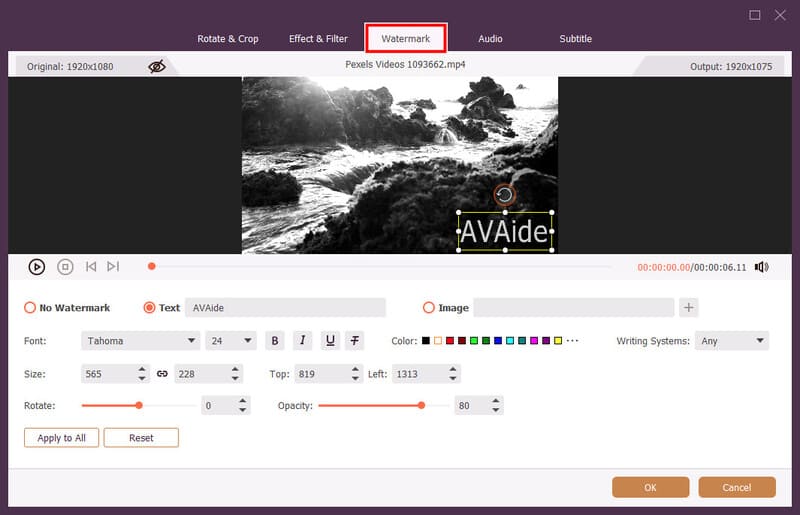
Step 1 A watermark helps protect your copyright. To add a watermark, switch to the Watermark tab.
Step 2 Add text or an image as a watermark. For a text watermark, you can customize the size, color, position, opacity, writing systems, and rotation. For an image watermark, you can change the size, position, rotation angle, and opacity.
Step 3 When you’re satisfied with the result, click OK.
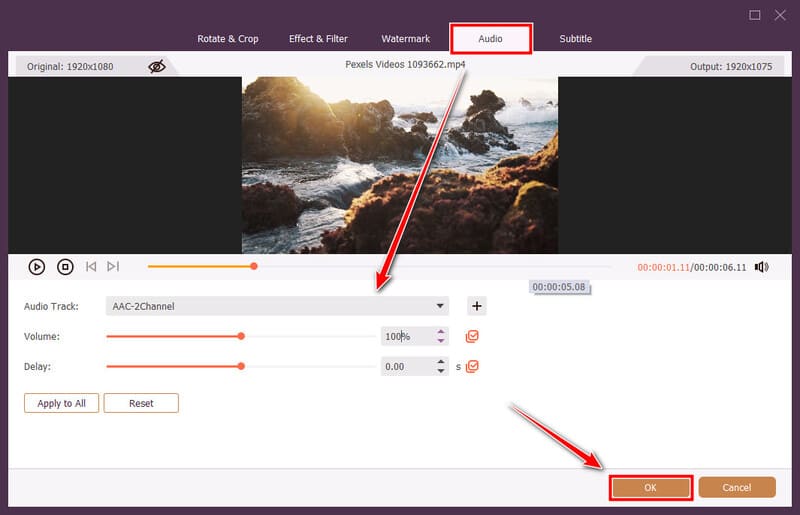
Step 1 Go to the Audio tab.
Step 2 You can add an audio track, adjust volume, or apply a delay effect at the start or the end.
Step 3 When you’re done, click OK.
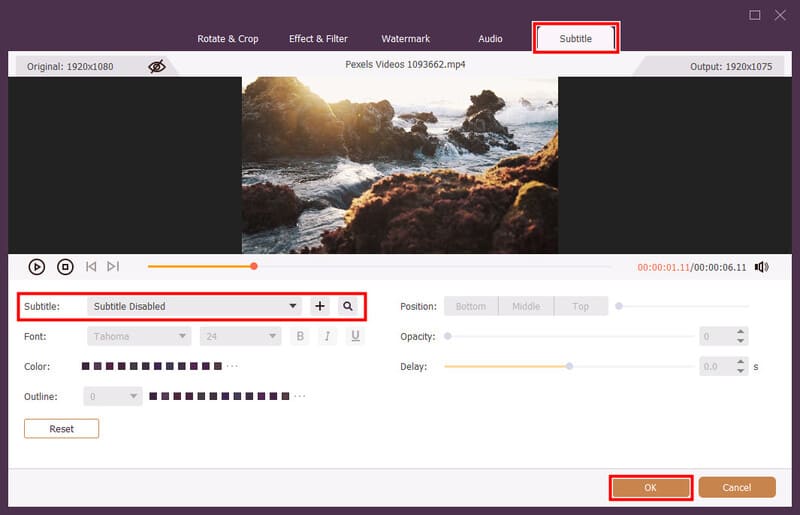
Step 1 Go to the Subtitle tab.
Step 2 Click the plus button to add a subtitle file. AVAide MKV Converter supports SRT, SSA, and ASS files. After inserting a subtitle, you can change its position, font, opacity, and color.
Step 3 Click OK to save the subtitle.
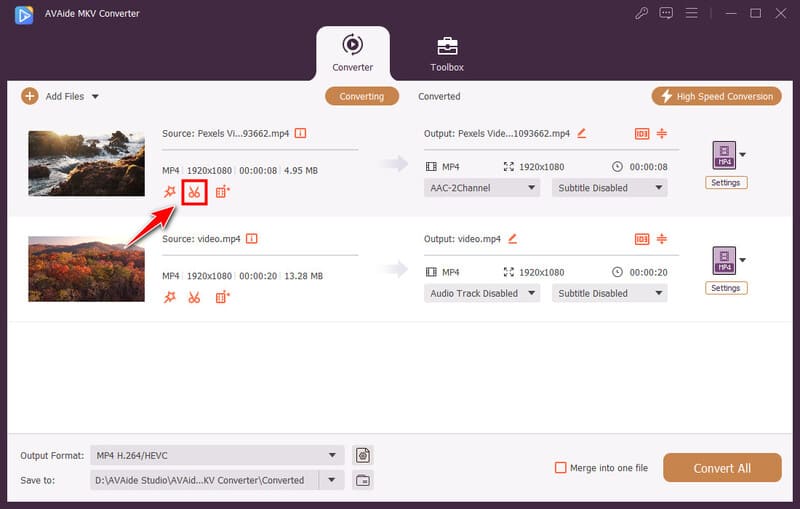
Click the scissor button beside the thumbnail to open the Cut window. Here you can split a video into segments, or merge segments into a whole clip.
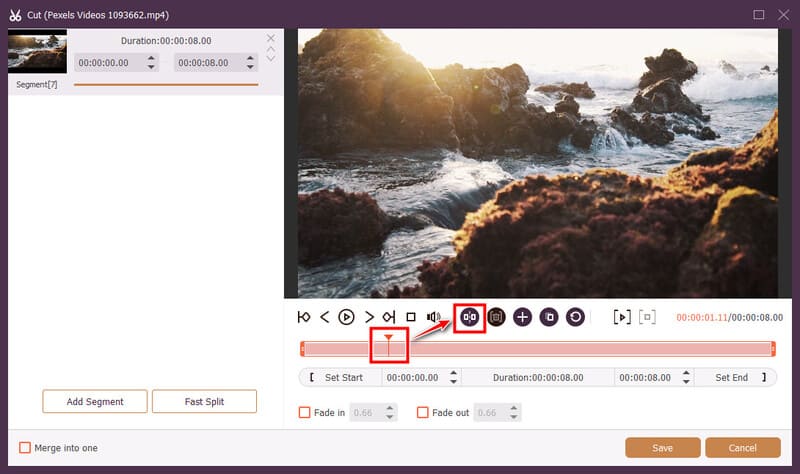
Step 1 Click on the timeline under the preview window to reposition the triangular pointer.
Step 2 Click the Split button. The video will be separated at the pointer into 2 segments.
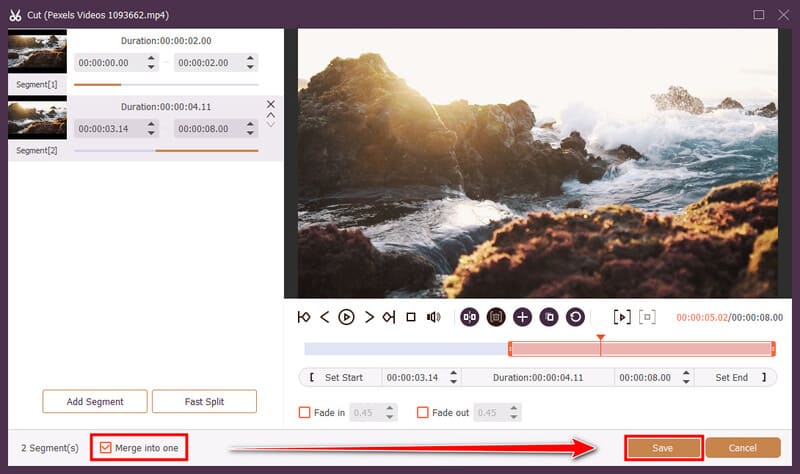
Step 1 At the bottom-right corner, tick the Merge into One option.
Step 2 Click Save. All segments will be merged into one single clip.
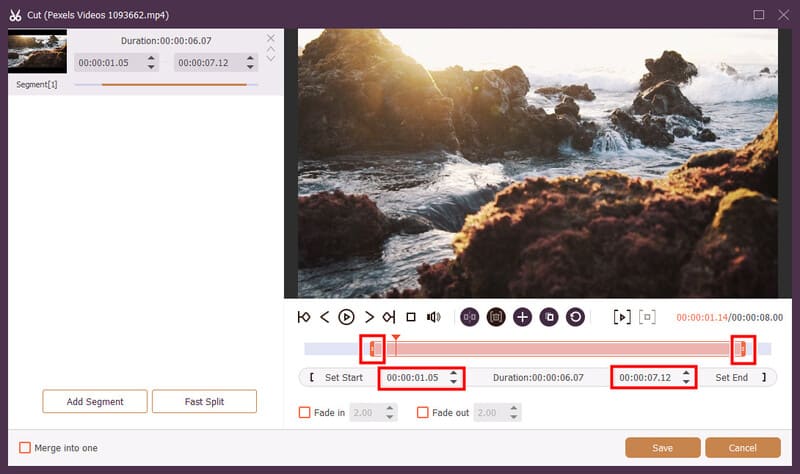
Step 1 To cut the video short, you can drag the red handles at the start/end of the timeline to the point you prefer, or fine-tune the exact start/end time.
Step 2 Click Save. The beginning and the end parts will be removed, while the middle part remains.
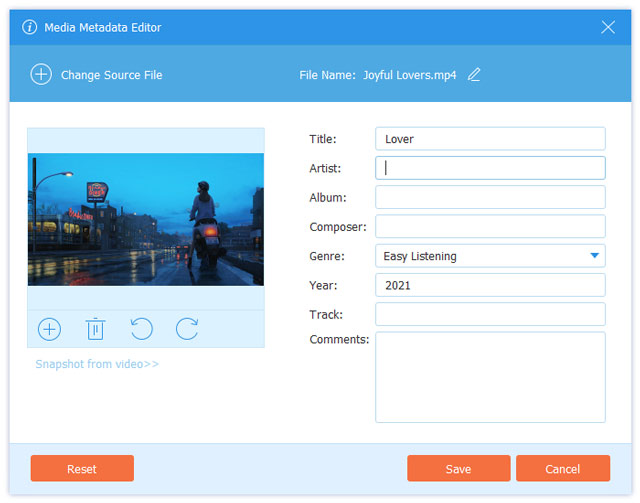
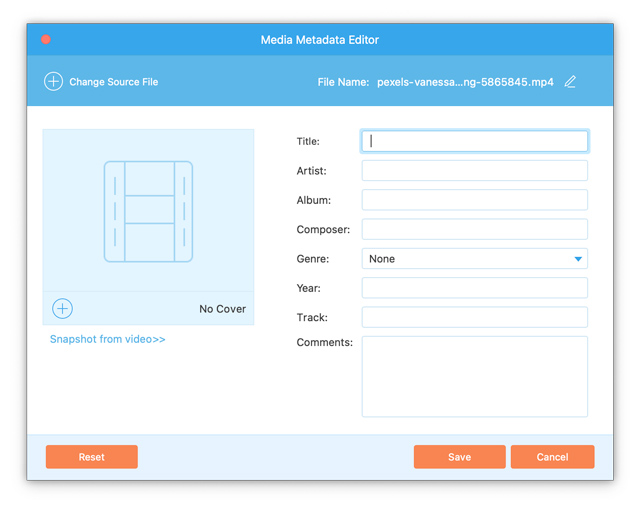
If you need to edit the metadata information of the media file, you can go to the Toolbox feature to edit any meta info like author, title, artist, composer, genre, year, track, and more.
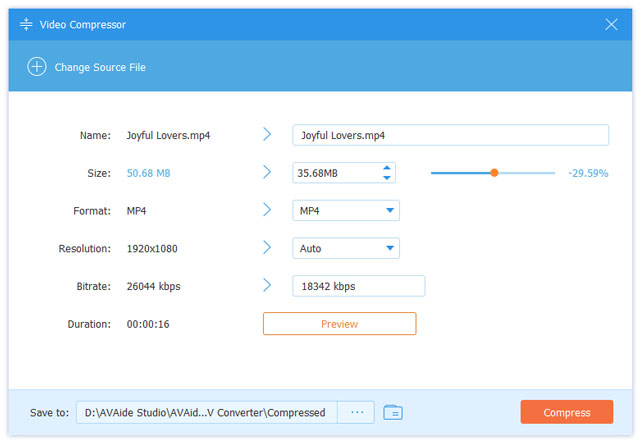
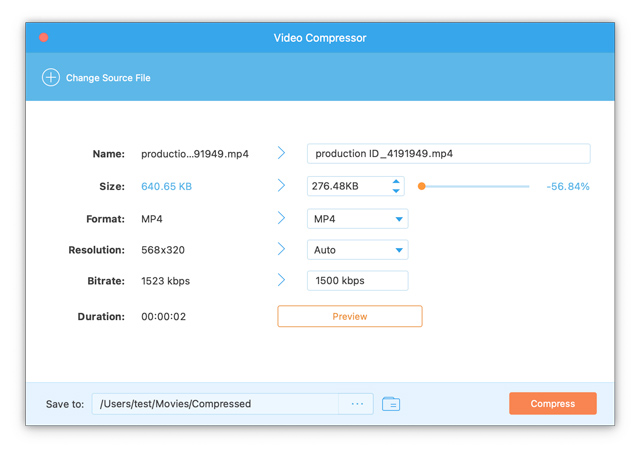
You can compress your videos to a small size. Just choose the Video Compressor tool, and upload the file and adjust the slider to make your video smaller automatically.
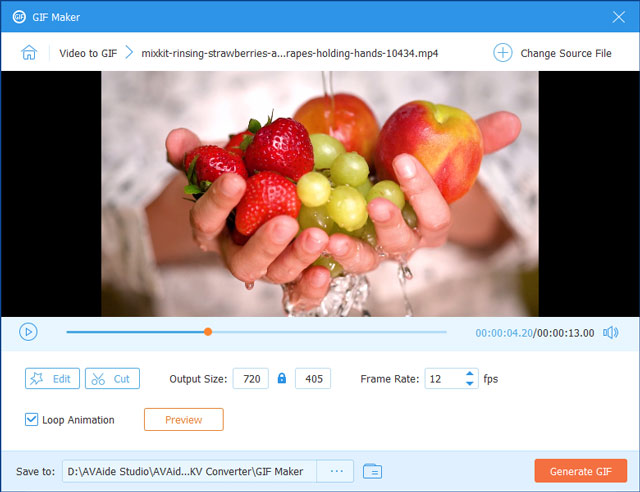
GIF Maker allows you to create an animated GIF instantly, with simple and powerful customization options.
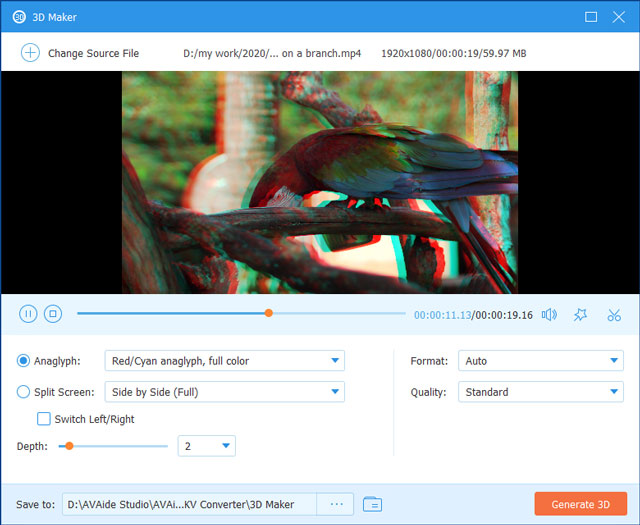
AVAide MKV Converter also delivers a 3D design tool to help you quickly turn your ideas into a 3D design.
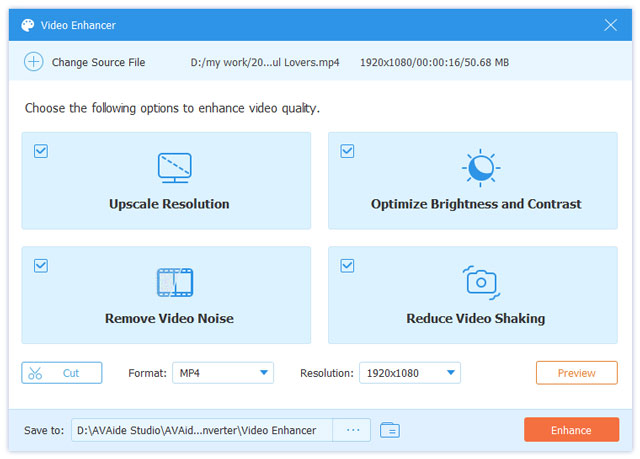
This video quality enhancer is an amazing tool that enables you to improve the resolution of a video, get rid of the video noise, reduce video shaking, as well as optimize the brightness and contrast.
To start with, you need to download AVAide MKV Converter for Mac on your computer. The free trial version can be downloaded from the button above. Then, install the program and start your conversion
Please note that the free trial version has a few limitations, including:
You can convert 5 minutes of each file.
Themes for making movies are limited.
Tools like Media Metadata Editor, Video Compressor, GIF Maker, 3D Maker, Video Enhancer are also limited to 5 files.
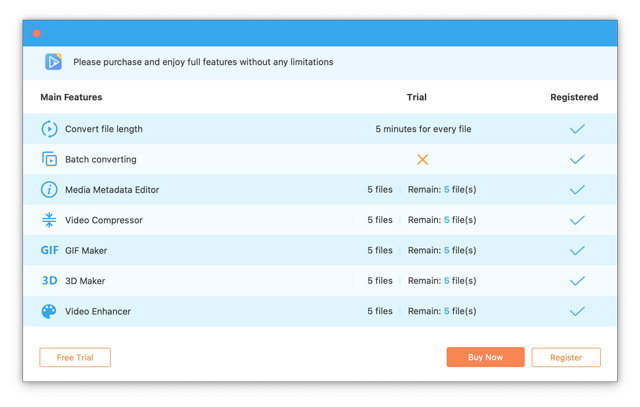
If you are satisfied with this software, you can purchase the full version to enjoy all pro features without limitations.
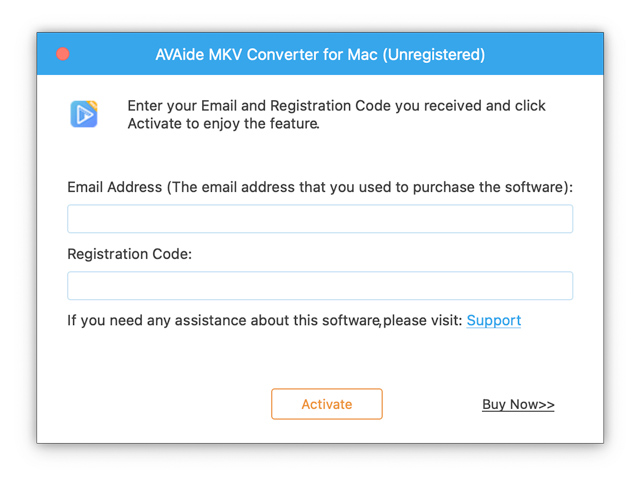
Click on the Register icon at the top right corner of the window. Then, enter the email address and registration code you received to register AVAide MKV Converter for Mac.
| Product Version | Supported OS | CPU/Processor | RAM |
| Windows | Windows 11/10/8.1/8/7/Vista/XP | 1GHz Intel/AMD CPU or above | 1GB RAM or more |
| Mac | Mac OS X 10.12 or above | 1GHz Intel® processor and Apple chip | 512 MB or more |
| File Types | |
| 8K/5K Video | MP4, MKV |
| 8K/5K Video Encoding | H.265/HEVC |
| 4K UHD Video | MP4, AVI, FLV, WebM, TS, MKV, MOV, MXF |
| 4K UHD Encoding | H.265/HEVC, H.264, VP8, VP9, MPEG, XviD |
| HD Video | 3GP(*.3gp;*.3g2), AVI, DV Files (*.dv;*.dif), MOD, MJPEG (*.mjpg;*.mjpeg), Flash Files (*.flv;*.swf;*.f4v), MKV, MPEG (*.mpg;*.mpeg;*.mpeg2;*.vob;*.dat), MPEG4 (*.mp4;*.m4v), MPV, QuickTime Files (*.qt;*.mov), Real Media Files (*.rm;*.rmvb), TOD, Video Transport Stream Files (*.ts;*.trp;*.tp), Windows Media Files (*.wmv;*.asf) |
| Audio | AAC, AIFF Files (*.aif;*.aiff), CUE, FLAC, M4A, MPEG Files (*.mp3;*.mp2), Monkey’s Audio Files (*.ape), Ogg, Raw AC3 Files (*.ac3), Real Audio Files (*.ra;*.ram), SUN AU Files (*.au), WAV, WMA |
| Image | GIF |
| File Types | |
| Video | MPG, MPEG-1, MPEG-2, MPEG-4, H.264, H.264/MPEG-4 AVC, DivX, XviD, AVI, FLV, MP4, M4V, MKV, MOV, 3GP, 3G2, MTV, SWF, WMV, ASF, DPG, TS, MTS, M2TS, DV, VOB, AMV, WebM, MXF, MPEG, OGV, TRP, F4V |
| 8K/5K Video | 8K H.265/HEVC MP4, 8K H.265/HEVC MKV, 5K H.265/HEVC MP4, 5K H.265/HEVC MKV |
| 4K UHD Video | 4K H.265/HEVC Video(*.mp4), 4K H.264/MPEG-4 Video(*.mp4), 4K H.264 MOV Video(*.mov), 4K ProRes Video(*.mov), 4K ProRes_KS Video(*.mov), 4K MPEG-4 Video(*.mp4), WebM-VP8 4K WebM Video(*.webm), WebM-VP9 4K WebM Video(*.webm), 4K AVI Video(*.avi), 4K H.265/MKV Video(*.mkv), YouTube 4K Video(*.mp4) |
| HD Video | H.265/HEVC Video, H.264/MPEG-4 AVC, AVI, ASF, MKV, MOV, MPG, TS, MTS, M2TS, WMV, MP4, WebM, MKV, MXF, M4V, XviD, MPEG, OGV, DivX, TRP, MPG, FLV, F4V, SWF |
| 3D Video | MP4 Side by Side 3D, MP4 Top and Bottom 3D, MP4 Anaglyph 3D, MOV Side by Side 3D, MOV Top and Bottom 3D, MOV Anaglyph 3D, MKV Side by Side 3D, MKV Top and Bottom 3D, MKV Anaglyph 3D, WMV Side by Side 3D, WMV Top and Bottom 3D, WMV Anaglyph 3D, WebM Side by Side 3D, WebM Top and Bottom 3D, WebM Anaglyph 3D, M4V Side by Side 3D, M4V Top and Bottom 3D, M4V Anaglyph 3D, TS Side by Side 3D, TS Top and Bottom 3D, TS Anaglyph 3D, AVI Side by Side 3D, AVI Top and Bottom 3D, AVI Anaglyph 3D, FLV Side by Side 3D, FLV Top and Bottom 3D, FLV Anaglyph 3D, VOB Side by Side 3D, VOB Top and Bottom 3D, VOB Anaglyph 3D, TRP Side by Side 3D, TRP Top and Bottom 3D, TRP Anaglyph 3D, SWF Side by Side 3D, SWF Top and Bottom 3D, SWF Anaglyph 3D, ASF Side by Side 3D, ASF Top and Bottom 3D, ASF Anaglyph 3D, OGV Side by Side 3D, OGV Top and Bottom 3D, OGV Anaglyph 3D |
| Audio | AAC, AC3, AIFF, AMR, AU, FLAC, M4A, M4B, M4R, MKA, MP2, MP3, OGG, WAV, WMA, DTS, APE, ALAC |
| Image | GIF |
| Device Types | |
| Apple | iPhone 12, iPhone 12 Pro, iPhone 12 Pro Max, iPhone 12 mini, iPhone 11, iPhone 11 Pro, iPhone 11 Pro Max, iPhone XS, iPhone XS Max, iPhone XR, iPhone X, iPhone 8, iPhone 8 Plus, iPhone 7, iPhone 7 Plus, iPhone SE, iPhone 6s, iPhone 6s Plus, iPhone 6, iPhone 6 Plus, iPhone 5s/5c, iPhone 5, iPhone 4S/4, iPhone 3GS, iPhone, etc.iPad 2019, iPad Pro, iPad Air, iPad mini with Retina Display, iPad mini, iPad 4, the new iPad, iPad 2, etc.iPod touch 7, iPod touch 6, iPod touch 5, iPod touch 4, iPod touch 3, iPod touch 2, iPod touch.Apple TV |
| Android | Samsung Galaxy, Motorola, Google, LG, Sony, HTC, etc. |
| Game hardware | Wii, PS4, PS3, PSP, NDS, Xbox |
To convert your MKV files to MP4, MOV, MP3, or other file formats, follow the steps below.
Step 1. Add files
Launch the software, then click the Add Files button at the top left to select MKV files from your computer, then click Open to continue.
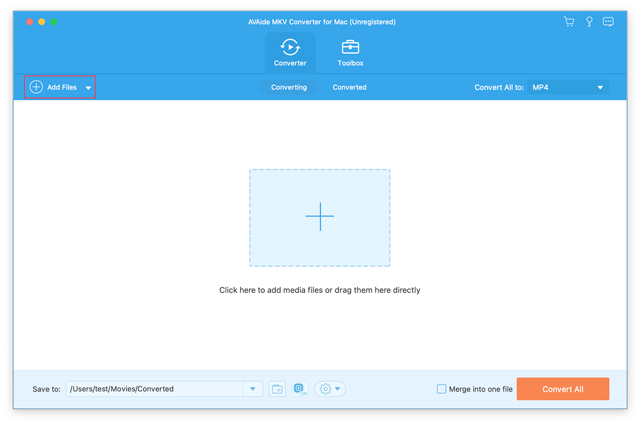
Step 2. Select output format
Next, you need to choose your desired output format for the MKV videos you want to convert. You can click the Output Format dropdown button, then select the output format from the Video, Audio, or Device tab.
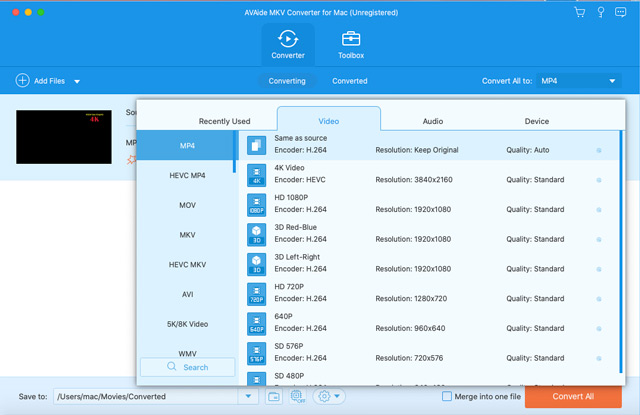
Step 3. Start your conversion
Now, you can change the output folder path by going to Save to on the bottom of the main interface. Here you can set the destination folder to save your converted files. Finally, hit on the Convert All button to start the conversion process. Once the conversion is over, you can switch the tab from Converting to Converted, where you can find all converted files easily.
If you need to edit the metadata information of the media file, you can go to the Toolbox feature to edit any meta info like author, title, artist, composer, genre, year, track, and more.
You can compress your videos to a small size. Just choose the Video Compressor tool, and upload the file and adjust the slider to make your video smaller automatically.
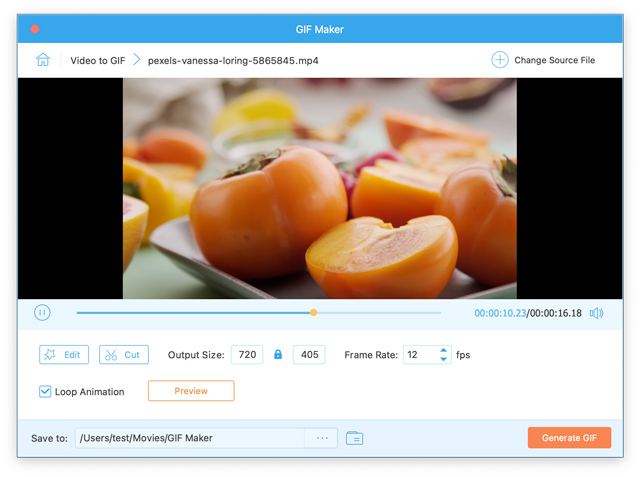
GIF Maker allows you to create an animated GIF instantly, with simple and powerful customization options.
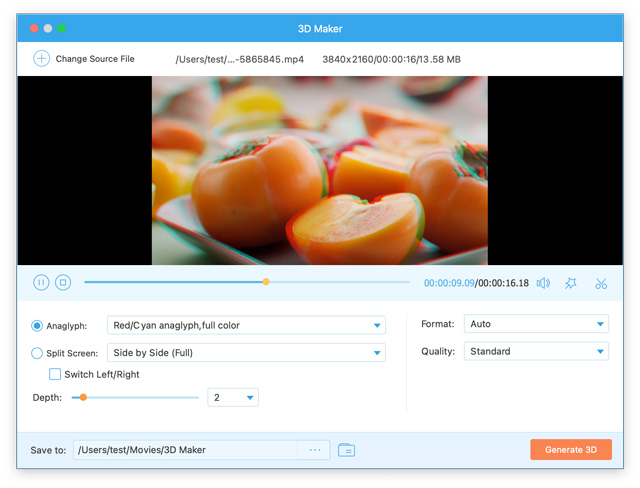
AVAide MKV Converter for Mac also delivers a 3D design tool to help you quickly turn your ideas into a 3D design.
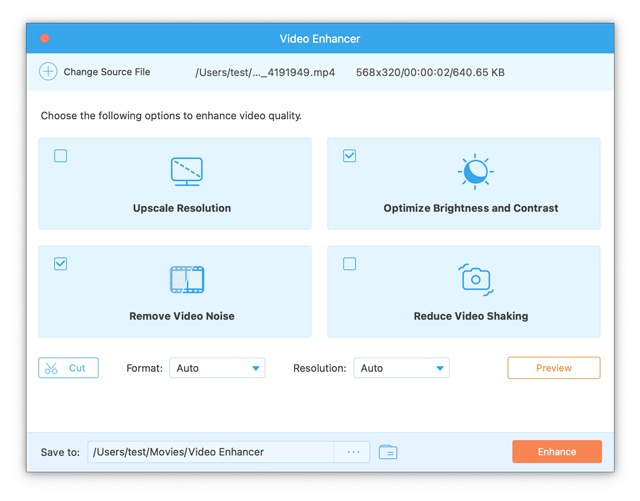
This video quality enhancer is an amazing tool that enables you to improve the resolution of a video, get rid of the video noise, reduce video shaking, as well as optimize the brightness and contrast.
Copyright © 2026 AVAide. All rights reserved.


