Zoom を使ってオンラインで会議や授業に参加する場合、おそらく Zoomでスクリーンショットを撮る 後で使用するために。ここでは、Windows、Mac、モバイルデバイスのデフォルト機能、またはZoom自体に組み込まれている機能を使用してZoomでスクリーンショットを撮る方法について、完全なガイドを提供します。また、多くの人が抱く妥当な懸念事項である「Zoomはスクリーンショットを撮ったかどうかを判別できるのか?」についても説明します。その答えは記事の中にあります。
パート1:PC(Windows)でZoomのスクリーンショットを撮る方法
1. プリントスクリーンキーの使用(全画面表示)
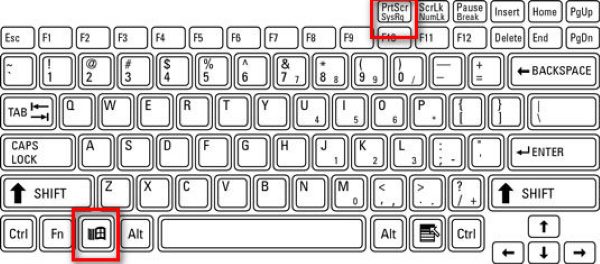
Windows のスクリーンショットホットキーを使用して画面全体をキャプチャします。Zoom ミーティング中に、 ウィンドウズ と共に PrtScn キー(通常はファンクションキーの隣にあります)。
画面に表示されているすべての内容が即座にコピーされ、C:\Users\YOUR_USERNAME\Pictures\Screenshots(Windows 10および11の場合)に保存されます。
2. Snipping Tool / Snip & Sketch を使用する(ズームに最適)
プレス 勝つ + シフト + S デスクトップをグレー表示にして、上部にキャプチャツールバーを表示します。その後、四角形を描画するか、フリーフォーム、ウィンドウ、または全画面の切り取りを選択できます。
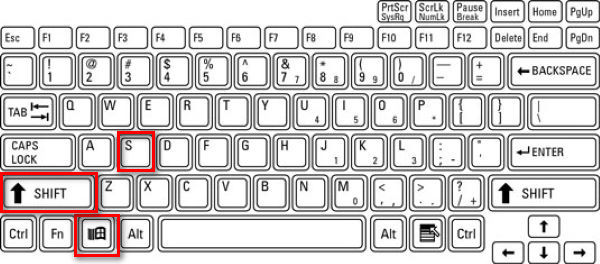
これはZoomに最適です。Zoomウィンドウ全体、またはその一部をキャプチャできるからです。キャプチャ後、画像はクリップボードにコピーされ、通知が表示されます。通知をクリックすると、スクリーンショットを編集できます。
3. Alt + PrtScn キーを使用する(アクティブウィンドウのみ)
ステップ1ズームウィンドウをクリックして、アクティブになっていることを確認してください。
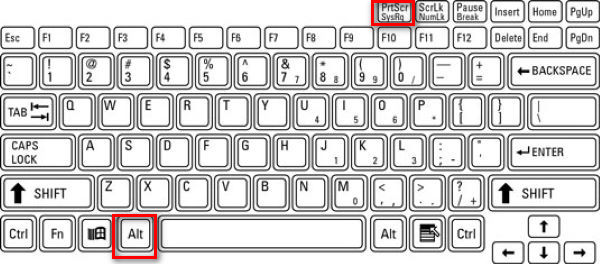
ステップ2プレス 代替 + PrtScn.
これはアクティブなウィンドウ、つまりZoomミーティングのみをキャプチャし、クリップボードにコピーします。
4. サードパーティツールの使用
Zoomでスクリーンショットを撮る際は、サードパーティ製のツールを使う方が好きです。なぜなら、画像は私が設定した特定の場所に保存され、Windowsで撮影された他のスクリーンショットとは分けられるため、特定の画像を探しやすくなるからです。
Zoom 通話のスクリーンショットを撮るためのスクリーンショットツールは、ShareX、Icecream Screen Recorder、Snagit など、さまざまなものがあります。 AVAideスクリーンレコーダーAVAide Screen Recorderと同様に、画像を同じフォルダに保存できるので、スクリーンショットを整理して保管するのが簡単です。その方法をステップごとに説明します。
ステップ1レコーダーをダウンロードしてインストールします

 安全なダウンロード
ステップ2レコーダーを起動する
ステップ3Zoomミーティングに参加する
ステップ4クリック カメラ AVAideスクリーンレコーダーウィンドウの右上にあるボタン。
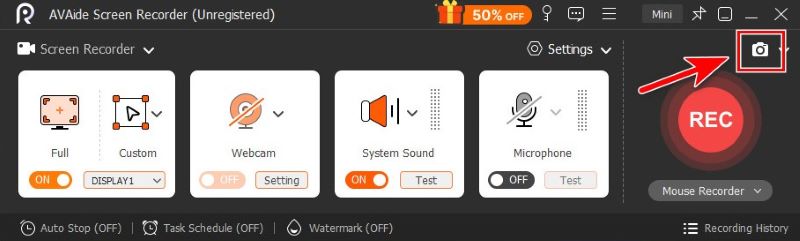
ステップ5マウスをドラッグして自由に切り取るか、ズームウィンドウにポインターを合わせてそのウィンドウをキャプチャしてください。
ステップ6切り取った内容に満足したら、クリックしてください。 保存するそして、保存先のフォルダを選択してください。
パート2:MacでZoomのスクリーンショットを撮る方法
Macでは、システムに内蔵されている機能だけでスクリーンショットを撮るのに十分です。
1. 全画面キャプチャ
Macで画面全体をキャプチャするには、 指示 + シフト + 3.

2. 選択的キャプチャ(ズームに最適)
会議画面上の特定の矩形領域をキャプチャする必要がある場合は、 指示 + シフト + 4.

3. 特定のウィンドウをキャプチャする
ステップ1プレス 指示 + シフト + 4
ステップ2スペースキーを押してください。

カーソルがカメラのアイコンに変わります。ズームウィンドウをクリックすると、そのウィンドウだけがキャプチャされます。
4. スクリーンショットアプリの使用
ステップ1 プレス 指示 + シフト + 5 Appleのスクリーンショットツールバーを開きます。

ステップ2お好みのツールを選択してください。

お勧めします ウィンドウをキャプチャする と 一部をキャプチャするズームウィンドウだけを撮影するのに適しており、邪魔になるものは一切ありません。

- Macのデフォルト機能またはサードパーティツールを使用することもできます。 Macでスクリーンショットを編集する お好きなように。
パート3:モバイル版Zoomでスクリーンショットを撮る方法(iPhoneとAndroid)
1. iPhone / iPad の場合
方法は、お使いのデバイスの機種によって異なります。
ステップ1Zoomミーティングを開始してください。
ステップ2スクリーンショットを撮ってください。
- iPhoneの場合 Face IDとホームなし ボタン(iPhone X以降、iPhone SEを除く)とiPad 家がない ボタン:
を押します サイドボタン + 音量を上げる. - iPhoneまたはiPadの場合 ホーム ボタン(iPhone SE、8以前の機種、旧型iPad):
を押します 側面/上部ボタン + ホーム.
両方のボタンを素早く離してください。画面が一瞬点滅し、画面全体がキャプチャされます。編集または保存するためのサムネイルが表示されます。
2. Androidの場合
ショートカット: ほとんどのAndroidスマートフォンはクラシックな 力 + 音量を下げる ショートカットキーですが、お使いの端末のメーカーによって異なる場合があります。そのため、このショートカットキーが機能しない場合(これはよくあることです)、お使いのスマートフォンの機種を確認して調べてみることをお勧めします。
Zoomミーティングを開始した状態で、画面が点滅するまでボタンを1~2秒ほど押し続けます。スクリーンショットはギャラリーまたは写真アプリに保存されます。
ツールバー: 画面を下にスワイプしてメニューをドラッグします。 スクリーンショット メニューのボタンをタップして、全画面、自由形式、スクロールのスクリーンショットから選択します。
パート4:Zoomの組み込み機能の使用
Zoomの「スナップショットを撮る」(画面共有専用)
Zoomに内蔵されているスクリーンショット機能は、数回クリックするだけで簡単に使用できます。
ステップ1クリック チャット ズームウィンドウの下部
ステップ2クリック スクリーンショット チャットボックスの下にあるアイコン。
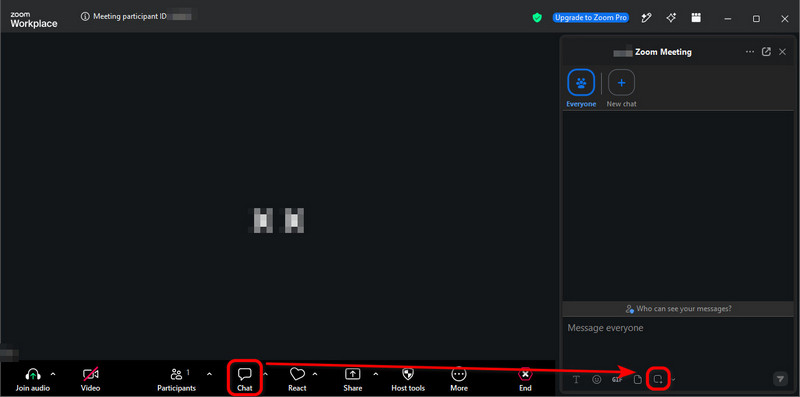
ステップ3マウスを画面上の目的の場所にドラッグして、クリックします。 捕獲.
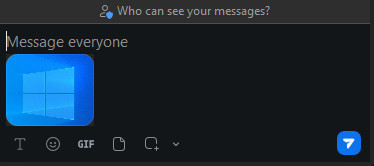
スクリーンショットは現在 チャットボックスワンクリックで会議の他の参加者に送信できます。 紙飛行機 右下にあるアイコン。
- チャットボックス内のスクリーンショットは、コンピュータに自動的に保存されません。保存する場合は、画像を右クリックして、[保存]を選択してください。 名前を付けて保存….
- この方法は非常にシンプルで高速ですが、ホストがミーティングチャットやチャットの保存を無効にしている場合、失敗することがあります。そのような場合は、オペレーティングシステムの機能を使用するか、AVAide Screen Recorderのようなサードパーティ製ツールを使用してください。
「Zoomミーティングのスクリーンショット生成ツール」とは何ですか?
スクリーンショットツールみたいですよね?最初は騙されましたが、実際はサードパーティ製のツールで、 偽のZoom通話画像を作成する.
彼らはZoom通話のモックアップを提供しており、写真をアップロードして名前を入力するだけで、ダミーの参加者を含むリアルな会議のスクリーンショットを生成できる。
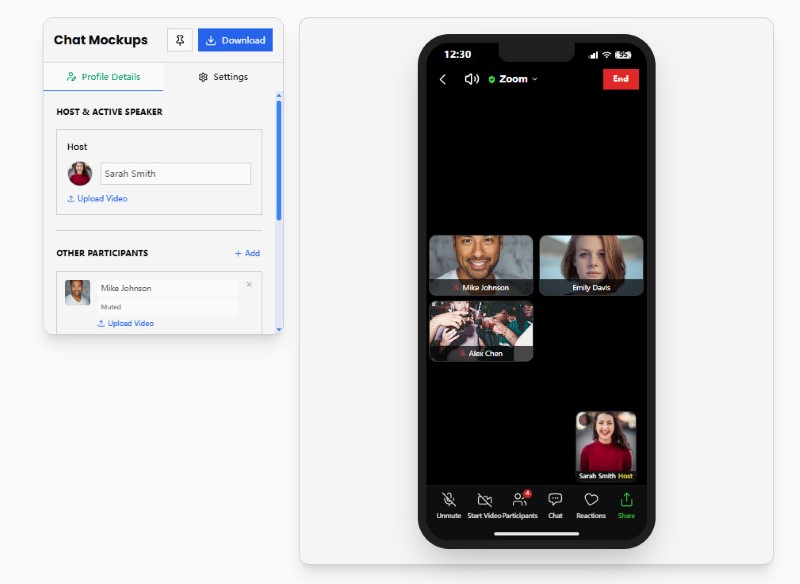
この記事では、Zoomミーティングのスクリーンショット生成ツールは紹介しません。しかし、偽のZoomミームを作成したい場合は、PradoyやKapwingなどのサイトを試してみてください。とても楽しいですよ。
第5部 Zoomはスクリーンショットを通知しますか?
簡単に言うと、Zoomは参加者がスクリーンショットを撮った際に、それがオペレーティングシステムの機能を使ったのか、サードパーティ製のツールを使ったのか、Zoomに内蔵されているスナップショット機能を使ったのかを通知しません。
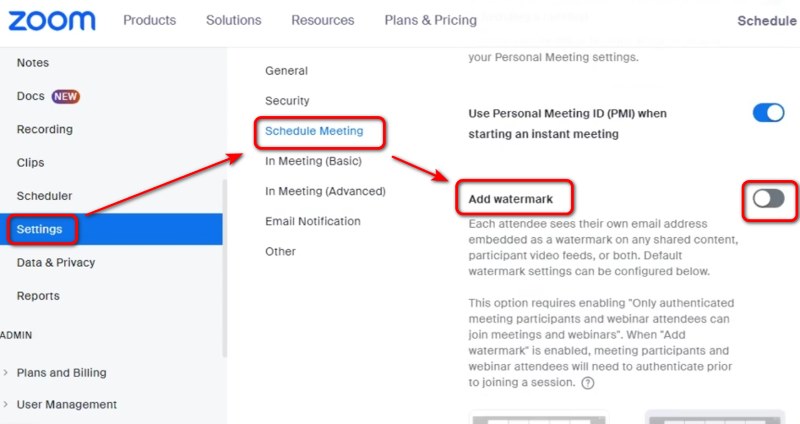
ホストまたは画面共有者として、画面に表示されている内容が知らず知らずのうちに外部に流出してしまうのではないかと心配になるかもしれません。今のところ、これを防ぐ特別な方法は、画面に透かしを入れること以外にはありません。透かしを入れるには、Zoomのウェブポータル設定を開き、「透かしを追加」をオンにしてください。
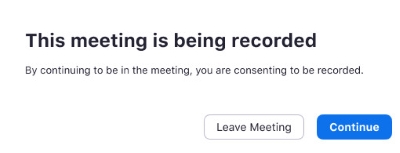
しかし、Zoomは誰かが Zoomミーティングを録画する録画中の会議に参加する場合、または主催者が録画を開始すると、同意を求める通知が表示されます。同意するか、会議から退出するかを選択できます。
Zoomでスクリーンショットを撮る Windows、Mac、iPhone、Android端末では、デバイスの機能、サードパーティ製ツール、またはZoom独自の機能を使って簡単にスクリーンショットを撮ることができます。Zoomは、標準的なスクリーンショットを撮っても、ホストや参加者に通知しません。しかし、Zoomコンテンツをキャプチャまたは共有する前に、プライバシー、著作権、および会議のルールを尊重することが重要です。プライバシーが気になる場合は、画面を共有する前に、スクリーンショットを撮られるのは好ましくないということを参加者に明確に伝えましょう。
著者について

AVAide ScreenRecorderで最高の瞬間をキャプチャします。スクリーンキャスト、カスタマイズ、共有を数秒で。