Motorolaのスマートフォンを持っている人は、米国とヨーロッパでしか人気がないため、ほとんど珍しい状況です。そのため、このブランドのデバイスを手に入れた場合、iPhoneやSamsungなどの人気ブランドの中では疎外感を感じるかもしれません。スクリーンショットを撮るだけでも、時々難しい場合があります。しかし、この記事では、あなたが正しい場所にいることを紹介します。 Motorolaでスクリーンショットを撮る方法 公式の3つの方法をご紹介します。ここでは、スクリーンショットの保存場所など、さまざまなヒントもご紹介し、パソコンを使ってスマートフォンの画面を確実にスクリーンショットする方法も解説します。それでは早速始めましょう。
パート1:Motorolaでスクリーンショットを撮る3つの主な方法
最近のデバイスはどれもスクリーンショットを撮る機能が搭載されており、画面を画像として保存したい場合に非常に便利です。もちろんMotorolaにもこの機能は搭載されており、しかも方法は1つだけでなく3つもあります。この記事では、Motorolaでスクリーンショットを撮る3つの方法について説明します。
1. 3本指でスクリーンショットを撮るジェスチャー(最速の方法)
この機能はAndroid端末に広く搭載されていないため、スクリーンショットを撮るための珍しい機能のように感じられるかもしれません。しかし、Motorola以外にも、Xiaomi、OPPO、Tecnoなど、多くのAndroidブランドで3本指スクリーンショットジェスチャーが採用されています。つまり、片手の3本の指だけでスクリーンショットを撮ることができるため、便利な機能と言えるでしょう。この方法を使い始めるには、以下の手順に従ってください。
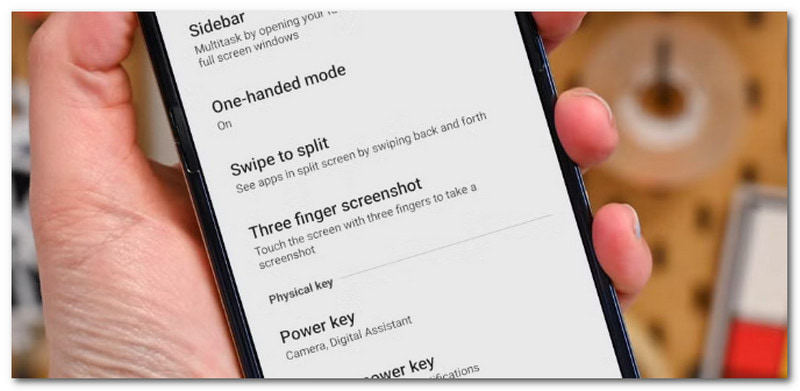
ステップ1スマートフォンの設定を開き、「ジェスチャー」メニューを選択してください。「3本指スクリーンショット」ボタンをオンにするだけでOKです。
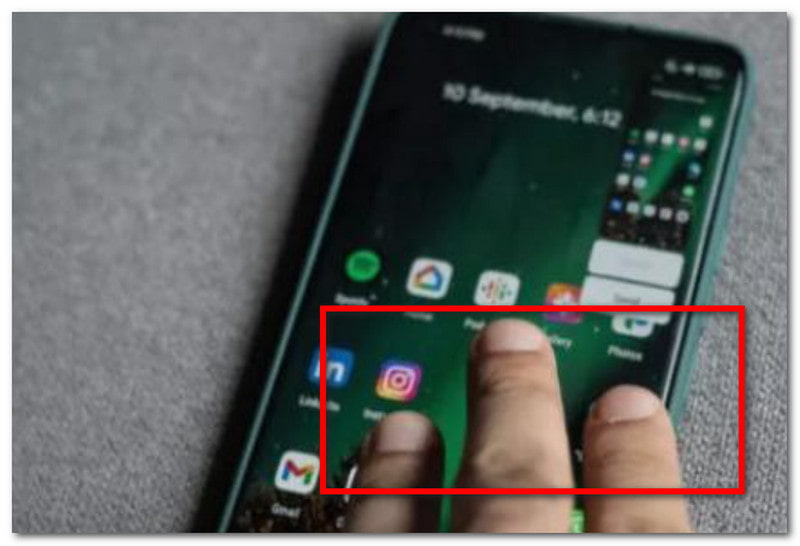
ステップ2その後は、画面に指を3本置いてしばらく押し続けます。画面が点滅したら、スクリーンショットが撮影されます。
2. ハードウェアボタンの押し方(一般的な方法)
ほとんどのMotorola製スマートフォンはAndroidシステムを搭載しているため、共通のスクリーンショット撮影方法を使用できます。3本指ジェスチャーは設定から有効にする必要がありますが、ハードウェアボタンは押すだけで画面をキャプチャできます。
ステップ1電源ボタンに指を1本置き、もう1本の指を音量ダウンボタンに置きます。
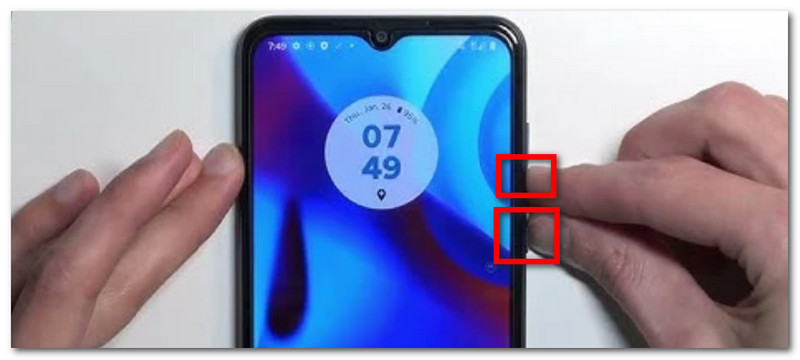
ステップ2画面が点滅するまで、ボタンを同時に長押ししてください。ステータスバーからスクリーンショットが撮影されたことを通知するメッセージが表示されます。
3. 電源メニューから(片手操作)
Moto端末でスクリーンショットを撮るもう一つの方法は、ハードウェアボタンと仮想ボタンを組み合わせたものです。電源メニューには内蔵機能へのショートカットがあり、このショートカットから簡単にキャプチャオプションにアクセスできます。ただし、これは端末のモデルによって異なるため、このオプションが表示される場合と表示されない場合があります。それでも、以下の手順で片手操作によるスクリーンショット撮影方法が利用可能かどうかを確認できます。
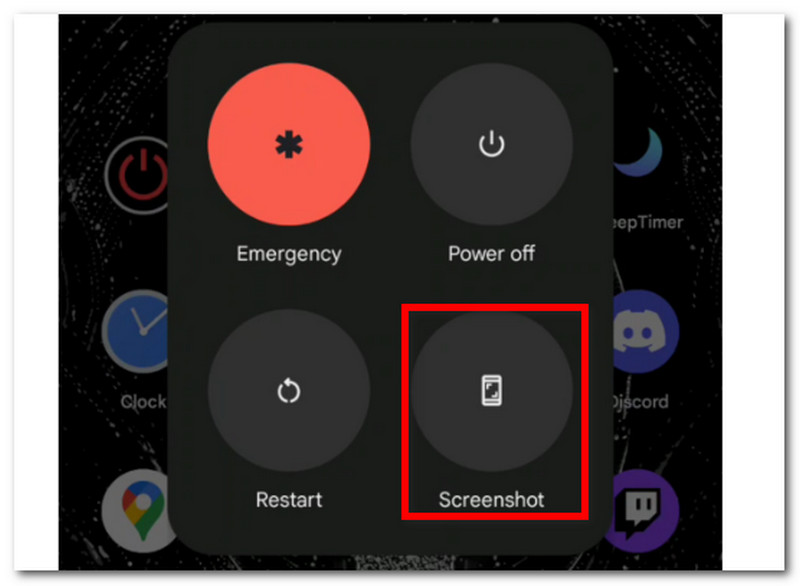
ステップ1指を置いて押す 力 デバイス側面のボタンを押してください。メニューが表示されるまで押し続けてください。
ステップ2電源オフ、再起動、緊急など、いくつかのオプションが表示されます。必ずタップしてください。 スクリーンショット このオプションを選択すると、画面が一瞬点滅し、スクリーンショットが撮影されたことを示します。
パート2. パソコンでMotorolaのスクリーンショットを撮る方法
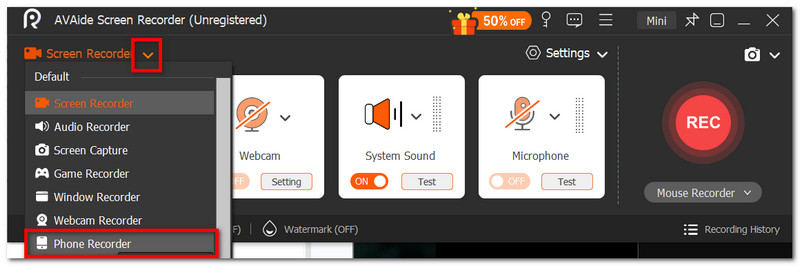
AVAideスクリーンレコーダー Motorola G6のスクリーンショットをパソコンから簡単に撮影できます。数回クリックするだけで、スマートフォンの画面をデスクトップに共有し、制限なくコンテンツをキャプチャできます。このソフトウェアは高画質の画像を提供することにこだわり、出力画像フォーマットをPNG、BMP、JPG、GIFなどに変更することも可能です。また、スクリーンキャプチャは使いやすく、キーボードをタップするだけでアクセスできるホットキーをカスタマイズすることもできます。さらに、このソフトウェアはあらゆるコンテンツのプロ仕様の画面録画機能を提供し、スクリーンショットを同時に撮影することも可能です。AVAideは、これまで必要になるとは思ってもみなかった多機能ソリューションです。ダウンロードボタンをクリックして、Windows版またはMac版を無料でダウンロードしてください。
ステップ1AVAide Screen Recorderをダウンロードしてインストールしてください。ソフトウェアをコンピュータ上で起動して使用を開始してください。

 安全なダウンロード
ステップ2を選択してください 電話レコーダー ドロップダウンメニューからオプションを選択してください。スマートフォンの画面をデスクトップに接続するには、説明書をよく読んでください。
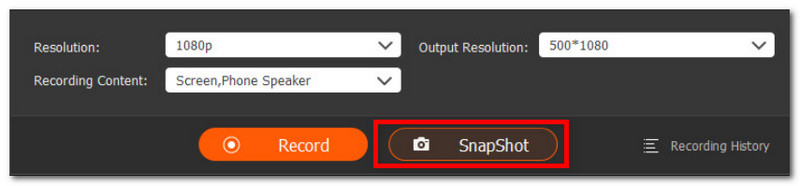
ステップ3完了したら、 スナップショット スクリーンショットを撮るには、ボタンをクリックしてください。 記録 スマートフォンの画面をパソコン経由で動画録画するためのボタンです。
パート3:スクリーンショットはどこに保存されますか?
Motorolaのスマートフォンでスクリーンショットを撮影すると、通知パネルにサムネイルプレビューが表示され、それをタップして表示できます。しかし、サムネイルが表示されない場合もあり、スクリーンショットが撮影されたかどうか分からなくなってしまうことがあります。では、Motorolaのスマートフォンでスクリーンショットを見つけるにはどうすればよいでしょうか?撮影した写真を表示するには、次の手順を実行するだけです。
スクリーンショットの探し方
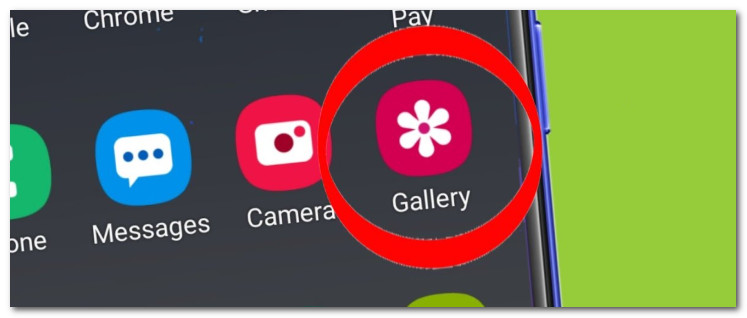
ステップ1ギャラリーアプリを開き、「スクリーンショット」メニューを探してください。リストの一番上に、最近撮影した写真が表示されます。
ステップ2必要に応じて、ダウンロードしたすべてのファイルが保存されているスマートフォンのファイルフォルダを開いてください。画像フォルダには、スクリーンショットが保存されています。
Motorola端末でスクリーンショットの保存場所を変更できますか?
残念ながら、Motorola Androidではスクリーンショットの保存場所を変更するデフォルトの方法はありません。画像は公式にはファイルフォルダまたはギャラリーアプリに保存されます。この問題を回避するには、画像を自由に整理・移動できるサードパーティ製アプリを使用する方法がありますが、根本的な解決にはならず、デフォルトの保存場所から画像にアクセスすることも可能です。
パート4.トラブルシューティング:Motorolaのスクリーンショット機能が動作しないのはなぜですか?
Motorolaのスクリーンショット機能が正常に動作しないという問題に遭遇することがあるでしょう。考えられる原因はいくつかあります。例えば、ストレージ容量不足、コンテンツがシークレットモードになっている、学校や職場の誰かがリモートで端末を管理していてスクリーンショット機能が無効になっている、などが挙げられます。最悪の場合は、スマートフォンのボタンが機能しなくなり、修理が必要になることもあります。そうでない場合は、以下の解決策を試してみてください。
- 電源ボタンと音量ダウンボタンをそれぞれ個別にテストしてください。簡単なトラブルシューティングですが、ボタンが正しく動作しているかどうかを確認できます。
- ボタンを約2秒間長押しし、画面が点滅するまで待ちます。また、スクリーンショットのプレビューが表示された場合は、確認してください。
- 特定のアプリでスクリーンショットが撮れない場合は、別のアプリやウェブサイトでスクリーンショットを撮ってみてください。セキュリティやプライバシー上の懸念から、一部のアプリケーションではこの機能がデフォルトで無効になっている場合があります。
- スマートフォンにスクリーンショットを保存するための十分なストレージ容量があることを確認してください。スマートフォンの設定でアプリとストレージのキャッシュをクリアするか、 iCloud写真ストレージ.
- また、ボタンが破損していて一時的な代替手段が必要な場合は、Googleアシスタントを使用してください。アシスタントに「スクリーンショットを撮って」と話しかけると、アシスタントが操作を実行してくれます。
結論として、あなたは Motorola製スマートフォンのスクリーンショットの撮り方 主な方法も説明しました。さらに、スクリーンショットの場所と、スマートフォンのスクリーンショット機能が動作しない場合のトラブルシューティング方法も理解できました。とはいえ、スマートフォンの画面を高画質でキャプチャしたい場合は、AVAide Screen Recorder の使用をお勧めします。 Android向けの最高のスクリーンレコーダーiPhone、ウェブカメラ、PC。
著者について

画面、オーディオ、ウェブカメラ、ゲームプレイ、オンライン会議、およびiPhone/Android画面をコンピューターに記録します。