Minecraftは、1日あたりのアクティブユーザー数が1億5100万人を超える、今日最も有名なゲームの一つです。PlayStation、PC、Xbox、スマートフォンなど、さまざまなプラットフォームでプレイできるため、ゲーム内でできることが特別なゲームだと考える人もいるでしょう。ゲーム内では、農業をしたり、友達と遊んだり、最高の宝物を探したり、自分だけの世界を作ることもできます。そして、これらの重要なハイライトを記録したいと思うでしょう。使用するプラットフォームによっては、 マインクラフトのスクリーンショット この記事で紹介した方法を使えば、とても簡単にできます。さあ、早速始めましょう。
パート1:マインクラフトでスクリーンショットを撮る方法
MinecraftにはPC版が2種類あり、ゲーム内スクリーンショットの撮り方が異なります。Java版とBedrock版を確認し、PC版Minecraftでスクリーンショットを撮る方法を学びましょう。
1. Java版 - 定番のF2メソッド
このバージョンのMinecraftは、オリジナルのコンピュータ版で、スクリーンショット機能が内蔵されています。Minecraft Java版のスクリーンショットの撮り方は以下のとおりです。
ステップ1キャプチャしたいゲーム部分を準備してから、 F2 キーボードで。
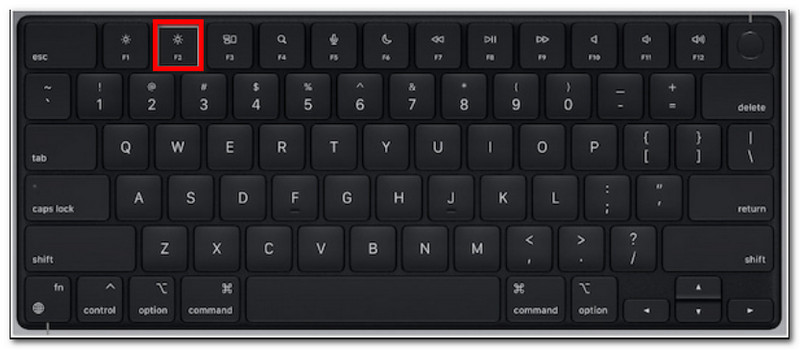
ステップ2ファイル名を含むメッセージが表示されたら、それをクリックしてスクリーンショットをプレビューしてください。
2. Bedrock Edition - 2つの異なる方法
Bedrock版では、様々なプラットフォーム間でのクロスプレイが大きな特徴となっています。つまり、PCを使用している場合でも、異なるデバイスを使用している友達とプレイできるということです。ちなみに、この版には2つの一般的なスクリーンショット撮影方法があります。
方法A(Xboxゲームバー)
ステップ1プレス ウィンドウズ + G キーボードで同時に押してください。画面が暗くなり、次にクリックします。 カメラ スクリーンショットを撮るためのアイコン。
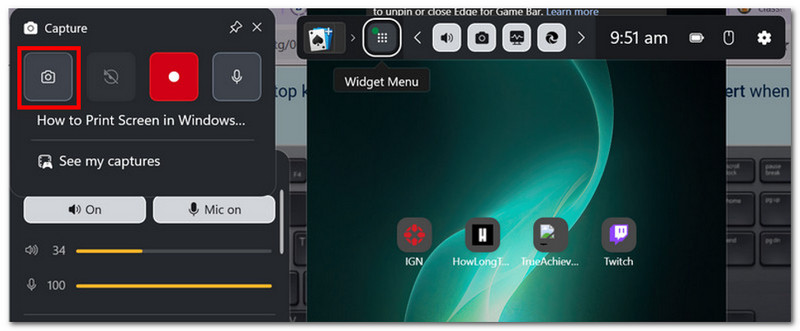
ステップ2Minecraftのスクリーンショットフォルダには、以下の場所からアクセスできます。 ビデオ >> キャプチャゲームバーが撮影した写真が展示されている場所です。
方法B(ゲーム内カメラ)
ステップ1Minecraftを開いてワールドに入ります。 マインクラフトのスクリーンショット 画面上のボタンまたはF2キーを押してキャプチャします。
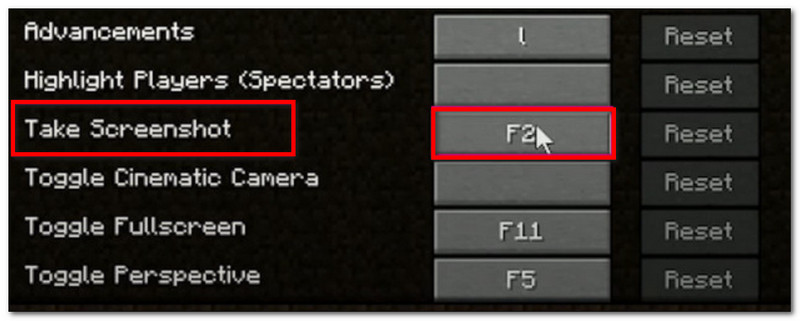
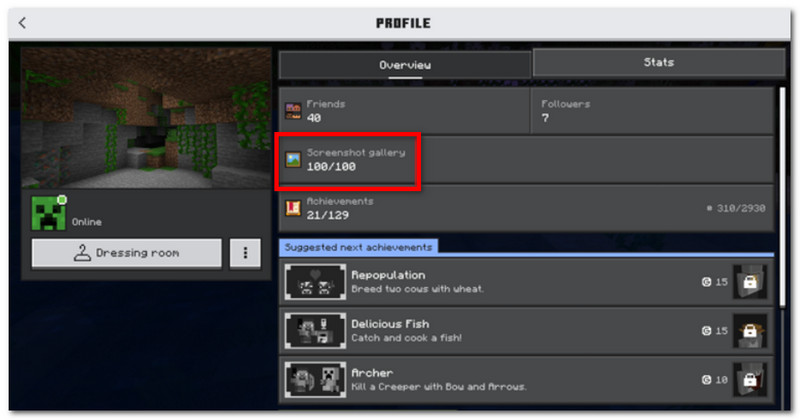
ステップ2Minecraftのスクリーンショットの場所を見つけるには、 プロフィール そして開く スクリーンショットギャラリー.
3. AVAideスクリーンレコーダー
AVAideスクリーンレコーダー AVAideは、Minecraft Java版とBedrock版で使用できる代替ツールです。スクリーンショットの撮影、ビデオやオーディオの録音など、あらゆる機能を備えたオールインワンソリューションです。スクリーンキャプチャ機能は直感的で、フルスクリーン、アクティブウィンドウ、フリーフォームなど、さまざまなモードでカスタマイズ可能なショートカットを使用してスクリーンショットを撮影できます。また、JPEG、PNG、GIFなどの一般的な画像形式でスクリーンショットをエクスポートすることも可能です。AVAideが最適な代替ツールである理由は、描画、注釈、その他の要素などのツールを使用してスクリーンショットを編集できる編集機能が内蔵されている点です。さらに、PCやスマートフォンなどのデバイスでのゲームプレイをキャプチャするのに最適な高品質のスクリーン録画機能も備えています。
ステップ1スクリーンレコーダーをダウンロードしてインストールします。それを開いて、 画面キャプチャ 左上のメニューから選択してください。お使いのコンピューターにMinecraftがインストールされていることを確認してください。

 安全なダウンロード
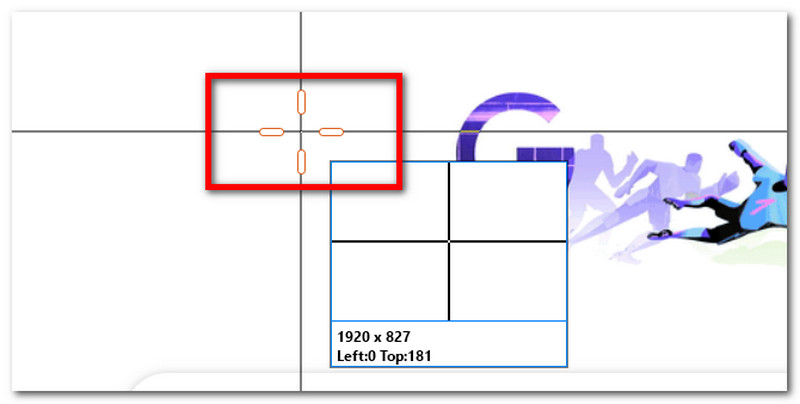
ステップ2マウスカーソルが十字線に変わったら、キャプチャしたい領域を選択します。 ESC 画面キャプチャを終了したい場合は、次の手順に従ってください。
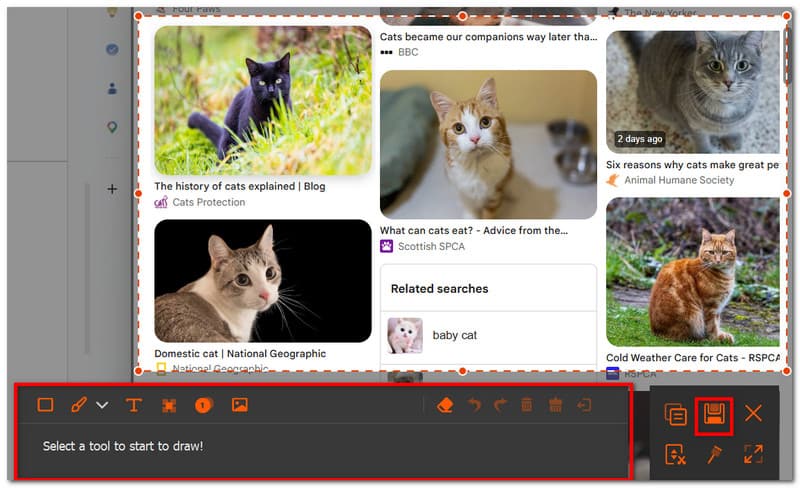
ステップ3編集オプションを使用して画像を編集します。次に、クリックします。 保存する スクリーンショットをデバイスに保存するには、Minecraftのスクリーンショットディレクトリは次のようになります。 AVAide Studio >> AVAideスクリーンレコーダー。
パート2:スクリーンショットの入手先
Minecraftはほぼすべてのプラットフォームでプレイできるため、「Minecraftのスクリーンショットはどこに保存されるのか?」という疑問が生じるでしょう。このセクションでは、特定のOSで撮影されたスクリーンショットが保存されるフォルダの正確な場所を示します。
Windows 10/11 (Java Edition)
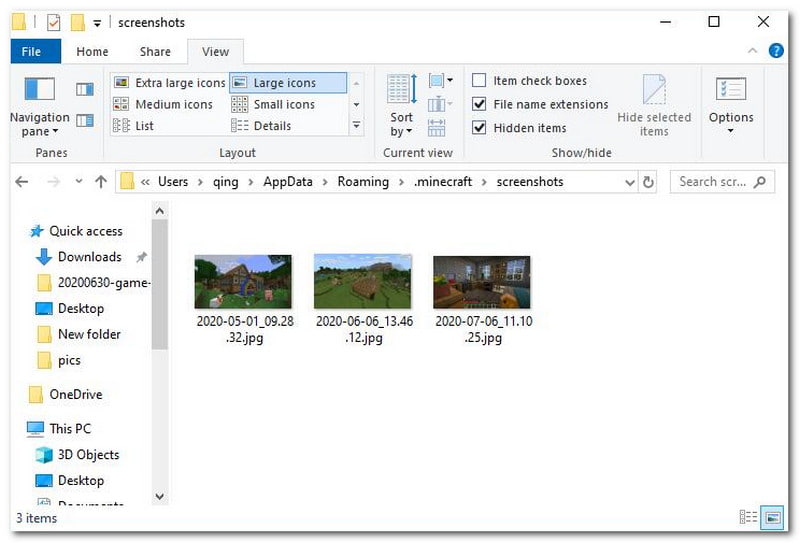
スクリーンショットを撮った後は、チャットからアクセスできます。見逃した場合は、検索バーに移動して入力してください。 %アプリデータ%、次に .minecraftフォルダ >> スクリーンショット.
Windows 10/11 (Bedrock Edition)
Windows版Minecraft Bedrock Editionのスクリーンショットギャラリーは、ゲーム内にあり、 プロフィール >> スクリーンショットギャラリー.
マック
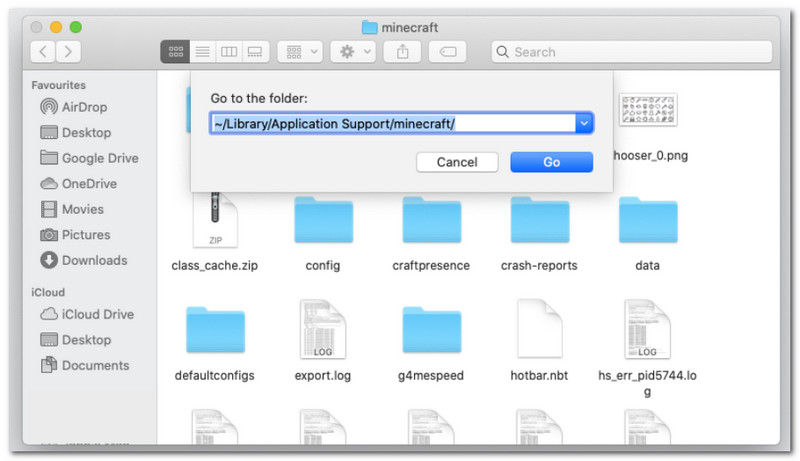
マインクラフトをプレイして学ぶ Macでスクリーンショットを撮る方法見つけることができる ~/Library/ApplicationSupport/minecraft/screenshots.
Linux
Minecraftのホームディレクトリからゲームのスクリーンショットにアクセスできます。 ~/.minecraft/screenshots.
Chromebook
Chromebook の Minecraft スクリーンショットフォルダは、F2 方式でスクリーンショットを撮影した場合、他の OS と同じです。 スクリーンショットギャラリー ゲームの中で。
パート3:コンソール版とモバイル版のスクリーンショット
Windows 11やその他のOSでMinecraftのスクリーンショットを撮る方法を学んだら、小型デバイスやゲーム機でもスクリーンショットを撮ることができます。ゲームをプレイしているプラットフォームに応じた手順に従ってください。
ニンテンドースイッチ
ステップ1左のJoy-Conを使って、 カメラ ゲームのスクリーンショットを撮るボタン。
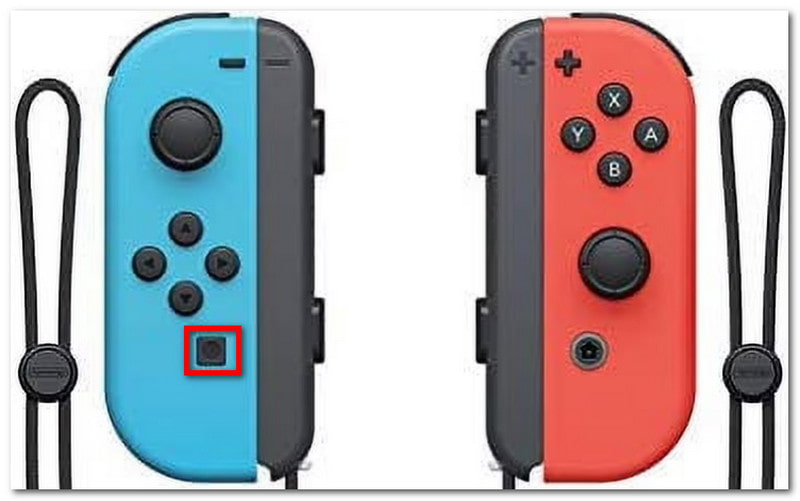
ステップ2スクリーンショットを表示するには、ゲームを終了して アルバム Minecraftのスクリーンショットが保存される場所。
プレイステーション
ステップ1PS4 DualShock 4を使ってMinecraftのスクリーンショットを撮る方法は? シェア ボタンを約1秒間押します。PS5 DualSendをお持ちの場合は、 作成 ボタン。
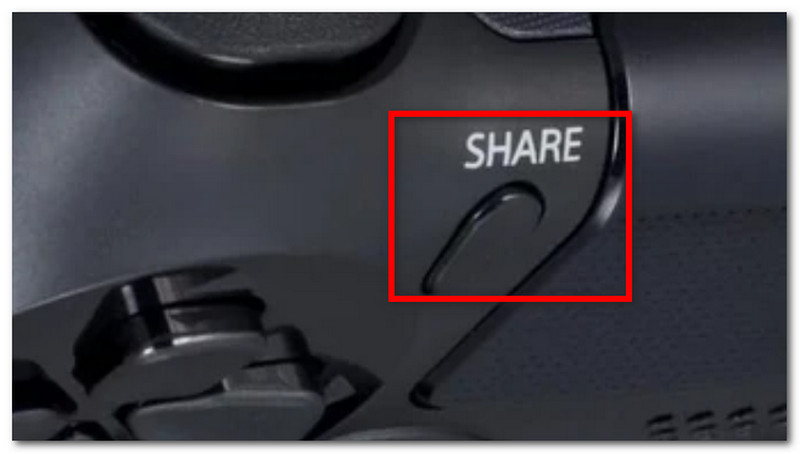
ステップ2スクリーンショットを表示するには、次の場所に移動してください。 キャプチャ ギャラリー アプリまたは プレイステーション スマートフォンで閲覧できるアプリ。
Xbox
ステップ1標準の Xbox コントローラーの場合は、 Xbox 中央部分のボタンを押して Y キャプチャするには、Xbox Series の場合は、 シェア ボタンを一度押すとスクリーンショットが撮れます。
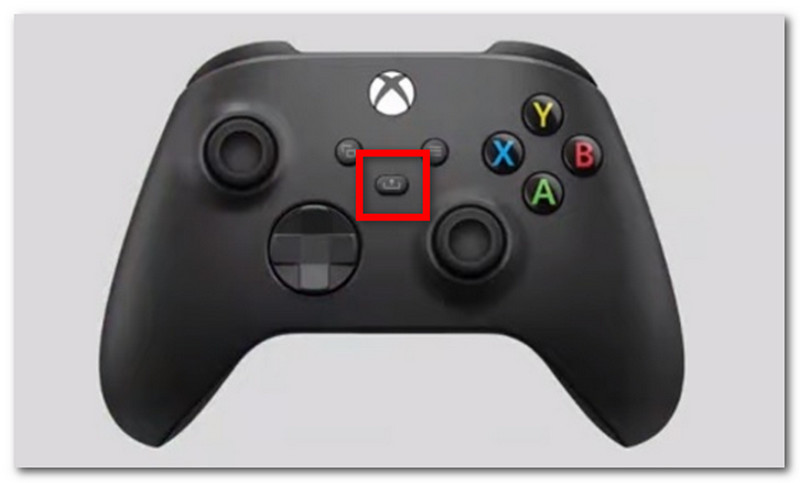
ステップ2Minecraftのスクリーンショットへのアクセス方法がわからない場合は、 Xbox ボタンを押して 撮影して共有する タブ。
iOS
ステップ1を押します 力 と 音量を上げる iPhoneのスクリーンショットを撮るボタン。
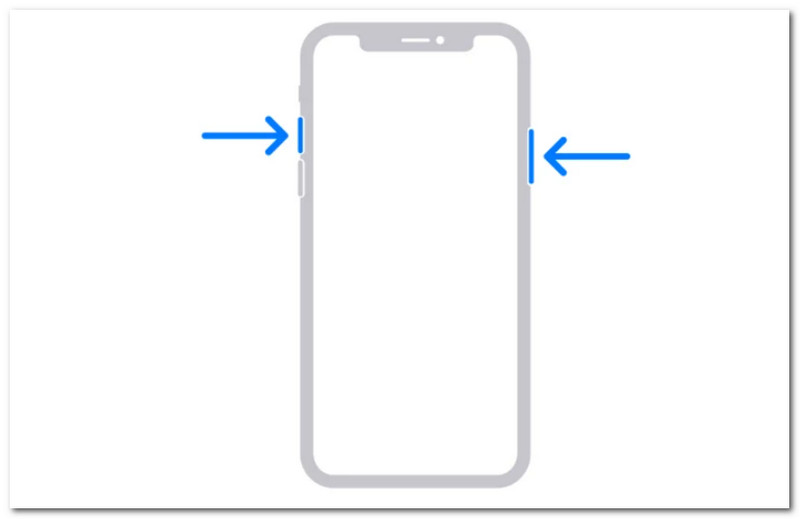
ステップ2iPhoneでMinecraftのスクリーンショットを見つける方法は?写真アプリからスクリーンショットを見つけることができます。
アンドロイド
ステップ1ゲームと占領したいエリアを準備します。 力 と 音量を下げる スマートフォンのボタン。
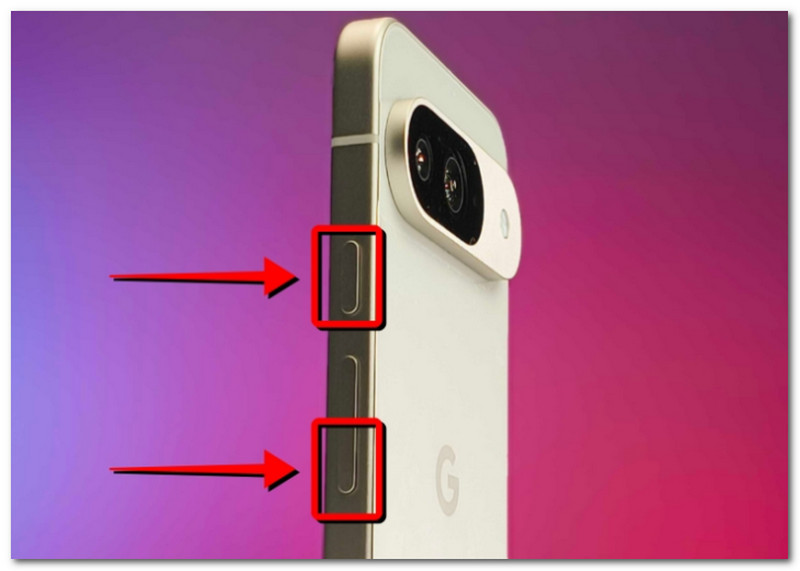
ステップ2画面が点滅したらスクリーンショットの撮影完了です。ギャラリーアプリで確認できます。
パート4:スクリーンショットコレクションの管理
スクリーンショットを友達と共有する以外にも、Minecraftでのワールド進行状況を記録する機会として活用できます。しかし、無作為にスクリーンショットを撮ると、保存されたスクリーンショットがごちゃごちゃして分かりにくくなってしまいます。どこから始めればいいか分からない場合は、以下の基本的なルールに従ってスクリーンショットコレクションを管理してみてください。
1. ファイル名の理解
MinecraftでF2メソッドを使用する場合、スクリーンショットを撮影した日付を特定するのに役立つため、ファイル名を理解することが重要です。デフォルトのファイル名は次のようになります。 YYYY-MM-DD_HH.MM.SS.pngこれは、スクリーンショットが撮影された年、月、日、時、分、秒を表します。
2. サブフォルダーを作成する
スクリーンショットを1つのフォルダにまとめて保存すると、特定のスクリーンショットを探す際に時間がかかります。ワールド構築、プロジェクト、機能などのカテゴリごとにサブフォルダを作成するようにしてください。
3. ファイルの名前を変更する
Minecraftのスクリーンショットのファイル名を変更することで、日付だけでなくゲームの進行状況も分かりやすく識別できます。Minecraftでのあなたの成長を象徴するようなファイル名を選びましょう。
4. ショットのバックアップを取る
デバイスのクラッシュ時にスクリーンショットが失われるのを防ぐため、OneDriveなどのクラウドサービスや外付けハードドライブにバックアップを取っておくようにしてください。
5. スクリーンショットを共有する
整理が終わったら、様々なプラットフォームでMinecraftのゲームの進捗状況を披露しましょう。視聴者は、あなたのゲームの上達ぶりを記録できる整理されたスクリーンショットを高く評価してくれるでしょう。
Minecraftは誰もが楽しめる人気のゲームであり、スクリーンショットの撮り方を学ぶことで、ゲームプレイのハイライトを保存することができます。この記事では、美しいゲーム世界をキャプチャするさまざまな方法を紹介するだけでなく、 Minecraftのスクリーンショットを見る方法 さまざまなプラットフォームで。代替案として、この記事では、コンピューター、電話、ゲーム機でスクリーンショットを撮るのに柔軟に対応できる AVAide Screen Recorder の使用を推奨しています。 最高のゲームレコーダー WindowsとMacで無料でダウンロードして、無制限のゲーム録画を始めましょう。
著者について

画面、オーディオ、ウェブカメラ、ゲームプレイ、オンライン会議、およびiPhone/Android画面をコンピューターに記録します。